VR headset sign-in
This video shows how trainees can sign in to the Simulator Training app using a personal QR code, and how trainers and trainees can access and distribute those codes.
Introduction
Trainees can now independently sign in to Simulator Training directly from the headset to save essential data (the training date/time, trainer name, trainee name, and exercise type) to VR web app (vr.evidence.com for state and local agencies or vr.ent.evidence.com for enterprise organizations).
- No trainer or tablet required
- No Wi-Fi or internet required during training
- Axon Evidence accounts are supported
Supported modules
- Simulator Training: TASER 10 VR Validation Courses
- Simulator Training: Range Skills
- Simulator Training: vRBT
Trainer setup
Trainers must be part of the vr-trainers group in Axon Evidence before they can complete the steps below. For more information on adding users to this group, see Accessing VR systems through Axon Evidence.
Consider completing the trainer setup at least one day before a scheduled training session to allow time for account setup and QR code distribution.
Before trainees can sign in using the headset, trainers must complete setup tasks in VR web app. See VR web app introduction to learn more about this platform.
Create or verify trainee accounts
- Sign in to VR web app in a browser using a computer, tablet, or phone (vr.evidence.com for state and local agencies or vr.ent.evidence.com for enterprise organizations).
- Select the Users icon in the left pane.
- Select Axon Evidence users.
- If a trainee isn't listed, create an account. For more information, see Accessing VR systems through Axon Evidence
Distribute QR codes to trainees
QR codes are unique to each trainee. Make sure you send the QR code to the correct individual. If printing QR codes, distribute them securely.
Choose a method based on whether your agency uses Axon Academy.
If using Axon Academy
Trainees automatically receive a QR code link through email after completing assigned Academy pre-work.
If not using Axon Academy
Option A: Send a QR code link. Email the link (vr.evidence.com for state and local agencies or vr.ent.evidence.com for enterprise organizations) to trainees. When they sign in, their personal QR code will display.
Option B: Download a PDF of QR codes:
- Sign in to VR web app in a browser using a computer, tablet, or phone (vr.evidence.com for state and local agencies or vr.ent.evidence.com for enterprise organizations).
- Select the Users icon in the left pane.
- Select Download QR Codes.
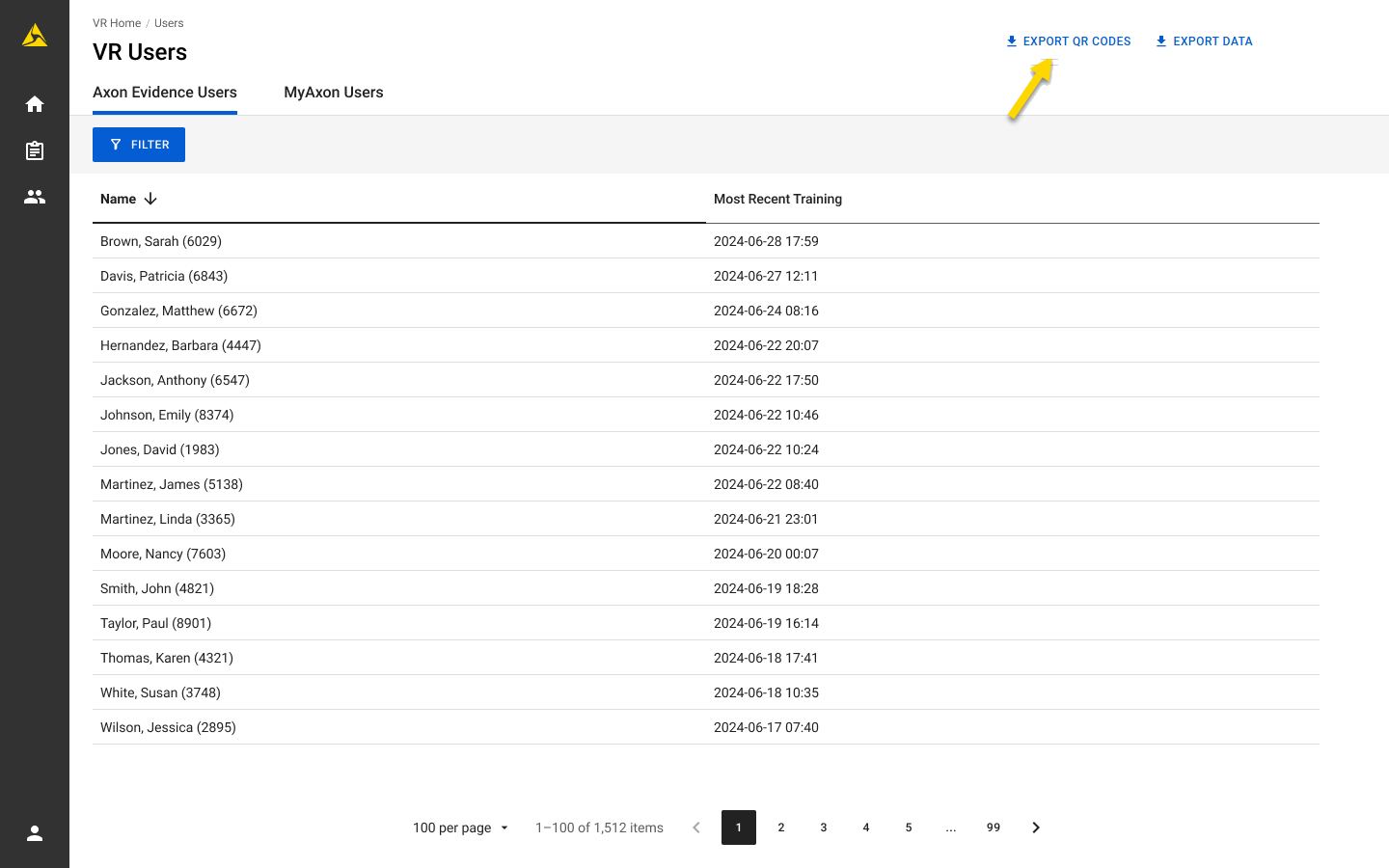
- A PDF of the QR codes will download automatically. Email or print and securely distribute the QR codes.
You can download a maximum of 300 QR codes.
To download a QR code for one trainee
- Sign in to VR web app in a browser using a computer, tablet, or phone (vr.evidence.com for state and local agencies or vr.ent.evidence.com for enterprise organizations).
- Select the Users icon in the left pane.
- Select the trainee's profile.
- Select Show QR Code and download it.
- Email or print and securely distribute the QR code.
Trainee setup
Before training, each trainee must retrieve their personal QR code:
- If you received a code by email, save or print the attachment.
- If you received a link:
- Open the link in a browser.
- Sign in to VR web app in a browser using a computer, tablet, or phone (vr.evidence.com for state and local agencies or vr.ent.evidence.com for enterprise organizations).
- Download or screenshot your QR code.
Headset sign-in methods
- Sign In Using QR Code: Scan your personal QR code with the headset
- Pick Name from List: Use if your name is in a training group paired with the trainer's tablet
Simulator Training: Range Skills and vRBT
- Open Simulator Training on the headset.
- Select Sign In / Pair in the menu bar.
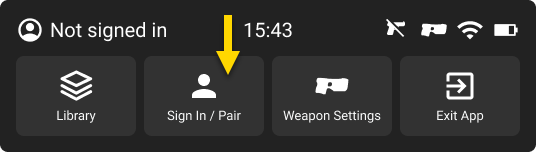
- Choose a sign-in method from the section above.
- Complete the exercise.
- If the headset is offline, records are saved locally on the device. The headset stores multiple records and won't overwrite them before upload.
- Sign out.
- Hand headset to trainer for upload.
- If the headset is already connected to the internet, essential data uploads automatically to VR web app.
If it was offline during training, connect the headset to the internet; essential data will upload as soon as the headset is online. - Uploaded records are automatically deleted from the headset.
- Trainer checks upload status in the Upload History page in VR web app.
Simulator Training: TASER 10 VR Validation Courses
There are two sign-in workflows available for TASER 10 VR Validation Courses:
- Headset sign-in (recommended): Trainees scan their personal QR code and results are uploaded to their account in VR web app.
- Code-based verification (legacy): Trainees receive a 4-digit completion code to provide to the trainer.
Headset sign-in workflow
- Open Simulator Training on the VR headset.
- Select Sign In / Pair in the menu bar.
- Select Sign In Using QR Code.
- Scan QR code.
- Complete the course.
- If passed, the result displays Complete and is uploaded as a completed record.
- If failed, the result displays Incomplete.
- Sign out.
- Hand headset to trainer for upload.
- If the headset is already connected to the internet, essential data uploads automatically to VR web app.
If it was offline during training, connect the headset to the internet; essential data will upload as soon as the headset is online. - Uploaded records are then deleted from the headset.
- Trainer confirms uploads in the Upload History page in VR web app.
Code-based verification workflow (legacy)
- Trainer downloads and prints QR handouts from the Instructional Content page.
- Trainer distributes a unique QR code to each trainee.
- Trainee opens a TASER 10 VR Validation Course in the headset.
- Trainee scans the printed QR code.
- Trainee completes the course.
- If the trainee passes all exercises, the headset displays a 4-digit completion code.
- Trainee provides the code to the trainer.
- Trainer logs the result at https://my.axon.com/validate:
- Selects Scan QR code.
- Scans the printed QR code.
- Enters the 4-digit code.
- Selects Submit.
The QR Codes PDF includes 150 unique codes. While reusable, it's best to print new codes for each training session. If a trainee doesn't pass, they can reuse the same QR code until a completion code is generated.
After-exercise options
| Module | Option | Description |
|---|---|---|
| TASER 10 VR Validation | Sign out | Logs you out and returns to the Simulator Training Library |
| Choose New Exercise | Keeps you signed in and returns to the Simulator Training Library, where you can start a different exercise | |
| Try Again | Restarts the Validation Course with you still signed in (this method only displays if you failed the course) | |
| Range Skills vRBT |
Sign Out | Logs you out and returns to the Simulator Training Library |
FAQ
Why am I only seeing my own QR code when I sign in to VR web app?
If you only see your personal QR code, you are signed in under a trainee account.
If you are a trainer, you must be added to the vr-trainers group in Axon Evidence in order to distribute QR codes to trainees. For more information on adding users to this group, see Accessing VR systems through Axon Evidence.


