VR web app
This video explains how to manage After-Action Reports in VR web app. For more information, see Manage After-Action Reports in VR web app.
VR web app serves as a central platform for managing and accessing a variety of training and device management features. Currently, it includes the After-Action Report (AAR) Viewer, where trainers can review reports uploaded from tablet-facilitated sessions.
After each training session, essential data is automatically uploaded, including key information such as training date and time, trainer and trainee names, and exercise type. Trainers can then choose to enhance the report by uploading additional AAR data, capturing additional metrics and performance insights for a more comprehensive overview. In addition to reviewing AARs, VR web app enables users to export reports to CSV files, enabling agencies to track and analyze the training history of all trainees.
While the AAR viewer is the primary feature available now, VR web app will evolve over time to support additional features, such as device management, AARs from non-tablet-facilitated sessions, content customization, and more.
Sign in to VR web app
Users can access VR web app by performing one of the following:
- Opening the direct URL: vr.evidence.com for state and local agencies or vr.ent.evidence.com for enterprise organizations
- Selecting the VR web app tile on the Axon Evidence dashboard
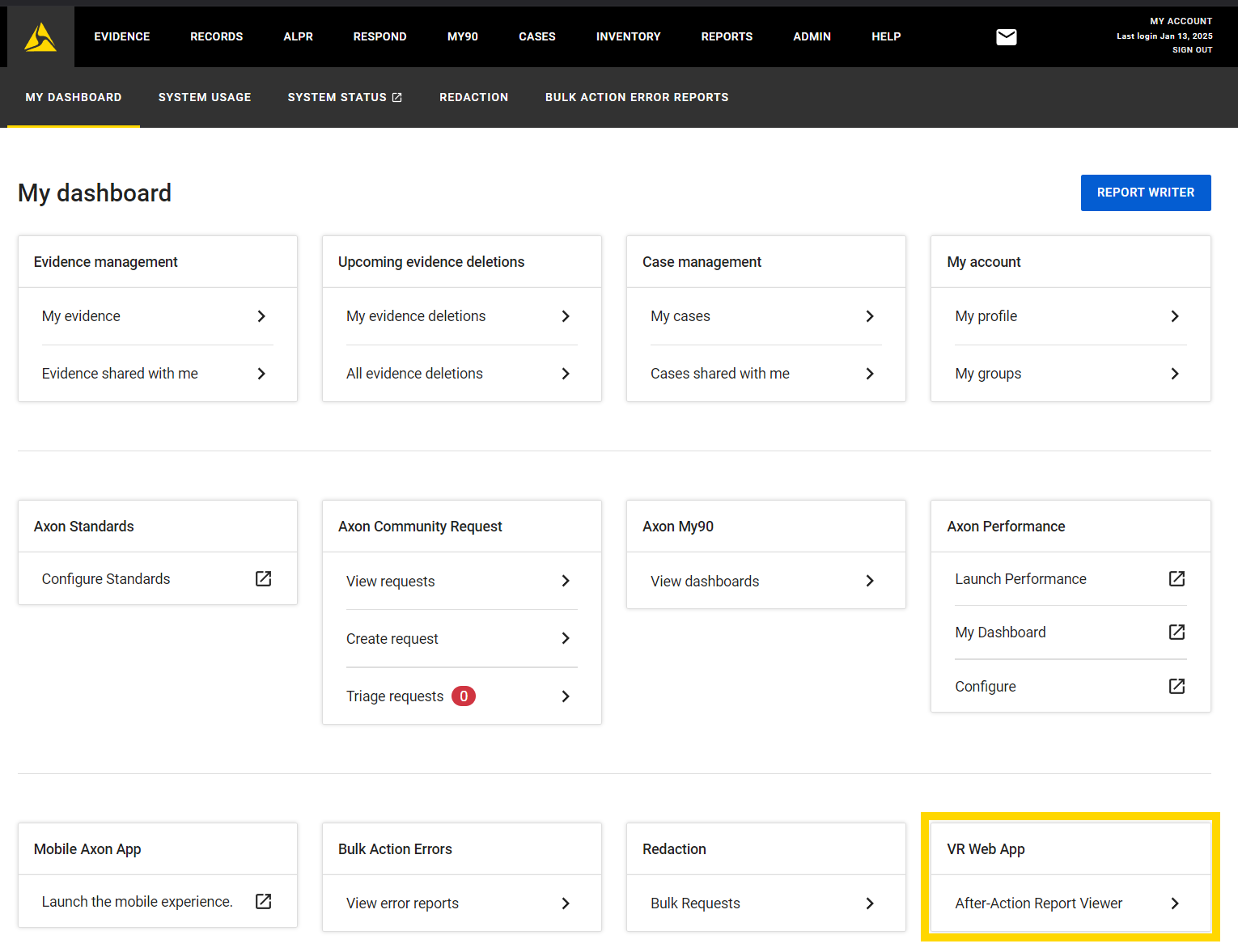
To open VR web app, go to vr.evidence.com for state and local agencies or vr.ent.evidence.com for enterprise organizations.
After opening VR web app, users can sign in using their Axon Evidence credentials. For more information, see Accessing VR systems through Axon Evidence.
Navigate VR web app
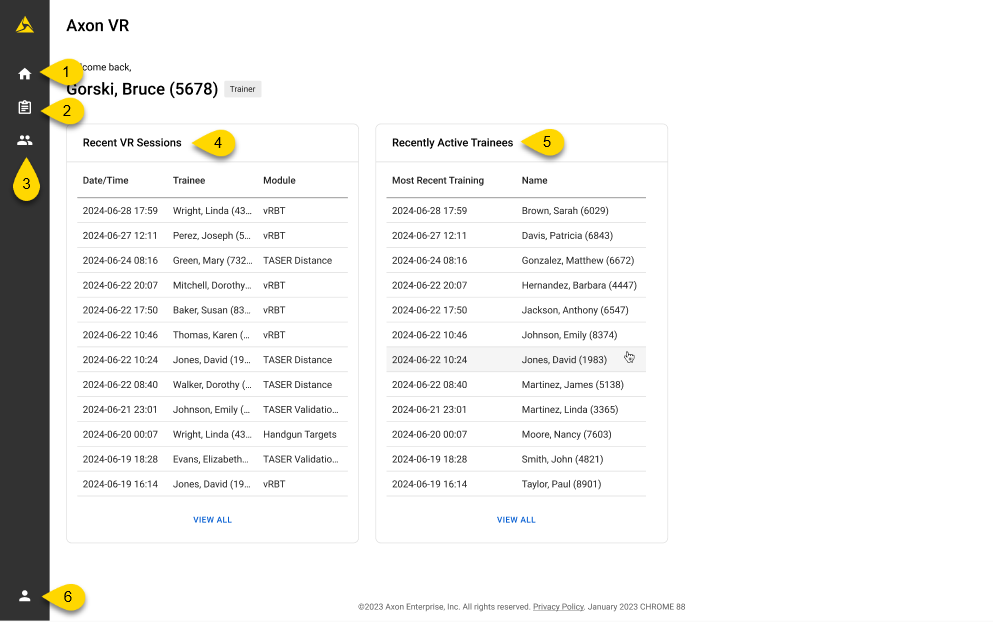
After signing in to VR web app, you'll be directed to the home page, where you can:
- Navigate to the home page
- View uploaded AARs
- View a list of VR users
- View recently uploaded AARs
- View trainees who have recently uploaded an AAR
- Sign out of VR web app
AAR management
This video explains how to manage After-Action Reports in VR web app.
Trainers can choose to upload the After-Action Reports (AARs) from tablet-facilitated sessions in Simulator Training and Simulator Training: Virtual Reality-Based Training to VR web app. It's important to note that AAR uploads are only available for trainees with registered accounts. Guest accounts do not have this functionality.
Upload AARs from tablet
- Analyze the AAR on the tablet.
- Select Go to Evaluation.
- Review the evaluation.
- Select Continue.
- Perform one of the following options:
- Upload AAR: Upload all data displayed in the AAR to VR web app.
- Do Not Upload AAR: The AAR data will not be uploaded. However, essential data (the training date/time, trainer name, trainee name, and exercise type) will still be uploaded.
View list of AARs
To view the AARs uploaded from your tablet, users must sign in to VR web app using the sign-in credentials they used on the tablet.
To view a list of uploaded AARs:
- Open VR web app.
- Select the Reports icon.
- To view the details of a specific AAR, select an entry in the Date/Time column.
Sort and filter AARs
By default, AARs are displayed in chronological order by most recent training completed. You can filter the list by training date and time, trainee, trainer, and completed module. To do this:
- View the list of AARs as described above.
- Select Add Filter.
- Select a filter type from the Column drop-down menu.
- Apply the filter you want to use.
- Select Add Filter. The list of filtered AARs displays.
Export AARs
To export a list of AARs to a CSV:
- Open VR web app.
- Select the Reports icon.
- Apply filters as needed (see the section above for more information).
- Select Export. The CSV file downloads to your device.
Navigate an AAR
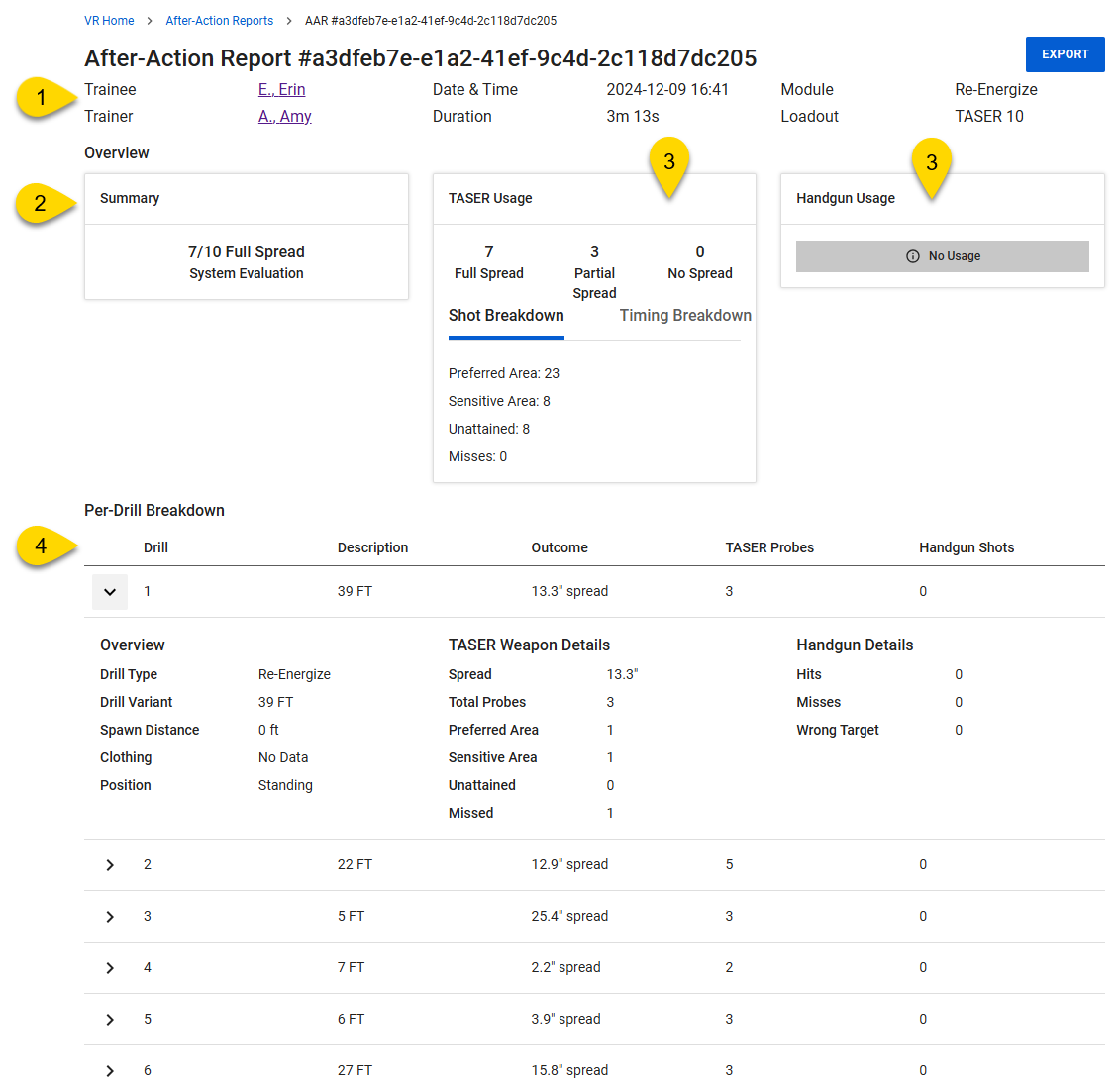
When viewing a list of AARs, you can click to view the details, where you can review:
- Essential training information.
- Trainee: The name of the trainee.
- Trainer: The name of the trainer.
- Date & Time: The date and time the training was completed.
- Duration: The length of the training session.
- Module: The name of the module completed.
- Loadout: The weapon used during the training.
- A high-level summary of how the trainee performed.
- System Evaluation: The system provides an objective assessment of the trainee's performance based on set criteria, detailing the outcomes of the training, such as the number of targets hit.
- Trainer Evaluation: The trainer determines whether a trainee passed or failed based on their performance.
- A breakdown of weapon usage to assess the accuracy and effectiveness of the weapon used.
- TASER Usage: Breakdown of probes deployed and timing.
- Handgun Usage: Breakdown of shots fired and timing.Note
Reports display "No Usage" under TASER Usage or Handgun Usage if those weapons are incompatible with the completed module.
- A summary of each drill completed (select the arrow to view the details of each drill).
View list of VR users
- Open VR web app.
- Select the Users icon.
- To view a specific user's training history, select their name in the Trainee or Trainer column.
Filter VR users
By default, a list of users with Axon Evidence accounts displays in alphabetical order by last name when viewing a list of users. You can filter by a user's last name or the date range of their most recent training completion. To do this:
- View the list of VR users as described above.
- Select Add Filter.
- Select a filter type from the Column drop-down menu.
- Apply the filter you want to use.
- Select Add Filter. The list of filtered users displays.
Export users
To export a list of users to a CSV:
- Open VR web app.
- Select the Users icon.
- Apply filters as needed (see the section above for more information).
- Select Export. The CSV file downloads to your device.
FAQ
Can Axon access any department information on VR web app?
Axon employees do not have routine access to customer training data on VR web app. Limited access may be granted to a small number of authorized backend engineers for specific purposes such as system maintenance and troubleshooting, and only when required. Customer data otherwise remain restricted and are not accessible to Axon personnel.
Is there any retention information related to VR web app?
Training data stored in VR web app is retained on an ongoing basis. Data remains available unless an agency submits for data deletion.
Troubleshooting
Sign-in
Forgot password
Users have up to four attempts to successfully sign in. If you forgot your password, you can reset it by going to the VR web app sign-in page, selecting a sign-in method, and then choosing "Forgot Password".
Request an account
If you don't already have an account, select "No account?" on the sign-in page and follow the on-screen prompts. For more information on sign-in methods, see Set up Axon Evidence accounts for tablet.
After-Action Report (AAR)
Only essential data displays in AAR
If you're seeing some information in an AAR, it means the trainer did not upload the AAR data. Instead, only essential data (training date, trainer and trainee names, and exercise type ) was uploaded.
"Reports with ID not found" message
This message displays when the report cannot be found due to missing or incomplete data. Try closing and re-opening the report.
"After-Action Report Upload Failed" message on tablet
This message displays when an AAR upload to VR web app is unsuccessful. Select Try Again to reattempt the upload. If the issue persists, ensure your tablet is connected to the internet.
Guest account AARs don't display in VR web app
AAR uploads are only available for trainees with registered accounts. Guest accounts do not have this functionality.
Network connectivity
No internet connection detected on tablet
To check your internet connection on your tablet, go to Settings > Wi-Fi.
If you are still experiencing network connectivity issues, try the following:
- Check to ensure other devices can connect to the internet on the same wireless network.
- Consult with your IT department or help desk to troubleshoot your local network.


