Use the map in the fususOPS mobile app
Use the map in the fususOPS mobile app to view device locations, respond to alerts, access livestreams (if available), and work with tools to support real-time awareness. This article outlines key actions available from the map view. To learn more about layout and navigation, see fususOPS mobile app overview.
Viewing connected devices
Connected Axon Body, Fleet, and Air devices appear on the map when the Axon Devices and Alerts layer is turned on.
To turn on Axon Devices:
- On the map, select Axon Devices.
- Expand the Recording, Buffering, or Inactive section.
- Select a device to view its status and location on the map.
Viewing a livestream
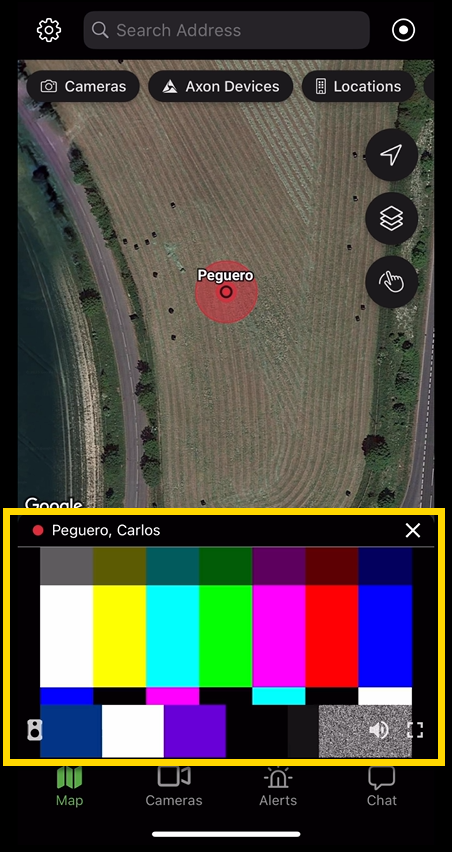
If your agency has licensed livestream access for supported devices and you have the appropriate permissions, you can View a livestream in the fususOPS mobile app . To open a livestream, select a device on the map that is actively recording. The video stream opens at the bottom of the screen.
Using location and layer tools
Use the map tools to customize the map view or center the map on your current position.
Centering the map
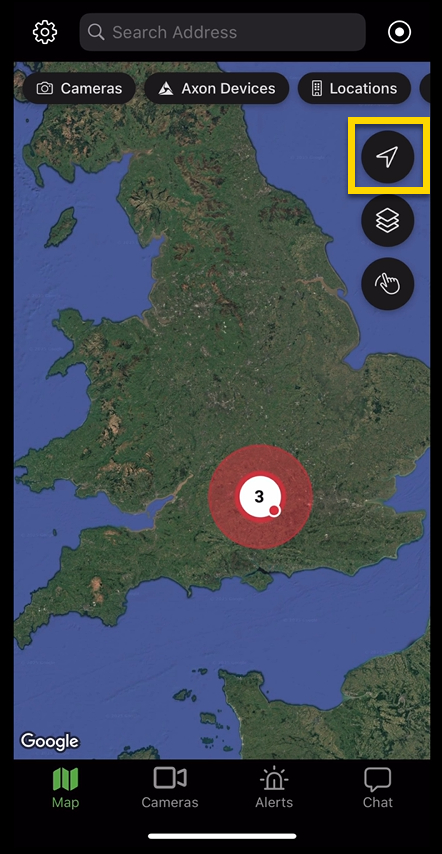
Select Locate to reposition the map to your current GPS location.
Working with cameras
Fusus customers have access to their agency's configured fixed cameras in the mobile app.
To view cameras:
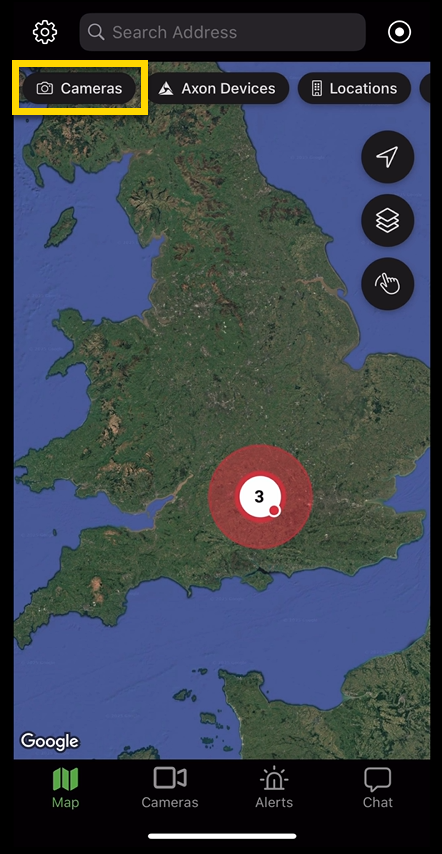
- Select the Cameras button at the top of the screen. This toggles the camera layer on the map.
- To browse available cameras, select the Cameras button at the bottom of the screen. Then scroll through the list or use the search bar to find a specific camera.
- Select a camera to view its details or stream.
Using chat
To use chat:
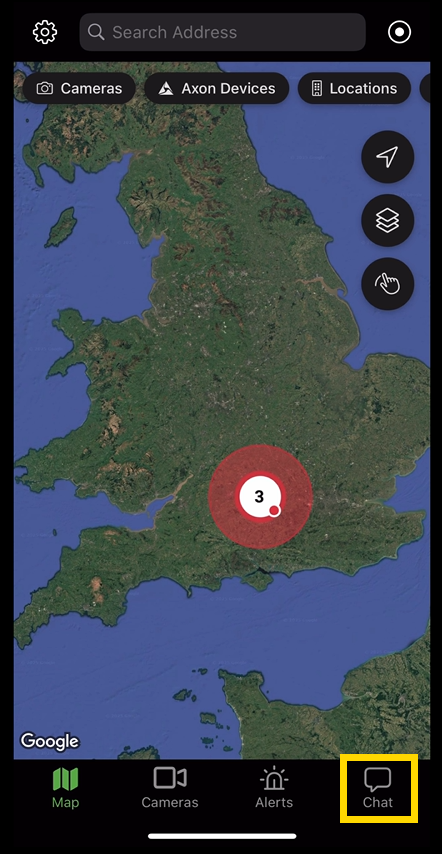
- Select Chat.
- Do one of the following:
- Use the Search bar to look up users or chat channels.
- Select an existing chat from the list to open it.
- Select the plus (+) to start a new direct message or group chat.


