fususOPS mobile app overview
The fususOPS mobile app provides a mobile map experience for viewing the real-time location of connected Axon devices. Depending on your organization’s configuration, you may also be able to view alerts and access livestreams from supported devices.
The Axon Fusus app is available for download on iOS and Android devices. To learn more, see Set up the fususOPS mobile app.
Note: Access to the mobile app requires an Axon Evidence account. These accounts are provisioned automatically in Axon Managed environments. If your organization uses a legacy Fusus setup, user access may be managed separately.
Available features
Features available in the fususOPS mobile app depend on your organization's enabled hardware and Axon Evidence license.
All users can:
- View connected Axon Body, Fleet, and Air devices on the map
- Search for known locations
- View online users
- Switch between map layers using the Layers button
- Access Chat and Alerts
If your agency has licensed supported devices (such as Axon Body 4), you may also be able to:
- View livestreams from supported devices
- Start livestreams directly from the app (if permitted)
- Receive push notifications, including Watch Me alerts
To learn more about these features, see Use the map in the fususOPS mobile app and View a livestream in the fususOPS mobile app .
Note: Livestream access is licensed per Axon device (e.g., BWC), not through the Fusus platform.
Navigation overview
After you sign in, the fususOPS mobile app opens to a live map showing the locations of connected Axon Body cameras, Fleet vehicles, and Axon Air units. The map is designed to provide immediate awareness of nearby activity.
| Note | You must have location and device access permissions assigned by your administrator to see devices on the map. For help, contact your organization administrator. |
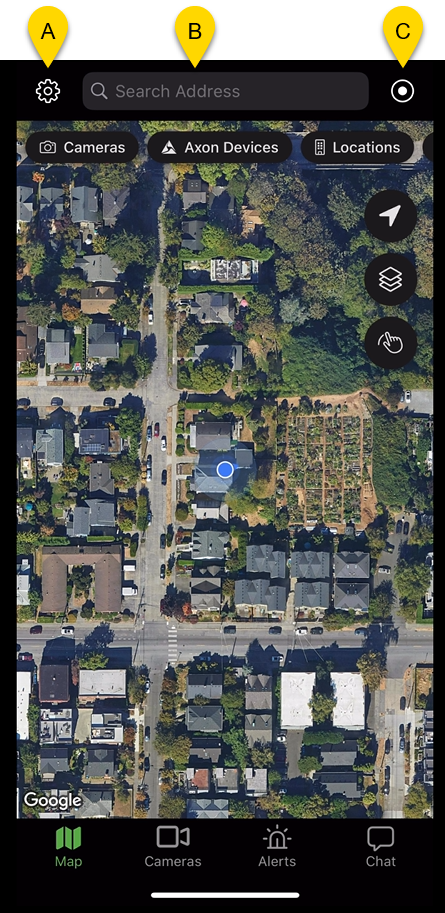
The home screen of the fususOPS mobile app is the live map.
- Settings: Opens the app settings menu where you can access personal preferences, including notification sound settings, map layer defaults, and managing location access.
- Search: Use the search bar to enter a location name or address. Results update as you enter text. This bar does not support searching for devices or users.
- Profile: Opens the account menu, where you can view your account or sign out of the app.
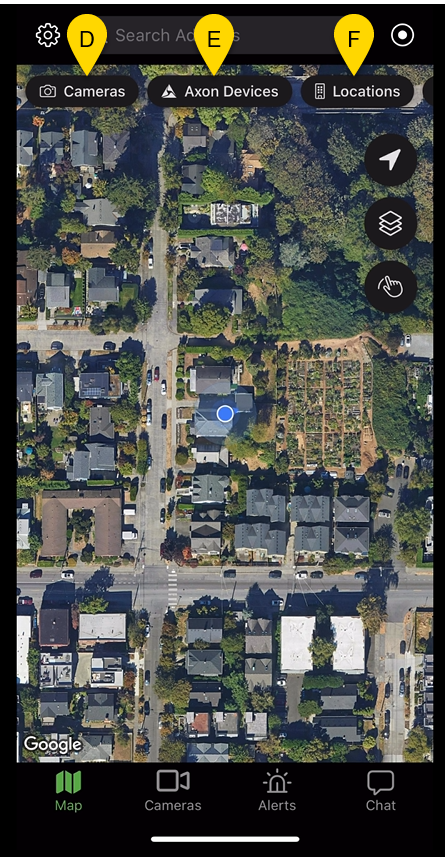
- Cameras: Displays fixed cameras on the map (if configured by your organization).
- Axon Devices: Displays a list of Axon Body, Fleet, and Air devices available to your organization.
- Locations: Displays location markers and enables access to floor plans (if configured by your organization).
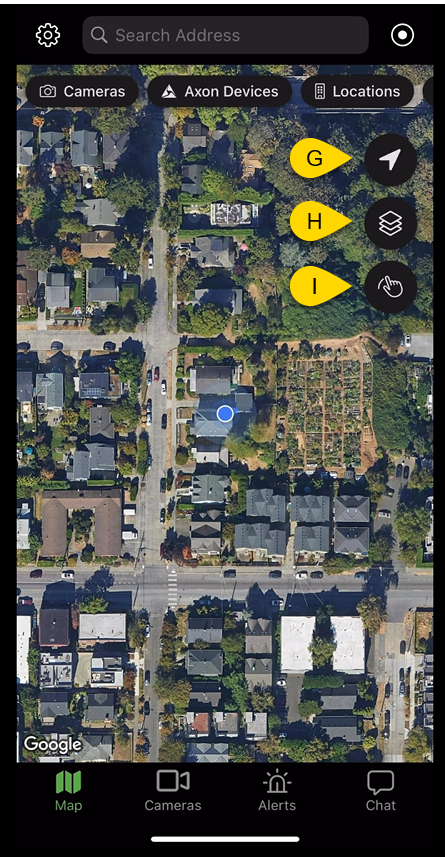
- Locate: Centers the map on your current location.
- Layers: Opens the Layers pane, where you can enable visual map layers (like dark or satellite).
- Alert region: Displays options to set and clear alert regions.
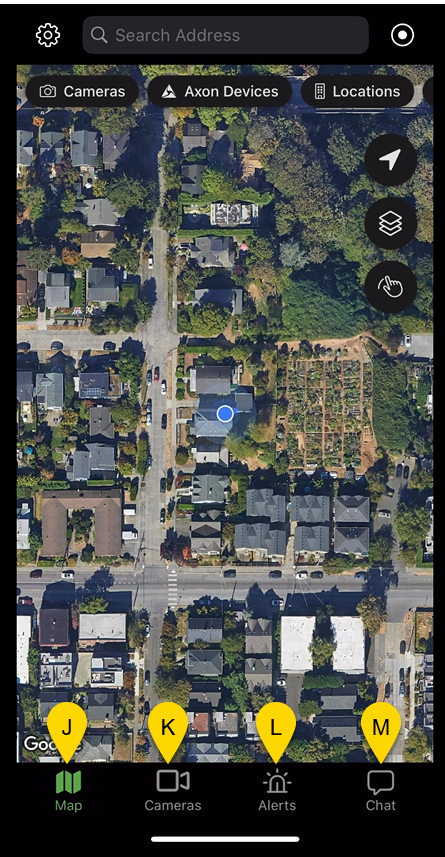
- Map: Returns you to the main map view.
- Cameras: Opens a list or feed view of available fixed camera streams (depending on your organization’s setup).
- Alerts: Opens a view of current and past alerts triggered by the Fusus platform.
- Chat: Opens the in-app messaging system. From here, you can view Teams, Shared Channels, Channels, and Direct Messages.
To learn how to use the tools in the map view, see Use the map in the fususOPS mobile app.


