Share a case with advanced sharing
Advanced sharing is currently part of an alpha release. This means it is still being developed, and is available to select organizations for testing and feedback. As an alpha feature, functionality is not fully polished, and adjustments can occur based on input. If you would like to participate in this alpha release, contact your Axon representative. Learn more about Alpha and Beta features.
Advanced sharing lets you share a case so partner organizations can work with the same case and evidence in your Axon Justice system.
Watch this video to learn more about advanced sharing.
Before you start
Advanced Sharing must be set up by an administrator before you can share cases.
An administrator configures Advanced Sharing in Case settings, creates sharing policies, and assigns those policies to partner organizations. These policies control what case and evidence data can be shared and what actions partner organizations can take.
If Advanced Sharing options are not available when you try to share a case, contact your organization administrator.
Share case access in Axon Justice
Use this option to give people access to the case in your Axon Justice system.
People you share with can open the case and work with the evidence based on the access you allow.
- Select Cases.
- Find and select the case you want to share.
- Decide how much of the case you want to share:
- The entire case
- Selected folders in the case: Select the folders you want to share
- A subset of evidence in the case: Select the evidence you want to share
- Select Share.
- Choose how you want to share the case, and then complete the steps in the corresponding section below.
Give access to a case in Axon Evidence
- Select the People tab.
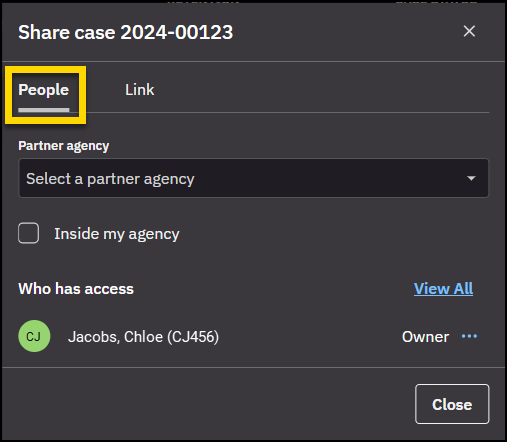
- Choose one of the following options:
- Share internally with users in your organization: Select Inside my agency.
- Share externally with a partner organization: Select a Partner agency. When you select a partner, select View next to their name to review their sharing policy. This is read only and can only be changed within administrative policy settings.
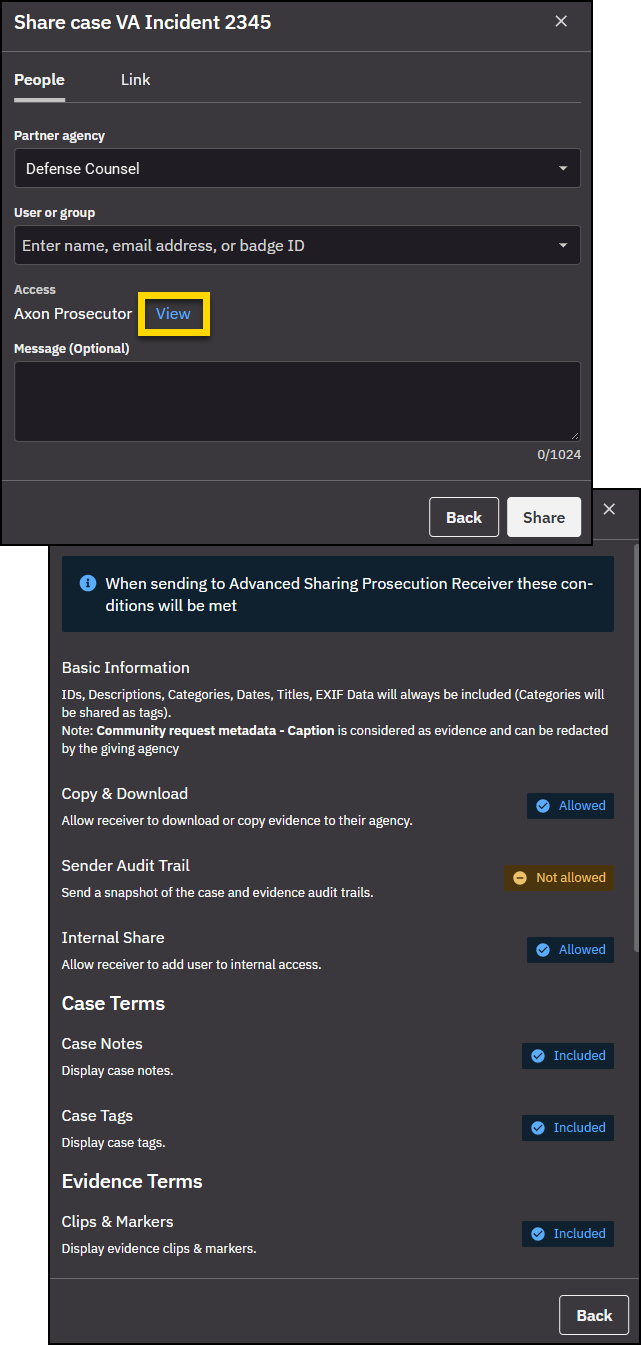
- Enter a user or group name, email address, or badge ID.
- Enter an optional message.
- Select Share.
Share a case with a link
Use this option to share a downloadable copy of the case.
- Select Cases.
- Find and select the case you want to share.
- Select Share.
- Select the Link tab.
- Under Recipient, choose one of the following options:
- Email address: Enter the recipients Email address. If the email is not already in the system, you can create it.
- User: Select a Partner agency, then enter a user or group. Or, select Inside my agency, then enter a user or group.
- Select the attachments to include:
- Audit trails
- Transcripts
- Table of contents
- Select Retain folder structure to include the folder and subfolder hierarchy in the share.
- Select a package type, choose from ZIP or ISO.
- Enter a Duration.
- Enter an optional Message.
- Select Share.
After you share a case
When you share a case, it will take some time to process.
- While the case is processing, the status shows as Processing in the Share case dialog.
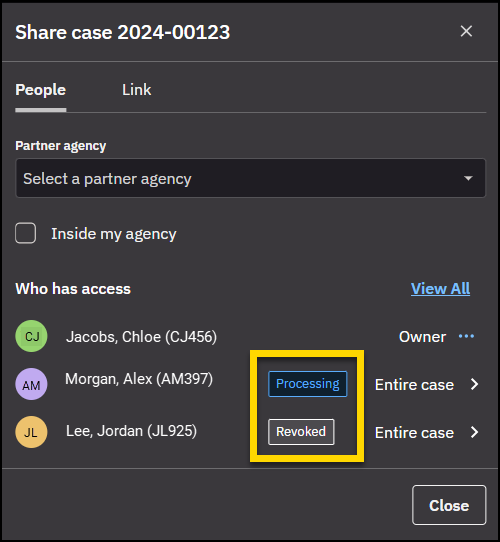
- When sharing is complete, profile icons appear on the case details page to indicate who has access.
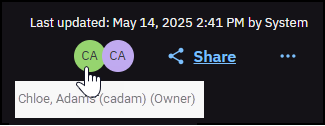
- Hover over a profile icon to view the person's full name.
- The case owner is shown in green and identified as the owner when you hover on their profile icon.
- Select any icon to open the Share case dialog, which lists full details of who has access to the case.
What the receiving organization sees
When a case is shared with a partner organization using Advanced Sharing, the receiving organization is notified by email. What the recipient can do depends on how the case was shared and the sharing policy applied.
From the receiving organization’s perspective, a shared case can be viewed, downloaded, imported, updated, and shared onward (if allowed).
Receive and access a shared case
- The receiving organization receives an email notification that a case has been shared.
- From the email, do one of the following:
- If access was shared, select View to open the shared case in Axon Justice.
- If a link was shared, select Download to download the case files.
- To work with the case in Axon Justice, open the shared case from your case list.
When you open a shared case, the name of the sharing organization is displayed, and the case is marked as an External case. If allowed by the sharing policy, an Import Case button lets you import the case into your Axon Justice system.
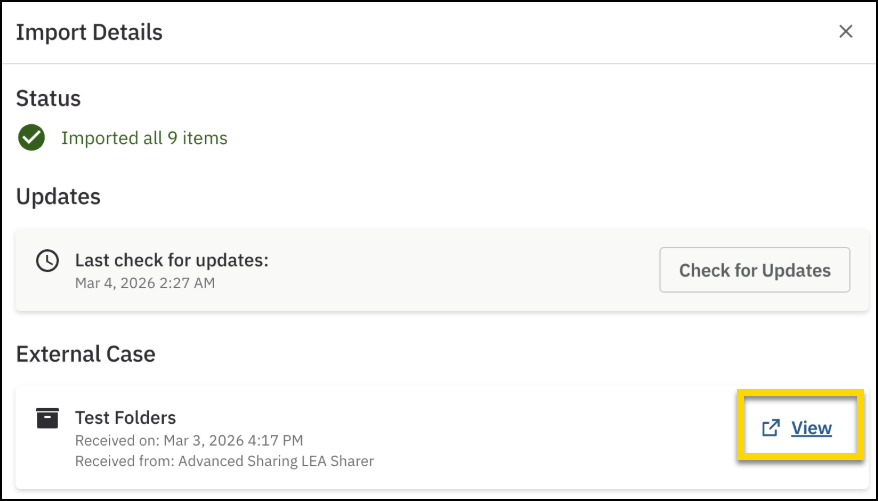
Select External case, to view information about the case share, check for and apply updates.

Axon Justice, by default, is set to auto-import cases upon receiving them. This means that you will not see the Import Case option when receiving a case in Axon Justice unless this has been configured by an admin. Instead, you will see your copy of the case and can access the external version (the sharer's version) of the case by either going to the Shared with Me tab and filtering for "external share," or you can access the case directly from the copied version of your case by selecting the Import detail button of the Case Summary page. Then select View under External case.
Case Synchronization
Case synchronization ensures that newly added evidence from the sharing agency is automatically imported into your copied case in Axon Justice. This keeps your case aligned with the latest evidence without requiring manual updates.
To preserve any organization, edits, or work product completed by the receiving agency, synchronization follows specific rules:
Folder Synchronization Rules
- Initial folder structure syncs once: The original folder structure is synchronized during the first import. After that initial sync, any changes the sharing agency makes to folders (such as renaming, reorganizing, or moving folders) are not applied to your copied case.
- New evidence added to existing folders: If the sharing agency adds new evidence to a folder that existed at the time of the initial import, that evidence is automatically added to the corresponding folder in your copied case.
- New evidence added to new folders: If the sharing agency creates a new folder after the initial import and adds evidence to it, that new evidence is imported into the root level of your copied case. These rules ensure that new evidence continues to flow into your case while protecting any folder organization or work product you’ve already created.
Check for and apply updates
When the sharing organization updates case information or modifies evidence metadata, those updates may be available for review and application in your copied case.
This process applies only to case-level updates and evidence metadata updates (such as evidence name, ID, or description). It does not import new evidence files.
To review and apply updates:
- Open the shared or imported case.
- On the case details page, select Import Details.
- Select Review next to Updates available.
- Select the Case tab to review changes to case-level information, such as the case ID or description.
- Select the checkbox next to each update you want to apply, or use the top checkbox to select all.
- Select Apply Changes.
- Select the Evidence tab to review updates to evidence metadata (for example, name, ID, or description).
- Select the checkbox next to each update you want to apply, or use the top checkbox to select all.
- Select Apply Changes.
Only updates permitted by the sharing policy can be applied.
Onward sharing of a received case
If the sharing policy allows, the receiving organization can share a received case onward. Onward sharing is governed by the sharing policy applied to the original share.
- Open the shared or imported case.
- Select Import Details.
- Review the external case information:
- Sender
- Partner organization
- Recipient
- Received on date
- Access level
- Sharing policy
- If updates are available, select Review to view and import updates.
- Select Edit next to Recipient.
- Add a User or Group, then select Add.
- The new recipients are added under the Recipient section.
Stop sharing a case
A case can be revoked anytime after a share has been submitted. However, its important to understand that if "copy and download" permissions are granted to a receiver, once they have copied/imported a case they will have ownership of a copy of the evidence that was shared. Once you "stop sharing" automatic updates of evidence to the share will be stopped.
- Open the case.
- Select Share.
- Under Who has access, select the person or organization.
- Select Stop sharing.
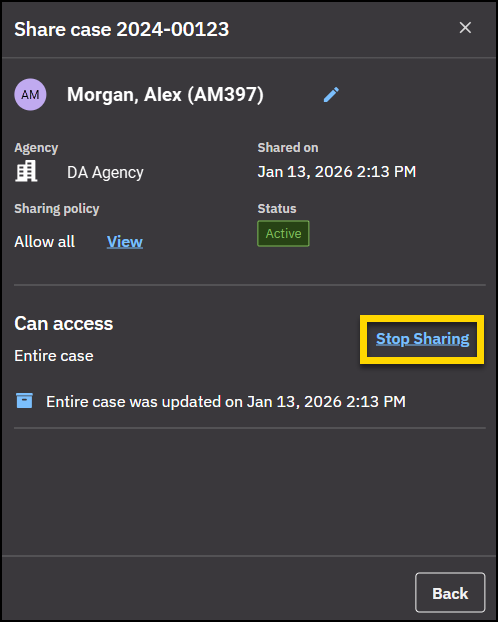
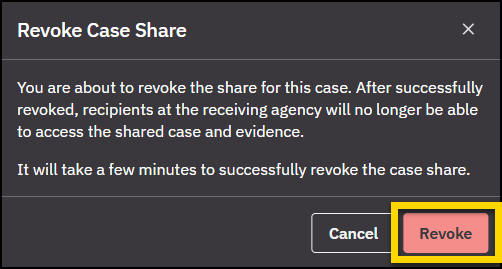
- In the Revoke case access window, select Revoke to confirm.