View Respond metadata in RapidSOS
Axon is partnered with RapidSOS to allow dispatchers in your ECC to view device locations from within their RapidSOS Portal. This
To get started, create an API client in Axon Evidence and share API authentication information with your ECC counterpart. This allows the RapidSOS application to show device location and other metadata; you always maintain full control and can revoke access at any time (see Delete the API Client below).
What data is available with this API Client?
Creating the API client allows RapidSOS to get metadata associated with your organization’s devices and show device locations in their app.
In general, the data available from this API client is the same data Respond uses to show devices on the Respond map and provide a user experience around them. This includes:
- Your agency’s name
- Most recent device location, location accuracy, and last update time
- Assigned officer information, including name, badge number, email address, and user ID
- Device status (such as Recording or Buffering)
- Device type (such as Axon Body 4)
- Device battery level
- Device signal strength
- Device serial number
Create an API client
- Sign into Axon Evidence and select Admin.
- Under Security Settings, select API Settings.
- Select Create Client.
- In the Client Name field, enter a meaningful name or description. We recommend referencing RapidSOS and your ECC so you remember what the client is for later.
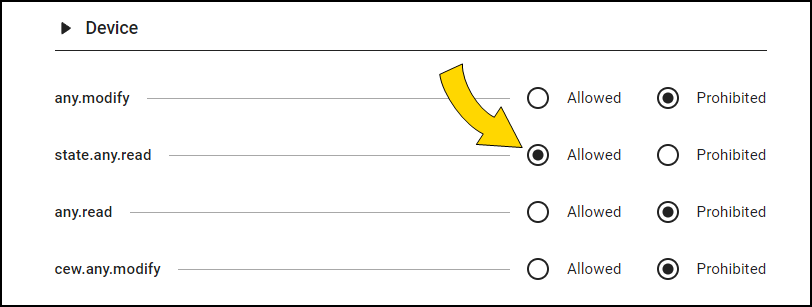
- Under Device, set state.any.read to Allowed.
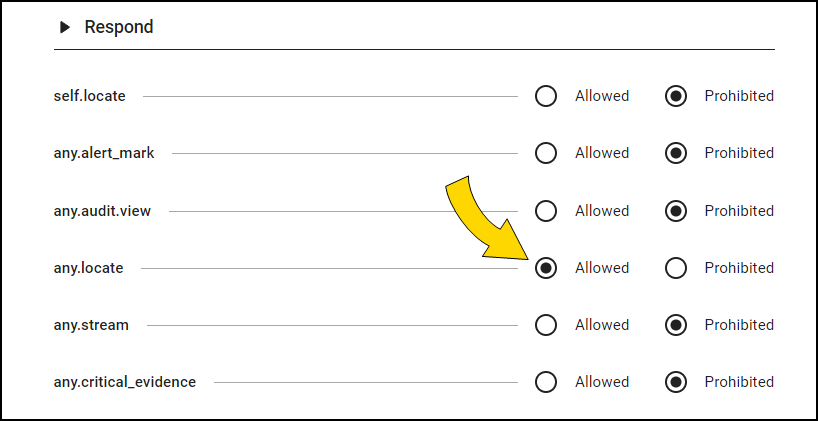
- Under Respond, set any.locate to Allowed.
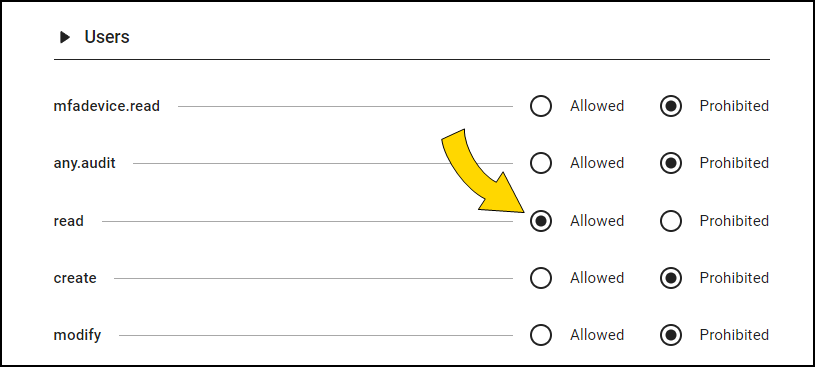
- Under Users, set read to Allowed.
- At the bottom of the page, select Save
 . The API Client information displays: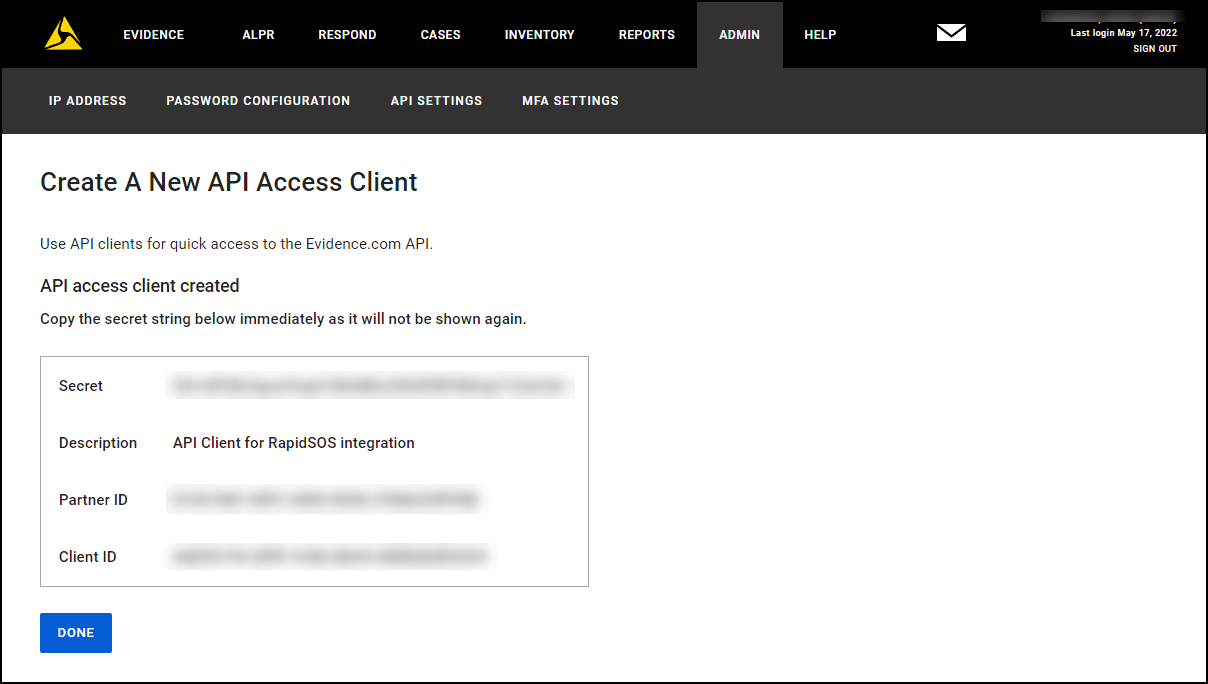
- Copy the Secret, Partner ID, and Client ID, along with your agency domain (for example YourAgencyPD.evidence.com), and give them to your ECC counterpart so they can configure RapidSOS (shown below) to connect to Axon.Warning
Share this sensitive information in a secure way to ensure no entity other than the RapidSOS app receives this device-related metadata. The Secret will not be shown again after leaving this page.
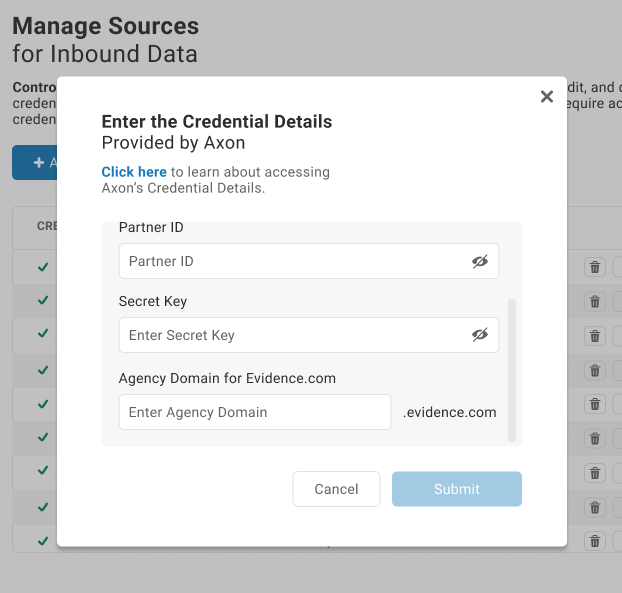
- Select Done
 .
.
Delete an API client
You can delete the API client you created above at any time. Doing so prevents RapidSOS and any other consumers of this API client from retrieving device-related metadata from your agency.
- Sign into Axon Evidence and select Admin.
- Under Security Settings, select API Settings.
- Find the API client to delete.
- Select Delete
 and confirm to delete the client.


