Permissions and settings
This
This topic describes required Axon body camera role permissions for using Axon Respond at your organization. Enable these settings in the Admin menu of Axon Evidence for users to use Axon Respond.
Required permissions
Enable required permissions for the roles that will use Axon Respond so users can access the Respond map. Modify an existing role to enable the permissions, create a new role, or copy an existing role and enable Axon Respond permissions. Name the role to indicate access to Axon Respond. Learn more at Evidence Roles & Permissions.
Many of the permissions associated with Axon Respond are sorted by device type: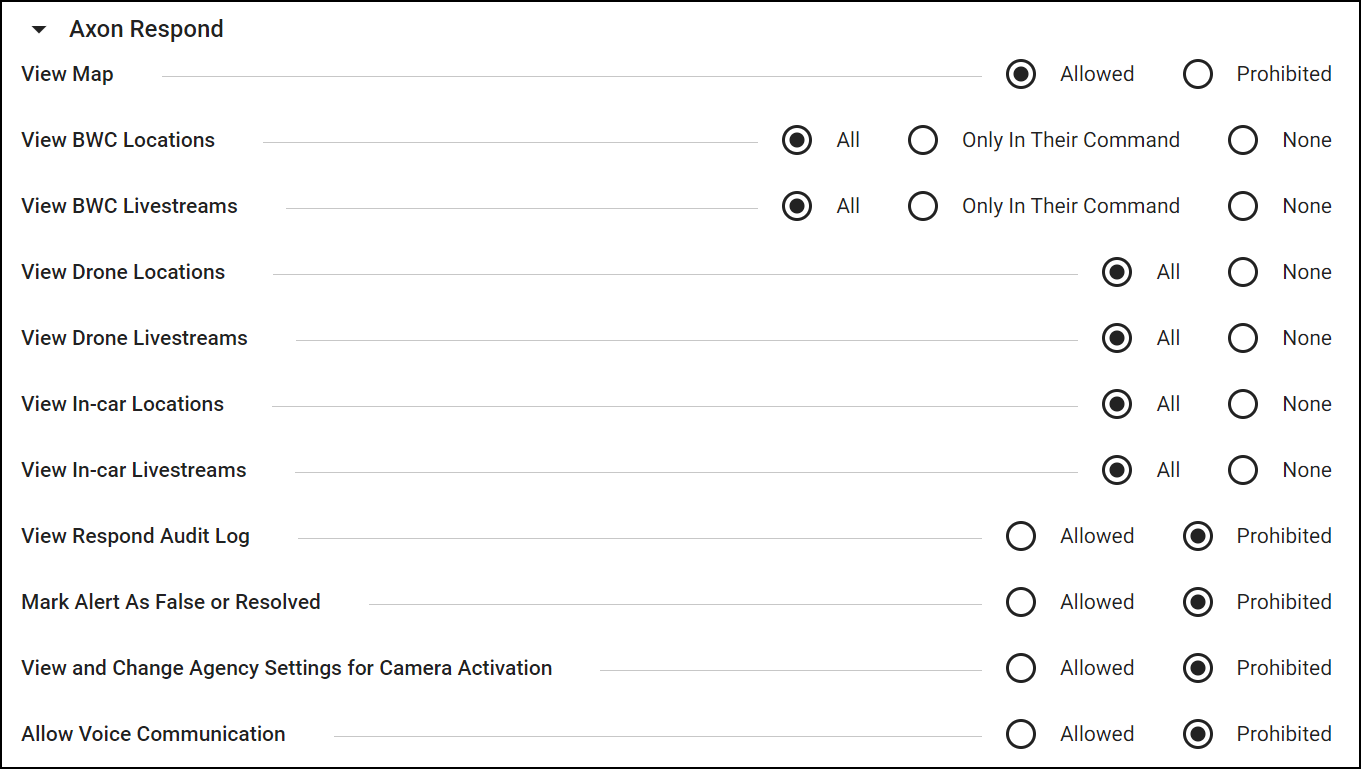
These permissions let a user do the following in Respond:
- View Map – Access the map
- View BWC Locations – Access the locations of body cameras
- View BWC Livestreams – View livestreams from body cameras
- View Drone Locations – Access the locations of Axon Air drones
- View Drone Livestreams – View the livestreams from an Axon Air drone
- View In-car Locations – Access the locations of Fleet 3 vehicles
- View In-car Livestreams – View the livestreams from a Fleet 3 vehicle
- View Respond Audit Log – View and download the record of Respond activity
- Mark Alert as False or Resolved – Mark a gunshot or TASER device alert as false or resolved
Users must be assigned to roles with the appropriate permissions to view the map and camera livestreams.
Some of the permissions may be hidden in your agency based on the licenses and hardware you have deployed. For example, you will not see in-car permissions if your agency does not have Fleet 3.
Body camera settings
For details on all the settings available for each camera model, see Body Camera Settings. Critical settings for Respond include:
- Make location information available to Axon Respond – Determines if location information is made available in near real-time to authorized agency users. The "Location available when the camera is recording and buffering" setting requires camera operating system 1.10 or higher in Body 3.
- Livestreaming – Determines if cameras can stream audio and video to authorized agency users while recording. This setting is only available if your agency has Axon Respond for Devices+ licenses.
Fleet 3 camera settings
For details on all the settings available for Fleet 3 cameras, see Fleet 3 admin settings. Critical settings for Respond include:
- Include Location Information in Axon Respond and Device Inventory – Determines if GNSS/GPS location data is made available in near real-time to authorized agency users in Axon Respond and on the Axon Evidence device page.
- Respond Livestreaming – Determines if the dual-view camera can stream audio and video to authorized agency users while recording or while recording and buffering. This setting is only available if your agency has Axon Respond+ license users.
Granular permissions
Axon Respond includes two improvements for more granular role permissions:
- Location and livestream permissions are separated by device type. This lets you limit certain roles accessing only certain types of devices. For example, an agency using Axon Air can create or edit a Role to have access to only drone locations and livestreams while preventing access to BWC locations and livestreams.
- Body-worn camera (BWC) location and livestream permissions have an "In their Command" option which integrates Respond with the Command hierarchy feature. Agencies can limit roles to only have location and livestream access to a subset of the BWCs in their agency based on command hierarchy. For example, an agency can edit its "Sergeant" roles so sergeants only have access to the cameras assigned to officers in their shifts.
When Command Hierarchy integration is enabled, Respond will look at Command Hierarchy to find all the groups the signed-in user is a member of and then only display BWCs (or allow livestreams) for cameras assigned to users that are members of the same group(s) or child (subordinate) groups, according to your agency's Command Hierarchy configuration.


