User-based licensing
This
User-based licensing lets you buy user licenses for a subset of users and self-administer user assignment. It also lets you mix and match Respond licensing tiers: buy separate user licenses for those who need to broadcast livestreams versus those who only need to broadcast location. This lets you maintain real-time situational awareness in a more cost-effective manner.
How a camera displays on the map depends on its assigned license:
| Camera user license | Displays on Respond map | Can be livestreamed | Sends alerts to Respond |
|---|---|---|---|
| None | No | No | No |
| Respond | Yes | No | Yes |
| Respond+ | Yes | Yes | Yes |
Configure roles and permissions to control who has access to use Respond to view officer locations and livestreams. Viewing either does not require a Respond or Respond+ license. Configuring roles and assigning licenses requires Admin privileges.
Dashboard
- In Respond, select Admin.
- In the Agency Settings section on the left, select User-Based Licenses.
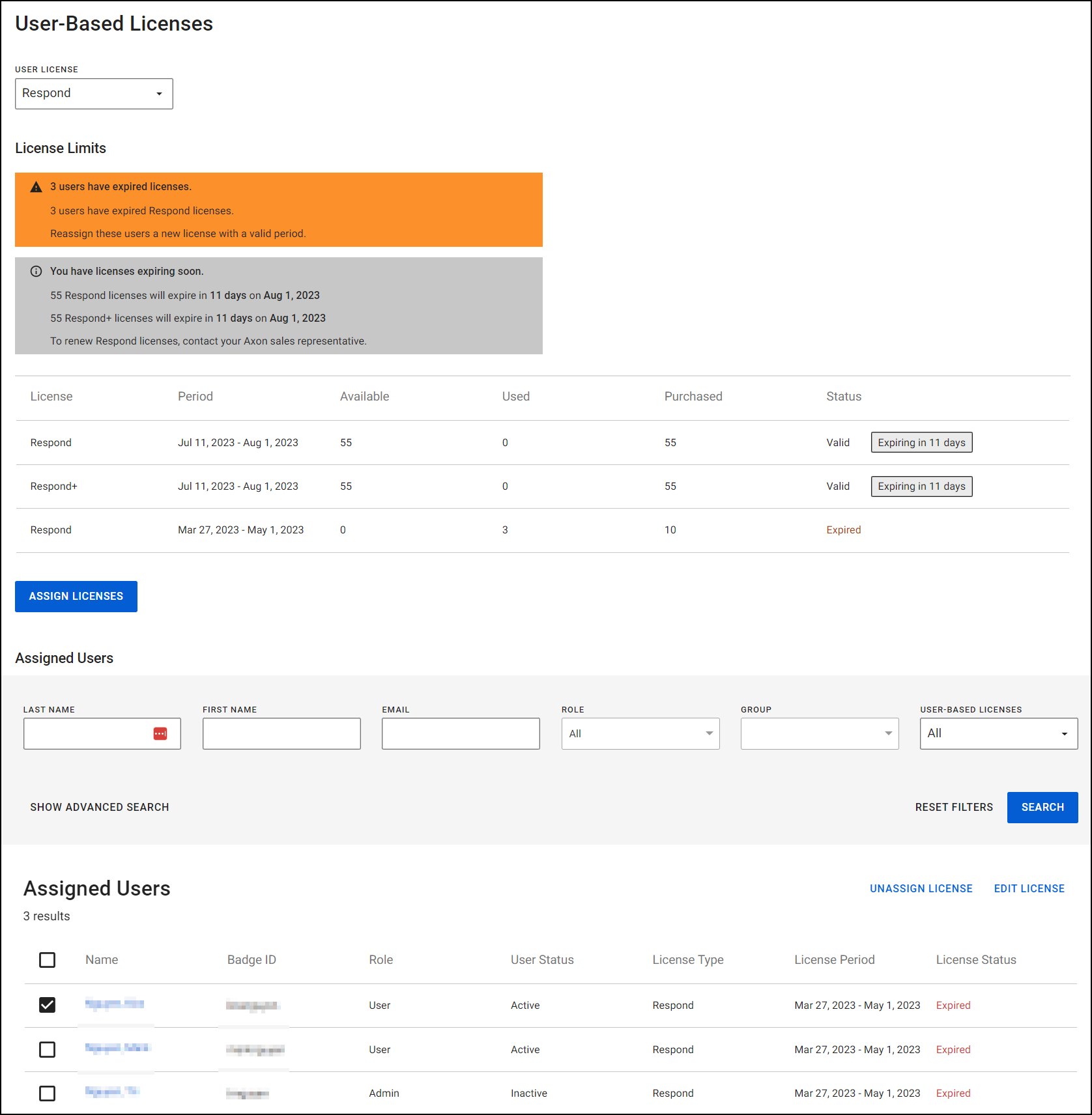
- Select Respond to view the dashboard.
- In the dashboard, you can:
- Use the User License dropdown to change between Respond and Axon Air licenses (if available for your agency).
- Look in the License Limits section for a snapshot of licenses expired, licenses expiring soon, and licenses available to assign.
- Select Assign Licenses
 to assign user-based licenses (see next section).
 - In the Assigned Users section, use the name, email, role, and group fields if needed to filter the list that appears below it.
- After selecting the check box for an assigned user, use the Unassign License and Edit License options to make changes (described later in this topic).
Assign a user-based license to an unassigned user
- Look in the License Limits section to ensure you have license available.
- On the dashboard, select Assign Licenses to see unassigned users.
- To narrow the list of users, filter the list using the fields at the top.
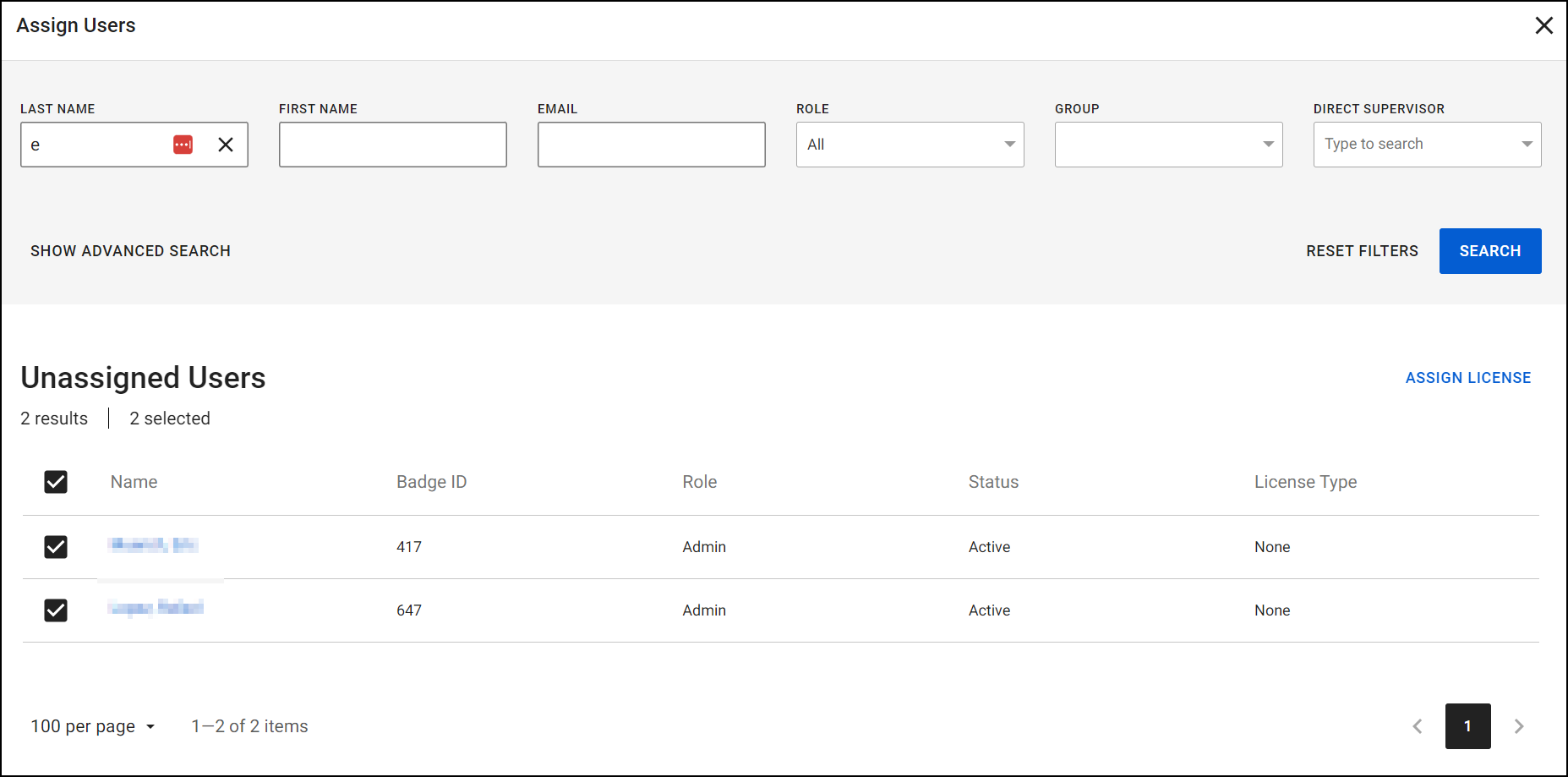
- Select the box for each user and then Assign License at the top right.
- Select the license to assign the user(s) to.
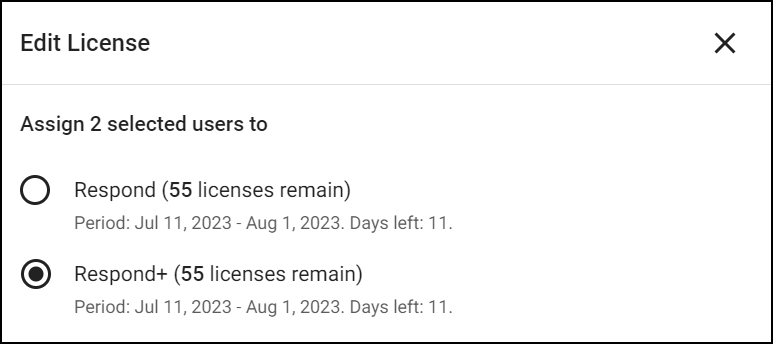
- Select Save
 .
.
Move user to a different license
- At the bottom of the dashboard, filter the list of users if needed using the fields at the top (see prior section).
- Check the box for the user(s) to edit and then select Edit License.
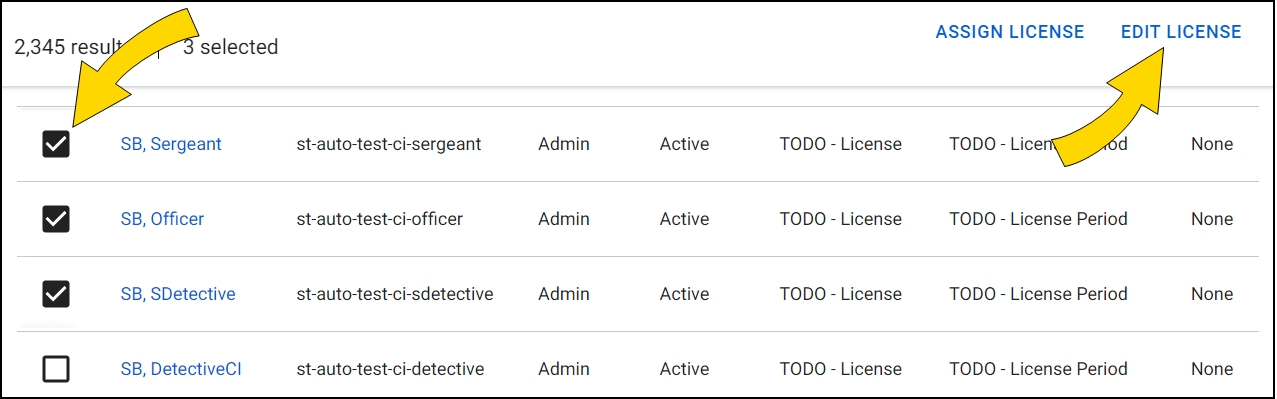
- Select the different license to assign the user(s) to.
- Select Save .
Assign license from user detail page
- On the dashboard, under Assigned Users, in the User-Based Licenses field, select All.

- Click directly on an individual user name.

- In the Assigned user-based licenses section, select Manage License to assign a different or additional license.
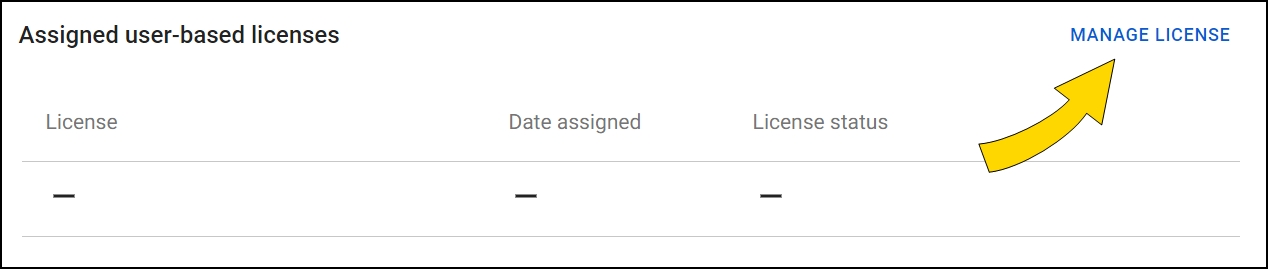
- Select a different or additional license as needed.
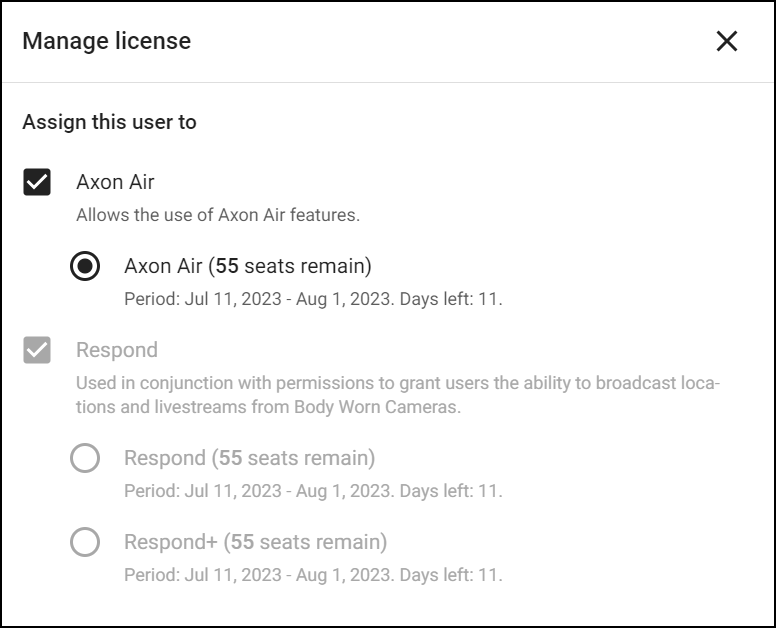
- Select Save .


