Multi-Factor Authentication (MFA) sign-in
- If your organization uses a Single Sign On (SSO) provider, this article doesn't apply. MFA settings are through your SSO provider.
- This article is for users signing in with MFA. For admin information, see the Multi-Factor Authentication (MFA) Admin Guide.
Axon requires MFA to sign in. Your organization can select up to five methods for MFA:
- Axon Body 4, 3, or Workforce camera
- Mobile authentication app
- Text message
- Automated phone call
You can then select which of the options to setup. When you sign in to the Axon system with your username and password, you'll get an MFA challenge.
Setup
When you first set up MFA:
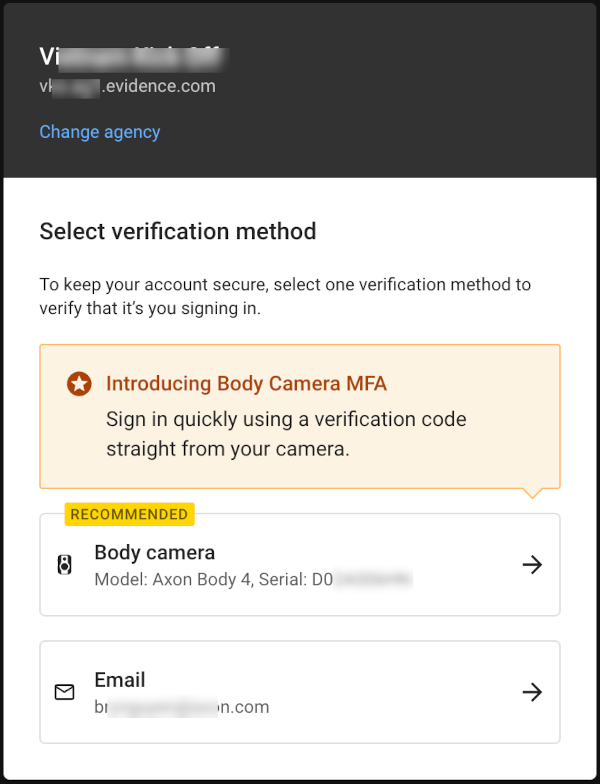
- If your agency has enabled Body camera as an MFA method, that will be available as an authentication option.
- If your agency does not use Body cameras as an MFA method, you'll be prompted to authenticate by email first. If email is enabled as a method for your agency, you won't be prompted to set up other MFA methods, but can if you choose.
When authenticating with MFA, you can also select the checkbox Keep me signed in. This option skips the MFA step for signing in on that specific device for some time. The amount of time before you're prompted for MFA on the device again is variable, and is determined by various security and risk factors.
If Body camera and Email are disabled as methods
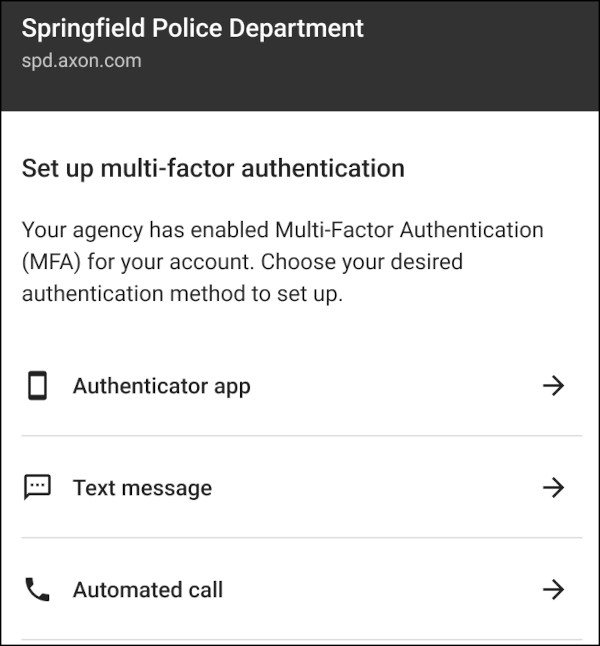
If Body camera and Email are disabled as authentication methods for your agency, or you don't have a Body camera assigned to you, you'll be prompted to set up one of the methods that is enabled.
Setting up a mobile authentication app as a method
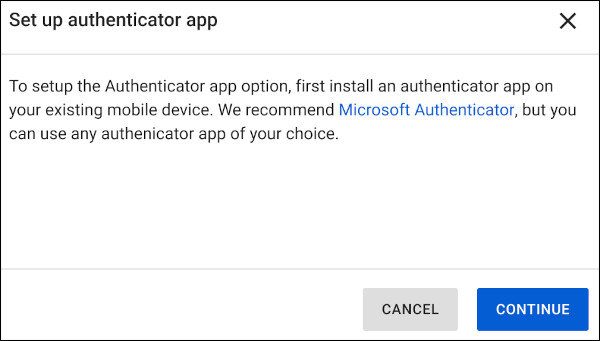
When you try to set up a mobile authentication app as an MFA method, you'll be instructed to first download the app you want to use. We recommend Microsoft Authenticator, but you can choose whatever authentication app you would like.
After selecting Continue, you'll be presented with a QR code to scan with your mobile device. After scanning the QR code, the app will authenticate and will be set up as an MFA method.
Setting up text message or phone call as a method
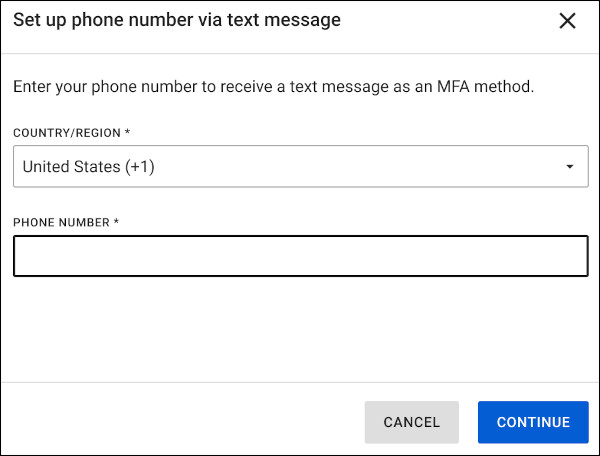
When you set up either text message or automated phone call, both methods will be set up. You will be prompted to enter the phone number.
After entering a phone number, you'll receive either a text message or phone call with a verification number you must enter on the next screen. After entering the verification code, automated phone call and text message will be set up as MFA methods.
Authenticating
For email, phone call, and text, you'll receive a code to enter on the sign on page. Using an authenticator app, the app will receive a request for authentication. It will send a response when you verify yourself in the app.
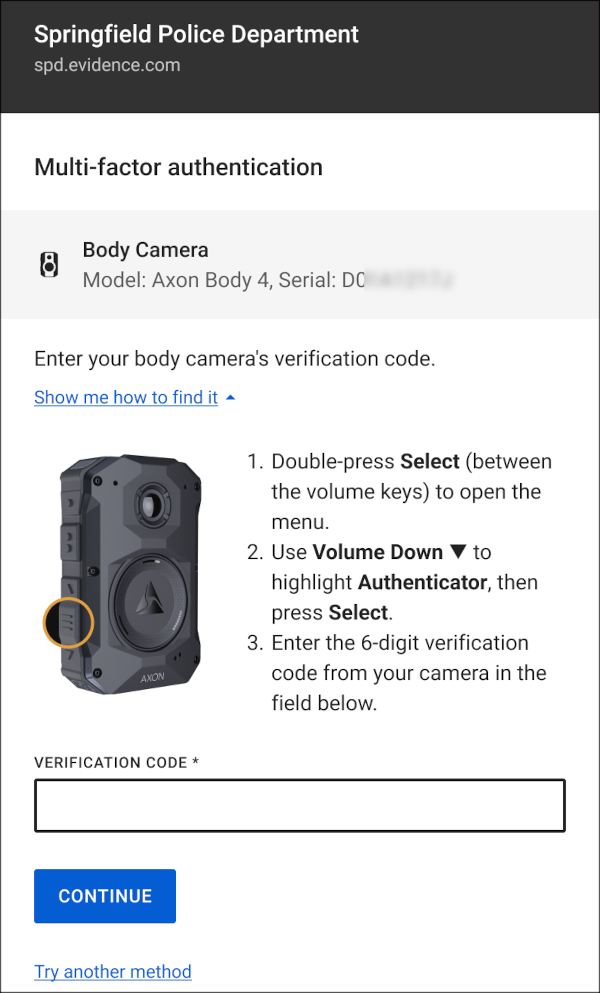
The steps for finding the verification code on the camera are displayed on the sign in page if you select Show me how to find it when the Body Camera option is selected.
Display verification code on Axon Body 4
-
Double-press Select (between the volume keys).
-
Use Volume Down (the down arrow) to highlight Authenticator, then press Select.
-
Enter the code shown on the camera in the Verification Code field on the sign in page.
Display verification code on Axon Body 3 or Body Workforce
- Long-press the Program button.
- Use Volume Down (the down arrow) to highlight Authenticator, then press Select.
- Enter the code shown on the camera in the Verification Code field on the sign in page.
Multiple MFA methods
If you've configured more than one MFA method, when you receive an MFA challenge, the challenge will default to the last method you used. You can select a different method by choosing Other options.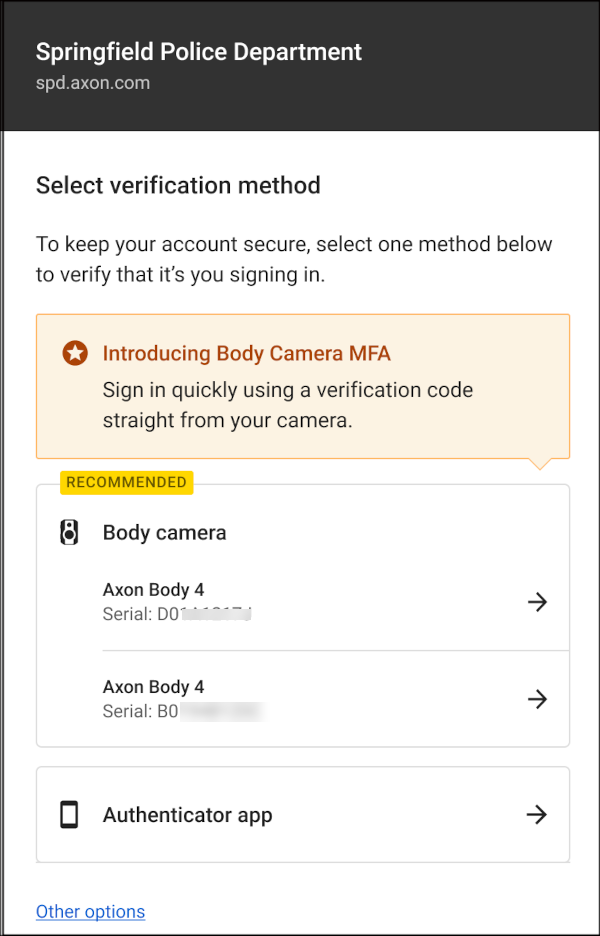
Managing MFA methods
Additional methods activated
If your agency previously had one MFA method activated, and has now activated others, you'll be prompted to authenticate with your existing MFA method after signing in with your username and password. After you're authenticated, you can go to the Security tab in your user profile to set up any other MFA methods your agency has activated.
Settings in user profile
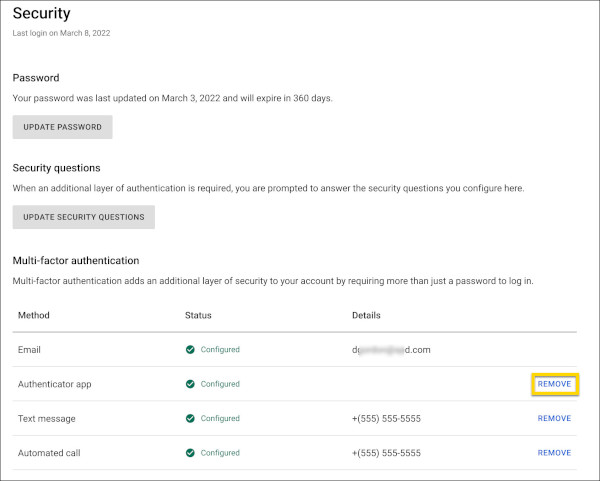
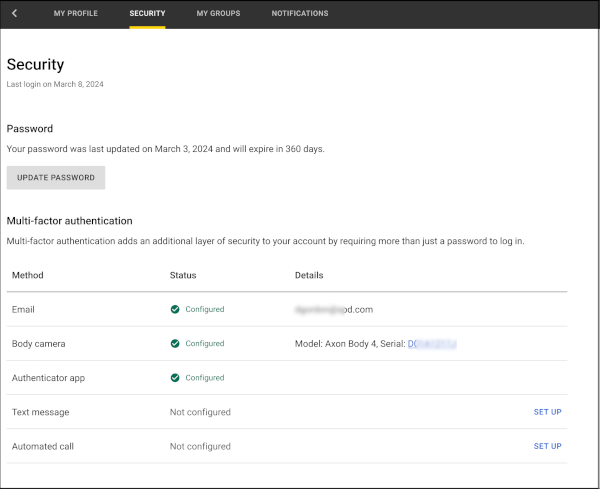
You can set up your own MFA methods by going to your user profile and selecting the Security tab. Only the MFA methods enabled by the admin will be available for set up here.
If phone call and text message are set as available methods for your agency, setting up one of those will set up both. Email doesn’t need to be set up as a method, as it uses the email from your profile.
You can also update your password and security questions there. See Your account to learn more.
Removing a method
After setting up your MFA methods, if you want to remove or change them, you can do so on the Security tab of your User Profile. For example, if you wanted to switch to a different authenticator app, you can go to the Security tab and select Remove next to the Authenticator app method, and then set up a new one. You can't remove email, because that is connected to your Axon profile.