Associating a TREND Report with Energy Weapon Logs
When you start a TASER Data Science Report (TREND report), you can associate it with the energy weapon logs for the incident covered in that report. The process is the same in TREND in Axon Evidence and TREND in Standards. To start a TREND report manually in either experience, for TASER 7 energy weapons or for TASER 10 deployments that do not appear in Deployment Tracker, see Creating a TASER Data Science Report in Standards.
Before you begin, upload the logs to Axon Evidence by docking the battery from the energy weapon used in the incident.
For TASER 7 and TASER 10 energy weapons, see the TASER Weapons Dock Single-Bay Dataport Quick Start Guide or the TASER Weapons Dock Quick Reference Guide.
After you start the report, a window opens where you can attach the TASER energy weapon log sessions from the incident.
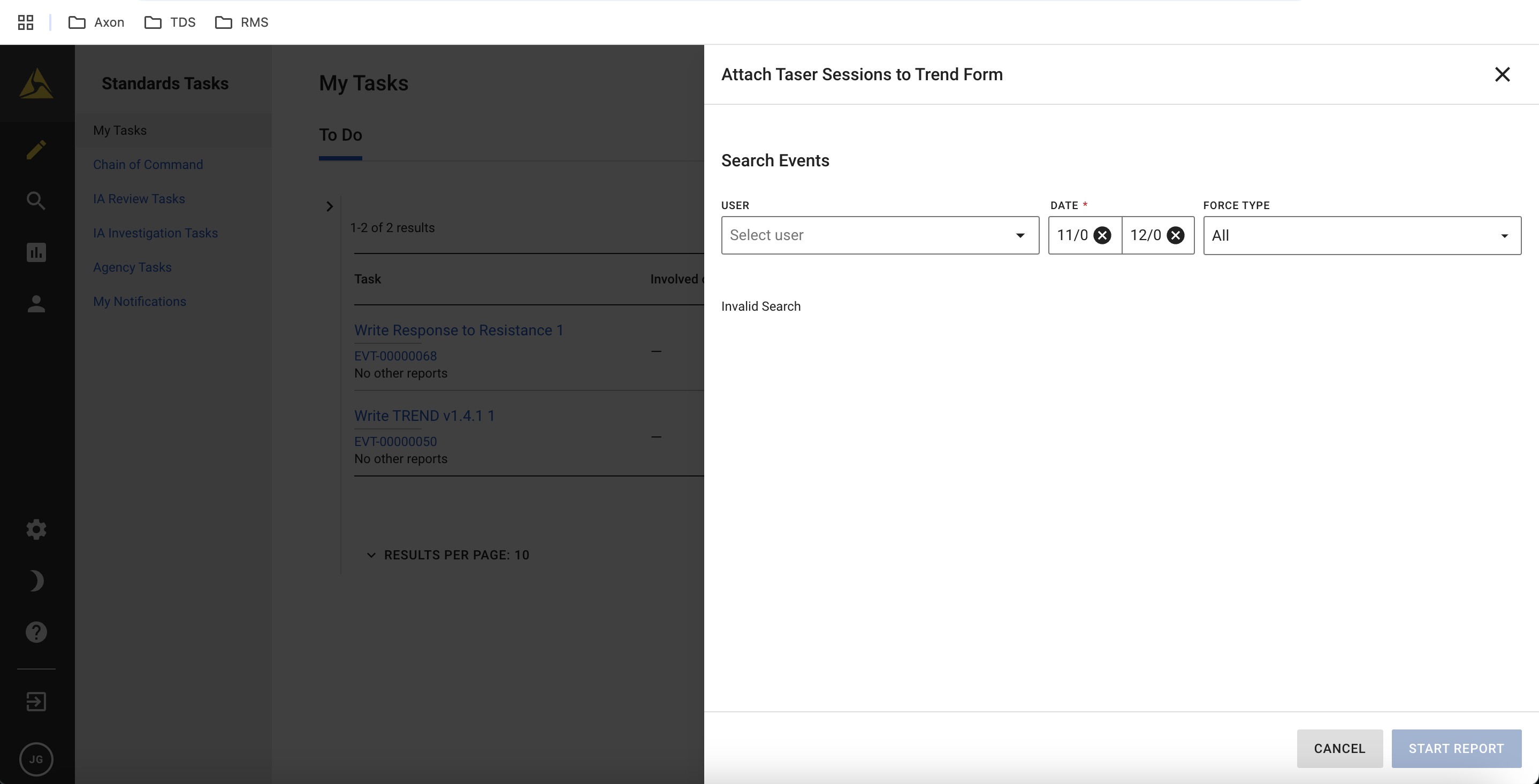
If there's no TASER energy weapon log to associate with the report, click CANCEL or the X in the upper-right corner of the window. Then fill in the report fields manually.
-
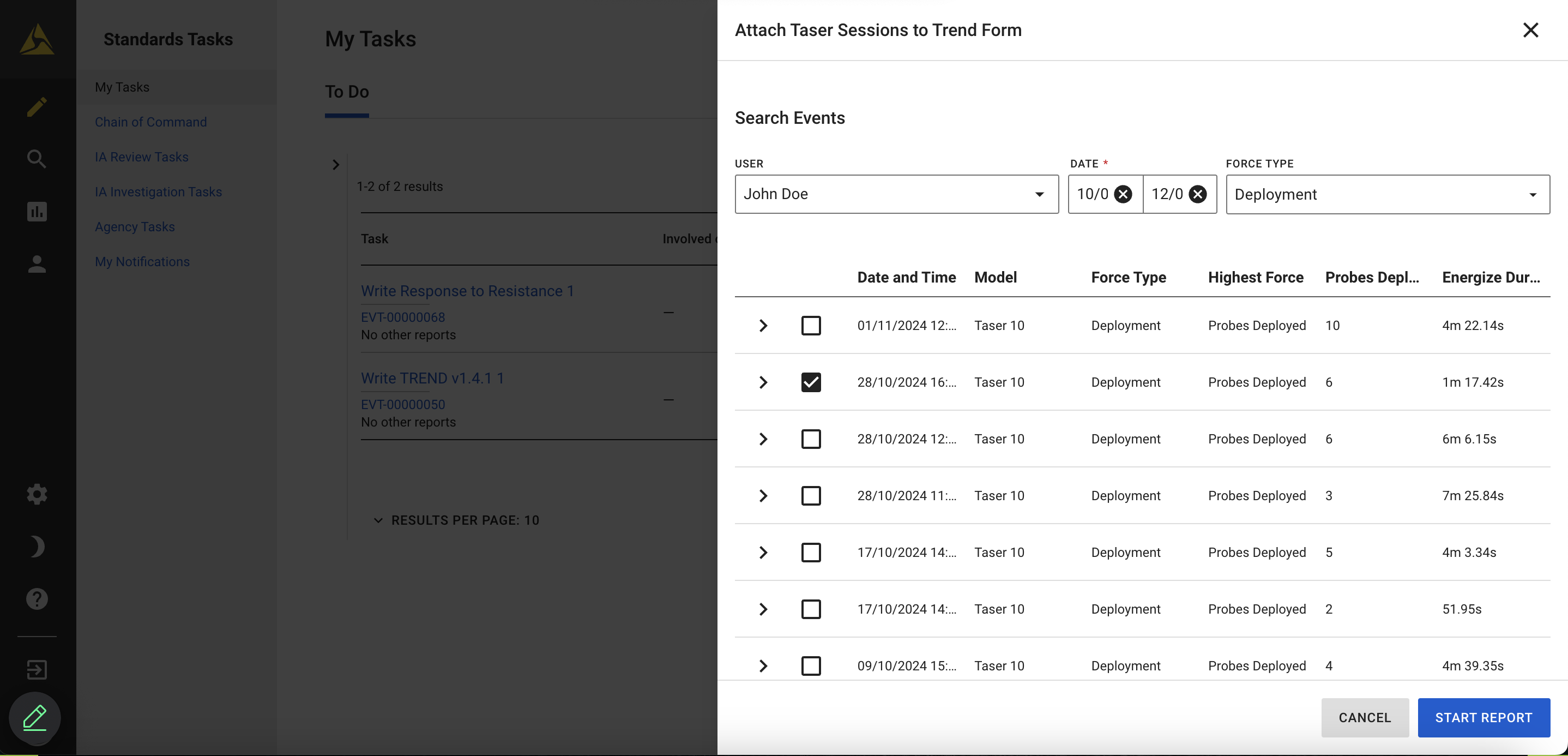
Enter the name of the officer the energy weapon is assigned to and the date range of the incident. Then select the force type from the dropdown options: show of force, deployment, or all.
-
Select the check box for the event that matches the date and time of the incident.
-
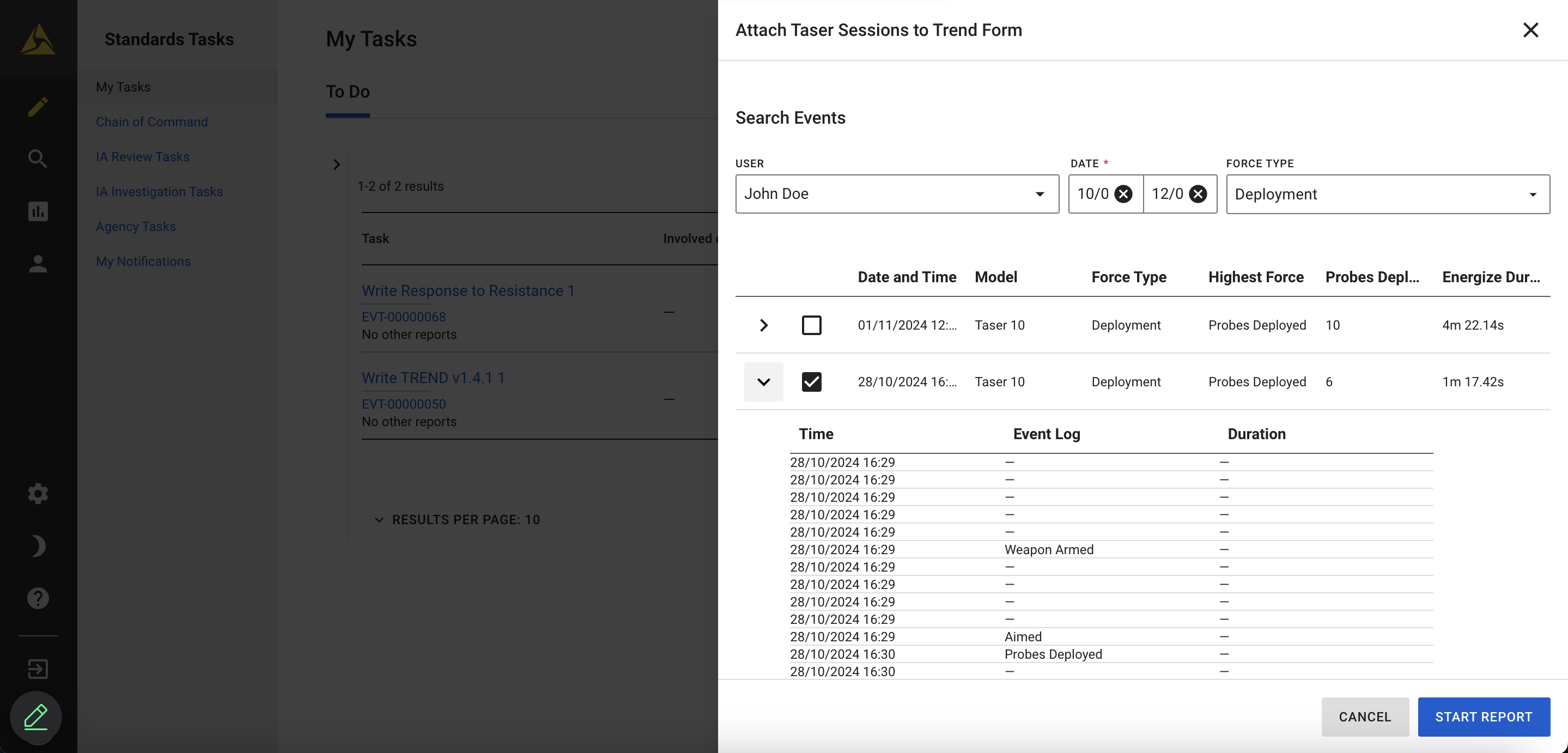
To view the log event and verify that it's the correct log, click the expand arrow next to the event.
-
After you verify the log, click Start Report.
The report fills in automatically with the information available from Axon Evidence, such as the incident type, TASER energy weapon type, de-escalation features of the energy weapon used, officer age, height, weight, total number of probes deployed, number of cycles, total discharge time, and distance between officer and subject in feet.
NoteOfficer data fills in from the personnel section in Axon Standards. It fills in only if your organization has entered officer demographics there. Otherwise, enter the officer information manually. This applies to both TREND in Axon Evidence and TREND in Standards.
-
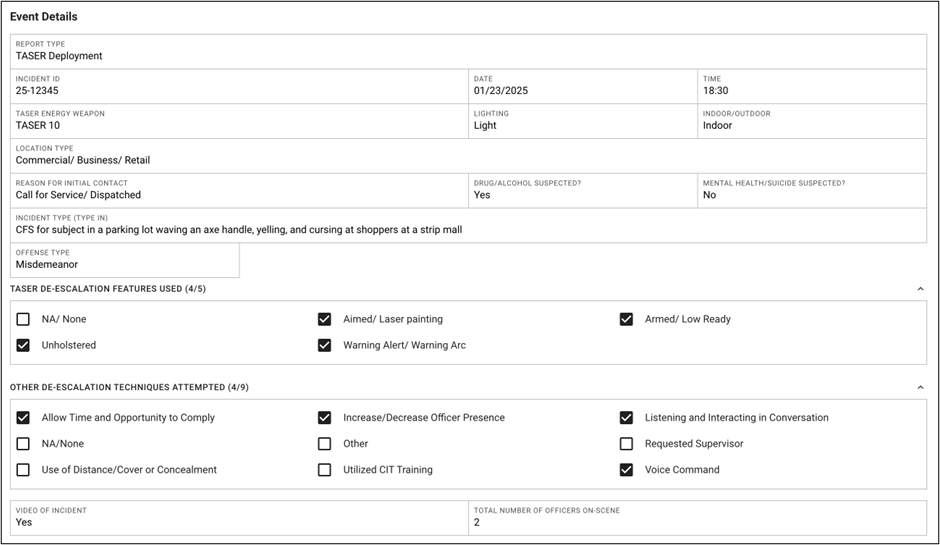
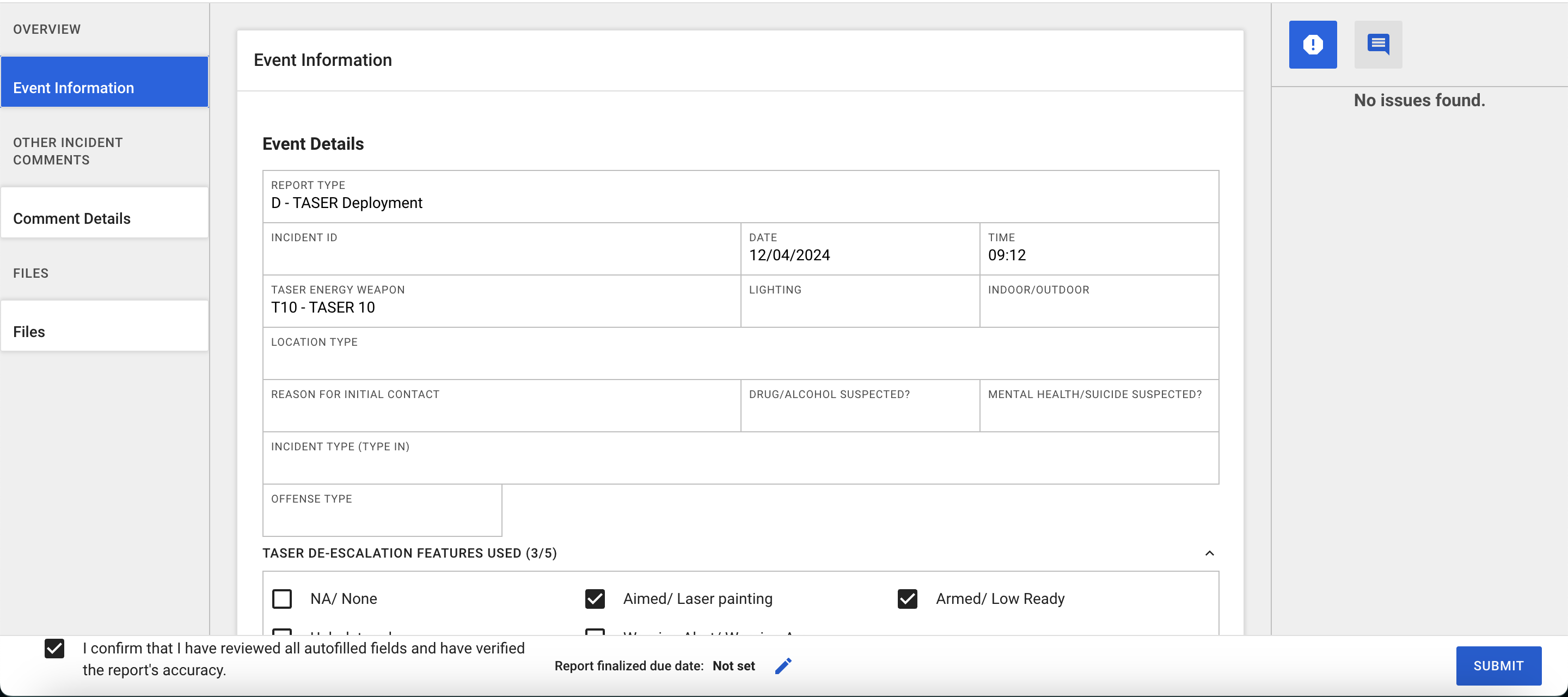
Complete the Event Details section with the incident information. This section covers the basics of the event.
NoteIf the only TASER energy weapon use was a show of force, complete only this section, and then go to step 13.
Field Name Description REPORT TYPE Select the type of report from the dropdown options (Required).
-
TASER Deployment
-
Show of Force/TASER De-escalation
-
Accidental Discharge
INCIDENT ID Type your organization's incident, case, or event number. DATE Type the date of the incident (Required). TIME Type the time of the incident in ##:## format (Required). TASER ENERGY WEAPON MODEL Select the TASER energy weapon model from the dropdown options: M26, Other, X26P, TASER 10, TASER 7, X2. LIGHTING Select from the dropdown options: Dark, Light. INDOOR / OUTDOOR Select from the dropdown options: Indoor, Outdoor. LOCATION TYPE Select from the dropdown options: Commercial/Business/Retail, Jail/Prison, Marine/Water, Parks, Public/Streets/Government, Private/Residential, Wilderness/Woods. REASON FOR INITIAL CONTACT Select from the dropdown options: Call for Service/Dispatched, Self-Initiated/Discovered. DRUG / ALCOHOL RELATED SUSPECTED Select from the dropdown options: No, Unknown, Yes. MENTAL HEALTH SUSPECTED/ SUICIDE Select from the dropdown options: No, Unknown, Yes. INCIDENT TYPE Type the incident/call for service type. OFFENSE TYPE Select from the dropdown options: Felony, Misdemeanor, None. TASER DE-ESCALATION FEATURES USED Select all that apply: NA/ None, Aimed/ LASER Painting, Armed/ Low Ready, Unholstered, Warning Alert/Warning Arc. TASER DE-ESCALATION SUCCESSFUL Appears only for Show of Force/TASER De-escalation reports. Select from the dropdown options: No, Yes. OTHER DE-ESCALATION TECHNIQUES ATTEMPTED Select all that apply: Allow Time and Opportunity to Comply, Increase/Decrease Officer Presence, Listening and Interacting in Conversation, NA/None, Other, Utilized CIT Training, Requested Supervisor, Use of Distance/Cover or Concealment, Voice Command. If Other is selected, type a description in the OTHER DE-ESCALATION TECHNIQUE box. VIDEO OF INCIDENT Select from the dropdown options: Yes, No, Unknown. TOTAL NUMBER OF OFFICERS ON SCENE Enter the total number of officers from your organization who were on scene. -
If the event went beyond a show of force, go to step 6.
If the event involved only a show of force, go to step 13.
-
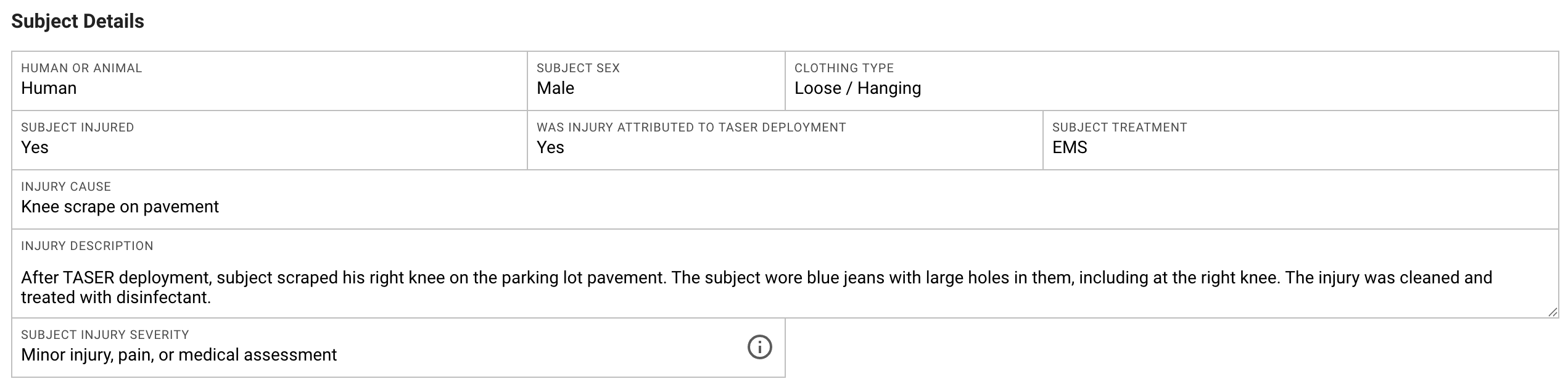
Complete the Subject Details section with the subject’s information.
Field Name Description HUMAN OR ANIMAL Select from the dropdown options: Animal, Human. SEX Select the subject's sex from the dropdown options: Female, Male, Unknown. ANIMAL TYPE Type the type of animal, if applicable. CLOTHING TYPE Select the clothing type that best describes the subject from the dropdown options: Loose/Hanging, Layered Clothing, None/Naked, Shirtless, Thin, Thick / Heavy. SUBJECT INJURED Select from the dropdown options: No, Unknown, Yes. WAS INJURY ATTRIBUTED TO TASER DEPLOYMENT Select from the dropdown options: No, Unknown, Yes. SUBJECT TREATMENT Select from the dropdown options: Decontamination, EMS, First Aid, Hospital, Jail Medical, None, Treated by Officer, Personal Physician, Refused. INJURY CAUSE Type the cause of injury. INJURY DESCRIPTION Describe the injury. SUBJECT INJURY SEVERITY Select the level of injury received from the dropdown options: Minor injury, pain, or medical assessment; Moderate injury; Severe injury; Fatal injury.
-
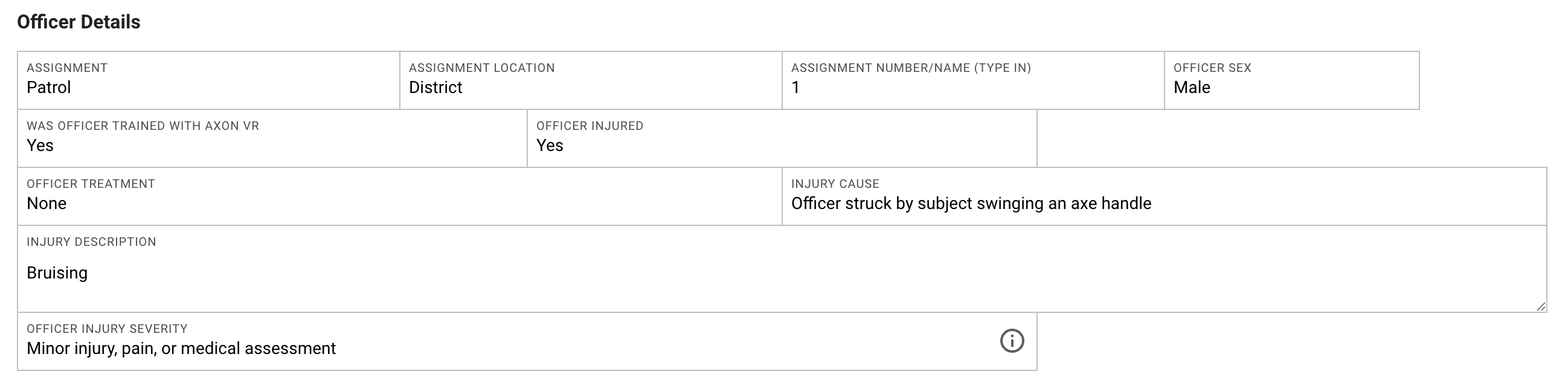
Complete the Officer Details section with the officer's information.
Field Name Description ASSIGNMENT Select from the dropdown options: Corrections, Court, Detective, Marine, Other, Patrol, Probation/Parole, SWAT, School Resource Officer, Wildlife Agent. If Other is selected, type the description in the OTHER ASSIGNMENT box. ASSIGNMENT LOCATION Select from the dropdown options: District, Precinct, Division, Zone, Sector, Correctional Facility. ASSIGNMENT NUMBER/NAME Type the number or name of the assignment location. WAS OFFICER TRAINED WITH AXON VR SYSTEMS Select from the dropdown options: No, Unknown, Yes. SEX Select the officer's sex from the dropdown options: Female, Male, Unknown. OFFICER INJURED Select from the dropdown options: No, Unknown, Yes. OFFICER TREATMENT Select from the dropdown options: Decontamination, EMS, First Aid, Hospital, Jail Medical, None, Treated by Officer, Personal Physician, Refused. INJURY CAUSE Type the cause of injury. INJURY DESCRIPTION Describe the injury. OFFICER INJURY SEVERITY Select the level of injury received from the dropdown options: Minor injury, pain, or medical assessment; Moderate injury; Severe injury; Fatal injury.
-
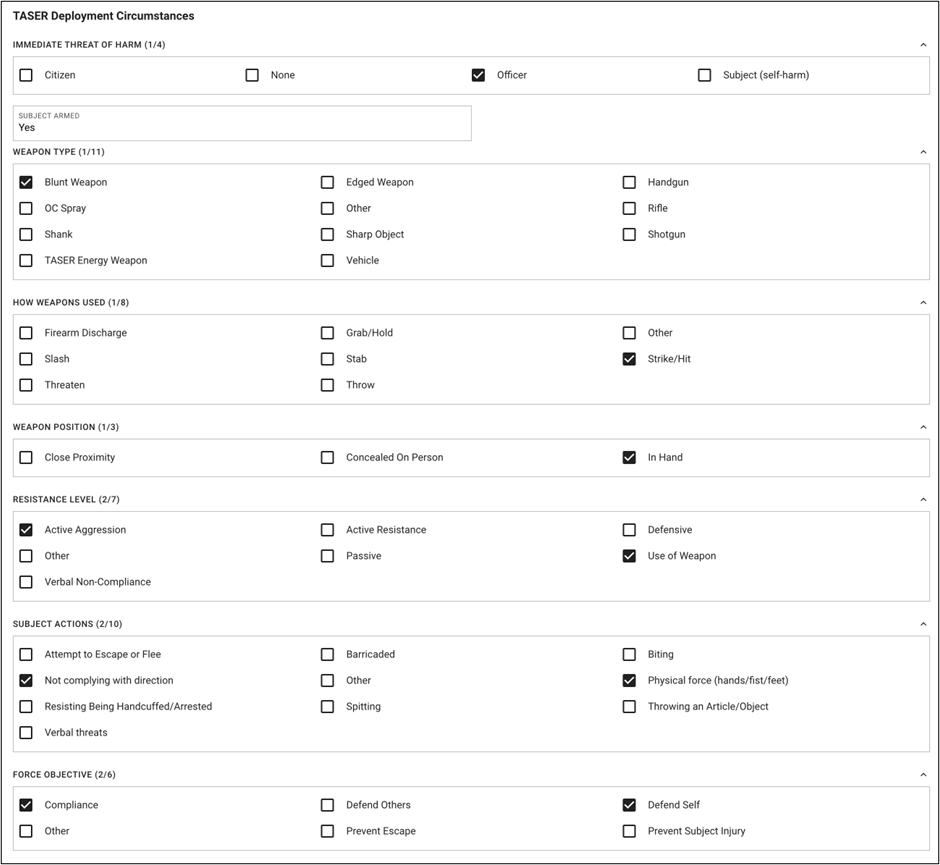
Complete the TASER Deployment Circumstances section with information about what led to the deployment.
Field Name Description IMMEDIATE THREAT OF HARM Select all that apply: Citizen, None, Officer, Subject (self-harm). SUBJECT ARMED Select from the dropdown options: No, Unknown, Yes. WEAPON TYPE Select all that apply: Blunt Weapon, Edged Weapon, Handgun, OC Spray, Other, Rifle, Shank (makeshift knife), Sharp Object, Shotgun, TASER Energy Weapon, Vehicle. If Other or Shank is selected, describe the type of weapon in the WEAPON DESCRIPTION box. HOW WEAPON(S) USED Select all that apply: Firearm Discharge, Grab/Hold, Other, Slash, Stab, Strike/Hit, Threaten, Throw. If Other is selected, type a description in the HOW WEAPON(S) USED OTHER DESCRIPTION box. If Firearm Discharge is selected, type the number of shots fired in the NUMBER OF SHOTS FIRED box. WEAPON POSITION Select all that apply: Close Proximity, Concealed on Person, In Hand. RESISTANCE LEVEL Select all that apply: Active Aggression, Active Resistance, Defensive, Other, Passive, Use of Weapon, Verbal Non-Compliance. If Other is selected, type a description in the OTHER RESISTANCE LEVEL box. SUBJECT ACTIONS Select all that apply: Attempt to Escape or Flee, Barricaded, Biting, Not complying with direction, Other, Physical force (hands/fist/feet), Resisting Being Handcuffed/Arrested, Spitting, Throwing an Article/Object, Verbal threats. If Other is selected, type a description in the OTHER SUBJECT ACTION box. FORCE OBJECTIVE Select all that apply: Compliance, Defend Others, Defend Self, Other, Prevent Escape, Prevent Subject Injury. If Other is selected, type a description in the OTHER FORCE OBJECTIVE box.
A partial example of a completed TASER Deployment Circumstances section:
-
Complete the TASER Deployment section with details about the TASER energy weapon and the deployment.
Field Name Description SERIAL NUMBER Type the serial number of the TASER energy weapon. This helps locate the energy weapon logs. TOTAL NUMBER OF PROBES DEPLOYED Type the total number of probes deployed. MAX PROBE SEPARATION Select from the dropdown options: Greater than 12 in., Less than 12 in. NUMBER OF CYCLES Type the total number of cycles. TOTAL DISCHARGE TIME Type the total discharge time in seconds. DISTANCE BETWEEN OFFICER AND SUBJECT (FT) Type the distance between the officer and the subject in feet. SUBJECT POSITION/MOVEMENT WHEN TASER WAS DEPLOYED Select from the dropdown options: Climbing, Crawling, Kneeling, Laying down, Other, Running, Standing, Sitting, Walking. If Other is selected, type a description in the OTHER SUBJECT POSITION/MOVEMENT PRIOR TO TASER DEPLOYMENT box. DRIVE STUN USED (TASER 7, X26P OR X2 ONLY) Select from the dropdown options: Yes, No. IF YES, DID DRIVE STUN CONTRIBUTE TO EFFECTIVENESS? Select from the dropdown options: Yes, No, Unknown.
An example of a completed TASER Deployment section:

-
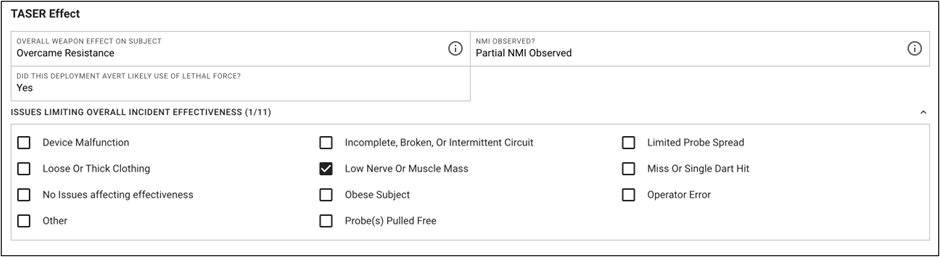
Complete the TASER Effect section with the details of the deployment.
Field Name Description OVERALL WEAPON EFFECT ON SUBJECT Select from the dropdown options: Overcame Resistance, Decreased Resistance, No Effect, Increased Resistance. NMI OBSERVED Select whether neuromuscular incapacitation (NMI) was observed from the dropdown options: 1 – Full NMI Observed, 2 – No NMI Observed, 3 – Partial NMI Observed. DID THIS DEPLOYMENT AVERT THE LIKELY USE OF LETHAL FORCE? Select from the dropdown options: N – No, Y – Yes, N/A – Not applicable. ANY ISSUES LIMITING OVERALL INCIDENT EFFECTIVENESS Select all that apply: Incomplete, Broken, or Intermittent Circuit; Limited Probe Spread/Distance; Loose or Thick Clothing; Low Nerve or Muscle Mass; Miss or Single Dart Hit; Obese Subject; Operator Error; Other; Probe(s) Pulled Free. If Other is selected, type a description in the OTHER ISSUES LIMITING EFFECTIVENESS box.
An example of a completed TASER Effect section:
-
Complete the Interactive Body Outline section to document where the probes hit the subject. (This section also documents misses.)
Field Name Description INTERACTIVE BODY OUTLINE 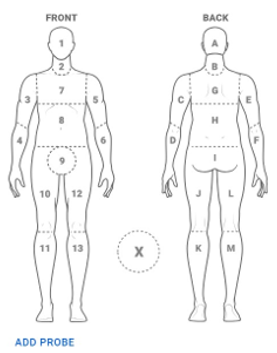
On the body outline, click where each probe struck the subject. Each probe location appears as a blue dot. If you indicate an injury, a magenta dot appears next to the blue dot. For probes that missed the subject, click the circled X area.
FIRST PROBE STRIKE 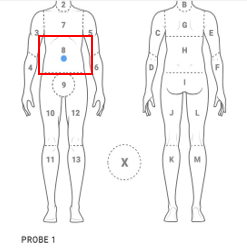
Click the area where the first probe struck the body. The body region fills in automatically.
DETAILED LOCATION Select the detailed location from the dropdown options. The options depend on the body region. For example: L ABDOM – Lower Abdomen, L RIB – Left Ribs, R RIB – Right Ribs, STOMA – Stomach. IF DRIVE STUN WAS USED, DRIVE STUN OR PROBE? Select DRIVE STUN APPLICATION if drive stun was used, or PROBE if TASER energy weapon probes were deployed before or after drive stun was used. DID PROBE CONNECT? Select from the dropdown options: No, Yes. If you select No, the PROBE REASON FOR NOT CONNECTING (FOR NON-OPTIMAL PROBE) box appears below the field. PROBE REASON FOR NOT CONNECTING (FOR NON-OPTIMAL PROBE) Select all that apply: Probe bounced, Probe pulled free, Stuck in loose/baggy clothing, Stuck in thick clothing, Unknown/Other, Wires breaking. If Unknown/Other is selected, type a description in the OTHER PROBE COMMENTS box. -
Repeat step 11 for each additional probe that was deployed.
The following image shows a completed Interactive Body Outline. In this scenario, one probe hit the subject’s shin, where there wasn't enough muscle mass for NMI. This is why three probes were deployed.
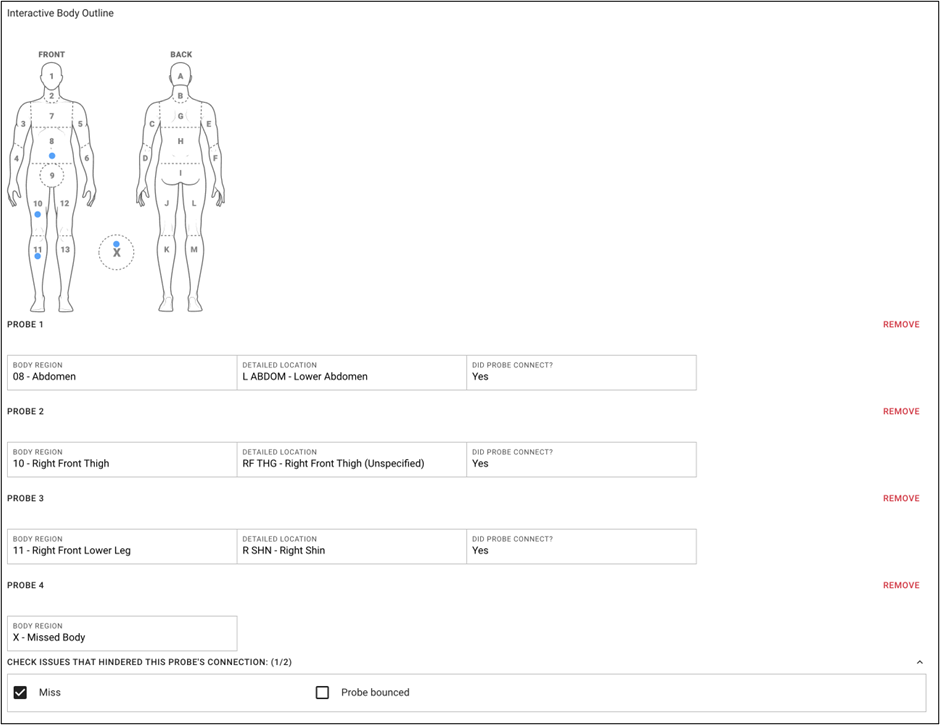
To remove a probe location you clicked by mistake, click Remove next to it.
-
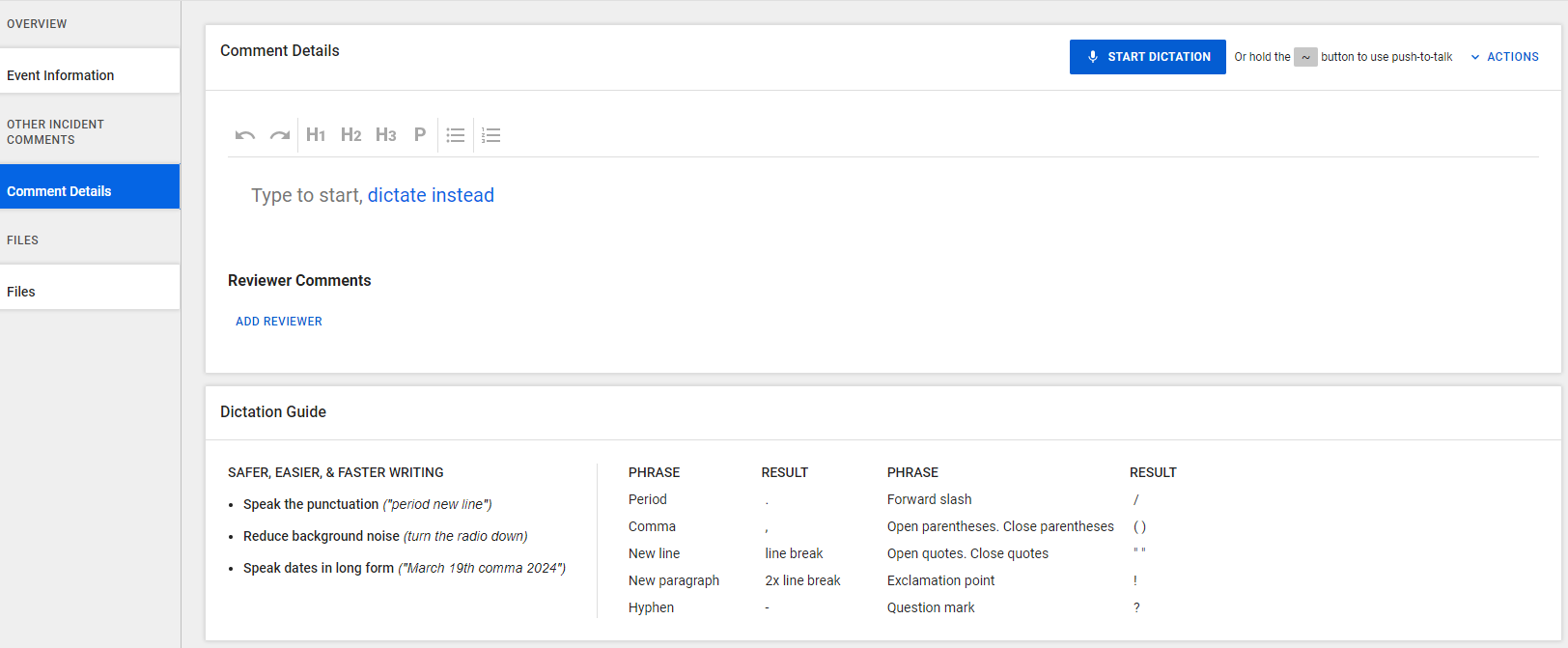
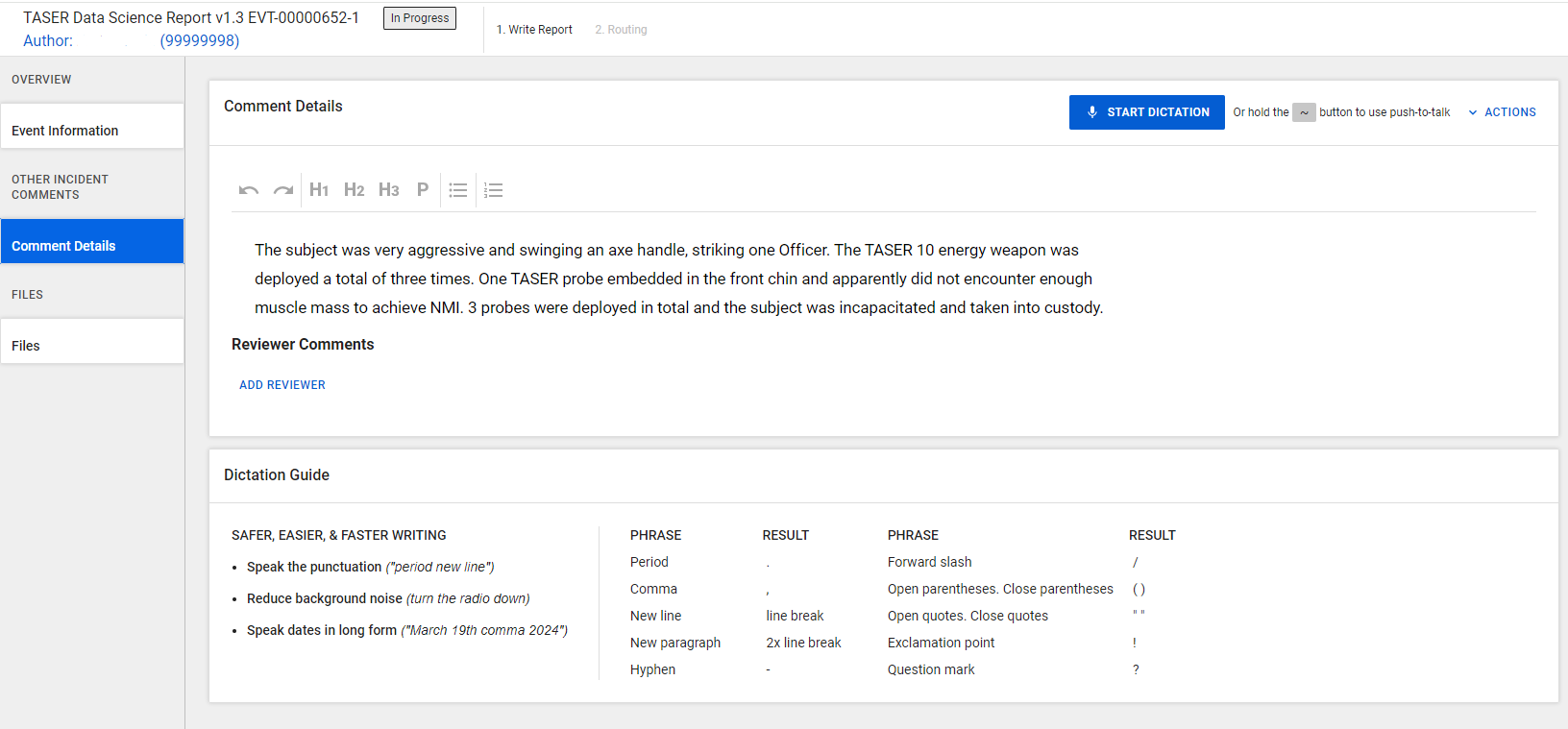
Under OTHER INCIDENT COMMENTS, in the Comments Details section, type any additional comments regarding the incident into the Comment Details box.
If you use a computer or other device with a microphone, you can dictate the details instead of typing them.
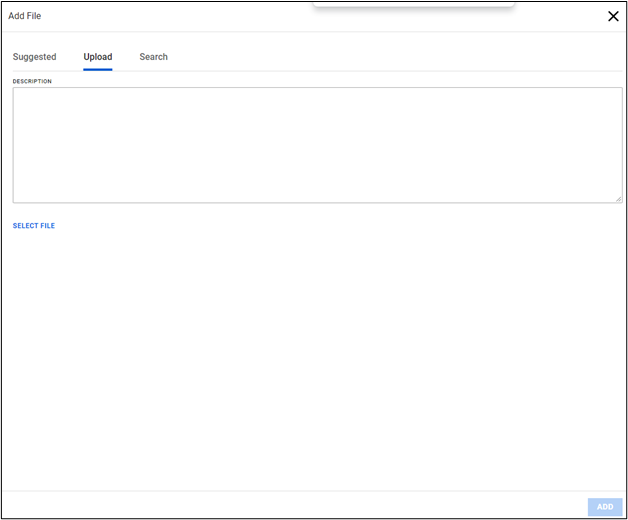
To attach files to the report, complete steps 14–20. Otherwise, go to step 21.
- Click Files and then select Upload File.
- In the Add File section, click Upload.
- In the Description box, type a description of the file being added.
- Click Select File.
- Click Add.
- Click Close.
- Repeat for any additional files.
-
Select the I confirm that I have reviewed all auto filled fields and have verified the report's accuracy check box, and then click Submit.
- Select where to route the report, and enter an assignee if the option requires one.
| Field Name | Description |
|---|---|
| Select where the report should be routed |
Select the type of review from the dropdown options:
|
| Assignee | Type the person's name or badge number (required for Request chain of command review and Request training review, not for Finalize report). |
-
Add any notes, and then do one of the following:
- If you selected Request chain of command review or Request training review, click Submit for Review.
- If you selected Finalize report, click Finalize.


