Access Axon Academy through Axon Evidence
As part of the new Academy platform launch, we are discontinuing MyAxon sign-in and transitioning to Axon Evidence sign-in.
To access Axon Academy, Operators sign in with their Axon Evidence credentials. The onboarding process depends on whether you belong to an agency or organization or are an individual.
For agency or organization Operators
Watch this video to learn how to access Axon Academy for agencies or organization Operators.
For agencies and organizations, there are four key steps to fully set up Axon Academy through Axon Evidence completed by both the individual user and Admin:
- Get an Axon Evidence account for your agency (completed by the Admin)
- Add trainees, trainers, and admins to Axon Evidence (completed by the Admin)
- Assign Academy Admin Access by creating groups (completed by the Admin)
- Sync agency users (completed by the Admin)
- Link MyAxon accounts to carry over training history (completed by each individual user)
These key steps are described in detail below.
Once all required steps are completed, Operators in your agency will have access to Axon Academy using their Axon Evidence credentials.
Step 1: Get an Axon Evidence account for your agency
Completed by: Admin
To use Axon Academy, your agency must have an Axon Evidence account, which will look like this: youragency.evidence.com.
If your agency doesn’t have an account:
- Contact your Sales Representative or Customer Service Manager (CSM) to request one, or
- Reach out to [email protected] or call 800-978-2737
Step 2: Add Operators to Axon Evidence
Users with an Axon Evidence role set to Assignee Only cannot sign in to Axon Academy. To access Axon Academy, users must be assigned a Lite user role (or higher) in Axon Evidence. To learn more about Axon Evidence account tiers, see License Tiers FAQ.
Completed by: Admin
Once your agency has access to Axon Evidence, the Admin must add Operators by creating Axon Evidence accounts for all trainees, trainers, and administrators.
Users can be added individually (see Adding a user) or in bulk (see Importing Users in Bulk).
(Optional) Export roster from MyAxon
If your agency previously used MyAxon, you can export a CSV of all Operators to help recreate your roster in Axon Evidence.
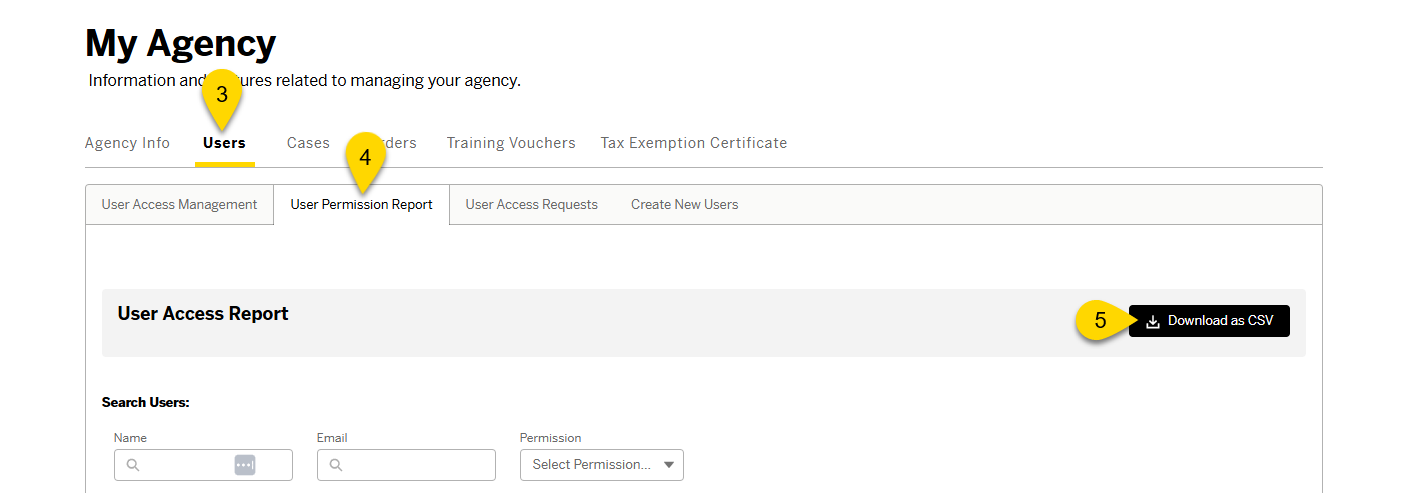
- Sign in to my.axon.com.
- Select My Agency.
- Select Users.
- Select User Permission Report.
- Select Download as CSV. The roster downloads automatically.
- Import the CSV to Axon Evidence. See Importing Users in Bulk to complete the process.
Step 3: Assign Academy Admin access by creating groups
For Enterprise users, "Groups" is referred to as "Teams" in the user interface.
Completed by: Admin
To grant Academy Admin permissions—such as enrolling others or viewing training records—an Axon Evidence Admin must create a group in Axon Evidence. See Creating a group.
When setting up your group, apply these settings:
- Group name: academy-admin
- Group setting: No Access
Once the group is created, add your Admin to that group. See Add members to a group from the article Creating a group.
The group name must be entered exactly as shown: academy-admin
Step 4: Sync Agency Users
Completed by: Admin
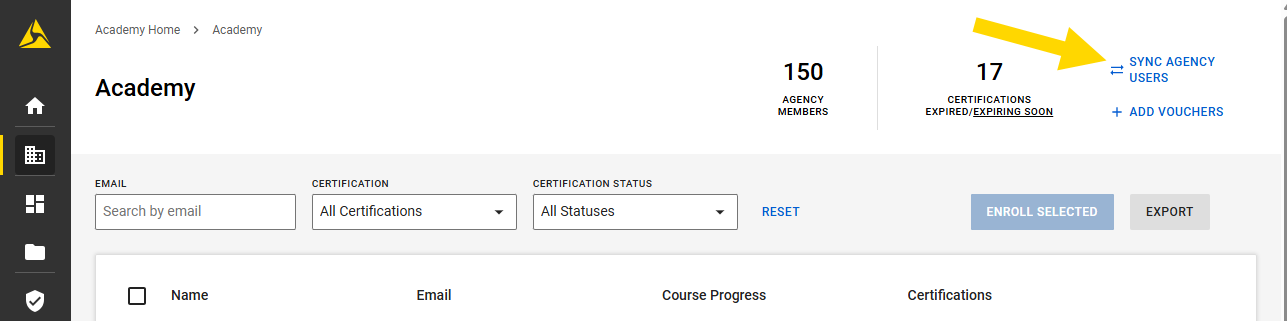
To create new users in Axon Academy, you must sync your agency users. This prompts the system to create Academy accounts for all users who exist in your agency's Axon Evidence. This sync may take a few minutes to complete.
To sync agency users:
- Sign in to Axon Academy.
- Select Admin Dashboard in the Academy panel.
- Select Sync Agency Users.
Step 5: Link your MyAxon account to your Axon Evidence account
Completed by: Individual Operators
You can connect your MyAxon account to your Axon Evidence profile to access your past certificates and transcripts.
- Sign in to Axon Academy.
- Select Your Profile in the Academy panel.
- Select Link Your MyAxon Account.
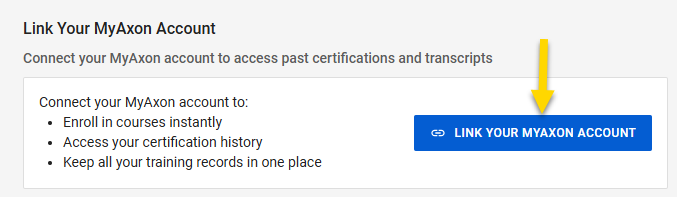
- In the dialog box, select Navigate to MyAxon.
- Sign in to MyAxon. Your account will link automatically to your Axon Evidence profile.
Account linking is permanent and cannot be undone. If you have multiple MyAxon accounts, make sure you link the correct one to ensure your course activity and certificates transfer correctly.
For individual Operators (not part of an agency)
Watch this video to learn how to access Axon Academy for individual Operators.
For individuals who do not belong to an agency, there are two key steps for onboarding:
Step 1: Register for Axon Academy
If you’re not affiliated with an agency, you can create your own account.
- Go to my.evidence.com.
- Select No Account.
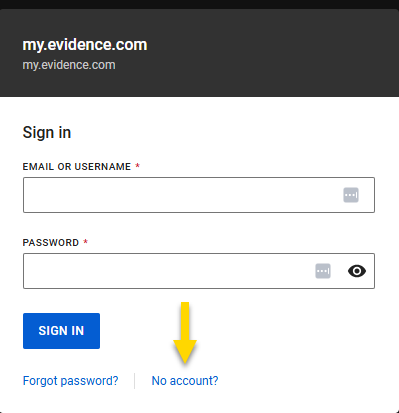
- Complete and submit the registration form.
- You'll receive a confirmation email with instructions to sign in to Axon Evidence, which will allow you to gain access to Axon Academy.
Step 2: Link your MyAxon account to your Axon Evidence account
You can connect your MyAxon account to your Axon Evidence profile to access your past certificates and transcripts.
- Sign in to Axon Academy.
- Select Your Profile in the Academy panel.
- Select Link Your MyAxon Account.
- In the dialog box, select Navigate to MyAxon.
- Sign in to MyAxon. Your account will link automatically to your Axon Evidence profile.
Account linking is permanent and cannot be undone. If you have multiple MyAxon accounts, make sure you link the correct one to ensure your course activity and certificates transfer correctly.


