Operation
Before operating an Axon Body camera, ensure it is fully charged and properly configured. For details, see Charge the battery.
Operating modes
This camera has two operating modes:
- Ready (Buffering) – Camera is on and is pre-event buffering
- Recording (Event) – Camera is recording
Turn on the camera and Ready mode (buffering)
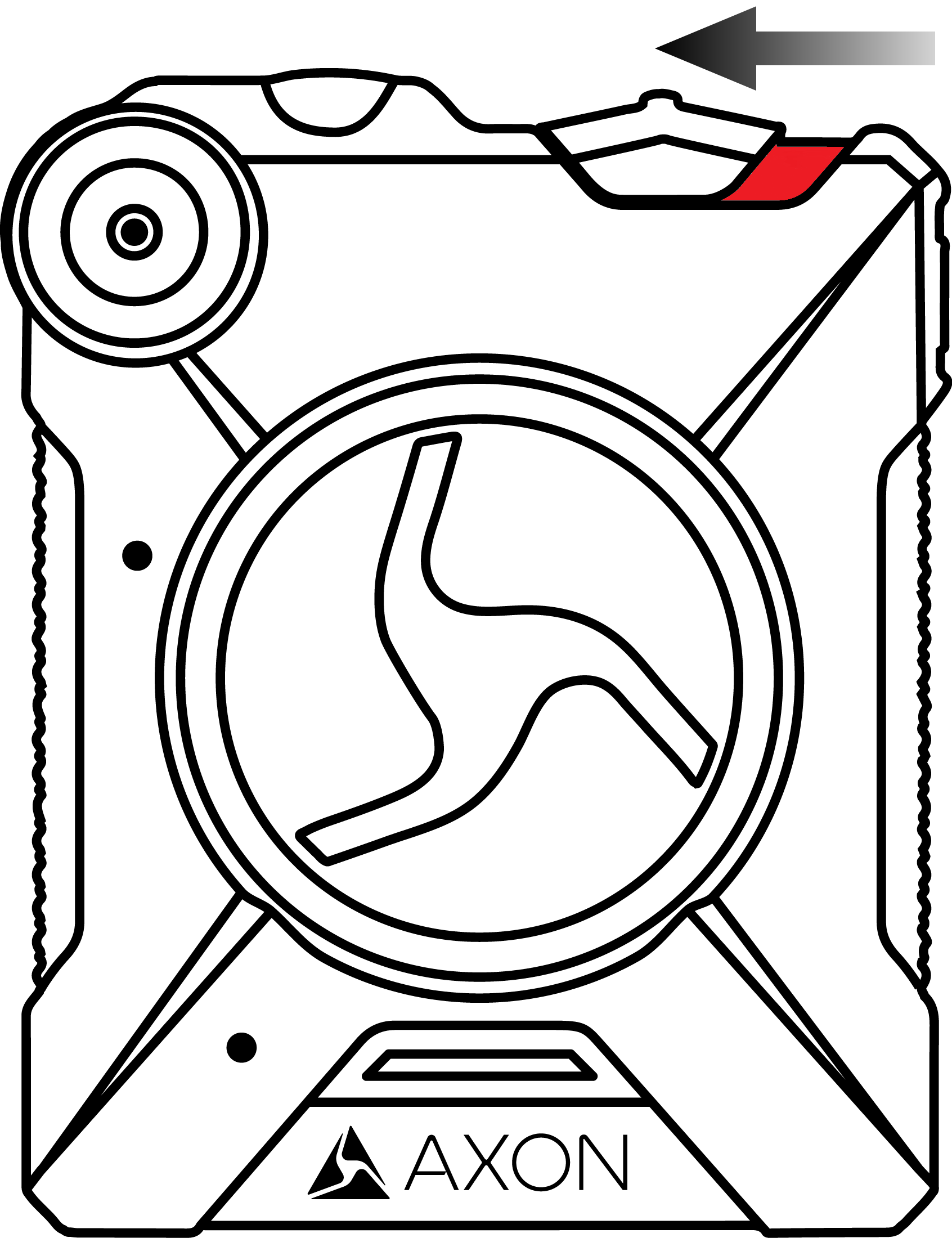
When the camera is in Ready mode:
- The Operation LED on top of the camera blinks green
 .
. - The camera is capturing video but not recording to permanent memory.
The pre-event buffer is configurable between 0 and 120 seconds, but set at 30 seconds by default.
When Recording (Event) mode is activated, the buffered video captured directly before the event is saved and attached to the event in permanent memory. This feature captures the video of an incident just before a recording begins. The camera does not capture audio within the pre-event buffer by default (but can be set to do so by an admin).
Ready mode starts when the camera is turned on. It does not buffer video when the camera is turned off or docked.
Start Recording mode (event)
- To begin recording, double-press Event. When your camera starts recording, it emits two short tones and two short vibrations. The camera provides indications it is in Recording mode:
- The Operation LED on the camera blinks red
 .
. - The camera emits two short tones and two short vibrations every two minutes as a recording reminder.
- The Operation LED on the camera blinks red
- To stop recording and return to Ready mode, press Event for three seconds. The camera emits one long tone and vibrates.
The maximum length of a recording is four hours. If your recording reaches this limit, the camera stops and starts a new one.
Mute audio recording
If your organization’s administrator has configured your camera to do so, you can mute audio while recording video. While muted, audio will not be recorded and is not recoverable.
- Press
 while the camera is muted.
 - Press Function another three seconds to cancel mute.
Stealth mode
Use Stealth mode to turn off the LEDs, sounds (audio prompts), and vibrations (haptic feedback) on your camera. This is useful for both tactical situations and when dealing with members of the public with light/sound sensitivity.
Use camera controls
- To enter
Use Axon View or View XL
Tap the switch to the right of Stealth mode to change the setting.
Add markers while recording
Markers are useful for indicating an important event that you want to easily find when replaying the video. The marker is shown when the video is replayed in Axon Evidence and documented in the audit trail.
To add a marker to a video while you are recording, press Function.
Battery status
The battery capacity for your camera appears on the camera display as a percentage. The Operation LEDs also reflect battery level;


