Troubleshooting
Most issues with your camera can be cleared by restarting it. If you can't resolve your issue, contact your Axon administrator or Axon technical support at my.axon.com for additional support.
In this topic:
- General FAQs
- Axon Dock FAQs
- Camera registration FAQs
- ADM error codes
- SPPM battery doesn't activate camera
General FAQs
Why is my camera LED cycling through all the colors (blinking red, yellow and green)?
- Check your network connection. Un-dock and re-dock your device and check if the error resolves.
- Restart the camera and check and check if the error resolves.
- Ensure the dock is registered.
- Refer to the camera's device profile page in Axon Evidence for additional error information.
- If none of the above work, contact technical support at my.axon.com.
I accidentally undocked my camera while it was updating firmware. What do I do?
No special action is needed, nor is your camera damaged. Avoid removing a camera from the dock while firmware is being applied, indicated by the  and yellow
- If the camera was undocked when downloading the firmware, it resumes downloading the next time it’s docked.
- If the camera was undocked while updating firmware, it continues updating until it is completed. Ensure the camera has enough battery power for the update to complete.
Never power the camera off while firmware is being applied.
Why does Windows Media Player (WMP) keep playing the wrong audio track?
This is a known issue with WMP and dual-track media files. One solution is to select the other audio track in WMP, which is different for each version. Another is to use a different media player, like the free and open-source VLC Media Player (Axon does not specifically approve use of any one media player).
Why is the buffer video length shorter than expected?
A recorded video may have a shorter buffer period than expected if:
- You started a recording shortly after turning the camera on, so the preconfigured buffer length has not yet elapsed.
- You ended one recording and started another before the preconfigured buffer length elapsed.
- The buffer is off or set to a different duration than expected in Axon Evidence.
Why can't I mute the video audio while recording?
This feature must be enabled in the Admin section of your Axon Evidence account. To use, see Mute audio recording.
Why is the time/date on my videos off?
See Axon Camera Video Watermark Timestamp for a discussion of how to set or disable time zone in a camera recording watermark and how timestamp works with Daylight Savings Time (DST).
Why don't my camera LEDs illuminate?
Your camera may be in Stealth mode. While paired to the camera:
- Open Axon View.
- Select the i icon in the top left.
- If Stealth mode is toggled on (green
 ), toggle it off (grey
  ).
).
Why does my TASER device SPPM battery not activate my body camera?
See this separate help topic: https://my.axon.com/s/article/SPPM-battery-does-not-activate-Axon-Body-2.
Why can't I add markers while recording?
This feature must be enabled in the Admin section of your Axon Evidence account. To use, see Add markers while recording.
Why can't I put my camera in Stealth mode?
This feature must be enabled in the Admin section of your Axon Evidence account. To use, see Stealth mode.
How do I view my live or recorded video in the field?
See Axon View.
Axon Dock FAQs
How do I ensure my dock is connected to the network?
If your dock is connected to the network, LEDs in the ethernet port blink green or amber. The camera will also be able to upload videos to Axon Evidence immediately upon docking.
My dock is registered, so why is "Device Profile" on Axon Evidence empty?
This is a known issue and a fix is in progress.
Why can't I access my dock’s Device Profile page on Axon Evidence?
Your dock must be registered to use the Device Profile page on Axon Evidence. See Camera dock overview in the left-nav of your camera's product page.
What comes in the box with my dock?
Each dock comes with an ethernet cable,
Camera registration FAQs
Why is my camera not fully charged when I power it on the first time?
Your camera
How can I identify which camera failed preparation when multiple cameras are docked?
Check the serial number of the camera displayed in the error message by tapping Errors. The serial number is located on the back of the camera.
ADM error codes
If there is a problem with preparing the camera, Axon Device Manager (ADM) displays an error.
Tap Errors to review the error information on ADM and refer to the following instructions to resolve the issue.
If you are unable to register any cameras, this may be due to a connectivity issue. See Manage network allowlists with Axon Cloud Services to ensure the appropriate network ports are open.
If some cameras are registering but others are not, this may be a transient error. A suggested general troubleshooting approach is to:
- Start with only one camera docked at a time.
- Attempt to register. If a registration error occurs, tap Dismiss All to allow ADM to retry registration.
- If registration fails again, power the camera off and then on again and repeat the registration process.
Refer to these error codes and suggested actions:
| Error Code | Description | Troubleshooting Action |
|---|---|---|
| -1 | Communication to the camera has failed | Power the camera off and back on, then retry registration. If attempting to register many cameras in close proximity, retry registration with individual cameras. If the error occurs again, tap Dismiss All and allow ADM to retry registration. |
| 33, -7249973, 43, or 49 | Camera time is inaccurate | Sign out and back into ADM. Power the camera off and back on, then allow the camera to remain docked for two minutes to allow sufficient time to synchronize the camera time. Confirm your organization network settings allow network communication from dock to Axon Evidence through port 80 and port 443. For details, see Manage network allowlists with Axon Cloud Services. |
| 45 or 47 | Camera unable to reach internet | Power the camera off and back on, then allow the camera to remain docked for one minute prior to retrying. It takes about 30 seconds to establish an internet connection. Tap Dismiss All and allow ADM to retry the registration. If the error persists after retrying to register several times, check the internet connection and troubleshoot the dock internet connection. Common connection issues include organization firewall settings. |
| 46 | Camera unable to reach your organization’s Axon Evidence account | Sign out and back into ADM. If you can sign in, retry registration. Otherwise, contact technical support at my.axon.com to see if there are any issues with Axon Evidence. |
| 34, 48, or 50 | Camera provisioning issue | Power the camera off and back on, then retry registration. If the error persists, contact your Axon Evidence administrator to confirm that Device Management permission is enabled. If Device Management permission is enabled, contact your Axon representative or technical support at my.axon.com for assistance. |
SPPM battery doesn't activate camera
An Axon camera receive event triggers via a Bluetooth signal from Axon Signal to start recording. Axon Signal is included in the SPPM battery installed in your TASER energy weapon and in other TASER devices. Follow these steps to set up your device correctly.
Step 1: Confirm Axon Signal capability is enabled for your camera
Your profile may require additional permissions to make this change.
- Sign into Axon Evidence.
- Select Admin and then under Devices and Applications, Axon Body 2 & Flex 2.
- Under Axon Signal Settings select Enable Axon Signal.
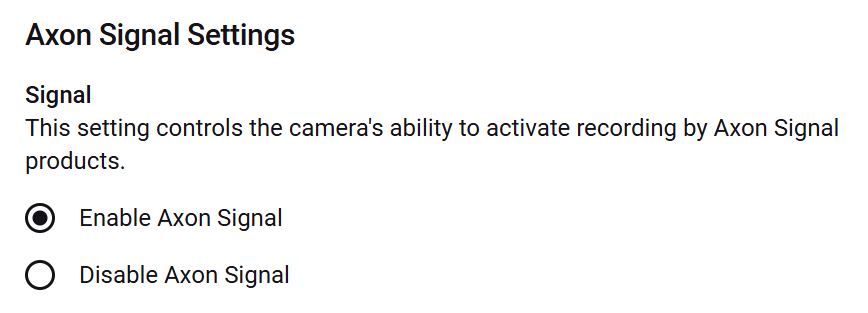
- Scroll to the bottom and select Save Settings.
You have now enabled Axon Body 2 and Axon Flex 2 cameras to receive event triggers from Axon Signal and start recording. The next time the Axon camera is connected to either an Axon Dock or Evidence Sync, it will update to this new setting.
Step 2: Verify your device firmware is updated
Update using Evidence Sync or placing in a networked Axon Dock for at least eight hours. Learn more about using Evidence Sync for updating at Update energy weapon firmware.
Step 3: Verify Axon Signal configuration
If your camera still doesn't record, check your Signal configuration in Axon Evidence.
- In Axon Evidence, select Admin and then under Signal, TASER Weapon.
- Select Edit
 for the activation event to change.
 - Select Body Worn from the drop-down menu.
- Select Save
 .
. - Repeat steps 2–4 for the remaining event activations.
- Optionally, toggle the Assigned Officer Activation switch to enable or disable this capability. For this setting to work correctly, your organization must ensure SPPM-equipped energy weapons and camers are correctly assigned and distributed to officers.
You have now enabled Axon Signal to send triggers to your Axon Body cameras. Body cameras will download this new setting the next time they are connected to either an Axon Dock or Evidence Sync.


