Change dock interface to HTTPS
The Axon Dock administration interface for legacy docks uses HTTP by default when connecting with a browser (this connection is unrelated to the dock's HTTPS connection to Axon Evidence). For an added layer of security when connecting, you can enable HTTPS.
- Connect a computer to your dock using the MGMT (LAN) port .
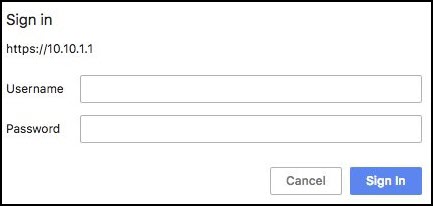
- Enter 10.10.1.1 in the address bar of a browser and press Enter. If you have not signed in to the Axon Dock yet, enter the administrator Username and Password (different from your Axon Evidence credentials).
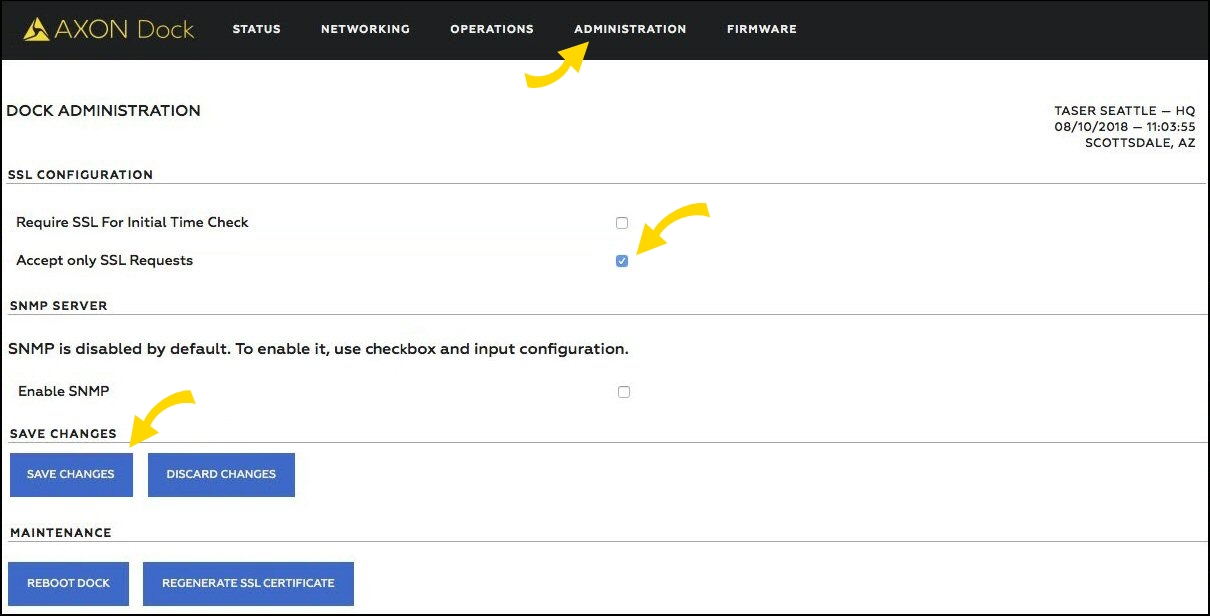
- On the Axon Dock menu bar, select Administration.
- In the SSL Configuration section, check the Accept only SSL Requests box and then select Save Changes.
- Refresh the browser page. A browser warning notes "connection is not private".
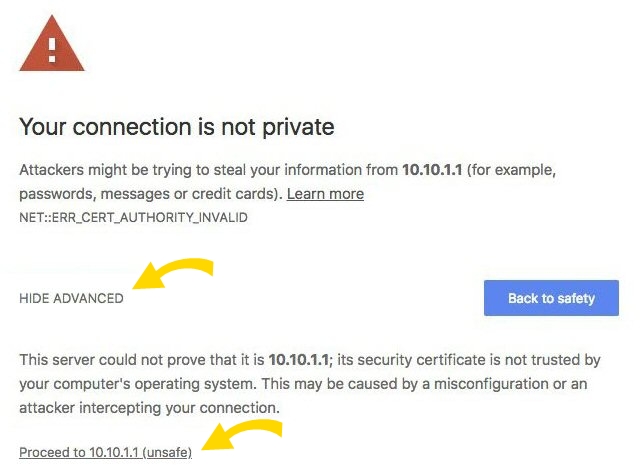
- Select the option that lets you add the exception and install the dock security certificate. Each browser has a slightly different workflow; the above is from Google Chrome and requires you to select Show Advanced (which then becomes Hide Advanced) to show the lower part of the screen, then Proceed to 10.10.1.1 (unsafe).


