Work with devices
Use the Axon Evidence search screen with its robust filtering options to find and manage devices.
Read the following sections to learn about:
Device profile page overview
When you select a device from search results (see Use standard search) you get the Device Profile page. It's comprised of several sections. Not all sections appear for all devices.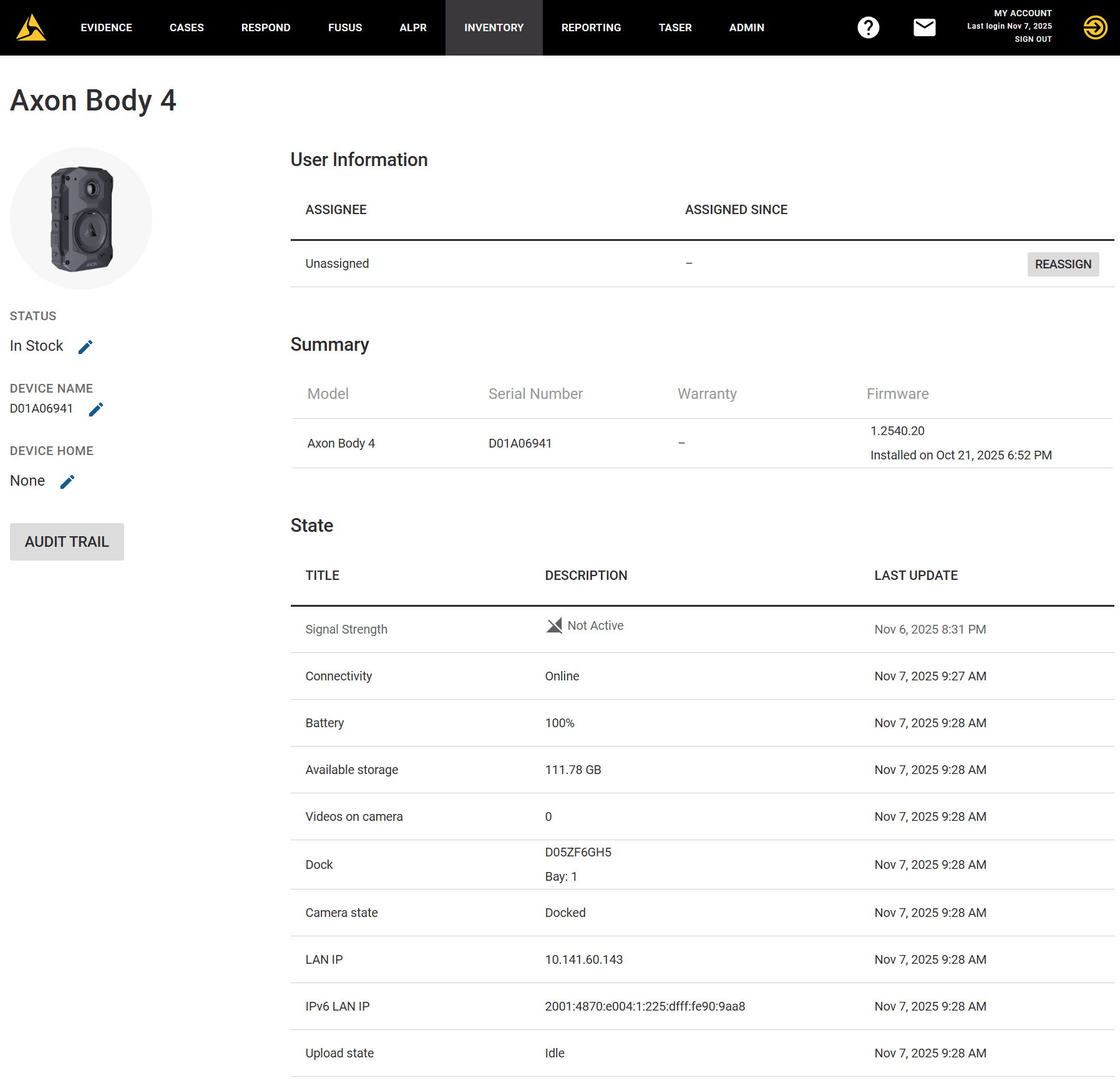
- The left side shows device Status, Name, Home, and a button for Audit Trail. To change, select Edit
 .
. - User Information – Current assignee, when the device was assigned, and a button for Reassign.
- Summary – Essential information about the device, such as model, serial number, warranty, and firmware version.
- State – The last-best information reported by the device, including battery charge, available storage, videos stored, and more.
- Location – Last reported latitude/longitude, accuracy, and last update date/time, along with a map.
- Connected Devices – Only appears for docks. Provides information on devices, such as body cameras and TASER 7 batteries, that are currently docked.
- Recent Evidence – Links to evidence recently uploaded from the device, including owner, date/time, and status. Select the evidence Title to open its detail page.
- Device Settings – Shows a subset of user settings for some devices. All settings are available in Admin.
Assign or reassign
For most device types, use the Device Profile page to assign the device to a user. Devices can also be assigned using Axon Device Manager or Bulk assign.
- On the Device Profile page, in the User Information section, select Reassign.
- In the name or badge ID field, start typing the name of the user to assign. When matching users appear, select the one you want. You can also enter the user badge ID or select the user from the list.
- Select Reassign to assign the device to the user.
View evidence
Any evidence recorded by the device that has been uploaded to Axon Evidence appears under Recent Evidence. This list includes videos recorded by Axon body cameras and TASER device firing logs.
- On the Device Profile page, locate the Recent Evidence section.
- If the evidence you are looking for is not shown, select View All to go to the Evidence Search page for the device.
- You can accomplish the following tasks here:
- Select the Title of the evidence to view the Evidence Detail page, where you can view, edit, download, flag/un-flag evidence, and more.
- Select the Owner name to view the owner's User Summary page.
Edit settings
Device settings that can be changed depend on the type of device and organization-level device settings. While some cameras have a limited number of settings on a profile page, it's better to access these settings in the Admin section of Axon Evidence. To learn more, see the Admin settings topic for the device; as an example, here's Axon Body 4.
| Device | Changeable settings |
|---|---|
| Axon Body 4 camera | See the Admin settings topic for Body 4 |
| Axon Body 3 camera | Speaker volume, vibration, indicator lights, automatic brightness, and application of Stealth mode |
| Axon Body 2 camera | Speaker volume, vibration, indicator lights, and application of Stealth mode |
| Axon Flex 2 camera | Speaker volume, vibration, indicator lights, application of Stealth mode, and orientation |
| Axon Flex camera | Device name and orientation |
To change settings on the device profile page:
- Locate the Device Settings section.
- Change settings as needed.
- Select Save Settings.


