Disposition and review
Dispositions represent the outcome of a case or investigation. Depending on your organization’s configuration, updates to a disposition may require a review. These review workflows introduce oversight before a case is formally closed. Disposition reviews ensure:
- Accurate reporting
- Policy compliance
- Alignment with legal or reporting standards (e.g., NIBRS)
Cases can have two different dispositions:
- Internal dispositions are used to track cases within the organization to manage the case status.
- Contact Axon support or your Axon representative to configure the list of internal dispositions.
- NIBRS dispositions are used by an organization to report the status and clearance of the investigation for NIBRS and other reporting purposes.
An investigation can only have an internal disposition.
Organizations have several options when configuring what occurs when a user updates a case disposition:
- No review: When users update a NIBRS or internal disposition, the update is immediately applied without the case or investigation going through a review.
- No review (NIBRS dispositions only): When users update a NIBRS case disposition, the update is immediately applied without the case going through a review.
- Supervisor review: When users update a NIBRS or internal disposition, the case or investigation is routed to supervisor review before the update is applied or rejected.
- Organizations can also require reviews only when a case is updated to certain dispositions.
- Supervisor + Records review: When users update a NIBRS disposition, the case is routed first to supervisor review then to Records review before the update is applied or rejected.
- When users update an internal disposition, the case is routed to supervisor review only before the internal disposition update is applied or rejected.
- As in the supervisor review workflow, organizations can require reviews only when a case is updated to certain dispositions.
Based on which disposition update workflow is configured for your organization, administrators can assign various privileges that determine which users can:
Update disposition (no review)
If your organization is configured to NOT require a review of disposition updates, follow these steps to update a disposition for a case or investigation:
- Open the case or investigation profile and select More actions.
- Select Update case disposition (for case updates) or Update disposition (for investigation updates).
- When updating case dispositions, a message indicates whether or not the incident report associated with the case contains an arrest. If the incident requires an arrest but one has not been added, you can select the Incident ID to open the incident report and add one.
- Select the new disposition.
- When changing the internal disposition, optionally provide a reason.
- From this screen, select Reassign lead detective to change the lead detective, add a routing note, change the due date, or mark the case as urgent.
- Some organizations are configured so that NIBRS disposition updates will trigger an automatic submission to the state.
- If there are any unfinalized reports at the time of a NIBRS disposition update, a message will appear, indicating that those reports or supplements should be finalized before the NIBRS disposition update is applied and the NIBRS submission is triggered.
- If there are other NIBRS issues present in the report, you will see additional error messages.
- Select Set case disposition (for case updates) or Update (for investigation updates).
Request disposition update (review required)
If your organization is configured to require a review of case disposition updates, you can request a disposition update and case review by taking the following steps:
- Open the case or investigation profile and select More actions.
- Select Update case disposition (for case updates) or Update disposition (for investigation updates).
- When updating case dispositions, a message indicates whether or not the incident report associated with the case contains an arrest. If the incident requires an arrest but one has not been added, you can select the Incident ID to open the incident report and add one.
- Select the new disposition.
- Some organizations are configured so that NIBRS disposition updates will trigger an automatic submission to the state.
- If there are any unfinalized reports at the time of a NIBRS disposition update, a message will appear, indicating that those reports or supplements should be finalized before the NIBRS disposition update is applied and the NIBRS submission is triggered.
- If there are other NIBRS issues present in the report, you will see additional error messages.
- Select Next.
- Optionally assign a reviewer or leave a comment.
- Select Request review.
- The case or investigation will be routed first to the supervisor for their review and, as applicable for cases, to the Records department for their review.
After requesting a disposition update, the disposition displays as In Review at the top of the case profile, and a new footer appears, showing that the disposition update is in review. Select Details to view more information about the update request.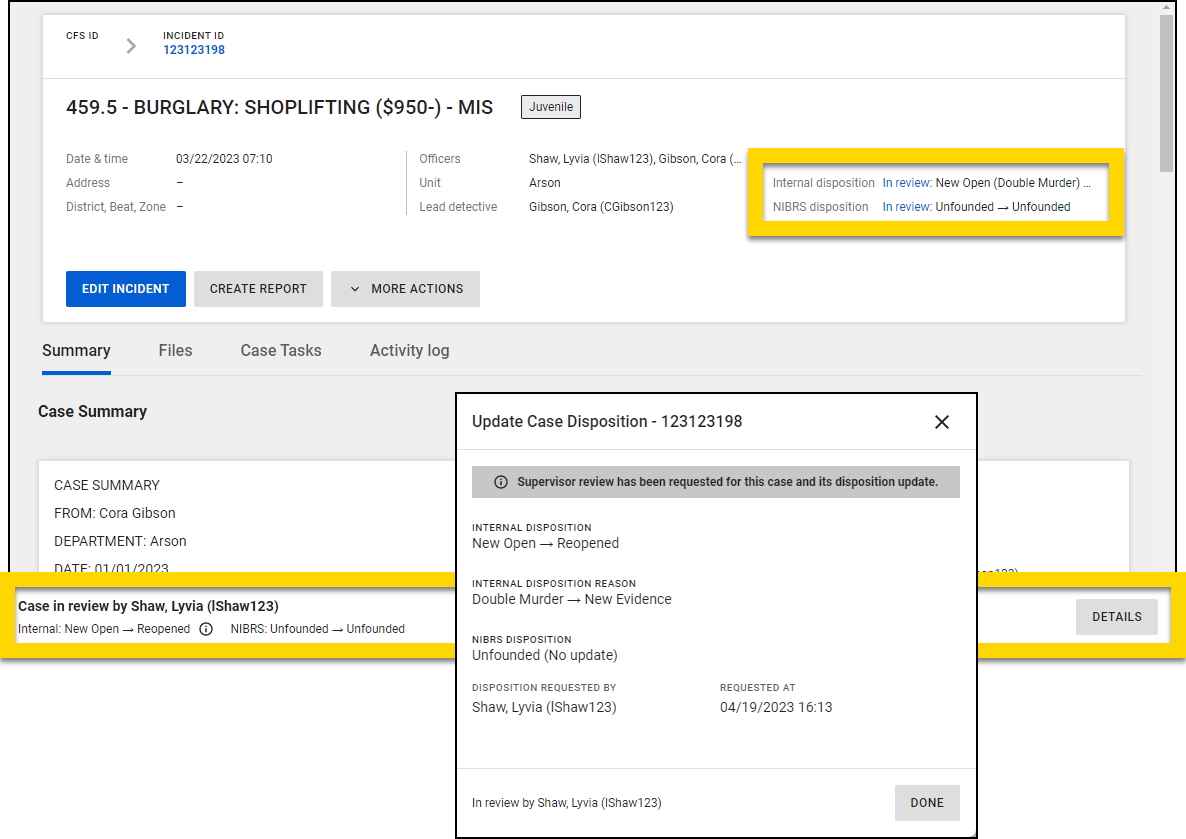
In your Case Management My Inbox, cases and investigations currently under review are labeled with a Review stamp. Select Update requested {date} to open the profile and view more information.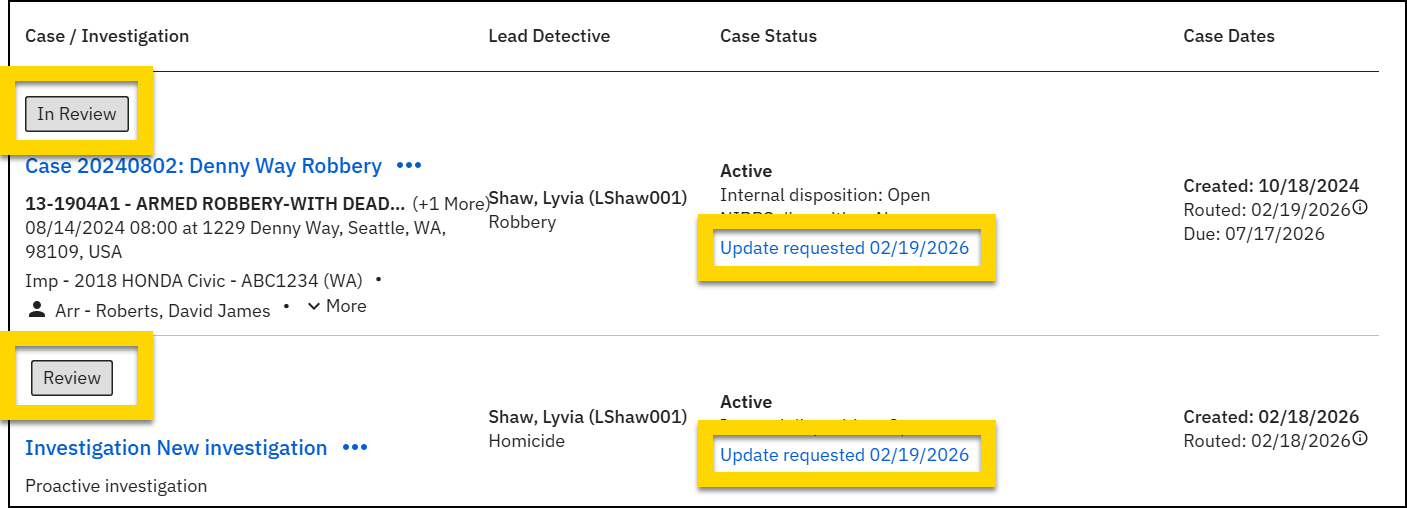
Assign review requests
Depending on the privileges you have, you can open a case or investigation profile and assign the review task to yourself or another reviewer by selecting the Assign or Reassign button at the bottom of the screen. Once assigned, the task appears in the assignee's Assigned to me for review tab in their Case Management My Inbox.
Supervisor case review
Some organizations are configured to require supervisor review of either all disposition updates or if a case or investigation is updated to specific dispositions. With this configuration, after a user updates a disposition, a disposition update request is created and can be found in several places:
- If a review request has been assigned to you, it will appear in the Assigned to me for review tab in your Case Management My Inbox.
- Users who have been granted disposition review access can find all disposition review requests, including unassigned requests, by opening the unit inbox(es) they have access to and selecting the Disposition in review tab.
If you are assigned to review a disposition update:
- Follow your organization's policies to review the case or investigation.
- When reviewing case disposition updates, a message indicates whether or not the incident report associated with the case contains an arrest. If the incident requires an arrest but one has not been added, you can select the Incident ID to open the incident report and add one.
- Once your review is complete, select either Approve or Reject at the bottom of the case profile page.
- In the dialog box that appears, provide a comment as necessary, and select Approve or Reject.
If a case's NIBRS disposition was updated in addition to the internal disposition, the case may need to be reviewed by the Records department. After approving a NIBRS disposition update, you will see a new screen that allows you to optionally assign a specific review and leave a comment. Select Approve & submit to route the case to Records for review.
Records case review
Some organizations require Records review of NIBRS case disposition updates. With this configuration, after a user updates a NIBRS disposition, a disposition update request is created and appears in the NIBRS Disposition Review inbox in the Tasks module.
If you are assigned to review a disposition update:
- Follow your organization's policies to review the case or investigation.
- When reviewing case disposition updates, a message indicates whether or not the incident report associated with the case contains an arrest. If the incident requires an arrest but one has not been added, you can select the Incident ID to open the incident report and add one.
- Once your review is complete, select either Approve or Reject at the bottom of the profile page.
- In the dialog box that appears, provide a comment as necessary, and select Approve or Reject.
Some organizations are configured so that NIBRS disposition updates trigger automatic NIBRS submissions. As a result, if there are any unfinalized reports at the time of a NIBRS disposition update, a message will appear, indicating that those reports or supplements should be finalized before the NIBRS disposition update is applied and the NIBRS submission is triggered.
View past disposition updates
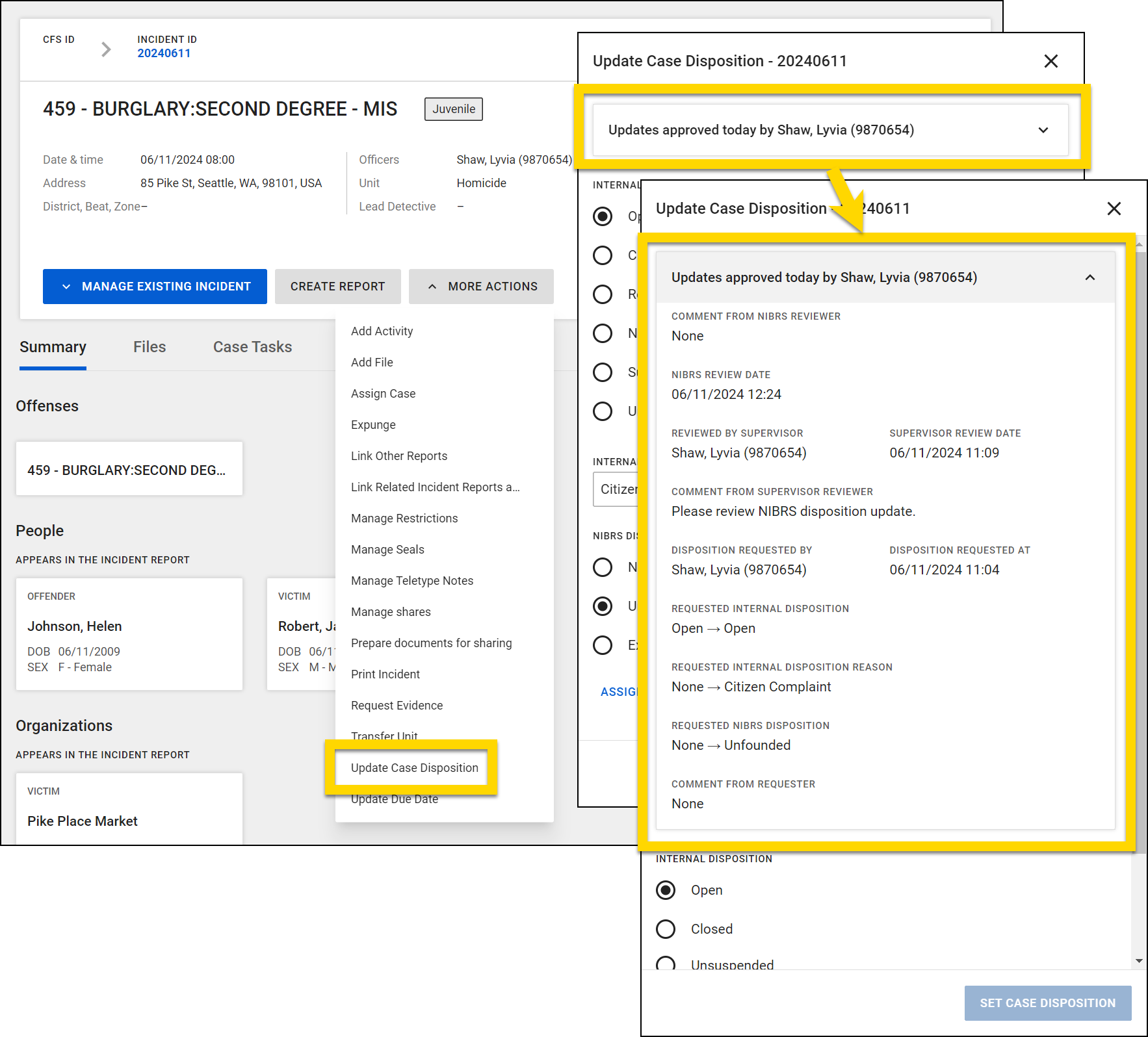
You can view past disposition updates at any time by opening the case or investigation profile and selecting More actions > Update disposition. Any disposition updates that have been approved or rejected, appear at the top of the Update disposition pane. Select the arrow to expand this section and view the update details.