Cases - Records
The Case Management module uses a privileges model to control access to data and actions. There are two primary types of privileges:
- Static privileges: Control what users can see and access (i.e., the buttons and options that appear when a user opens an inbox, case, or investigation)
- Workflow privileges: Control what actions users can take based on the current state of that work item (e.g., Draft, Review, etc.)
Together, these privileges ensure sensitive case and investigative data is only accessible to authorized users and enable organizations to enforce their own operational processes.
The privileges related to the Case Management module appear in the Cases - Records category as shown in the table below.
Name |
Description |
Additional required privileges |
|---|---|---|
|
Access the {case task inbox name} case task inbox |
A task inbox privilege is associated with each specialized team inbox that has been configured for the organization. Users with this privilege can access that team inbox and the tasks that have been assigned to it. Typically granted to specialized team members who work on tasks. |
|
|
Access the Agency Overview inbox |
Lets users view all cases and investigations in the Agency Overview inbox. Typically granted to Detective Supervisors. |
To take actions on cases and investigations, users must also have that unit's Triage cases or Supervise active cases privilege, or the Supervise cases in the Agency Overview inbox privilege. |
|
Case assignment |
||
|
Be assigned to {unit name} cases |
Lets users be assigned to the indicated unit's cases and investigations, and manage these active and closed cases from their My Inbox. Typically granted to Detectives. |
To manage the unit's active or triage cases and investigations from the unit's inbox, a user must have the unit's Supervise active cases and Triage cases privileges. |
|
Create |
||
|
Create cases |
Lets users create cases manually by selecting Create case from the More actions menu on incident profiles. Typically granted to Detective Supervisors. |
|
|
Create investigations |
Lets users create investigations by selecting Create investigation in the Case Management module. Typically granted to Detective Supervisors. |
|
|
More actions |
||
|
Access Detective Notes for units' cases |
Lets users view and edit the Detective notes field on tasks. Typically granted to Detectives. |
|
| Edit task due date |
Users with this privilege can edit the due dates for templated tasks in cases and investigations. (Templated tasks are tasks that are automatically generated when the case/investigation is created.) Due dates for user-created tasks can be edited by users with this privilege or the user who created the task, even if they do not have this privilege. |
|
|
Manage case shares with external partners |
Lets users access the Manage shares option in the More actions menu, which allows them to manage cases and investigations that have been shared with organizations and users. Typically granted to Detectives. |
|
|
Prepare Documents for sharing |
Lets users access the Prepare documents for sharing option in the More actions menu, which allows incidents, cases, and investigations to be shared with partner organizations and users. Typically granted to Detectives. |
|
|
Update case dispositions for any units' cases |
Lets users update the disposition of any case or investigation, regardless of whether or not they can access the unit inboxes for those cases and investigations. Typically granted to Records Clerks. |
Users must also have the following privileges:
If your organization follows a review process for disposition updates, users must also have privileges in the following workflows:
|
|
Update internal case dispositions without supervisor review for your units' cases |
Lets users update the internal disposition of any case or investigation without a supervisor case review. If your organization requires Records case reviews for NIBRS disposition updates, a user who has this privilege and updates a NIBRS disposition, must still request a Records case review. Typically granted to Detective Supervisors. |
Users must also have the following privileges:
Additionally, users must also have privileges in the following workflows:
|
|
Update internal case dispositions for your units' cases |
Lets users update internal dispositions for cases and investigations assigned to their units. Some disposition updates require a supervisor case review. Typically granted to Detective Supervisors and Detectives. |
Users must also have privileges in the Case Disposition Update workflow. |
|
Update NIBRS case disposition for your units' cases |
Lets users update NIBRS case dispositions for cases assigned to their units. Typically granted to Detective Supervisors and Detectives. |
Users must also have privileges in the Records Case Disposition Update with NIBRS Review workflow. |
|
Supervise active cases |
||
|
Supervise active {unit name} cases |
Lets users:
Typically granted to Detectives. |
To manage the unit's triage cases and investigations, a user must also have the unit's Triage cases privilege. |
|
Supervise cases in the Agency Overview inbox |
Lets users:
Typically granted to Detective Supervisors. |
|
|
Triage {unit name} cases |
Lets users:
|
To manage the unit's active cases, a user must also have the unit's Supervise active cases privilege. |
|
Triage cases |
Cases and investigations not yet assigned to a unit appear in the No Unit Assigned inbox. This privilege lets users assign these cases and investigations to a detective in a unit. |
|
Workflows
Once created, dispositions, documents, and tasks move through a workflow, for example, Draft → Detective Review → Finalized. Each state is associated with multiple privileges, which give you granular control over which users can take on a disposition, document, or task, based on its current state.
The following workflows are used in the Case Management module:
Case Summary and Case Documents
Summaries and documents do not require a review. These items move through a workflow that contains two states:
Case Task Default
Tasks that do NOT require a detective review move through the following workflow. Completed tasks can be reopened as necessary.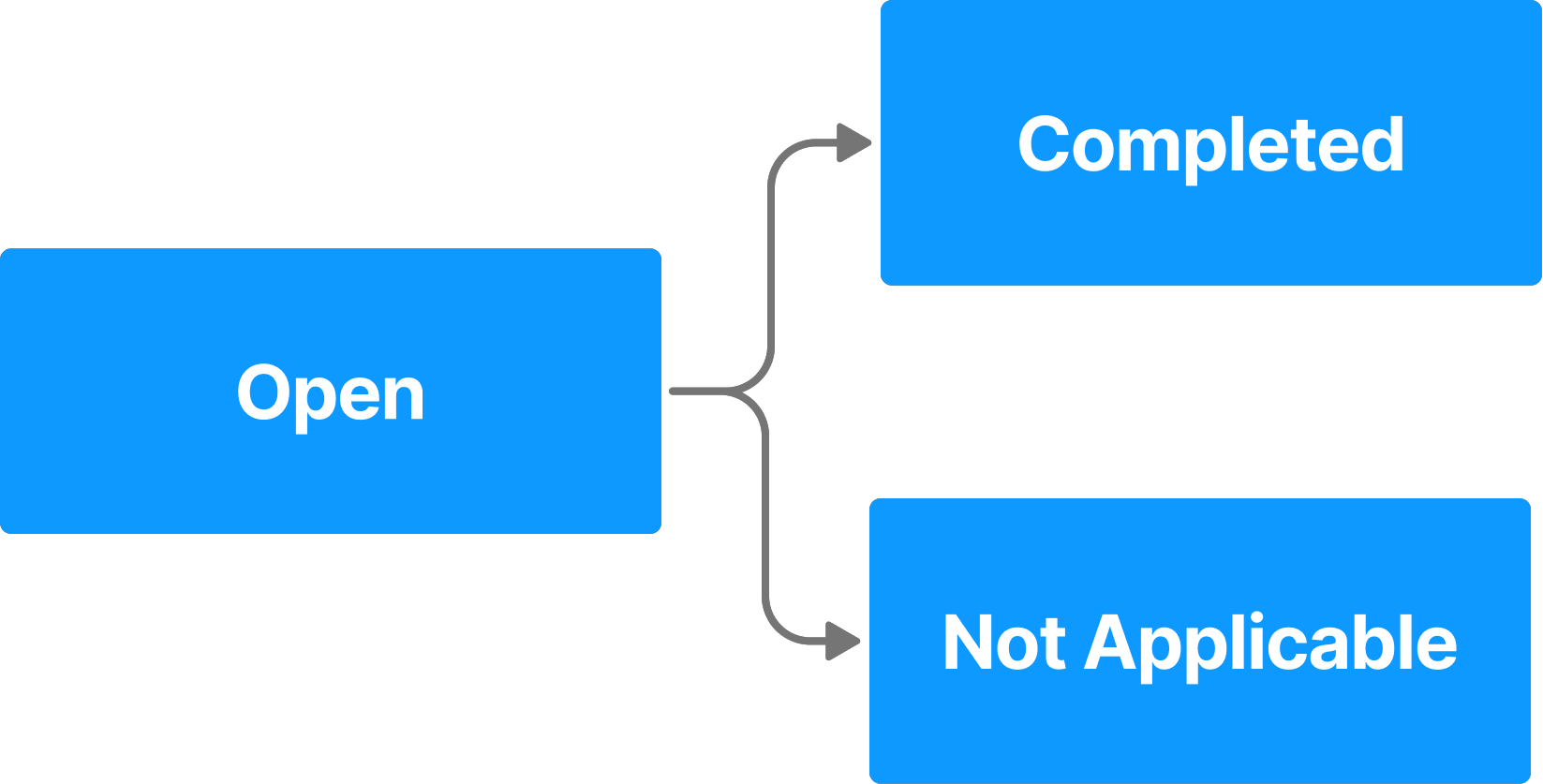
Case Task Review
Tasks that require a detective review move through the following workflow. Tasks can be marked as Not Applicable at any time, and completed tasks can be reopened as necessary.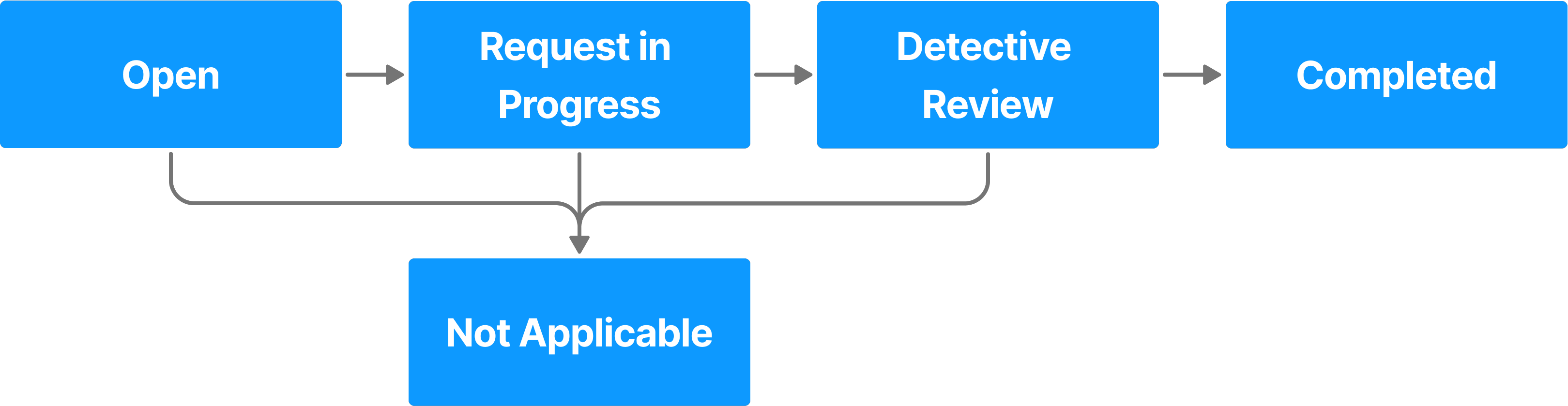
Case Disposition Update
Disposition updates that require a supervisor review move through the following workflow. Supervisors only need to approve or reject disposition updates. The Approve → Closed transition happens automatically.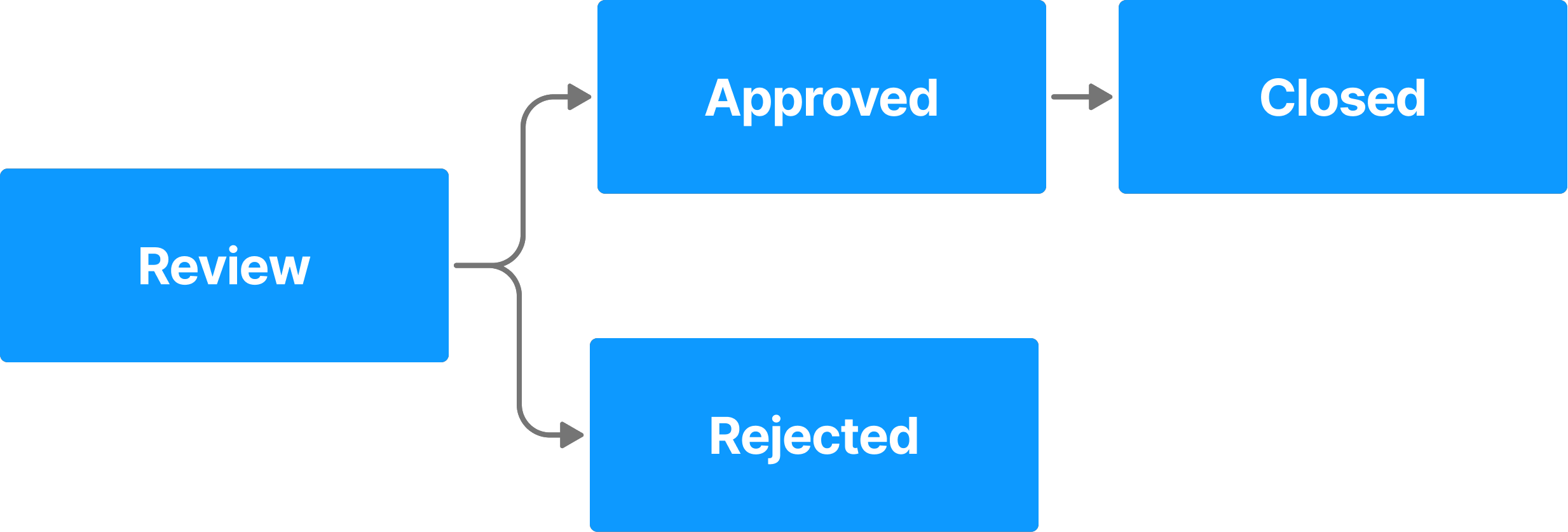
Records Case Disposition Update
Case disposition updates that require a supervisor review move through the following workflow. Records clerks only need to approve or reject disposition updates. The Approve → Closed transition happens automatically.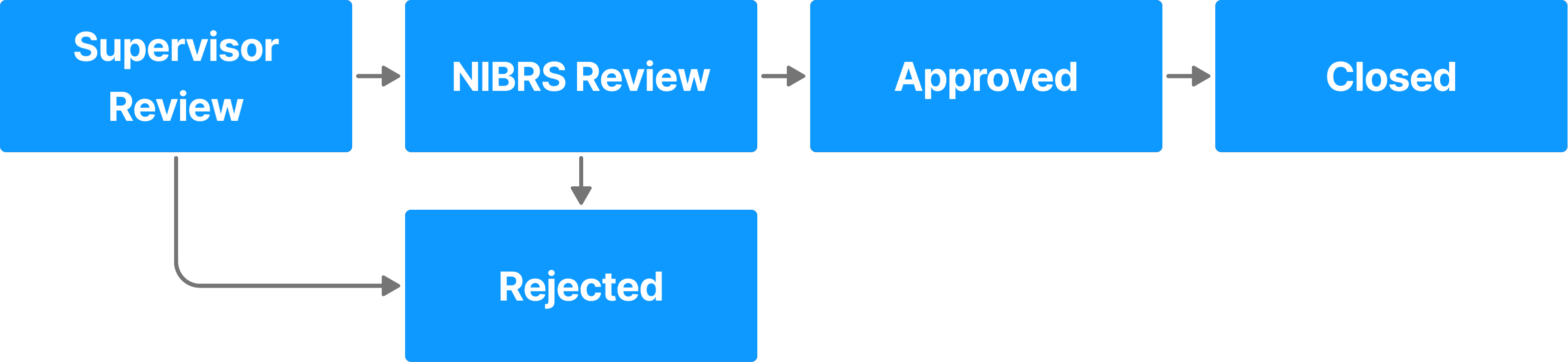
The privileges for workflows appear at the end of the Cases category. Each workflow has its own subcategory, and within that subcategory, privileges are sorted by state. The states are listed alphabetically, not by the order in which they appear in the workflow. For example, Finalized, which is the final state, appears before Review.
The hover tooltip for the first state in the workflow provides additional details about the workflow as a whole and not just that workflow state.
The table below explains how each workflow privilege works. Keep the following in mind when reviewing this table:
- This table is an exhaustive list of all possible workflow privileges.
- Not every workflow contains the states listed in the table.
- Some workflows may have a state but not all privileges associated with the state as shown in the table.
- For consolidation purposes, a single Review state is listed, although some workflows may have multiple Review states.
Name |
Description |
Additional required privileges |
|---|---|---|
|
Add comments
States: Draft, Open, Request in Progress, Review, Approved, Rejected |
Lets users add comments in the report sidebar. |
|
|
Assign tasks to others
States: Draft, Open, Request in Progress, Review, Approved |
Lets users reassign tasks (currently assigned to themselves or to other users) to other users. |
Users must also have the Case assignment privilege for the unit the task is associated with. |
|
Assign tasks to themselves
States: Draft, Open, Request in Progress, Review, Approved |
Lets users reassign tasks currently assigned to themselves to other users. |
Users must also have the Case assignment privilege for the unit the task is associated with. |
|
Create tasks
States: Draft, Open, Review |
Lets users create tasks. |
To create disposition review requests, users must also have More actions - Update case dispositions privileges. |
|
Revert finalized reports
States: Finalized, Completed, Not Applicable |
Lets users revert finalized documents and reopen tasks. |
|
|
Submit tasks from the {State name} state
States: Draft, Open, Request in Progress, Review, Approved, Rejected |
Lets users approve and reject tasks in the indicated state. When a task is approved, it moves to the next state in the workflow. When a task is rejected, it moves to the Draft state. |
To perform disposition reviews, users must also have More actions - Update case dispositions privileges. |
|
View tasks
States: Draft, Open, Request in Progress, Review, Approved, Rejected, Not Applicable, Closed |
Lets users view tasks. |
Users must also have the Access privileges for a unit to view tasks in that unit's inbox. |


