Case and investigation management
The Case Management module supports modern investigative work by providing a structured, secure, and collaborative environment for managing cases from initiation through disposition. While investigative workflows may differ across teams and jurisdictions, the core needs remain consistent: organize information clearly, protect sensitive data, coordinate across units, and maintain evidentiary integrity.
Axon's case management solution is built around a simple philosophy: investigators should spend more time solving cases and less time managing systems. The module centralizes case information, streamlines routine processes, and ensures that the right people have access to the right information at the right time.
The design of the module is guided by several foundational principles:
- Security and compliance: Sensitive investigative data is protected through robust authentication, granular access controls, and support for legal and regulatory requirements.
- Collaboration: Features are designed to facilitate coordinated work, shared visibility, and structured review processes across multiple units, roles, and organizations.
- Integrated digital evidence management with Axon Evidence: A centralized digital evidence repository with contextual metadata, secure chain of custody, and cross-agency sharing supports collaboration, preserves digital evidence integrity, and strengthens courtroom preparation.
- Efficiency through automation: Routine processes such as case creation, task management, workflow transitions, and review triggers are structured to reduce manual effort and minimize errors.
- Continuous improvement: The module continues to evolve to address operational gaps, emerging investigative models, and increasing digital evidence demands.
The Case Management module helps users organize, investigate, and resolve work originating from incidents and intelligence. There are three key concepts used throughout the module:
- Incidents capture and record the specifics of what happened during a specific event.
- Cases manage the formal investigative workflow performed following an incident.
- Investigations capture proactive or intelligence-driven work that is not yet tied to a formal incident report.
Within the module, cases and investigations move through a life cycle: Triage → Assignment → Active Investigation → Review → Disposition → Closure. Throughout this life cycle, users manage their work using various features:
- Inboxes manage the organization’s cases and investigations workloads.
- Tasks help users track work for a given case or investigation.
- Documents capture findings for a given case or investigation.
- Evidence is added to cases and investigations to support findings.
- Disposition workflows allow users to finalize the outcomes of cases and investigations.

|
Access this module by selecting the folder icon in the navigation menu. All case management functionality is controlled by privileges. This granular access control guarantees case data and tools are accessed by the appropriate users and prevents sensitive information from falling into the wrong hands. |
Users with access to the Case Management module can:
- Create cases from an existing incident report.
- Create investigations without incident reports to document field intelligence, tips, or proactive leads.
- Find and triage cases and investigations that need supervisor decisions for whether those cases should be assigned, closed, or wait for more information.
- View the inboxes for their units.
- Create case and investigation documentation
- Create tasks to manage the progress of cases and investigations
- Manage files and folders associated with the case or investigation.
- View a log of activities, either performed by a user or generated by the system.
- Review cases with disposition update requests.
- Share cases or investigations with other users or organizations.
Configuration options
Organizations can configure the following features for cases and investigations:
- Unit names (and the corresponding unit inbox names)
- The "Lead Detective" label that appears throughout the cases (not investigations) experience
- Case and investigation summary templates
- Task types and a list of tasks that are auto-generated upon case creation
- Task workflows, including a simplified review workflow
- Lead detective notifications when tasks are marked as complete
- Case and investigation documents
- Routing rules
- The folder structure that appears on the Files tab of the case profile
- Activity types in the activity log
- Case and investigation disposition values (internal, disposition reason, and external)
- Case reviews for disposition updates workflows
- Privileges that determine which users can access which case management features.
For more information about configuring the Case Management module for your organization, contact Axon Support or your Axon representative.
Inboxes
When you open the Case Management module, you’ll see a set of inboxes. Inboxes are the primary way users organize and manage their investigative workloads. Each inbox represents a different stage of work or scope of responsibility:
- My Inbox: Cases and investigations you have been assigned to and are directly responsible for.
- Unit inboxes: Cases and investigations owned by your team (e.g. Robbery, IA Investigations, etc.).
- Agency Overview: All cases and investigations across the organization. This inbox is generally used by supervisors to help them understand all investigative work being done by the organization.
- Triage: Cases and investigations not yet assigned to a detective.
- No Unit Assigned: Cases and investigations that do not have the necessary information to be routed to a specific unit yet.
Access to inboxes is controlled by privileges; some users see inboxes that others can't.
If your organization uses both Axon Records and Axon Standards, you will only see inboxes for the product you are currently signed into. Select the app switcher (Axon logo) in the top left corner to switch between Axon Records and Axon Standards.
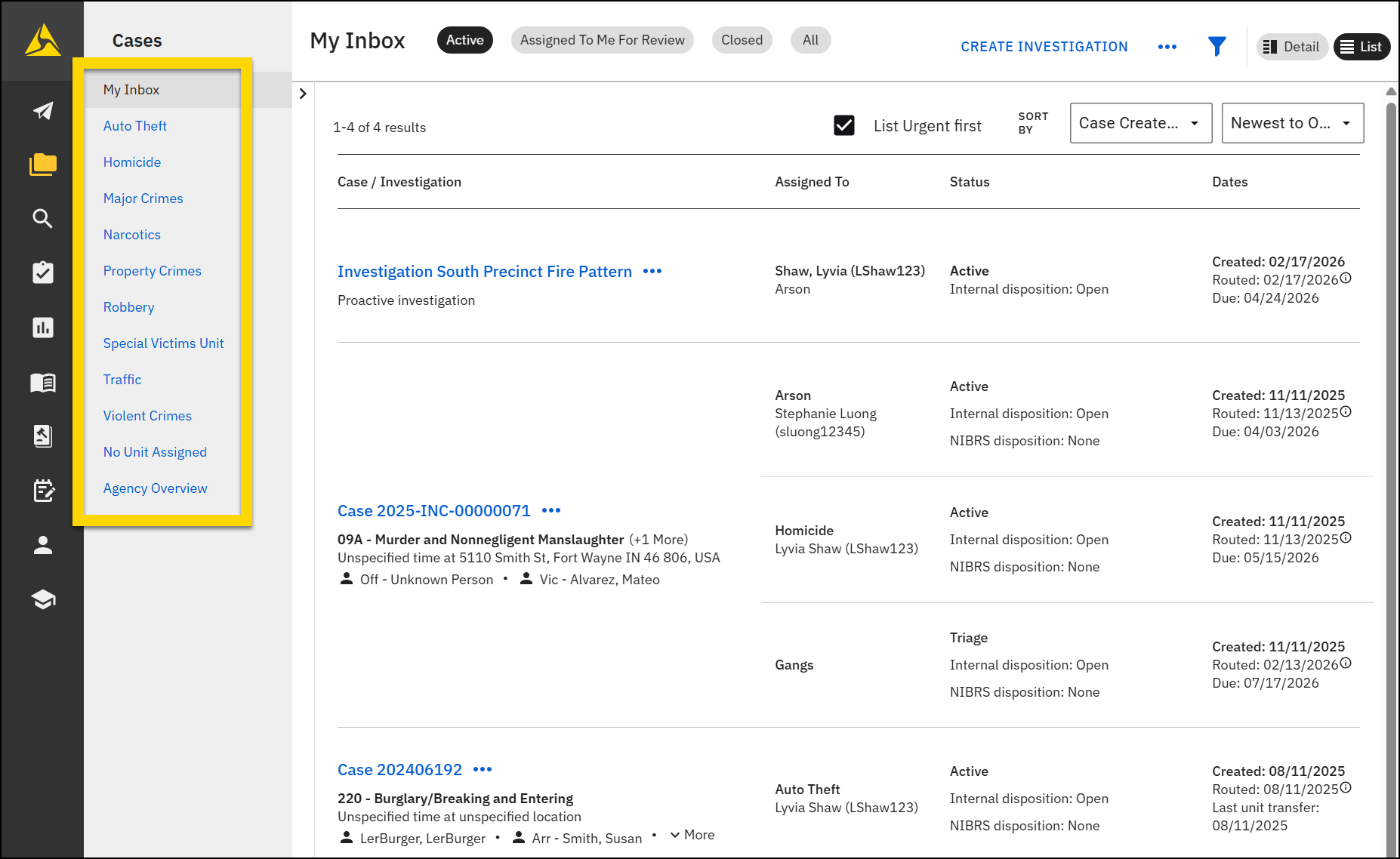
Depending on your privileges, you will see different tabs in each inbox. The My Inbox tabs include:
- All: All cases and investigations that you are assigned to as the lead detective
- Active: Active cases and investigations that you are assigned to as the lead detective
- Assigned to Me for Review: Cases and investigations that are assigned to you to review
- Closed: Closed cases and investigations that you are assigned to as the lead detective
Unit inboxes and the Agency Overview inbox tabs include:
- All: All cases and investigations that have been assigned to that unit
- Triage: Cases and investigations assigned to that unit but not yet assigned to a lead detective
- Active: Cases and investigations assigned to a lead detective
- Closed: Cases and investigations that have been closed
- Disposition in Review: Cases where a supervisor or Records case review has been requested
The No Unit Assigned inbox tabs include:
- All: Cases and investigation that do not have the necessary information to be routed to a specific inbox
- Triage: Cases and investigation that do not have the necessary information to be routed to a specific inbox and have not yet been assigned to a lead detective
- Closed: Closed cases and investigation that do not have the necessary information to be routed to a specific inbox
To further refine which items are displayed on each tab, select the arrow to the left of the case list or the filter icon  in the top right corner of the inbox to reveal a list of filters:
|
|
Use the controls in the top right corner to take the following actions:
- Select Create investigation to start a new investigation.
- Select More actions [...] to export the cases displayed on that inbox tab to a CSV file.
- Select Detail or List to change how the information is displayed in the inbox
- Select the List urgent first checkbox to pull any cases or investigations marked as Urgent to the top of the list.
- Use the date options in the Sort by menus to change the order in which cases and investigations are listed:
- Case created date
- Due date
- Last routing date
- Last unit transferred date
Detail view
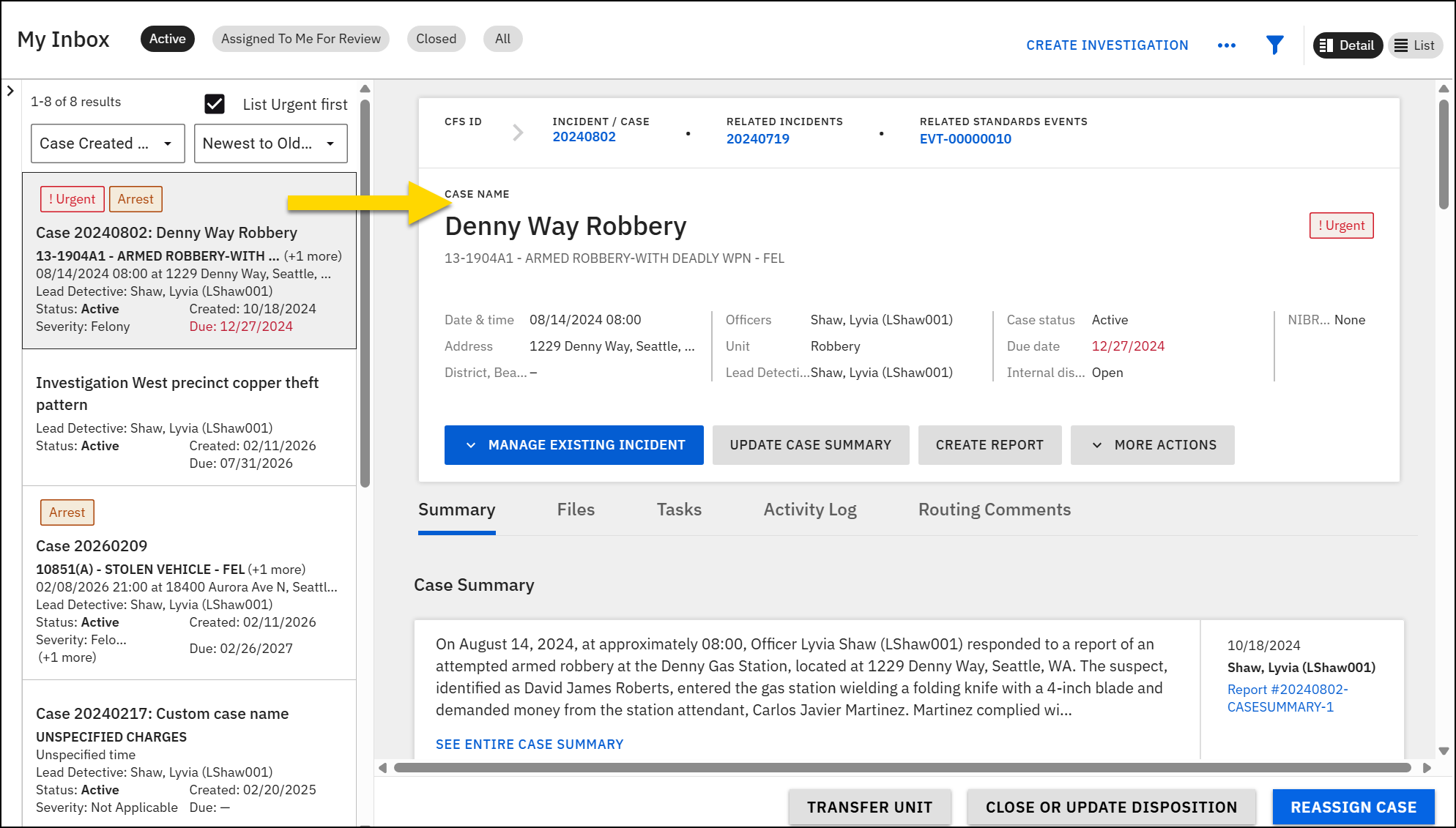
Detail view (the default view for unit inboxes and the Agency Overview inbox) displays a split-screen layout. The left pane lists all cases and investigations in the inbox. When you select a case or investigation from the list, its profile appears on the right. Use this view to quickly triage and assign cases.
When viewing the profile, you can switch between tabs and manage the reports, case summary, files, case tasks, and activity log. Use the blue and gray buttons at the bottom of case profiles to:
The following information is displayed for each case and investigation in the list. Wherever you see (+1 more), (+2 more), etc., hover to view the additional information.
| Case | Investigation |
|---|---|
|
|
List view
List View (the default view for My Inbox) shows basic information about each item, including:
- Case/Investigation
- If the item is a case
- If the case is marked as Urgent, contains an arrest, or has a disposition update that is under review
- Case ID: Selecting the blue hyperlink opens the case profile
- Offense
- Incident date and location
- Associated vehicles, people, and organizations: Hover over More to view additional items
- If the item is an investigation
- Investigation name
- If the item is a case
- Assigned To
- The unit the case or investigation has been assigned to
- The lead detective from that unit who has been assigned to
- If the case or investigation has been assigned to multiple units, each unit and associated lead detective is listed.
- Status
- Status
- Internal disposition
- NIBRS disposition
- Dates
- Created date
- Routed date: Hover over the information (i) icon to view routing comments.
- Due date: If the date has passed, the date appears in red text.
- Last unit transfer date: The last date the case was transferred to a new primary unit.


