Task inboxes
When you sign in, the My Tasks inbox in the Tasks module loads. Depending on the Command Hierarchy groups and/or teams you belong to, you may see additional inboxes for different task groups. For more information, contact your administrator.
These inboxes only include Axon Records tasks. If your agency also uses Axon Standards, switch to Axon Standards to access those tasks.
The following task types appear in these task inboxes:
- View: Reports or case tasks that can be viewed but not edited because they are currently in review or already finalized
- Do: Case tasks assigned to you
- Write: Reports assigned to be created and not yet submitted
- Revise: Reports previously submitted for approval but returned by the report reviewer for corrections (the report author receives an email when a report they submitted is returned)
- Review: Reports submitted for review
- Rereview: Reports rejected by the report reviewer, then updated and resubmitted by the author
Many inboxes have multiple tabs, each of which contain a filtered list of tasks. For example, a To Do tab may contain tasks for reports currently in progress.
All task inboxes contain a list of filters you can use to limit which tasks are displayed. Select the arrow to expand or collapse this filter list. The list of available filters varies, depending on inbox and tab within an inbox.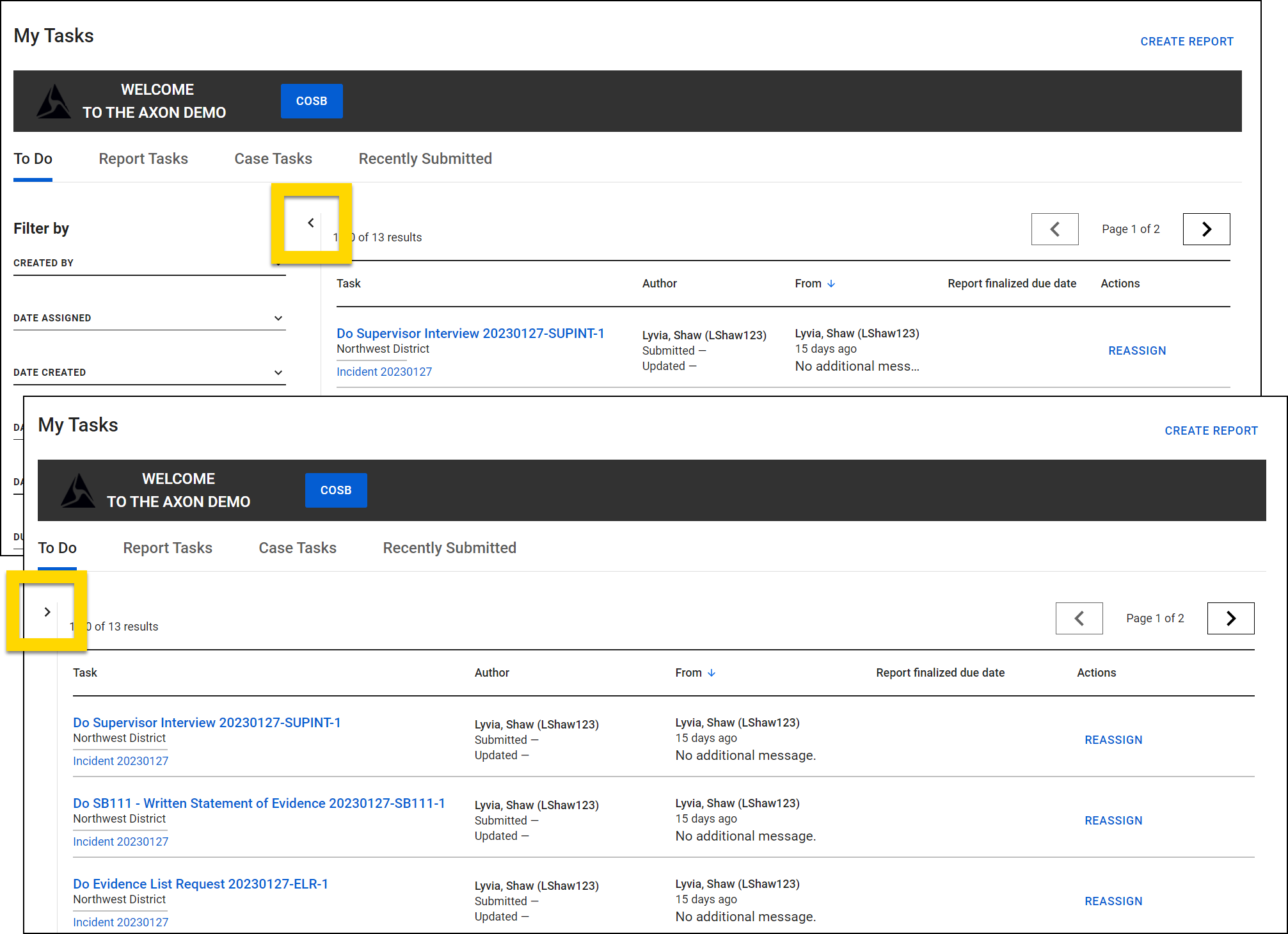
Use the arrow buttons at the top and bottom of the tab to move between pages. Additionally, adjust the number of tasks displayed per page using the Results Per Page menu at the bottom of the page.
My Tasks inbox
The My Tasks inbox shows all tasks assigned to you. Use the tabs at the top of the screen to switch between different types of tasks:
- To Do: Tasks and reports you need to work on
- Recently submitted: Tasks and reports you have submitted for review
If your organization uses the Case Management module, you will see two additional tabs:
- Report tasks: Reports you need to work on, including case documents
- Case tasks: Case tasks you need to work on
The most recently updated tasks appear at the top of each tab. Use the filters to refine which tasks are displayed:
| To do | Report tasks | Case tasks | Submitted |
|---|---|---|---|
|
Created By Date Assigned Date Created Date Updated Due Date Incident / Report ID Incident Report From Date Last Assigned By Report Purpose Request Date Task Action Task Type Time Report Created |
Created By Date Assigned Date Created Date Updated Incident / Report ID Incident Report From Date Last Assigned By Report Purpose Time Report Created |
Created By Due Date Incident/Report ID Request Date Task Action Task Type |
Arrest Assignment Created By Date First Submitted Date Updated Incident / Report ID Incident Report From Date Last Approved By NIBRS Offense Category Offenses Report Purpose Task Action Time Report Created Urgency |
The following information is included for each task:
Task column
- If the task is flagged as Urgent
- These tasks appear at the top of the list.
- If the task was Recently Routed
- The Recently Routed label appears on all tasks routed to you within the last 7 days. After 7 days have passed, the label disappears if the task is still in the inbox.
- Report information, including:
- The task name and the Report ID
- Selecting the task name opens the report.
- The district
- The offense and a summary of offense information (incident reports only)
- The date and time the incident occurred (incident reports only)
- The task name and the Report ID
- Associated incident information, including:
- The Incident ID associated with the report
- Selecting the Incident ID opens the incident profile.
- The number of other reports associated with the incident
- The Incident ID associated with the report
Author column
- Who created the report
- When it was submitted
- When it was last updated
From column
- Who assigned the task
- When the task was assigned
- Routing notes left by the user who assigned the task
Report finalized due date column
- The date the report should be finalized
- If the date has passed, it will turn red.
Actions column
- For Write and Revise tasks, a More actions [...] menu with reassignment and deletion options
- For Do, Review, and Rereview tasks, a Reassign button
- For case tasks and documents, an Update button that opens the task where you can begin working on it
Announcements banner
An announcements banner on the My Tasks inbox lets you provide customized information to your staff. Selecting the arrow in the top right collapses the banner. If your organization uses both Axon Records and Axon Standards, you can create separate banners to display in the separate My Tasks inboxes in Axon Records and Axon Standards.
The banner supports the following styles:
- HTML rich text formatting such as bulleted lists, bold, and italics
- Emojis
- A button that links to a custom agency website or the Axon website
Axon only allows links to URLs owned by Axon or by your organization.
To update this banner's contents, open the Announcements Banner Update tool in the Administrator Console.
Supervisor Tasks inbox
Supervisors responsible for reviewing reports have access to a Supervisor Tasks inbox. (This inbox name may vary by organization.) The inbox filters by default to only show the reports assigned to your District.
The three tabs at the top let you to switch between different groups of tasks:
- To do: Reports submitted for supervisor review
- Pending submission: Includes
- Reports not yet submitted for review
- Reports reviewed by a supervisor and returned to the report author/contributors for revision
- Submitted: Reports approved by a supervisor and sent to Records for review and finalization
The most recently updated tasks appear at the top of each tab. Use the filters to refine which tasks are displayed:
- Arrest
- Assignment (doesn't appear on the Pending submission tab)
- Contributor / Author
- Date First Submitted
- Incident Report From Date
- Date Updated
- Incident / Report ID
- Report Purpose
- NIBRS Offense Category
- Task Type
- District
- Task Action
- Time Report Created (doesn't appear on the Pending submission tab)
- Offenses
- Urgency
The following information is included for each task:
Task column
- If the task is flagged as Urgent
- These tasks appear at the top of the list.
- Task action (Review or Rereview)
- Start/Continue review buttons
- Assign/Reassign buttons
- A dropdown arrow that reveals all contributions that make up that report
Report column
- Report information, including:
- The task name and the Report ID
- Selecting the task name opens the report.
- The district
- The offense and a summary of offense information (incident reports only)
- The date and time the incident occurred (incident reports only)
- The task name and the Report ID
- Associated incident information, including:
- The Incident ID associated with the report
- Selecting the Incident ID opens the incident profile.
- The number of other reports associated with the incident
- The Incident ID associated with the report
Contributor column
- Who created the report
- When it was submitted
- When it was last updated
Routed by column
- Who assigned the task
- When the task was assigned
Selecting the dropdown arrow at the bottom of any task row reveals a list of all contributions in that report (if multiple users worked on the report). You can assign/reassign the review of each contribution from here.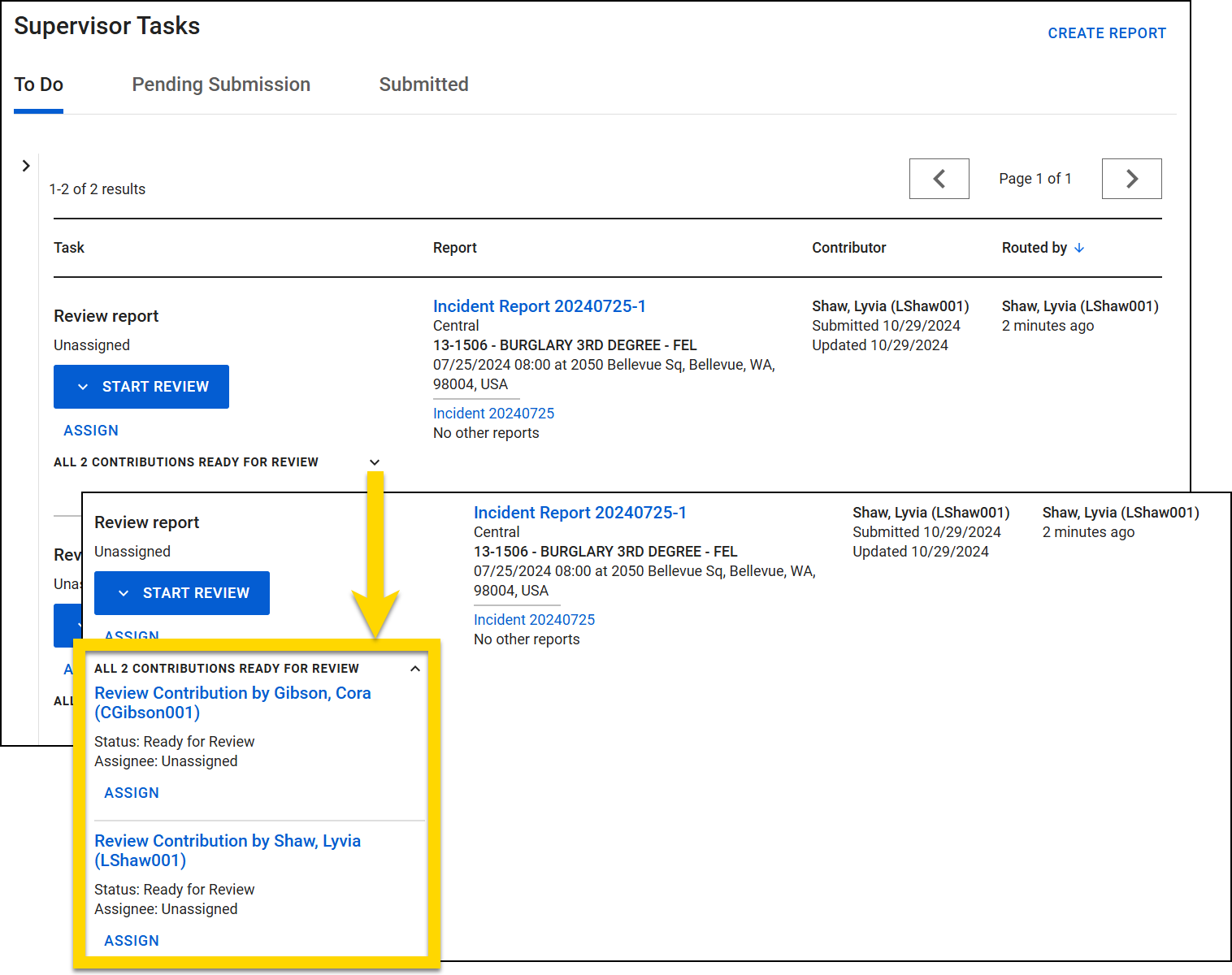
Records Tasks inbox
Users who review and finalize reports can access the Records Tasks inbox. The inbox filters by default to only show the reports assigned to your District. The three tabs at the top let you switch between different groups of tasks:
- Unassigned: Reports submitted to Records for finalization but not yet assigned to a clerk
- Assigned: Reports submitted to Records for finalization and assigned to a reviewer (These tasks will also appear in that user’s My Tasks inbox.)
- Pending revision: Reports reviewed by Records and returned to the report author/contributors for revision
The most recently updated tasks appear at the top of each tab. Use the filters to refine which tasks are displayed:
- Arrest
- Assignee (Assigned tab)
- Author
- Date First Submitted
- Date Updated
- District
- Incident / Report ID
- Incident Report From Date
- Last Approved By
- Last Rejected By
- NIBRS Offense Category
- Offenses
- Report Purpose
- Task Action
- Task Type
- Urgency
The Unassigned and Assigned tabs include the following information for each task:
Task column
- If the task is flagged as Urgent
- These tasks appear at the top of the list.
- Report information, including:
- The task name and the Report ID
- Selecting the task name opens the report.
- The district
- The offense and a summary of offense information (incident reports only)
- The date and time the incident occurred (incident reports only)
- The task name and the Report ID
- Associated incident information, including:
- The Incident ID associated with the report
- Selecting the Incident ID opens the incident profile.
- The number of other reports associated with the incident
- The Incident ID associated with the report
Date created column
- When the report was first created
Author column
- Who created the report
- When it was submitted
- When it was last updated
Last approved by column
- Who approved the report
- When it was approved
- Routing notes left by the user who approved the task
Assignee column
- Assign/Reassign buttons
The Pending revision tab includes the following information for each task:
Pending revision column
- If the task is flagged as Urgent
- These tasks appear at the top of the list.
- Report information, including:
- The task name and the Report ID
- Selecting the task name opens the report.
- The district
- The offense and a summary of offense information (incident reports only)
- The date and time the incident occurred (incident reports only)
- The task name and the Report ID
- Associated incident information, including:
- The Incident ID associated with the report
- Selecting the Incident ID opens the incident profile.
- The number of other reports associated with the incident
- The Incident ID associated with the report
Author column
- Who created the report
- When it was submitted
- When it was last updated
Last reviewed by column
- Who reviewed the report
- Routing notes left by the user who reviewed the report
NIBRS Disposition Review inbox
Some agencies require Records Review of NIBRS case disposition updates. Users who review and approve/reject NIBRS disposition update requests can access the NIBRS Disposition Review inbox. The four tabs at the top let you switch between different groups of tasks:
- Unassigned: Disposition update requests submitted to Records for review but not yet assigned to a clerk
- Assigned: Disposition update requests submitted to Records for review and assigned to a reviewer (These tasks also appear in that user’s My Tasks inbox.)
- Rejected: Disposition update requests that have been rejected by Records
- Approved: Disposition update requests that have been approved by Records
The most recently updated tasks appear at the top of each tab. Use the filters to refine which tasks are displayed:
- Author Submitted Date
- Assignee
- Incident / Report ID
- Incident Report From Date
- Offenses
The tabs include the following information for each task:
Task column
- The task name and the Incident ID
- Selecting the task name opens the case profile.
- The offense and a summary of offense information
Requested disposition column
- The NIBRS disposition that the person who updated the case has requested
Last routed by column
- The supervisor who last routed the update request
- When it was routed
- Notes left by the supervisor who routed the request
Assignee column (only appears on the Unassigned and Assigned tabs)
- The user currently assigned to the request
- An Assign or Reassign button
Agency Tasks inbox
The Agency Tasks inbox shows all report tasks at the entire agency.
Select More actions […] > Export all to CSV to export the tasks included on that tab to a CSV file. The most recently updated tasks appear at the top of each tab. Use the filters to refine which tasks are displayed:
| In progress | Recently completed | |
|---|---|---|
|
Arrest Assignment Authored By Date Assigned Date First Submitted Date Updated District Incident / Report ID Incident Report From Date Last Action By |
Last Rejected By NIBRS Offense Category Offenses Report Purpose Report State Task Action Task Type Time Report Created Urgency |
Arrest Author Author Submitted Date Date of Incident Finalized By Incident/Report ID Last Rejected By NIBRS Offense Category Offenses District Task Type |
Each tab only contains 1,000 pages of reports. Older reports can be found using Reports search.
The following information is included for each task:
Task column
- Report information, including:
- The task name and the Report ID
- Selecting the task name opens the report.
- The district
- The offense and a summary of offense information (incident reports only)
- The date and time the incident occurred (incident reports only)
- The task name and the Report ID
- Associated incident information, including:
- The Incident ID associated with the report
- Selecting the Incident ID opens the incident profile.
- The number of other reports associated with the incident
- The Incident ID associated with the report
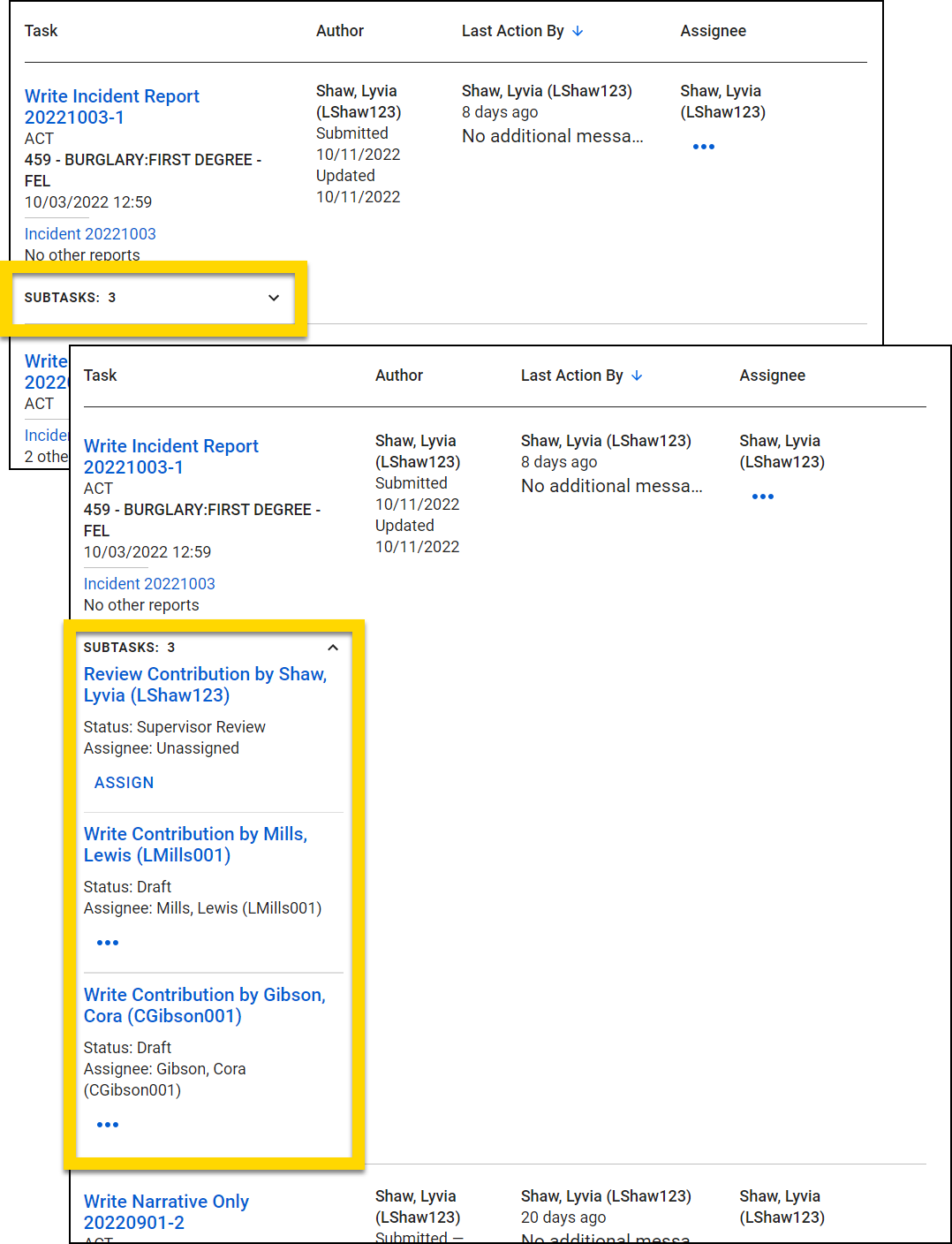
- A dropdown arrow that reveals all contributions that make up that report and corresponding Assign/Reassign buttons
Author column
- Who created the report
- When it was submitted
- When it was last updated
Last action by column
- Who last updated the task
- When that action was taken
- Routing notes left by the user who assigned the task
Assignee column
- For Write and Revise tasks, a More actions [...] menu with reassignment and deletion options
- For Do, Review, and Rereview tasks, a Reassign button
- For case tasks and documents, an Update button that opens the task where you can begin working on it
The Recently completed tab includes the following information for each task:
Report column
- Report information, including:
- The task name and the Report ID
- Selecting the task name opens the report.
- The district
- The offense and a summary of offense information (incident reports only)
- The date and time the incident occurred (incident reports only)
- The task name and the Report ID
- Associated incident information, including:
- The Incident ID associated with the report
- Selecting the Incident ID opens the incident profile.
- The number of other reports associated with the incident
- The Incident ID associated with the report
Author column
- Who created the report
- When it was submitted
- When it was last updated
Finalized by column
- Who finalized the report
- When that action was taken
- Routing notes left by the user who finalized the report
Selecting the dropdown arrow at the bottom of any task row reveals a list of all contributions to that report (if multiple users worked on the report). Select Assign/Reassign to assign the review of the contribution. Select More actions […] > Reassign contributor to assign the contribution to be written by a different user.