Assign and reassign tasks, authors, and contributors
Users belonging to Command Hierarchy groups and/or teams with certain privileges can assign and reassign authors, contributors, and tasks.
Task assignment options vary depending on the type of task (Write, Review, etc.) as well as the inbox a task is accessed from.
To understand assignment and reassignment, it's helpful to understand these terms:
Task
A task indicates work that needs to be completed on a report. A task is created each time a report is submitted, approved, or rejected. Task types include:
- View: Reports or case tasks that can be viewed but not edited because they are currently in review or already finalized
- Do: Case tasks assigned to you
- Write: Reports assigned to be created and not yet submitted
- Revise: Reports previously submitted for approval but returned by the report reviewer for corrections (the report author receives an email when a report they submitted is returned)
- Review: Reports submitted for review
- Rereview: Reports rejected by the report reviewer, then updated and resubmitted by the author
See Reassign case tasks for additional information about reassigning Do tasks that have been created for a case.
Report
The "thing" that is created, reviewed, and finalized. A report is also referred to as a document or form. Reports are made up of various sections that contain fields and information(person, vehicle, narrative, etc.).
Author
The person who originally creates a report. An author is also sometimes called the primary contributor.
Contributor
Any person who adds information to an incident report, which can contain multiple contributors. A narrative section is auto-added to the report for each contributor who joins the report.
Contribution
In reports that involve multiple contributors, the information that is added to a report by a user is called a contribution. A contribution can include one or more report sections (person, property, vehicle, etc.) along with a narrative.
Reassign Write and Revise tasks
To reassign a Write or Revise task, take these steps:
- Find the task in a task inbox.
- Open the More Actions [...] menu and select one of the available options:
- Reassign author: Lets you reassign the primary report contributor (i.e., the user who originally created the report). When reassigning the author, you reassign the primary report task and any draft contributions that were created by the report author.
- Reassign contributor: Lets you reassign the contributions of users who “joined” the report and added additional information.
- See Reassign contributor vs. reassign author for more information.
- Enter a name or Badge ID, set the urgency of the task, and provide notes.
- Unlike Review or Rereview tasks, which can be left unassigned, you must specify a new author for Write and Revise tasks.
- If you are reassigning the author and text has already been added to that person's Narrative section in the report, you must specify how that narrative should be handled:
- Retain current author's narratives: The narrative remains assigned to the person who originally wrote it. This person will still appear as a contributor to the report, but they will no longer be the primary contributor/author.
- Reassign current author's narratives to the new author: The narrative is reassigned to the new author.
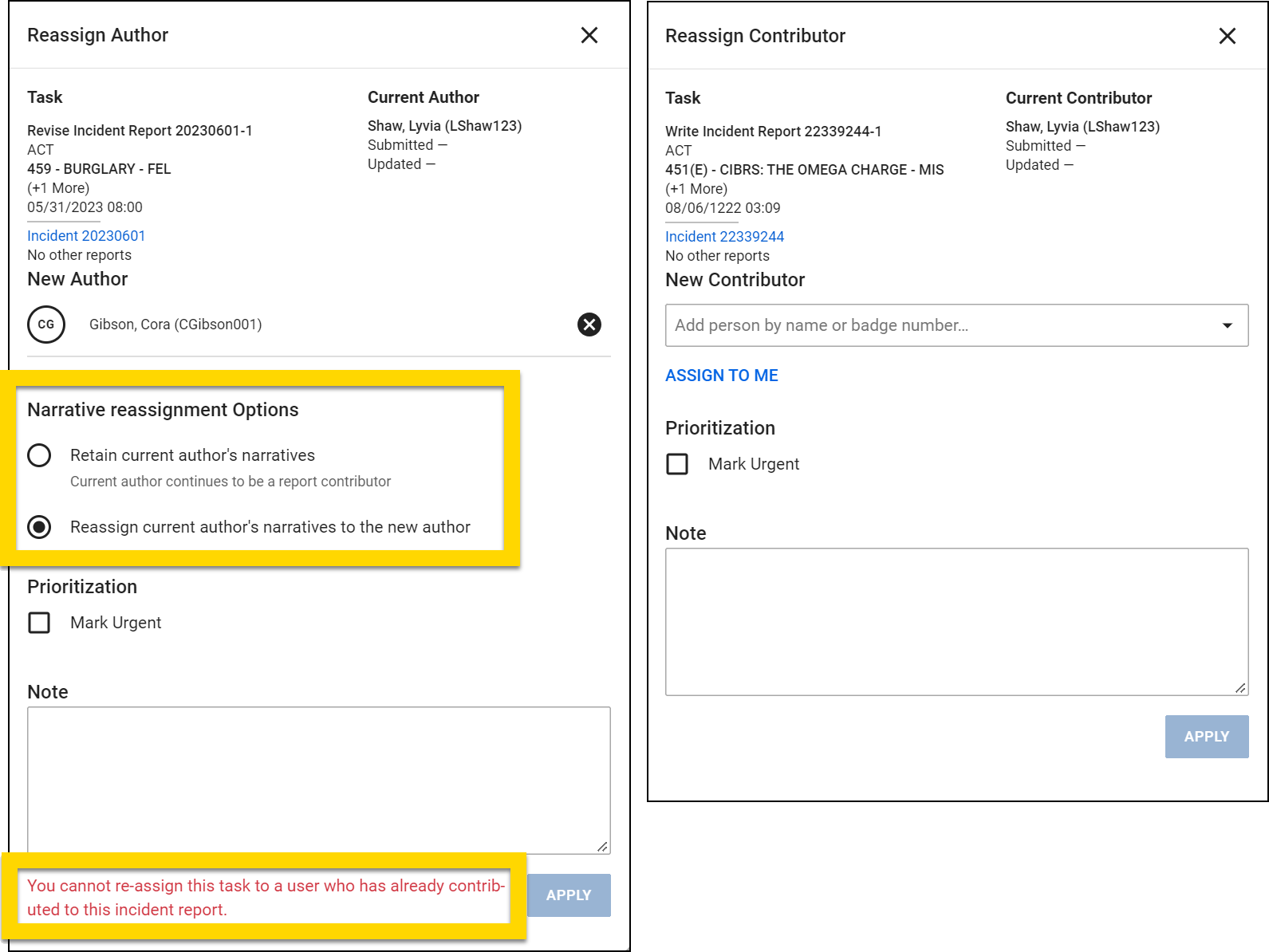
The report must be in Write or Revise status for the author or contributor to be reassigned.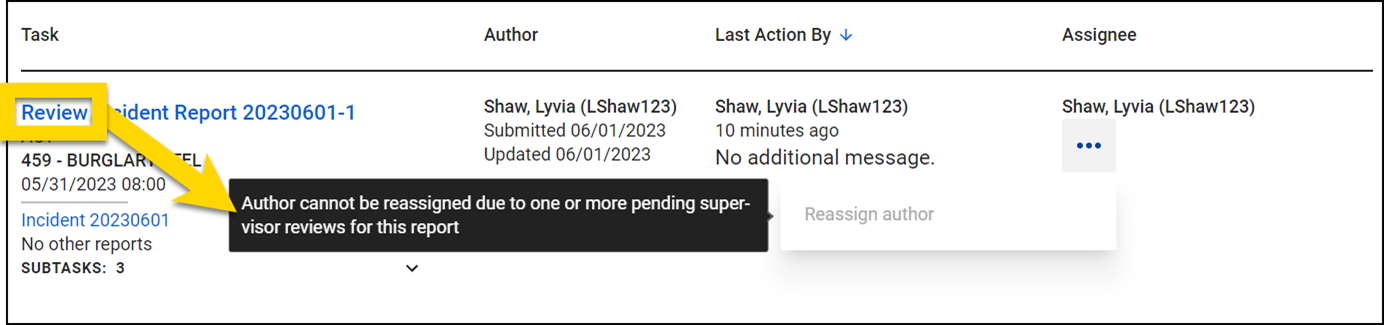
Assign and reassign Review and Rereview tasks
To assign or reassign a Review or Rereview task, take these steps:
- Find the task in a task inbox.
- Select Assign or Reassign.
- Enter a name or Badge ID of the new reviewer, set the urgency of the task, and provide notes.
- Unlike Write and Revise tasks, Review and Rereview tasks can be left unassigned.
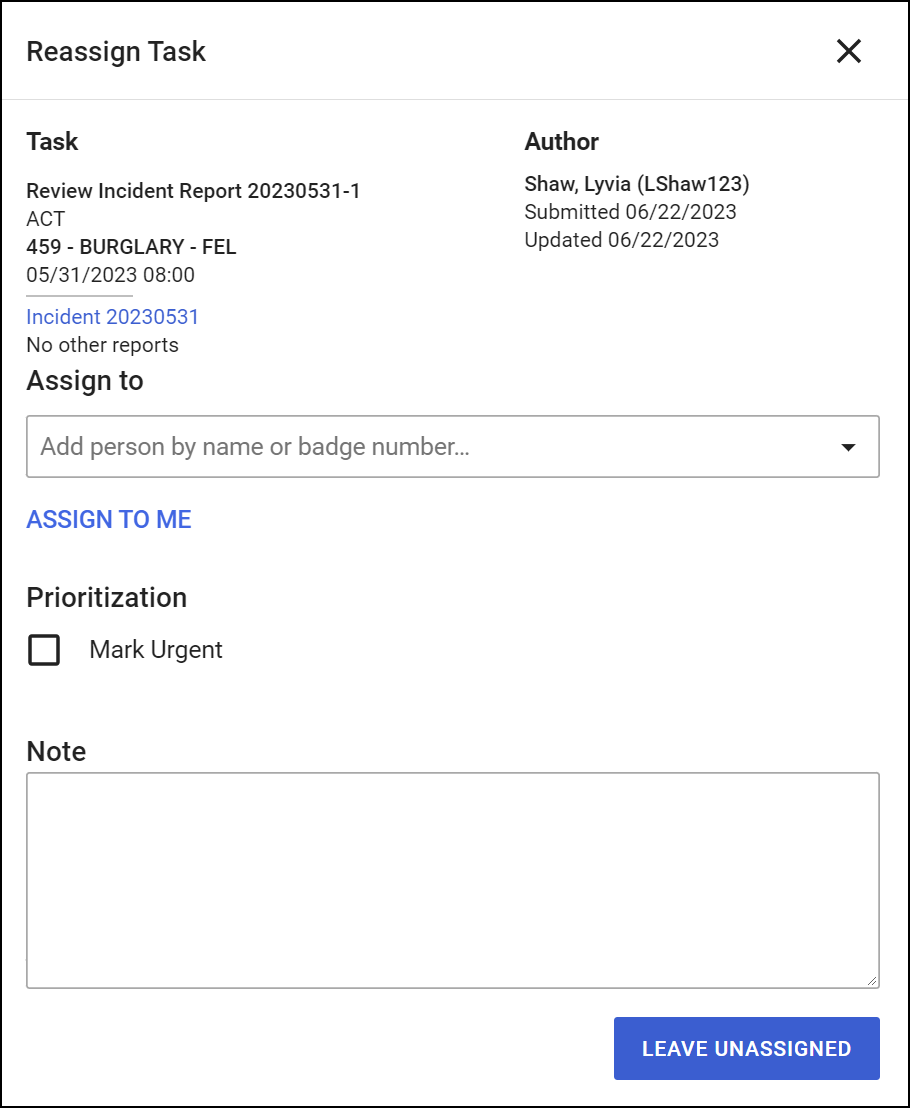
- Unlike Write and Revise tasks, Review and Rereview tasks can be left unassigned.
Reassigning a Review task does NOT reassign the author or contributor. Instead, it reassigns the person who is reviewing the report.
Review and Rereview tasks can also be assigned and reassigned from the assignment menu in the Report Writer footer.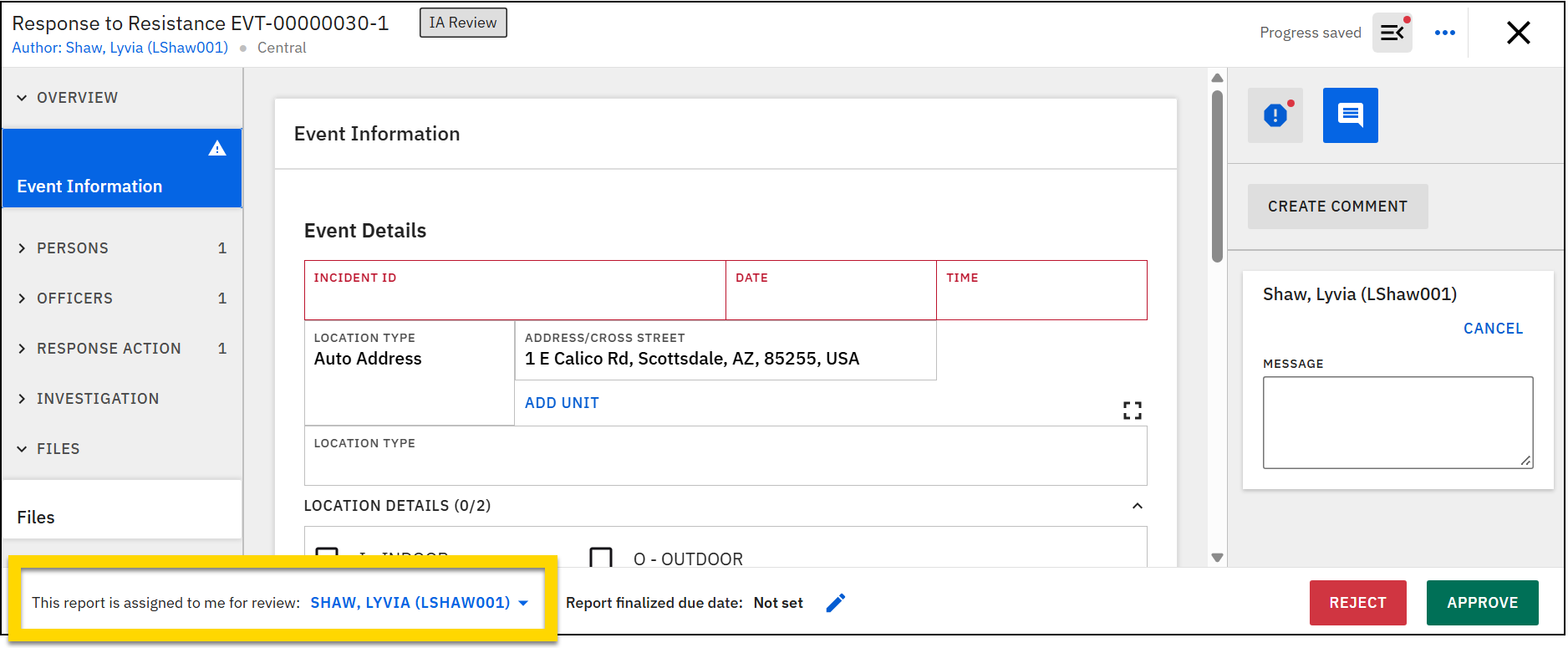
Assign from the My Tasks inbox
The My Tasks inbox shows all tasks and reports you are currently creating, reviewing, or have submitted for review.
You can reassign tasks from the Actions column on any of the tabs in this inbox. Different assignment and reassignment options appear depending on the task type:
- Write or Revise tasks: More Actions [ ...] > Reassign contributor / Reassign Author
- Review or Rereview tasks: Assign or Reassign buttons
Assign and reassign from the Supervisor Tasks inbox
Supervisors responsible for reviewing reports have access to a Supervisor Tasks inbox. The tasks included on each tab and the methods of assigning and reassigning tasks, contributions, and reports vary based on the inbox tab.
To Do tab
The To Do tab in the Supervisor Tasks inbox contains all contributions that have been submitted for review. Each contribution, even if multiple contributions belong to the same report, appears as an individual Review or Rereview task. Selecting the Contributions Ready for Review dropdown arrow beside any of these tasks, reveals the full list of ALL contributions that make up the report. This list includes contributions that both have and have not yet been submitted for review.
Tasks can be assigned or reassigned by selecting the options in the Task column. Different assignment and reassignment options appear depending on the task type:
- Write or Revise tasks: More Actions [ ...] > Reassign contributor
- Note that authors can only be reassigned from the Agency tasks inbox.
- Review or Rereview tasks: Assign or Reassign buttons
If multiple contributions are ready for review, you can quickly assign the review tasks for all of them at one time by selecting Start Review > All Available Contributions (1).
You can also assign individual contributions to different reviewers by selecting the arrow beside Contributions Ready for Review and selecting the Assign/Reassign button that appears below a specific contribution (2).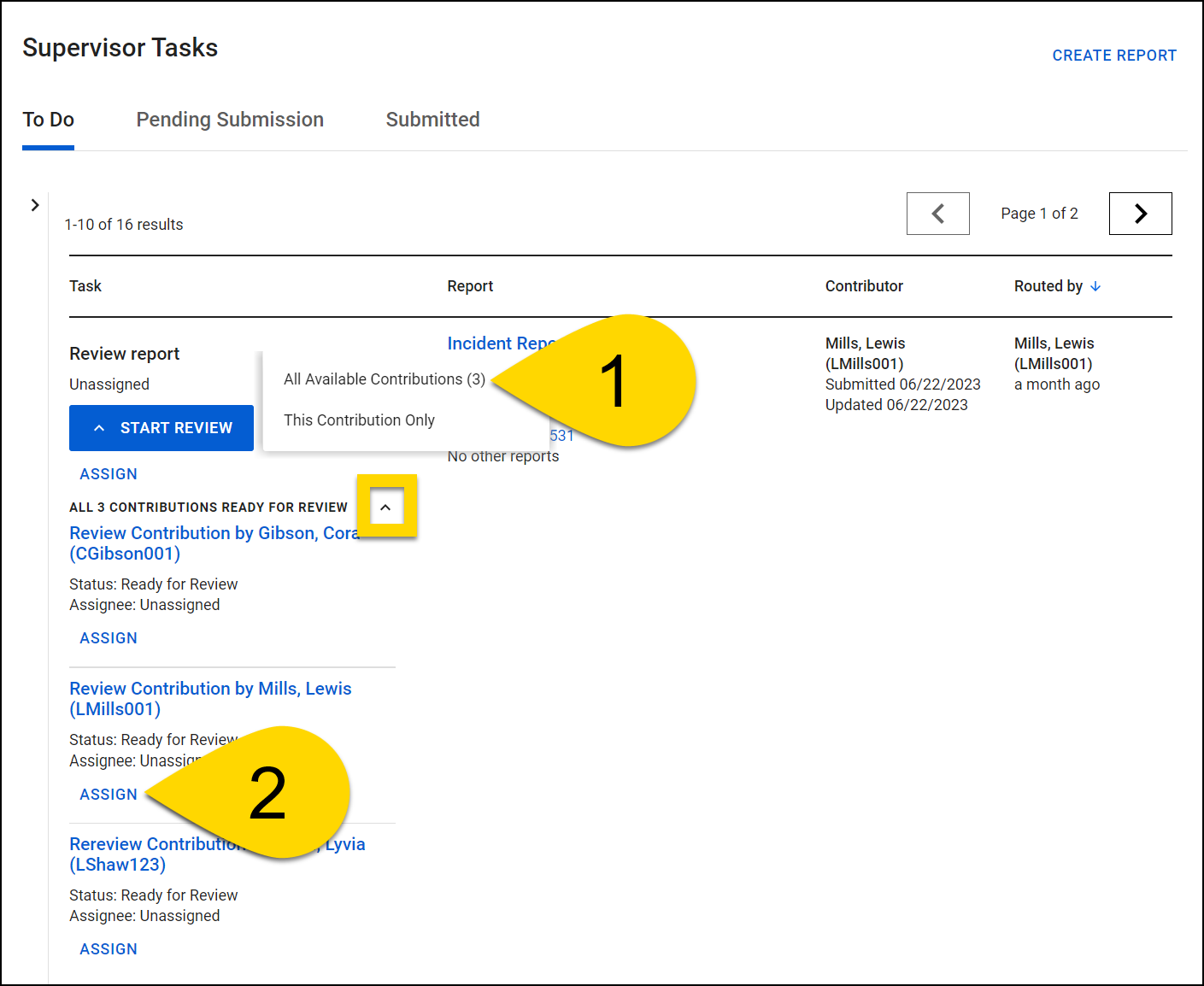
Once a contribution is assigned for Supervisor Review, that contribution can no longer be edited. However, users can continue to add additional sections to the report as needed (e.g., people, vehicles, etc.).
For example, Incident Report 20230615-1 contains three contributions. Contributions 1 and 2 were submitted for supervisor review and appear as Review tasks in separate rows on the To Do tab. Contribution 3 has not yet been submitted for review, so it doesn't appear as its own row on this tab.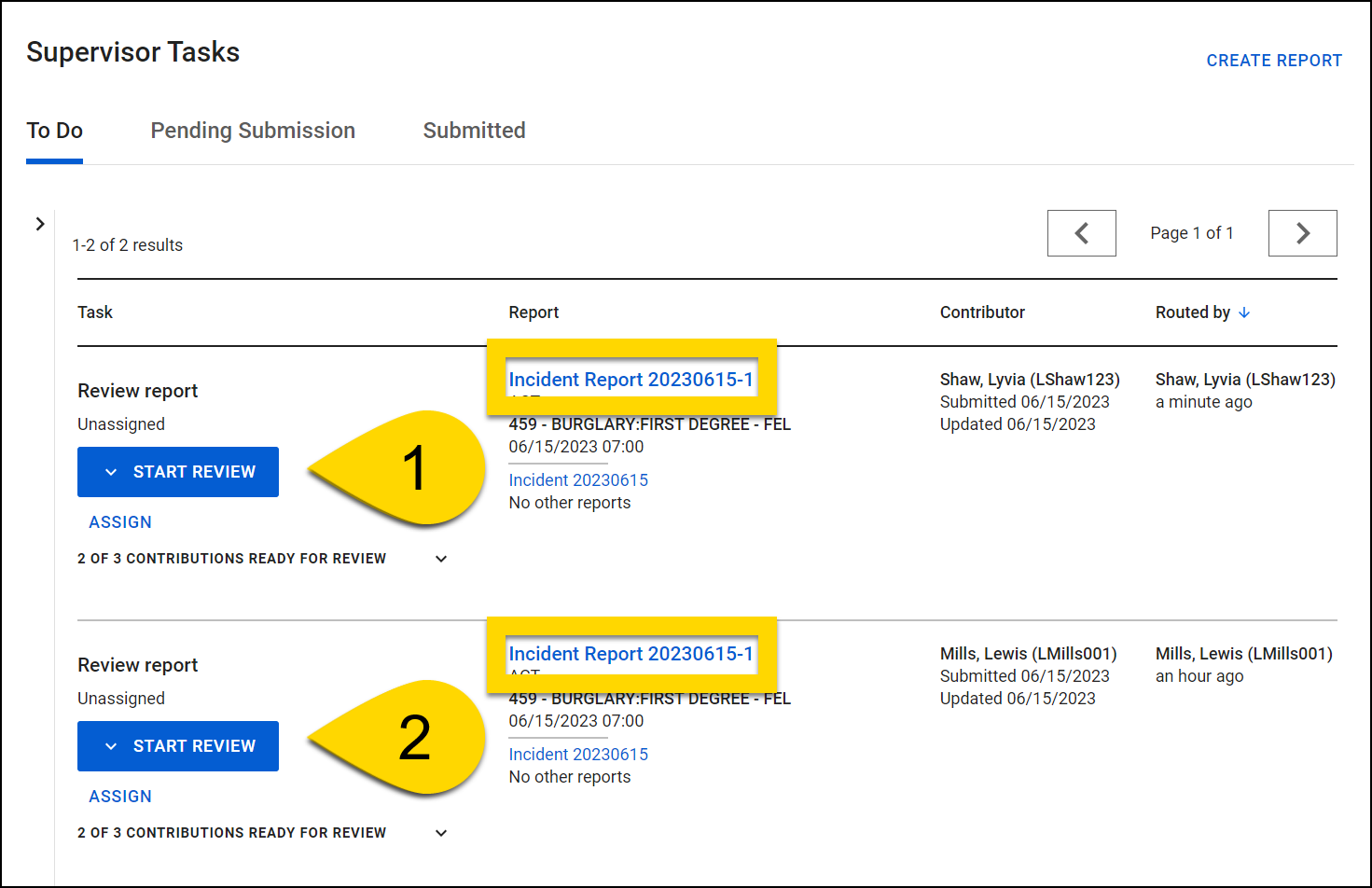
Selecting the Contributions Ready for Review arrow beside either of these Review tasks reveals all three contributions that make up the report. Contributions 1 and 2 appear as Review tasks, but Contribution 3 appears as a Write task because it hasn't yet been submitted for supervisor review. Note that all three contributions appear in each section.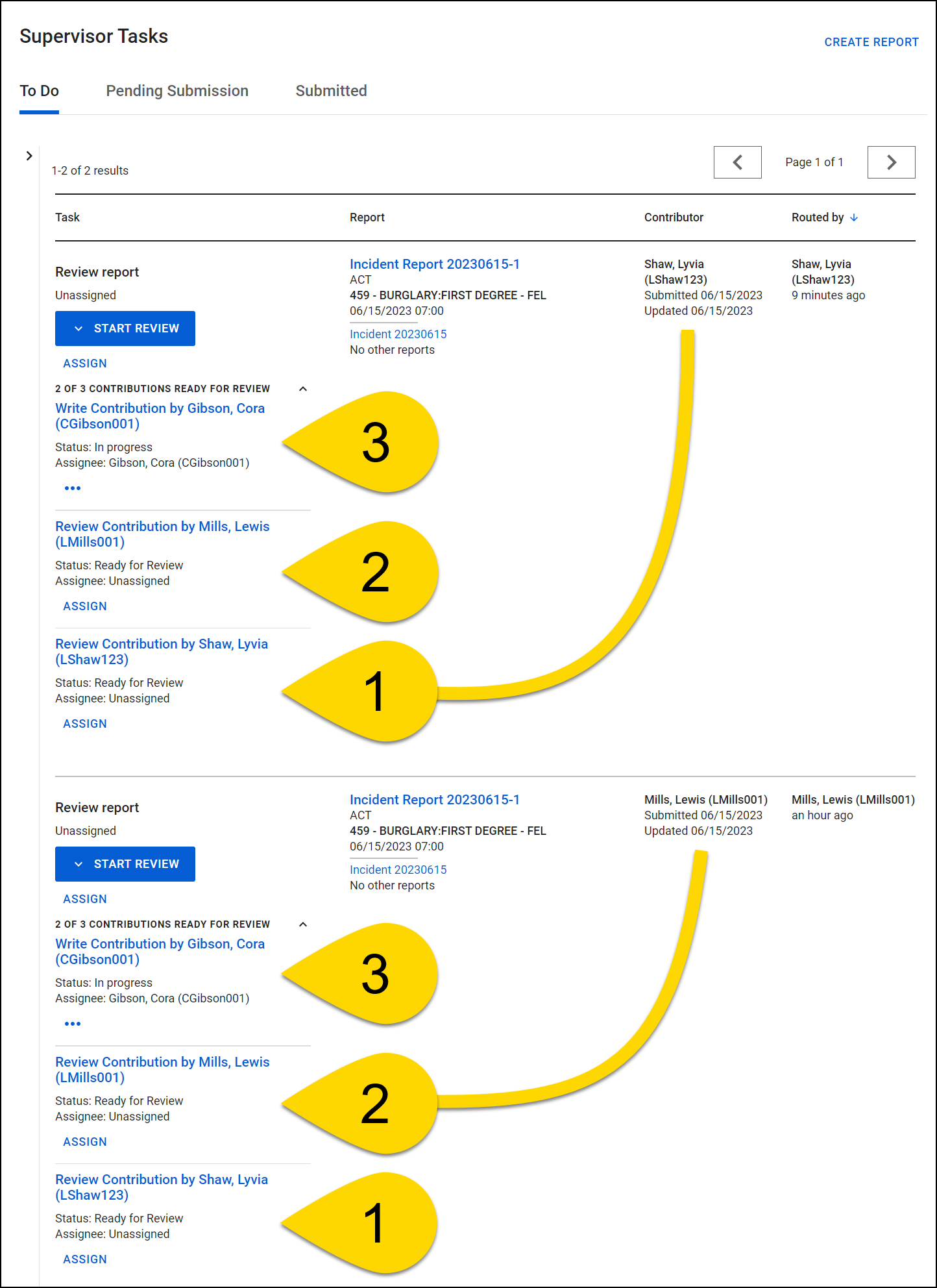
Pending Submission tab
The Pending Submission tab in the Supervisor Tasks inbox contains all contributions that are currently being written and have not yet been submitted for supervisor review. Each contribution, even if multiple contributions belong to the same report, appears as an individual Write or Revise task.
Contributions can be reassigned from theTask column by selecting More Actions [ ...] > Reassign contributor.
Submitted tab
The Submitted tab in the Supervisor Tasks inbox contains reports that have been submitted for Records review. Tasks cannot be reassigned from this tab.
Assign and reassign from the Records Tasks inbox
Once all contributions to an incident report have been approved by the appropriate supervisors, a single task will be created in the Records Tasks inbox for a user to review and approve the report.
Tasks can be assigned or reassigned from either the Unassigned or Assigned tabs. The Pending Revision tab contains reports that have been reviewed by Records and returned to the contributors for revision. Tasks cannot be reassigned from this tab.
A single Review or Rereview task can be assigned or reassigned by selecting Assign/Reassign in the Assignee column. Alternatively, multiple tasks can be assigned or reassigned by selecting the checkboxes beside the reports. An Assign/Reassign button appears at the bottom of the page.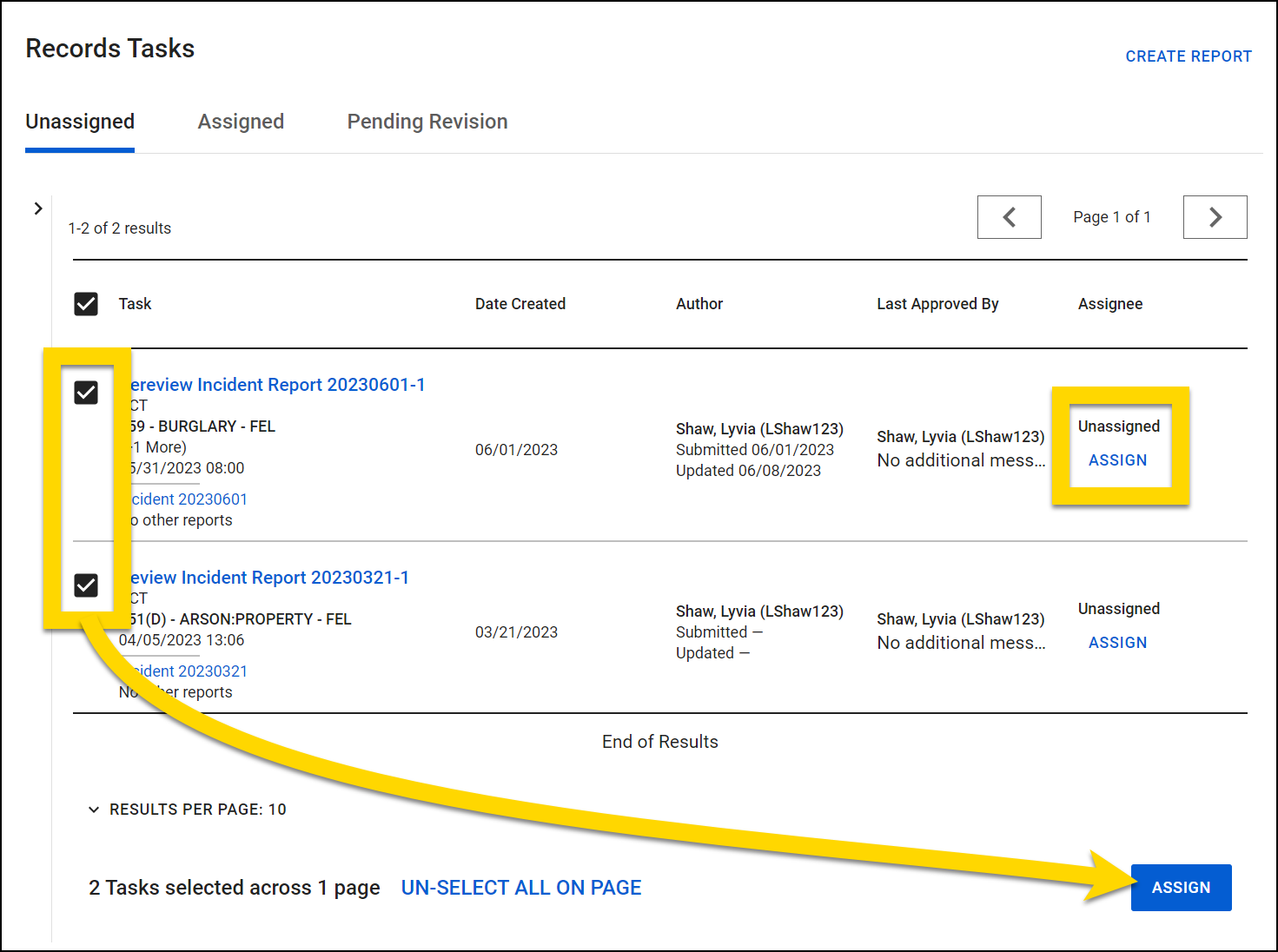
Once a task is assigned from the Unassigned tab, it moves to the Assigned tab and appears in the My Tasks inbox of the person to whom it was assigned.
Once a report is assigned for Records Review, no additional edits can be made to it, and no additional report sections can be added (e.g., people, vehicles, etc.). See Assignment and reassignment tips for more information.
Assign and reassign from the Agency Tasks inbox
The Agency Tasks inbox shows all reports at the entire organization. Tasks can be assigned or reassigned from the In Progress tab in this inbox. Tasks can't be assigned or reassigned from the Recently completed tab.
Unlike in the Supervisor Tasks inbox, which includes a row for each individual contribution, this inbox includes a single row for each report. Selecting the Subtasks dropdown arrow beside any of these tasks, reveals the full list of ALL contributions that make up the report.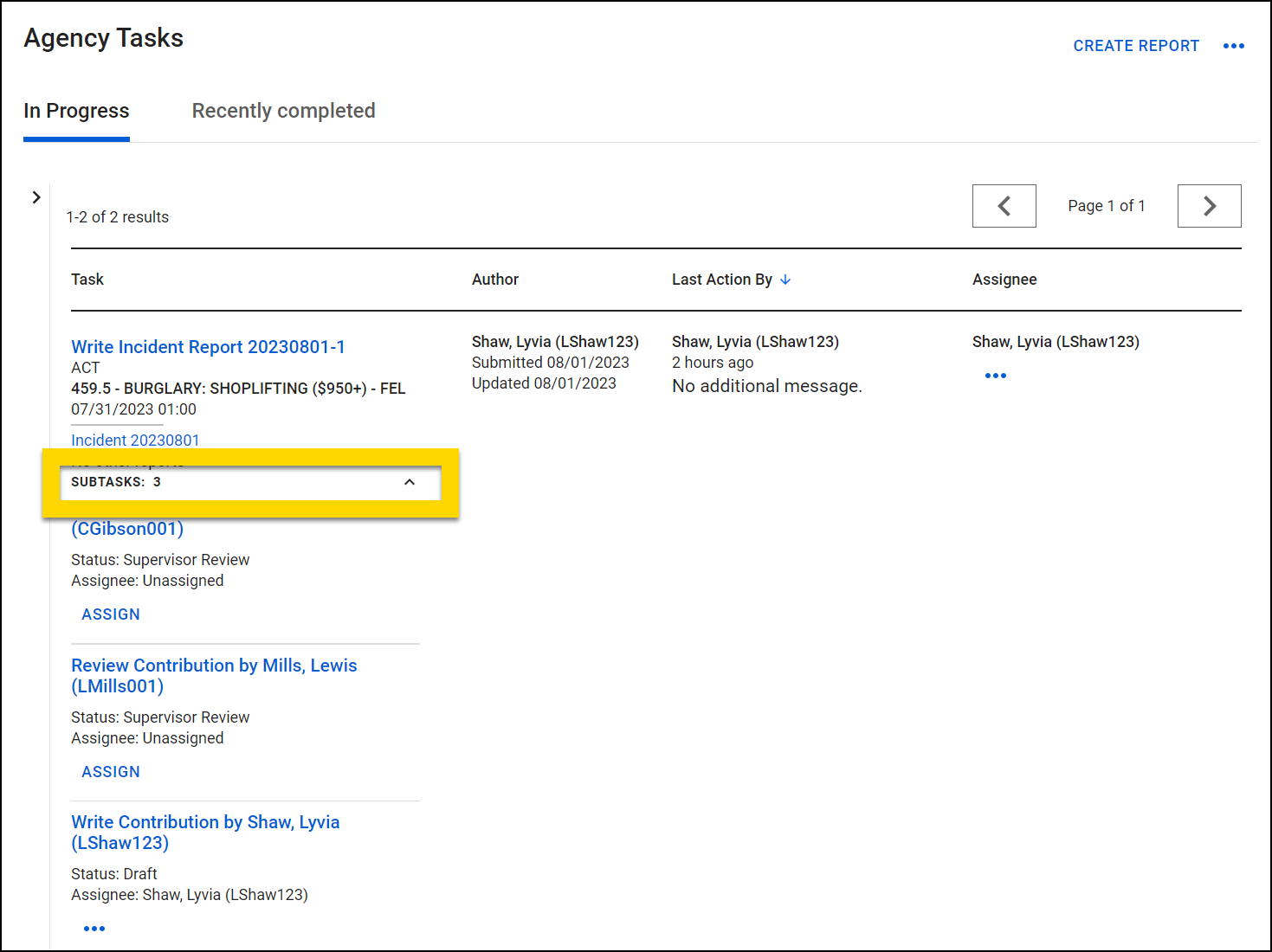
To adjust the assignment of the individual report contributions, select the Subtasks dropdown and use the assignment options (vary based on the contribution status):
- Write or Revise tasks: More Actions [ ...] > Reassign contributor
- Authors can be reassigned from the Assignee column.
- Review or Rereview tasks: Assign or Reassign buttons
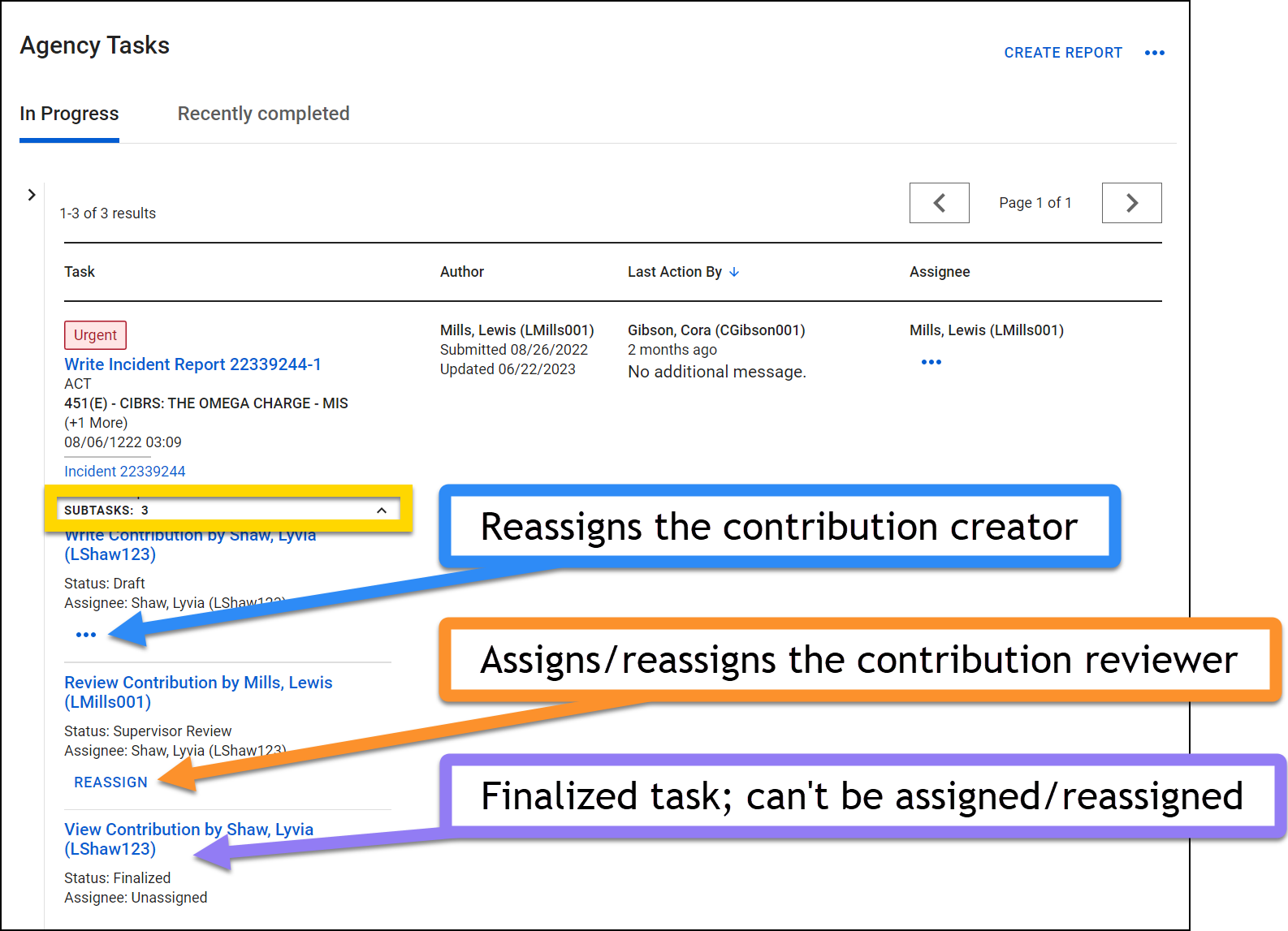
The report author (the person who originally created the report) can be reassigned by selecting More Actions [ ...] > Reassign author in the Assignee column. The author of a report can't be reassigned if any of the report contributions are currently in supervisor review.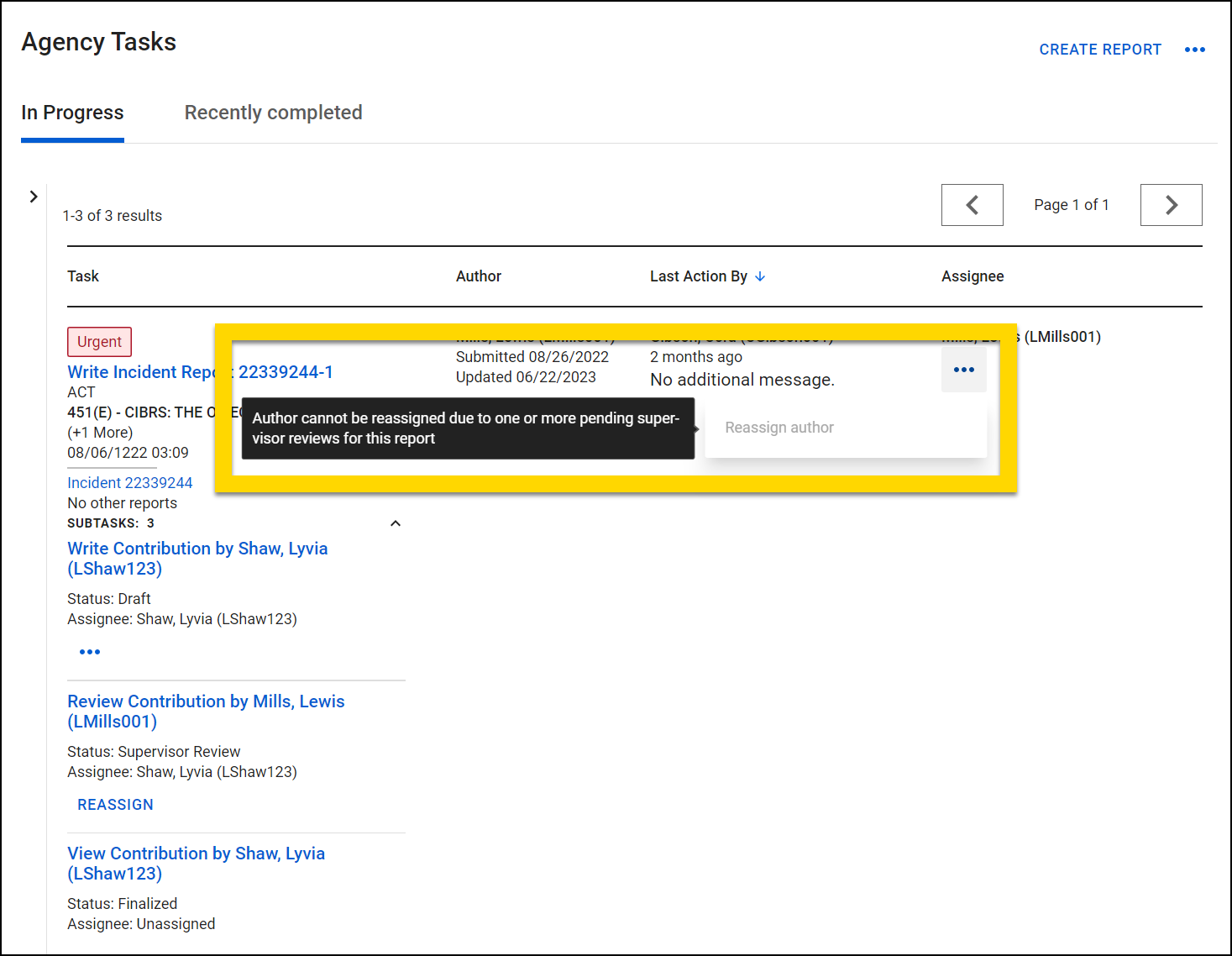
Assignment and reassignment tips
Assigning and reassigning can be confusing at times. Refer to these tips if you aren't sure about how to assign or reassign a task, report, or contributor.
Reassign contributor vs reassign author
When in the Supervisor Tasks inbox, do not use the Reassign contributor option to reassign the contribution created by the original report author. Instead, open the task in the Agency Tasks inbox and use the Reassign author option in the Assignee column.
You can't use the Reassign contributor option to reassign the contribution created by the original report author. Instead, use the Reassign author option that appears in the Assignee column.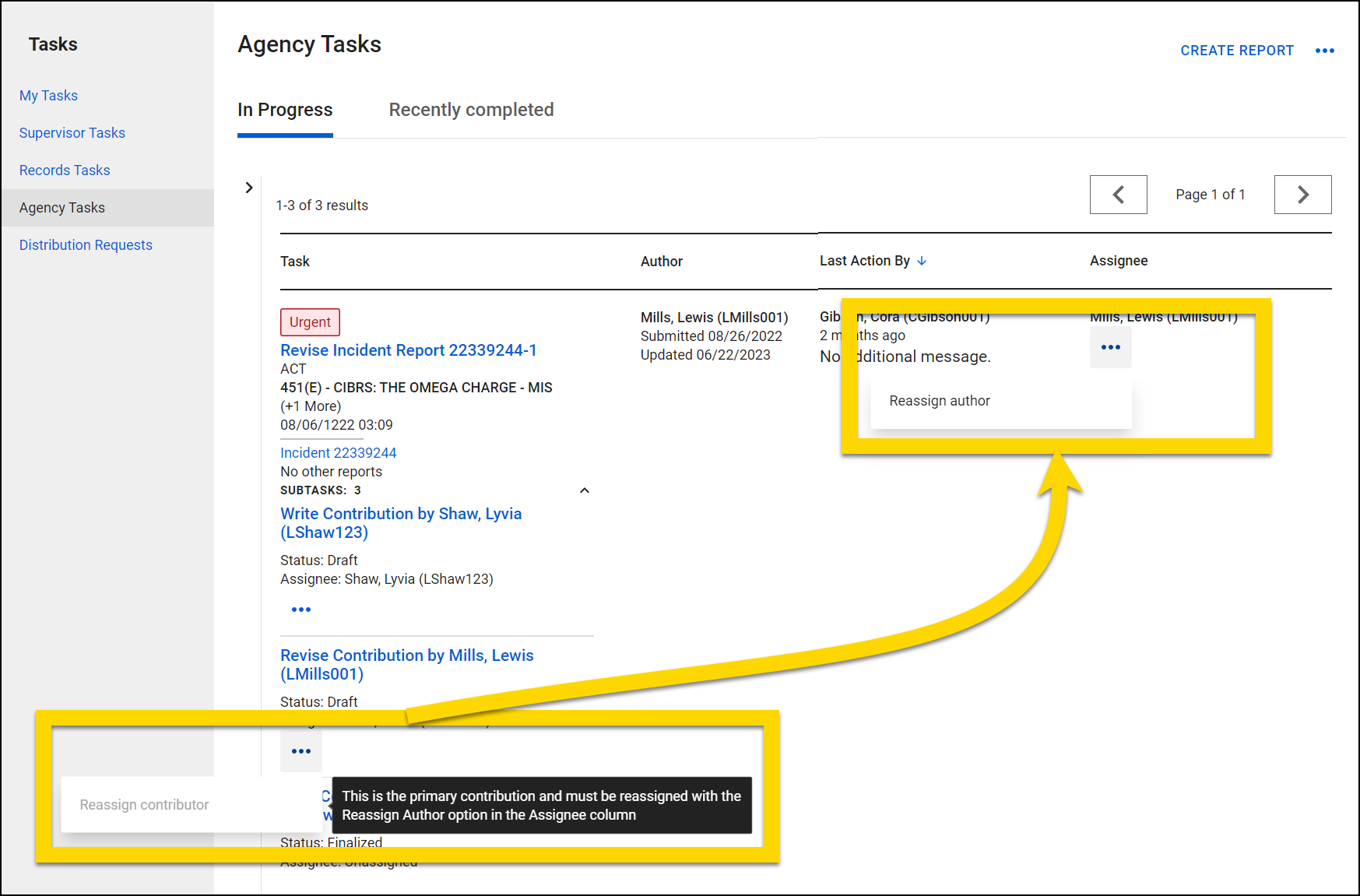
To determine if the contributor is the original report author, open the report and check the Author name in the top left corner.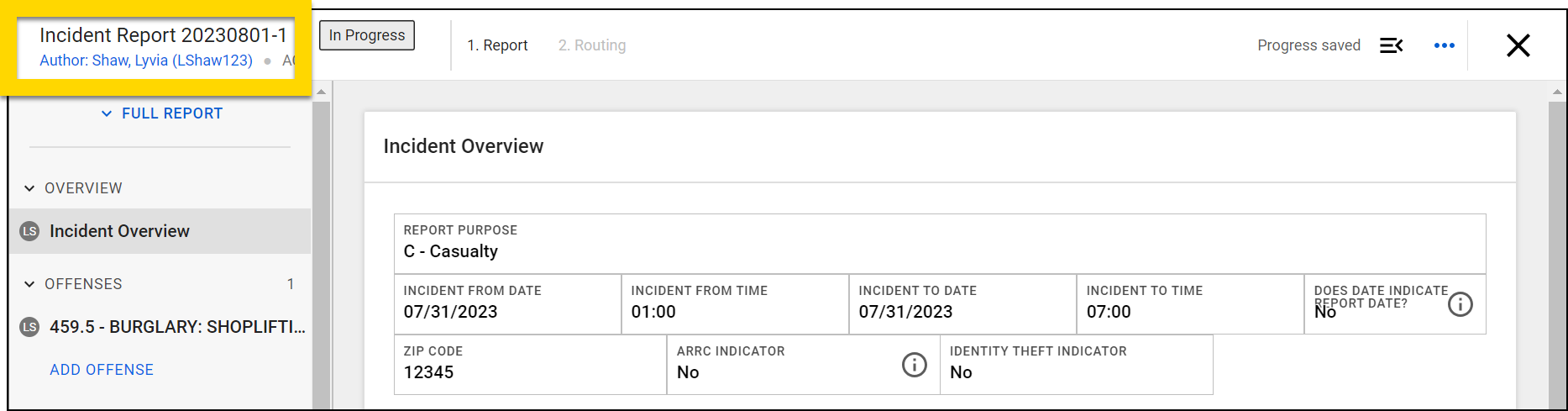
Assign review of multiple contributions
In the Supervisor Tasks inbox, selecting the Assign button (B) on a report that contains multiple contributions only assigns that specific contribution. To assign all available contributions, instead select Start Review > All Available Contributions (B).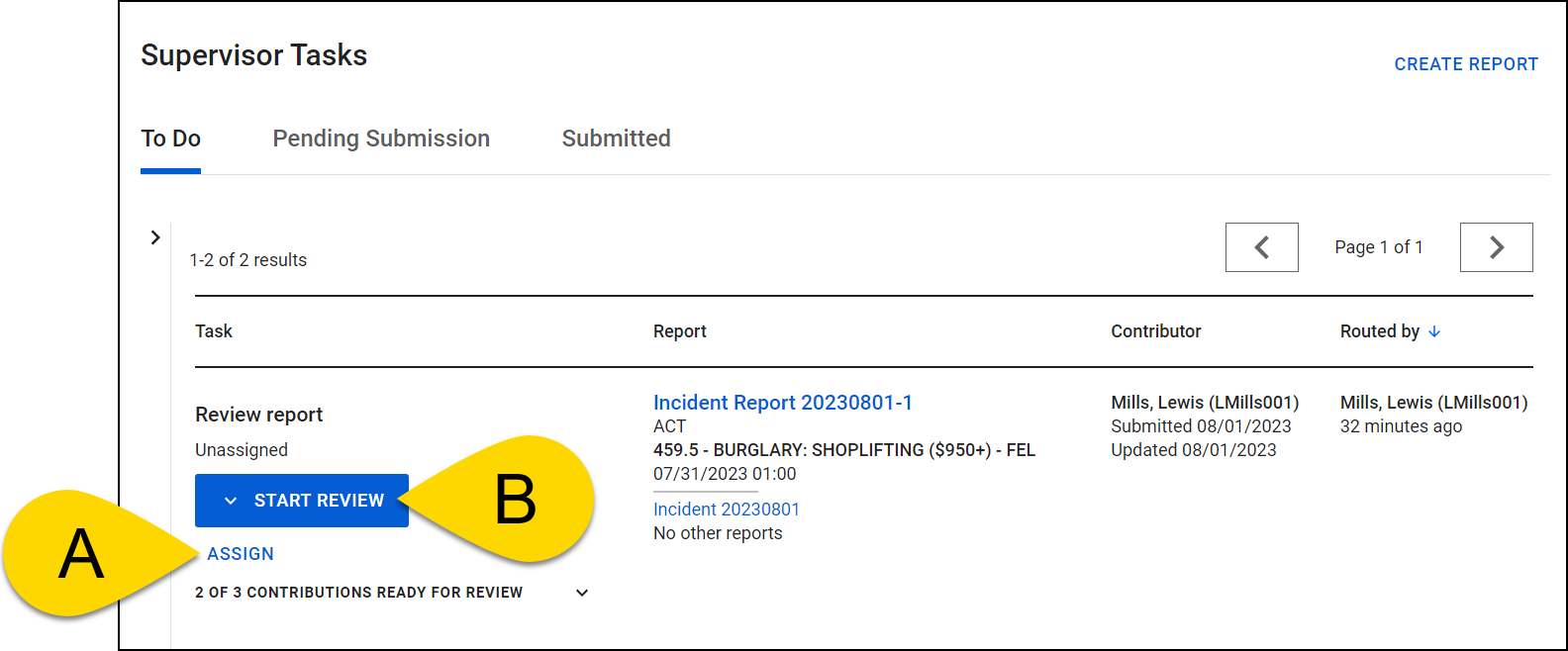
Narrative review after contribution reassignment
When a contribution is reassigned, a green checkmark appears beside their narrative, even if it has not been reviewed and approved. When reassigning contributions, be sure to review the contributor's narratives as well.
In the example below, Lewis Mills' contribution was reassigned to Lyvia Shaw, and upon the reassignment, the green checkmark was added to Lewis Mills' narrative.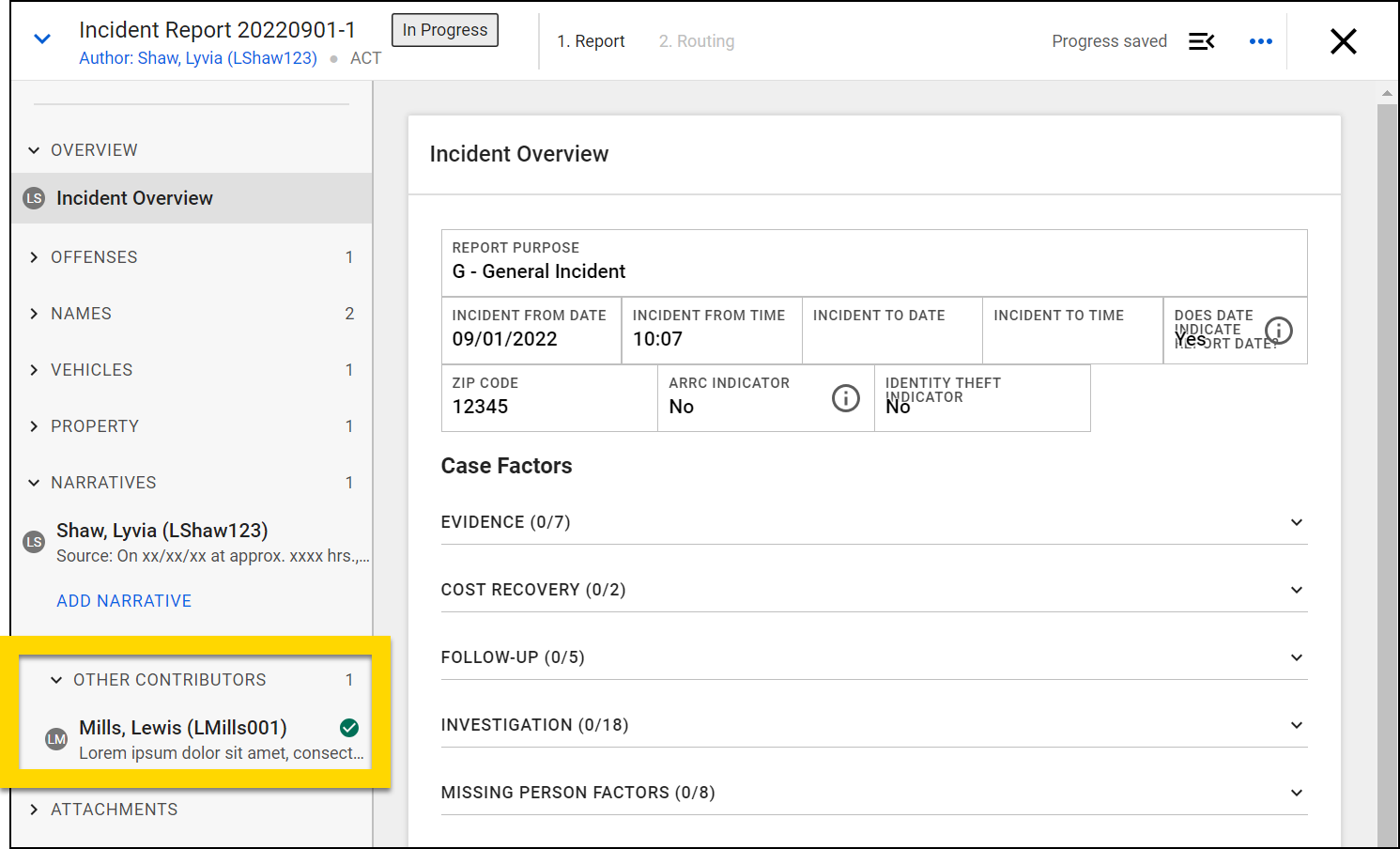
Contribution creator vs. reviewer
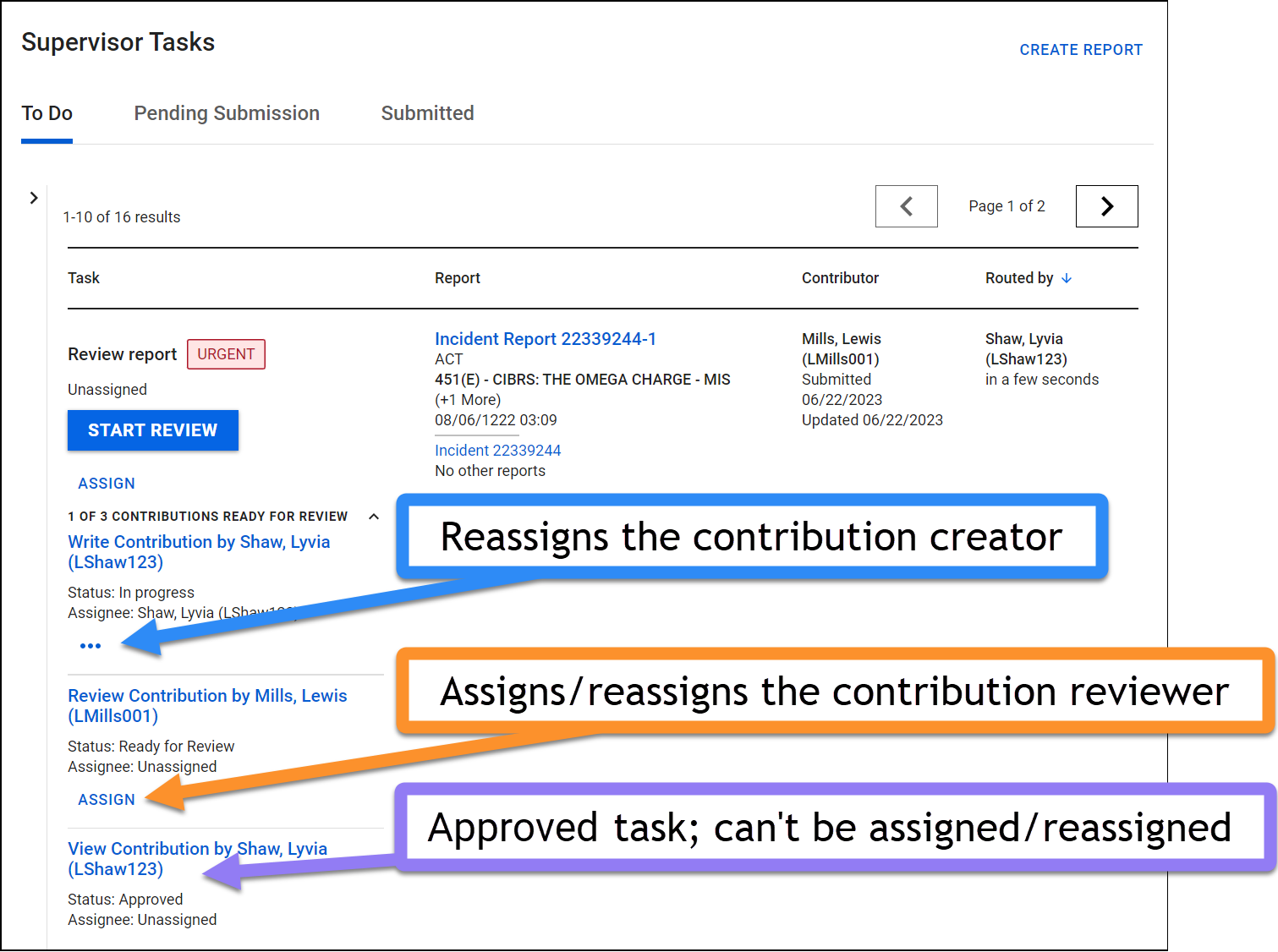
Contributions can only be reassigned when the contribution is in Write or Revise status. When a contribution is in review (Supervisor or Records), the Assign option only assigns the contribution reviewer, not the writer of the contribution. In other words, if you see the More Actions [ ...] menu, you are reassigning the contribution. If you see an Assign or Reassign button, you are reassigning the reviewer.
To reassign a contribution of a task that is currently in review status, the contributor reviewer must reject the report to return it to Revise status. At that point, the contributor can be reassigned.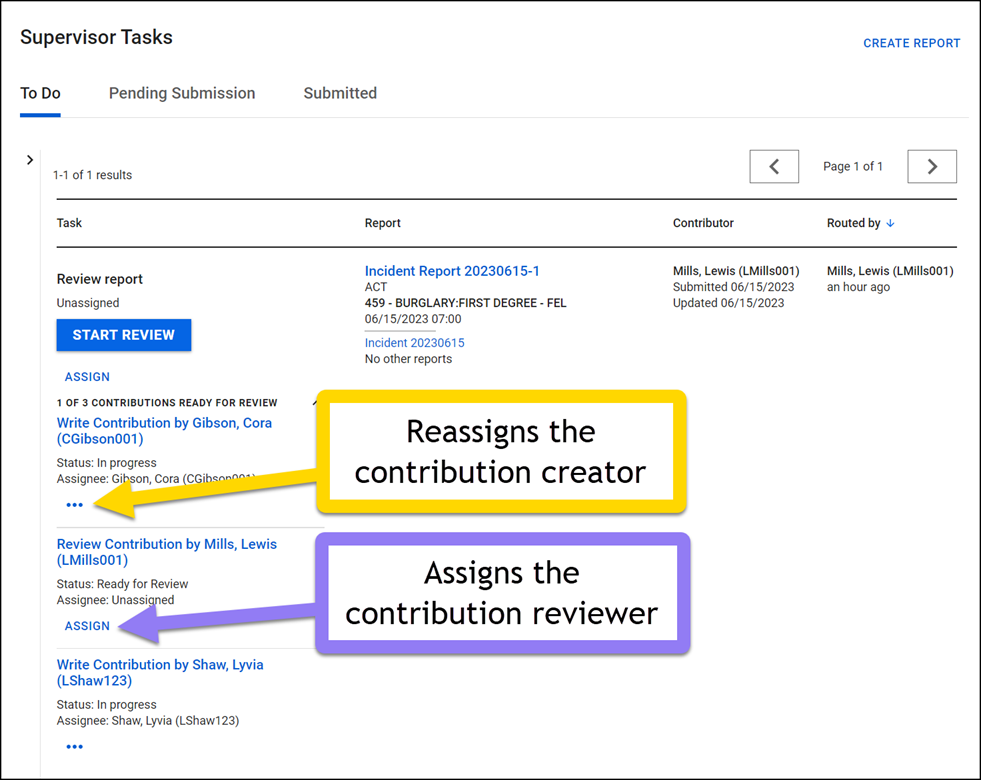
Edit after submission
Once a contribution is assigned for Supervisor Review, that contribution can no longer be edited. However, users can continue to add additional sections to the report as needed (e.g., people, vehicles, etc.).
Once a report is assigned for Records Review, no additional edits can be made to it, and no additional report sections can be added.


