Add report information
When working on reports in Report Writer, use the Add buttons in the navigation menu to add new sections (composed of multiple fields) in the central report writing area where you can enter information.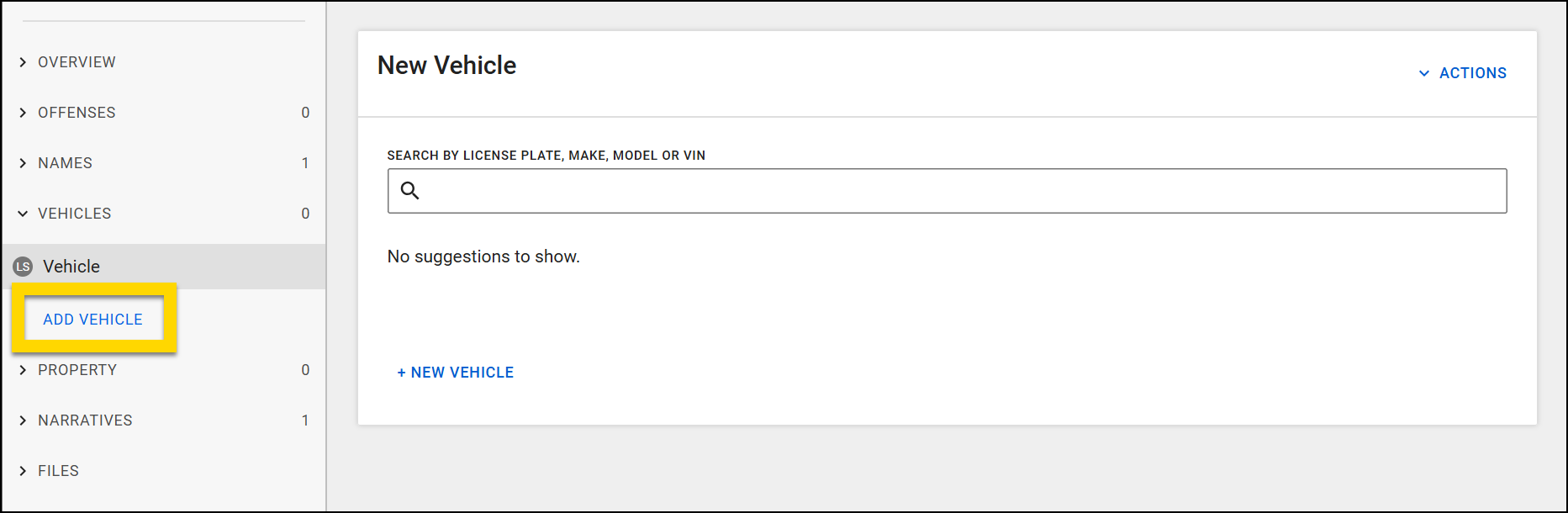
These sections vary depending on the type of report, but often include:
- Overview
- Offenses
- People
- Organizations
- Vehicles
- Property
- Narrative
- Files
Overview
Most reports contain an Overview section where you can record basic information, including date, time, and location. Overview sections contain various other fields, depending on the report type. Unlike the other report sections, the Overview section can't be removed from the report.
This video explains how to complete the Incident Overview section in incident reports.
Date and time
To quickly enter the current date and time, enter "T" in the date field. The current date and time automatically appear in both the Date and Time fields. See Keyboard shortcuts for additional information about quickly entering information into reports.
Location
Depending on the report type, various location-related fields appear, often including Location, Location category/type, and Location note. The location-related fields and entry methods of the options in the Location field are outlined in the table below.
|
Location option |
Entry method |
Appears in search when adding locations to a report |
Appears in Locations search in the Search module |
|---|---|---|---|
|
Auto address |
Users search the system for verified addresses to add to reports |
Yes |
Yes |
|
Cross streets |
Users search the system for verified addresses to add to reports |
Yes |
Yes |
|
Manual address |
Manually entered by users |
No |
Yes |
|
Mile marker |
Manually entered by users |
No |
No |
|
Unknown |
Manually entered by users |
No |
No |
It is generally a best practice to use verified Auto addresses and Cross streets when completing reports. Follow your organization's policy when adding Manual addresses, mile markers, or Unknown locations to reports.
Auto addresses and cross streets
Auto addresses and cross streets are verified addresses, which means they appear in Locations search and have location profiles associated with them.
When you select Auto address or Cross streets from the Location field, you can type in the Address/cross street field, and a list of possible location matches will appear.
To enter a location by finding it on a map, instead select the map that displays beside the Address/cross street field. A larger map window loads. Use the plus and minus buttons to zoom in and out. Click and drag to pan the map and reveal new areas.
Click anywhere on the map to drop a pin. The pin you place appears in light purple, and the nearest verified address appears in dark purple. Select Add to report to add the verified address to your report.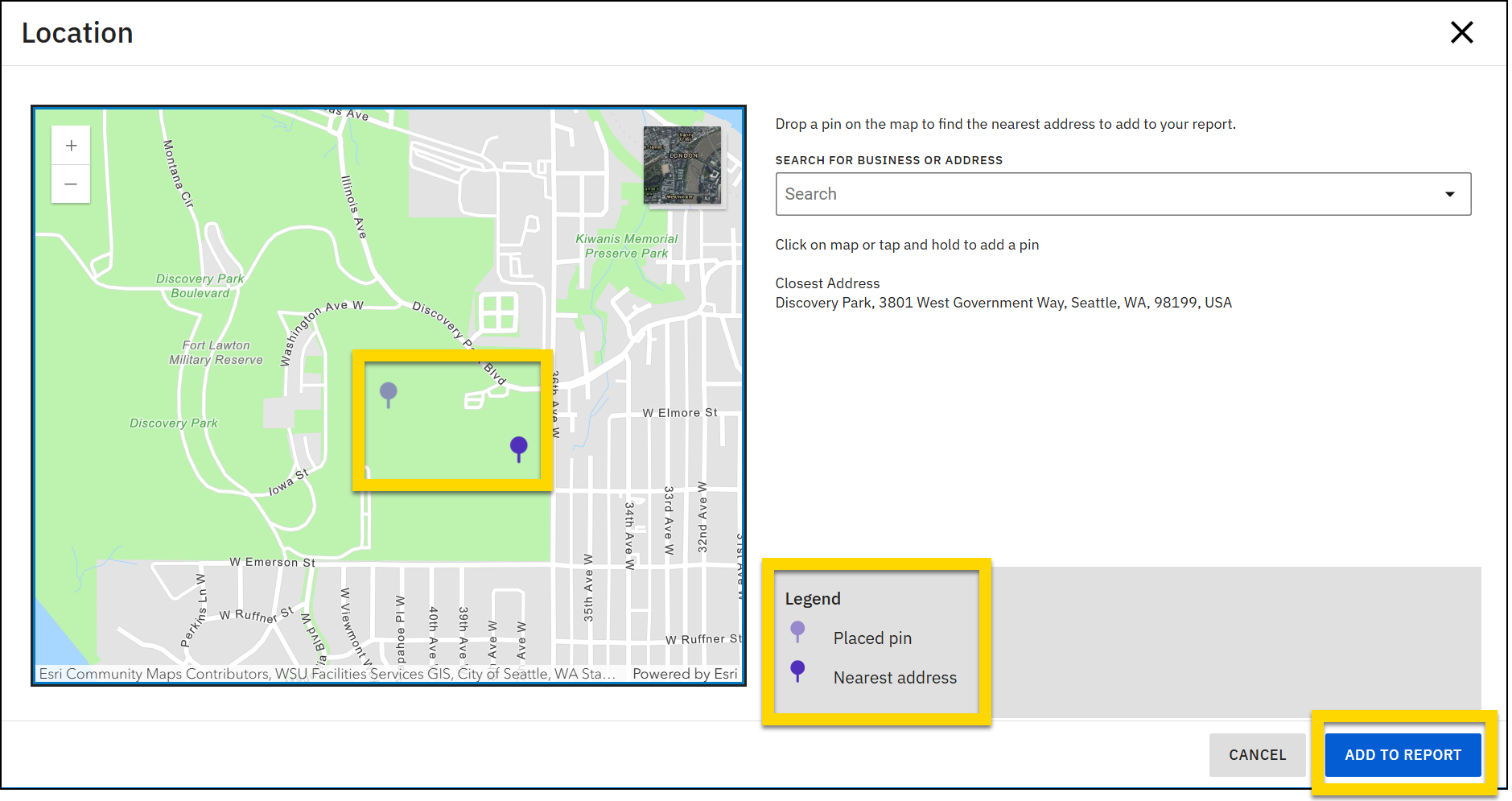
You can add subaddress information to auto addresses to specify a particular unit or apartment number. These unit/apartment numbers are considered unique locations, even though they share the same address. As a result, a separate location profile is created for each unit/apartment. These location profiles appear in Location Search results. Opening one of these profiles reveals all associations for that particular unit/apartment.
To add a unit, select Add unit, then provide the Unit type (Apartment, Suite, etc.) and Unit number.
Manual addresses
Manual addresses are NOT verified and cannot be searched for when users are adding an address to a report. Instead, manual addresses must be entered manually. However, like Auto addresses, manual addresses do appear in Locations search and have location profiles associated with them. Manual addresses are included in Locations search to allow users to search for reports by location. However, users cannot search for previously entered manual addresses when they are completing reports to prevent incorrect manually entered addresses from being added to multiple reports. Follow your organization's policy when adding Manual addresses to reports.
When you select Manual address from the Location field a set of new fields appears where you can enter the location information.
Mile markers, and unknown
Mile markers and Unknown addresses are NOT verified, which means they do NOT appear in Search, either in the Search module or when searching to add a location to a report. As a result, these location types do NOT have location profiles associated with them. Follow your organization's policy when using these location types.
When you select Mile marker or Unknown from the Location field a set of new fields appears where you can enter the location information.
Offenses
To add an offense to a report, select Add offense in the report navigation menu. Select the Offense field and begin typing to view matches for the characters entered. The list that appears in this field is generated by your organization's Master Charge Table. If the offense is a NIBRS offense, you must provide a NIBRS UCR code and may see additional required fields.
If multiple offenses, as defined by NIBRS, occur during an incident, report all offenses in the same incident. NIBRS allows you to report up to ten offenses within a single incident. Enter the primary offense first.
After adding an offense to a report, you generally are required to associate the offense with a person, organization, vehicle, or property item. A validation error appears on the right side of the page in the error panel, indicating which associations are required. The required associations vary depending on the offense type.
To associate an offense add the person, vehicle, etc. to the report and update the Role field, which appears beside the Offense field. Role options vary by organization.
Watch this video for an overview of how to add an offense.
Person
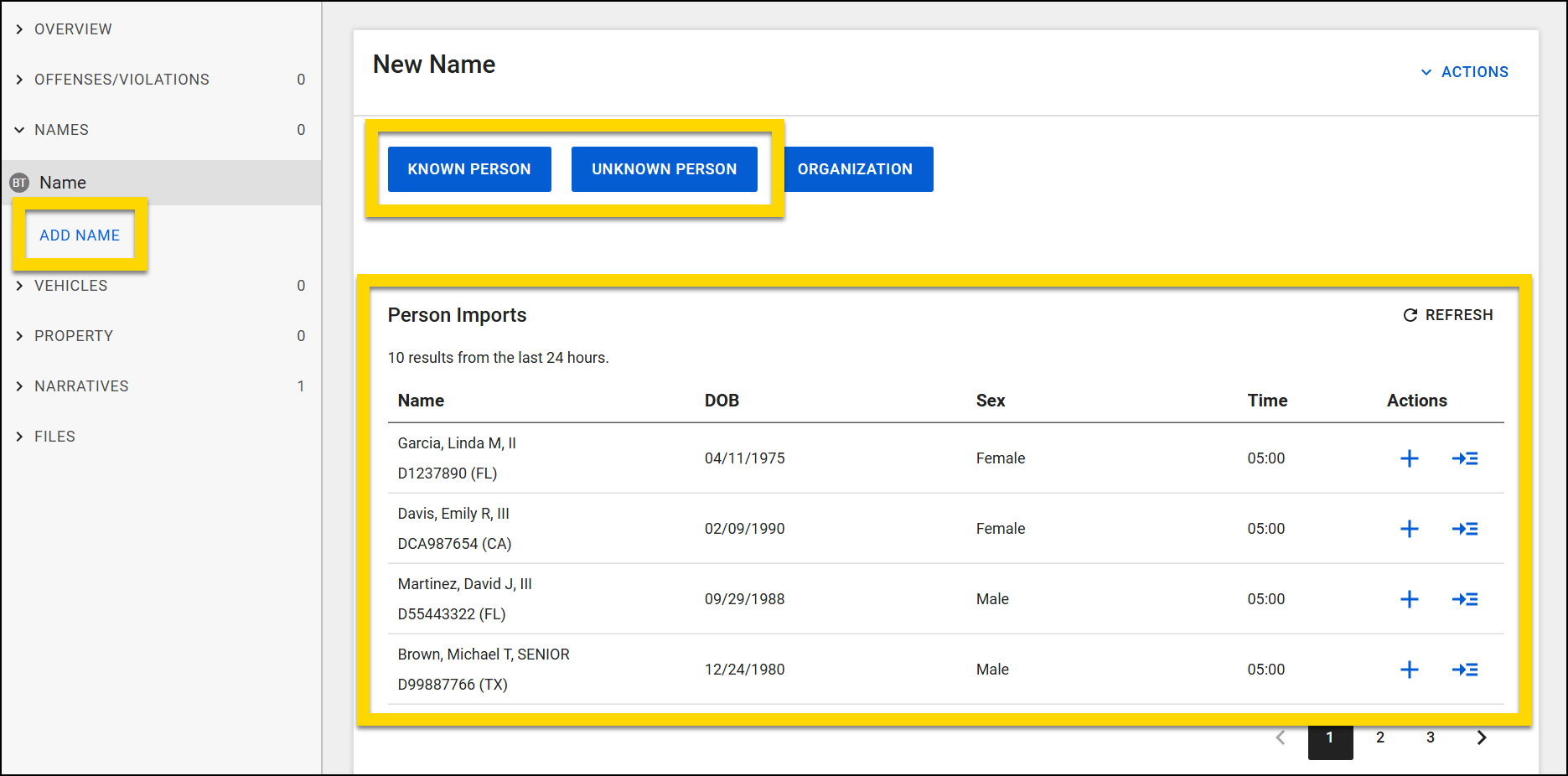
To add a person to a report, select Add > Name/Person in the report navigation menu, and then select the type of person you want to add: Known or Unknown.
If your organization has integrated with your NCIC search provider, you can also view the people you exported from NCIC and add one to your report.
Once a person has been added to a report, you can add and update their information.
Watch this video for an overview of how to add a person to a report.
Add a known person
A known person is someone who can be positively identified. This could be someone whose identity is fully confirmed, such as a person who has presented valid identification or has been recognized by someone else. A known person can also be partially known. For example, if witnesses report seeing a male in a blue sweater running from the scene, this individual is considered a known person because some identifying information is available.
To add a known person to a report:
- Select Add name > Known person.
-
To avoid creating duplicate person profiles, search to see if the person already exists in the database rather than automatically creating a new one.
- Enter keywords in the top search box or use the filters to search.
- Potential matches from the database appear below the search fields as you enter information.
- Select a search result to open a profile preview pane and view more information.
- If your organization has integrated with your NCIC search provider, you can also search for people you imported from NCIC.
- If a profile matches the person you want to add to the report, select Import and update at the bottom of the pane.
- If a profile does NOT exist for the person you want to add to the report, select New person below the list of search results.
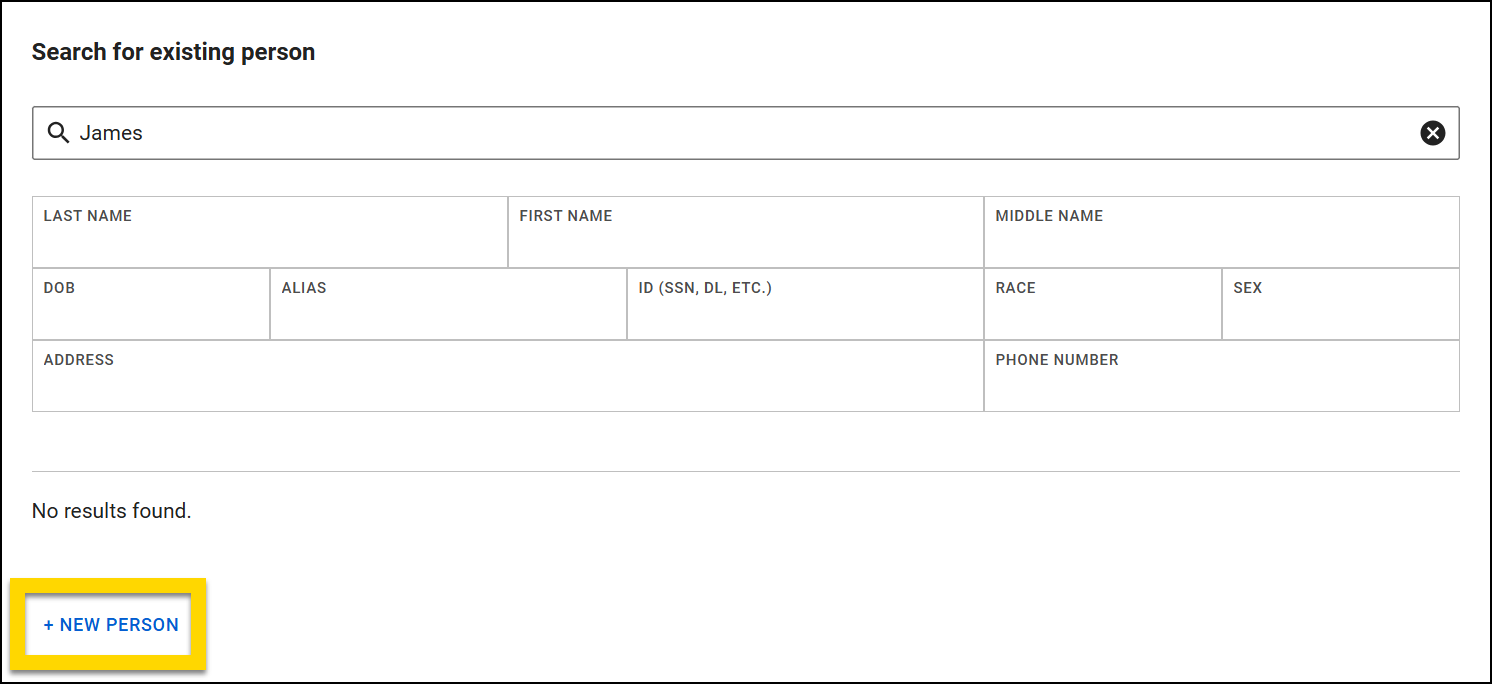
An orange banner displays at the top of the window when you add an existing person. If the person was added by mistake, select Remove person in the banner to remove them.
Add an unknown person
An unknown person is someone who cannot be identified or described. For example, if a car is broken into with no witnesses, the person who committed the break-in would be considered an unknown person.
To add an Unknown person to a report:
- Select Add name > Unknown person.
- Fill out the Role this person played and provide any other information you can.
Unknown persons are not added to the database, which means they will not appear in searches and can't be added to other reports.
Add a person from NCIC
The NCIC integration is currently only available for select organizations. Contact Axon Support or your Axon representative for more information about integrating with your NCIC search provider.
To add a person from NCIC search to your report:
- Export the person from your NCIC search application to make their name appear in the Person Imports table in Axon Records.
- This table includes person imports, typically from the previous 24 hours. Imports made prior to this timeframe are removed from the table. Select Refresh to refresh the list.
- You may see a timeframe other than 24 hours, depending on how your organization's NCIC integration is configured.
- Depending on your organization's integration and configuration settings, people imported from NCIC may take a few minutes to appear.
- This table includes person imports, typically from the previous 24 hours. Imports made prior to this timeframe are removed from the table. Select Refresh to refresh the list.
- Select the arrow icon in the Actions column to view additional details about them in the side panel.
- The person’s basic information, including DOB, sex, race, height, and weight is displayed at the top (if available).
- Additional data about the person appears below these details. This information comes directly from your NCIC search provider and may contain raw code.
- Select the plus icon in the Actions column to add a person to your report.
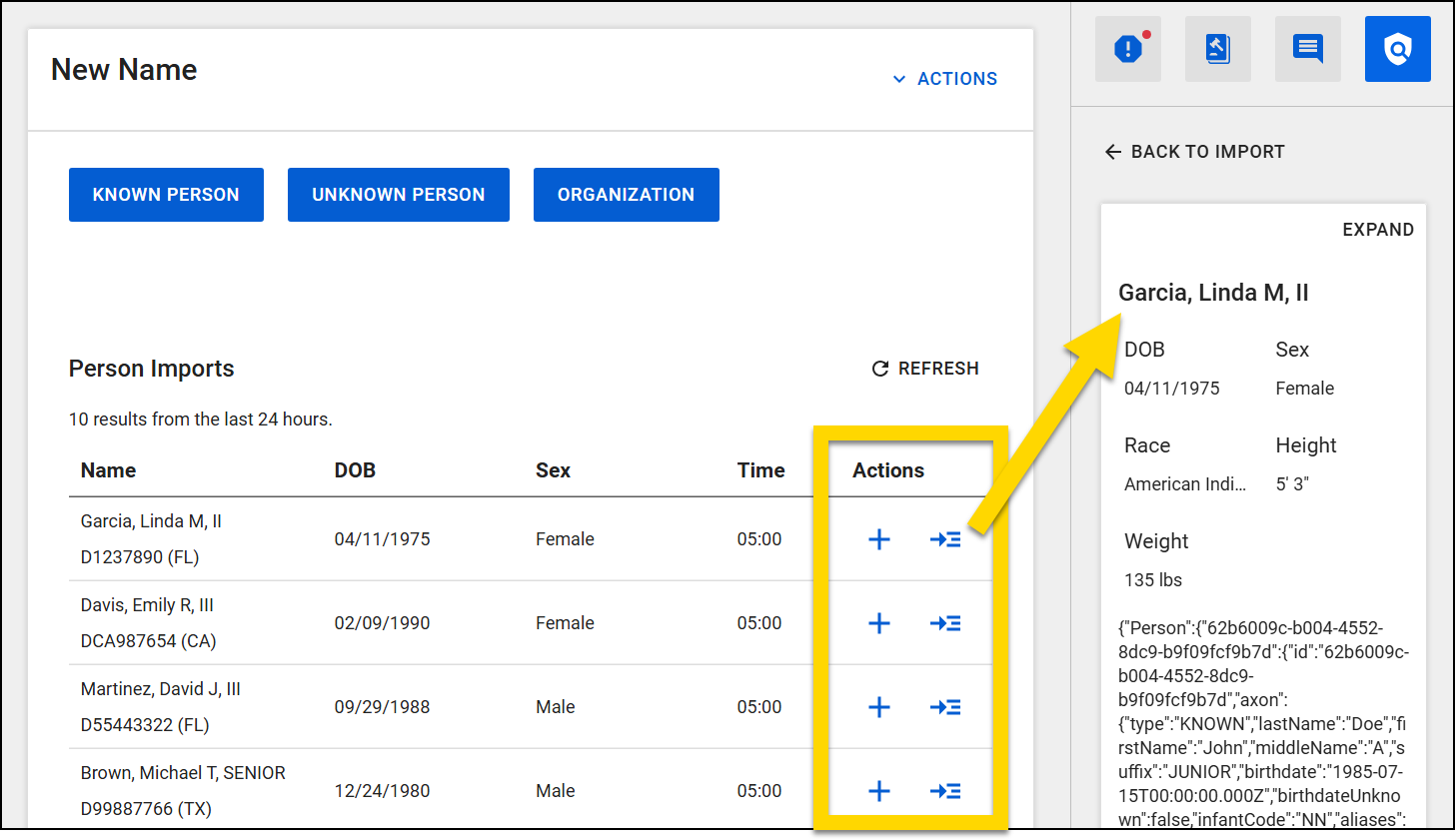
- When you select the plus icon, the system searches to see if that person already exists in the database.
- The search fields are auto-filled using the information from your NCIC provider.
- Potential matches from the database appear below the search fields.
- Select a result to open a profile preview pane and view more information.
- If a profile matches the person you want to add to the report, select Import and update at the bottom of the pane.
- If you do not find a matching profile, select New person below the list of search results.
- A new person profile is created, and the information from your NCIC provider is auto-filled into the person fields in the report.
Add and update person information
When adding a person to a report (whether creating a new person or updating an existing one), various fields are revealed where you can record information about them. This information is also added to their profile, which displays all information about the person, including their involvement with any other reports, people, vehicles, etc. The fields vary by report type, but some common fields include:
- Involvement: Description of the person's role in the report, including any offenses they may have committed.
- Identity details: Full name, date of birth, and other relevant identifiers.
- The Age field shows the person’s age at the time of the report, regardless of their current age. If the report does not have a recorded date, the Age field shows the person's current age.
- People who are added to reports also appear on incident/case profiles. The person information shown on these profiles is the person's information at the time of the incident, which may be different from that person's current information.
- For example, at the time of Incident 123456, the victim’s name was Debbie Miller. Two years later, her name changed to Debbie Smith. The profile for Incident 123456 displays “Debbie Miller,” the name recorded at the time of the incident, even after her name changes.
- Description: Details such as height, weight, hair color, eye color, and distinguishing marks.
- Contact information: Current address, phone number, and email, if available.
- Relationships: Information about any relationships the person has with other individuals, vehicles, etc. involved in the incident.
- Victim details: If the person is a victim, include specific details about the harm or loss they have experienced. For NIBRS (National Incident-Based Reporting System) compliance, make sure to document the relationship between the victim and the offender.
- Additional forms: Add any forms that may be required, such as an arrest.
Once the report is submitted, the information provided in the report immediately appears on their profile.
Add an arrest
To add an arrest to a report:
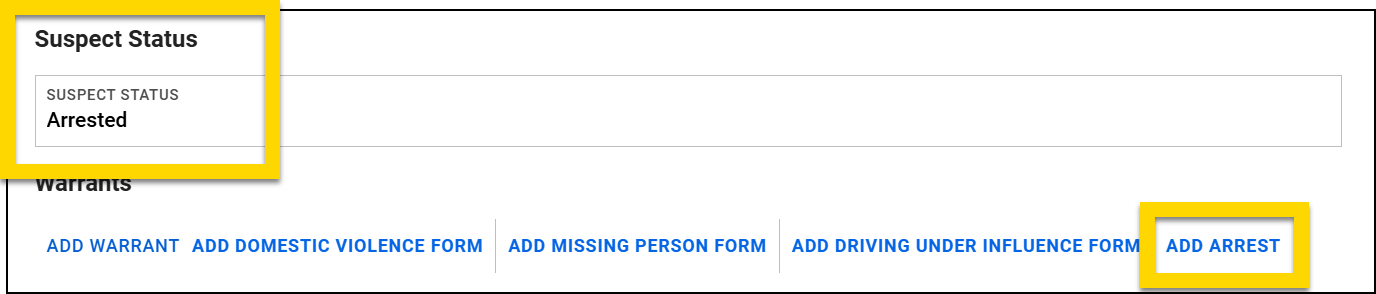
- Add a person to the report and set their Role as Arrestee.
- Scroll down to the Suspect status section and select Arrested from the drop-down menu.
- Continue scrolling down until you see the list of additional forms to add to the report. Select Add arrest.
-
Complete all required fields in the new Arrest and Arrestee details sections. The following options appear in the Arrest type menu:
- On-view arrest: The suspect is apprehended without a warrant or previous incident report. Use this when the offender is arrested at the time of the incident.
- Summoned/Cited: The suspect is not taken into custody. Use this when your organization has cited someone on an arrestable offense, and that person has been released.
- Taken into custody: A suspect is taken into custody based on a warrant and/or previously submitted incident report. Use this when your agency has arrested the offender after the initial incident. This is usually a warrant or someone who has eluded the police after an incident.
- If there are charges associated with the arrest, scroll down to the Arrest charges section and select Add charge.
- To add a warrant for the arrest, see Add warrant to an arrest. Print an arrest form by selecting Actions > Print arrest form.
Some organizations are configured to allow you to move charges from a current incident report to a past incident report to clear that past incident report. See Clear past incidents for more information.
Organizations
To add an organization to a report, take these steps:
- Select Add name > Organization in the report navigation menu.
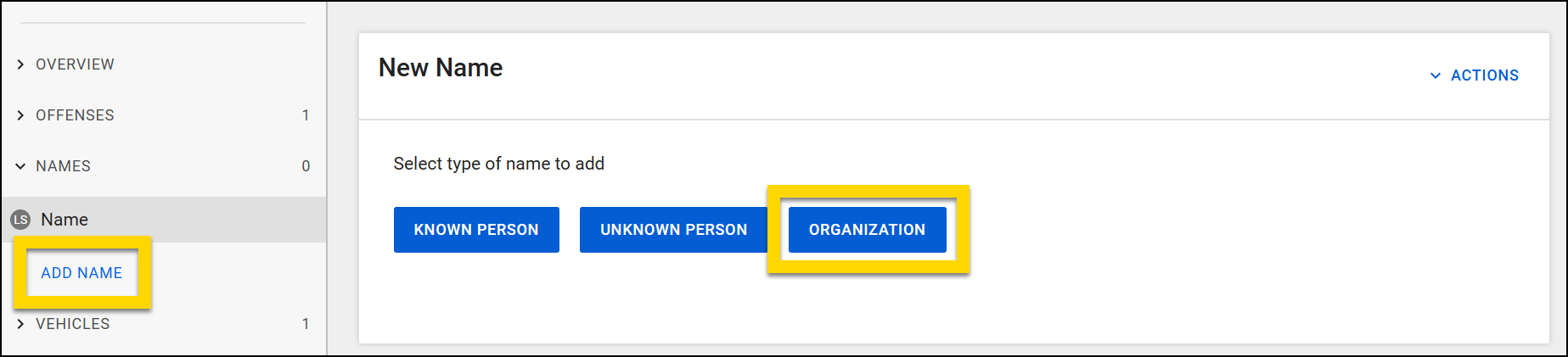
- To avoid creating duplicate organization profiles, search to see if the organization already exists in the database rather than automatically creating a new one.
- Enter keywords in the top search box or use the filters to search.
- Potential matches from the database appear as you enter information.
- Select a result to open a profile preview pane and view more information.
- If the profile matches the organization you want to add to the report, select Import and update at the bottom of the pane.
- If a profile does NOT exist for the organization you want to add to the report, select + New organization below the search fields to create a new organization.
When adding an organization to a report (whether creating a new organization or updating an existing one), various fields are revealed where you can record information about it. This information is also added to the organization profile, which displays all information about the organization, including its involvement with any other reports, people, vehicles, etc. The fields vary by report type, but some common fields include:
- Involvement: Description of the organization's involvement in the incident
- Contact: Addresses, email addresses, and relevant URLs
- Relationships: Information about any relationships the organization has with individuals, vehicles, etc. involved in the incident.
Relationships
A victim of a NIBRS offense must have a relationship with all offenders who committed the NIBRS offense.
To add a relationship between people and/or organizations in your report, open the person or organization, scroll down to the Relationships section and select Add related person. If multiple parties are involved in the incident, be sure to document all relationships.
When you add a relationship to one person/organization, the system automatically adds that relationship to the other person/organization.
Add each person/organization to the report for their names to appear in the Related person name drop-down menu.
Vehicles
To add a vehicle to your report, select Vehicles > Add vehicle in the report navigation menu.
From this screen, you can search for an existing vehicle or create a new one. If your organization has integrated with your NCIC search provider, you can also view the vehicles you exported from NCIC and add one to your report.
Once a vehicle has been added to a report, you can add and update its information.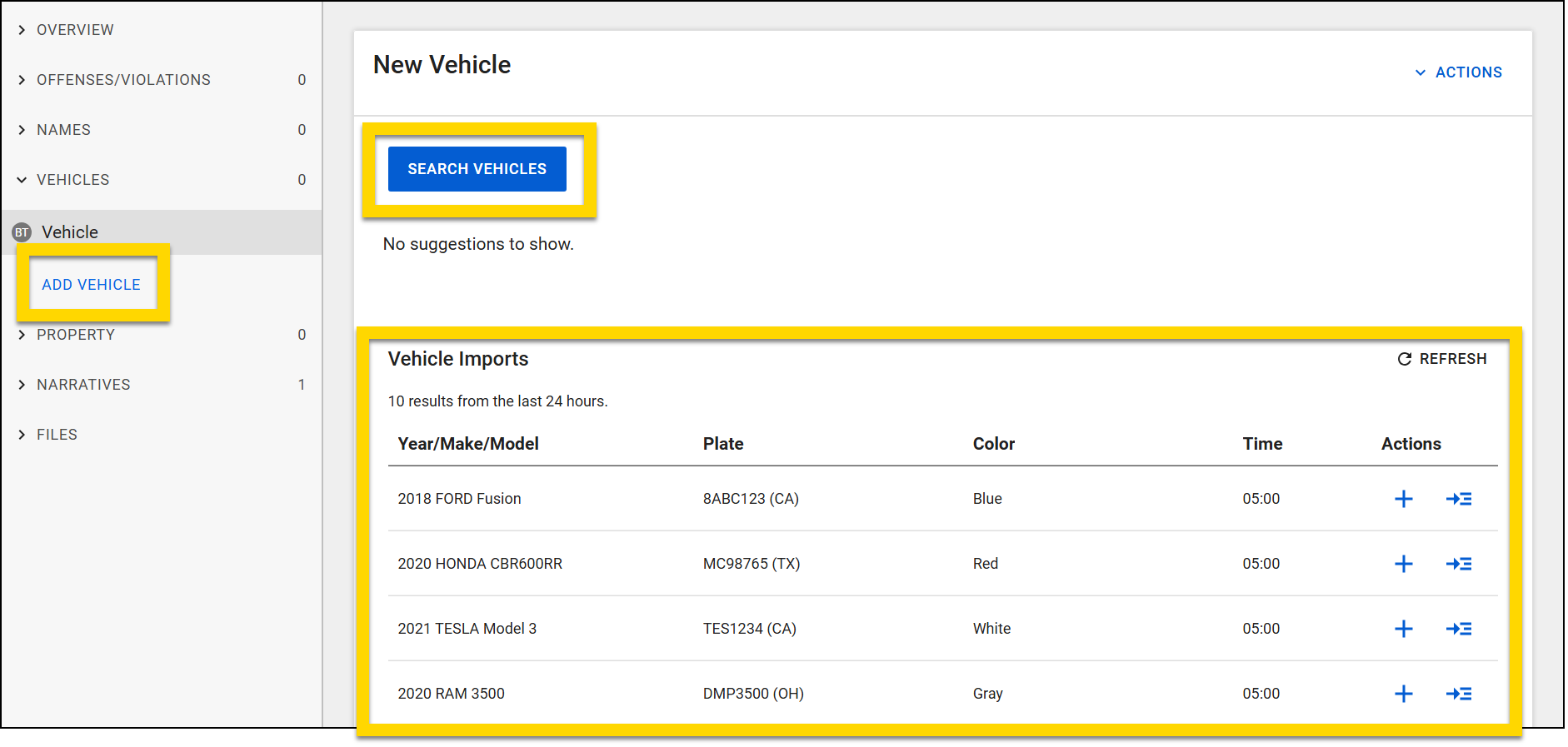
To search for an existing vehicle, or to add a new vehicle, take these steps:
- Select Add vehicle.
- This button may differ depending on the type of report you are writing.
- To avoid creating duplicate vehicle profiles, search to see if the vehicle already exists in the database rather than automatically creating a new one.
- Search by license plate, make, model, or VIN. Wildcard operators are not supported in the search box.
- Potential matches from the database appear below the search fields as you enter information.
- Select a search result to open a profile preview pane and view more information.
- If your organization has integrated with your NCIC search provider, you can also search for vehicles you imported from NCIC.
- If a profile matches the vehicle you want to add to the report, select Import and update at the bottom of the pane.
- If a profile does NOT exist for the vehicle you want to add to the report, select New vehicle below the list of search fields.
- If you search for an existing vehicle using a license plate number and must create a new vehicle, the license plate you searched for is entered in the report.
Add a vehicle from NCIC
The NCIC integration is currently only available for select organizations. Contact Axon Support or your Axon representative for more information about integrating with your NCIC search provider.
To add a vehicle from NCIC search to your report:
- Export the vehicle from your NCIC search application to make its name appear in the Vehicle Imports table in Axon Records.
- This table only includes vehicle imports, typically from the previous 24 hours. Imports made prior to this timeframe are removed from the table. Select Refresh to refresh the list.
- You may see a timeframe other than 24 hours, depending on how your organization's NCIC integration is configured.
- Depending on your organization's integration and configuration settings, vehicles imported from NCIC may take a few minutes to appear.
- This table only includes vehicle imports, typically from the previous 24 hours. Imports made prior to this timeframe are removed from the table. Select Refresh to refresh the list.
- Select the arrow icon in the Actions column to view additional details about the vehicle in the side panel.
- The vehicle’s basic information, including plate, state, color, and VIN is displayed at the top (if available).
- Additional data about the vehicle appears below these details. This information comes directly from your NCIC search provider and may contain raw code.
- Select the plus icon in the Actions column to add a vehicle to your report.
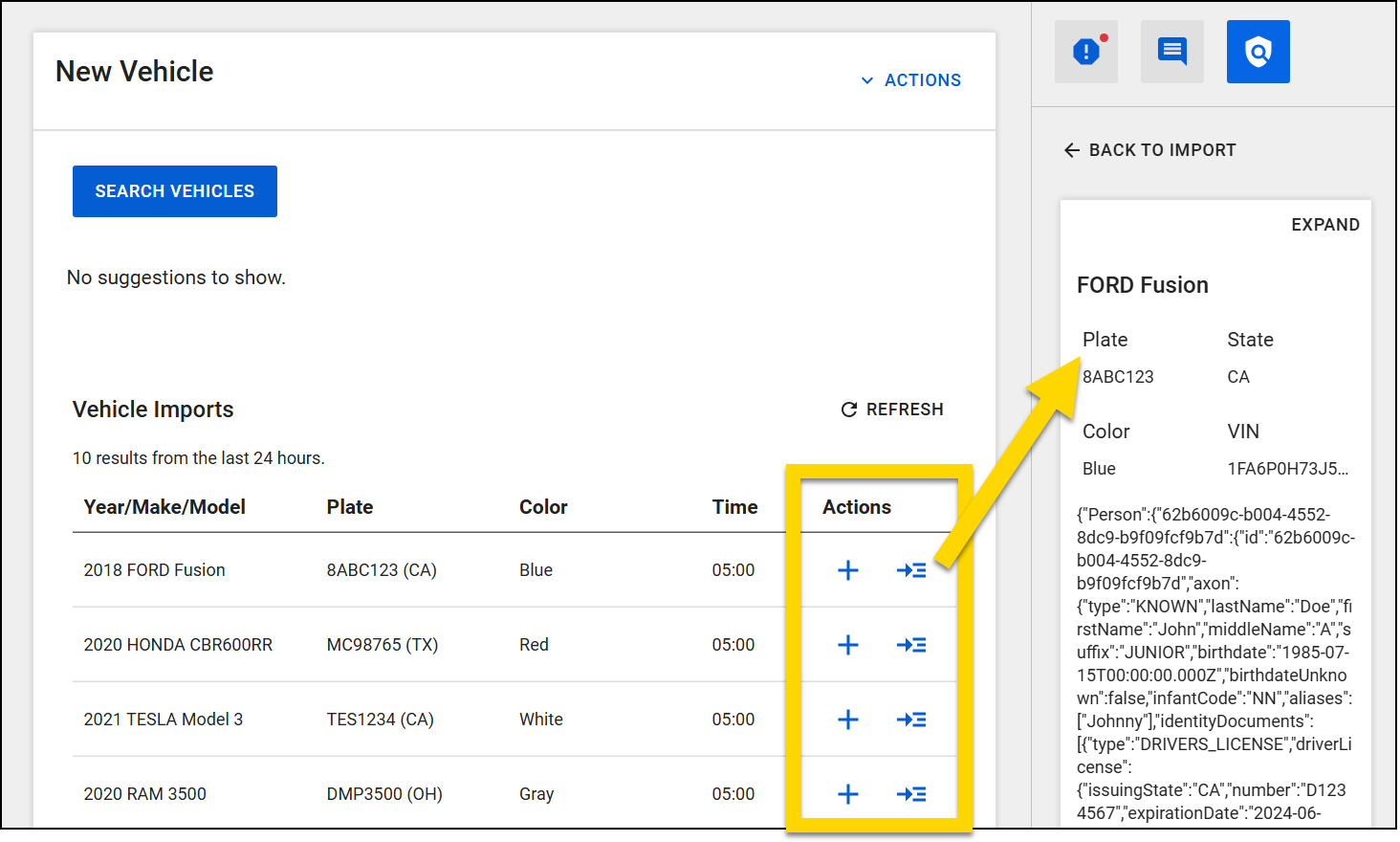
- When you select the plus icon, the system searches to see if that vehicle already exists in the database.
- The search fields are auto-filled using the information from your NCIC provider.
- Potential matches from the database appear below the search fields.
- Select a result to open a profile preview pane and view more information.
- If a profile matches the vehicle you want to add to the report, select Import and update at the bottom of the pane.
- If you do not find a matching profile, select New vehicle below the list of search fields.
- A new vehicle profile is created, and the information from your NCIC provider is auto-filled into the vehicle fields in the report.
Add vehicles as property items
In some cases, a vehicle in a report also needs to be tracked as property (for example, when the vehicle is being impounded or held as evidence). Axon Records lets you submit a vehicle as property directly from the vehicle section in Report Writer.
Submitting the vehicle as property creates a related property profile and links the vehicle and property profiles. Updates made to the vehicle section also automatically appear in the corresponding property item in the report.
This feature requires configuration. If you are interested in enabling it for your organization, contact your Axon representative or Axon Support.
To add a vehicle as a property item:
- Add a vehicle to the report as usual.
- After adding all vehicle information, scroll down to the bottom of the vehicle page and select the Yes option in the Physical evidence and property section to indicate that the vehicle should also appear as a property item in the report.
- Select Add as property to create a property item in the report that corresponds to the vehicle.
- If the vehicle is in police custody, select the Yes option to reveal the additional property fields.
- Complete the property information (authorized disposition, biohazard status, drop off location, etc.) as you would if you were in the Property section of the report.
- The property fields appear in the Vehicle section of the report. When you update these fields in the Vehicle section, the Property section updates to match.
- See Property items and containers in police custody for full instructions.
- If your organization uses containers to manage property items, you can also manage vehicles as property items in containers. See Property container workflow for full instructions.
- Once all information in the Physical Evidence and Property section is complete, submit the vehicle to property.
- The vehicle will appear on the Tasks dashboard in the Property module, and both a vehicle profile and a property profile are created.
- The associations section on each of these profiles shows if there is a related vehicle (when viewing the property profile) or related property (when viewing the vehicle profile).
If you need to make any changes to the vehicle's details after you have submitted it to Property, make the updates in the Vehicle section of the report, and select Update Property at the bottom of the page to submit those updates to the Property department.
If you make changes to any vehicle details in the Property section, the Vehicle section will NOT update to match. It's best practice to instead only update the vehicle information from the Vehicle section of the report and not the Property section.
See Update submitted property for full instructions.
Add and update vehicle information
After adding a vehicle to a report (whether creating a new vehicle or updating an existing one), various fields are revealed where you can record information about it. This information is also added to the vehicle profile, which displays all information about the vehicle, including its involvement with any other reports, people, vehicles, etc. The fields vary by report type, but some common fields include:
- Involvement: Description of the vehicle's role in the report
- Vehicle details: Make, model, year, description, and other relevant identifiers
- Description: Details such as height, weight, hair color, eye color, and distinguishing marks.
- Relationships: Information about any relationships the vehicle has with other vehicles, individuals, etc. involved in the report.
Property
To add property to a report, select Add property in the report navigation menu. The system immediately generates a Property ID and displays it below the property heading.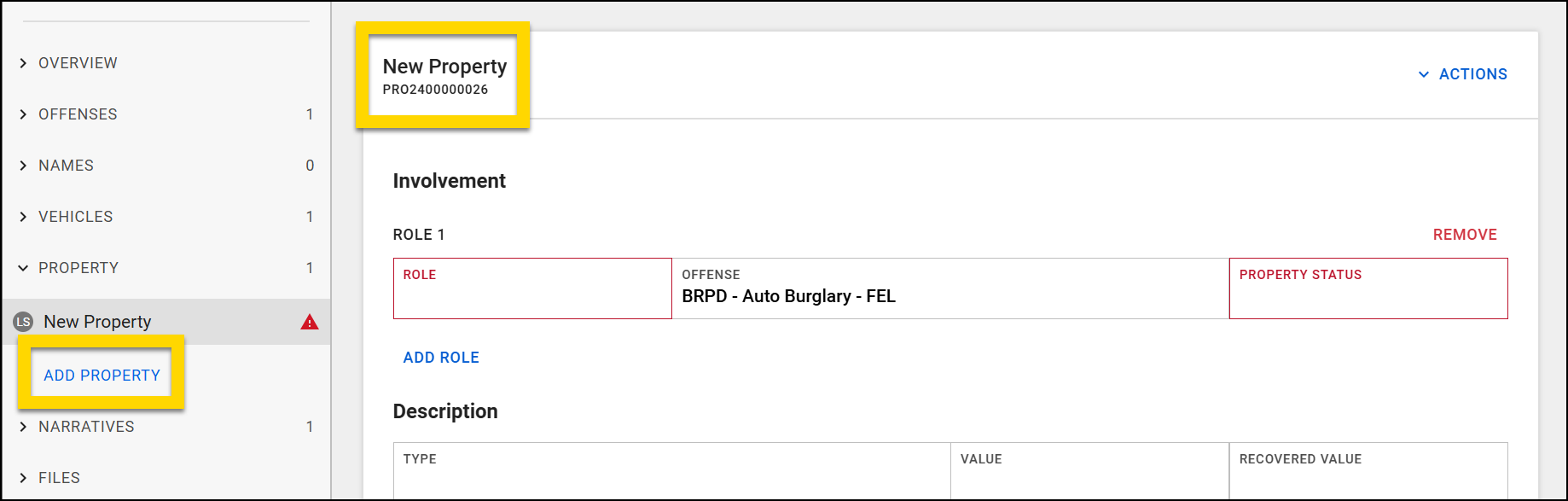
If you need to add a vehicle item as a property item, create the vehicle first, and select Add as property. See Add vehicles as property items for full instructions.
When adding property to a report, various fields are revealed where you can record information about the item. This information will appear in the property profile, which displays all information about the item. The fields available may vary based on the report type, but commonly include:
- Involvement: Description of the property item's role in the incident.
- Description: Details such as type, quantity, value, etc.
- Relationships: Information about any relationships the item has with the people and organizations involved in the incident.
- Recovery details: When, where and who recovered the item.
This video provides an overview of how to add a single property item to a report.
Property item identifiers
Depending on your organization's configuration, property items may include different types of identification numbers. These are the different types of identifiers you may notice on property items:
- Property ID
- A unique identifier that is automatically assigned when a property item is added to a report.
- Always starts with PRO (e.g., PRO1234567890).
- Appears when the property item is shown or referenced, including on printed labels.
- Item number (For organizations using item numbers)
- Assigned once the property item is submitted.
- Used to indicate the order in which items were submitted in a report, always starting with 1, then 2, 3, and so on.
- Not a unique identifier. The first property item submitted in every report is identified as item number 1.
- Appears in reports, search results, the property profile page, and on printed labels.
- For organizations using containers: When items are submitted as part of a container, the container will receive an item number, not the individual items inside it.
- Container ID (For organizations using containers)
- Assigned when the container is submitted.
- Always starts with CON (e.g., CON1234567890).
- Every property item inside a container will have its own Property ID, in addition to the Container ID.
- Container IDs appear when the container is shown or referenced, including in reports, search results, property profiles, and printed labels.
Currency calculation
If your organization is configured to enter currency by denomination, record the number of each coin and bill type recovered when adding money as a property item. The system automatically calculates the total amount based on the quantities entered for each denomination.
When Money is selected as the property type, additional currency fields appear. Enter how many coins and bills you have for each type in their respective fields. As you enter each quantity, the system displays the total for that denomination and automatically updates the Total value for coins and bills, as well as the overall amount.
You only need to enter quantities for the denominations that apply. Fields left blank are automatically treated as zero.
The denomination details also appear on the Property profile, allowing you to review the quantities and totals after saving the report.
Property items and containers in police custody
After adding the basic information about the property item, in the Physical evidence and property section, indicate if the item is in police custody. If the item is in custody, you can then:
- Assign it to a container (as applicable)
- Submit it to the Property department
- Print labels for it
Submitting a report for review, either by a supervisor or the Records clerks, will NOT submit that property to the Property department. You must select Submit to property to do this.
Organizations can configure their property management workflow in two ways:
- Individual property workflow
- Each property item is added to a report as an individual item and processed separately.
- Organizations using this method do NOT have the ability to process property items as a group (in a container).
- Property container workflow
- Property items can be added to reports in groups, called containers.
- Grouping property items into a container keeps related evidence together and can streamline the property management process.
- Organizations that use this method can submit property items individually OR within containers.
Individual property workflow
If your organizations follows an individual property workflow, follow these steps to manage property that is in police custody:
- In the Physical evidence and property section, select Yes to indicate the property is in police custody.
- Select a drop off location.
- Open the Drop off location menu to reveal which drop off locations have already been used for other property items in the incident, which locations are available, and which locations contain property for other incidents.
- Drop off locations can be managed from the Property Management tool in the Administrator Console.
- Set the Authorized Disposition. You can select from the following options:
- Hold: The default hold duration is 90 days. To change this duration, submit the property then open the property profile and select Actions > Update authorized disposition.
- Release: Additional fields let you add a release reason and contact information for the person the property is being released to.
- Destroy: Additional fields let you add a destroy reason and the person authorizing the destruction.
- Indicate whether the item contains biohazard materials (e.g., blood, bodily fluids).
- Select Submit to property.
- The property is added to the database even if the report has not been submitted.
- The user who submits the item is automatically assigned as the responsible officer for that item.
- After an item is submitted to the property department, the Submit to property button changes to Update property. You can change information about the property item and select this button to submit those changes to the Property department.
- Some organizations are configured such that property items with specific roles cannot be submitted to the Property department, so this option may be disabled. Follow your organization's policies to handle these property items.
Property container workflow
To manage a piece of property that is currently in custody and must be submitted to the Property department in a container, scroll down to the Physical Evidence and Property section of the property and take these steps.
When your organization uses the property container workflow, you can submit property items either as part of containers OR as individual property items.
- In the Physical evidence and property section, select Yes to indicate the property is in police custody.
- Indicate if the property item will be managed as part of a container.
- If the item is part of a container, continue to step 3.
- If the item is NOT part of a container, skip to step 6.
- Select Assign container.
- In the Container assignment panel that appears, choose one option:
- Create a container: Creates a new property container in the system.
- Add to an existing container:Allows you to search and select an existing container.
- Select Create and assign (if creating a new container) or Assign (if assigning to an existing container.
- After an item is assigned to a container, the Update container assignment button appears. You can use this button to move the item to a different container, but only until the container is submitted. Once the container is submitted, this button disappears, and the assignment can no longer be changed.
- After an item is assigned to a container, the Update container assignment button appears. You can use this button to move the item to a different container, but only until the container is submitted. Once the container is submitted, this button disappears, and the assignment can no longer be changed.
- When you are ready to submit the property, select Manage property submission. The Property Submission panel opens, displaying:
- The individual property item (if submitting a single item).
- All items within a container (if submitting a container).
- Before submitting, provide all necessary details, including:
- Container description: Enter a brief description of the container's contents (only appears if you are submitting a property container).
- Biohazard status:Indicate whether the item contains biohazard materials (e.g., blood, bodily fluids).
- Select a drop off location.
- Open the Drop off location menu to reveal which drop off locations have already been used for other property items in the incident, which locations are available, and which locations contain property for other incidents.
- Drop off locations can be managed from the Property Management tool in the Administrator Console.
- Select Print label if a label is needed.
- If submitting a container, a label is created for the entire container rather than individual items.
- If needed, select View property submission manager to review all property items and containers being submitted for the entire report.
- Select Submit to property to complete the submission process.
- The property is added to the database even if the report has not been submitted.
- The user who submits the item or container is automatically assigned as the responsible officer for the item or items in the container.
- Additional items cannot be added to a container after it is submitted.
- After an item is submitted to the property department, an Update property button appears. You can change information about the property and select this button to submit those changes to the Property department.
- Some organizations are configured such that property items with specific roles cannot be submitted to the Property department, so this option may be disabled. Follow your organization's policies to handle these property items.
Update submitted property
If your organization follows the individual property workflow, after an item is submitted to the property department, the Submit to property button changes to Update property. You can change information about the property item and select this button to submit those changes to the Property department. To update the property's authorized disposition, you must open the property profile and select Actions > Update authorized disposition.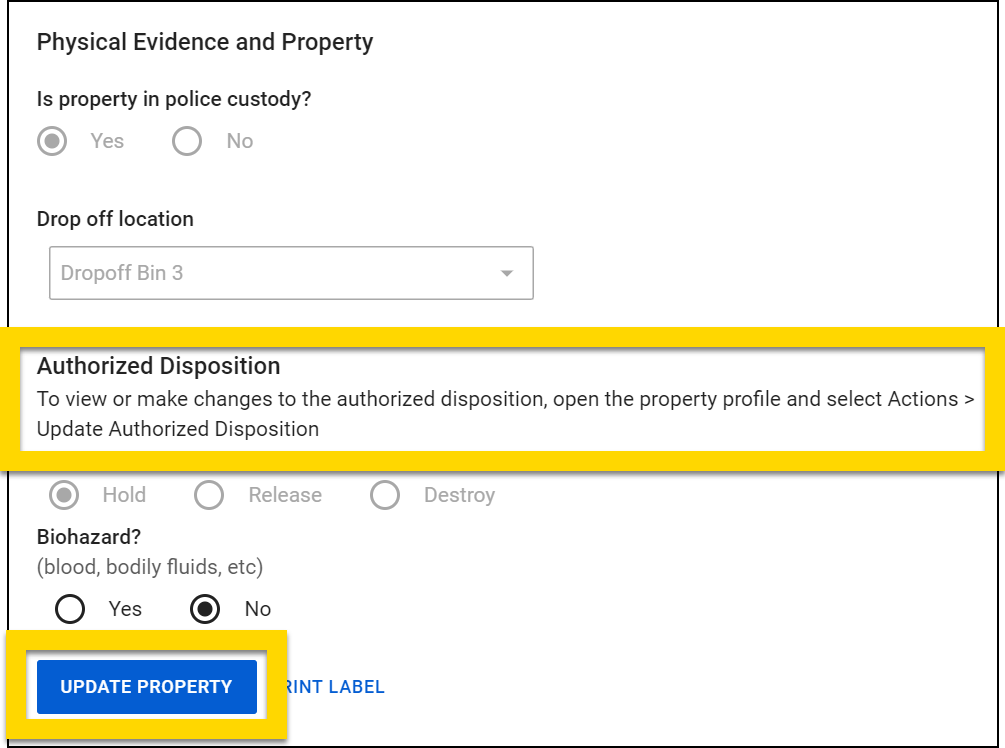
If your organization follows the property container workflow, after an item or container is submitted to the property department, an Update property button will appear. If you need to modify any information about the property item, make the changes to those fields, then select Update property to save these changes.
Remove and import property
You can remove property from an unfinalized report and add it to another report, even if the property has been submitted.
- Open the property item that needs to be removed and select Actions > Remove Property.
- Copy the Property ID in the confirmation popup window then select Remove.
- Open the report the property needs to be added to and select Add property.
- Select Actions > Import property.
- Search using the Property ID (or Type, Brand, Model, or Serial Number).
- Select the property item to open a preview pane containing additional details about the property.
- Select Import and update at the bottom of the pane.
If the property has NOT been submitted to the Property department yet, you can still remove it from the unfinalized report and import it into another report. Before removing the property from the report, copy the Property ID that appears below the property heading. Follow the steps outlined above to remove the property from the report and import it into another report.
To remove a piece of property from a finalized report, create a supplement and remove the property from the supplement. This maintains chain of custody by documenting the property removal from the original report.
To document a property removal:
- Open the incident profile and select Manage existing incident > Edit incident.
- Select the piece of property to be removed from the left navigation menu.
- Select Edit this section in the gray banner at the top of the page.
- Select Actions > Remove property.
- Add a narrative detailing the property removal and submit the supplement for review.
Duplicate property
To duplicate a property item, open the item and select Actions > Duplicate property. Drop-off locations and related people still need to be manually added to each property item that is duplicated in this fashion. Additionally, when you duplicate an item assigned to a container, you must update the container assignment for the duplicated item. (The duplicated item is not automatically assigned to the same container as the item from which it was duplicated.)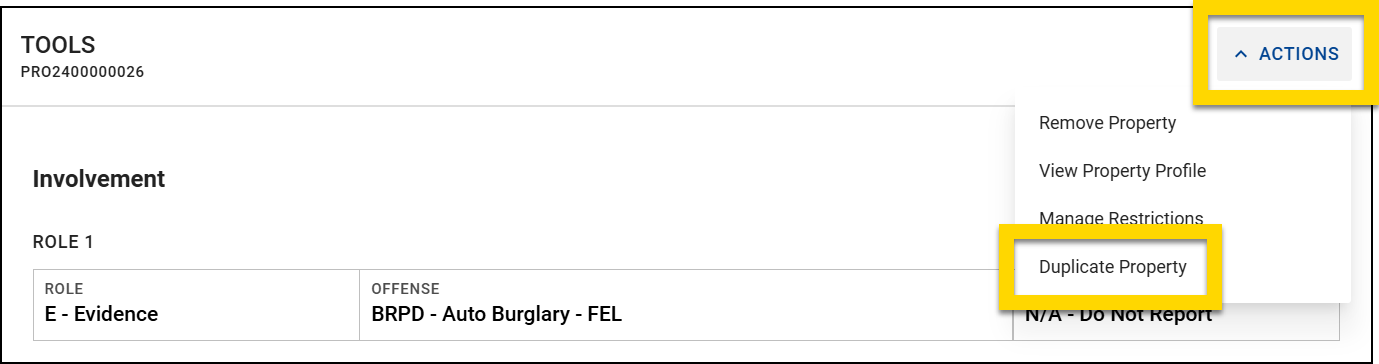
Narratives
To add a narrative to a report, select your name or Narrative from the Narratives section in the report navigation menu. This section name may vary by report type.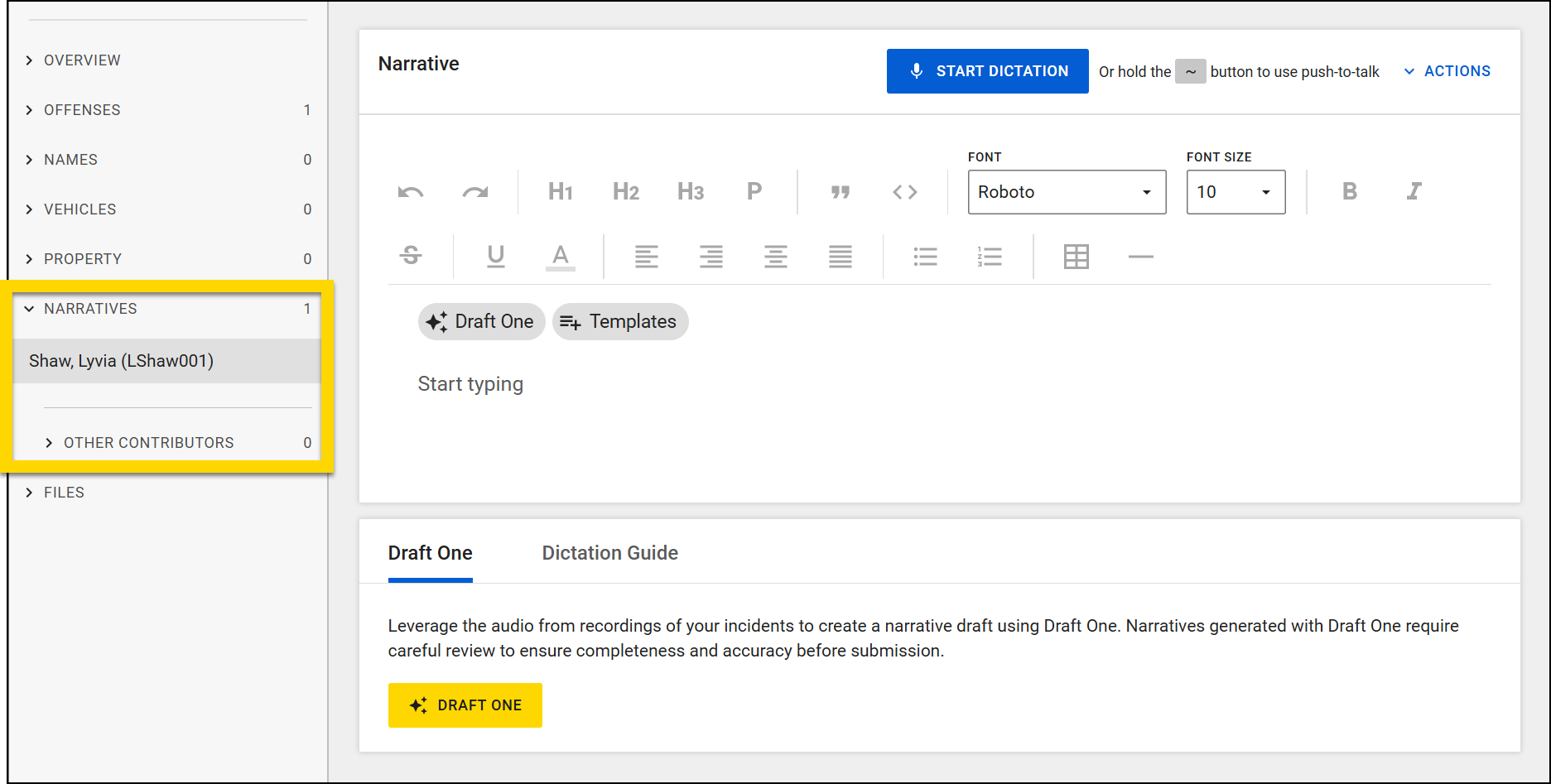
If the report has multiple contributors, you can view but not edit their narratives.
There are several ways to add content to the text field:
- Type directly into the report
- Copy and paste information from another location
- Add inline images
- Import and update a template
- Dictate text
- Generate a draft using Draft One
Note
When Draft One is used in Axon Records and Axon Standards, it includes any data you have already entered into the fields in the rest of the report. To create comprehensive and higher-quality drafts, it is recommended to fill out all report fields BEFORE using Draft One.
After text has been entered into the field, use the toolbar to format the text as desired, including headings, font size/color, lists, and more. Select Actions > Find and replace to quickly bulk change certain words.
Watch this video for an overview of using the narrative field.
Add inline images
You can insert images directly inline inside your narrative. The images must first be attached to the report as evidence items. Once inserted in the narrative, you can resize the images. When printing, you can choose whether or not the images should be included.
To add an image to a narrative:
- Follow the steps in the Files section below to add the file to the report.
- Place your cursor in the narrative field where you want to insert the image.
- Select the image icon in the narrative toolbar.
- When the Add image evidence pane opens, use the checkboxes to select one or more images for insertion.
- Use the arrows to expand the row and view the image.
- After choosing one or more images, select Insert at the bottom of the pane.
- After the image appears in the narrative field, hover over it to reveal the More actions [...] menu in the top right corner of the image.
- Open the More actions [...] menu to change the image size (small, medium, or large) or to remove the image from the narrative.
- Images removed from the narrative are NOT also removed from the report. To remove the image from the report, open the Files section and remove it.
- Images removed from the narrative are NOT also removed from the report. To remove the image from the report, open the Files section and remove it.
Import a template
Your organization may have templates available that you can follow to ensure your narrative adheres to organization policy. Select the Templates button below the narrative toolbar to open a list of available templates. Choose an option and select Import. The template, which contains formatted text, will import into your narrative, where you can update with details for your report.
Dictate
You can write report narratives by speaking instead of typing. While dictating, filler words like “um,” “uh,” and “ah” are removed automatically.
For the best dictation results:
- Speak Clearly: Articulate your words and speak directly into the microphone.
- Use a Quiet Environment: Dictate in a quiet setting to reduce transcription errors.
- Use Verbal Commands: Learn to use voice commands for punctuation and formatting to increase efficiency and accuracy.
- For complex terms or names, you may want to type directly into the report narrative rather than dictating.
Follow these steps to dictate:
- Place your cursor in the text editor wherever you want the dictated text to appear.
- Select Start dictation.
- If prompted, allow your web browser to access the microphone.
- Begin speaking, including the voice commands for punctuation
- Text appears in the narrative text editor as you speak.
- Refer to the Dictation guide tab below the narrative text editor for a reminder of the voice commands.
- Select Stop dictation when you finish.
- You can restart dictation again at any time. Be sure to place your cursor in the location you want the text to appear.
Voice commands
Add punctuation and formatting as you dictate to reduce editing afterward by speaking the following commands:
- Period (.): Say "period" or "full stop" to end a sentence.
- Comma (,): Say "comma" to insert a comma.
- Question mark (?): Say "question mark" to end a sentence with a question.
- Exclamation mark (!): Say "exclamation mark" for emphasis.
- Parentheses (): Say "open parentheses" to begin and "close parentheses" to end a parenthetical statement.
- Quotes ("): Say "open quotes" to start a quote and "close quotes" to end a quote.
- New paragraph: Say "new paragraph" to start a new paragraph.
- New line: Say "new line" to move down one line without starting a new paragraph
Find a list of these voice commands in the Dictation guide tab below the narrative text editor.
Requirements
Before using dictation, ensure you meet the following criteria:
- Axon Evidence Pro license: You must be able to access Axon Evidence and have a Pro license.
- Microphone: Your device needs a functioning microphone. Grant your web browser permission to access the microphone if prompted.
- Speech-to-text connection: Ensure your device can connect to .stt.speech.azure.us (in the United States) or .stt.speech.microsoft.com (in Canada). You may need to work with your agency's IT department to ensure access.
Files
Add photos, videos, documents, and other files to a report by selecting Files > Upload file in the report navigation menu.
The Suggested tab contains recommendations for evidence you may want to add to the incident. Evidence is suggested based on the following criteria:
- Any Evidence ID that matches the ID of a case, incident, report, or the CFS ID
- Evidence you uploaded in the past 72 hours that hasn't been added to the report
Use the search fields to find specific evidence within the suggestion list and the checkboxes to add multiple files at the same time.
To add new files, switch to the Upload tab and either drag and drop files from your computer or select Chose files. After selecting the files, you can optionally add a description, update the title of each file, and update the category of each file. The categories and that appear in the dropdown menu are the same as those that appear in Axon Evidence.
The Search tab lets you search for evidence that has already been uploaded to Axon Evidence. Use the search fields to find specific evidence and the checkboxes to add multiple files at the same time.
When you select a file's title, an evidence preview pane opens and displays additional information about the file. Depending on the file type, this pane may include multiple tabs:
- Overview: This tab shows the same metadata that appears on the Overview tab of the Axon Evidence details page, as well as a transcript summary (if available).
- See Evidence details page for more information.
- Transcript: This tab only appears for audio and video files and behaves the same as the Transcript tab on the Axon Evidence details page.
- See Transcripts on the evidence details page for more information.
- Moments: This tab shows AI-detected key moments (e.g., Miranda Rights) within a piece of evidence with timestamps.
- See Brief One Transcripts for more information.
NoteThis tab only appears for customers who have purchased Brief One. Contact Axon Support or your Axon representative if you are interested in purchasing this product.
To view the full evidence details page in Axon Evidence, select Details page at the bottom of the pane.
After adding the files to the report, use the checkboxes to select one or more files then select Edit metadata in the top right corner to update (add or remove) the tag or category for the files. The categories and tags that appear in the dropdown menus are the same as those that appear in Axon Evidence.
Select Actions > Remove to remove a file from the report.
If other files have been added to the incident associated with the report, you can select the View files to this incident button below the list of files to open the incident profile and view all files associated with the incident.


