Profiles
When information about people, vehicles, etc. (also known as entities) are added to a report, a profile page is created to display the known information. A profile also shows all associations between that profile and other profiles, as well as all reports the profile has been added to.
In Axon Records, profiles are created for people, vehicles, organizations, locations, property items, and property containers. Profiles are also created for incidents, cases, bookings, and calls for service, but these profiles differ substantially from the regular profile pages and are documented separately.
The top of every profile contains a header section that includes the profile name, ID, the number of incident associations, and any flags that have been added to the profile. Below this basic header information are buttons to view the profile's associations and follow the profile.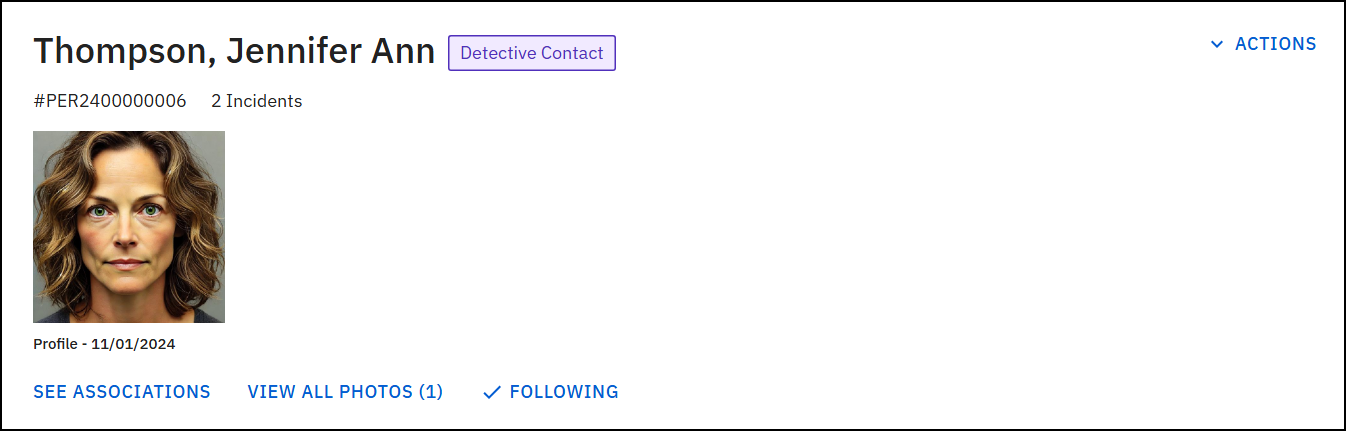
Actions
The Actions menu in the top right corner profile header lets you take various actions on the profile. Some profiles contain additional actions, but every profile contains the following options:
- Add flag
- Copy link to clipboard (copy the profile URL to paste into another document/application)
- Print profile
- View and manage flags
Associations
An Associations section at the bottom of the profile displays how that profile is associated with other profiles and reports. This Associations section can contain some or all of the following associations:
- Incidents
- Agency forms (non-incident reports)
- Case documentation (case summaries, case documents, and case tasks)
- Organizations
- People
- Properties
- Vehicles
- Permits
- A permits section appears on person profiles, but for all other profile types, permit associations are listed in the Agency forms association section.
Use the filters to narrow down which associations are displayed (incidents associations only) and the sorting dropdown to change the order in which they appear.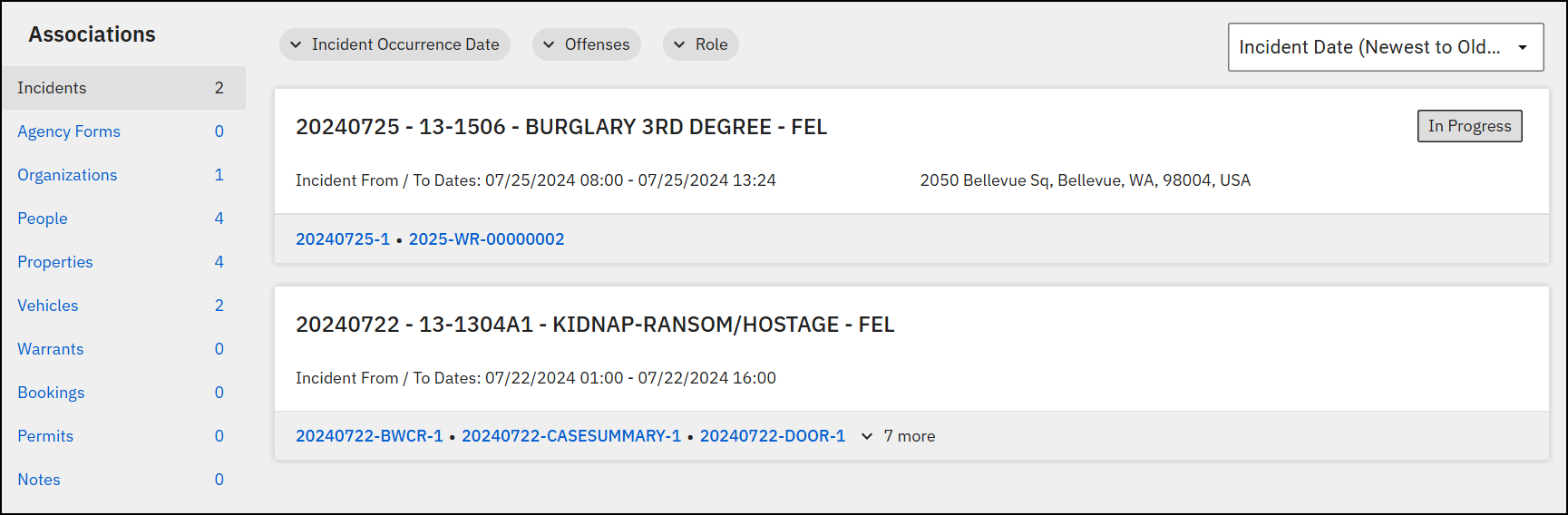
Person profiles
In addition to the regular header information, person profiles include photos that have been added to the profile. Select View all photos to browse through all photos that have been added.
In addition to the regular options, the Actions menu includes:
- Edit Profile
- Find MNI duplicates
- Generate Photo Lineup
- Show person history
- Take photo
- Upload photo
- View merged duplicates
Scroll down the page to view additional sections, including Victim Details, Identity, Identifying Documents, Description, Scars, Marks, Tattoos, Contact, and Custom Fields that have been configured for your organization.
Although person profiles in Axon Records and citizen profiles in Axon Standards look similar, the databases are separate. The same person may have a profile in Axon Records, and a different profile in Axon Standards. The Axon Records person profile only includes information that has been added to Axon Records reports, and the Axon Standards citizen profile only includes information that has been added to Axon Standards reports.
In addition to the regular associations, person profiles may contain the following associations:
- Warrants
- Bookings
- Permits
Vehicle profiles
In addition to the regular header information, vehicle profiles include the vehicle year, make, model, plate, and additional details (color, expiration, etc.).
If the vehicle was submitted to the Property department as a property item, the vehicle profile includes an association to the related property profile.
Although vehicle profiles in Axon Records and Axon Standards look similar, the databases are separate. The same vehicle may have a profile in Axon Records, and a different profile in Axon Standards. The information in the Axon Records vehicle profile only includes information that has been added to Axon Records reports, and the Axon Standards vehicle profile only includes information that has been added to Axon Standards reports.
Organization profiles
In addition to the regular header information, organization profiles include the organization's address.
Location profiles
In addition to the regular header information, location profiles include the address, district, beat, and zone for that location, as well as a list of organizations that list the location as their address.
In the Associations > People section, there are several tabs you can switch between to view the different ways people are associated with the location:
- Lives at this location
- Temporary residence
- Works at this location
- Involved at this location
- Other
For more information about the locations used in Axon Records, see GIS and Maps.
Property profiles
Property item and container profiles are created as soon as property is added to a report. The profile is updated in real-time as the report is completed.
Organizations can configure their property management workflow in two ways:
- Individual property workflow
- Each property item is added to a report as an individual item and processed separately.
- Organizations using this method do NOT have the ability to process property items as a group (in a container).
- Property container workflow
- Property items can be added to reports in groups, called containers.
- Grouping property items into a container keeps related evidence together and can streamline the property management process.
- Organizations that use this method can submit property items individually OR within containers.
Item profiles
In addition to the regular header information, property item profiles include the item's brand, role, and current status.
If the property item is in police custody and has been submitted to the Property department, open the Actions menu to take the following actions:
- Add note
- Check in/out (does not appear if the item is part of a container)
- Create release notice
- Edit storage location (does not appear if the item is part of a container)
- Print label
- Release
- Show property history
- Update authorized disposition
- Update responsible officer
- Upload attachment
- View chain of custody
Scroll down the page to view additional sections, including:
- Location: Displays the property's location.
- Manage: Shows disposition information about the property, including status, Authorized Disposition, release details, and responsible officer.
- Submission: Displays the user who submitted the item to the Property department by selecting Submit to property in the report containing the item. This includes items submitted as standard property, and items created when a vehicle is submitted as property.
- Description: Includes basic information about the item, including type, value, description, etc.
- Recovery: Lists details about the item's recovery as recorded in the report containing the item.
- Media: Contains media associated with the item, including release notices.
- Associations: If the property item originated from a vehicle that was submitted as property, the property profile includes an association to the related vehicle.
Container profiles
In addition to the regular header information, property container profiles include the container's biohazard information and description.
If the items in the property container are in police custody and have been submitted to the Property department, open the Actions menu to take the following actions:
- Add note
- Check in/out
- Create release notice
- Edit storage location
- Print label
- Release
- Upload attachment
Below the Location and Manage sections, container profiles contain three tabs:
- Summary: Displays the property items assigned to the container.
- Use the Actions menu to add or remove property from the container.
- If an item is added to a container with a different status or location, the item automatically updates to match the container's status and location.
- When an item is removed from a container, the status and location default to the container's status. To update the item's status or location, open the item's profile to change the status or location.
- Use the Actions menu to add or remove property from the container.
- Chain of custody: View, add activity, or print the chain of custody for the container.
- Media: Contains media associated with the container, including release notices.
Property identifiers
Depending on your organization's configuration, property items may include different types of identification numbers. These are the different types of identifiers you may notice on property items:
- Property ID
- A unique identifier that is automatically assigned when a property item is added to a report.
- Always starts with PRO (e.g., PRO1234567890).
- Appears when the property item is shown or referenced, including on printed labels.
- Item number (For organizations using item numbers)
- Assigned once the property item is submitted.
- Used to indicate the order in which items were submitted in a report, always starting with 1, then 2, 3, and so on.
- Not a unique identifier. The first property item submitted in every report is identified as item number 1.
- Appears in reports, search results, the property profile page, and on printed labels.
- For organizations using containers: When items are submitted as part of a container, the container will receive an item number, not the individual items inside it.
- Container ID (For organizations using containers)
- Assigned when the container is submitted.
- Always starts with CON (e.g., CON1234567890).
- Every property item inside a container will have its own Property ID, in addition to the Container ID.
- Container IDs appear when the container is shown or referenced, including in reports, search results, property profiles, and printed labels.


