Master Name Index (MNI)
The Master Name Index (MNI) is a subject identification database that includes basic identifying information along with a detailed profile for each person who has been added to a report. Subjects include offenders, suspects, victims, witnesses, and related people who have interacted with an officer in the past and been included in a report.
When writing a report, you can search the database to add an existing person to your report rather than making a duplicate profile. This way, all reports associated with the same person are kept in one place, on a single person profile.
MNI in Axon Standards and Axon Records
Axon Records and Axon Standards have separate MNI databases; when a person is added to an Axon Records report and included in the Axon Records MNI database, they will NOT also appear in the Axon Standards MNI database. In other words, if a person has a profile in Axon Records, you will not be able to find them or any information from any Axon Records reports they have been associated with when creating Axon Standards events or searching in Axon Standards.
These separate databases help prevent the introduction of bias into an Axon Standards investigation. If a person with a past criminal record is involved in an Axon Standards event, their criminal record (as documented in Axon Records) is not displayed to the report author in Axon Standards.
You can import a person and their personal information (except for the incidents they are associated with) from Axon Records into Axon Standards. For more information see Create events from Axon Records.
Axon Standards does not yet have an MNI Merge Tool like Axon Records.
MNI Merge Tool
The MNI Merge Tool in Axon Records lets you find multiple person profiles that have been mistakenly created for the same person and merge them into a primary profile. The MNI Merge Tool can be opened from Search or the Administrator Console. Once duplicate profiles have been merged, only the primary profile appears in People search and when searching to add an existing person to a report.
Only finalized person profiles can be merged into a primary profile. A person is finalized when they are listed in a finalized report. A person can be listed in multiple draft reports but is not finalized until one of those reports has been finalized.
Duplicate person profiles that have already been merged into a primary profile can be viewed from the primary MNI profile by selecting Actions > View merged duplicates in the top right corner of the profile. These duplicate profiles are read-only, and any flags on the duplicate profile cannot be edited or added.
No actions can be taken on a duplicate person profile that has been merged, although you can unmerge profiles and edit the unmerged profiles.
To merge profiles, your agency must have the MNI Merge tool enabled, and access to the tool is controlled by privileges. For more information, contact your administrator.
Merge from Search
Follow these steps to access the MNI Merge tool from People search:
- Open Peopel search and search for a person by name, alias, or Profile ID. Use filters to refine the search results.
- Select the checkboxes beside the profiles you want to merge.
- Open the Actions menu in the top right corner of the page and select an option:
- Add to MNI Merge Tool: Adds the profiles to the Merge tool but allows you to continue searching to add additional profiles for merging. When you are ready to merge the profiles, select the View selected duplicates button that appearss above the list of search results on the search page.
- Merge MNI: Opens the Merge tool with the selected profiles ready for merging.
- Follow these steps to merge the profiles.
If any of the people selected are not part of a final report, they cannot be added to the MNI Merge Tool. To only view finalized persons, use the Only MNI filter (nested under the Source filter).
Merge from the Admin Console

|
To access and use the MNI Merge tool from the Administrator Console select the gear icon to open the Administrator Console and select MNI Merge Tool. A dashboard displays potential duplicate profiles. |
Users must have the MNI Management privilege to access this tool and merge profiles.
You can follow one of two workflows to merge profiles from the MNI Merge tool:
Once profiles are merged, they can be unmerged by opening the primary person profile.
When reviewing the dashboard and using the merge tool, it's helpful to understand the following terms:
- Canonical MNI: Often, duplicate profiles (unique MNIs) are created for a single person. When these profiles are merged one is selected to be the primary, or canonical, profile. The duplicate profiles are merged into this single canonical MNI, or profile.
- Merged MNI: A merged MNI is a unique MNI that was identified as a duplicate and was merged into the primary canonical MNI
- Primary MNI: The profile selected by the user during the merge process into which all duplicate profiles will be merged. Once merged, only the primary profile appears in Search.
- Soundex: Soundex is a phonetic algorithm used to encode names or words based on how they sound rather than how they are spelled. These codes are used to easily match names that sound alike but are spelled differently.
- Unique MNI: When a new person is added to a report in Axon Records, they are added a unique person profile is created for them that can be identified by a unique Person ID. This profile is referred to as a unique MNI.
The dashboard is divided into the following three sections:
- Master Name Index (MNI) Records
- Possible Duplicate MNIs Based on Multiple Unique Identifier Combinations
- Master Name Index Records by Incident
When you select a row in a table, a filter is applied to the entire page to only display those person profiles. As a result, some tables may become empty. To remove the filter and again see all profiles, select the row again.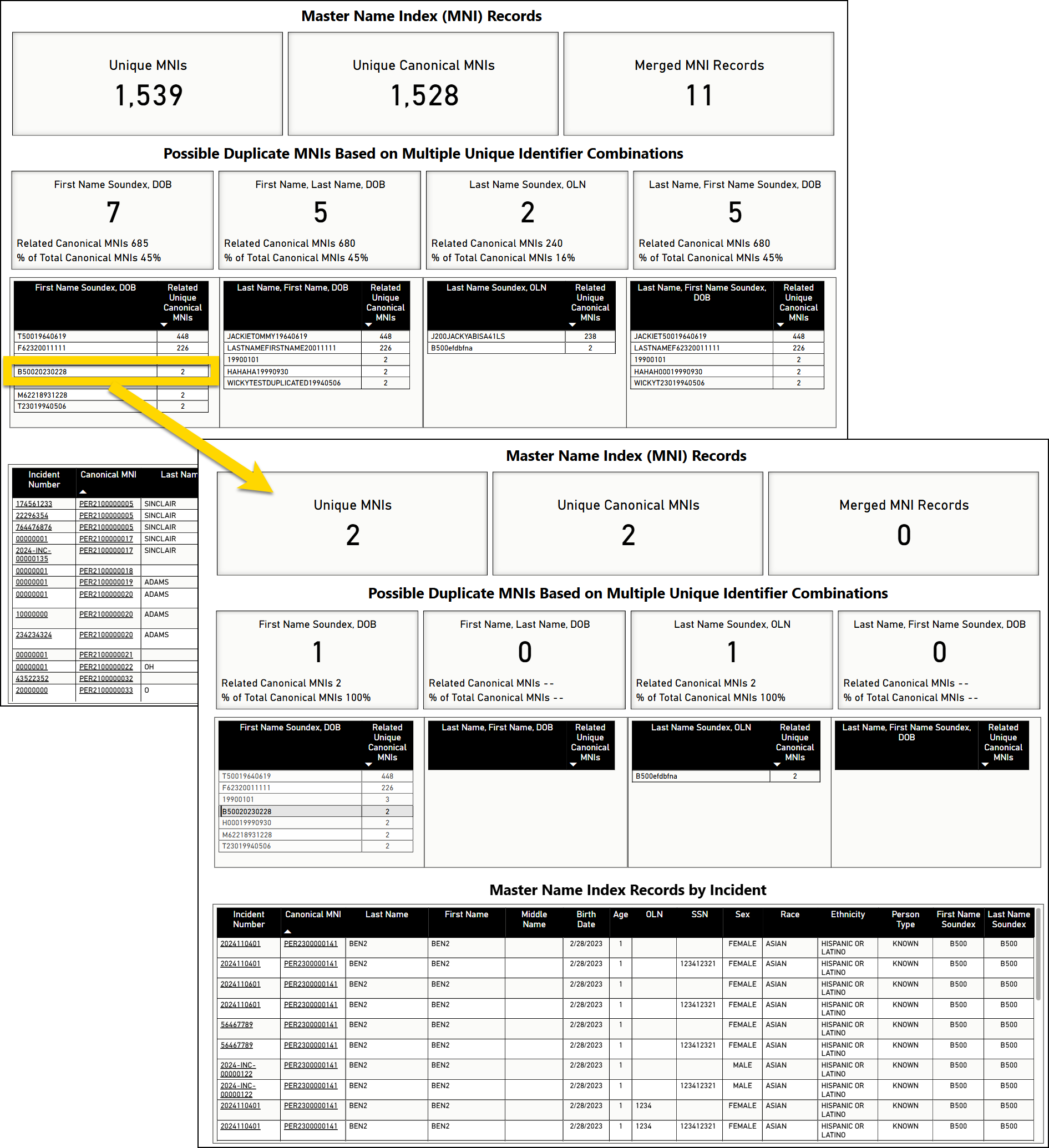
Master Name Index (MNI) Records
Three summary stats appear at the top of the dashboard, below the filters:
- Unique MNIs: The total number of unique person profiles that have been created. This number includes duplicate profiles
- Unique Canonical MNIs: The number of "finalized" primary person profiles that remain after profiles have been merged
- Merged MNI Records: The number of person profiles that have been merged into a final, canonical MNI
Possible Duplicate MNIs Based on Multiple Unique Identifier Combinations
The tables in this section contain suggestions for profiles that may be duplicates. The first column in these tables displays a combination of various MNI fields (first name, last name, DOB, etc.). Spaces are NOT included between each of these elements. The second column displays the number of profiles that have the same combination of those fields, which could indicate that they are duplicates.
The four tables include:
- First Name Soundex, DOB: The data in the first column is a combination of the four-character soundex coding for the first name and the eight-digit DOB (YYYY-MM-DD).
- Last Name, First Name, DOB: The data in the first column is a combination of the last name, first name, and eight-digit DOB (YYYY-MM-DD).
- Last Name Soundex, OLN: The data in the first column is a combination of the four-character soundex coding for the last name and the OLN (Operator's License Number, or driver's license).
- Last Name, First Name Soundex, DOB: The data in the first column is a combination of the last name, the four-character soundex coding for the first name, and the eight-digit DOB (YYYY-MM-DD).
Master Name Index Records by Incident
Each row in this table equates to a person's association with an incident. As a result, the same profile may appear in multiple rows if that person has been associated with multiple incidents.
For example, in the image below, Marcos Sinclair appears in three table rows because he is associated with three incidents.
Merge tool and dashboard limitations
Keep in mind the following when viewing the dashboard and merging profiles:
- The Suggested Duplicates dashboard is refreshed once a week
- Outdated data may appear in the dashboard but not in the Merge tool.
- After performing a merge, the merged profiles may still appear on the dashboard.
- Only finalized profiles appear in the dashboard and can be merged.
- If a profile appears in a report that is in draft (In Progress, In Review, etc.), that profile enters a draft state as well. The profile canNOT be merged until the report is finalized.
- When reviewing inconsistencies, you can merge a maximum of 50 profiles at a time.
- If more than 50 profiles need to be merged, merge the first 50, then perform a second merge.
Find duplicates suggested by the dashboard
To merge potential duplicates identified by the dashboard, take these steps:
- Select a row from one of the tables in the Possible Duplicate MNIs Based on Multiple Unique Identifier Combinations section.
- Review the rows in the Master Name Index Records by Incident table to see if the profiles are truly duplicates and should be merged.
- If the profiles are duplicates, select Open MNI in Merge Tool.
- This button appears at the bottom of the dashboard, so you may need to scroll down to reveal it.
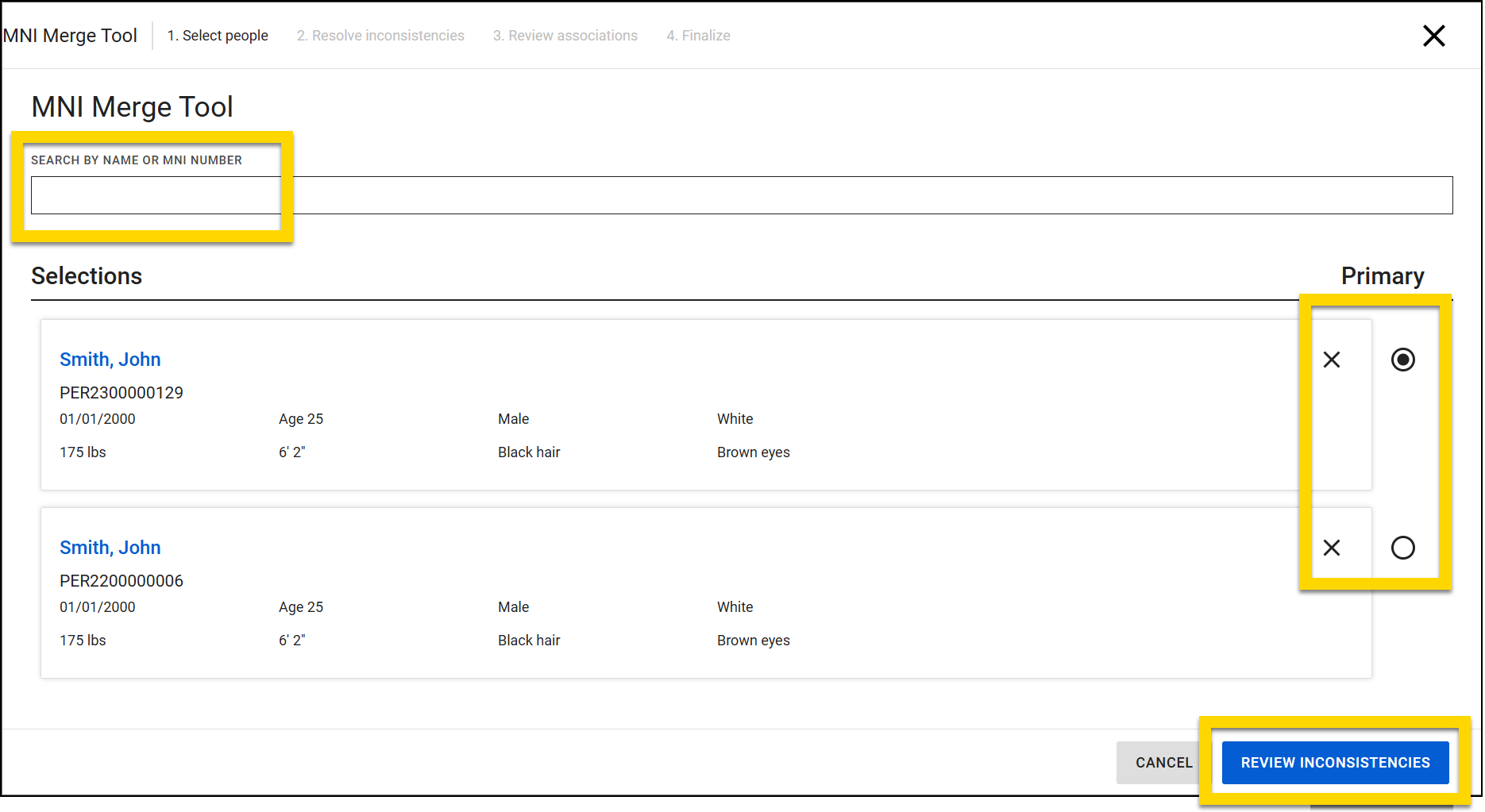
- Use the square checkboxes to indicate which profiles should be merged together.
- Select the circle in one of the rows to indicate the primary profile that the duplicates should be merged into.
- To automatically merge the duplicate profiles into the primary profile, select Quick Merge.
- If any fields in the duplicate profiles contained different values than the primary profile, those values are removed in favor of the values in the primary profile.
- All profile pictures and flags that belong to the duplicate profiles are added to the primary profile.
- To instead review the values for individual fields in each profile before merging, select Review Inconsistencies.
Manual duplicate search
Generally, you can use the dashboard to find and review possible duplicate profiles. However, if you already know about a duplicate profile, you can manually search for it and merge it into a primary profile.
To do this:
- Select Launch tool at the top of the dashboard.
- Type in the Search bar to find the duplicate and primary profiles.
- When you select a search result, that profile is added to the Merge tool.
- Select the X to remove a profile from the tool.
- Select the circle in one of the rows to indicate the primary profile that the duplicates should be merged into.
- Select Review Inconsistencies and adjust which field values will appear in the final, primary profile.
- All profile pictures and flags that belong to the duplicate profiles are automatically added to the primary profile.
- All profile pictures and flags that belong to the duplicate profiles are automatically added to the primary profile.
- After updating field values, select Preview merge summary.
- Review the incidents associated with each profile.
- Once the profiles have merged, all incidents will be associated with the single primary profile.
- Select Preview final entity.
- Review the preview of the final profile. If everything looks good, select Merge. Select Back to go back and make adjustments.
Review inconsistencies
When reviewing inconsistencies between profiles, you first review which fields in the duplicate profiles contain different values and then set which information appears in the final, primary profile.
All fields that contain different values among the merging profiles are organized into several sections. Within these sections, select which value displays on the primary profile once the profiles are merged.
At any point during your review, select Preview merged MNI to preview the final profile. Values that will be updated are highlighted in purple.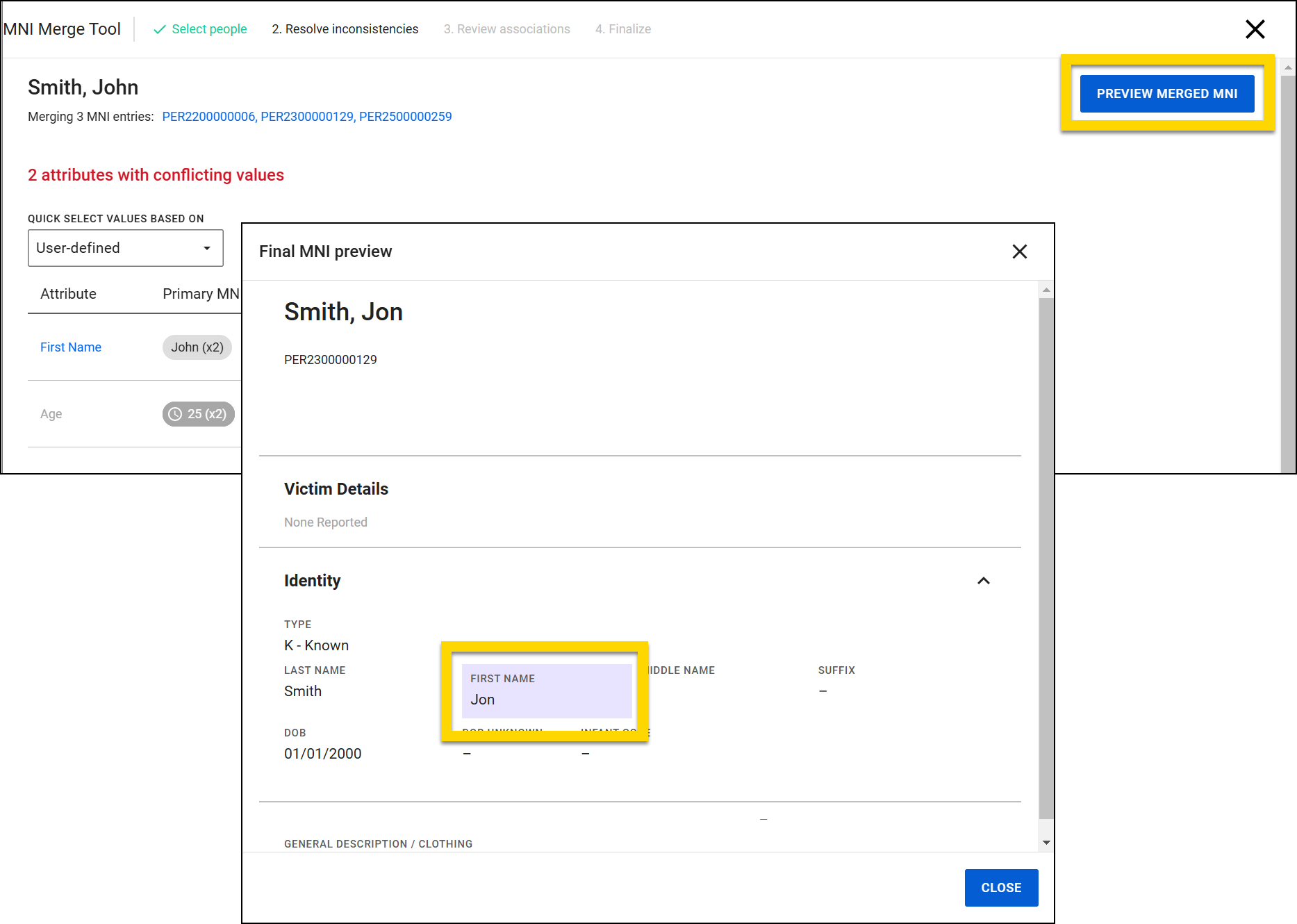
Attributes with conflicting values
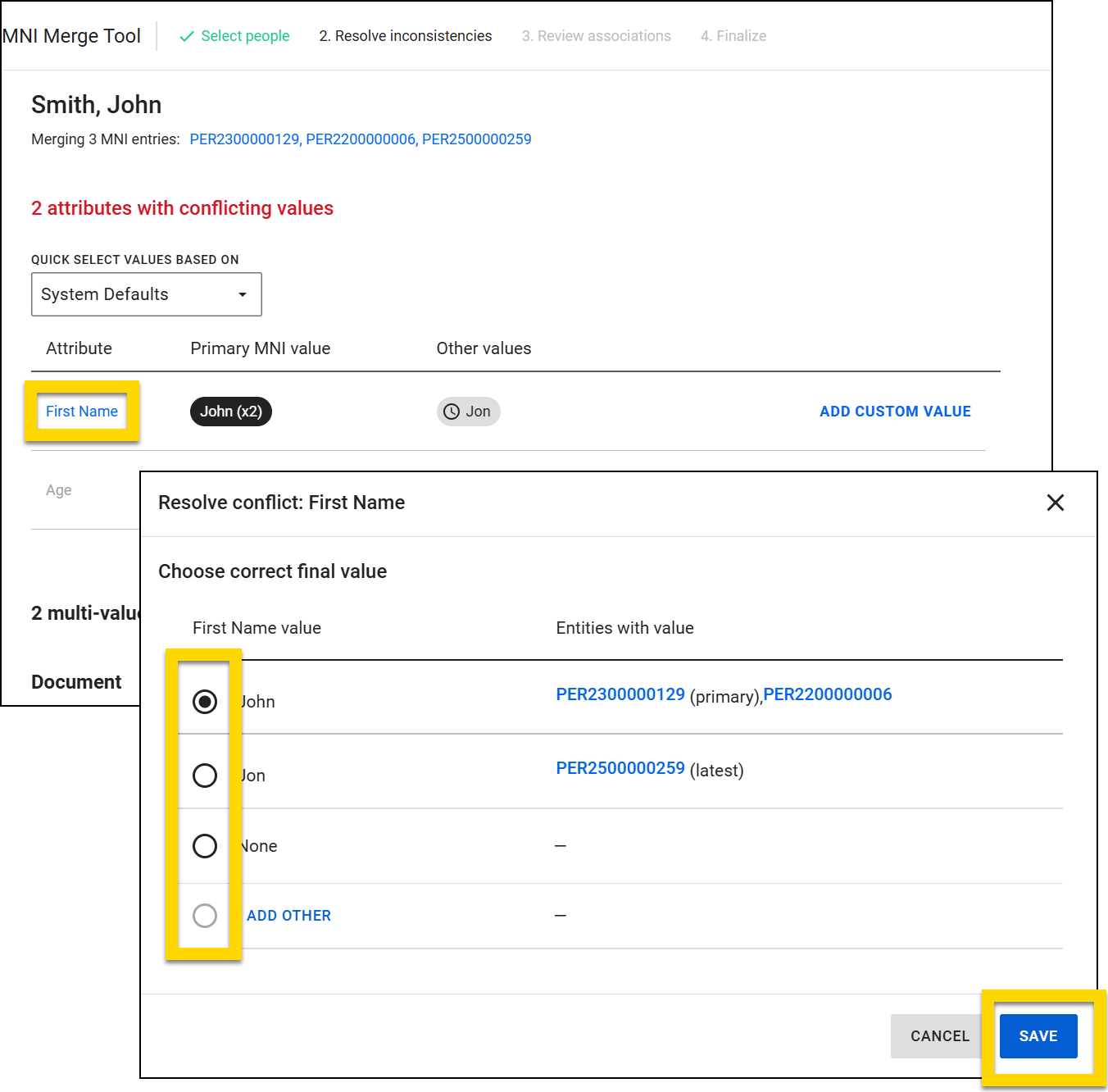
Each row in this table is associated with a profile field that contains conflicting values across the profiles being merged. Columns in the table include:
- Attribute: The field that contains conflicting value
- Primary MNI value: The value that appears on the primary profile
- If multiple profiles contain this value, the total number of profiles containing the value appears in parentheses.
- Other values: The conflicting values that appear in the duplicate profiles
Grayed-out rows indicate that the field used to contain that value but has since been updated.
For example, in the image below, three profiles are being merged. Among these three profiles, the First Name field contains different values. In the primary profile, the First Name field is John. This name is used in two of the profiles, as indicated by (x2). In one of the other profiles, the profile name is instead Jon. The grayed-out row for Age indicates that at one time one of the profiles showed an age of 22. This row is grayed out because all profiles currently show the same age of 25.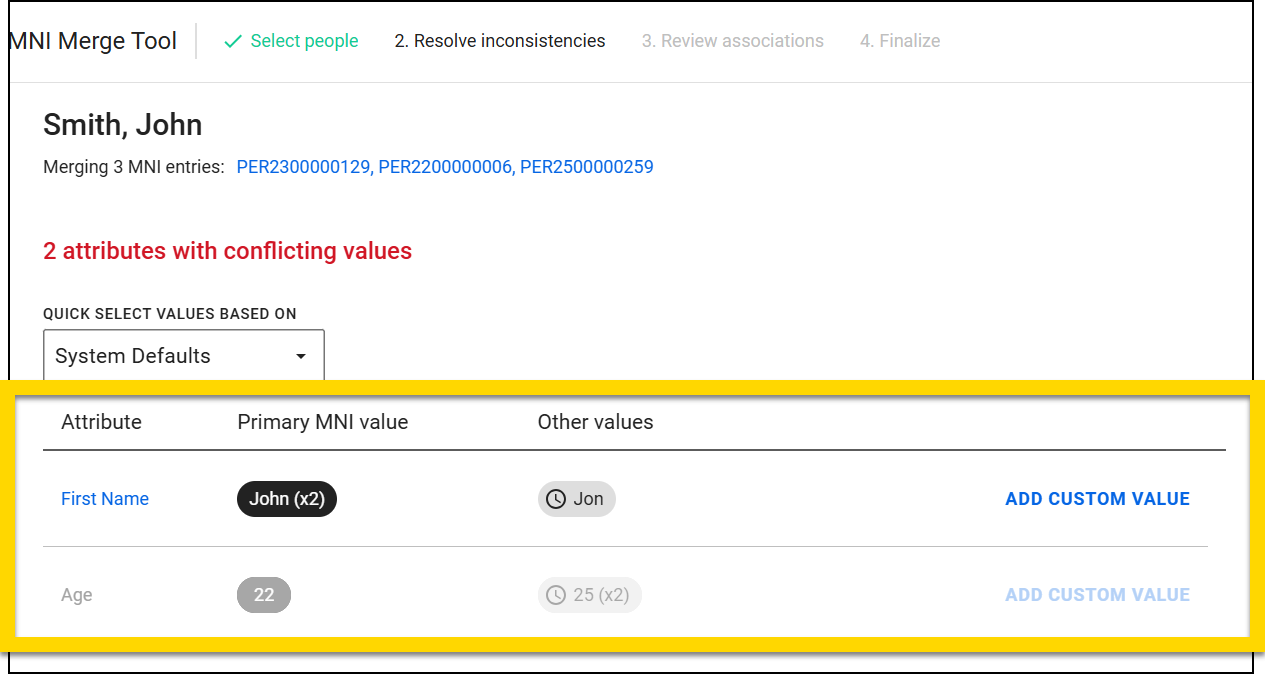
Select an option from the Quick select menu to auto-select which values are included in the primary profile:
- System defaults: Selects the most logical values for each attribute. For example, for an attribute that is unlikely to change, such as eye color, the most common eye color is used. For values such as name or DOB, values from the primary profile are selected.
- Most recent: Selects the value that appears in the most recently updated profile, which may not be the primary profile. Most recent is Indicated by the clock icon.
- Most frequent: Reviews all profiles included in the merge and selects the value that is used most frequently.
- Primary: Selects values that belong to the profile you marked as the primary profile.
- User-defined: Lets you select a value for each attribute. (You can still select a different value for each attribute, even when picking one of the above Quick select)
To view all value options and make adjustments:
- Select the value in the Attribute column.
- Select a circle in the first column to indicate which value should appear in the final primary profile.
- Select a Person ID in the Entities with value column to open the associated person profile.
- Select Add other to set a new value for the primary profile.
- Select Save.
Multi-value attributes
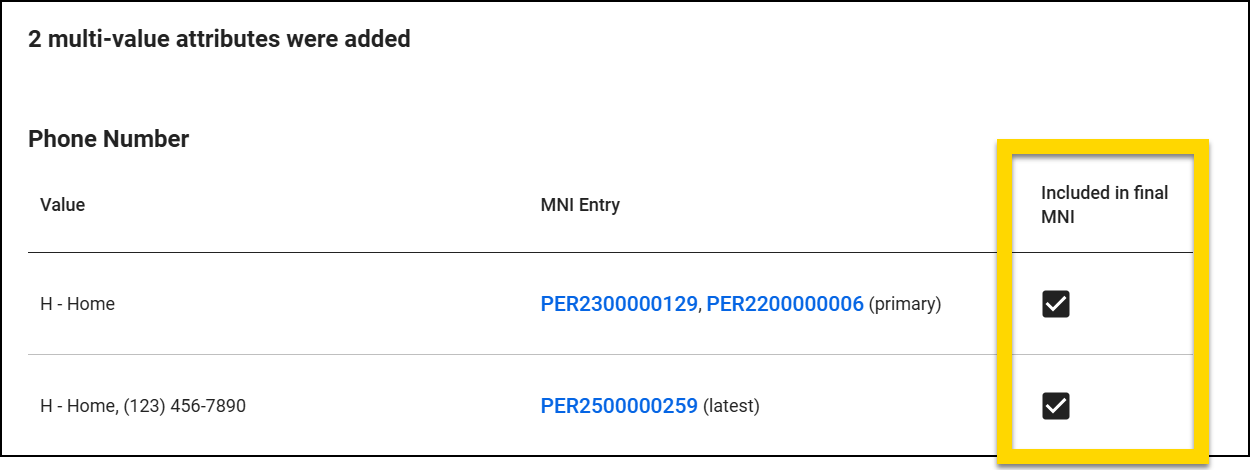
This section shows all fields where multiple values can be added (for example, phone numbers). Each row in the table is associated with a profile field that contains additional values compared to the primary profile. Columns in the table include:
- Value: The additional value that appears in the profile
- MNI entry: The profile containing the value from the Value column
- Included in final MNI: Use the checkboxes to indicate whether that value should be added to the primary profile after the profiles have been merged.
Attributes without differences
This section shows all the fields across all profiles that do NOT contain any differences, including values that appear in one profile but not in the others. Select Edit to change or remove a value.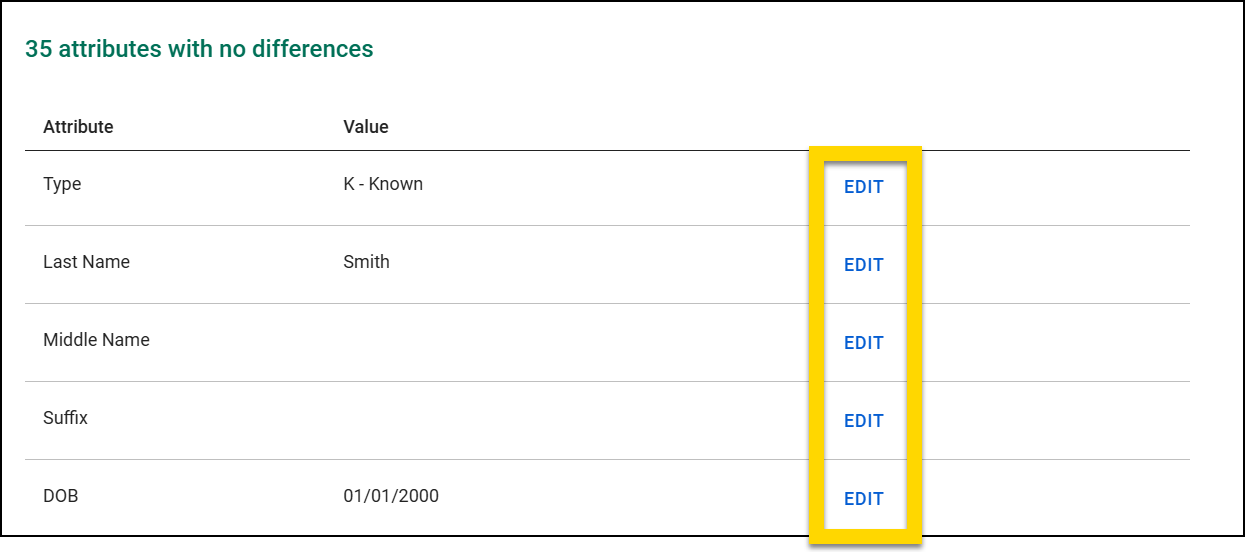
Unmerge duplicates
To unmerge profiles that have been merged:
- Find and open the primary profile from Person search.
- In the top rght corner o ff the profile, select Actions > View merged Duplicates.
- Select Unmerge duplicate in a row to unmerge a single profile from the primary profile, or select Unmerge all duplicates to perform unmerge all profiles.


