Call for Service (CFS)
The Call for Service (CFS) functionality in Axon Records is not a standalone module like Case Management or Property. Instead, it’s a collection of features that are integrated throughout other modules, providing seamless access to CFS data across the product.
CFS data can be accessed from the following locations:
- Tasks module
- The Calls for Service inbox contains a list of all calls.
- Search module
- You can quickly search for a CFS from the Calls for Service search page.
- Profiles
- The CFS profile offers a comprehensive view of a the call and its associated information.
- When a CFS is linked to an incident, the CFS profile can be opened from the incident profile, and the CFS profile can be opened from the incident profile.
For advanced users, all CFS data is available in the Axon DataStore. The DataStore supports in-depth reporting and querying, making it an invaluable resource for data analysts and other users who seeking detailed insights for the organization's CFS data.
CFS data from your organization's CAD system appears in Axon Records within 3-5 minutes, depending on your organization's configuration. Contact your Axon representative to learn more about integrating your agency's CAD system with Axon Records.
Watch this video for an overview of Calls For Service in Axon Records.
Calls for Service inbox
The Calls for Service inbox, located alongside the other inboxes in the Tasks module, lets you review calls you or your team handled. By default, the last 24 hours are shown, but you can use the Call date filter to show more calls.
The most recent calls appear at the top of the list. Select the Call date or My role filter to refine which calls are displayed:
- Primary officer: Shows all calls during the last 24 hours for which you were assigned as the primary officer
- Assigned, not primary: Shows all calls during the last 24 hours for which you were assigned but NOT as the primary officer
The following information is included for each call:
- CFS ID
- Date / Time call received
- Call type
- Primary location
- Primary officer
- Incident report
Select the CFS ID to open the CFS profile or the Incident ID to open the incident profile. Select More actions [...] > Link report to create a new report and link it to the call.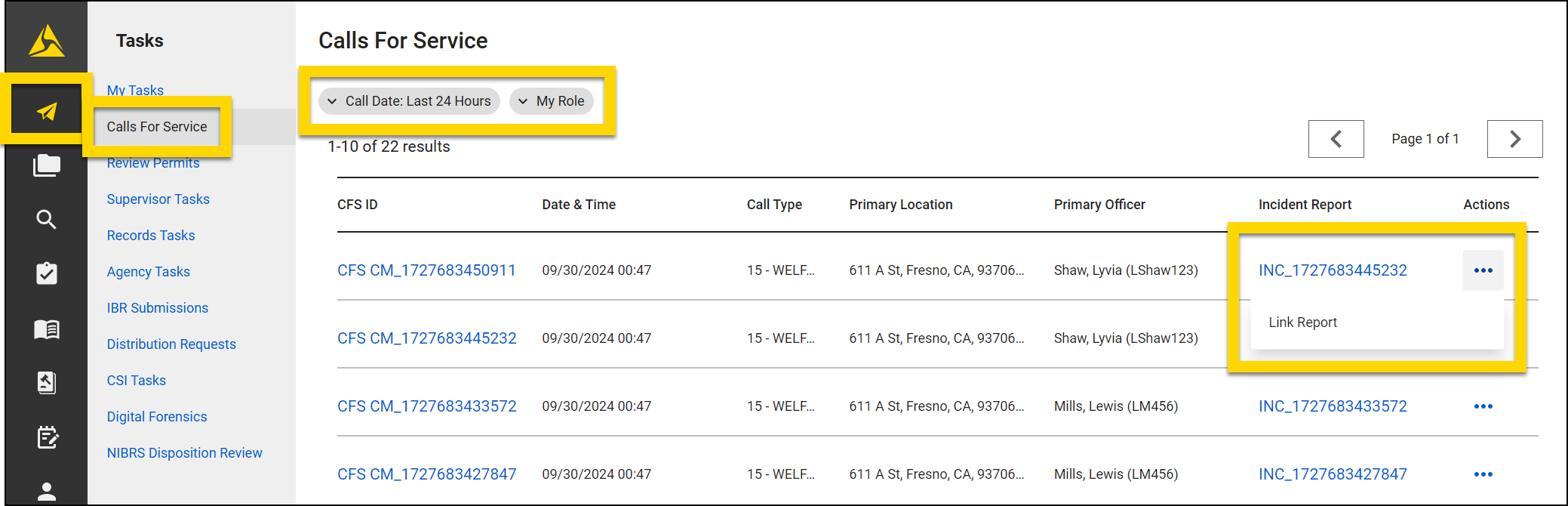
CFS profiles
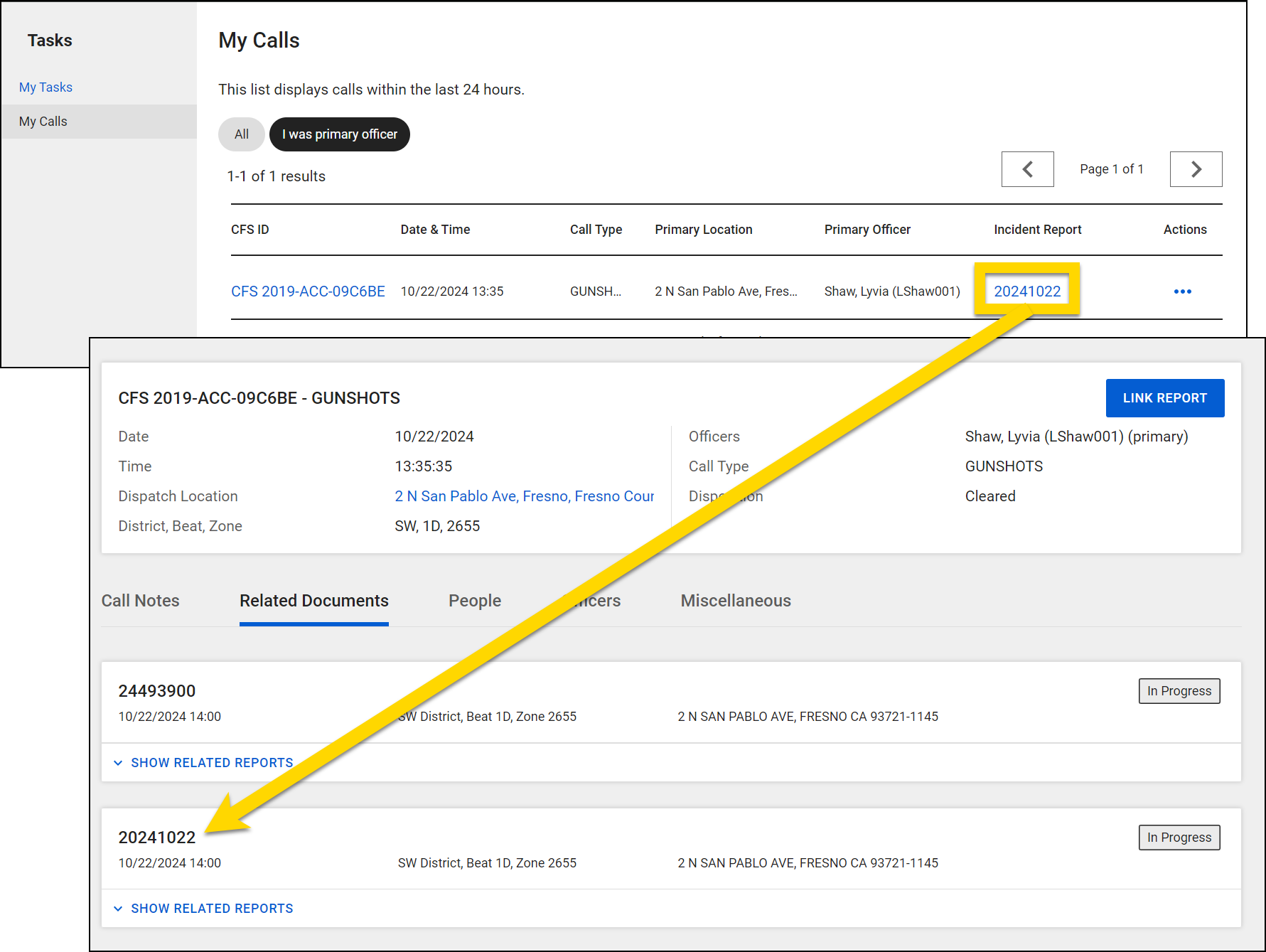
The CFS profile offers a comprehensive view of the call and its associated information. The top portion of the profile displays basic information about the call, including date, time, dispatch location, district/beat/zone, primary officer, call type, and disposition.
Select Link report to create a new report and link it to the call.
Switch between the tabs to view different information:
- Call notes: A detailed, time-stamped log of dispatcher actions and commands
- Related documents: Lists all reports associated with the call, including incident reports, crash reports, and citations
- Select Show related reports to view all supplements and other reports associated with the main incident report.
- People: Displays all people associated with the call (referred to as “Participants")
- The people on this tab are those where were added to the call in your organization's CAD system.
- These people are only displayed on the CFS profile and may not have a corresponding person profile in the Axon Records database. In other words, they may not appear when you try to find them using People search in Axon Records. People only have a profile in the Axon Records database once they have been added to a report in Axon Records.
- Any people added to Axon Records reports will NOT appear on this tab. You should instead view the incident profile to see which people have been added to the reports associated with the call.
- The people on this tab are those where were added to the call in your organization's CAD system.
- Officers: Lists all officers assigned to the call, along with their dispatch and arrival times
- Miscellaneous: Contains any custom CFS data your organization collects (e.g., weather conditions, permit statuses, etc.)
Link a report to a CFS
A CFS can be linked with one or more reports to ensure all data related to the call can easily be found. Many organizations are configured to automatically generate an incident report for every CFS.
If a report has not been created automatically, or if you want to link a CFS to a new report, take the following actions:
- From a CFS profile, select Link report in the top right corner, or from the Calls for Service inbox, find the call and select More actions [...] > Link report.
- Select a report type from the list that appears, providing an Incident ID as appropriate.
- Complete the report as usual.
If you chose to link the CFS to an existing incident, you must join the incident as a contributor by selecting Manage existing incident > Edit incident.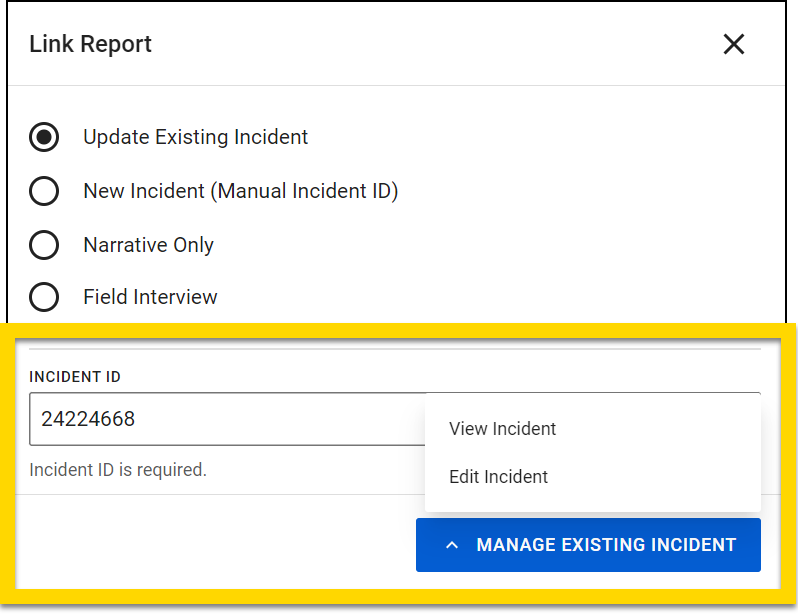
If a call is already linked to an incident, you can link it to a different incident or report. When you do this, the new Incident ID will appear in the Calls for Service inbox. However, the original incident the CFS was linked to will still appear on the CFS profile. Additionally, both incident profiles will display the same CFS ID.