Report, task, and incident management
- Report
- Task
- Inbox
- Incident
- Contribution
- Supplement
Reports
A report is the type of documentation that is created by selecting Create Report from any task inbox. When an incident report is created, an associated incident is also created. Reports can also be created from an incident profile. In addition to the standard out-of-the-box reports (incident report, field interview, etc.), each organization has custom report types.
For more information, see Create a New Report.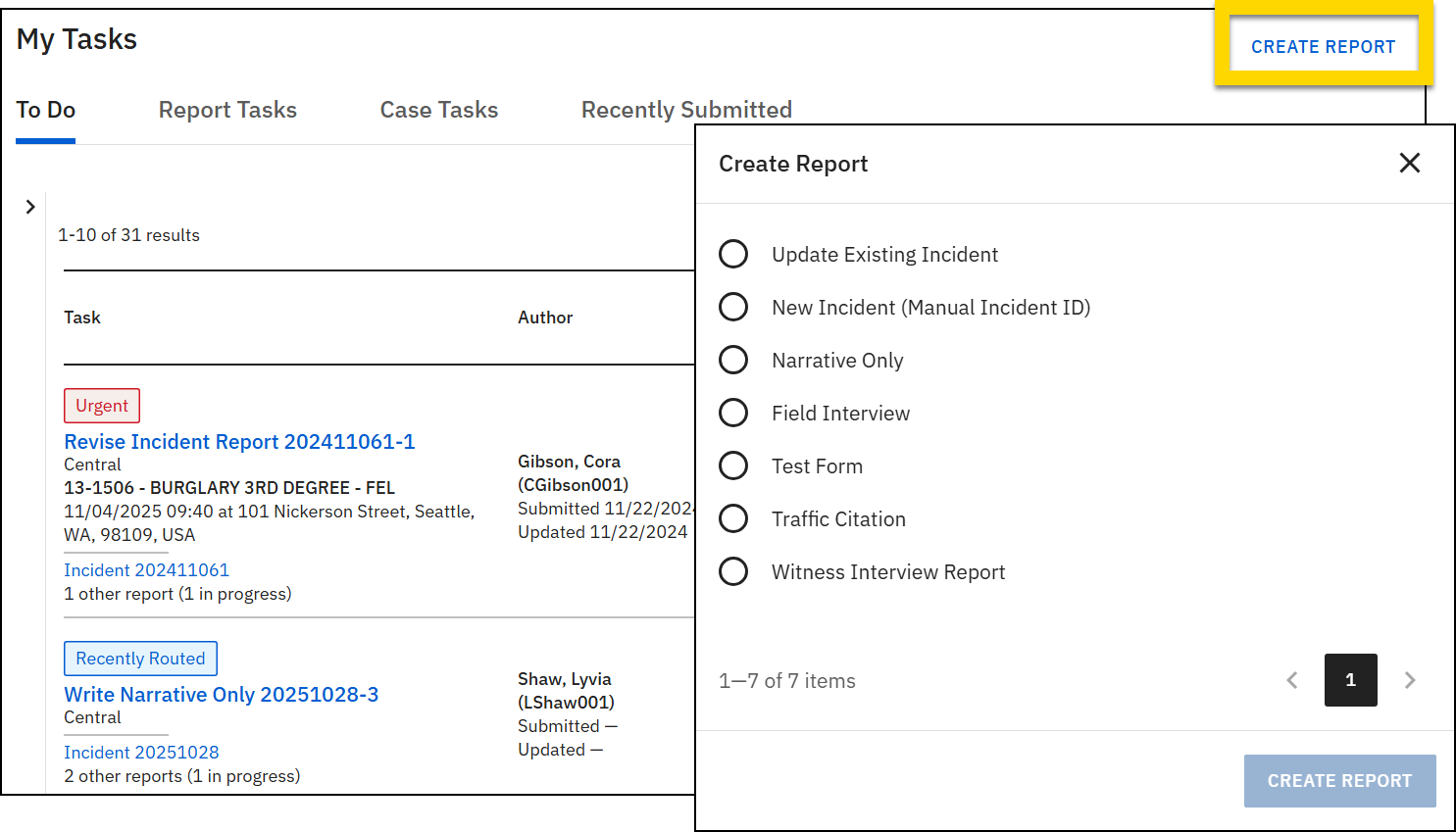
Tasks
A task indicates an action that needs to be taken on a report and who needs to perform that action. Multiple tasks are taken on a single report throughout its "lifetime". Task types include:
- View: Reports or case tasks that can be viewed but not edited because they are currently in review or already finalized
- Do: Case tasks assigned to you
- Write: Reports assigned to be created and not yet submitted
- Revise: Reports previously submitted for approval but returned by the report reviewer for corrections (the report author receives an email when a report they submitted is returned)
- Review: Reports submitted for review
- Rereview: Reports rejected by the report reviewer, then updated and resubmitted by the author
Tasks are listed in the inboxes in the Tasks module. The same task may appear in multiple inboxes, based on the type of task it is.
For example:
- Officer Shaw selects Create Report to create a new incident report.
- A Write Field Interview Report task appears in her My Tasks inbox.
- When Officer Shaw submits the report to her supervisor for review:
- The Write task disappears from her My Tasks inbox (because she has completed the task).
- A Review task appears in her supervisor's My Tasks inbox, as well as the Supervisor Review tasks inbox.
The report remains the same throughout this process, but the tasks associated with the report change based on which person needs to take action on it.
For more information, see Task management overview.
Case tasks are slightly different from report tasks. For more information, see Case tasks.
Inboxes
Task inboxes are accessed by selecting the paper airplane icon in the main navigation menu. Every user can access the My Tasks inbox and may see additional inboxes, depending on their privileges. For more information, see Task and inbox management.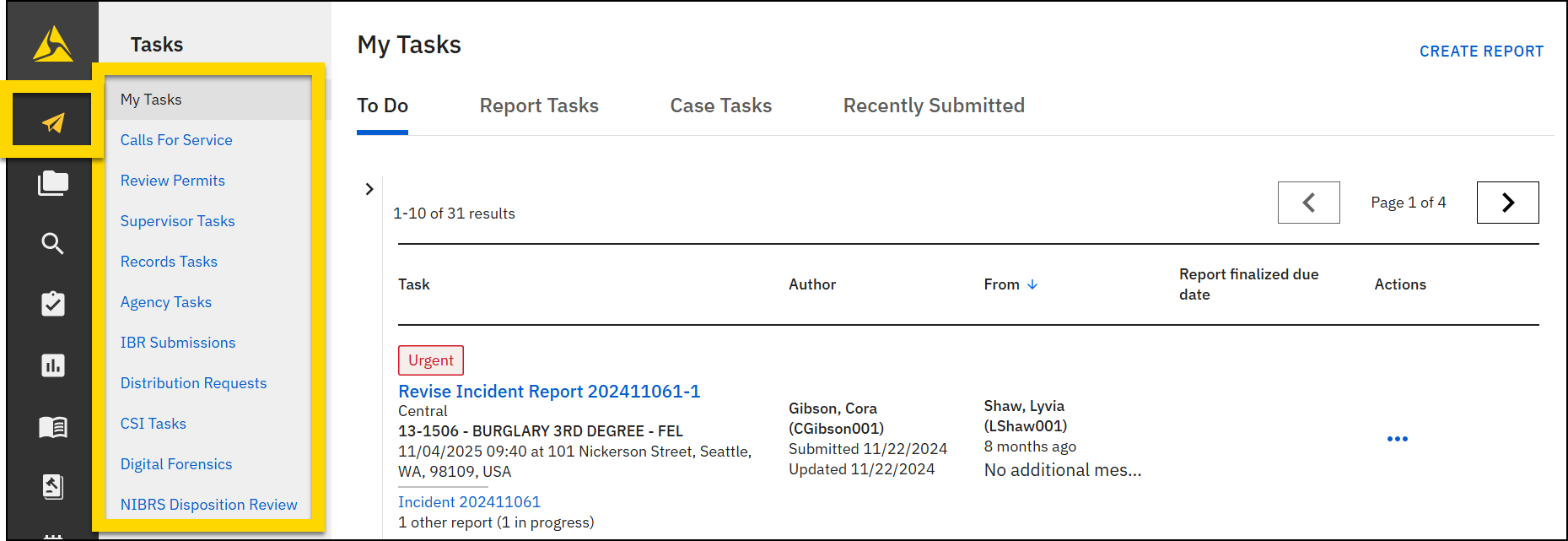
Incidents
When an incident report is created in Axon Records, an incident is also created and associated with the original incident report. Each incident has an incident profile, which includes all basic information included in the incident report, as well as any other reports, or files associated with the incident. When necessary, an incident can be turned into a case, which contains additional functionality and features.
For more information, see Incident and case profiles.
Contributions
Each person who adds content to a report is called a contributor, and the content they add to the report is called their contribution. Non-incident reports have a single contributor, who is often called the author. Incident reports can be written by multiple contributors. All contributions are combined into a single report and finalized as one report. In this way, instead of an incident report containing multiple supplement reports, there is a single report.
If additional documentation is required after the report has been finalized, additional supplement reports can be created and associated with the original incident report.
To join an existing, in-progress incident report as a contributor, open the incident report and select Manage Existing Incident > Edit Incident. A window will appear asking you to confirm your selection.
You can tell if an incident report is in progress if there is a Draft label at the top of the incident profile and if the incident report is marked as In Progress in the Reports section.
For more information about contributions, see Collaborative report editing.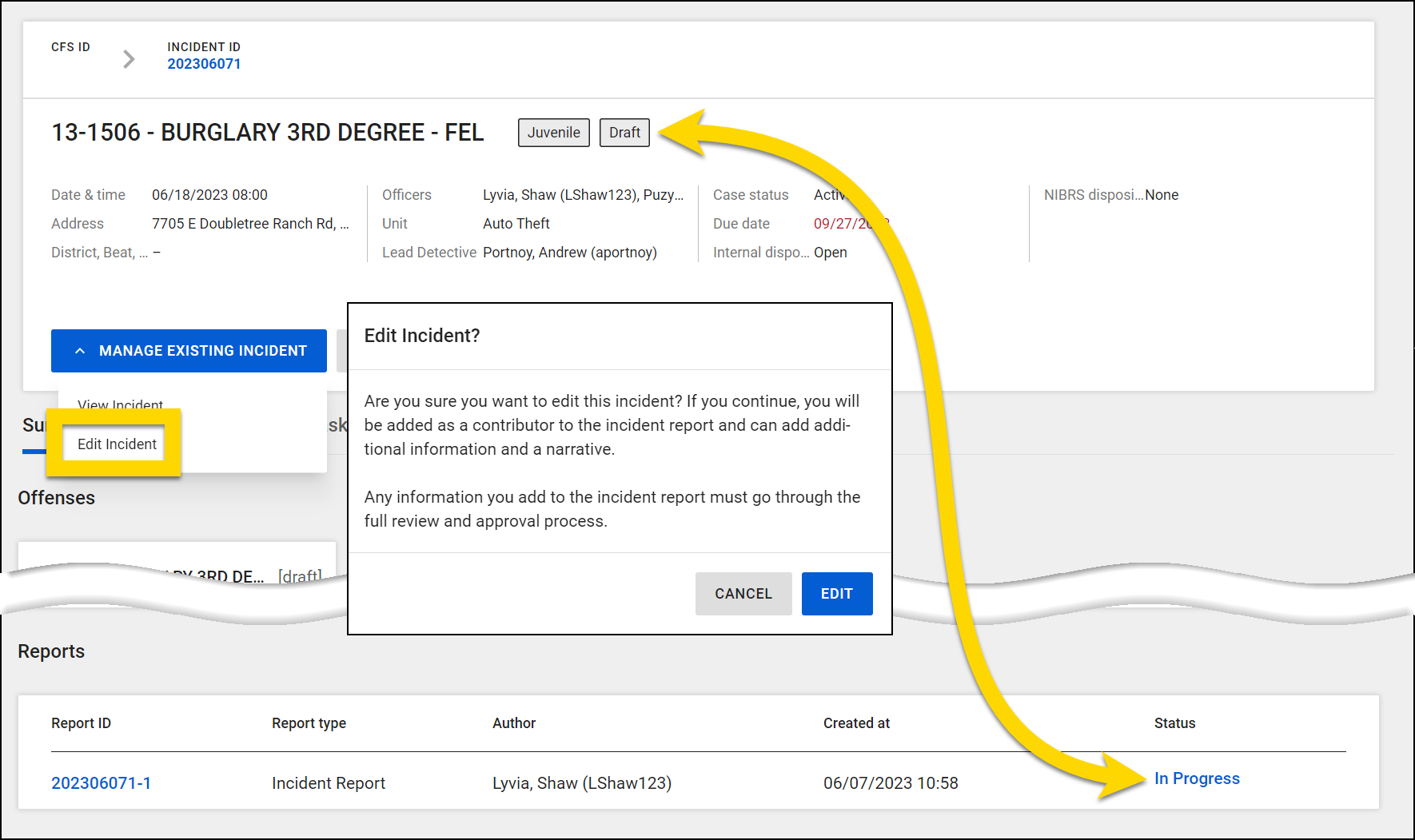
Supplements
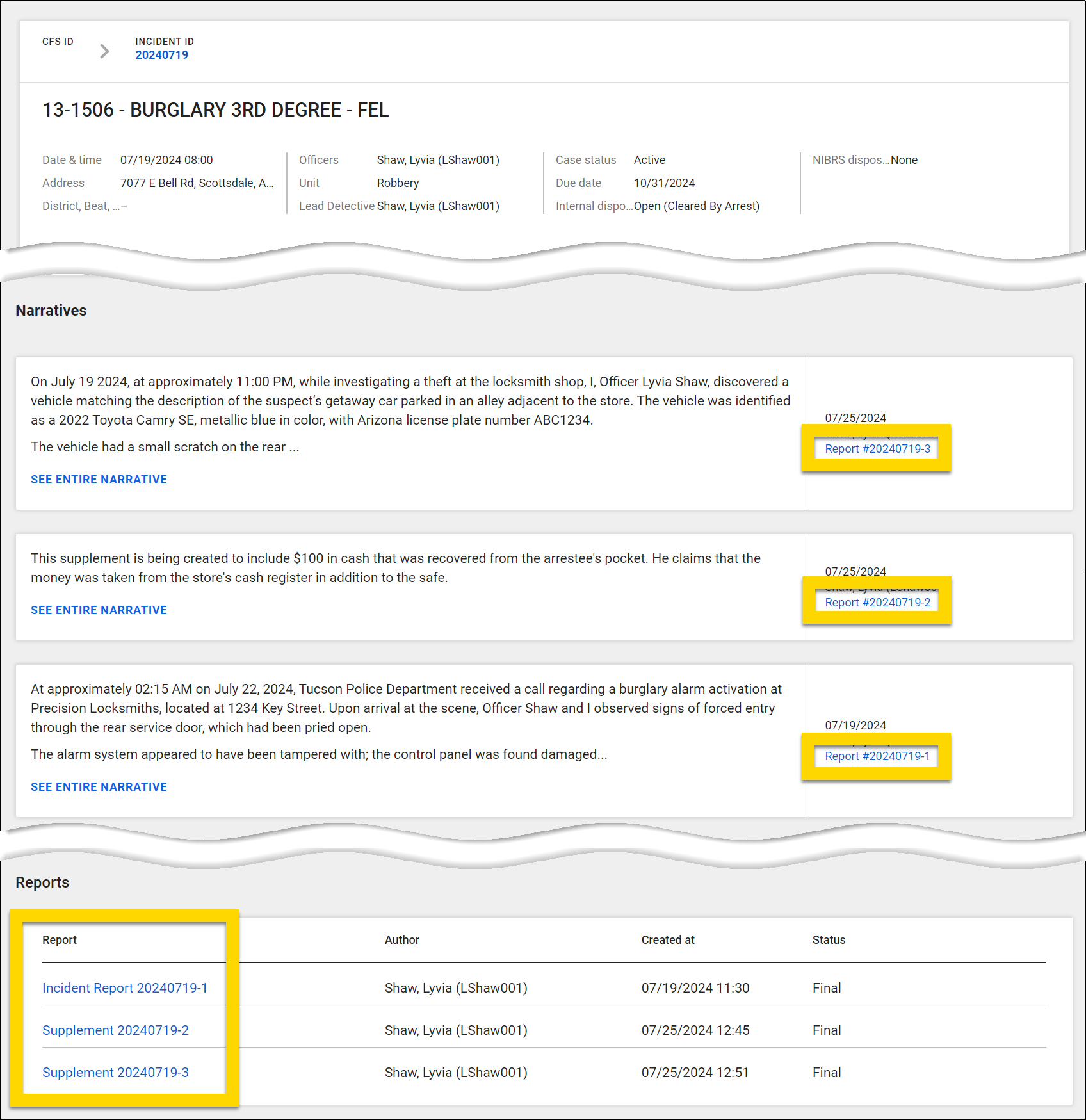
This supplement shares the same Report ID as the original report, but the "-1" at the end of the ID increases by 1. For example, if a supplement is created for Report 123456-1, the supplement's Report ID is 123456-2.
If more changes are needed after a supplement is finalized, additional supplements can be created. Each supplement contains all information contained in the previous supplement, and the Report ID increases by 1 for each supplement that is created.
For example, in Report 20240719, the Report IDs would appear as follows:
- 20240719-1: The original report
- 20240719-2: The first supplement that is created after the original report is finalized. When it is first created, this supplement contains all information from Report ID 20240719-1. It is updated to include an additional person.
- 20240719-3: The second supplement that is created after the first supplement is finalized. This supplement contains all information from Report ID 20240719-2. It is updated to include information about a new vehicle.
Each supplement contains a new narrative section that must be completed along with any other changes that are being made to the report. These narratives, along with each of the supplements appear on the incident profile.
For more information, see Create supplements.