Property actions
Users can take various actions on property items and containers as they move through intake, storage, release, and disposition. From checking items in or out to printing labels to updating responsible officers and managing chain of custody, these actions ensure property is accurately tracked and documented at every stage.
Property actions can be initiated from the Actions menu in the top right corner of the screen in the following locations:
- Property search
- Scan dashboard
- Tasks dashboard
- Property profile
- Incident/case profile (All property associated with the incident appears in the Property section on the Overview tab.)
When initiating actions from Property search or the Property module dashboards, you can use the checkboxes to select multiple properties and take action on all of them at the same time.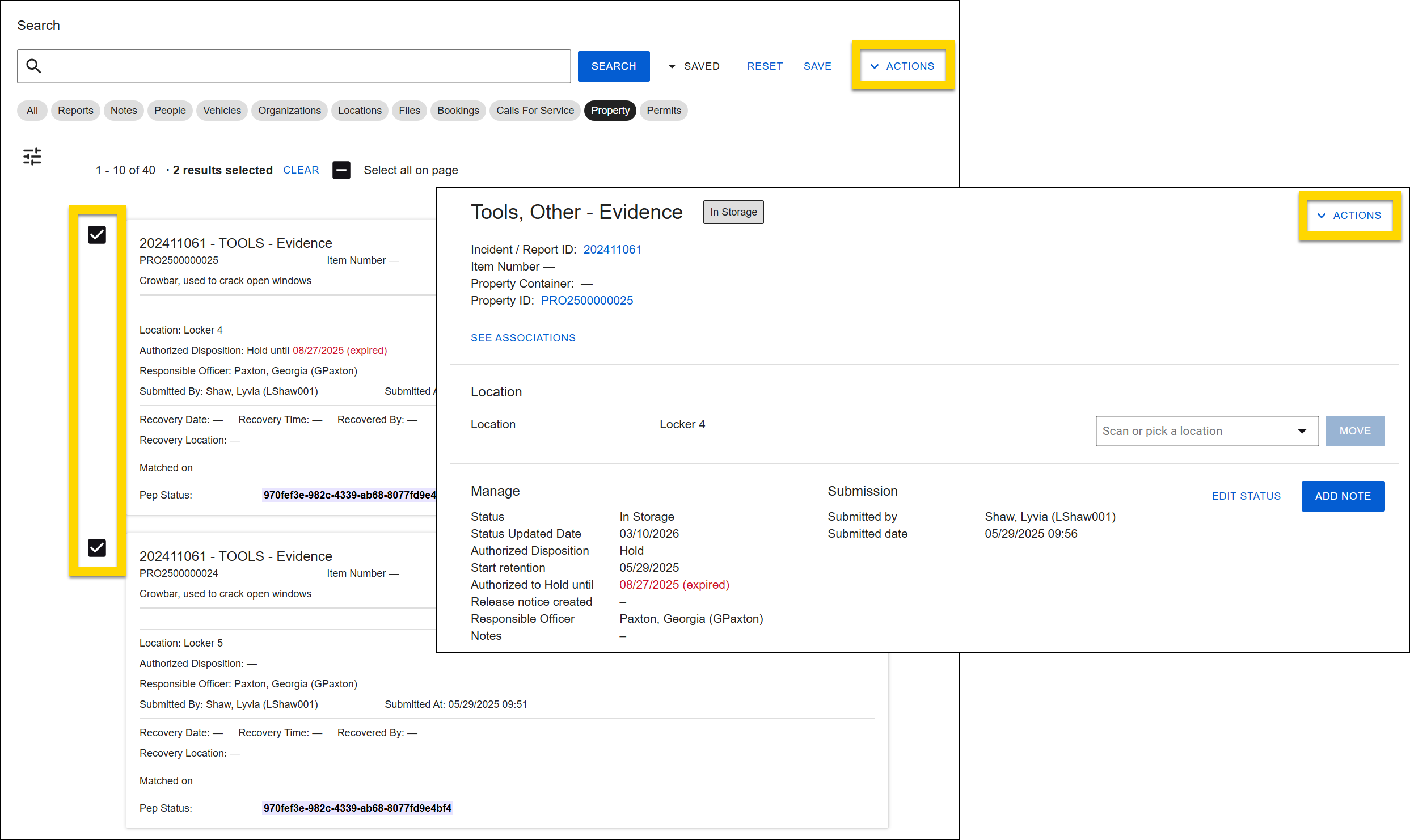
All actions are not available in all Actions menus. The sections below explain which actions can be initiated from which location.
The following additional property actions are documented in separate topics:
Intake
Once an item or container is submitted to the Property Department from an incident report, it moves into Pre check status. Submission may occur when a user submits a standard property item or container from the report, or when a vehicle is submitted as property from within the vehicle section of a report. Property technicians can then perform intake to move the property from Pre check to In storage status.
Property technicians can open items or containers that are in Pre-check status and assign the intake to other users or perform intake themselves.
To perform property intake:
- Open one of the following locations to find the property:
- Property search
- Scan dashboard
- Tasks dashboard
- Select the checkboxes beside one or more items.
- Open the Actions menu and select Intake.
- An Intake pane opens where you can view additional information about the item, including:
- Select the Incident / Report ID link to view the report that contains the item.
- Select the Container ID to view the full container profile.
- Open the full property profile by selecting View Profile or the Property ID.
- View basic property information, including type, description, etc.
- Enter or scan a location to check the item into.
- Select a signature method, as required by your organization.
- Optionally add reason/notes to the intake.
- Select Check in.
Following intake, the item moves to In storage status, and its profile displays the location you checked it into.
Intake assignment
Some organizations follow a workflow where property is triaged and assigned to a user, who in turn performs intake.
To perform this intake assignment:
- Open Property search and use the Pre check assignment > Assignment state filter to find all items with a status of Unassigned.
- Select the checkboxes beside one or more items.
- Open the Actions menu and select Assign.
- When the Assign pane opens, search for a user in the Assign to field.
- Select Assign.
Once property is assigned to a user, their name appears on the search result preview. The Pre check Assignment > Assigned to filter can then be used to quickly find items assigned to a specific user.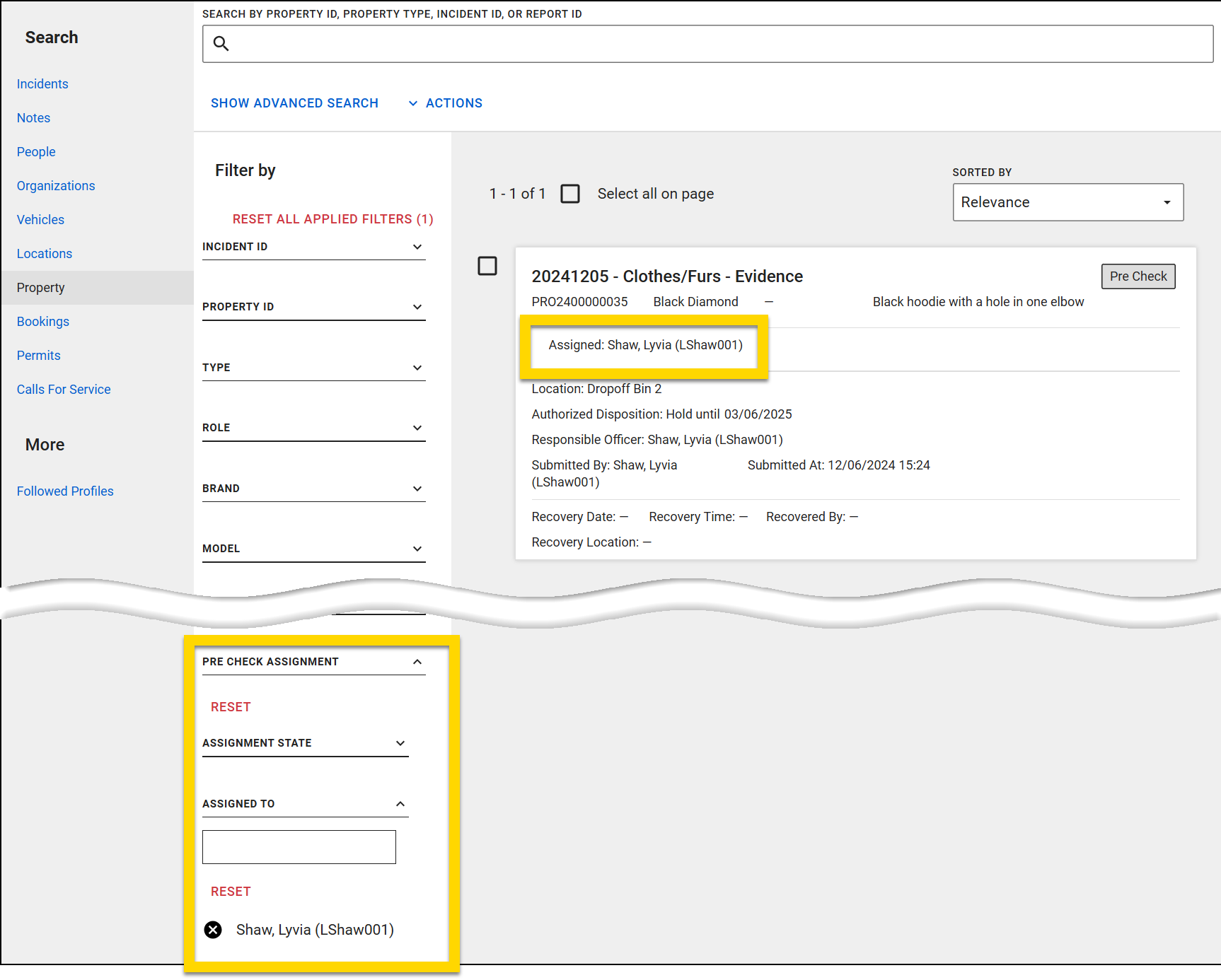
Print property labels
Property labels can be configured for individual organizations, but generally, labels include the following information:
- Incident ID
- Property type
- Barcode and Property ID
- Role
- Description
- Submitting officer
For information about configuring property labels, see Label configuration.
To print property labels:
- Open one of the following locations to find the property:
- Property search
- Scan dashboard
- Tasks dashboard
- Property profile
- Select the checkboxes beside one or more items.
- Open the Actions menu and select Print label.Note
Property labels can only be printed for items that have been submitted to property. If you do not see a Print label option on a property item, this indicates that the item is not in police custody.
- A new browser tab opens where you can view and print the label.
- If you are printing multiple items, each item has a separate label, with one label per page.
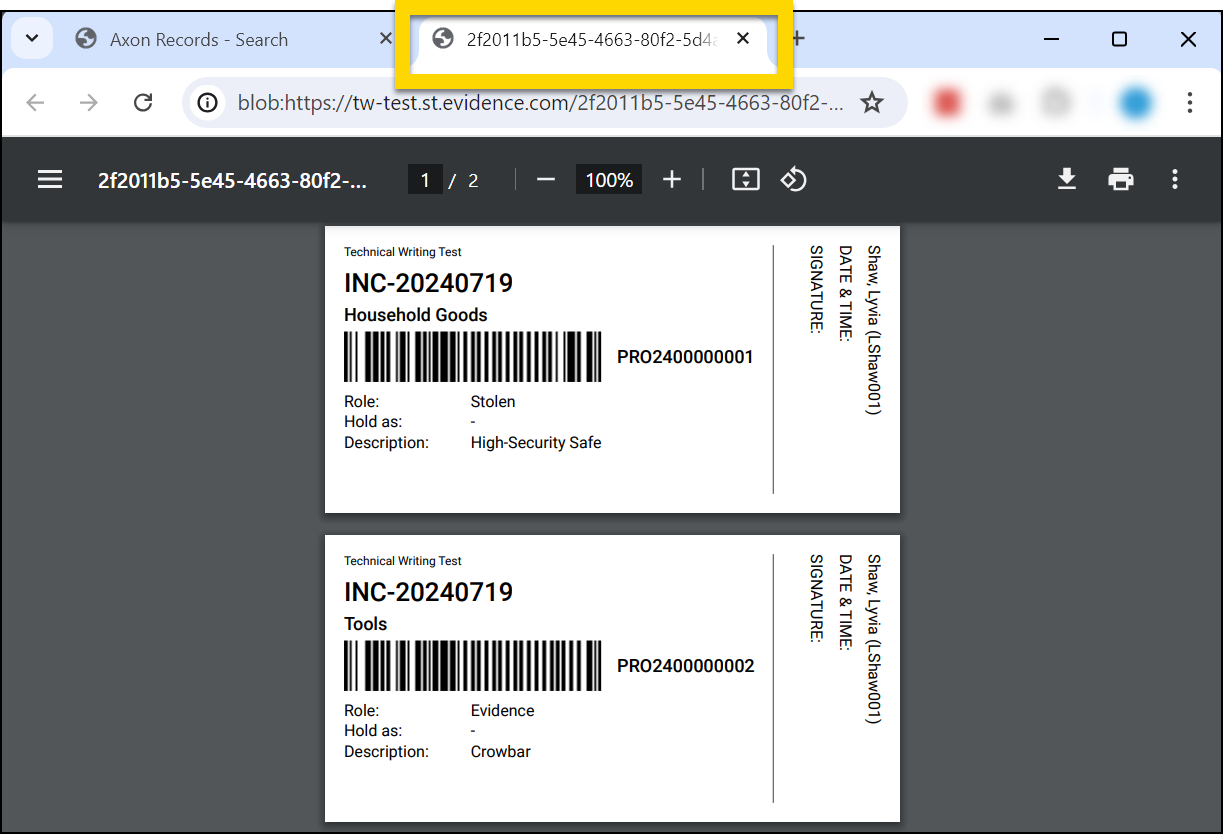
- If you are printing multiple items, each item has a separate label, with one label per page.
You can also print labels from the report containing the property item. To print all labels for a report, open the More actions [...] menu in the top header in Report Writer and select Print property labels.
You can also print a label for a single property from a report. If your organization follows the individual property management workflow, print a label for a single property item by taking these steps:
- Open the report to that item's section.
- Scroll down to the bottom.
- Select Print label.
If your organization follows the container property management workflow, print a label for a single property item or container by taking these steps:
- Open the report to that item's section.
- Scroll down to the bottom.
- Select Manage property submission > Print label.
- If the item belongs to a container, a label for the container prints.
- If the item is not in a container, a label prints for that individual item.
Add note
You can add internal notes to property items or containers. These internal notes are only visible on the property profile and do NOT appear in the Chain of Custody. To add a note:
- Open the property item or container profile.
- In the Manage section of the profile, select Add note.
- When the Add note pane opens, enter your note.
- If notes have been left on the property previously, they appear in the Notes field. If you want to retain the previous notes, do not delete them. Instead, add your new notes above or below the previous notes.
- Select Add.
The notes are displayed at the bottom of the Manage section of the property profile, below the Responsible Officer.
Check in/out
Property can be checked in and out. These actions are recorded in the property chain of custody.
To check in/out property:
- Open one of the following locations to find the property:
- Property search
- Scan dashboard
- Property profile
- Select the checkboxes beside one or more items.
- Open the Actions menu and select Check in/out.
- When the Check in/out pane opens, complete the fields:
- Select who the item is being checked in from / out to.
- Set the location the item is being checked in to (check in only).
- Chose a Signature method and capture a signature.
- Add a reason or notes.
- Select Check in/out.
The check in/out is logged in the property chain of custody, along with the reason/notes provided.
Move property location
Property items and containers can be moved between different locations. To move property:
- Open one of the following locations to find the property:
- Property search
- Scan dashboard
- Property profile
- Select the checkboxes beside one or more items.
- Open the Actions menu and select Move to.
- When moving a property from its profile page, enter a new location in the Location section of the profile and select Move.
- When the Move to pane opens, either enter a Location ID or scan a location barcode.
- If your organization requires signatures, the Signature method options also appear.
- The signature options only appear if you initiate the move from Property search or the Scan dashboard.
- Select Move.
The organization's list of property locations can be managed from the Property Management tool in the Administrator Console.
Release property
To release property:
- Open one of the following locations to find the property:
- Property search
- Scan dashboard
- Property profile
- Select the checkboxes beside one or more items.
- Open the Actions menu and select Release.
- The Property release pane opens where you can select the items to release.
- This pane does not appear when you release property directly from its profile.
- Select Next.
- In the Release to field, indicate who the property is being released to.
- Additional fields appear depending on your selection in this field.
- If your organization requires signatures, the Signature method options also appear.
- Add a reason or notes.
- Optionally add a file.
- Select Release.
The release is logged in the property chain of custody, along with the reason/notes provided.
Create a release notice letter
In Axon Records, you can create a release notice that can be mailed to a property owner notifying them that their property is ready to be picked up. The notice contains information about how to pick up the property, as well as a list of the property items that are ready to be picked up. This list includes the property description, ID, and barcode.
The notice template can be configured by administrators from the Property Management tool in the Administrator Console. This template can be configured to include multiple languages.
To print a release notice:
- Open one of the following locations to find the property:
- Property search
- Property profile
- Select the checkboxes beside one or more items.
- Open the Actions menu and select Create release notice.
-
If you are creating a release notice for a container, after selecting Actions > Create release notice, select which container items to include in the release notice.
- If you are creating release notices for multiple property items, you can chose to group property items into one or more notices by using one of the two options:
- Smart grouping: When available, the recipient's address information is copied from authorized disposition updates. If the recipient details match (first name, last name, and address) for multiple property items, a single release notice will be generated for those items.
- If the items are being released to multiple people, you can enter information for each person. Multiple letters will be created, each containing the property item(s) associated with the indicated person and their contact information.
- Single notice: A single release notice is generated for all items. Enter recipient information manually.
- Like the Smart Grouping, if contact information was added during an authorized disposition update for at least one of the items, it will automatically appear in these fields.
- Smart grouping: When available, the recipient's address information is copied from authorized disposition updates. If the recipient details match (first name, last name, and address) for multiple property items, a single release notice will be generated for those items.
- Enter the details of the person the notice(s) will be sent to, including first name, last name, and address.
- If contact information was added during an authorized disposition update, it will automatically appear in these fields.
- Select Confirm.
- A preview pane loads displaying all release notices that will be created with the items that will appear in each, as well as the contact information for the notice. Select Create if the information is correct.
The notice loads in a new browser tab where you can download or print it. If you created multiple notices, each appears in its own browser tab.
When a release notice is created, it is added to the Media section in the property profile of each property item referenced in the letter. Selecting the release notice name opens Axon Evidence in a new tab where you can view and download the full notice at any time.
Manage property authorized disposition and disposition/status
An item's authorized disposition is managed by the user who is assigned as the item's responsible officer and indicates how an item should be managed by the Property Department (if it should be held, released, or destroyed). Based on this authorized disposition, property technicians can update the item's actual disposition/status and manage the item appropriately.
For example, if the primary officer on the incident updates the item's authorized disposition to Destroy, the property technicians can update the item's disposition/status to Ready to Destroy or Destroyed, as appropriate.
A property items' authorized disposition and disposition/status are displayed on search results. The authorized disposition appears on the property profile in the Manage section, and the property's actual disposition/status appears at the top of the profile as a colored label.
Update authorized disposition
The responsible officer or users with additional privileges can update the authorized disposition for property items by taking these actions:
- Open one of the following locations to find the property:
- Property search
- Property profile
- Incident/case profile
- Select the checkboxes beside one or more items.
- Open the Actions menu and select Update authorized disposition.
- When the Update authorized disposition pane opens, select one of the options:
- Hold
- Release
- Destroy
Hold
When updating the authorized disposition to Hold, provide the following information:
- Authorized by (the user who has authorized the update)
- Hold reason
- The person/organization the item is being held for.
Either keep the current retention date or set a new one using one of the preset durations (90, 120, or 180 days) or users with additional privileges can set a date manually.
After updating the hold information and adding notes as needed, select Update disposition to save your changes.
Release
When updating the authorized disposition to Release, provide the following information:
- Authorized by (the user who has authorized the update)
- Reason
Add contact information for the person the item is being released to in one of two ways:
- Manually add contact information.
- Choose a name from the Release contact information section, then select Import.
- Only the names of people who are added to the report will appear. The contact information from the person's profile will automatically populate the release form fields. You can then fill in any missing information required for the release.
- If their name does not appear in this section, select Enter contact information to manually add their contact information.
After updating the release information and adding notes as needed, select Update disposition to save your changes.
Changes made to contact information after importing only apply for this specific release and do not update the person's profile. To update the person's actual profile information, open their profile and edit it.
Destroy
When updating the authorized disposition to Destroy, provide the following information:
- Authorized by (the user who has authorized the update)
- Reason
- Notes
After updating the destroy information , select Update disposition to save your changes.
Update disposition/status
To update the disposition/status of property:
- Open one of the following locations to find the property:
- Property search
- Scan dashboard
- Tasks dashboard
- Property profile
- Select the checkboxes beside one or more items.
- Open the Actions menu and select Update disposition/status.
- When updating a property from its profile page, select Edit status in the Location section of the profile.
- When the Edit status pane opens, select a new disposition/status.
- If your organization requires signatures, the Signature method options also appear.
- Add a reason or notes.
- Select Update.
The status update is logged in the property chain of custody, along with the reason/notes provided.
Manage responsible officer
A responsible officer is the person responsible for keeping the authorized disposition of a property item up to date. This is the only user who can update an item's authorized disposition, unless additional privileges are granted.
When an item is submitted to the Property department, the user who submitted the property is assigned as the responsible officer. If a case is created for the incident, the responsible officer is re-assigned to the case’s lead detective. If the case is ever transferred or reassigned, the responsible officer is also reassigned.
The user assigned as a property item's responsible officer appears on the property profile, as well as on search result previews.
If the retention period for property is expiring within seven days or if the period has expired, the responsible officer receives one email notification each day notifying them of the retention period expiration. They can then update the retention period for these items as needed.
The following actions can be taken to manage the responsible officer for a property item:
- Update the responsible officer of a property item
- Search for all property items assigned to a responsible officer
Update responsible officer
To update the responsible officer for property:
- Open one of the following locations to find the property:
- Property search
- Scan dashboard
- Incident/case profile
- Property profile
- The responsible officer can be updated only for the property items within the container, as containers themselves do not have responsible officers.
- Select the checkboxes beside one or more items.
- Open the Actions menu and select Update responsible officer.
- When the Update responsible officer pane opens, search for a user in the Responsible officer field.
- Select Save.
Responsible officer search
To find all property assigned to a specific user, open Property search and enter a user's name in the Responsible officer filter. You can then use the checkboxes and the options in the Actions menu to take actions on those items.
Media, files and, attachments
You can add files to property items. These files are uploaded to Axon Evidence as evidence files and also appear on property profiles in Axon Records.
To add files:
- Open one of the following locations to find the property:
- Property search
- Scan dashboard
- Property profile
- Select the checkboxes beside one or more items.
- Open the Actions menu and select Upload attachment.
- When the Upload Attachments from Computer pane opens, drag and drop files into the pane or select Choose files.
- Optionally add a description of the files.
- Select Add.
Files can also be added to property items during property release.
Uploaded files appear in the Media section at the bottom of the profile (property item profiles) or on the Media tab (container profiles). Selecting the file name opens Axon Evidence in a new tab.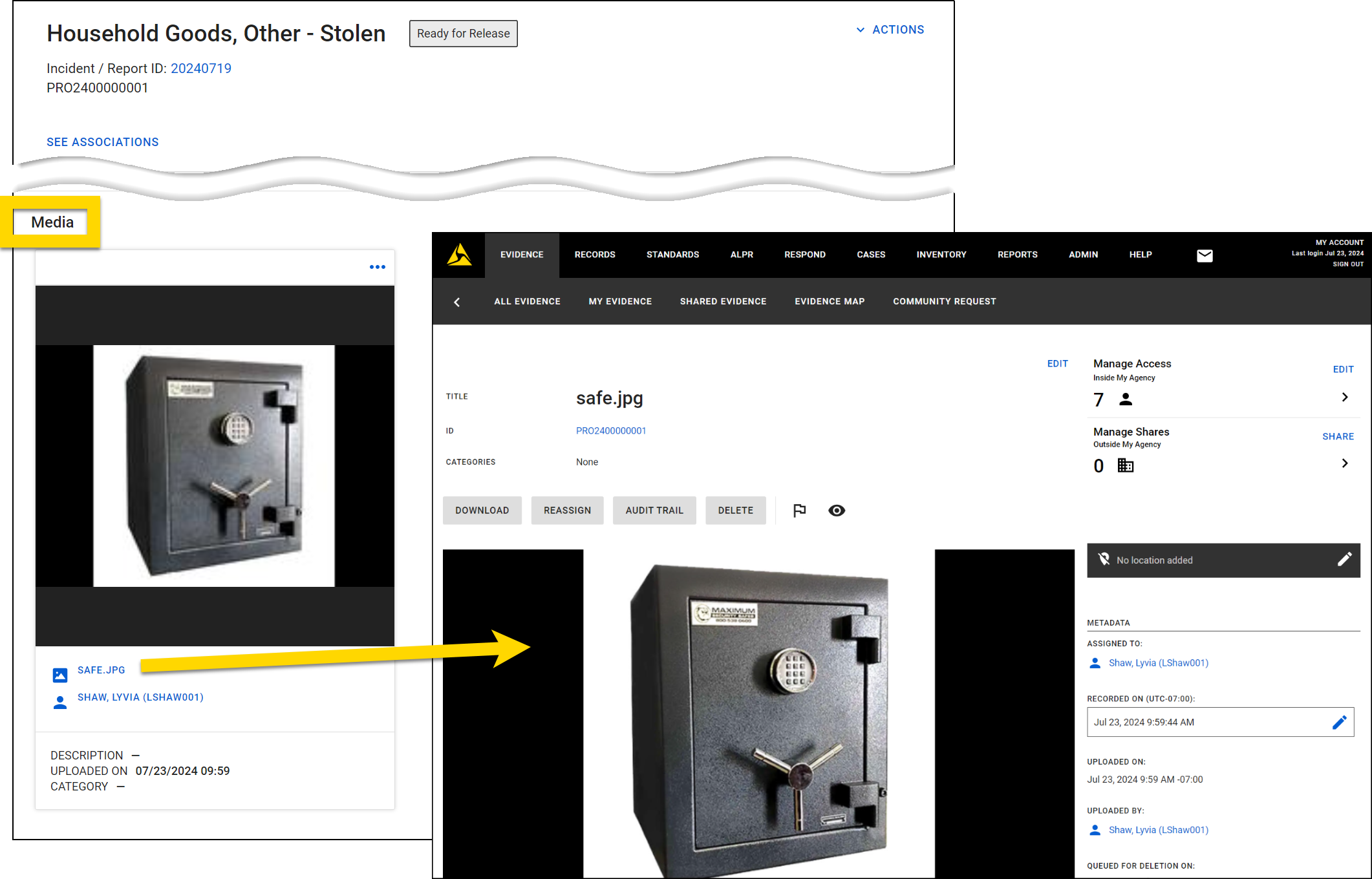
After a file has been added to property, select More actions [...] in the top right corner of the file on the property profile to take action on the file:
- Detach: Removes the association between the file and the property item or container, which removes the file from the property profile page. To delete the file, open it in Axon Evidence.
- Edit: Opens a pane where you can change the file name and description.
Manage chain of custody
Chain of custody is the documented, unbroken trail showing who handled a piece of property from the moment it's collected until it's disposed of, returned, or used in court. In Axon Records, the following actions are automatically logged in the chain of custody for property that has been submitted to the Property department:
- Collection: When the item is submitted to the Property department
- Check in/out
- Item moved between locations
- Authorized Disposition updates
- Disposition/status updates
- Responsible officer updates
- Release notice creation
- Item released
Additionally, activities can manually be added to the chain of custody.
To view the chain of custody for an item, open the item profile and select Actions > View chain of custody. For a container, open the container profile then switch to the Chain of custody tab.
When the Chain of Custody pane opens, every actions are listed from newest to oldest. To view more information about any activity, select More actions [...] > View details. If an electronic signature was captured for an action, select View affidavit to open the file in a new Axon Evidence tab.
To add a new activity to the chain of custody, select Add activity. You can later delete manually added activities from the log by selecting More actions [...] > Delete.
You can only delete manually-created actions (actions created by selecting Add activity).
Select Print to download a PDF of the chain of custody, which opens in a new browser tab. This file includes all information about the property—such as type, value, and description—and all custody actions taken on the item. You can optionally select the Affidavits checkbox to include any signed affidavits in the file.
To print the chain of custody for multiple items, take these steps:
- Open one of the following locations to find the property:
- Property search
- Scan dashboard
- Select the checkboxes beside one or more items.
- You can only print a chain of custody for items that have been submitted to Property and have an associated chain of custody.
- Select Actions > Print chain of custody.
- Optionally select the Affidavits checkbox to include any signed affidavits in the printout for an item.
- The chain of custody opens in a new tab, with each item appearing on a separate page.
View property history
Property information changes when the property is added to a report, its information is changed, and the report is finalized. When viewing a property profile, select Actions > Show property history in the top right corner to see information that has changed over time. All previous information that has been recorded about the property appears below the current information. The date that information was added appears in brackets.
History is not available for property containers. Instead, you can view historical information for items within the container. To view property history for container items, open the container then select the individual property item and select Actions > Show property history in the top right corner.
To instead view information about the item's chain of custody (check in/out history, release history, etc.), select View chain of custody from the Actions menu.
Capture property signatures
Signatures can be captured during any action taken on a property item or container (e.g., release, check in/out, etc.). These signatures can be captured on paper or electronically.
Paper signatures
To capture a signature on paper, take these steps:
- While performing the property action, such as releasing a property item or container or checking an item in or out, select Paper signature in the Signature method section.
- Two read-only fields show the name of the user performing the action and the name of the person or party the action is associated with.
- For example, when releasing a property item, the Released by field displays the name of the person performing the release, and the Released to field displays the name of the person or agency the item is being released to.
- When updating the disposition/status or moving property between locations, you can select an Additional signature checkbox and search for an additional user who will sign the affidavit.
- Select Print affidavit to open the affidavit in a new tab. The affidavit can then be printed and signed.
- After capturing the paper signature, complete the rest of the fields to finalize the property action.
Electronic signatures
Currently, Axon Records supports the Topaz GemView signature pad for capturing electronic signatures. Once this pad has been set up, you can capture a signature electronically, by taking these steps:
- While performing the property action, such as releasing a property item or container or checking an item in or out, select Electronic signature in the Signature method section.
- Two read-only fields show the name of the user performing the action and the name of the person or party the action is associated with.
- For example, when checking out a property item, the Checked out by field displays the name of the person performing the check out, and the Checked out to field displays the name of the person or agency the item is being checked out to.
- When updating the disposition/status or moving property between locations, you can select an Additional signature checkbox and search for an additional user who will sign the affidavit.
- Select Capture signature.
- A preview of the affidavit loads in a new tab. Review the affidavit then select Send to signature tablet.
- Request that the person you are completing the property action for sign the signature tablet and select Submit when they are finished.
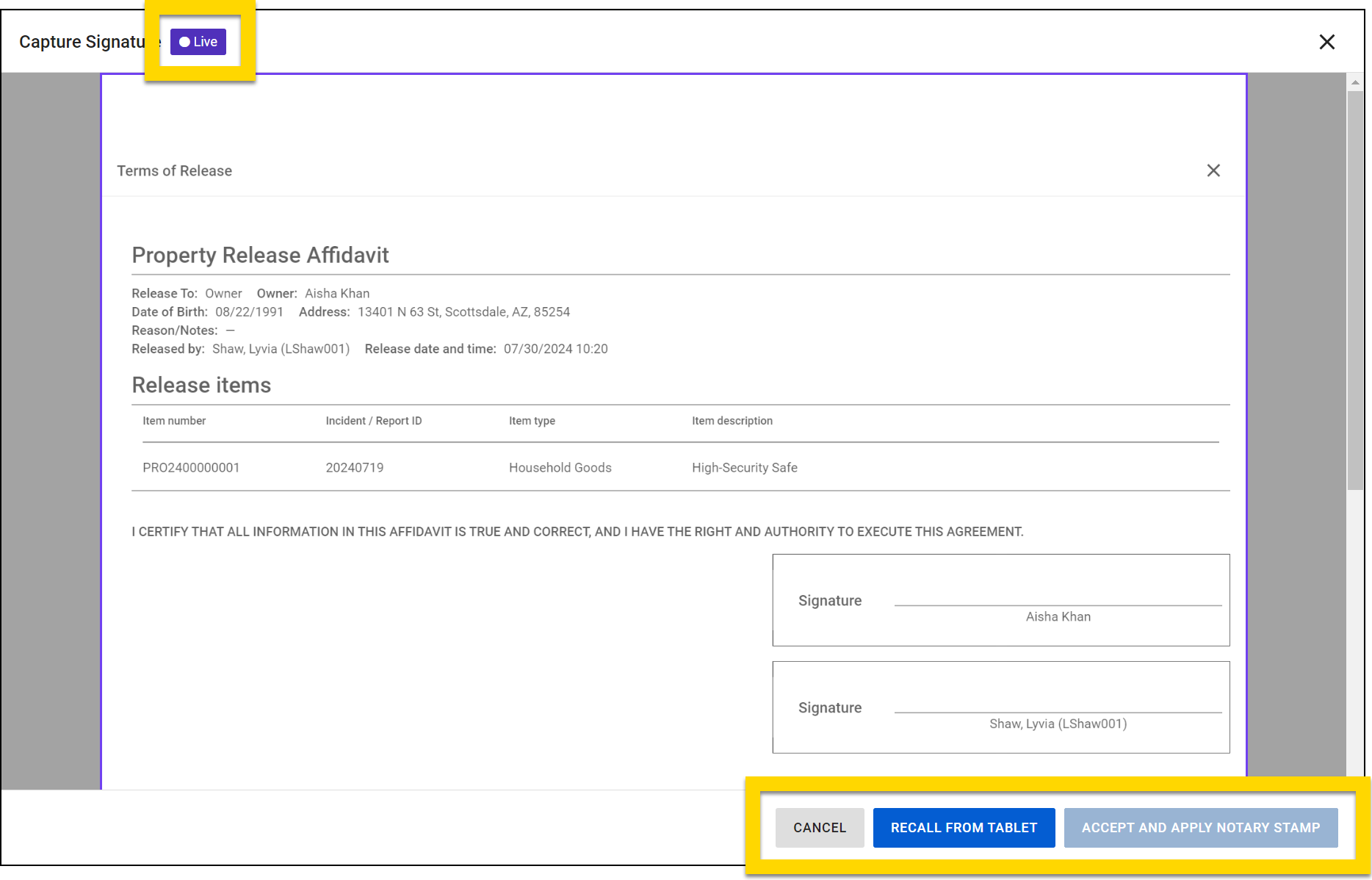
- Your screen displays the affidavit shown on the signature pad (as signified by the Live label at the top of your screen).
- If you need to "pull back" the affidavit from the signature pad, select Recall from tablet.
- After the document is signed, select Accept signature.
- When the signature preview window closes, print a receipt then complete the rest of the fields to finalize the property action.
Notary stamp
Some organizations are configured to allow administrators to upload an image of a notary stamp to a user's profile. If that user releases property, instead of seeing Accept signature, they see Accept and apply notary stamp. When this button is selected, the stamp is added to the release affidavit.
Tablet setup
To set up the Topaz GemView signature tablet, take these steps:
Install software
Use the links below to download and install the necessary software and drivers:
- Topaz SigPlus
- When installing the SigPlus software, you will see a list of signature pad models. Select GemView.
- Topaz SigPlusExtLite
- Before installing, uninstall any previous versions of the software that may already be installed.
- GemView drivers
- DisplayLink driver
- Must be installed for machines using Windows 7 or Windows 8.
After you have finished installation, restart your computer.
Install browser extension
In addition to the software and drivers, you should also install the Topaz SigPlusExtLite Google Chrome browser extension. After installing the extension, restart your browser.
Supported browsers and operating systems
Topaz SigPlusExtLite is supported on the Google Chrome 77 browser and later, as installed on machines using Windows 7 and later (32-bit and 64-bit operating systems).
You must have .NET Framework 4.7.1 or higher available on your computer. To verify this:
- Open Command Line Prompt by pressing Windows + R then entering "cmd:.
- Run the following command:
reg query "HKLM\SOFTWARE\Microsoft\Net Framework Setup\NDP" /sConnect tablet
After all software is installed, you can connect the tablet to your computer using these steps:
- Connect the tablet to your computer using the two USB connections.
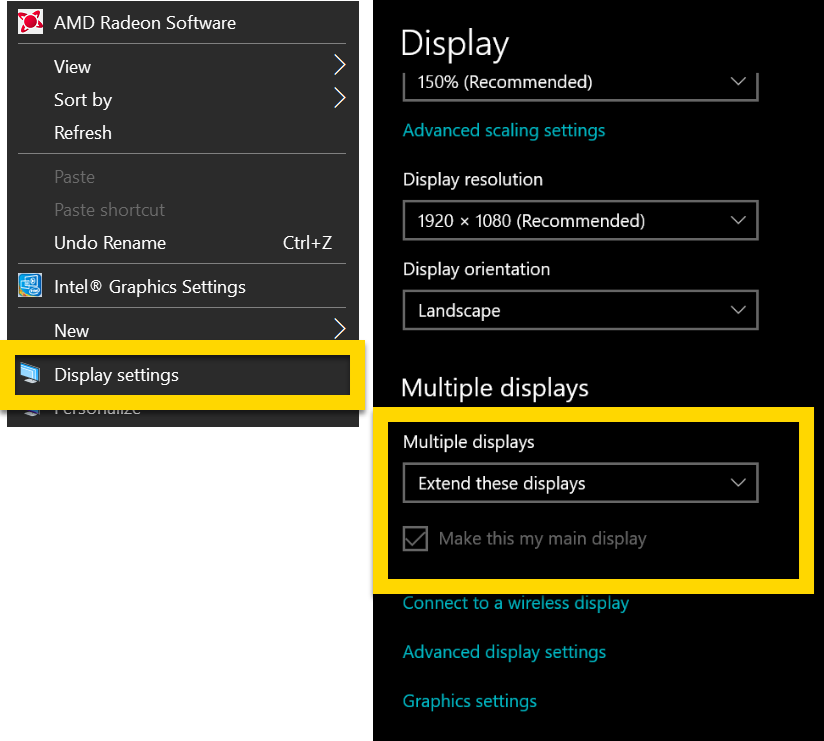
- On your computer, right-click on the desktop and select Display settings.
- Set the Multiple display setting to Extend these displays.
- Check the Make this my main display checkbox on the desktop display.
Verify Connection
Follow these steps to ensure the Topaz GemView tablet was installed correctly:
- In a browser, go to Topaz SigPlusExtLite Demo.
- Select Push tab to GemView screen (appears in the bottom right corner of the screen).
- Verify that the demo page appears on the Topaz GemView Tablet and select Sign to bring up the signing window.
- Sign on your signature pad.
- To accept the signature, select the green checkmark icon.
- To clear the signing window and re-sign, select the eraser icon.
- To cancel, select the red "x" icon.


