Reports - Records
The privileges related to report writing appear in the Reports and Axon Standards and Reports - Records categories as shown in the tables below.
Within these categories, there are "static" privileges, as well as workflow privileges. Generally, the static privileges determine which buttons and options appear to users when they open an inbox or report. The workflow privileges determine which actions a user can take on a report, depending on its current state (Draft, Review, etc.).
In addition to these Reports privileges, users must also have Task Inboxes privileges to access reports from task inboxes.
Reports - Records and Standards
|
Name |
Description |
Additional required privileges |
|---|---|---|
|
Create reports |
Lets users create any type of report in Axon Records and Axon Standards. Users must have this privilege in addition to all other privileges to create specific kinds of reports. |
Users must also have the following privileges in the report's workflow:
Additionally, users must have Create privileges for the reports the user must be able to create. |
|
Edit |
||
|
Review and edit in-progress reports
|
Reveals a Review and edit action in the More actions [...] menu in Report Writer. With this privilege, users can edit an in-progress report while it is in any Review state except for the Finalized state. (Users must be assigned to the report to Review and Edit it.) This privilege applies to all Records reports, including contributions. |
Users must also have the following privileges in the report's workflow:
|
|
Configure print options and settings |
Lets users adjust the printing options and settings when they are printing reports. Without this privilege, users can still print but not adjust any print settings. |
|
|
Print reports |
Lets users print reports. |
|
|
Self-finalize |
||
|
Self-finalize supplement reports |
Lets users finalize supplements they have created. |
|
|
Write |
||
|
Generate draft narratives using the AI-powered Draft One |
Lets users use Draft One to generate draft narratives for reports. |
|
Reports - Records
|
Name |
Description |
Additional required privileges |
|---|---|---|
|
Create field interview reports in Records |
Adds the Field Interview report as an option when users create reports. The Field Interview form must be associated with the Field Interview Workflow in Form Builder. |
Users must also have the following privileges in the Field Interview workflow:
|
|
Create incident reports and supplements in Records |
Lets users create/update incident reports and supplements. Also lets users add custom names to reports and document even if they don't have the Create tasks privilege that would allow them to create that type of report/document. When a custom name is added to a report, it appears before the original report name. For example, in John Smith Field Interview-2024-INC-123-2, 'John Smith' is the custom name. Custom names can't be added to some reports, including incident reports, bookings, property reports, permits, and warrants. |
Users must also have the following privileges in the Collaborative Incident Report and Collaborative Incident Report Contribution workflows:
|
|
Create incident reports in Records with a manually supplied Incident ID |
Lets users enter an Incident ID manually when creating an incident report. |
Users must also have the following privileges in the Collaborative Incident Report and Collaborative Incident Report Contribution workflows:
|
|
Create narrative only reports in Records |
Adds the Narrative Only report as an option when users create reports. The Narrative Only form must be associated with the Incident Reporting workflow in Form Builder. |
Users must also have the following privileges in the Incident Reporting workflow:
|
|
Delete case report for draft incident deletion |
If a case has been created for an incident report that is being deleted, this privilege lets users delete the associated case alongside the incident report. All case documentation (tasks, documents, etc.) is also deleted. |
|
|
Delete draft incident reports |
Lets users delete an incident reports that have not been finalized. |
|
|
Delete draft reports (not including incident reports) |
Lets users delete standalone forms that have not been finalized. |
|
|
View the Deletion Log in the Administrator Console |
Lets users access the Deletion Log in the Administrator Console, which provides a record of all deleted reports. |
Users must also have the Access the Administrator Console privilege |
|
Edit |
||
|
Edit the custom names of Records reports, case documents, and case tasks |
Lets users edit report and document names even if they don't have the Create tasks workflow privilege that would allow them to create that type of report. Some report names can't be edited, including: incident reports, bookings, property reports, permits, and warrants. |
|
| Reassign | ||
|
Change the author of in-progress Records reports |
Lets users change the author (primary contributor) of an in-progress report while it is in the Draft status. |
To change a contributor in an in-progress report, users must have the following privilege in the Collaborative Incident Report Contribution workflow:
|
| Share | ||
| Share reports | Let users share reports by sending a message to users, teams, and Command Hierarchy groups. | |
Workflows
Once created, a report moves through a workflow, for example, Draft → Review → Finalized. Each state is associated with multiple privileges, which give you granular control over which users can take actions on a report, based on its current state.
Your organization may have additional workflows, but the following are the default workflows included in Axon Records:
Field Interview Reporting, Revertible Self Finalizable Reporting, and Self Finalizable Reporting
Reports that do not require supervisor or Records review and can be finalized by the user who created them use these workflows. Reports in these workflows move through two states: Draft → Finalized.
BOLO Document
BOLO reports move through four states: Draft → Review → Active → Closed.
Incident Reporting
A report moves through this workflow when it has a single contributor. This workflow is used by Narrative Only reports, as well as incident reports that have a single contributor. Reports that follow this workflow move through the following states: Draft → Supervisor Review → Records Review → Finalized.
Collaborative Incident Reporting and Collaborative Incident Report Contribution
An incident report moves through these workflows once more than one user contributes to the report. The full report moves through the Collaborative Incident Reporting workflow. Each contribution to the report moves through the Collaborative Incident Report Contribution Workflow. Once each contribution is approved (finalized) by a supervisor, the tasks are merged into a full report and sent for Records Review.
If any contribution is rejected during Records Review, that contribution returns to a Draft state in the Collaborative Incident Report Contribution workflow where it can be revised, finalized, and sent back for Supervisor Review and then again on to Records Review.
During this time, any contributions that were approved during Records Review do not need to be sent back for revision. These contributions "wait" until the rejected contributions are revised and then resubmitted for review. At that point, all contributions are again merged into a single report for Records Review.
The interaction of these two workflows is shown below: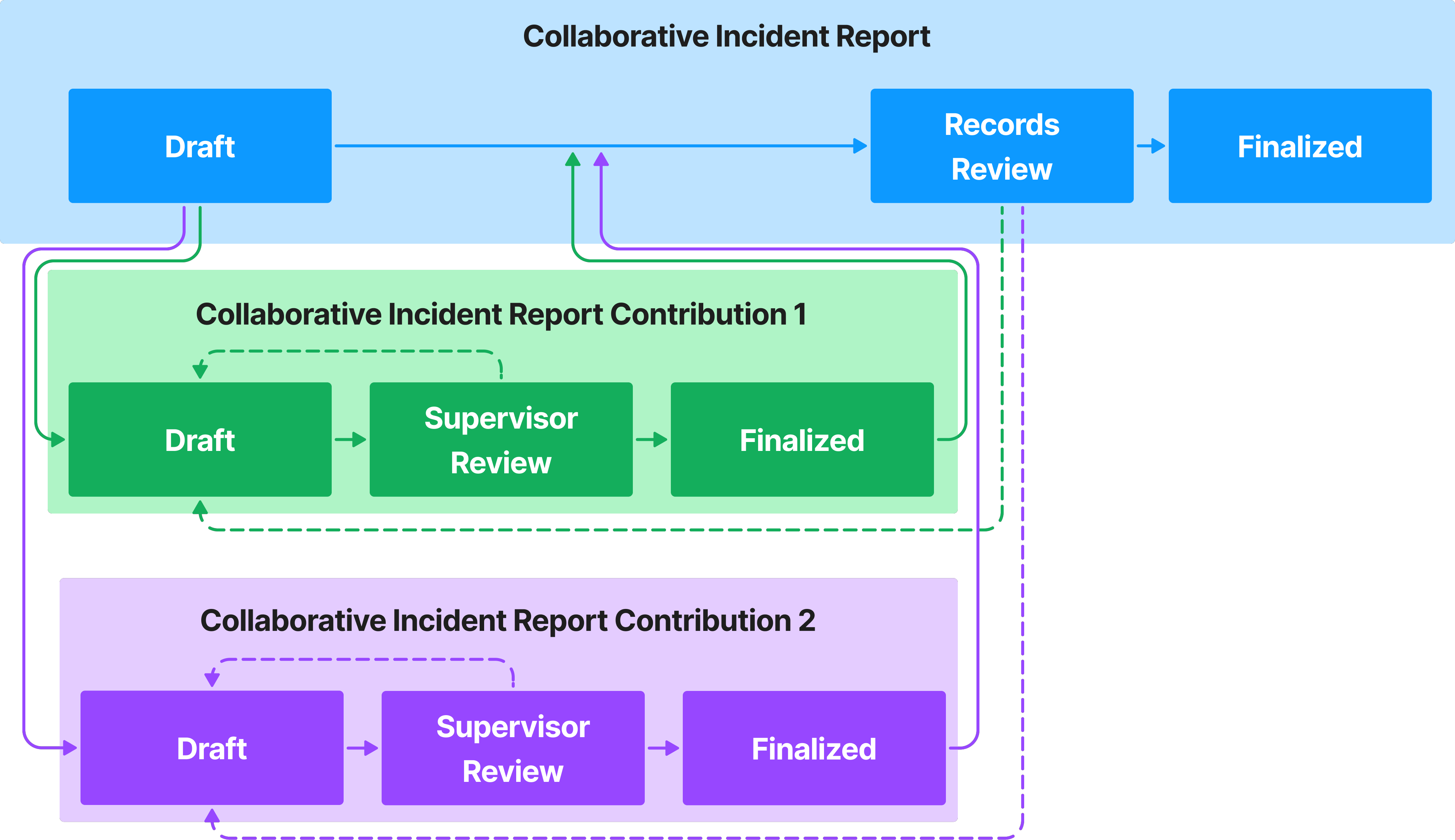
The privileges for workflows appear at the end of the Reports - Records category. Each workflow has its own subcategory, and within that subcategory, privileges are sorted by state. The states are listed alphabetically, not by the order in which they appear in the workflow. For example, Finalized, which is the final state, appears before Review.
The hover tooltip for the first state in the workflow provides additional details about the workflow as a whole and not just that workflow state.
The table below explains how each workflow privilege works. Keep the following in mind when reviewing this table:
- This table is an exhaustive list of all possible workflow privileges.
- Not every workflow contains the states listed in the table.
- Some workflows may have a state but not all privileges associated with the state as shown in the table.
- For consolidation purposes, a single Review state is listed, although some workflows may have multiple Review states.
|
Name |
Description |
Additional required privileges |
|---|---|---|
|
Add comments States: Draft, Review |
Lets users add comments in the report sidebar. |
|
|
Assign tasks to others States: Draft, Review |
Lets users reassign reports (currently assigned to themselves or to other users) to other users. |
To change the author of reports currently in the Draft state, users must also have Reassign privileges. |
|
Assign tasks to themselves
States: Draft, Review |
Lets users reassign reports to themselves. |
To change the author of reports currently in the Draft state, users must also have Reassign privileges. |
|
Create tasks States: Draft |
Lets users create reports |
Users must also have the following privileges:
|
|
States: Draft |
Lets users delete empty draft contributions that have been added to a report. |
|
|
Revert finalized reports States: Finalized |
Lets users revert finalized reports. The report is moved back to the Review state. |
|
|
Submit tasks from the {State name} state States: Draft, Review |
Lets users approve and reject tasks in the indicated state. When a task is approved, it moves to the next state in the workflow. When a task is rejected, it moves to the Draft state. The Draft state version of this privilege lets users submit reports for review. (i.e., reveals the Submit button in Report Writer.) |
|
|
View tasks States: Draft, Review, Self-Finalized, Finalized |
Lets users view reports |
Users must also have Task inbox privileges for the task inboxes that contain the reports. |


