Subforms
Subforms are specialized sections that can be added to Entity cards (person, vehicle, property) to capture detailed information. They allow you to edit information specific to one instance without affecting others.
Create a subform when you need to:
- Manage repeated sets of information unique to multiple related entities within a single report
- Print certain information separate from the main report
In a scenario where an incident involves multiple arrests, a subform allows you to create separate arrest forms for each person involved, all within the same incident report. Each arrest form contains the same set of fields, but with unique information for each arrested individual.
Subforms also enable separate printing of specific information. For instance, a subform for towing allows you to print the vehicle removal information without including the full incident report.
Watch this video for an overview of how to use subforms in Form Builder.
Create subforms
Subform creation is currently not supported in Form Builder. If you need a new form, contact Axon Support or your Axon representative.
Edit subforms
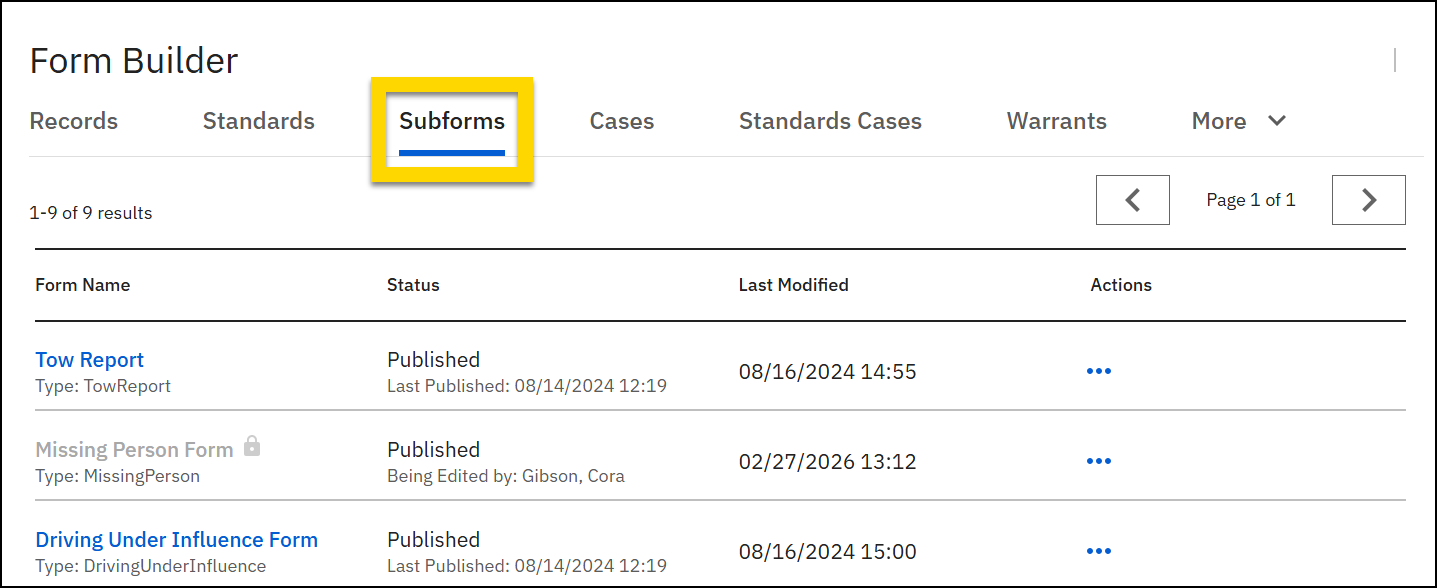
To edit a subform, open Form Builder, switch to the Subforms tab, and select the blue hyperlink form name. When editing a subform, you can:
- Edit field titles
- Add or remove fields
- Add help messages to explain field requirements
- Adjust field widths
When you edit a published subform, you create a draft of that form, and the edits you make are considered a "draft" until you publish the subform. This means that the changes you make in the form won't appear to users in Report Writer until you publish. When you do publish, your changes will appear in all forms the subform has been added to.
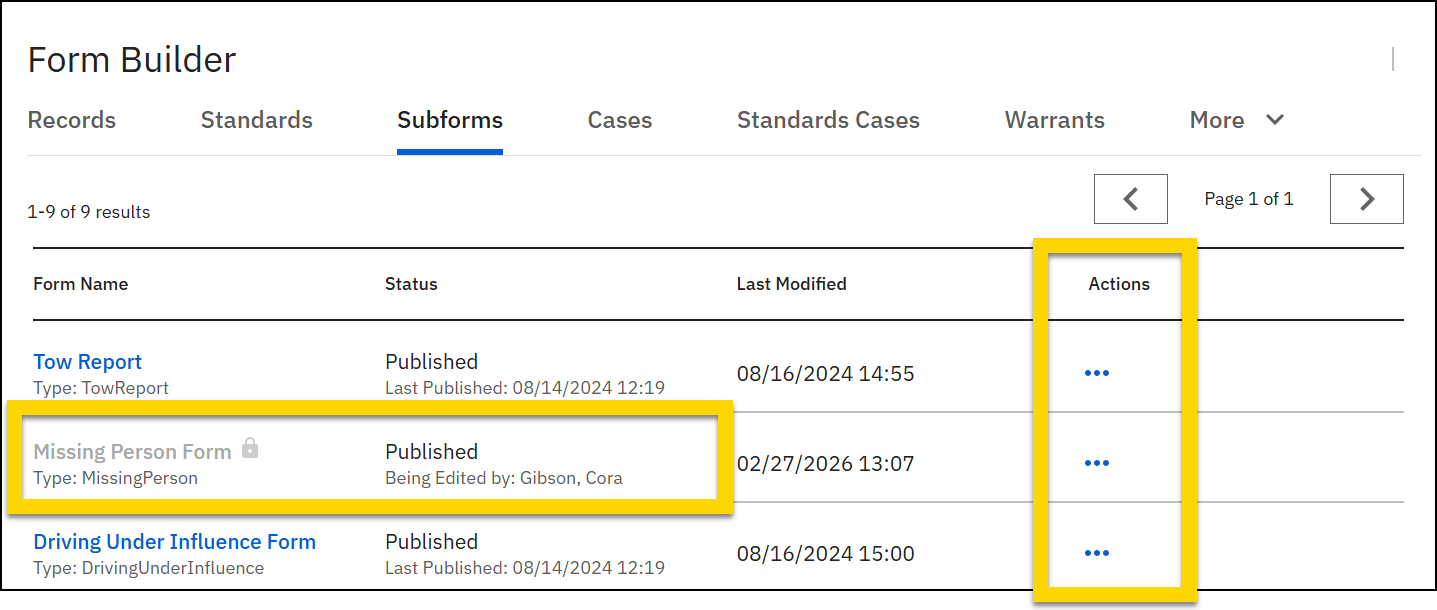
To avoid conflicting changes, only one person can edit a subform at a time. When another user is actively editing a subform, a lock icon appears beside the subform name and the status column displays the name of the person editing the form.
- To make urgent changes while someone else is editing, in the Actions column of that form's row, select More actions [...] > Take over form.
- Remember, if you take over a form from another user, any changes they've made will be lost.
Subform fields and sections can be edited from two different locations:
- Subforms tab: If you open and edit a subform from the Subforms tab, any changes you make will reflect across ALL forms that use the subform.
- Within a form: If you edit a subform while viewing the form, the edits you make will only reflect in that form and not across all forms that use the subform.
Edit from the Subforms tab
Follow these steps to edit a subform from the Subforms tab:
- Open Form Builder.
- Switch to the Subforms tab.
- Select the blue hyperlink name of the subform to open it.
- Adjust the sections and fields as desired.
- Managing fields in subforms is the same as in forms. See Cards and fields for more information.
- Managing sections in subforms is similar to managing them in forms with some minor differences as detailed below.
- Note that you can edit the subform name by selecting More actions [...] > Edit (beside the subform name).
- After making changes to your form, preview and then publish it.
Edit subforms within a form
Editing a subform within a form allows you to make changes specific to that form without affecting other instances of the subform.
If you customize a subform within a specific form, any changes made to that subform from the Subforms tab will NOT carry over to this customized version of the subform.
To edit a subform within a form:
- Open the form containing the subform.
- Open the entity-backed card (offense, person, vehicle, or property) where the subform is located.
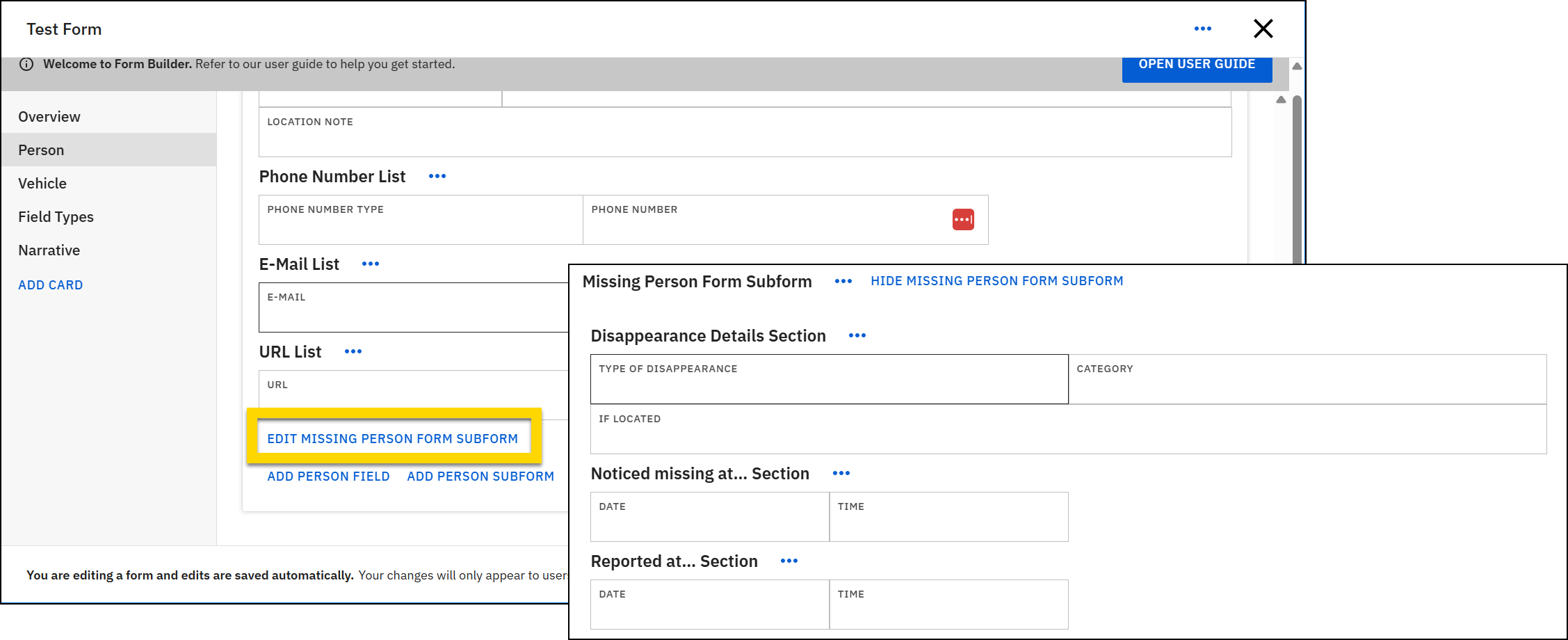
- Scroll to the bottom of the card and select Edit [subform name] subform.
- The subform expands to reveal all fields it contains. Adjust the sections and fields as desired. See Cards and fields for more information.
- Note that you cannot add or remove subform fields when editing the subform from within a form. You must instead edit the subform itself from the Subforms tab.
- After making changes to your form, preview and then publish it.
Add sections to a subform
As in forms, in subforms, fields can be added to sections to make the subforms easier to navigate. You can insert sections as explained in Cards and fields. However, in subforms, there is an Add section button, which behave slightly differently:
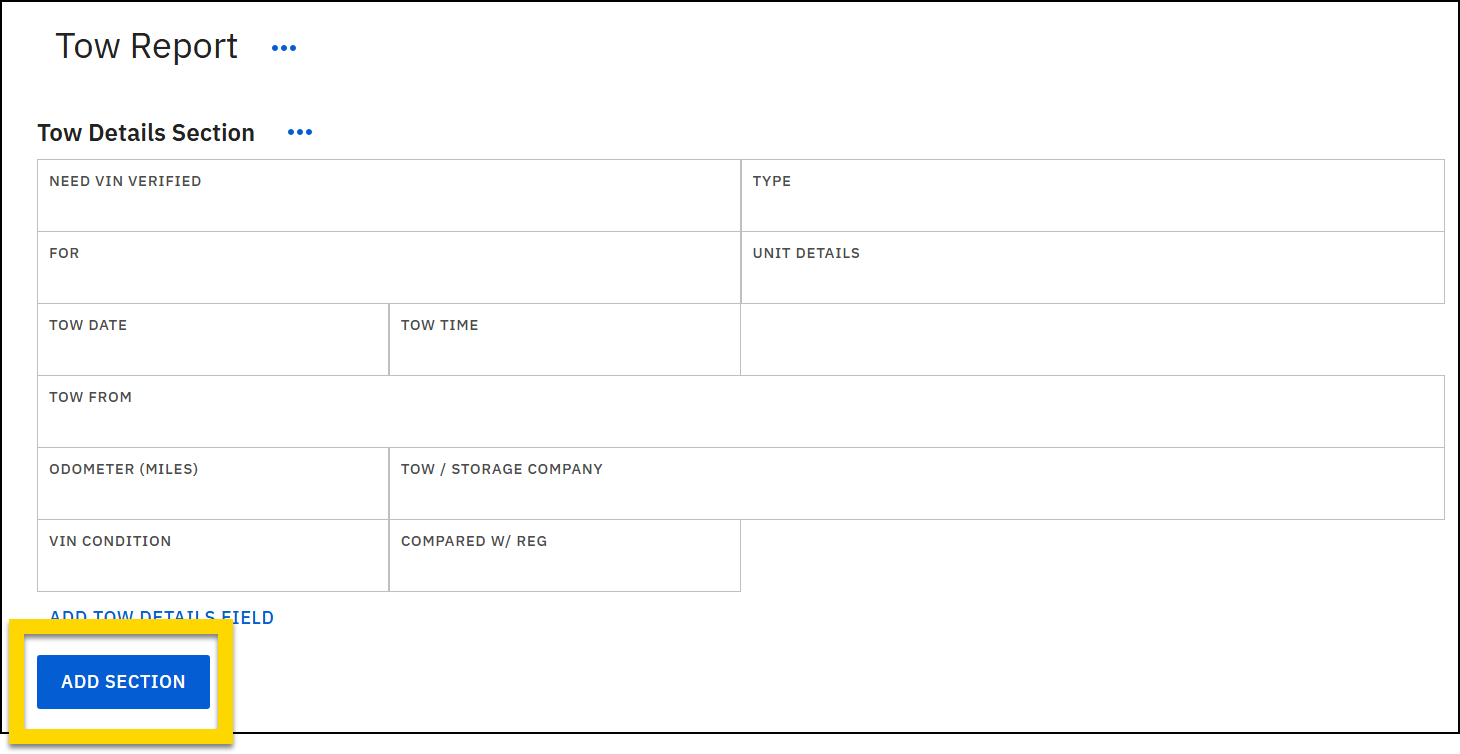
- Scroll down to the bottom of the subform and select Add section.
- You cannot add new sections above existing sections in a subform.
- Choose a card type. Options include:
- Blank card: Starts a blank card for you to add fields.
- Rich text editor: Starts a card with a large text box.
- Enter a card title and description.
- See Add cards for more information.
- Press Save.
- Add fields to the section as you normally would when adding fields to a form.
Watch this video for an overview of how to work with sections using Form Builder.
Add subforms to a form
- Open Form Builder.
- Select Edit on the form you want to modify, then open the Entity card you want to add the subform to.
- Subforms can only be added to Entity cards, which include:
- Names
- Person
- Property
- Vehicle
- See Add cards for more information.
- Subforms can only be added to Entity cards, which include:
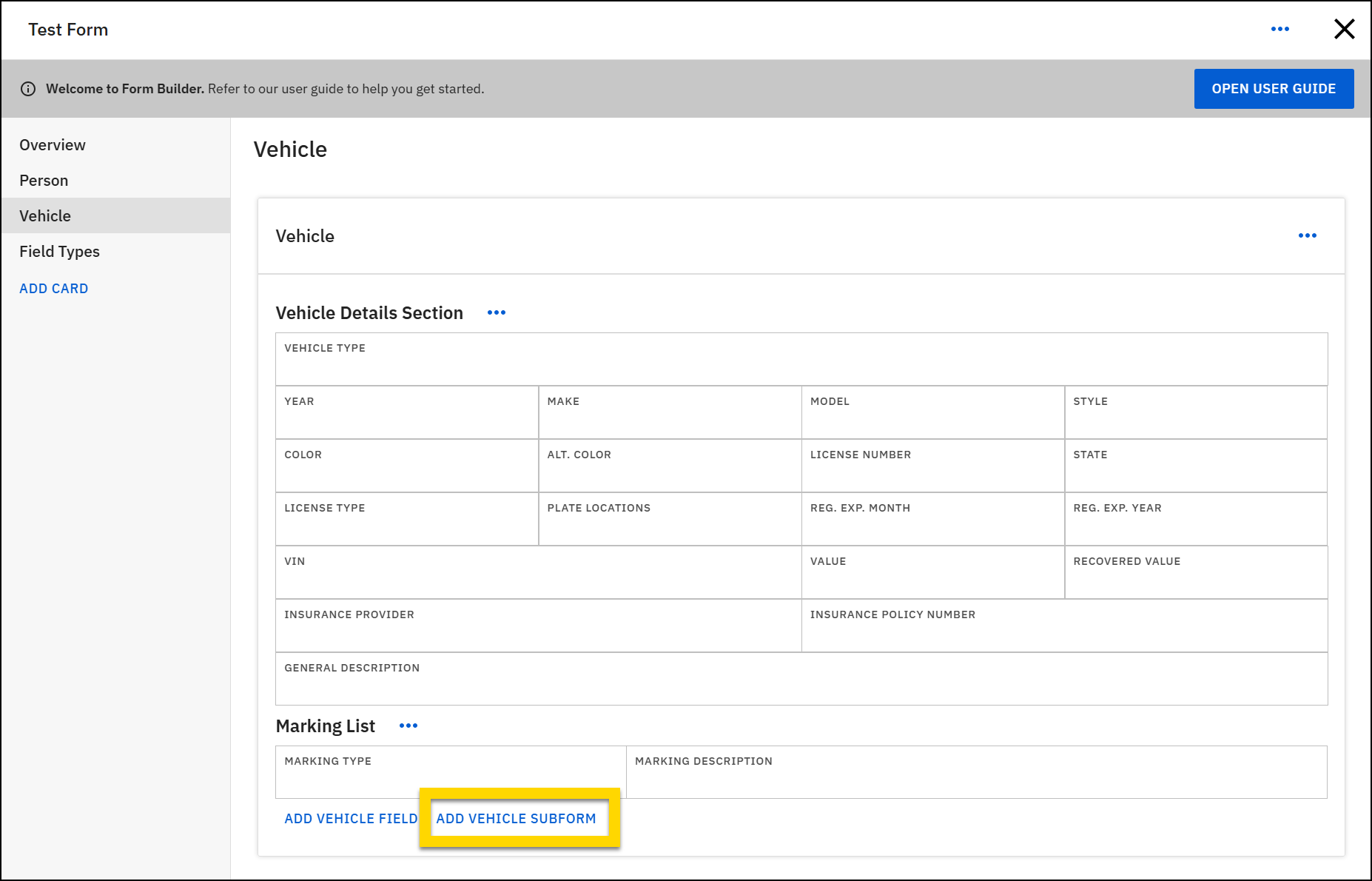
- Scroll to the bottom of the card and select Add [card title] subform.
- Choose a subform from the list, then select Add to form.
- After making changes to your form, preview and then publish it.
Remove subforms from a form
Like fields, a subform cannot be removed from a form if the form has been published. To remove a form:
- Open the form that contains the subform.
- Open the entity Card where the subform is located and scroll down to the subform.
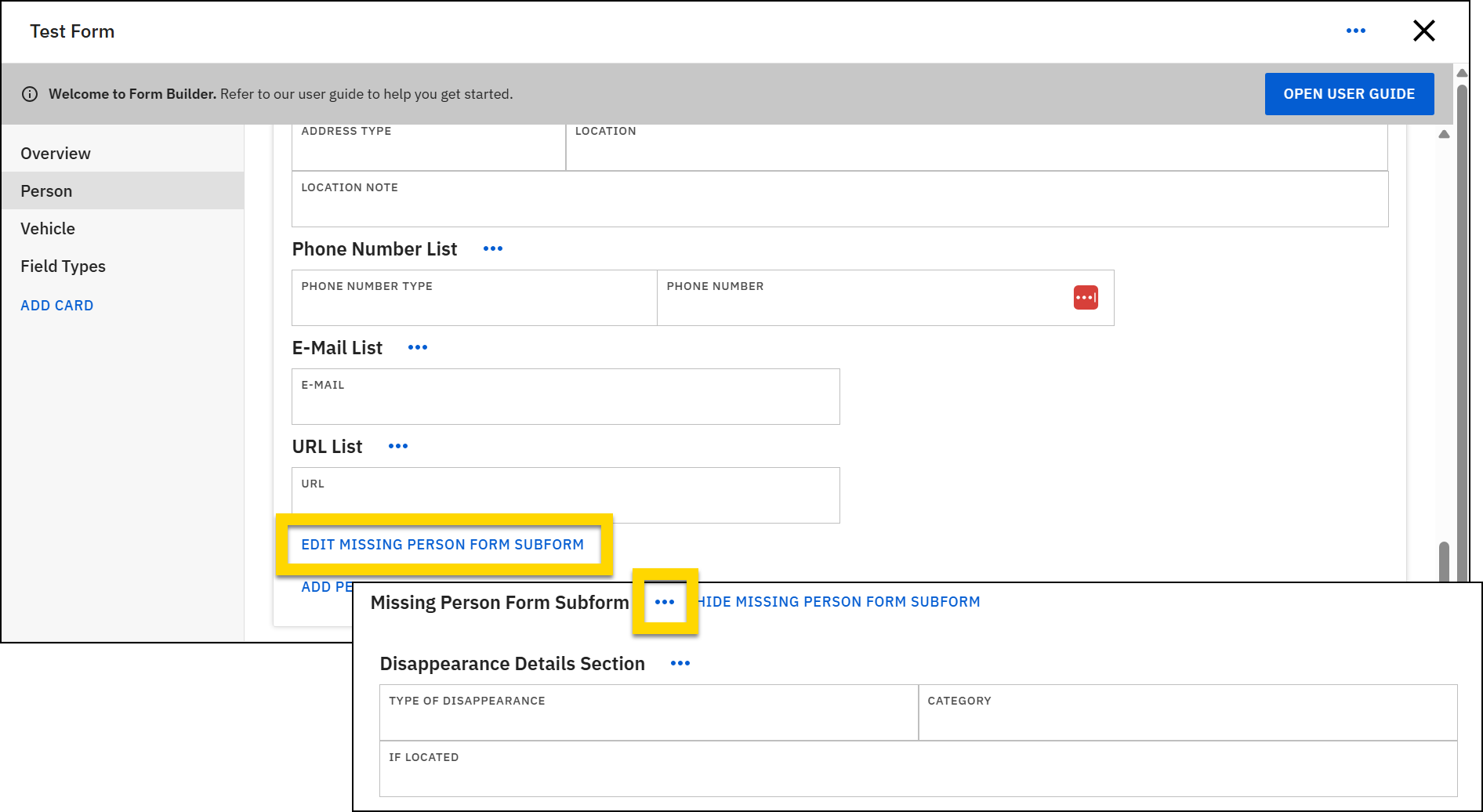
- Select Edit [subform name] subform to open the subform.
- Next to the subform name, select More actions [...] > Remove subform.
- When removal confirmation message appears, select Remove.
- After making changes to your form, preview and then publish it.
Publish subforms
In order for a subform to be added to forms, it must be published. To publish a subform:
- First, if you want to preview how the form will look, you must open a form that contains the subform and preview the form.
- Once the form is in Preview, open the card containing the subform, scroll to the bottom, and select the button to add the subform to the form.
- If the subform looks correct, open the subform from the Subforms tab.
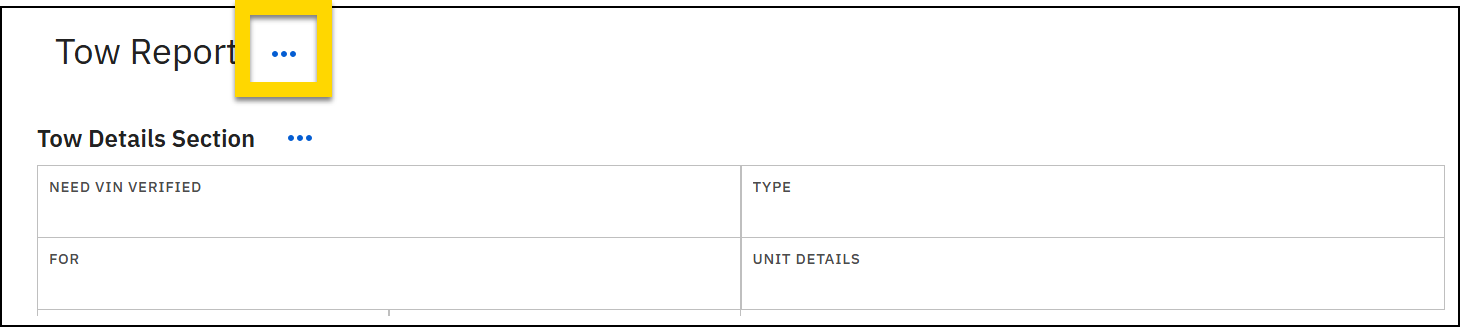
- Select More actions [...] > Publish next to the subform title.
- In the confirmation message that appears, select Publish again.
- Your subform is now published and can be added to forms. If the subform has already been added to any forms, they will be updated as well to show the changes to the subform.
Watch this video, starting at 01:42 for an overview of publishing subforms using Form Builder.
Discard subform drafts
As you can with forms, you can discard unpublished drafts of subforms to return the form to its last published version. For more information, see Discard drafts.


