Training
The Training module lets you manage your organization's courses, curricula, and learners to ensure that officers are prepared to perform their duties effectively, safely, and in accordance with law and policy.
When using the Training module, it's helpful to understand how the following terms are used:
- Curriculum: Contains the files the instructor teaches, as well as details about the curriculum, including description, type of training, etc.
- Once created, a curriculum is added to one or more courses, along with a group of learners.
- Course: Contains a curriculum and a set of learners, occurs at a specific date/time (if in-person) or contains a video conference link (if online instructor-led).
- An instructor is assigned to the course and is responsible for teaching that course's curriculum.
- Certificate: A certificate is awarded to a learner after they have completed a course. This certificate is Active for a set period of time. When a certificate expires, the leaner must re-take the course to renew the certificate.
The Training-related actions vary by the type of user and the privileges they have been given. A learner can:
- View courses they are enrolled in
- View courses taken by their team members
Administrators and instructors can:
- Create and manage the organization's curricula
- Create and manage the organization's courses
- Enroll learners in courses
- Take attendance for courses they are assigned to
- Record scores for courses they have taught
- Export training records for in progress and completed courses
- Import training records from other systems
This video contains an overview of training management, including how to create curricula and courses.
My Courses
The My Courses page appears to all users. It displays the list of all courses you are currently enrolled in, as well as all past courses you been enrolled in.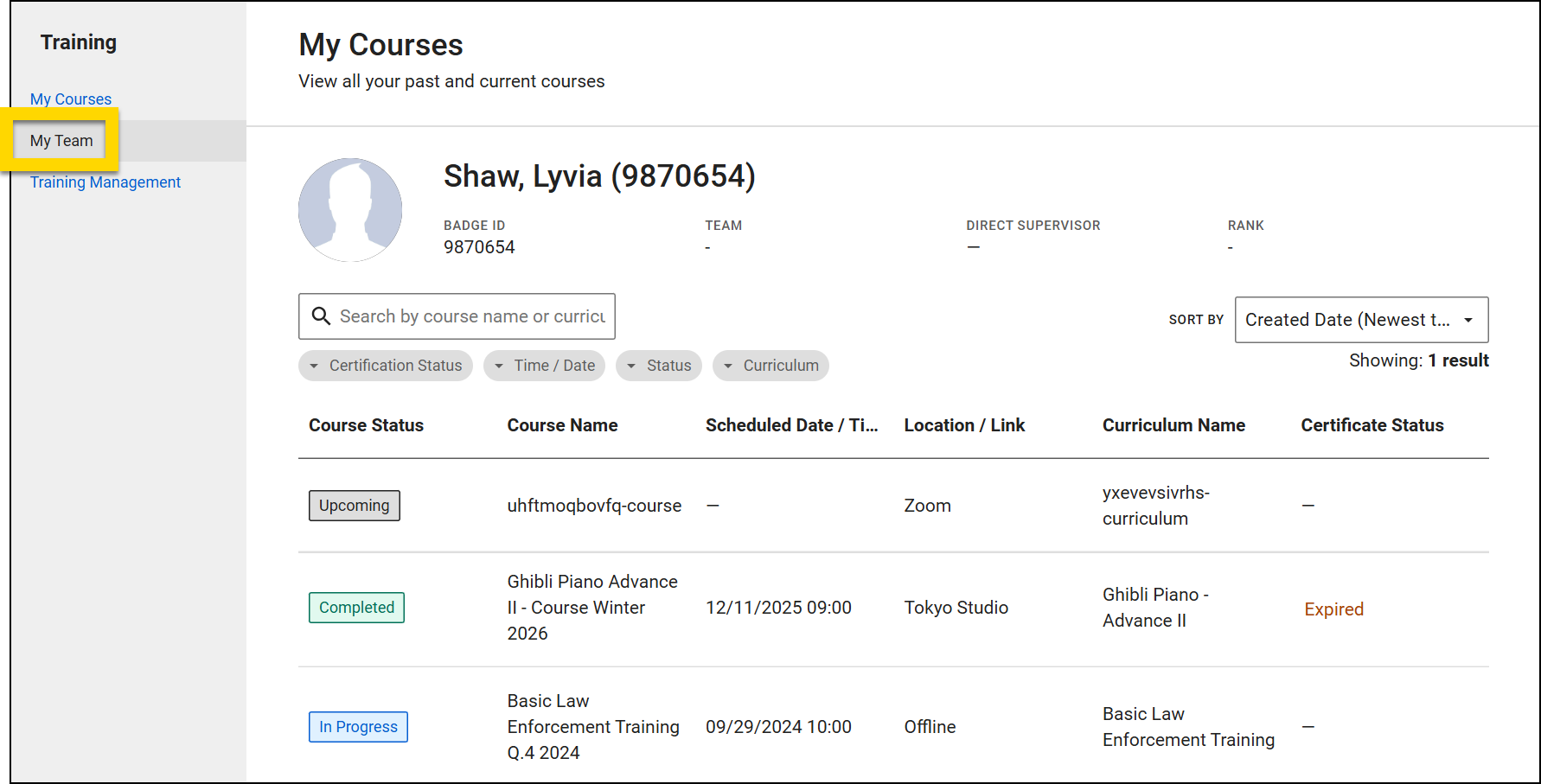
Use the search bar to find a specific course or curriculum and the filters to refine which courses are displayed in the list. Options include:
- Certification status
- Time / Date
- Status
- Curriculum
Use the Sort By menu to set the order in which courses are listed. Options include:
- Created Date (Newest to Oldest)
- Created Date (Oldest to Newest)
- Scheduled Date / Time (Newest to Oldest)
- Scheduled Date / Time (Oldest to Newest)
The information for each course in the list includes:
- Course Status: The courses shown on this tab can be in one of four different statuses:
- Upcoming: The course has been created and is scheduled for a future date.
- In Progress: The instructor has taken attendance and the course is in progress.
- Completed: The course has been finalized.
- Canceled: The course was canceled.
- Course Name: The name of the course
- Scheduled Date / Time: The date and time the course is scheduled for
- Location / Link: The location of the course. If the training is an online instructor-led course, the video conference link appears here.
- Curriculum Name: The curriculum taught in the course
- Certificate Status: Whether the certificate associated with that course is Active or Expired
Select a course name to open the course and view the course details page. At the top of the page, basic information about the course is displayed, including name and status
If the course has been completed, the Result section displays score, attendance, and certification. Additional course information, including details and training material appears below the results. Use the arrows to expand and collapse sections.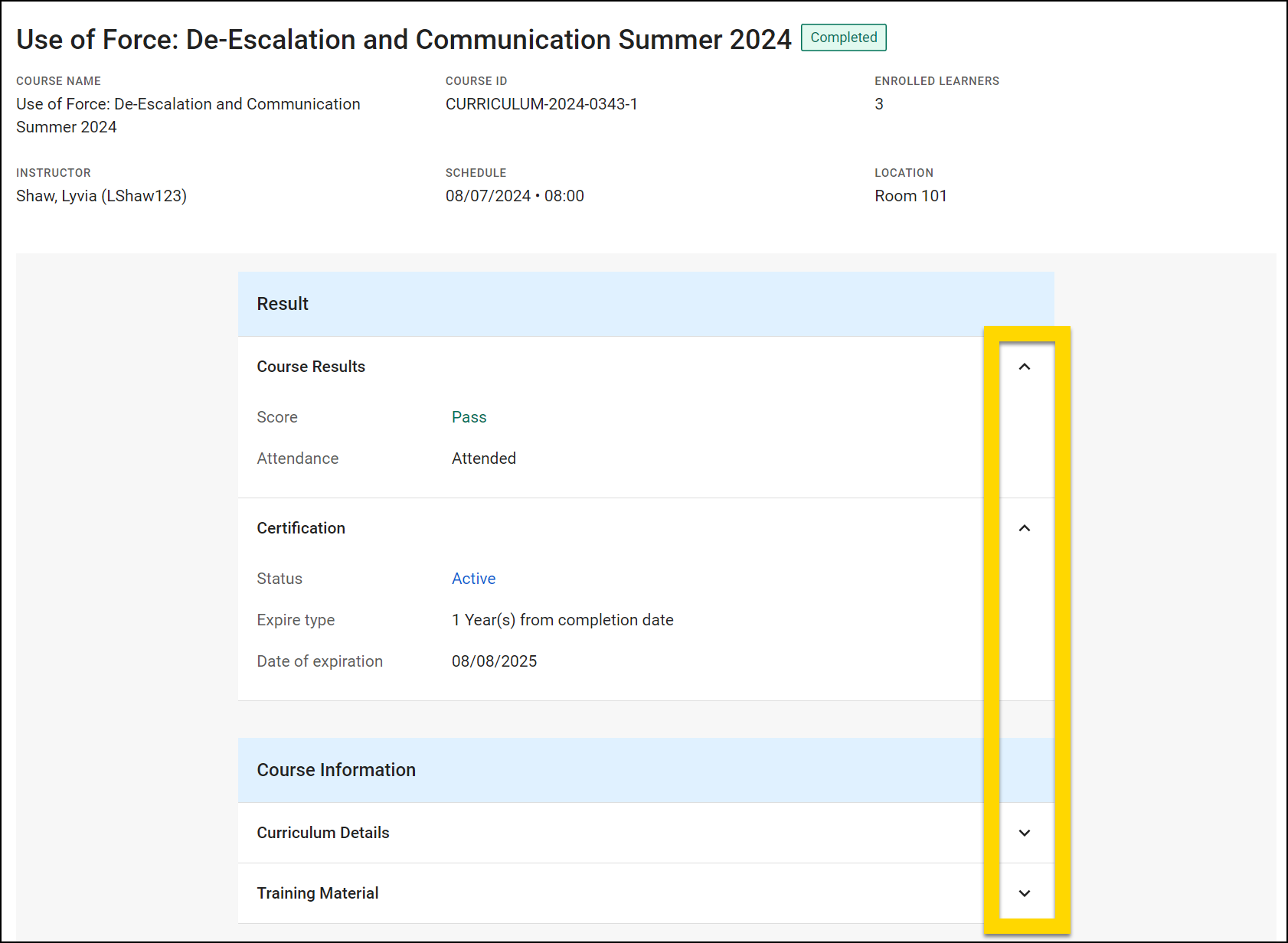
My Team
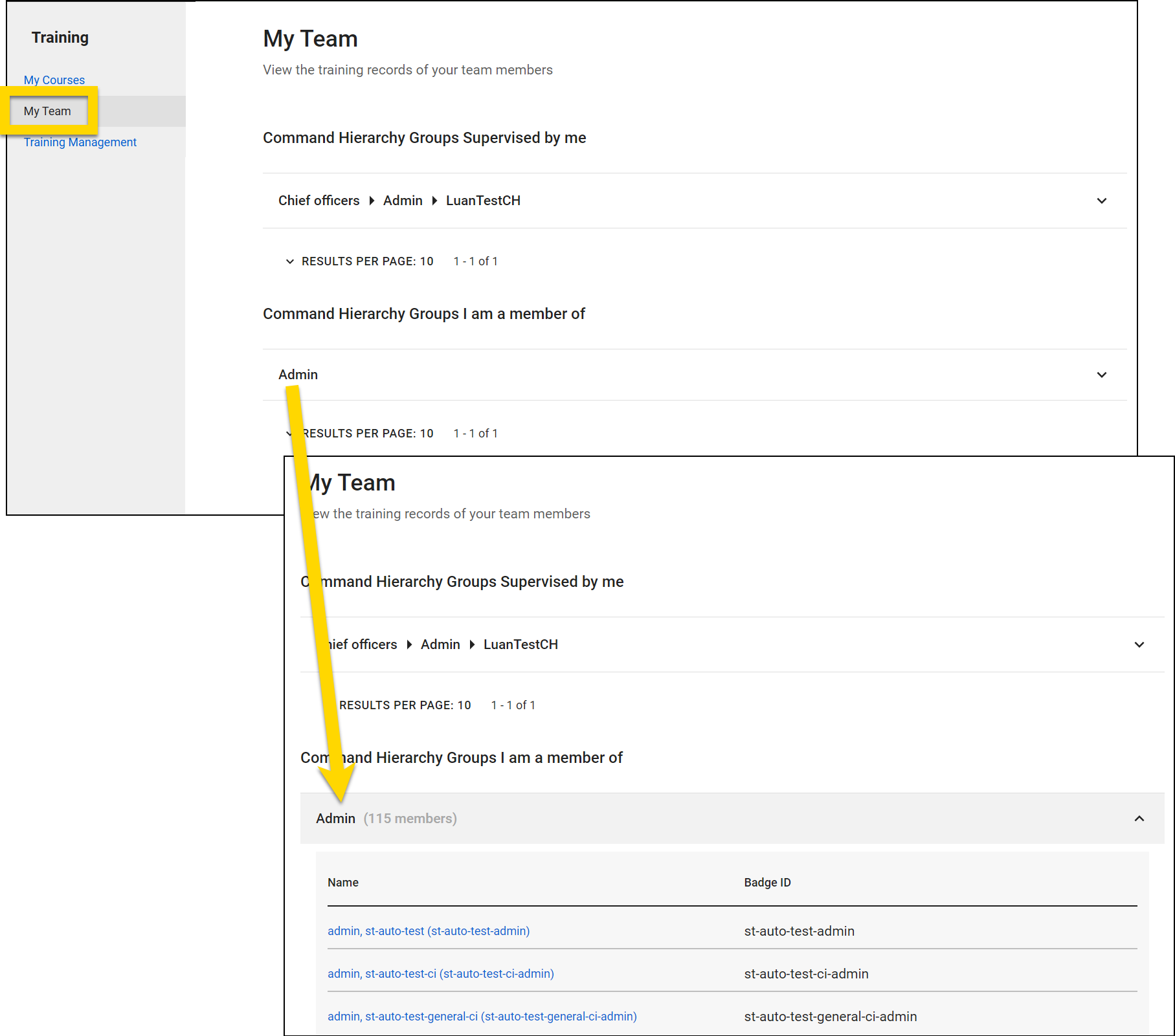
The My Team page lets users with specific privileges view training records for their team members. The teams you belong to appear in two categories:
- Command Hierarchy Groups Supervised by Me: Teams you supervise
- If you do not supervise any teams, you will not see this section.
- Command Hierarchy Groups I am a member of: Teams you belong to
The information in these sections is based on the information in the Command Hierarchy.
Select a group to expand the section and see the users assigned to that group. Select a user's name to view the courses they have been enrolled in. Users with specific privileges can select courses on this page to view that learner's performance in that course.