PDF templates
The features explained in this article are only available for Axon employees and do not appear in Form Builder.
Contact your Axon representative if your organization needs new or updated print templates.
Agency templates are print templates that use custom layouts, as defined by a PDF or DOCX template, which is uploaded to Form Builder. PDF files are best for simple printouts that don’t require custom formatting. DOCX files are best for more complex printouts with complex formatting.
Follow these steps to create a new agency print template from a PDF:
- Create a PDF template.
- Upload PDF template.
- Create mappings.
- Publish the form.
Create PDF templates
Before uploading a PDF template to Form Builder, you must first create that template using a PDF creation tool. When creating this template, keep these tips in mind:
- If you use Adobe Acrobat Pro to create forms, see Adobe’s help documentation for more details about creating Adobe forms.
- Make sure your PDF form is formatted correctly and contains “fillable” form fields so that when you upload it to the Edit Template tool, the form fields are identified correctly.
- Each form field must have a unique name so the Edit Template tool in Form Builder can identify it.
-
If you know that certain fields will often contain large amounts of text, set those form field’s text size to “Auto”. This setting auto-detects if a large amount of text is being printed in the field and instead of shrinking the text to make it fit the field in a single line, it instead automatically inserts line breaks to keep the text readable.
- To find this setting, double-click on the form field to open the Text Field Properties box, go to the Appearance tab, and set the Font size dropdown to Auto.
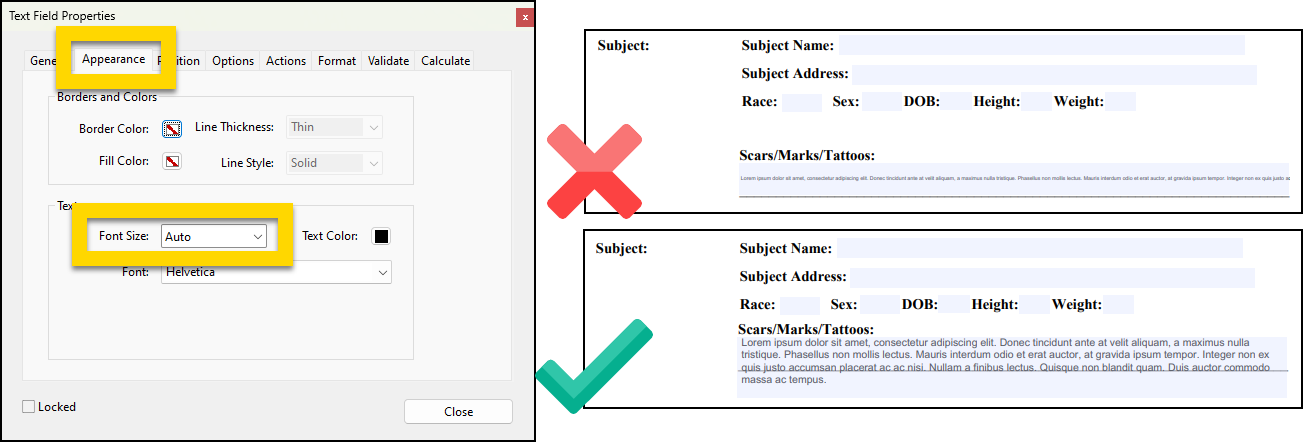
- To find this setting, double-click on the form field to open the Text Field Properties box, go to the Appearance tab, and set the Font size dropdown to Auto.
Once your PDF template is created and formatted as desired, you can open Form Builder and upload it.
Upload PDF templates
To upload a PDF template:
- Open the Administrator Console by selecting the gear icon.
- Select Forms.
- Go to the Records, Standards, or Subforms tab, depending on which form/subform and its associated print templates you want to view.
- Select the blue form name that is associated with the print templates you want to edit.
- When the form opens, select More actions [...] > Edit print templates.
- Switch to the Axon templates tab.
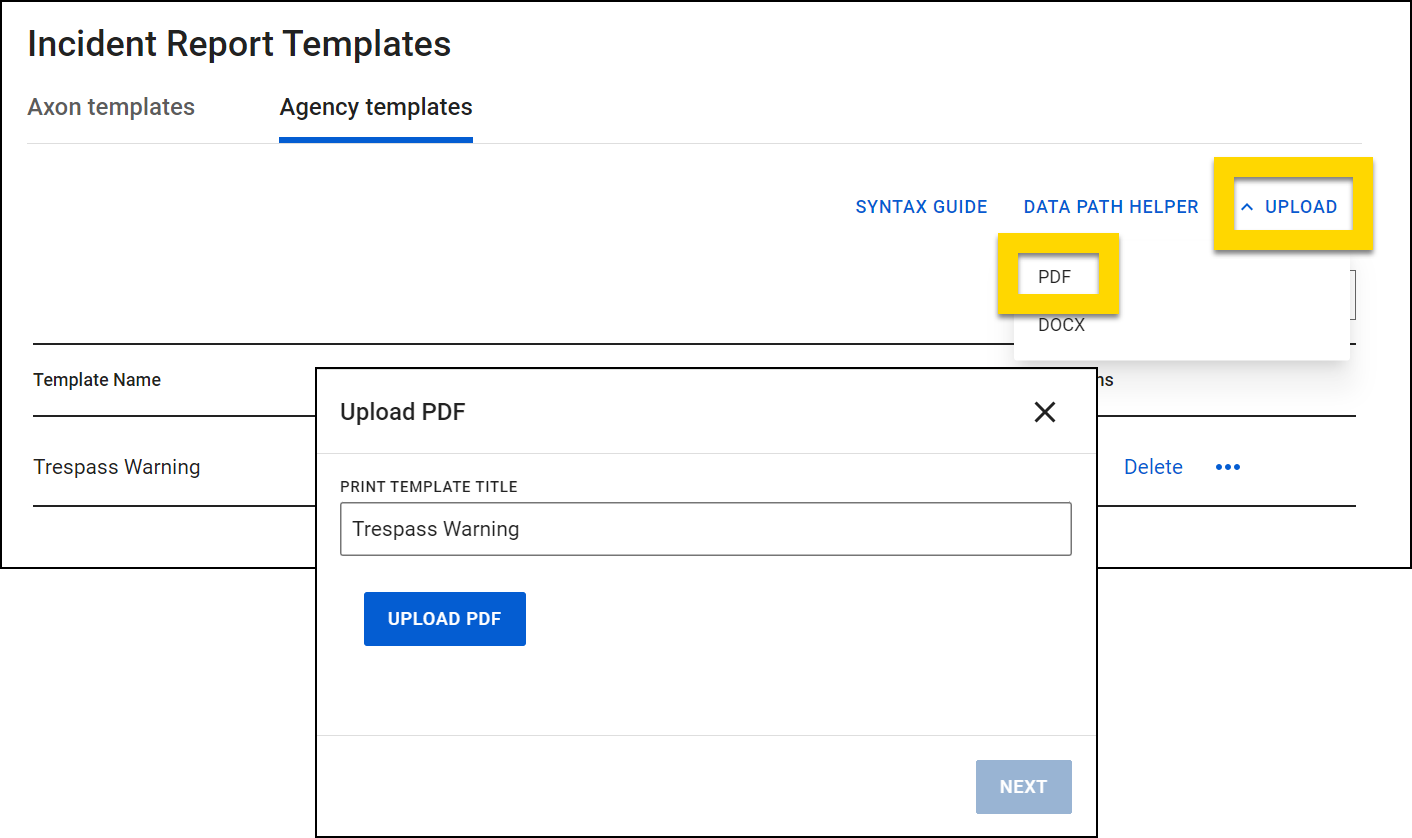
- Select Upload > PDF.
- Name the template, select Upload PDF, and select the PDF template file from your computer.
- Print template names must be unique; you cannot create multiple print templates for the same form that have the same name.
- Select Next to move on to the next step of creating mappings for the PDF template.
Create mappings
Once a PDF print template is uploaded into Form Builder, you must create mappings, which indicate which data from a report should print to which area in the print template. You can create these mappings immediately after uploading a new template or by selecting Edit on an existing template and taking these steps:
- Select a blue field in the PDF template preview.
- Enter a Data Path or expression in the Field Data Path(s) field. This Data Path should correspond to the form field whose data you want to appear in that field in the print template.
- Select Data Path Helper to view and copy any Data Paths from the report the print template is being created for.
- Refer to the Data Path syntax guide to ensure your expressions are formatted correctly.
- Select Next.
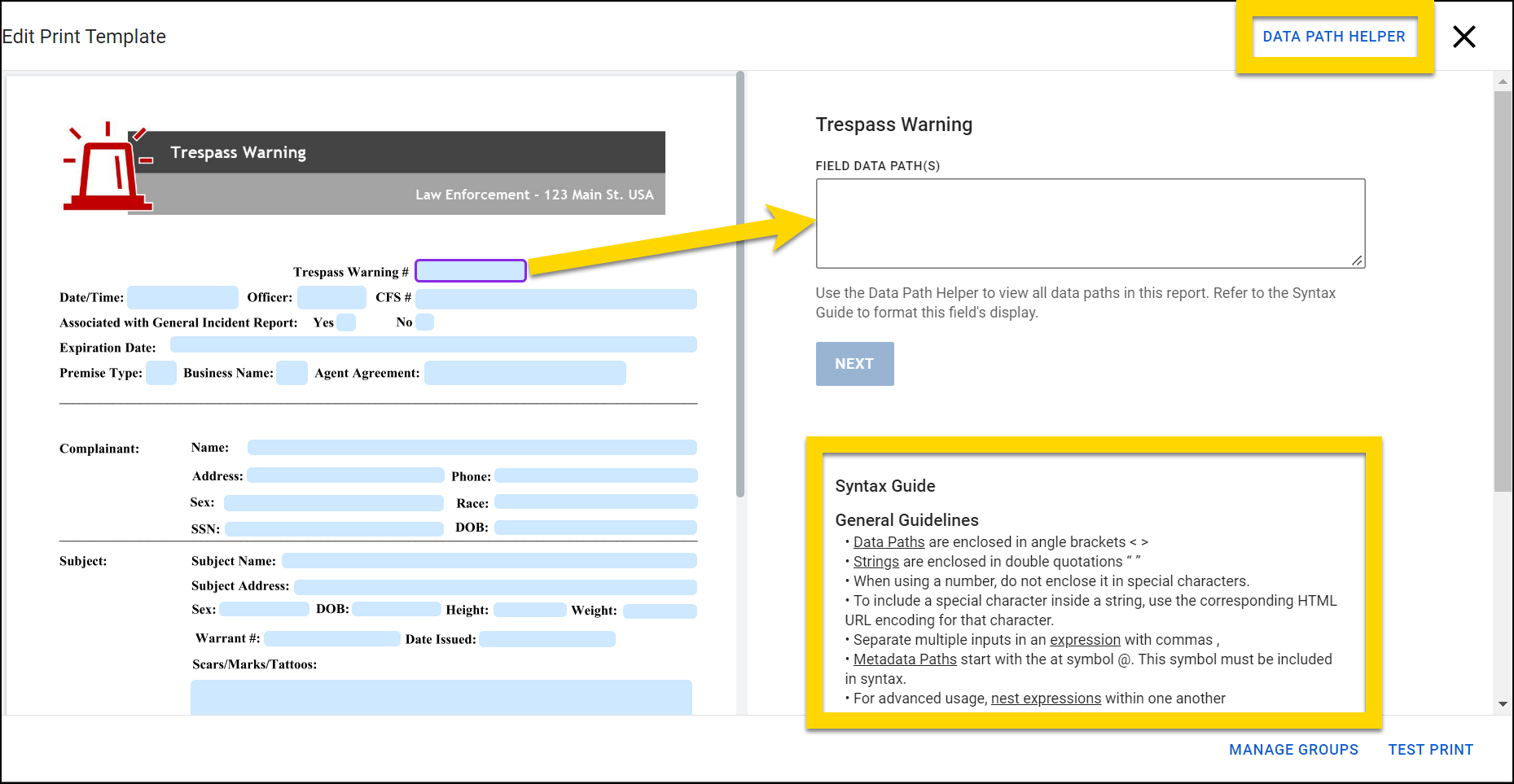
- If the Data Path or expression doesn’t contain any errors, that field in the PDF preview will display the text you entered in the Field Data Path(s) field, the PDF field will turn green, and the print template tool will auto-select the next field in the PDF, allowing you to enter a mapping for that field.
- If the text you entered in the Field Data Path(s) field contains errors, a message will display, explaining how to fix the mapping issue.
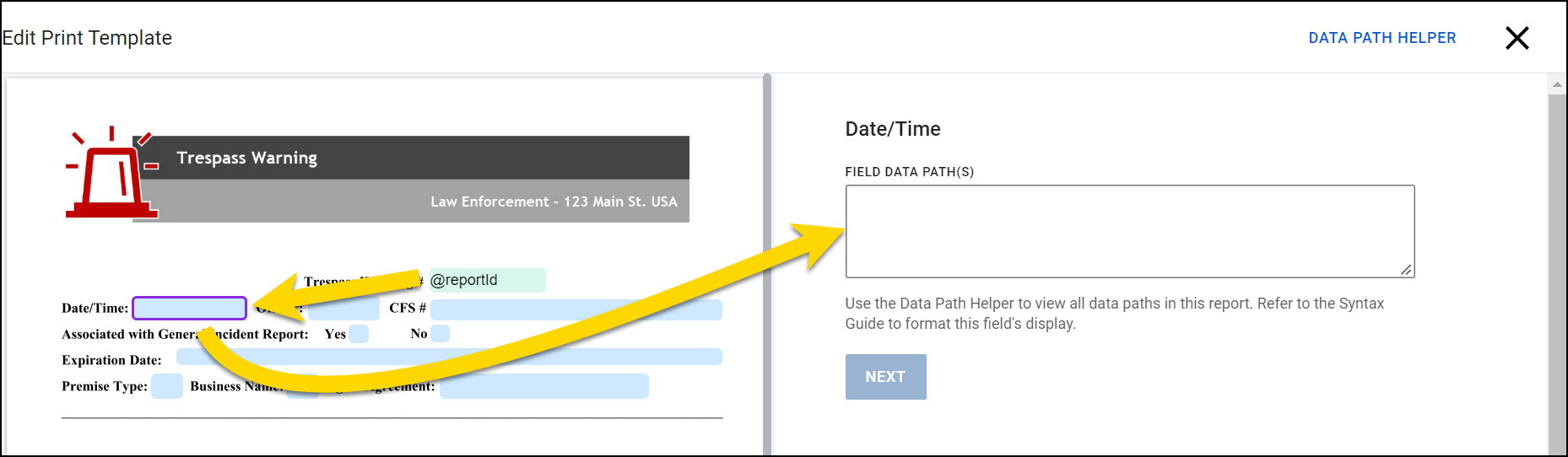
- If the text you entered in the Field Data Path(s) field contains errors, a message will display, explaining how to fix the mapping issue.
- Continue this mapping process until every field in the print template is green. To preview the template and make sure it prints as expected, select Test print.
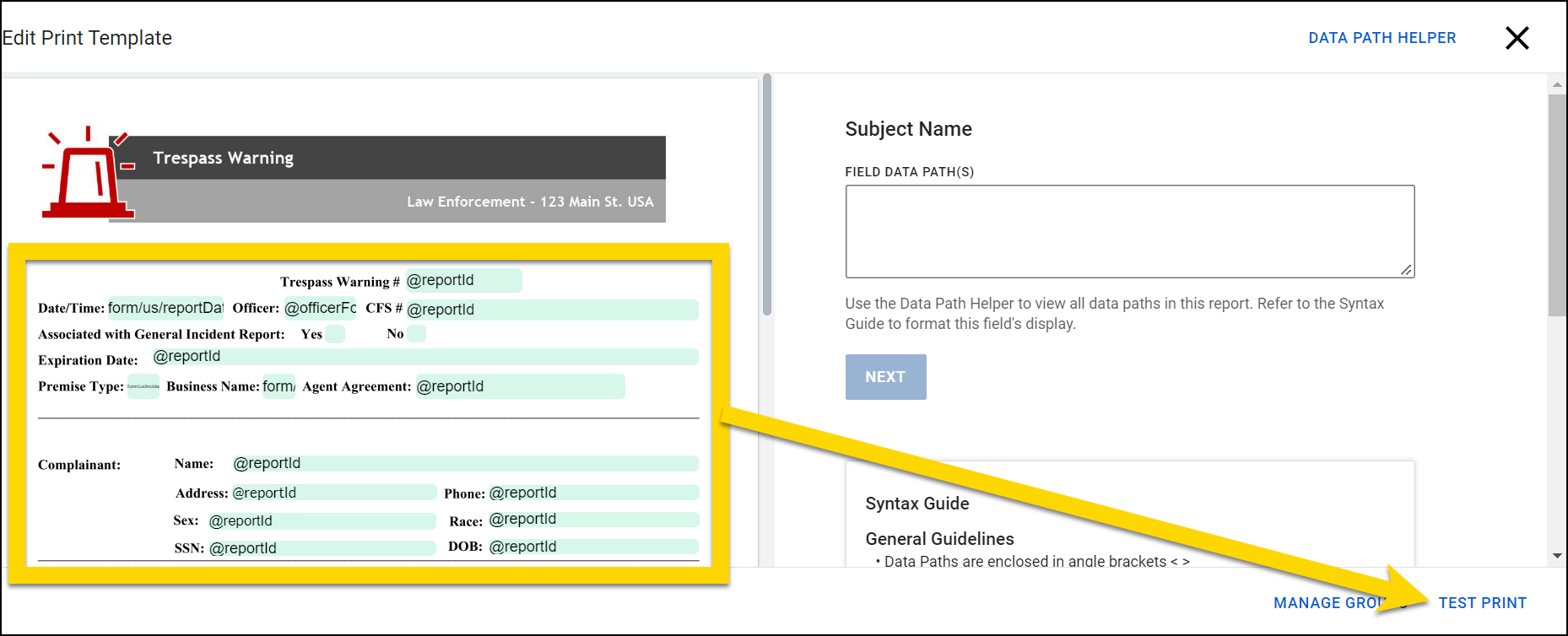
- Once your mappings and testing are complete, you must finalize your updates by publishing the form.
If the Data Path you enter in the Field Data Path(s) field is associated with an entity (e.g., person, vehicle, property), you will be asked to add them to a mapping group.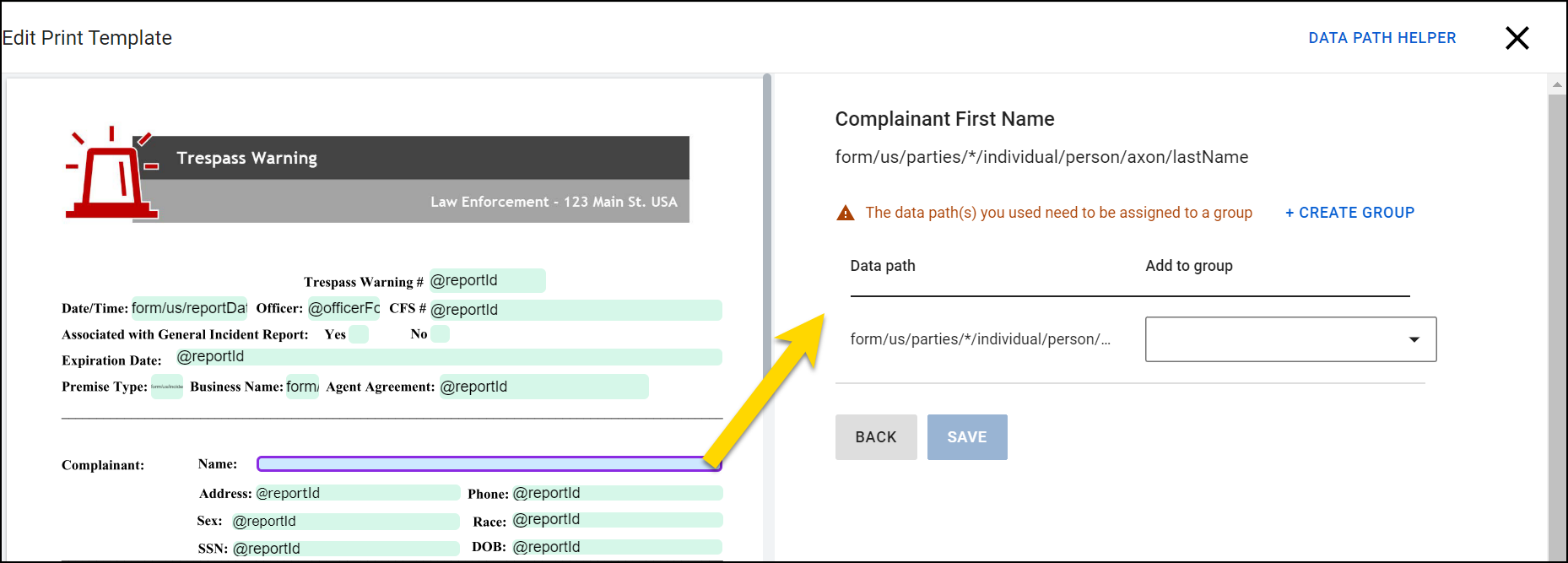
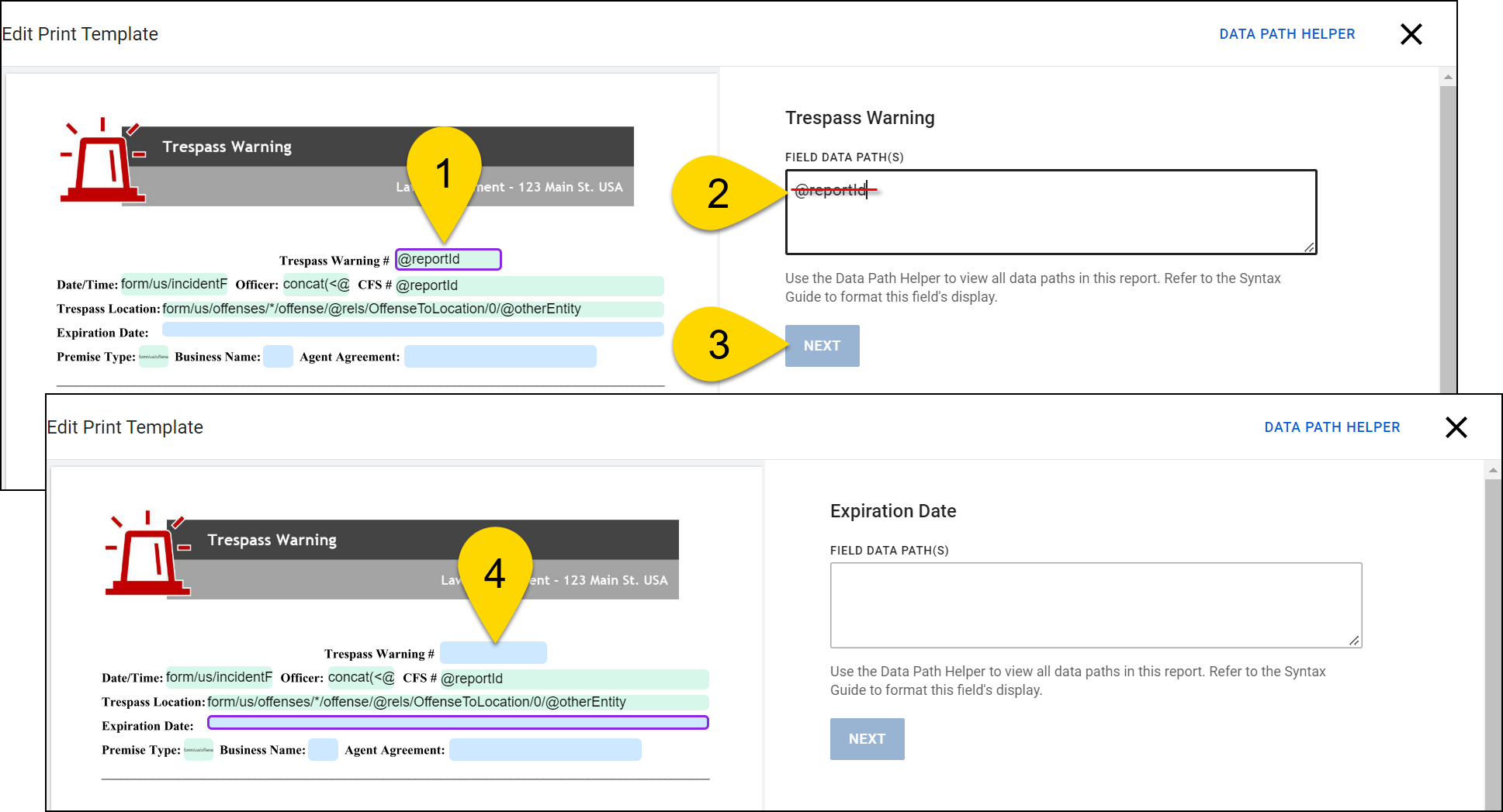
To remove a mapping from a PDF field:
- 1. Select the field.
- Clear the text from the Field Data Path(s) field.
- Select Next.
- The expression will disappear from the field, and it will change from green to blue.
Publish forms
While you are using the Edit Print Template tool to create mappings in your PDF template, your work is saved automatically. You can exit the tool at any time by selecting the X.
Once you have created all mappings, take these steps:
- Close the print template editing page.
- Select Go back to return to the form editing page.
- Select Publish form to publish the form associated with your template.
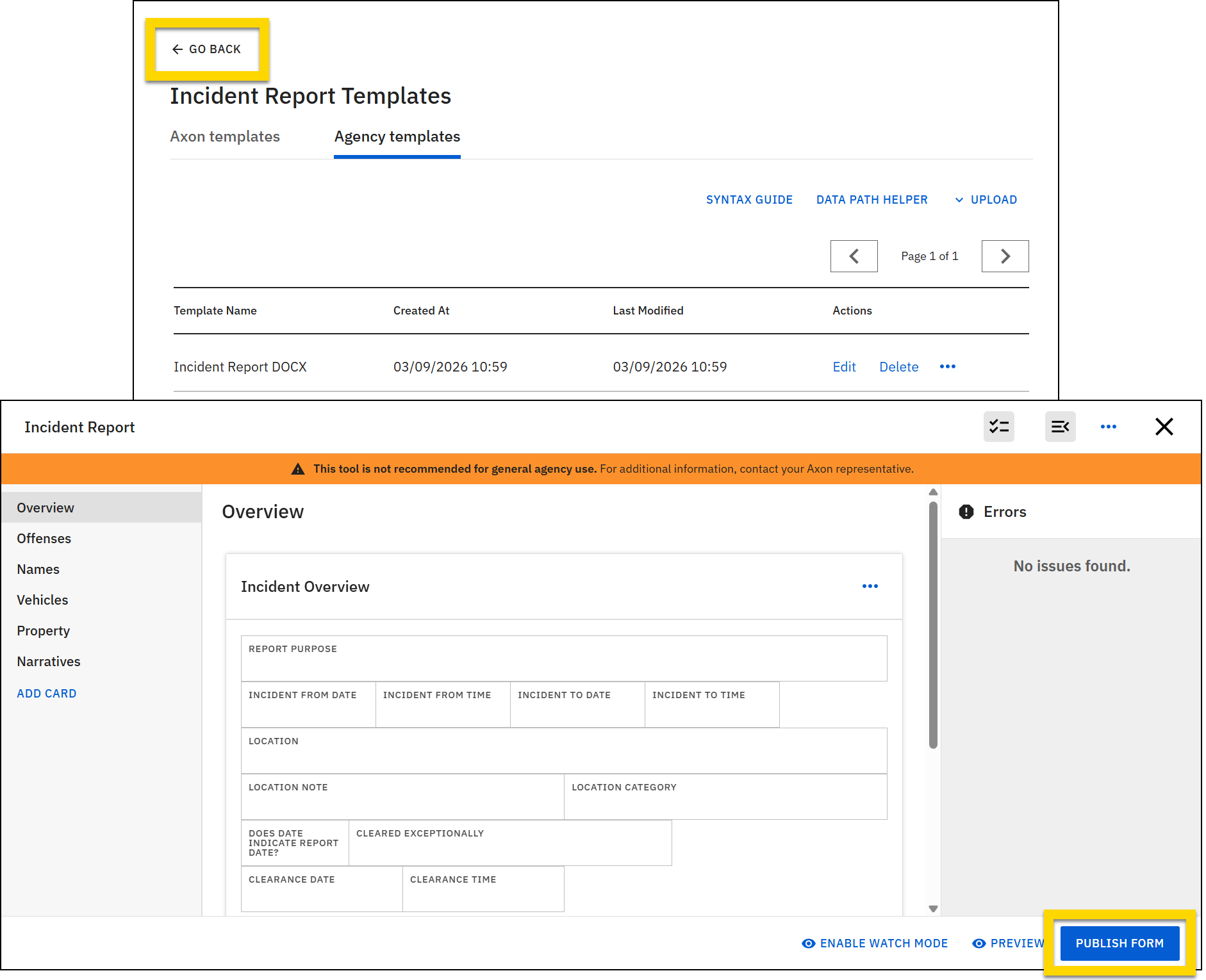
When the form and its associated print templates are published, users can select the print template and print their report.
If a report is in progress while you update one of its print templates or add a new print template for that report type, the template updates and/or new templates will NOT appear for the in-progress report.


