Personnel
The privileges related to the Personnel module appear in the Personnel privilege category.
These privileges MUST be applied to Command Hierarchy Groups. They do not apply to teams.
Access to the Personnel data tool is controlled by the View the Personnel data tool privilege in the Administrator Console privilege category.
The remaining Personnel privileges, which grant control to the module, are contained in the Personnel privilege category.
There are five groups of Personnel privileges, each associated with a different type of user (all officers, direct reports, etc.). Each group contains both View and Edit privileges, letting you specify if you want all users in the Command Hierarchy group with that privilege to be able to view or edit that section of the Personnel profile for the specified user group:
- All Users: Lets users view or edit profiles for all officers at the agency
- Direct Reports: Lets users view or edit profiles of users reporting directly to them
- Indirect Reports: Lets users view or edit profiles of users who report to their direct reports
- My Profile: Lets users view or edit their own profiles
- Peers: Lets users view profiles for other users at their same level. There are not privileges that allow editing peer profiles.
Within each View or Edit privilege group you can specify which areas of the Personnel users with that privilege can view or edit.
- Audit log: Lets users view the audit log on a profile. An Edit privilege is not available for the audit log.
- Commendations and awards: Lets users edit or view commendations or award records.
- Demographics: Lets users edit or view demographic information.
- Discipline: Lets users edit or view disciplinary records.
- Performance review: Lets users edit or view performance review records.
- Photo: Lets users remove or add a user's photo.
- Promotions: Lets users edit or view promotion records.
- Related reports: Lets users view related reports. An Edit privilege is not available for related reports.
- Service history: Lets users edit or view a user's service history records.
- Status: Lets users edit a user's status from "Active" to "Inactive"
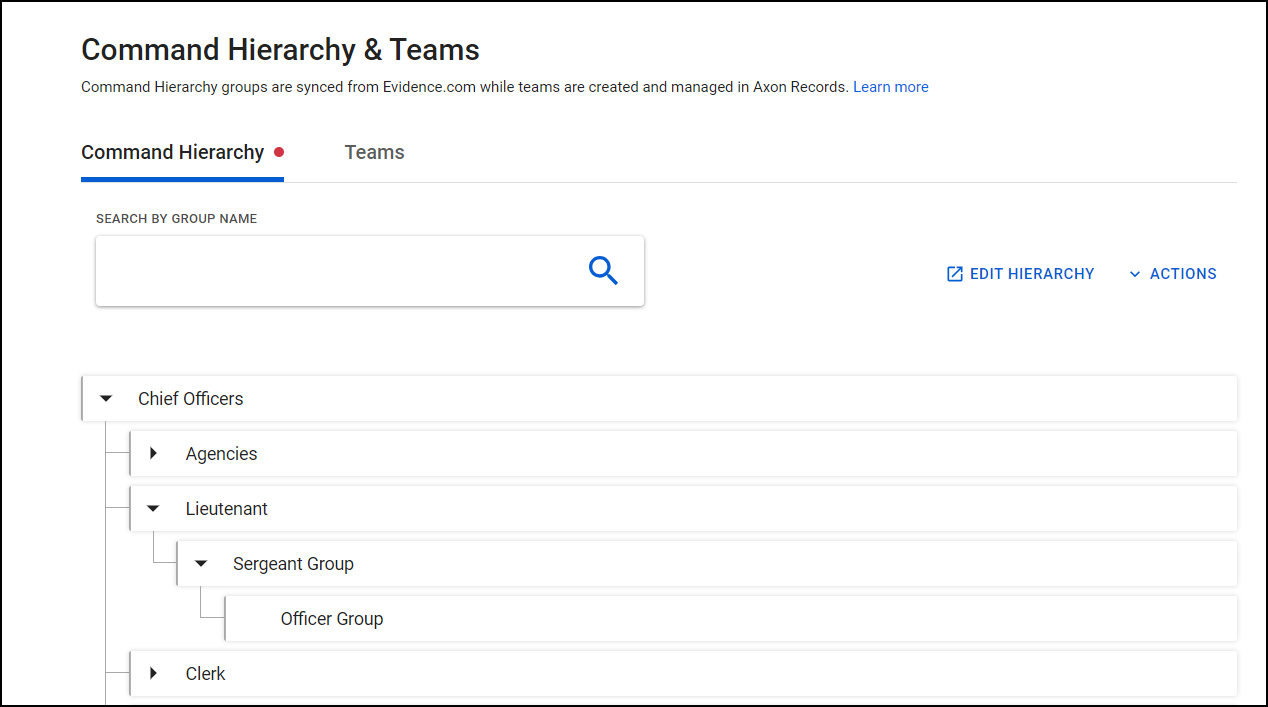
To understand how different Command Hierarchy Groups relate to one another, take this example:
- The Sergeant group is a Direct Report of the Lieutenant group.
- The Officer group is an Indirect Report of the Lieutenant group, as they report directly to the Sergeant group, which in turn reports directly to the Lieutenant.
- The Clerk group is on the same hierarchical level as the Agencies or Lieutenant group. These three groups are Peers.