Review, revise, and finalize reports
This topic explains how reports move through review, revision, and finalization workflows. These workflows include initial review, revising rejected reports, rereview and final approval. Additionally, once a report is finalized, users with specific privileges can revert it as necessary.
Review reports
To review a report:
- Find the report to review:
- If you are already assigned as the reviewer, the task appears in your My Tasks inbox.
- If you are in another inbox, use the filters to find the task. If you are not yet assigned as the report reviewer, before beginning your review, you must assign yourself using the Assign/Reassign buttons on the task inbox or in the Report Writer footer.
- Review the report, adding comments as needed using the sidebar.
- The comment is added to the section of the report you are currently viewing and will only appear when that section is open. Be sure to select the section of the report the comment applies to before you create it to ensure it is associated correctly.
- Users with the appropriate privileges can also edit a report while reviewing it by using the Review and edit option from the More actions [...] menu. This option is only available if the report is assigned to you for review.
- Being able to edit a report during the review process allows reviewers to make necessary changes without the inefficiency of sending the report back to the original author.
- When editing another user's contribution, a gray banner appears at the top of the report stating: "You are making changes on behalf of the user."
- You can make changes to any part of the report, and the changes will automatically save.
- While reviewing the report, select the arrow in the top left corner of the Report Writer header to reveal a list of all reports included in that event. Select a report name to open that report.
- When you are finished with your review, select Approve or Reject in the Report Writer footer.
- Add a routing note and mark if the task is urgent (as applicable.)
- The last person assigned to the report is auto-populated in the Assignee field.
- Select Approve, Request revision, Submit for investigation, or Reject.
Revise reports
If a report you submitted is rejected by a reviewer, a Revise task is added to your My Tasks inbox.
You can add additional event information, citizens, officers, units, investigation details, and files when revising a report. You can also edit any information that already appears in the report. After making all requested changes, select Submit in the Report Writer footer to send the report back for a rereview.
Revert finalized reports
After a report has been finalized, users with the appropriate privileges can revert the finalization. When this occurs, the report is returned to a Review state where it can again be reviewed and rejected for revisions as necessary.
To revert the finalization of a report:
- Open the report and select More actions [...] > Revert finalization.
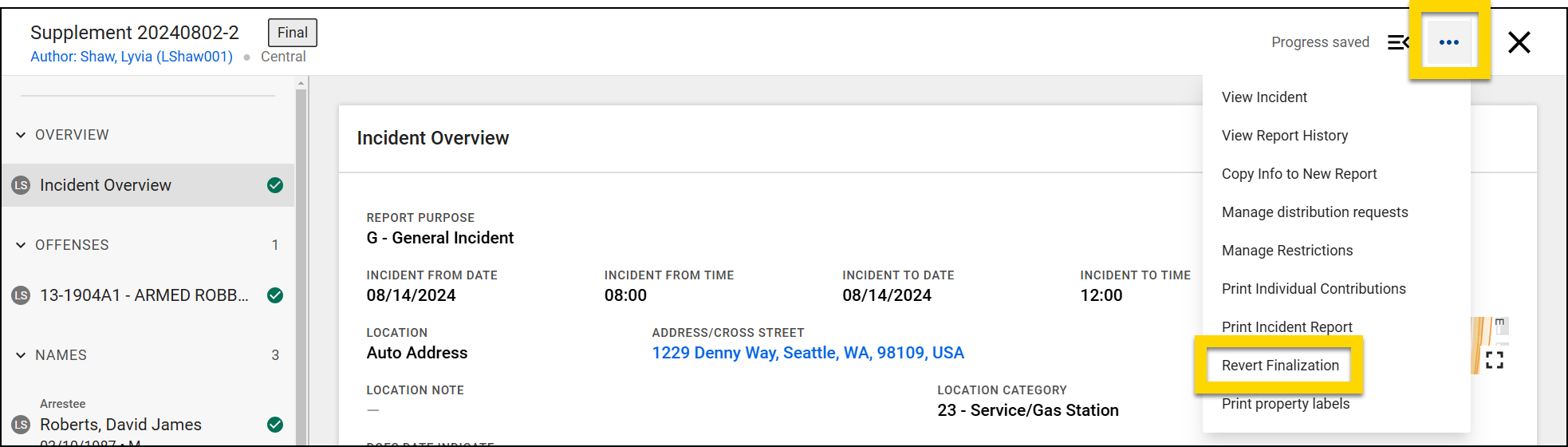
- Assign who the report should be reviewed by.
- Add a note (required).
- Select Revert finalize.
When a report finalization is reverted, the report history shows when the finalization was reverted and who reverted it.


