Task inboxes
When you sign in, the My Tasks inbox in the Tasks module loads. Depending on the Command Hierarchy groups and/or teams you belong to, you may see additional inboxes for different task groups. For more information, contact your administrator.
These inboxes only include Axon Standards tasks. If your agency also uses Axon Records, switch to Axon Records to access those tasks.
The following task types appear in these task inboxes:
- View: Reports or case tasks that can be viewed but not edited because they are currently in review or already finalized
- Do: Case tasks assigned to you
- Write: Reports assigned to be created and not yet submitted
- Revise: Reports previously submitted for approval but returned by the report reviewer for corrections (the report author receives an email when a report they submitted is returned)
- Review: Reports submitted for review
- Rereview: Reports rejected by the report reviewer, then updated and resubmitted by the author
Many inboxes have multiple tabs, each of which contain a filtered list of tasks. For example, a To Do tab may contain tasks for reports currently in progress.
All task inboxes contain a list of filters you can use to limit which tasks are displayed. Select the arrow to expand or collapse this filter list. The list of available filters varies, depending on inbox and tab within an inbox.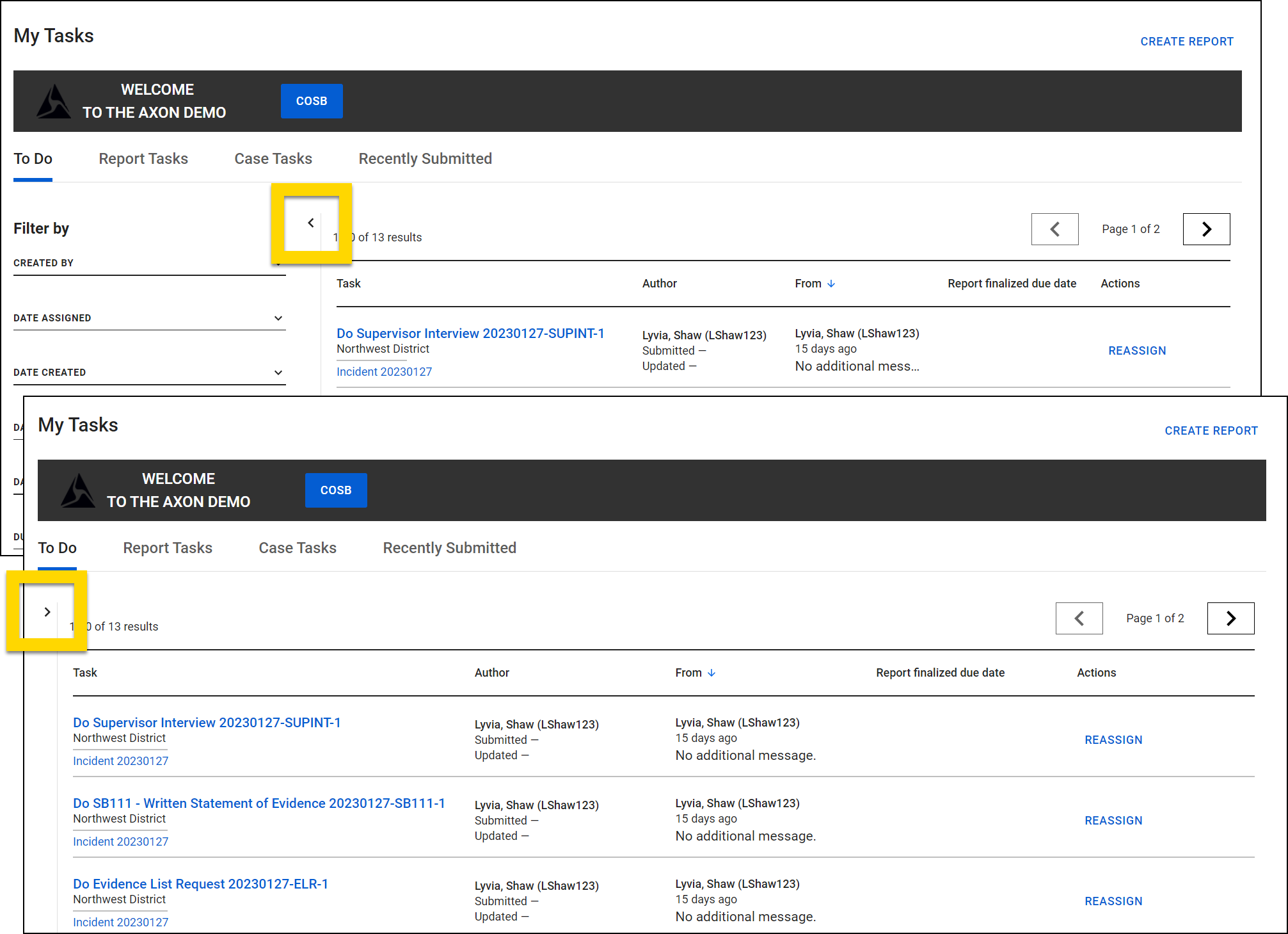
Use the arrow buttons at the top and bottom of the tab to move between pages. Additionally, adjust the number of tasks displayed per page using the Results Per Page menu at the bottom of the page.
My Tasks inbox
The My Tasks inbox shows all tasks that have been assigned to you. If your organization uses the Case Management module, you will also see all case tasks and case document tasks that have been assigned to you.
The most recently updated tasks appear at the top of the list. Use the following options to filter which tasks are displayed:
- Date Last Assigned
- Date Created
- Last Assigned By
- Created By
- Report Type
The following information is included for each task:
Task column
- Report information, including:
- The task name and the report number
- The number for the first report created in an event is 1. The number for the second report is 2, and so on.
- Selecting the task name opens the report.
- The task name and the report number
- Associated event information, including:
- The Event ID associated with the report
- Selecting the Event ID opens the event profile.
- The number of other reports associated with the event
- The Event ID associated with the report
Involved officers column
- The name(s) of officers involved in the event
Last assigned by column
- Who assigned the task
- When the task was assigned
Created by column
- Who created the report
- When it was created
Report finalized due date column
- The date the report should be finalized
- If the date has passed, it will turn red.
Actions column
- For Do tasks, a Reassign button
Announcements banner
An announcements banner on the My Tasks inbox lets you provide customized information to your staff. Selecting the arrow in the top right collapses the banner. If your organization uses both Axon Records and Axon Standards, you can create separate banners to display in the separate My Tasks inboxes in Axon Records and Axon Standards.
The banner supports the following styles:
- HTML rich text formatting such as bulleted lists, bold, and italics
- Emojis
- A button that links to a custom agency website or the Axon website
Axon only allows links to URLs owned by Axon or by your organization.
To update this banner's contents, open the Announcements Banner Update tool in the Administrator Console.
Chain of Command, IA Review, and IA Investigation Tasks inboxes
Reports submitted for review or additional investigation appear in the Chain of Command, IA Review Tasks, and IA Investigation Tasks inboxes. To access these inboxes, you must belong to Command Hierarchy groups or teams with the appropriate privileges.
The most recently updated tasks appear at the top of the list. Use the following options to filter which tasks are displayed:
- Assigned To
- Created By
- Date Created
- Date Last Assigned
- Event ID
- Report Type
The following information is included for each task:
Task column
- The user the task is assigned to
- Who last assigned the task
- When the task was last assigned
- Assign, Reassign, Start review, and Continue review buttons
Report column
- The report name and number
- Who created the task and when
- The involved officer(s)
- The Event ID associated with the report
- Selecting the Event ID opens the event profile.
- The number of other reports associated with the event
Agency Tasks inbox
The Agency Tasks inbox shows all report tasks at the entire agency.
Select More actions […] > Export all to CSV to export the tasks included on that tab to a CSV file. The most recently updated tasks appear at the top of each tab. Use the filters to refine which tasks are displayed:
| In progress | Recently finalized |
|---|---|
|
Assigned To Created By Date Created Date Last Assigned Event Id Last Assigned By Task Type |
Created By Date Created Date Finalized Event Id Finalized By Task Type |
Each tab only contains 1,000 pages of reports. Older reports can be found using Reports search.
The following information is included for each task:
Task column
- Report information, including:
- The task name and the report number
- The number for the first report created in an event is 1. The number for the second report is 2, and so on.
- Selecting the task name opens the report.
- The task name and the report number
- Associated event information, including:
- The Event ID associated with the report
- Selecting the Event ID opens the event profile.
- The number of other reports associated with the event
- The Event ID associated with the report
Assigned to column
- Who is assigned to the task
- Assign and Reassign buttons
Last assigned by column
- Who assigned the task
- When the task was assigned
Created by column
- Who created the report
- When it was created
My Notifications inbox
A new Share report feature and the Notification Center have been released, which are a replacement for this inbox. Contact Axon Support or your Axon representative to enable this feature for your organization.
The My Notifications inbox shows all new tasks you have been notified about. The most recent notifications appear at the top of the list. Use the following options to filter which notifications are displayed:
- Date Notified
- Event ID
- Notified By
- Report Type
The following information is included for each notification:
Task column
- Report information, including:
- The task name and the report number
- The number for the first report created in an event is 1. The number for the second report is 2, and so on.
- Selecting the task name opens the report.
- The task name and the report number
- Associated event information, including:
- The Event ID associated with the report
- Selecting the Event ID opens the event profile.
- The number of other reports associated with the event
- The Event ID associated with the report
Notified by column
- The name of the user who sent the notification to you
Date notified column
- The date you were sent the notification
Action column
- Selecting Dismiss removes the task from your My Notifications inbox.
Send a notification by opening a report and selecting More actions [...] > Notifications in th Report Writer header.


