Event and case profiles
An event profile opens when you select an event from Events search, a task inbox, or the More actions menu of a report associated with the event. If a case is created from the event, the event profile becomes a case profile that contains additional information and options.
Event profiles
An event profile is created as soon as the first report in the event is started. The profile is updated in real-time as the report is completed. The top portion of an event profile displays basic information about the event, including the date/time it was created and who created it. If the incident contains any restrictions, this label appears at the top of the profile.
While the report is in progress, a Draft label appears at the top of the event profile. This draft label remains until the report is finalized. If additional reports are created for the event after the original report is finalized, the Draft label reappears on the event profile until the additional reports are finalized.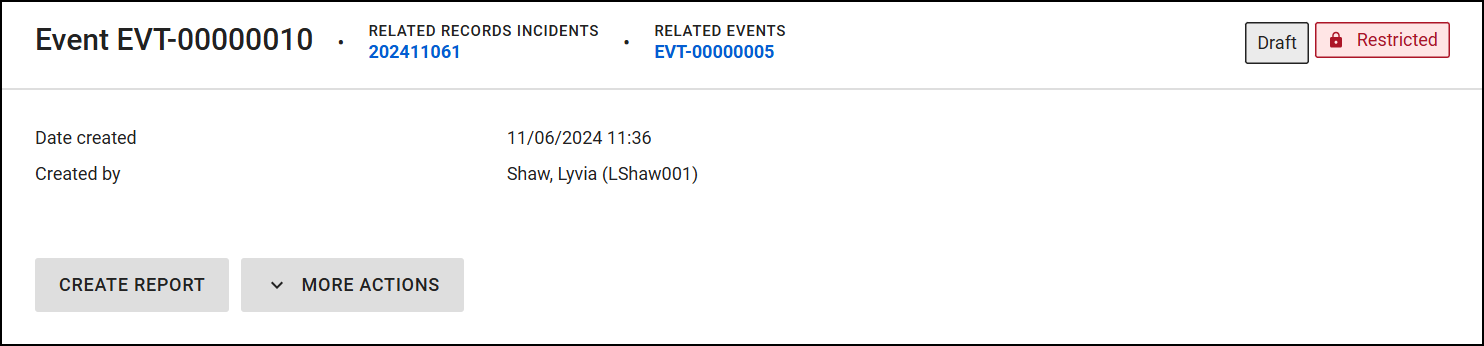
From this top section of the profile, you can take the following actions:
- Select the blue hyperlinks beside the Event ID to open related incidents and events.
- Use the gray button create a new report for the event.
- Open the More actions menu to take additional actions:
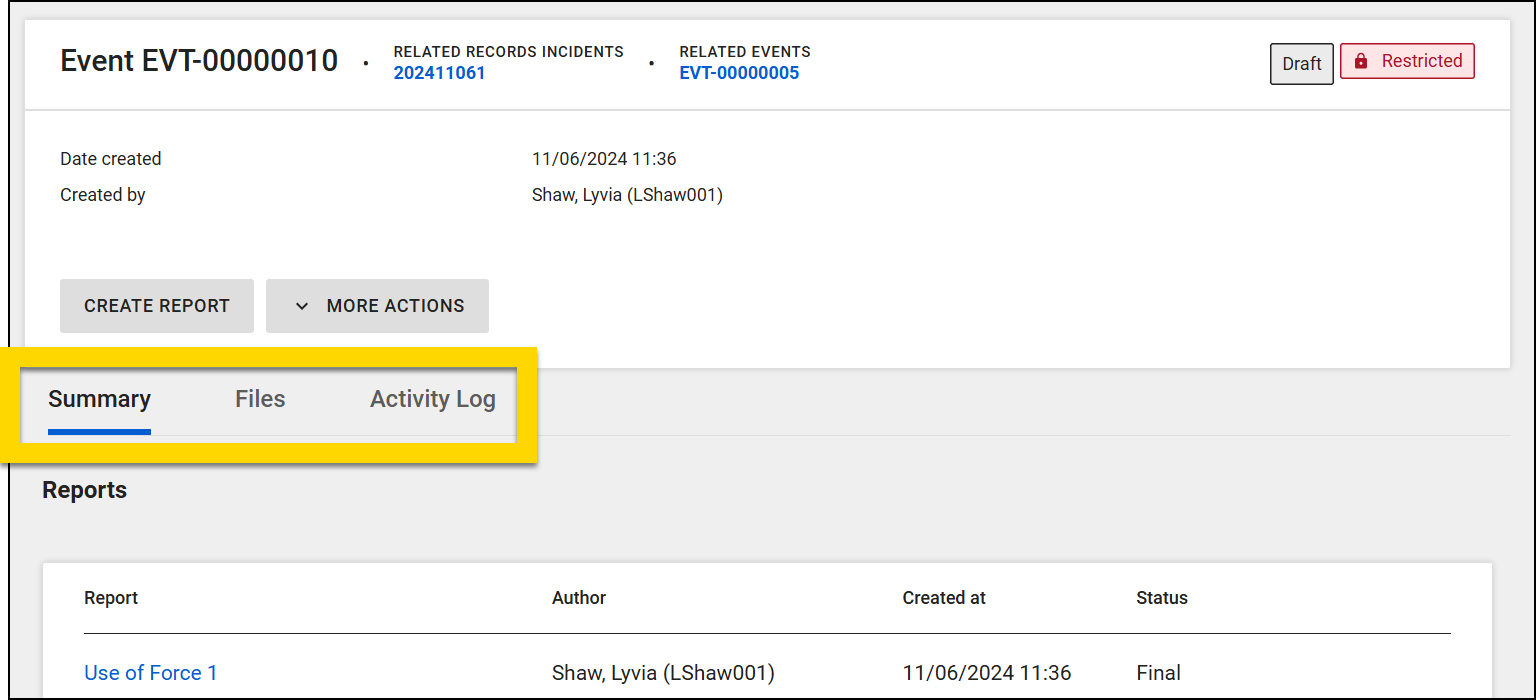
Below the top heading section, you can switch among the tabs to view information and take various additional actions:
- Summary: View a report, person, vehicle, or officer. Select one to open the corresponding profile.
- Files: Mange all files that have been added to the incident, either to the incident report or directly to the incident.
- Activity Log: Manage the log of all actions taken on the event.
Case profiles
When a case is created for an event, the event profile becomes a case profile, which shows additional information and actions.
The case profile is the primary workspace for investigators. It consolidates all information related to the case--reports, tasks, evidence, activity history--in a single view. This unified view helps users manage and progress the investigation efficiently, including:
- View case details, including:
- Unit(s) the case is assigned to
- Lead detective(s) the case is assigned to
- Status (for each assigned unit)
- Internal disposition (for each assigned unit)
- Use the buttons to:
- Create or update the case summary
- Create case documents
- Take case-related actions from the More actions menu:
- View the new case-related tabs:
Some of these options may not appear to all users based on the privileges they have been assigned.
Summary tab
The Summary tab displays all information and reports associated with the event and is broken into the various sections detailed below.
Reports
The Reports section contains links to all reports associated with the event. The original report that started the event is listed first, with all others appearing after it.
Officers
This section displays all officers that have been added to any reports associated with that event. Selecting an officer from the event profile opens the officer’s profile page.
People
The People section contains all people who have been added to any of the event's reports or case documentation (if a case has been created for the event). When it has been added to a report, basic information about each person is displayed, including name, DOB, and sex.
The information for each person reflects data that was accurate at the time the report was written. When viewing a past event, this information may not match the person's current details. For example, at the time of the event, the victim’s name was Debbie Miller. Two years later, her name changes to Debbie Smith. The event profile displays “Debbie Miller,” the name recorded at the time of the event, even after her name changes.
On case profiles, if a person, organization, or vehicle that doesn't already appear in one of the event reports is added to a case task or case document, it appears in its corresponding section under the label, Appears only in Case Documentation. These parts of a case profile will only appear to users who have the appropriate privileges to view case-related information.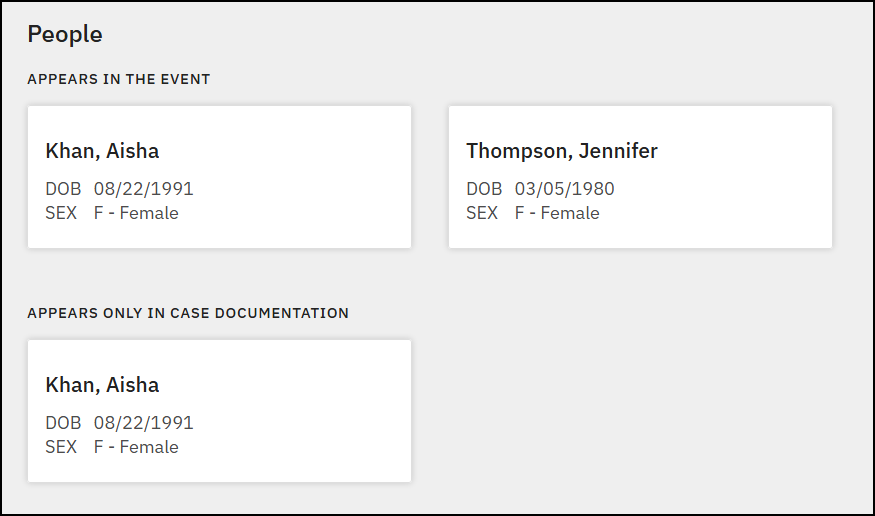
Vehicles
The Vehicles section contains all vehicles who were added to the event reports and case documentation (if a case has been created for the event).
Files tab
All files that have been added directly to an event or to reports associated with that event appear on the Files tab of event profiles.
See Evidence and file management for more information.
Activity Log tab
The Activity Log tab includes all activities performed on that event (e.g., report created, finalized, files added, etc.).
See Activity log management for more information.


