Search

|
Select the magnifying glass icon in the main navigation menu to open Search. |
To run a search, enter names, keywords, or IDs (partial or full) in the top search box. If you enter multiple words, the search results will include all of the words you entered. (i.e., Entering more words decreases the number of search results and entering fewer words increases the number of results.) To run a saved search, open the Saved dropdown that appears beside the search box and choose on of your saved searches. If you enter a date in the search box, the system will only search for that date in text-based fields, such as narratives. To search by date, instead use a date filter field.
Search results are sorted by category (person, vehicle, etc.), and each category displays up to three search results. Use the Sorted by menu to change the order in which search results are listed. Select a search result to open the full report or profile. Select View all to see all results for that category.
To narrow your search to a specific category (person, vehicle, etc.), select one of the search tabs below the search box. These search tab pages include additional filter fields specific to that category.
Saved searches
To speed up your searches, you can save a search you run regularly and later re-run it with a single click. To run a saved search, open the Saved dropdown that appears beside the search box and choose one of your saved searches. When you select a saved search, the Saved dropdown changes to show the name of the saved search, and the search results are displayed. Saved searches are associated with your user account and will not appear in the Saved menu for other users.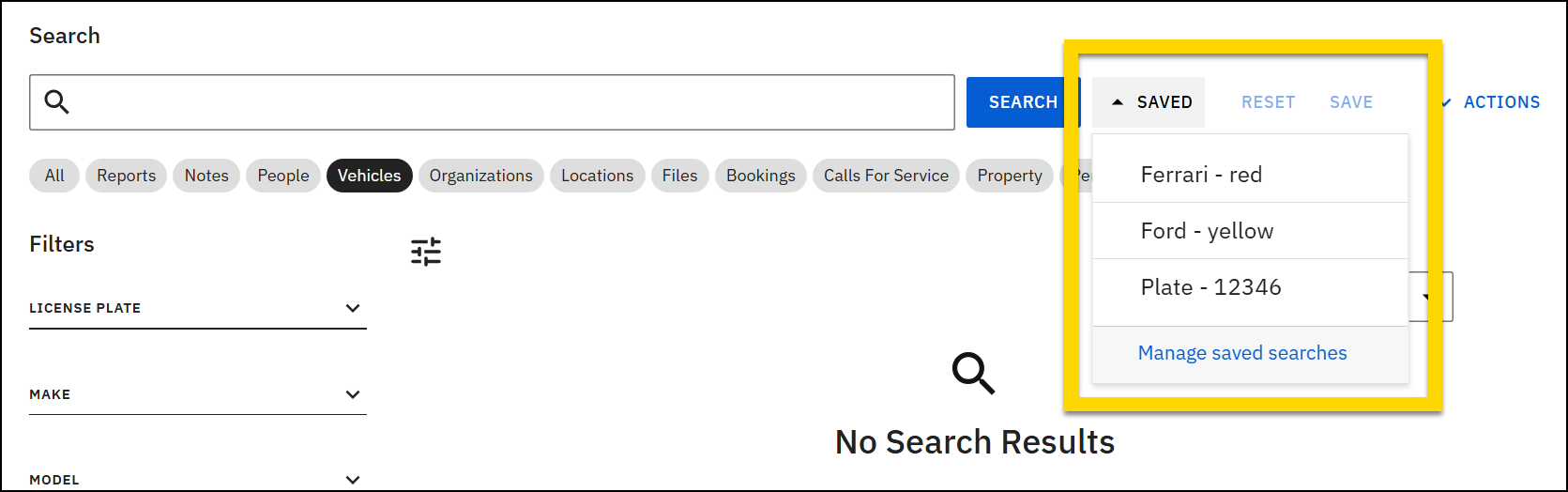
To create a saved search:
- Enter a search term or terms in the top search box and press Save.
- If you are on one of the search tabs, you can also use the filters to refine your search.
- Enter a name for the search. This name will appear in the Saved menu.
- The details of the saved search are listed, including:
- Tab: The search tab you are using (All, Vehicles, etc.)
- Search input: The terms entered in the top search box
- Filters: Which filters are used in the search
- Additionally, the sort options and number of results displayed on the page are included in your save.
- The details of the saved search are listed, including:
- After entering a name, select Save.
To change a saved search:
- Run the current saved search by selecting its name from the Saved menu.
- Adjust the search as desired (change filters, change sort order, etc.).
- Select the Save button to save the updated search (as a new saved search).
- Follow the steps below to remove the older version of the search.
To remove a saved search:
- Open the Saved dropdown menu.
- Select manage saved searches.
- Select the saved search.
- Select Remove.
Search results
The top portion of each search result shows basic information about the item. The fields displayed on search results vary depending on the category (person, vehicle, etc.). Contact your Axon representative to customize the information displayed in search results.
If your organization shares data with other organizations, a label appears at the top of the search result indicating which partner organization the item belongs to. For more information, see Search partner data.
If the top search box or a free text filter field was used to perform the search, search results also include a Matched on section that indicates why that item appears in the search result list. The terms entered in the search box or text filter appear in purple highlighting on the search results beside the fields in which they were found. If a search term appears multiple times in the search result, select See more matches to view all the fields containing the term.
You may see some highlighted words in the Matched on section that do not currently appear on the profile but were included in older versions of the profile.
Select the white area on a search result to open the profile for that item. Return to your search results by selecting Go back to search.
If you instead select blue hyperlink text in the bottom gray area on a search result, that profile opens, as opposed to the profile for the search result. Select the X to close the report and return to your search results.
Search results you have already opened have a gray background. Results you have not yet opened have a white background. This visual quickly tells you which results you have already viewed.
Search tabs
To narrow your search to a specific category, select one of the search tabs below the search box or select View all below each category's search results. A new page loads and displays the full results list for that category along with a set of filter fields you can use to further refine the results. Select All to return to your initial search and the search results for all categories.
Each search tab contains filter fields specific to that category that allow you to further narrow down your search results. Search categories include:
When viewing a search tab, select Actions to export your search results.
Use the Sorted by menu that appears at the top of the list of search results to change the order in which the search results are displayed. The default sort order for all search tabs is Relevance. Additional sort options vary based on which search tab you are using.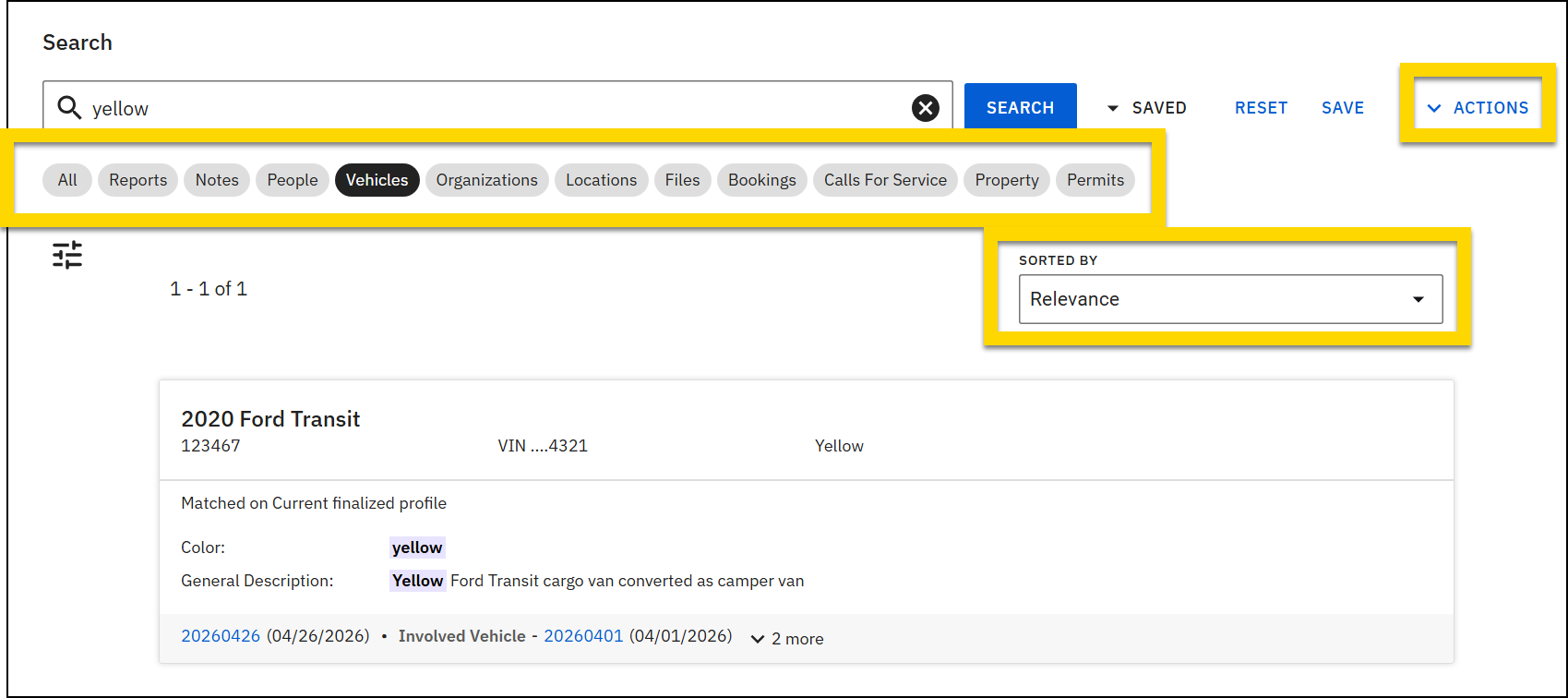
Filters
Each search tab contains a different set of filter fields you can use to narrow down your search results. Select the filter icon  to expand or collapse the list of filter fields.
When viewing All search results, the list of search filter fields does NOT appear. You must select one of the search tabs that appears below the search bar to open a search tab and reveal the list of filter fields associated with that search category.
Filter fields can be removed, added, or changed based on your organization's needs. To see the full list of filter fields available on each search category page, see Search customizations. Contact your Axon representative to customize these filter fields for your organization.
Custom search filter fields only appear in the desktop application and not in the mobile Axon app.
Several different types of filter fields appear on the search category pages:
- Checkbox: Select one or more of the available checkbox options.
- Dropdown: Select one or more of the available options from the list. Contact your Axon representative if additional options need to be added to this list.
- Free text: Any characters can be entered in this filter field. Use wildcard operators in addition to search terms to broaden or narrow the search. If you enter multiple terms in the same filter field, you will see search results that match either phrase.
- Range: Use the preset options to quickly enter a date range (today, yesterday, last 7 days, etc.). To enter a custom date range, enter the start of the numeric / date range in the Exact/From filter field and the end of the numeric / date range in the To filter field. To search for a specific date, enter a single number in the Exact/From filter field.
- Search: As you enter text, matching results appear that you can select and apply.
Remove all applied filter fields by selecting Reset all. Remove a single filter from a filter field by selecting:
- Reset: Remove all of that filter type
- X: Remove just that filtered term
Events
Clicking anywhere in the white area of an Events search result opens the event/case profile, and selecting a blue hyperlink in the Matching reports section instead opens that report in Report Writer .If people or vehicles have been added to the report, their roles and links to open their profiles appear in the bottom portion of the search result.
Use the Sorted by drop-down menu to set the order in which search results are shown:
- Relevance: This is the default sort order.
- Report Create Date (Newest to Oldest)
- Report Create Date (Oldest to Newest)
Officers
Selecting an Officers search result opens the officer's profile. Unlike Citizens search results, Officer search results cannot be sorted or exported.
Citizens
Clicking anywhere in the white area of a Citizens search result opens the citizen profile, and selecting a blue hyperlink in bottom portion of the result opens the event/case profile the person is associated with.
For users who have case management privileges, the search results also include people who have been added to case documentation.
Use the options in the Result settings section at the top of the Filters list to refine which kinds of results are displayed:
- Include similar results: When this setting is turned on, search results include:
- Phonetic (“sounds like”) results: Search for
Johnincludes results forJon -
Stemmed results: Searching for
walkingincludes results forwalk andwalked - Results with one letter difference: Searching for
Timincludes results forJim - Fields other than name, alias, ID and Date of Birth
- Phonetic (“sounds like”) results: Search for
- Include old profile versions: When this setting is turned on, Search also looks at older versions of people profiles.
- If a person’s name has been updated 5 times, results include all old versions of the profile that contain old names, including the latest version with the person’s current name.
Open the Actions menu to:
- Export person details: Export your search results to a CSV file.
- Includes ALL search results. In other words, if you selected any checkboxes beside any search results, the export will include all search results and not just those that have been selected.
Although People search in Axon Records and Citizens search in Axon Standards look similar, the databases are separate. Searching for a person in Axon Standards only returns results for people who have been added to Axon Standards reports, and searching for people in Axon Records only returns results for people who have been added to Axon Records reports.
Use the Sorted by drop-down menu to set the order in which search results are shown:
- Relevance: This is the default sort order.
- Last Updated (Newest to Oldest)
- Last Updated (Oldest to Newest)
- Last Name, First Name (A to Z)
- Last Name, First Name (Z to A)
Vehicles
Clicking anywhere in the white area of a Vehicles search result opens the vehicle profile, and selecting a blue hyperlink in the Matching reports section opens that report in Report Writer or the event/case profile the vehicle is associated with.
For users who have case management privileges, the search results also include vehicles that have been added to case documentation.
Although Vehicles search looks the same in Axon Records and Axon Standards, the databases are separate. Searching for a vehicle in Axon Standards only returns results for vehicles that have been added to Axon Standards reports, and searching for vehicles in Axon Records only returns results for vehicles that have been added to Axon Records reports.
Use the Sorted by drop-down menu to set the order in which search results are shown:
- Relevance: This is the default sort order.
- Last Updated (Newest to Oldest)
- Last Updated (Oldest to Newest)
Export search results
You can export search details from all search tabs, except the All tab. The details included in the export are the same as the filters that appear on the search tab you are using. For example, when exporting from Vehicles search, details can include VIN, license plate, etc.
In addition to exporting search details, you can also export form data from Events search. This export includes data from all form fields.
Export details
To export the details of a search:
- Perform a search on any search tab except the All tab.
- In Citizens search, use the checkboxes to indicate which results to include in the export.
- Select Actions > Export details.
- Update the date fields to indicate which reports should be included in the export.
- When exporting search results for people, vehicles, etc. these filters indicate that items (people, vehicles, etc.) added to reports during the specified date range will be included in the export.
- Use the checkboxes to indicate which columns should appear in the CSV file.
- These columns are the same as the filters available on that search page.
- To customize which columns and data are included in your search result exports, contact your Axon representative.
- Contact Axon Support or your Axon representative to have your organization's search results configured such that the time zone information does NOT appear in the column headings for date fields.
- Select Export to generate the CSV file and download it to your machine.
Export Form Data
In Events search, instead of exporting the details of your search, you can instead choose the Export form data option. This option lets you export all data entered in reports, rather than just the report details.
When the Export Settings window opens, select a report type. You can only export form data for a single report type at a time. Adjust the Date range filters as desired, and select Export.


