Search customizations
You can work with your Axon representative to customize various search-related features. Available customizations include:
In addition to explaining the customizations for the various search features, this guide includes all default configurations for each search category page. Use the links below to jump directly to the default configuration for that page.
Filter fields and search result exports
Each search category page in the Search module, along with the Agency Court Papers inbox in the Warrants module, comes with a standard list of filter fields. Filter field types include:
- Checkbox: Select one or more of the available checkbox options.
- Dropdown: Select one or more of the available options from the list. Contact your Axon representative if additional options need to be added to this list.
- Free text: Any characters can be entered in this filter field. Use wildcard operators in addition to search terms to broaden or narrow the search. If you enter multiple terms in the same filter field, you will see search results that match either phrase.
- Range: Use the preset options to quickly enter a date range (today, yesterday, last 7 days, etc.). To enter a custom date range, enter the start of the numeric / date range in the Exact/From filter field and the end of the numeric / date range in the To filter field. To search for a specific date, enter a single number in the Exact/From filter field.
- Search: As you enter text, matching results appear that you can select and apply.
You can work with your Axon representative to customize these filter fields to:
- Change filter field names
- Change filter field order
- Remove filter fields
- Add new filter fields
- New filter fields can search for fields in out of the box reports (such as incident or general offense reports), or custom reports you have created for your agency.
- Change present ranges for date filter fields (today, yesterday, last 7 days, etc.)
In addition to customizing the filter field list, you can adjust which columns appear in the search result export file. Like filter fields, the changes you can make include:
- Change column names
- Change column order
- Remove columns
- Add new columns
- When exporting options from dropdown fields, display either the shortcode or description (e.g., for Role, display VIC or VICTIM)
The filter fields that appear in other modules, such as Case Management, Tasks, or Early Intervention System cannot be customized.
Search results
Each search page displays a default set of fields on the search result previews. You can work with your Axon representative to customize which fields appear on search results. The default fields cannot be removed, but additional fields can be added.
For example, in the image below, the Phone Number field has been added to person search results.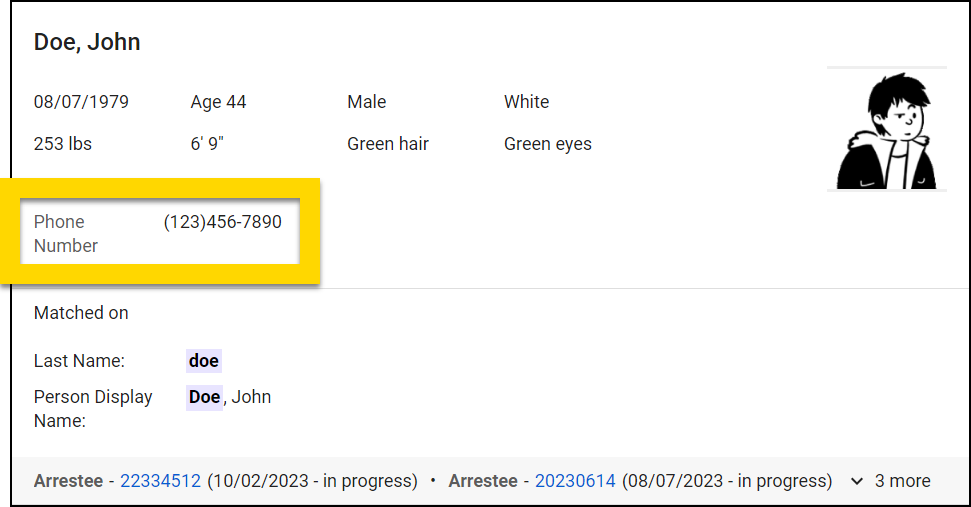
Default configurations
The following sections list the default filters, search result exports, and search result previews for the various search pages.
Events search default configuration
The following filter fields, search result exports, and search result previews are the default for Events search.
Filters and search result exports
|
|
|||||||||||||||||||||||||||||||||||||||||||||||||||||||||||||||||||||
1 The Date Event Created filter field searches for the date that the original report associated with the event was created. An event can contain additional reports that have different creation dates.
2 The Date of Event filter field searches for the date that was entered into the event's original report as the date on which the event took place.
3 The Date Report Created filter field searches for the date that the report was created. If the report was the original report that created a new event, this date will be the same as the Date Event Created date.
4 In the Address filter field, surround the text in double quotations to return search results that include ALL words searched.
- Example: Entering 123 N Test Blvd WAY E Fresno CA 93721 here would return results that include Fresno 93721, Fresno CA 93721, 123 N Test Blvd, N Blvd WAY E, etc.
- Example: Entering "123 N Test Blvd WAY E Fresno CA 93721" here would return results that include 123 N Test Blvd WAY E Fresno CA 93721.
Search result previews
- Event ID
- Date/time
- User who created the event
- Report IDs for all reports associated with that event
If people or vehicles have been added to the report, their roles and links to open their profiles appear in the bottom portion of the search result.
Officers search default configuration
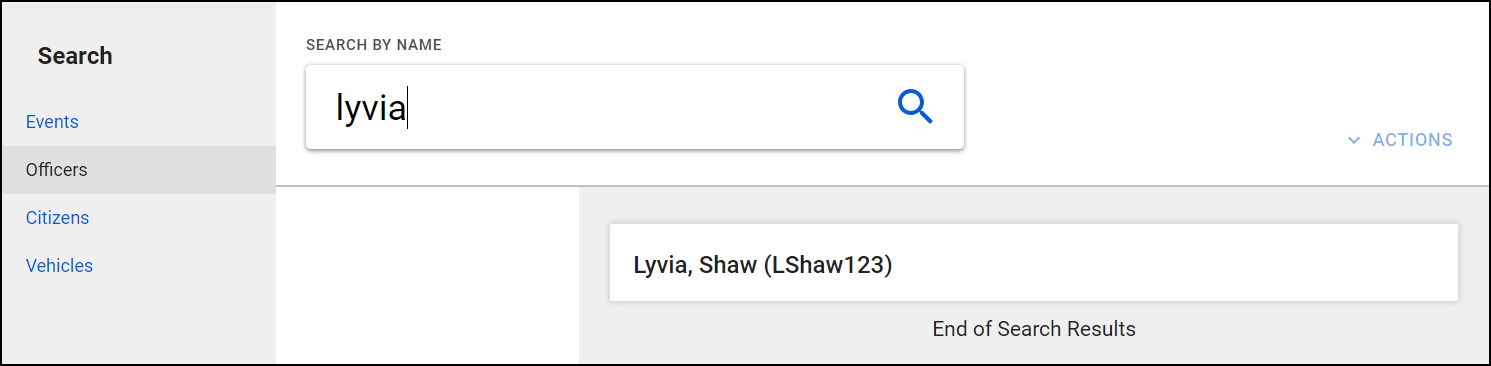
Unlike the other search pages, Officers search is not customizable. This page only has the main search box and no filter fields. Search result previews include the Last name, First name, and Badge ID of the officer.
Citizens search default configuration
The following filter fields, search result exports, and search result previews are the default for Citizens search.
Although People search in Axon Records and Citizens search in Axon Standards look similar, the databases are separate. Searching for a person in Axon Standards only returns results for people who have been added to Axon Standards reports, and searching for people in Axon Records only returns results for people who have been added to Axon Records reports.
Filters and search result exports
|
|
|||||||||||||||||||||||||||||||||||||||||||||||||||||||||||||||||
1 In the Source filter field, selecting the Only MNI checkbox filters your search so the only results that are displayed are those that belong to a Finalized report. People who have only been added to Draft reports are not shown.
2 The Street Address filter field only searches for the street name. House number, city, state, or zip code entered in this filter are ignored.
3 In the Address filter field, surround the text in double quotations to return search results that include ALL words searched.
- Example: Entering 123 N Test Blvd WAY E Fresno CA 93721 here would return results that include Fresno 93721, Fresno CA 93721, 123 N Test Blvd, N Blvd WAY E, etc.
- Example: Entering "123 N Test Blvd WAY E Fresno CA 93721" here would return results that include 123 N Test Blvd WAY E Fresno CA 93721.
Search result previews
- Last Name, First Name
- Date of birth
- Age
- Sex
- Race
- Weight
- Height
- Hair Color
- Eye color

Vehicles search default configuration
The following filter fields, search result exports, and search result previews are the default for Vehicles search.
Although Vehicles search looks the same in Axon Records and Axon Standards, the databases are separate. Searching for a vehicle in Axon Standards only returns results for vehicles that have been added to Axon Standards reports, and searching for vehicles in Axon Records only returns results for vehicles that have been added to Axon Records reports.
Filters and search result exports
|
|
Search result previews
- Vehicle year make model
- License plate
- VIN
- Color
- Reports that vehicle appears in



