Share evidence and cases
Sharing allows organizations to distribute information to internal and external partners, such as prosecutors or other organizations. Users with specific privileges can manage a case or investigation's evidence files, as well as PDF snapshots of the incident or event reports, then share either all files or a subset of files with partners.
For information about sharing a single report with other users at your organization, see Share report.
There are two case sharing methods that can be configured for organizations: Advanced sharing or Classic sharing.
Advanced sharing
Advanced sharing lets you share cases, investigations, incidents, and evidence files with internal and external partners directly within Axon Standards. You can continue to generate PDFs of reports and unlike with classic sharing, you do not need to open Axon Evidence to initiate or manage these shares.
Classic sharing
Classic sharing is the original method of sharing in Axon Evidence (as outlined in the Case share quick start guide). If your organization uses classic sharing, all shares are managed from Axon Evidence rather than Axon Standards. With this experience, you can generate PDFs of reports in Axon Standards, export them to Axon Evidence, and continue the sharing process from within Axon Evidence.
For additional information about the difference between these two sharing experiences, see How advanced sharing differs from classic case sharing.
Advanced sharing
With advanced sharing, you can share a full case, investigation, incident, a specific folder, or individual files. Before using advanced sharing, you must first request that it be enabled for your organization and complete the setup steps as explained in Advanced sharing overview and setup.
Once advanced sharing is enabled, you can interact with its features directly within Axon Standards. The Shared To column on the Files tab on cases, investigations, and incident profiles displays which external partners each item has been shared with. Hover over the partner name to see the date and time the item was shared. If an item has not been included in any shares with external partners, a hyphen “-” is displayed in the Shared to column instead.
Use the Shared to and Not shared to filters to only display items shared or not shared with a partner agency. You can combine these filters with the other filters on the Files tab to refine which items are displayed.
Create shares
When using advanced sharing, you can set the scope of the share, depending on how much information you want to share with internal or external partners. Share options include:
- All files
- Individual folders
- Specific evidence items
For additional information about advanced sharing in Axon Evidence, see Advanced sharing overview and setup.
Share all files
You can share all files in an entire case, investigation, or incident from two locations on the case, investigation, or incident profile:
- Files tab: Select the Share case button (located between Create folder and Add file).
- More actions menu: Select the Share case option.
When sharing all files, the share includes all files CURRENTLY in the case, investigation, or incident. If new files are added to the case, investigation, or incident, those new files automatically are added to any pre-existing shares; you do not need to create new shares and manually add the files to them.
A share only includes incident, event, or investigation report PDFs if they have already been exported and uploaded to the case. To share report PDFs, use the More Actions > Prepare documents for sharing to generate and add report PDFs to the case, investigation, or incident. See Share report PDFs (Preparing documents for sharing) for more information.
Share folders
To share a single folder, open the More actions [...] menu on that folder and select Share folder. Only evidence within selected folder is shared; evidence added to unselected folders is not included unless you update the share.
Share specific evidence items
To share specific evidence items, select the checkboxes beside the Evidence ID, then select the Share button at the top of the Files tab.
To create a new share:
- Open the case, investigation, or incident profile.
- Go to the Files tab and initiate the share:
- To share all files, select Share case > Share case at the top of the Files tab.
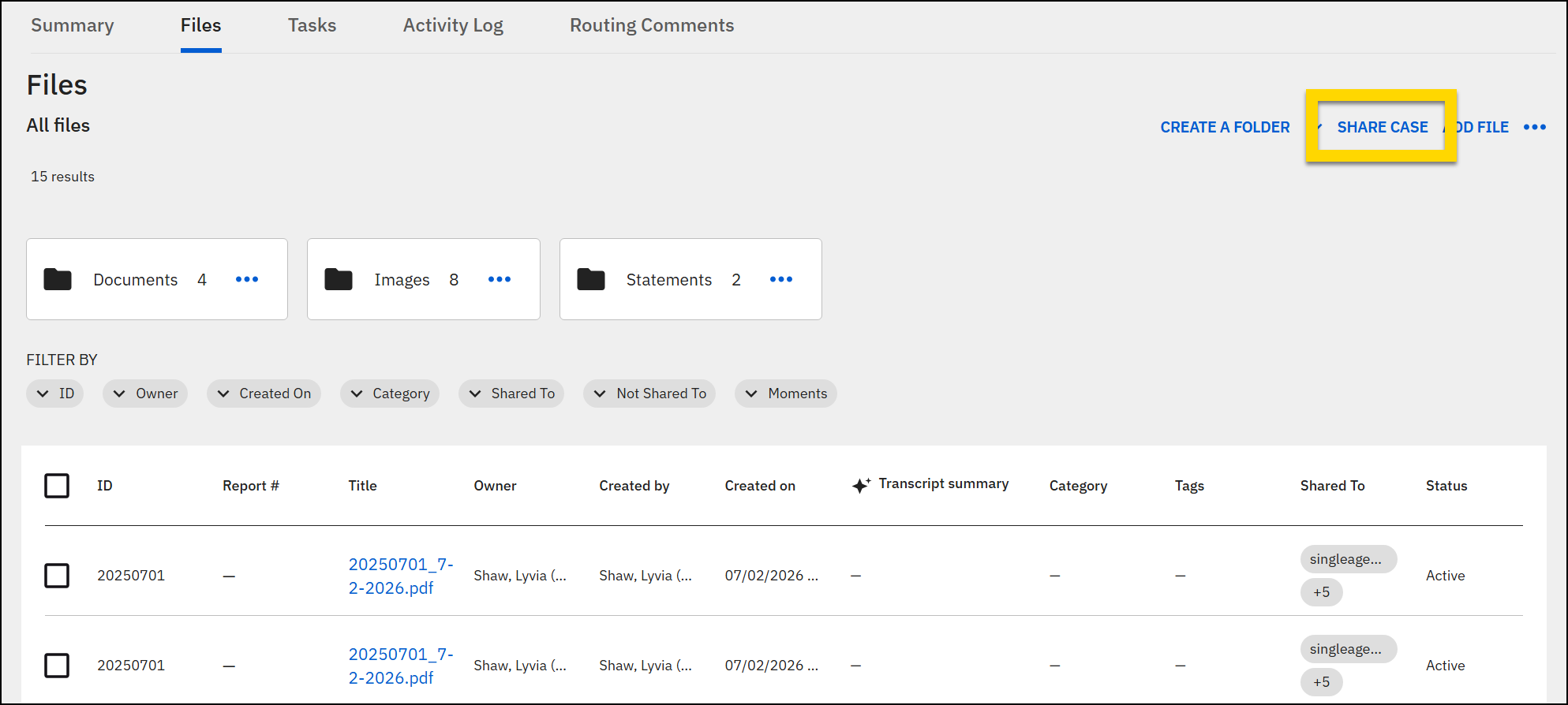
- To share a folder, open the More actions [...] menu on the folder and select Share folder.
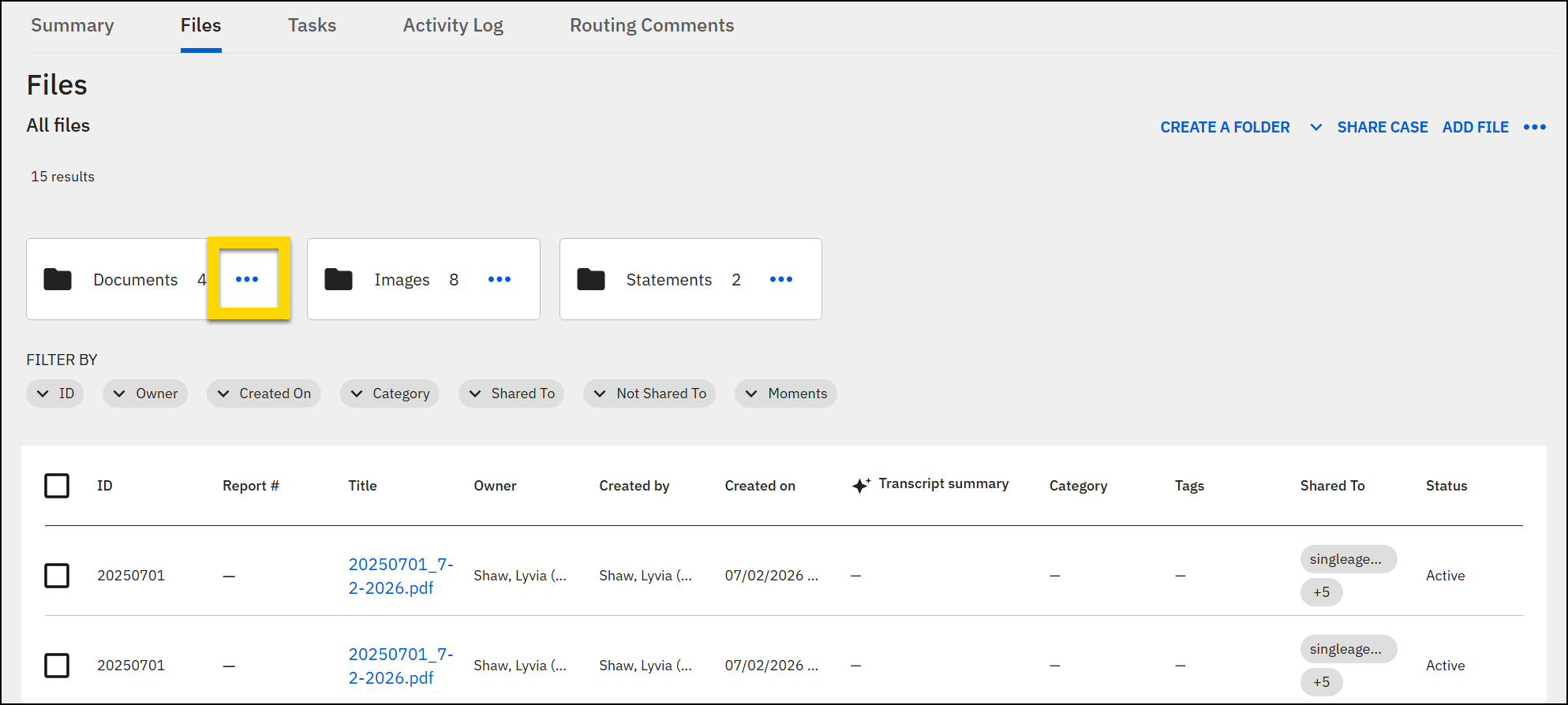
- To share evidence items, select the checkboxes beside the Evidence ID and select the Share button at the top of the Files tab.
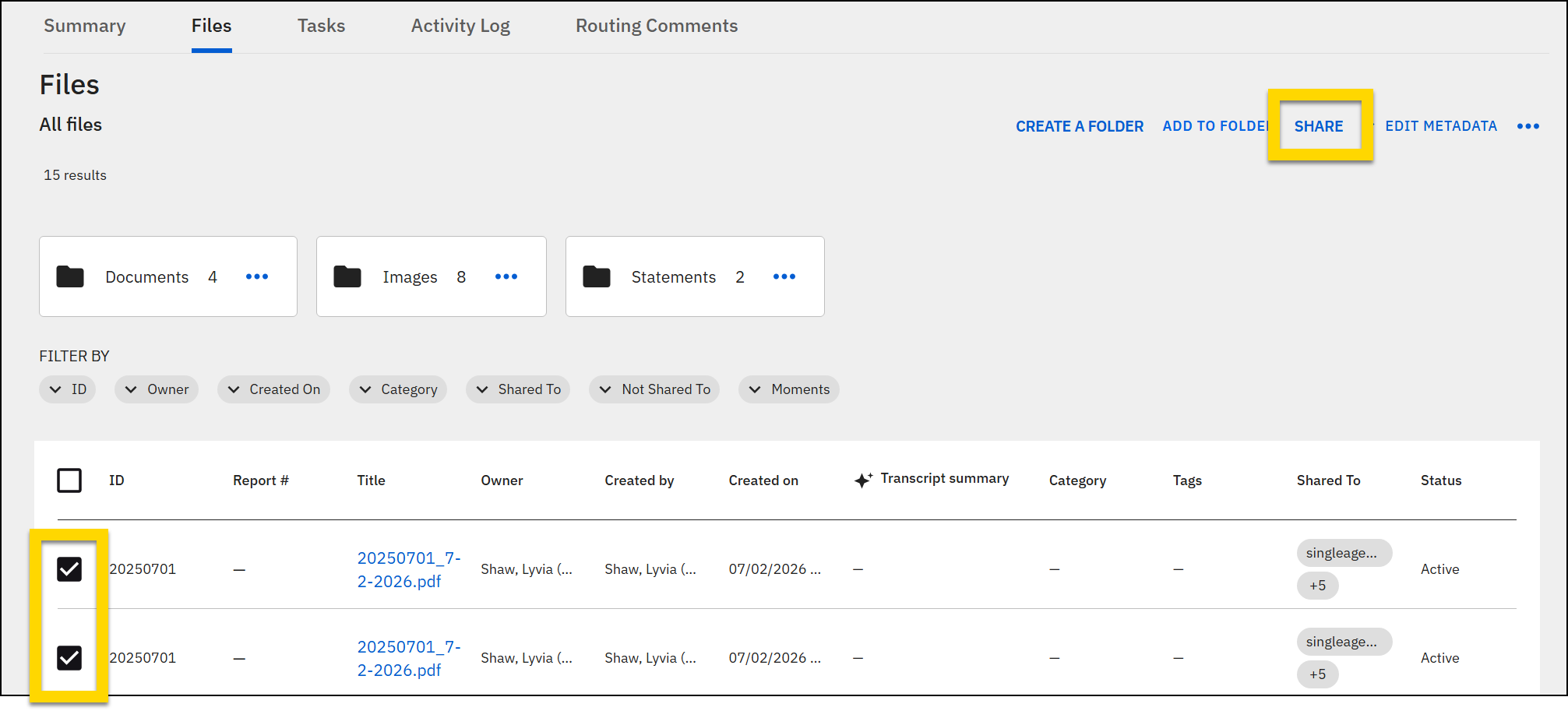
- To share all files, select Share case > Share case at the top of the Files tab.
- On the People tab of the Share window that opens, you can choose whether to share with a user at your agency or at a partner agency:
- Inside my agency: Grants access to a colleague at your own agency. Useful when someone outside the assigned unit needs to view or work on the case.
- Partner agency: Grants access to a specific user at an external partner (e.g., a named ADA at the DA's office) beyond what a standard case share covers.
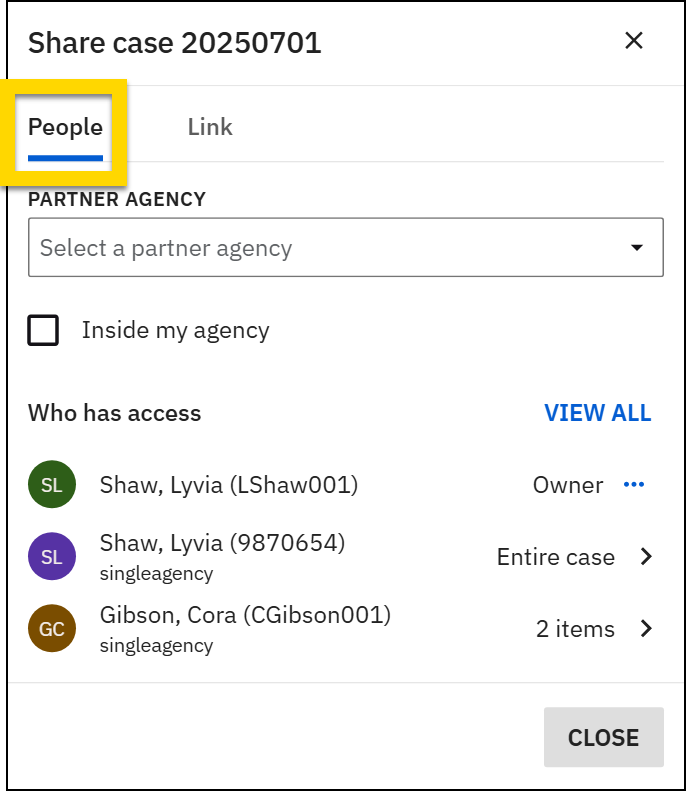
- To share with someone at a partner agency:
- Select or type a partner name into Partner agency field (e.g., your DA's office).
- Select one or more recipients in the User or group field (users or groups at the partner agency).
- If a default recipient has been configured for that agency, their name appears in the User or Group field. Select Edit to remove that user or add additional users and groups.
- See Default sharing recipients for more information.
- Select View in the Access section to review the sharing policy.
- This is the agreement that governs how the item is shared. Only one active policy per agency-partner pair is supported.
- See Advanced Sharing overview and setup - Sharing policy settings for more information.
- To share with someone at your agency select the Inside my agency checkbox and search for the user or group.
- Select the access level:
- Role based: The actions a user can take with the evidence depend on the permissions associated with their assigned role in Axon Evidence.
- View Only: The user can only view the evidence associated to the case and not take action on it.
- See Modifying inside my agency access list for more information.
- Enter a duration.
- 3, 30, or 90 days
- 1 year
- Until removed
- Select the access level:
- After adjusting all sharing settings, select Share.Note
The Share button stays disabled until you've selected a valid sharing policy (if sharing with partner agencies) and at least one recipient.
- Select Share in the confirmation message that appears to confirm the share.
- A success message displays at the top of the screen, indicating the share was successful.
- Most shares complete quickly but it may take a day before large shares or archived evidence is available to the partner agency. Recipients receive an email when the evidence is available.
- The Share window shows a Processing label beside any shares that have not yet completed. This label will disappear once the share is completed.
Manage existing shares
- Open the case, investigation, or incident profile.
- Go to the Files tab.
- Select Share case > Share case.
- The People tab of the Share window that opens and shows the access list (Who has access section).
- The most recent shares appear at the top of the list.
- Select View all to see the full list.
- Select a specific share entry to expand its details:
- For each share, you can see:
- Partner name and recipients
- Share status and shared date
- Expiration date (if applicable)
- For partial shares (folder or individual evidence items, you can also see the full evidence list including file names, last shared date, and file sizes.
- For each share, you can see:
- Select the pencil icon beside the recipient name to modify recipients of partner agency shares.
- Add new recipients by searching and selecting from the dropdown and selecting Add.
- Remove recipients by selecting the trash can icon.
- The recipients update immediately and a Processing status label appears briefly while the change is applied.
Note
You cannot change the sharing policy on an existing share. To use a different policy, stop the current share and create a new one.
- For internal shares, you can modify the level and duration of the share.
- To stop a share (either partner share or internal share), select Stop sharing and confirm your action when prompted.
- The share is immediately revoked, and the partner loses access to the share.
- The status of the share updates to Revoked to indicate that the share has stopped.
- All update and stop share actions are logged in both the Axon Evidence case and user audit trails.
- When an internal share is updated, the audit log shows the acting user (the user who updated or revoked the share), the affected user (the user the share was made to), the access level, and a timestamp.
Add files to existing shares
When you have shared a subset of items (either a folder or specific evidence items), you can add additional items to the share:
- Open the case, investigation, or incident profile.
- Go to the Files tab.
- Select the checkboxes next to the evidence items you want to add to your share.
- Select the Share button at the top of the Files tab.
- On the People tab of the Share window that opens, select the existing share you want to add the items to.
- The selected items are added to that share immediately.
- After the share is processed successfully, the recipient details window shows which evidence files have been shared with that recipient.
If you have a case, investigation, or incident that has active shares of specific evidence items, a message appears when you add a file or export a PDF using the Prepare documents for sharing flow. This message asks if you want to add the new files to your existing shares.
This message only appears if:
- You use the Prepare documents for sharing workflow.
- You use the Add file button on the Files tab of the case, investigation, or incident profile.
When this message appears, you have two options:
- Not Now: Close the message. The new file is not added to any existing shares. You can add it manually later as necessary.
- Continue Share: Add the file to your active shares.
This message only appears for cases, investigations, or incidents that have existing shares of specific evidence items. It does not appear for all-file shares or folder shares; new evidence added to a shared case, investigation, incident, or folder is included in the share automatically.
If you add files outside of the Prepare documents for sharing or Add file button, the message will NOT appear. In these cases, you must update the existing shares manually by selecting Share case > Share case on the Files tab.
Share report PDFs (Preparing documents for sharing)
With advanced sharing, you can prepare your documents, export a PDF package, and share it from within Axon Standards—without switching to Axon Evidence:
- Open the case, investigation, or incident profile.
- Open the More actions menu and select:
- Incidents and cases: Prepare documents for sharing
- Investigations: Prepare investigation for sharing
- Update the name of the file. This is the name that appears in Axon Evidence.
-
In the Documents section, indicate which content to include:
- For events, you can include:
- Event reports: Indicate which reports to include.
- File list: If selected, a list of all file names that have been added to the case are included in the printout.
- Activity log: Includes all actions taken on the event.
- In addition to the items listed above, for cases or investigations, you can include:
- Case or investigation summary
- Case or investigation documents
- Tasks
- Indicate if the printout should include a list of case tasks, or details for each task.
- Optionally include incomplete tasks.
- Set the order in which the tasks should be listed in the printout. Sort options include Task, Assignee, Status, Created at, Due date, and Completed at.
- For events, you can include:
- In the Settings section, optionally include the following items:
- Show table of contents: Includes a list of all sections in the printout with a header that gives basic details about the case.
- Show images in narratives: Includes images that have been inserted inline into the narratives.
- Show restricted information: If restrictions have been applied, this option includes restricted information that you have privileges to view. Optionally include this restricted information on a separate page.
- Show approval log: Details of the report approval process.
- Start each narrative on a new page: Inserts a page break at the start of each narrative.
- Select Next.
- Use the Sort reports and documents by and the Order fields to set the order in which items appear.
- Sort options include:
- Document Type
- Name (if custom names have been created for any of the items)
- Date and time created
- Sort options include:
- Select Next.
- If you need to redact anything before printing, select Yes then Start redaction. If you are not redacting anything, select Export PDF and continue share.
- See Redaction for more information.
- The PDF will export (taking longer depending on the amount of information included). Select Continue share in the Export window.
- When exporting is complete, the PDF saves to your cases in Axon Evidence,
- The People tab of the Share window that opens displays all shares that contain specific evidence items.
- The share list does NOT display current shares of all files. When the PDF is created, it is automatically shared with any recipients the case, investigation, or incident has been shared with.
- The share list also does NOT display current shares of folders. To include the PDF in a share of a specific folder, move the PDF into that folder. It will be automatically shared with all recipients who the folder has been shared with.
- Select an existing share to add the PDF to or create a new one by entering an agency in the Partner Agency field.
- When you create a share during this workflow, you only share the PDF with the recipients. If you want to share additional files, follow the steps in Create shares.
When you prepare documents for sharing from Axon Standards, the PDF appears in the Axon Evidence case on the Evidence tab in an auto-generated Documents folder.
If you update the report after sharing it, you should repeat the steps above to generate a new PDF that includes the updated information. Be sure to update the file name to distinguish it from the originally shared file.
Share download links
With Advanced Case Sharing, you can generate a secure, time-limited link to a case and send it to any email address, including users who do not have an Axon account. This feature mirrors the link sharing experience in Axon Evidence Advanced Sharing.
- Open the case, investigation, or incident profile.
- Go to the Files tab and initiate the share:
- To share a link for the entire case, select Share case > Share case at the top of the Files tab.
- To share a link for a folder, open the More actions [...] menu on the folder and select Share folder.
- To share a link for evidence items, select the checkboxes beside the Evidence ID and select the Share button at the top of the Files tab.
- In the Share window, switch to the Link tab.
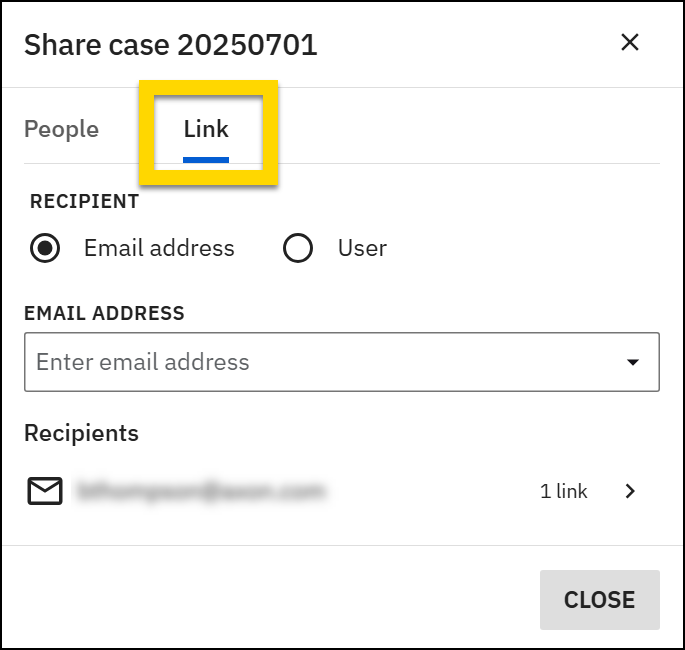
- Select the recipient type:
- Email address: Sends the link to the email address(es) provided.
- User: Sends the link to a user either at your agency or a partner agency.
- To share with someone at your agency, select the Inside my agency checkbox and search for the user or group.
- After you enter a recipient (either email or user), additional share settings appear:
- Audit trails
- Transcripts
- Table of Contents
- Retain folder structure: This option only appears when you are sharing a link to the entire case. If you share a case that contains subfolders, checking this box will retain that subfolder structure. If you do not check this box, all files will be shared in a single folder.
- Select the type of package: ZIP or ISO.
- Set a duration for how long the download link is valid. Once this time passes, the case can no longer be downloaded, and a new download link must be sent.
- Enter an optional message to accompany the download link. This message appears in the email that contains the download link.
- After adjusting all link settings, select Share.
- The recipients you provided will receive an email with the download link.
- The link and all send actions are logged in the Axon Evidence case audit trail.
Recipients of a download link do not need an Axon account to access the shared content. The link is self-contained, and access is controlled entirely by the expiration date and access level you set.
Download link sharing follows the same permission model as Axon Evidence. If a user does not have link sharing permissions in Axon Evidence, the Link tab will not be available to them in Axon Standards.
Manage existing download links
To update an existing link share:
- Open the case, investigation, or incident profile.
- Go to the Files tab.
- Select Share case > Share case.
- In the Share window, switch to the Link tab.
- Select share to view its status, expiration date, and who it was sent to
- To disable a link before it expires, select Cancel.
- Revoked links stop working immediately. Recipients who click the link after revocation will see an access denied message.
Classic sharing
If your organization still has active classic shares (from the legacy Manage External Sharing system), you can continue to access them from two locations on the case, investigation, or incident profile:
- Files tab: Select the Share case > Manage classic shares.
- More actions menu: Select the Manage classic shares option.
After selecting one of the options, the Axon Evidence case opens in a new tab where you can manage shares as usual.
You can generate and share report PDFs using the classic share workflow. Follow the steps listed in Share report PDFs (Prepare documents for sharing) section. After selecting which documents to include in the export, a new tab opens to Axon Evidence where you can complete the share.
For more information about classic sharing in Axon Evidence, see:


