Cases
Cases manage the formal investigative workflow performed following an event. Once created, a case serves as the central workspace for investigation management. Cases ensure accountability and structure, helping organizations move work from the initial report to its final outcome.
Cases enable organizations to:
- Assign responsibility to units and detectives
- Track progress through tasks
- Document findings
- Mange disposition and closure
Case management involves creating, assigning, and tracking cases from initial report through disposition while ensuring the right units and personnel are responsible for each step. It includes managing assignments, transfers, due dates, and workload distribution to support efficient investigations and oversight.
Cases and investigations
Cases and investigations have different features, which help determine when you should use a case or an investigation to manage your work. The table below outlines these features:
| Feature | Case | Investigation |
|---|---|---|
| Requires an incident report | Yes | No |
| Has a NIBRS disposition | Yes | No |
| Has an internal disposition | Yes | Yes |
| Can be automatically created from an incident | Yes | No |
| Has evidence integration (i.e., uploaded evidence is also uploaded to Axon Evidence, where it can be managed and shared) | Yes | Yes |
Create cases
To create a case:
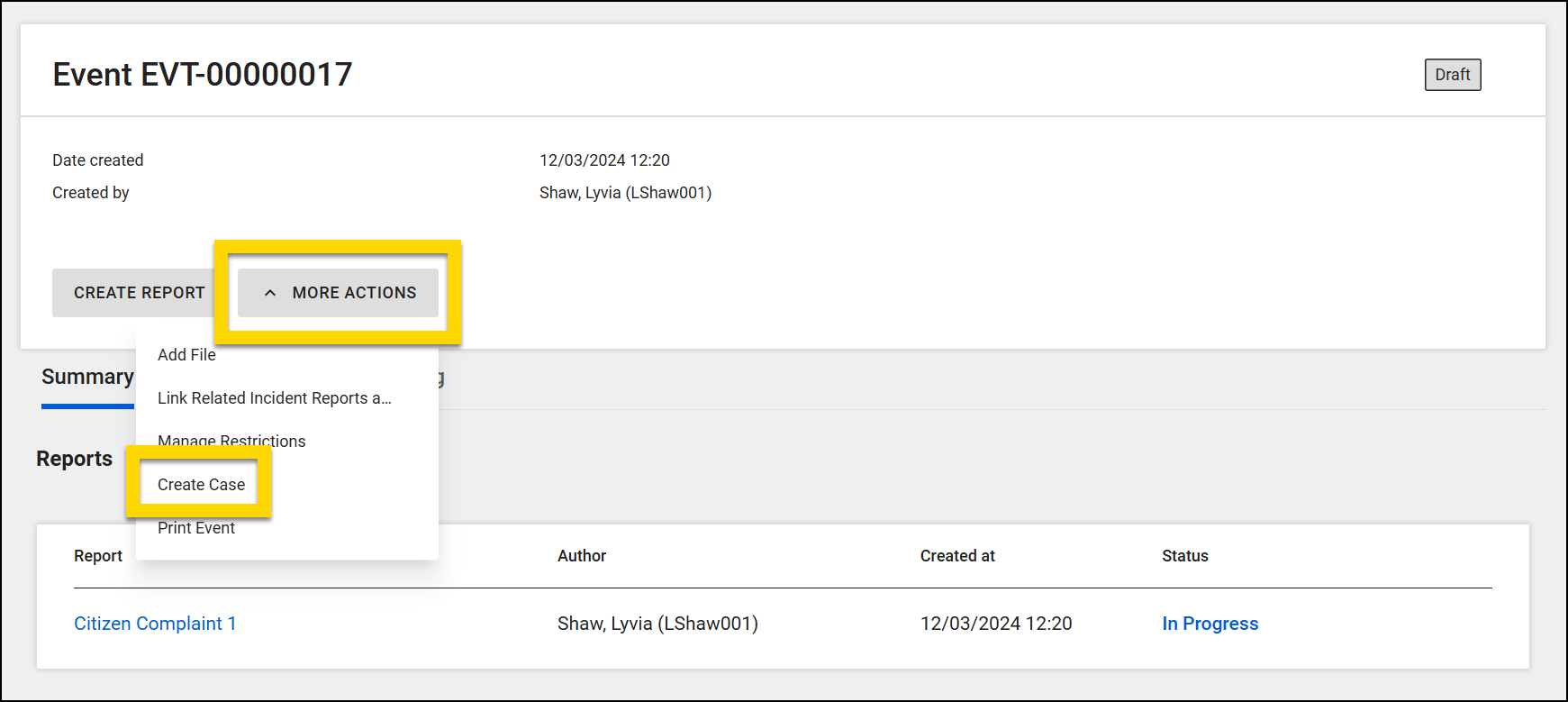
- Open an event profile and select More actions > Create case.
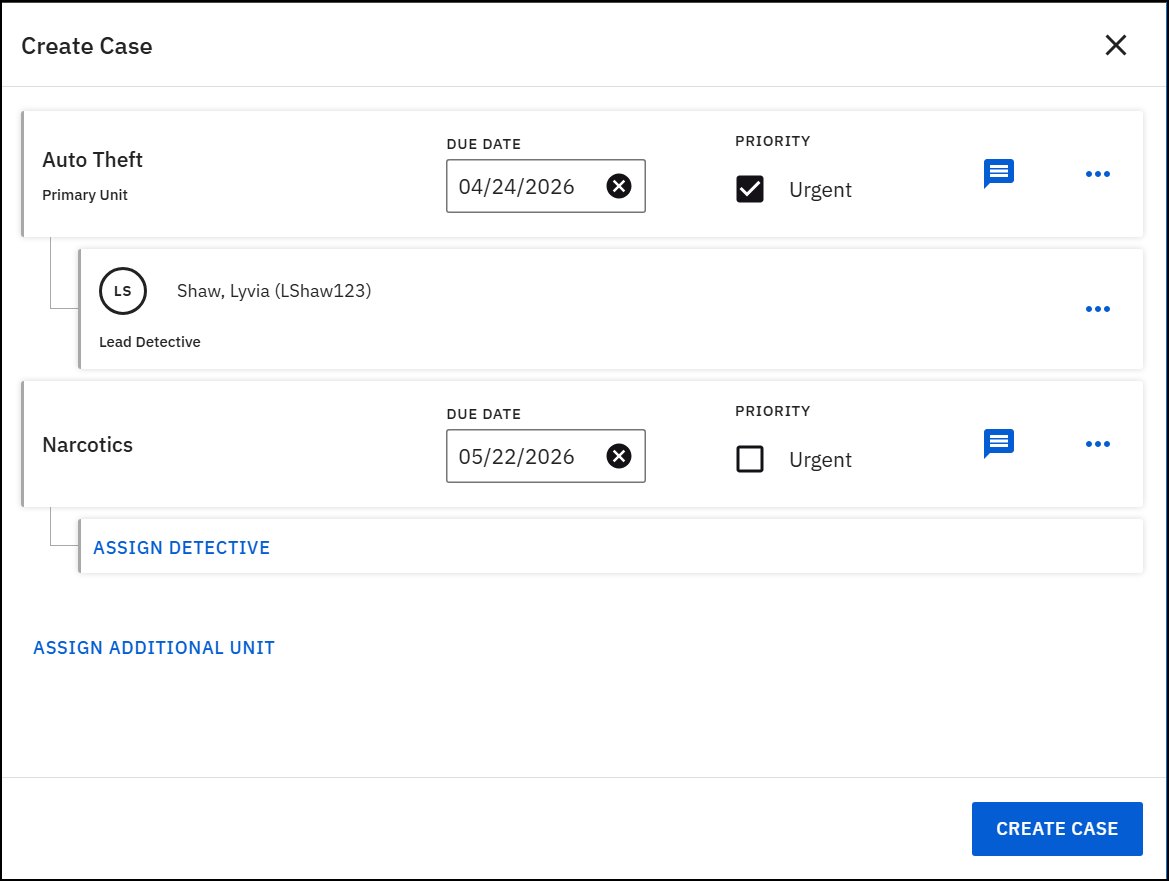
- Assign the case to a primary unit and (optionally) a lead detective within that unit.
- The "Lead Detective" label is customizable and may appear differently across organizations.
- Optionally, set a due date, mark the case as urgent, and select the comment icon to add routing notes.
- Some organizations are configured to allow cases to be assigned to a primary unit as well as one or more additional units.
- To assign additional units, select Assign additional unit after selecting a primary unit and lead detective.
- You can set unique due dates, priority level, and routing comments for each unit.
- Select Create case.
- Once the case is created, the profile changes into a case profile, which displays additional information and options.
Case profiles
When a case is created for an event, the event profile becomes a case profile, which shows additional information and actions.
The case profile is the primary workspace for investigators. It consolidates all information related to the case--reports, tasks, evidence, activity history--in a single view. This unified view helps users manage and progress the investigation efficiently, including:
- View case details, including:
- Unit(s) the case is assigned to
- Lead detective(s) the case is assigned to
- Status (for each assigned unit)
- Internal disposition (for each assigned unit)
- Use the buttons to:
- Create or update the case summary
- Create case documents
- Take case-related actions from the More actions menu:
- View the new case-related tabs:
Some of these options may not appear to all users based on the privileges they have been assigned.
Summary tab
When a case is created, the Summary tab displays two additional sections:
- Case summary: This section appears at the top of the Summary tab. The case summary feature helps the Lead Detective assigned to the case keep an up-to-date summary of the case throughout the investigation.
- Case documents: Links to all case documents appear in this section. Select the Document ID in the Report column to open and view the document.
Update case assignments
To manage case assignments, a user must have the Triage privileges for all affected units (the unit(s) the case is currently assigned to, as well as the unit(s) the case will be assigned to).
To update a case's lead detective or unit assignment:
- Open the case profile.
- Select More actions > Update case assignment.
- Manage the case's unit assignments:
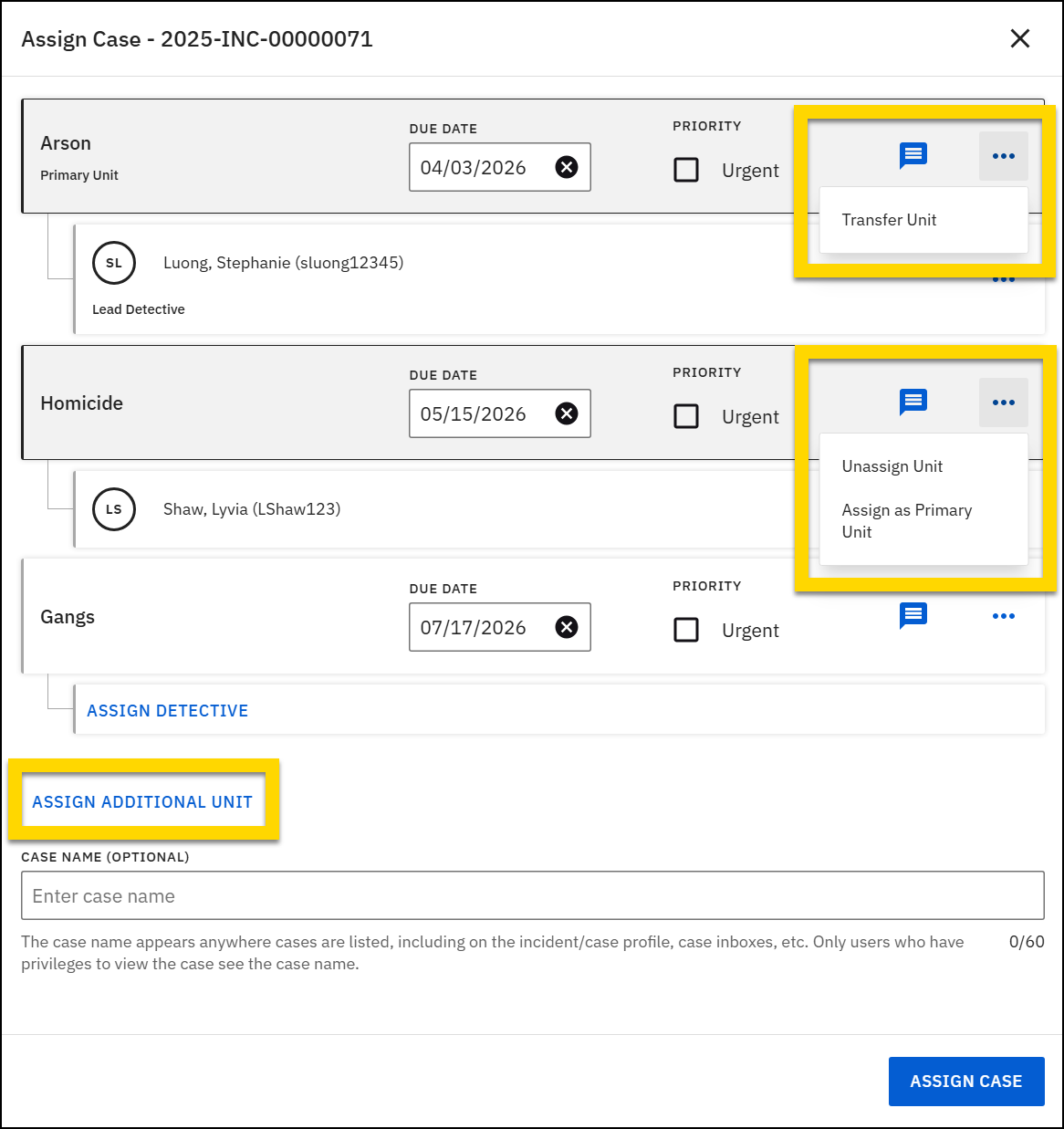
- Assign additional units
- To add an additional unit, select Assign additional unit and search for the unit name. Optionally, assign a lead detective for the unit.
- Unassign additional units
- To remove an additional unit, find the unit's row and select More actions [...] > Unassign unit.
- Change primary unit
- If the unit you want to make the primary unit is already assigned as an additional unit, find the unit's row and select More actions [...] > Assign as primary unit.
- If the unit you want to make the primary unit is not yet assigned, in the current primary unit row, select More actions [...] > Transfer unit and add the new unit.
- You can also reassign the case to a new primary unit by selecting More actions [...] > Transfer unit.
- Assign additional units
- Manage the case's lead detective assignments:
- To change the assigned lead detective for a given unit, in the detective's row, select More actions [...] > Unassign detective then search for and select a new lead detective.
You do not have to select a lead detective for a unit.
- To leave the lead detective unassigned in the primary unit, select More actions [...] > Unassign detective then Cancel.
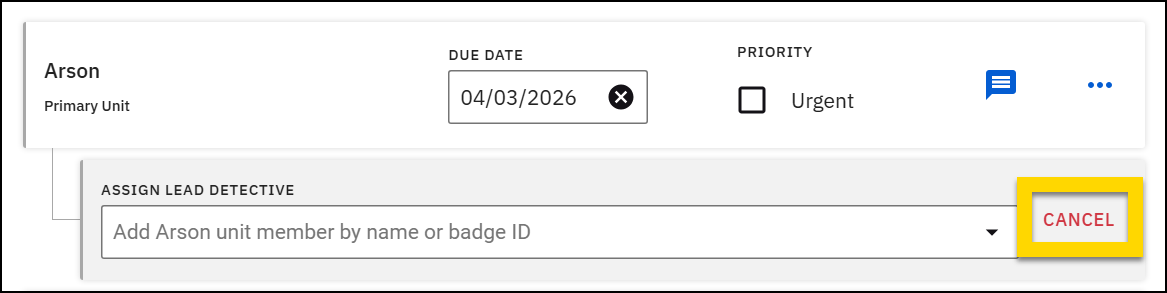
- To leave the lead detective unassigned in the primary unit, select More actions [...] > Unassign detective then Cancel.
- To add a new detective from a new unit, select Assign additional unit, select a unit, then add the lead detective.
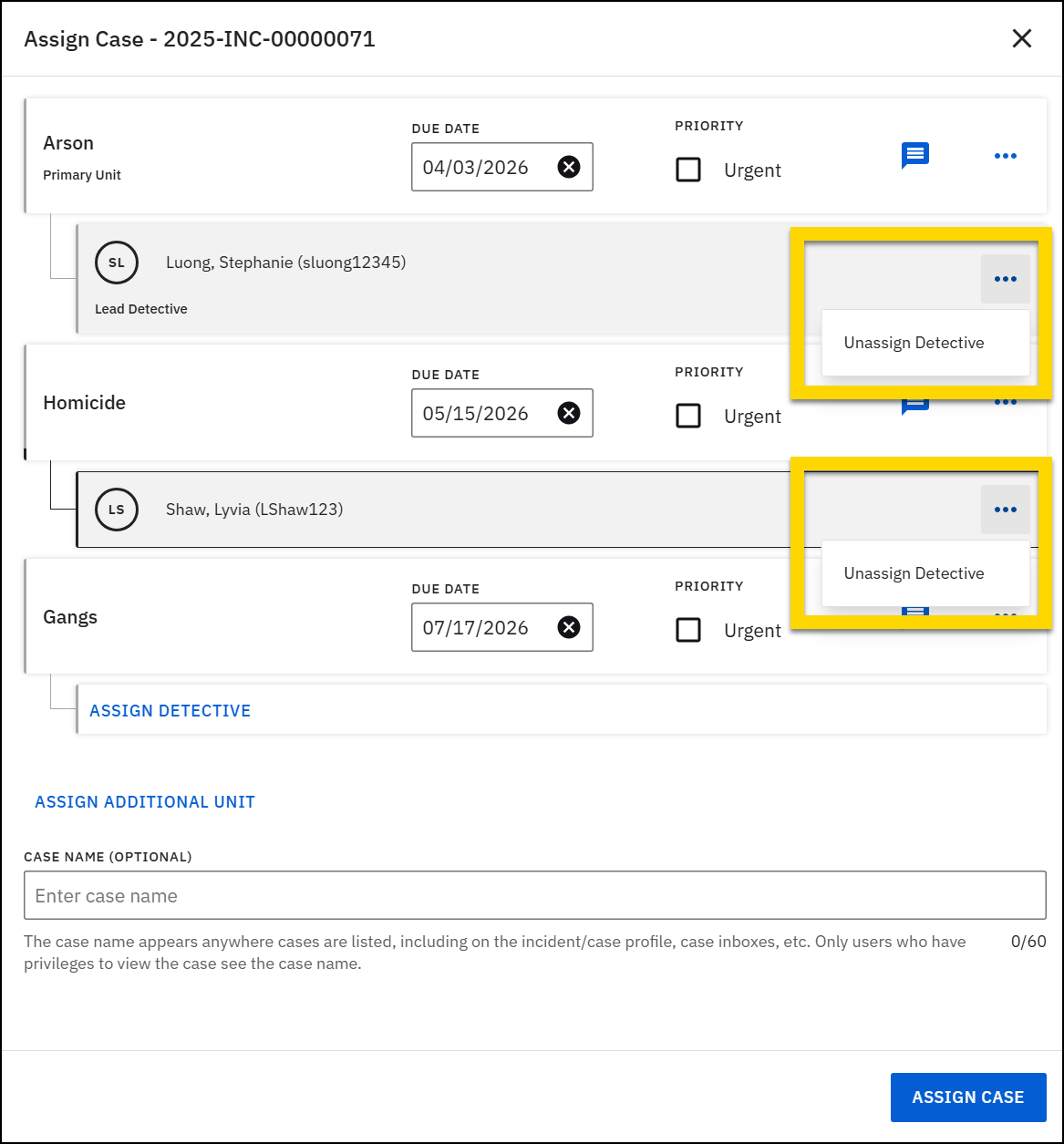
- Optionally, set a due date, mark the case as urgent, and select the comment icon to add routing notes.
- You can adjust these items for each unit assigned to the case.
- Select Assign case at the bottom of the screen to apply your changes.
Transfer primary unit
To transfer a case to a new primary unit, a user must have the Triage privileges for all affected units (the unit(s) the case is currently assigned to, as well as the unit(s) the case will be assigned to).
To transfer a case to a new primary unit:
- Cases can be transferred from two locations:
- On the case profile, select More actions > Transfer unit.
- When viewing a case from a case inbox in Detail view, select Transfer unit.
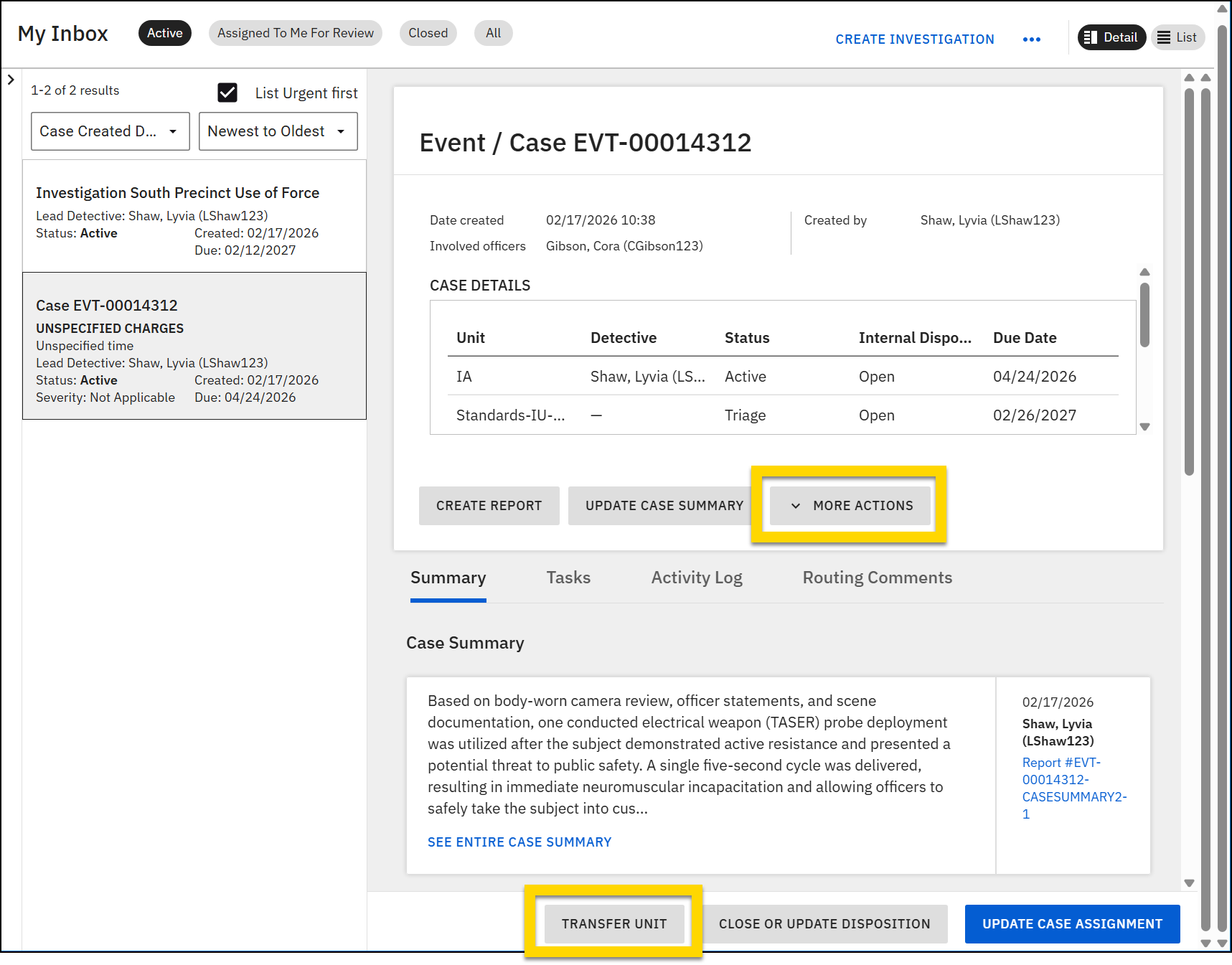
- Search for a new primary unit and lead detective.
Note
If the unit you want to make the primary unit is already assigned to the case as an additional unit, instead select More actions > Update case assignment and follow the steps above to adjust the primary unit assignment.
- Optionally, set a due date, mark the case as urgent, and select the comment icon to add routing notes.
- Select Transfer.
Update case due dates
Case due dates can be created for each case a unit is assigned to. To manage case due dates:
- Open the case profile.
- Select More actions > Update due date.
- Each unit assigned to the case appears as a tab.
- Adjust the due date for each unit as required and provide a change reason.
- After you make a change to each tab, select Save to apply your changes.
- If you update due dates for multiple units, be sure to select Save after you make a change on a tab before you move to the next one.
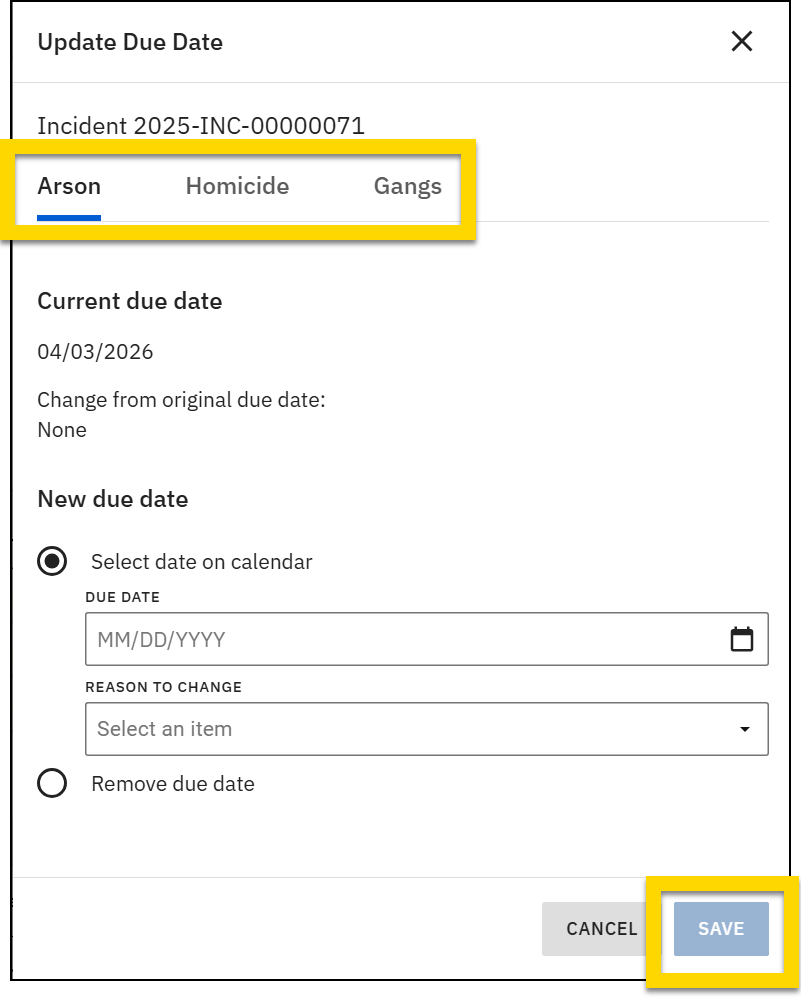
- If you update due dates for multiple units, be sure to select Save after you make a change on a tab before you move to the next one.
Caseload visualization
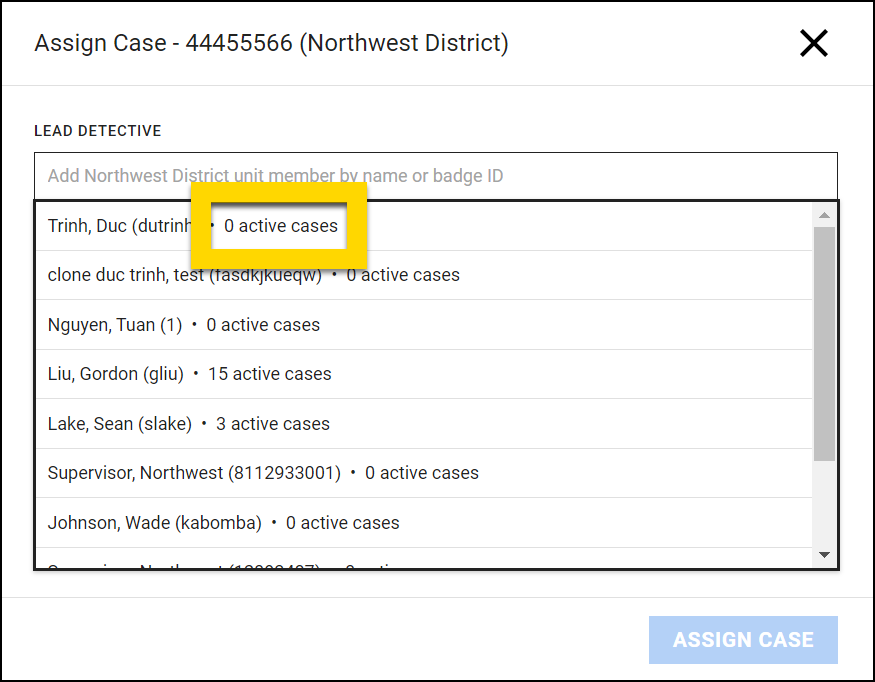
Caseload visualization gives a supervisor information to balance work more effectively when assigning investigations. When you assign a new investigation or transfer an existing investigation, the options in the Lead detective field display the number of active cases and investigations currently assigned to each detective in that unit.