Features
This article discusses sign-in, controls, and icons in Axon Respond mobile.
Sign in
- Open the Axon Respond mobile app. If you have not previously signed in, enter your Axon Evidence agency URL.
- Enter your Axon Evidence Username and Password.
- If this is your first time signing in, allow the app to use your location and send you notifications. You can control app permissions in your device’s settings.
- After signing in for the first time, you must set up a 6-digit PIN (personal identification number) for app authentication. If you are inactive for more than 30 minutes, you must enter this PIN code when opening the app. A session lasts up to 12 hours.
The app uses standard smart device actions to move around the map, zoom in, and zoom out.
Axon Respond mobile app PIN
Due to the potentially sensitive information presented in Axon Respond, the Axon Respond mobile app requires a PIN when opening the app. If you are inactive or away from the app for more than 30 minutes, you will be asked to re-enter your PIN. Create a PIN when you first sign into Respond mobile: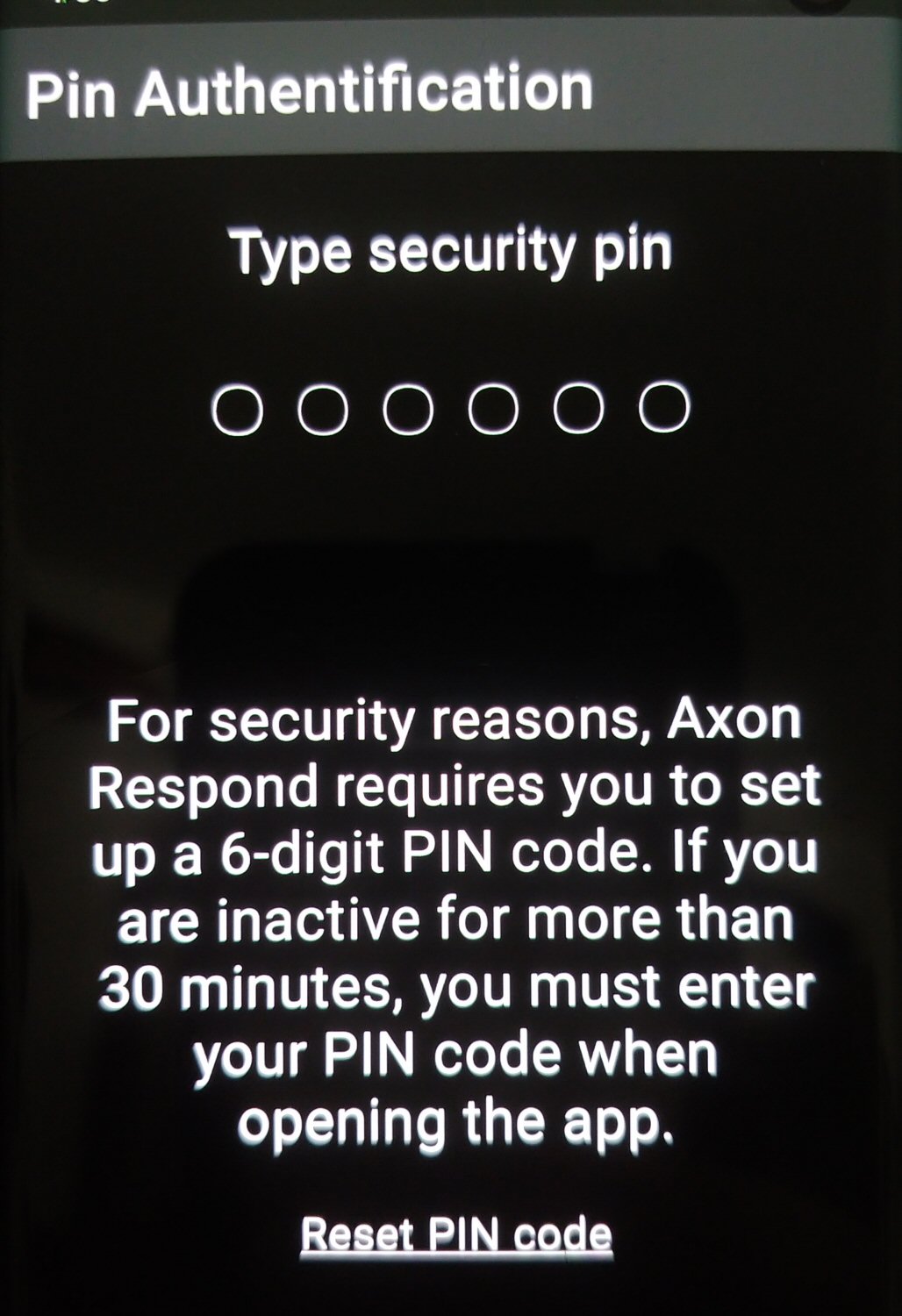
If you forget your PIN, tap Reset PIN code and create a new PIN the next time you sign in.
If you enter the incorrect PIN five times, you will be signed out. To continue using the app, sign in and set up a new PIN.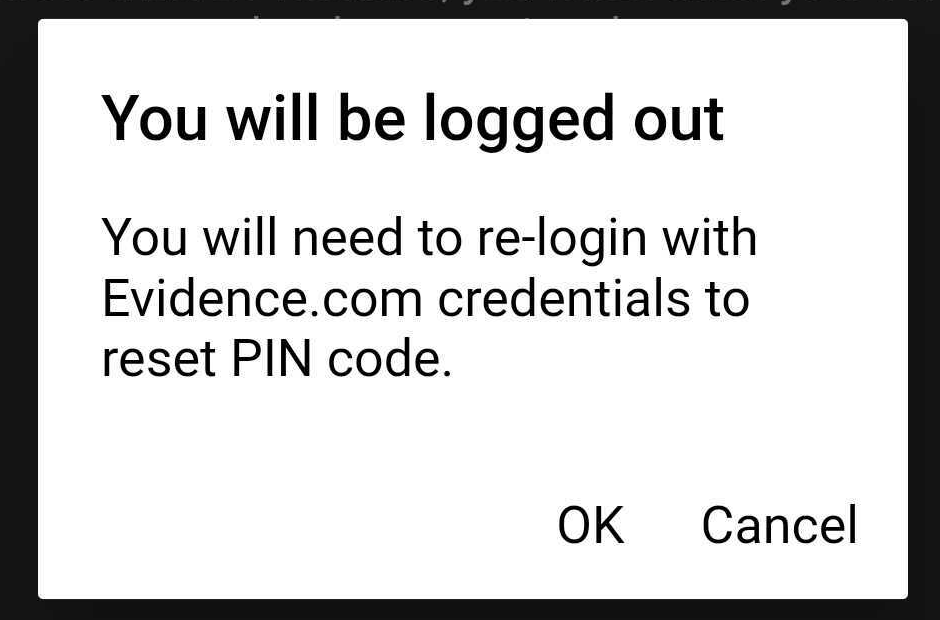
Icons
App icons
| Icon | Description |
|---|---|

|
Alerts: active |

|
Alerts: none |

|
App settings and sign-out |

|
Center map on your location |

|
Filter: Hide non-recording cameras without alerts and toggle between satellite and normal map view |

|
Map screen/tab: View map |

|
User list to search for officers |

|
User screen/tab: View list of and search for officers |
Map icons
| Icon | Description |
|---|---|
|
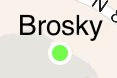
Camera marker green  : camera is recording : camera is recording |
|
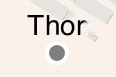
Camera marker gray  : camera is not recording : camera is not recording |

|
Multiple cameras: indicated by number, at location. Tap or manually zoom in to see individual camera markers |
Device clustering
To avoid displaying overlapping devices on the map, the app uses a cluster view. When the map has several devices located close to each other, the app shows a circle with the number of devices near the location. This prevents cluttering the map with multiple overlapping device markers.
The number of devices included in a cluster depends on your current map zoom level and how close devices are to each other.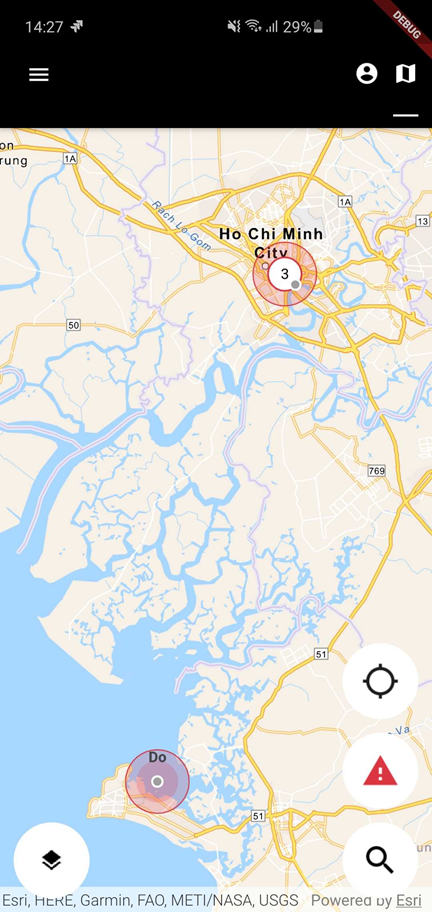
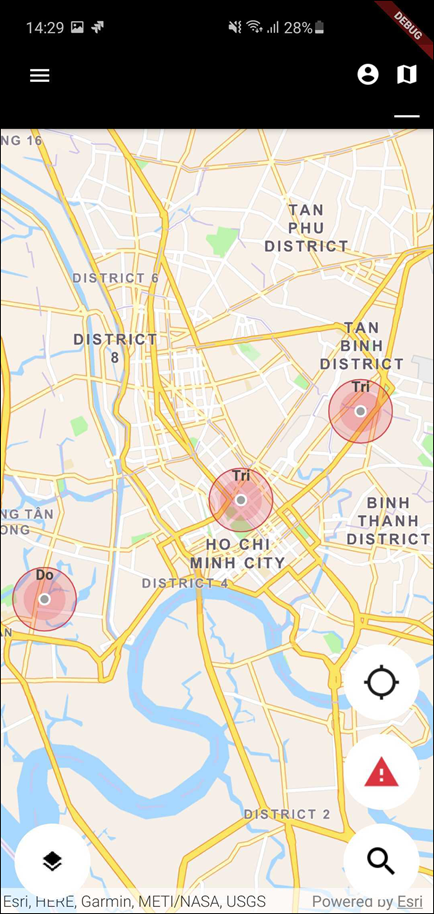
To see individual devices in the cluster, tap on the cluster to zoom in or zoom in manually. As the map zoom level changes and devices move out of the cluster range, they appear individually.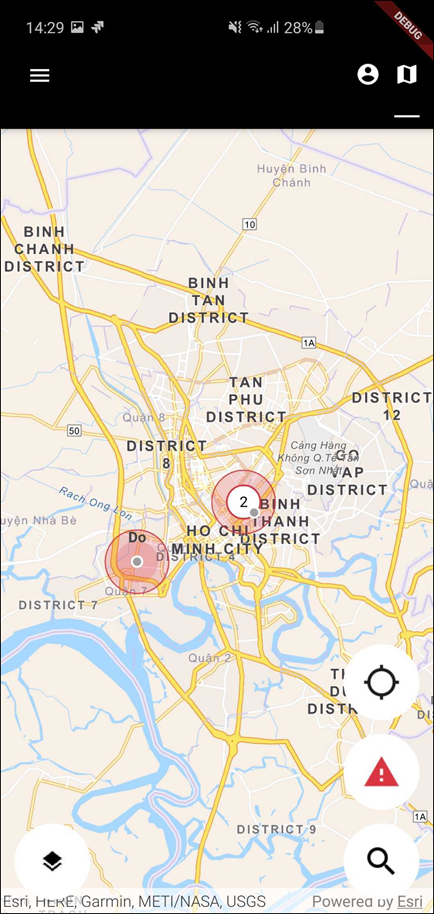
Real-time alerts
The alerts received by Respond depend on the Respond notification configuration your admin set for your organization.
A high-priority alert generates one of the following:
If the app is open, an in-app notification: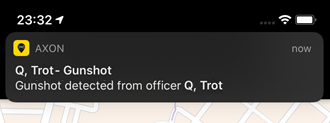
If the app is running in the background, a push notification: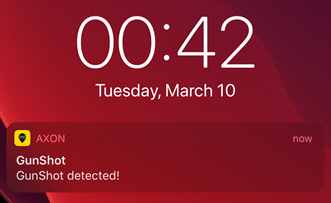
Tap the notification to show the location of the device that generated the alert on the Respond map. This view also shows if the camera is recording.


