Locate and search
When you're viewing the map, use it to find yourself, others, and alerts.
Locate active alerts
Tap Alerts  to center the map on any active alerts. Cameras with alerts are highlighted with a red circle. Alerts remain on the map for four hours. Pinch to zoom out and see the user's location relative to yours.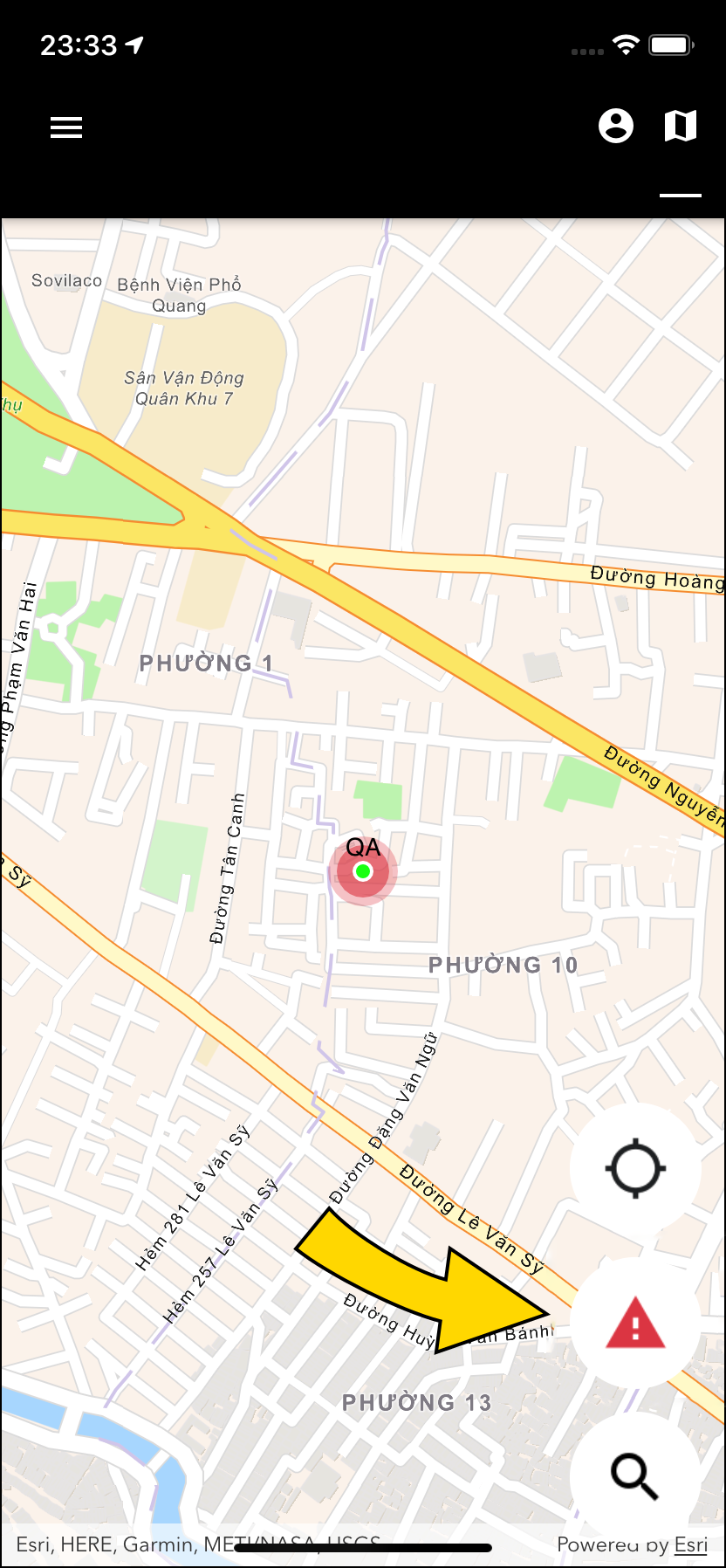
Locate yourself
Tap Center  to center the map on your location. Nearby officers may also display on the map.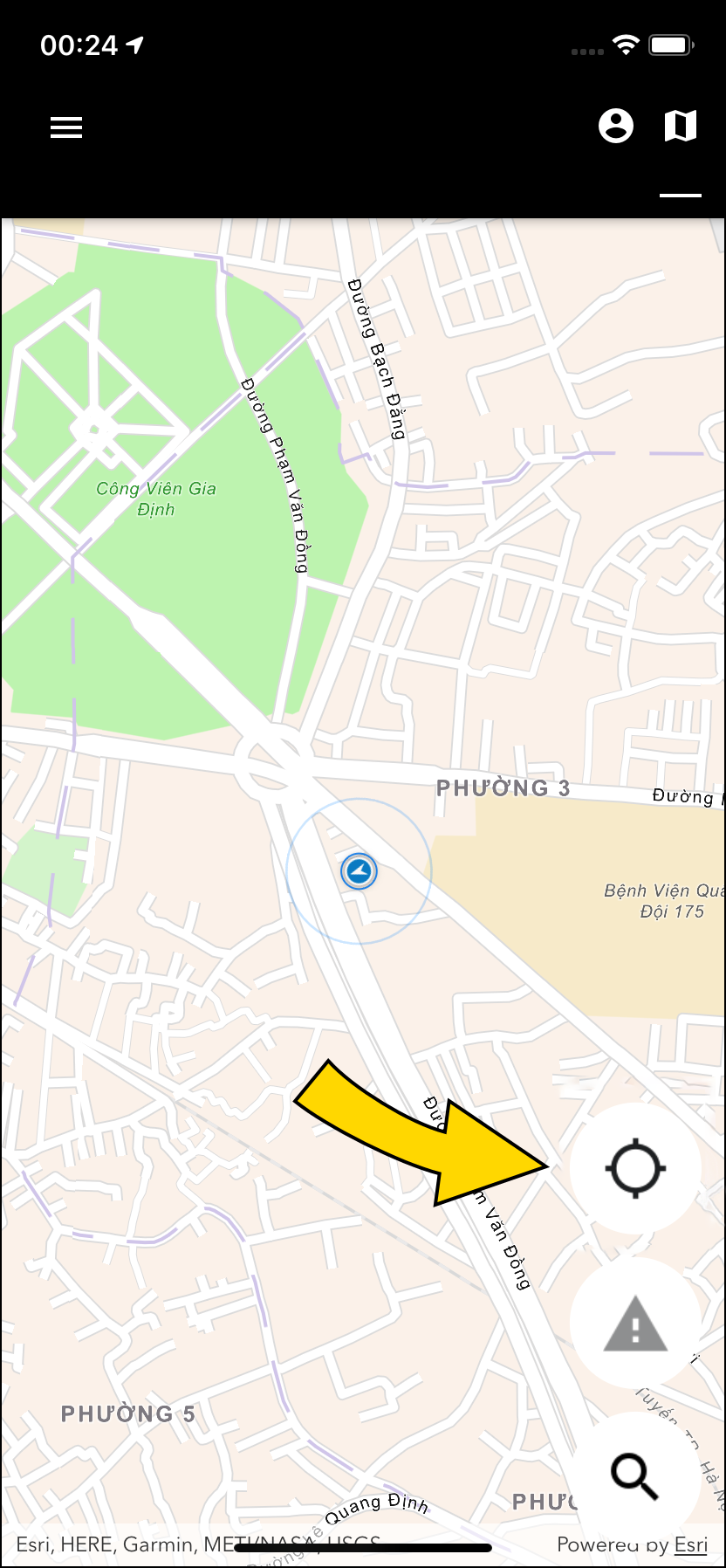
Search for a user
- Tap Search
 or switch to the User tab.
 - Enter a name, device serial number, or badge ID in the search field to filter the list. Results show:
- Full name
- Recording status (green
 = recording, gray
  = not recording)
 - Camera location status
- Timestamp of latest location update
- Most recent Respond notification associated with a red high-priority alert
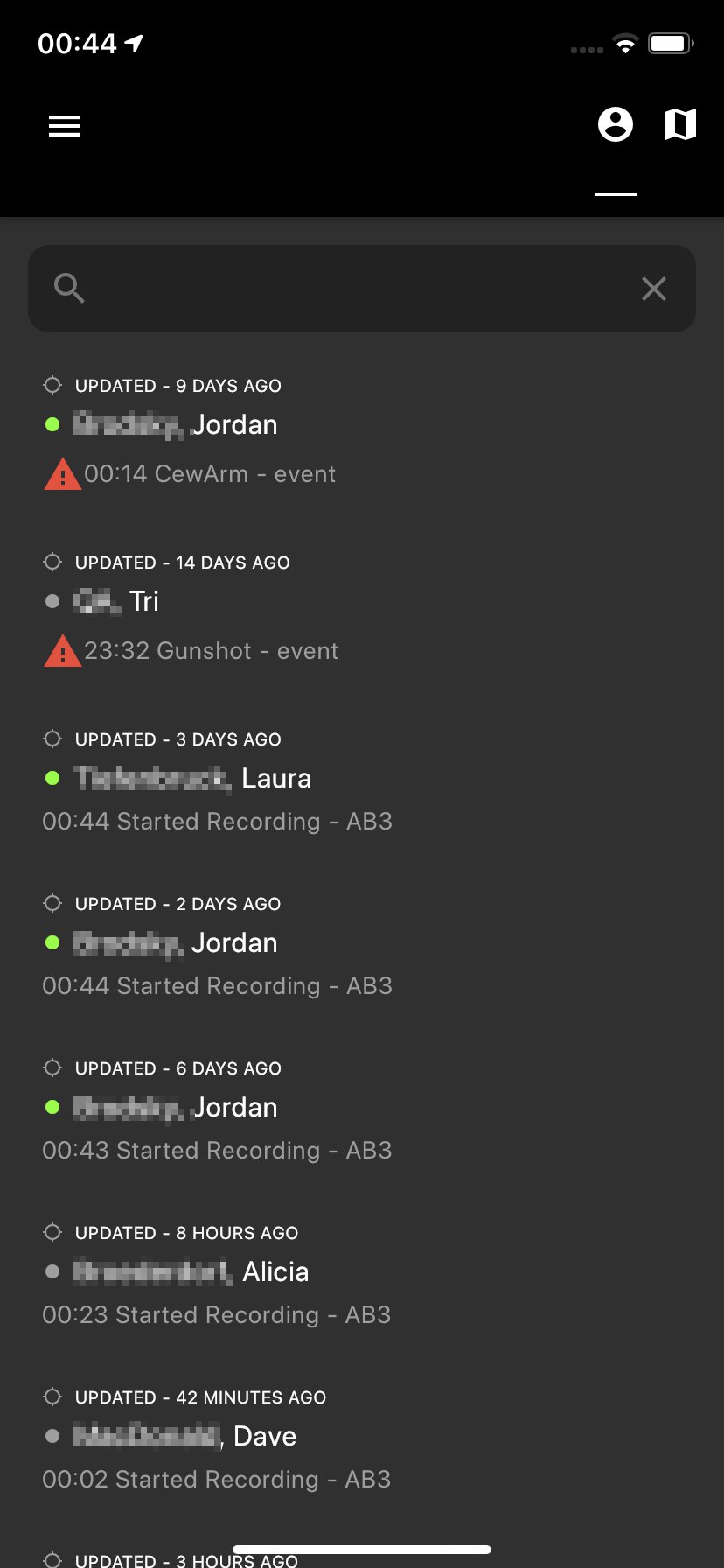
- Tap the officer’s name to view their location on the map and view their livestream if the camera is recording.
Filter devices
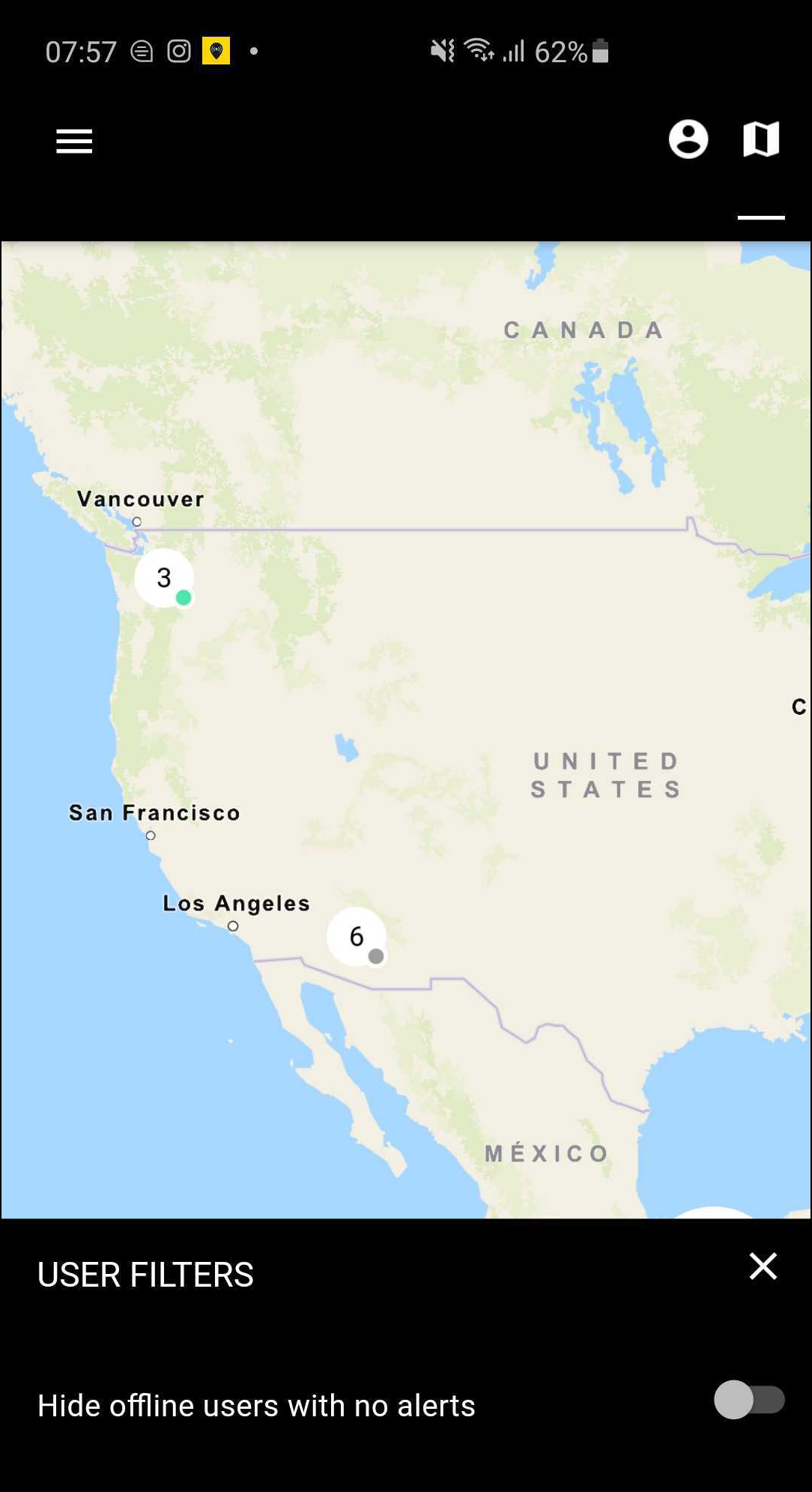
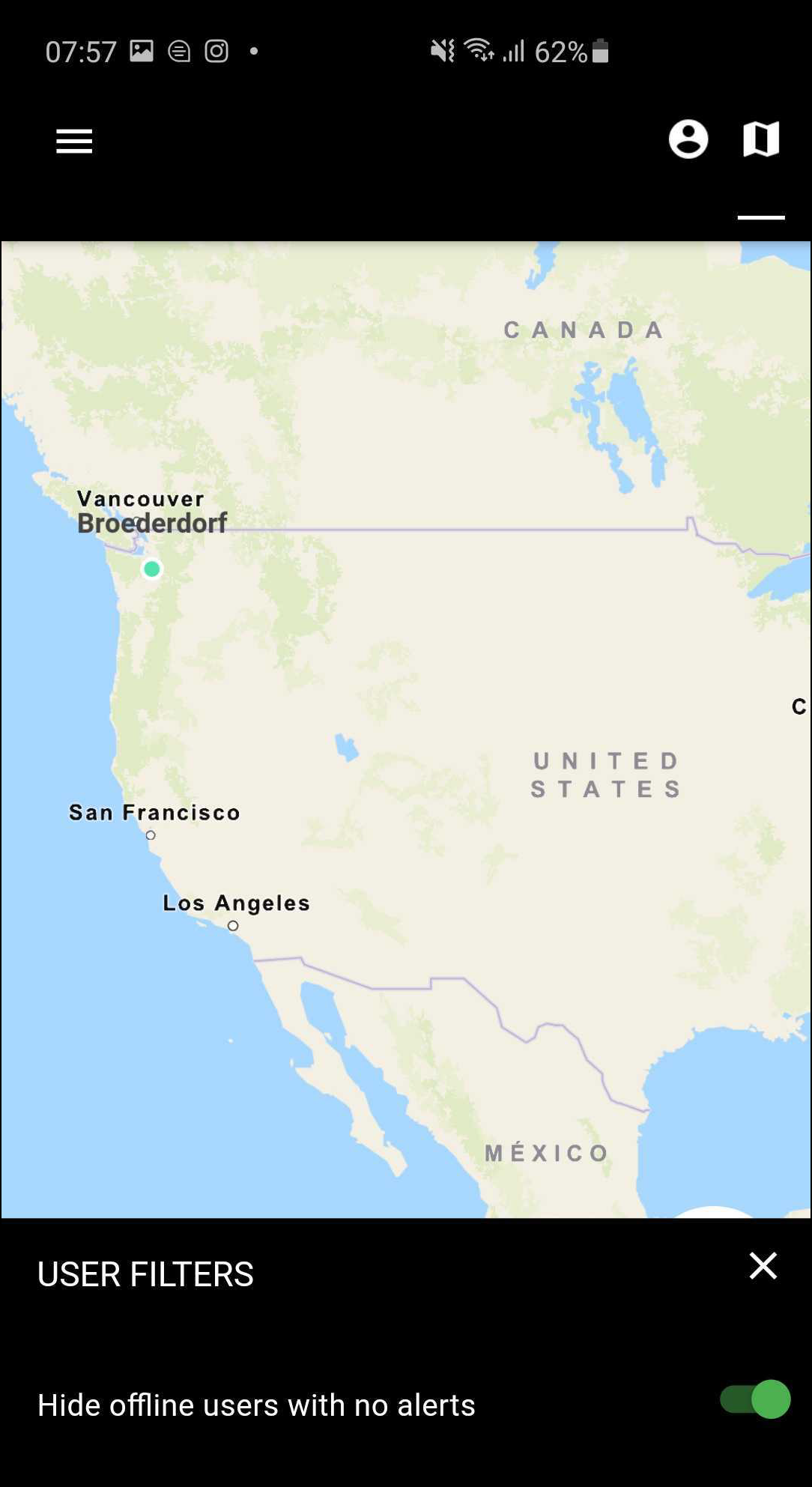
You can filter the map so you don't see devices not recording and with no alerts. This creates a clearer view of recording devices and alerts.
- Tap Filter
 (visible in Device clustering).
 - With the Hide filter toggled off (left image), the map shows all recording devices, all devices with alerts, and devices that were recording in the previous four hours. Toggle the filter on (right image) to hide devices that aren't recording or don't have any alerts.