View a livestream
- On the Respond map, tap the camera icon of the user you want to livestream. You can only livestream cameras that are in recording (red
 ) status (gray
  means offline, green
  means online and buffering, and purple
  means already livestreaming).
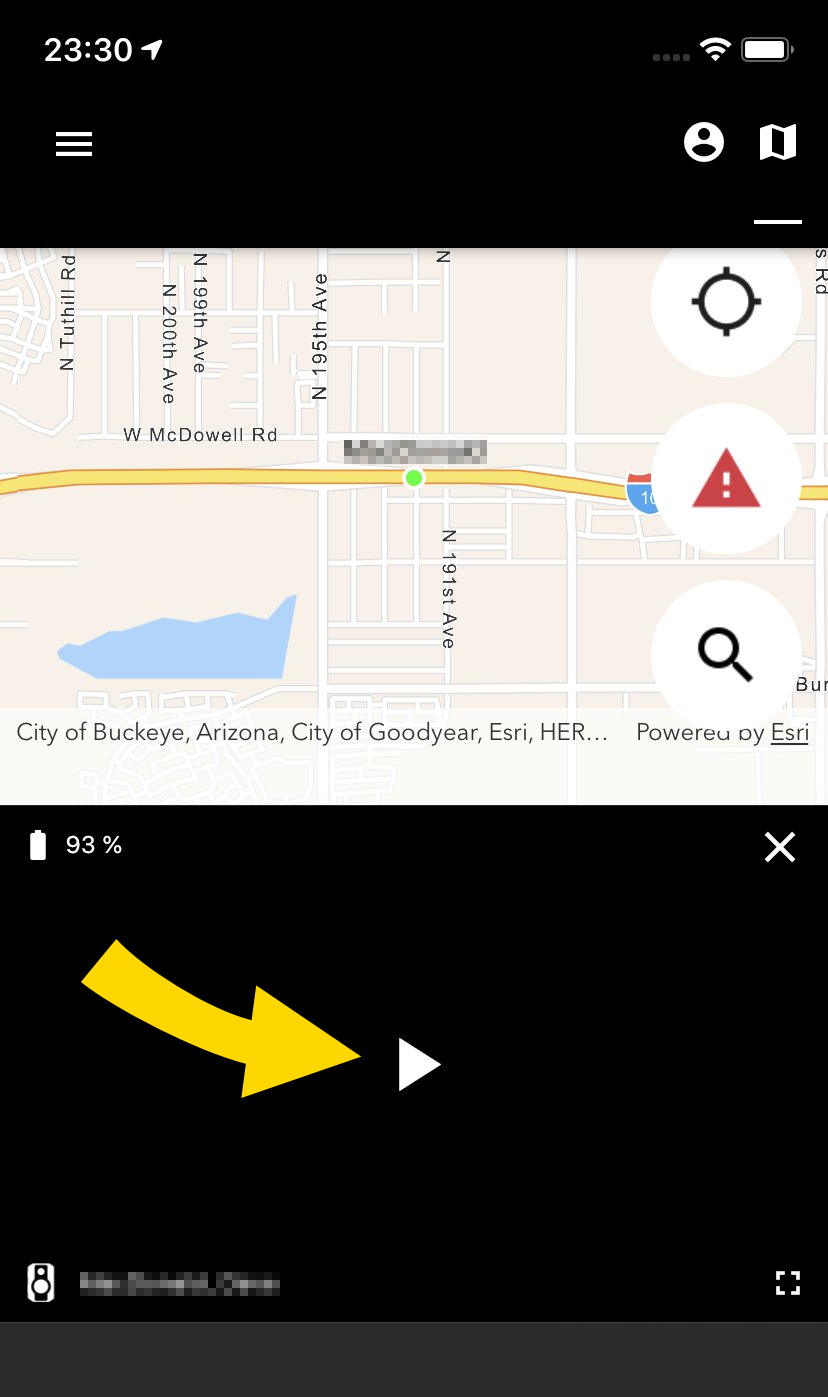
 - If the livestream doesn't start automatically, tap Play
 .
.
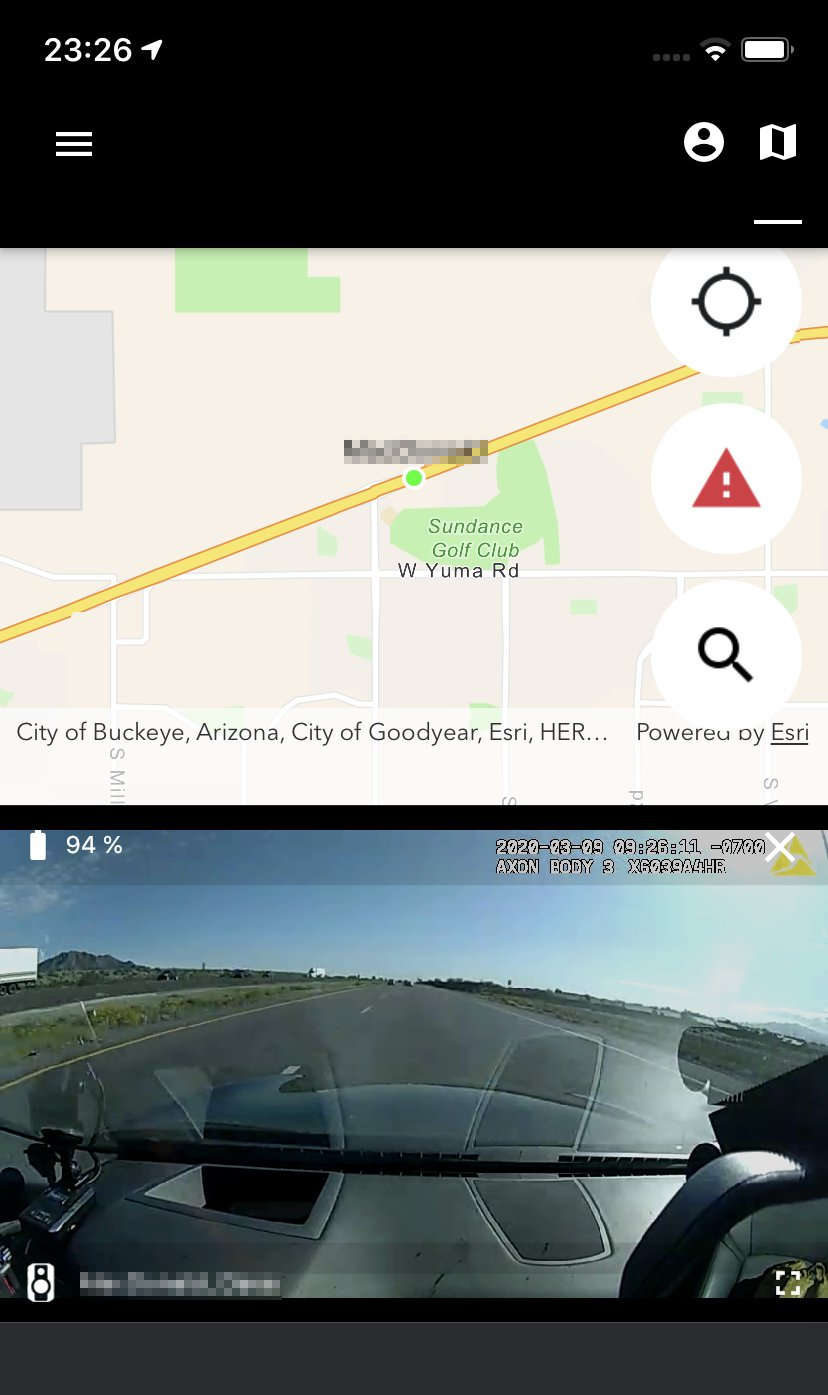
- Tap Full screen
 (shown in prior step) for full screen mode; tap the now inverted icon
  to return to regular view.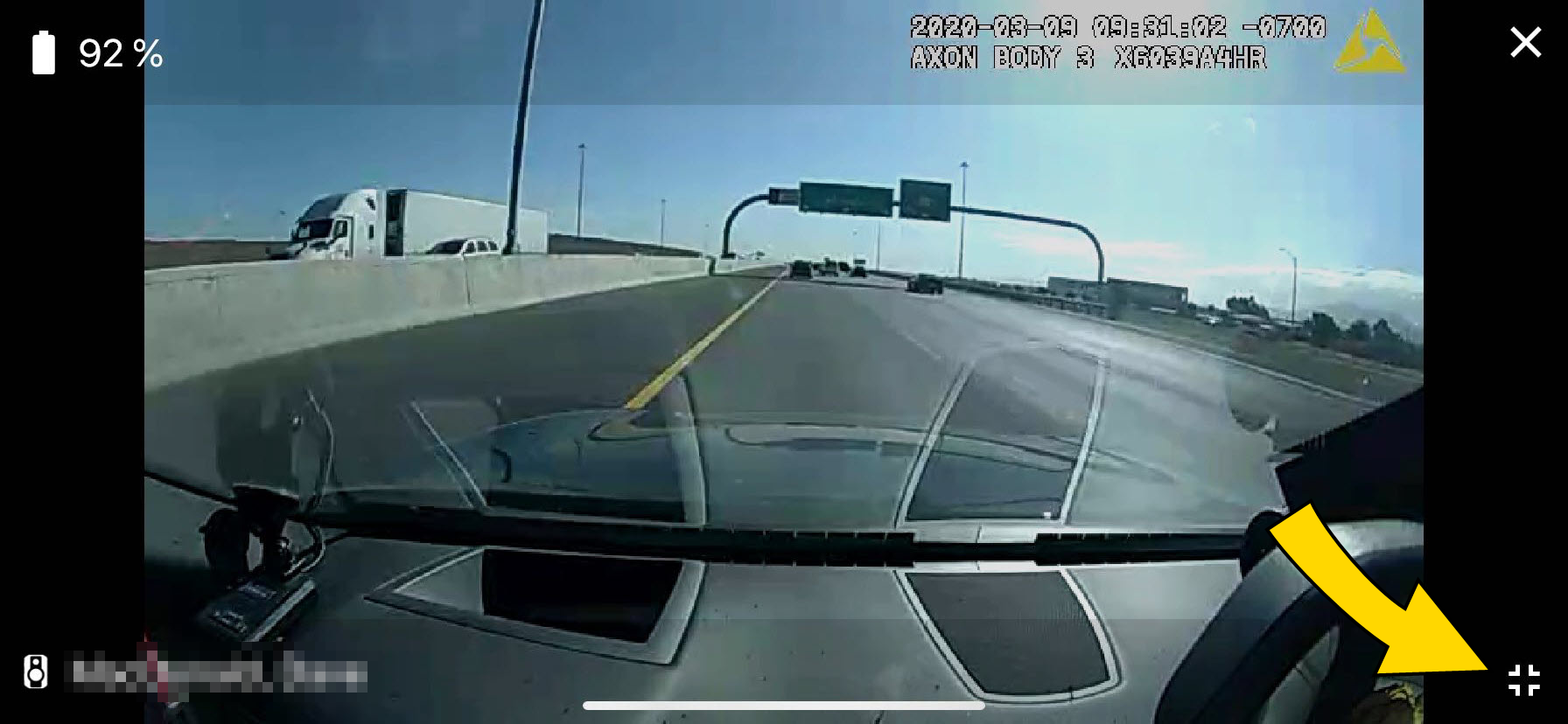
- Tap Close (X) or End Stream to end the livestream.
An event history section displays below the livestream window. It displays all high priority alerts and general user activities associated with the camera during the previous four hours.


