Livestreaming
With the real-time livestreaming capabilities of Axon Respond, commanders and supervisors can instantly access broadcasts from an officer's body camera. This immediate insight not only enhances officer safety but also fosters transparency within operations. Livestreaming requires a Fusus Plus license and Device Connectivity license; see Key features.
Get started
- Sign into Axon Evidence from any device and select Respond.
- Review the information in the window, then select Confirm to open the Respond map.
- Use one of the following methods to locate the livestream to view:
- Locate active alerts – Cameras with alerts are highlighted with a red circle. Select Alert
 to center the map on active alerts, then select Start Livestream.
 - Locate cameras currently recording – Select the right chevron to open the recording list. Locate the officer or vehicle to view, select Start Livestream.
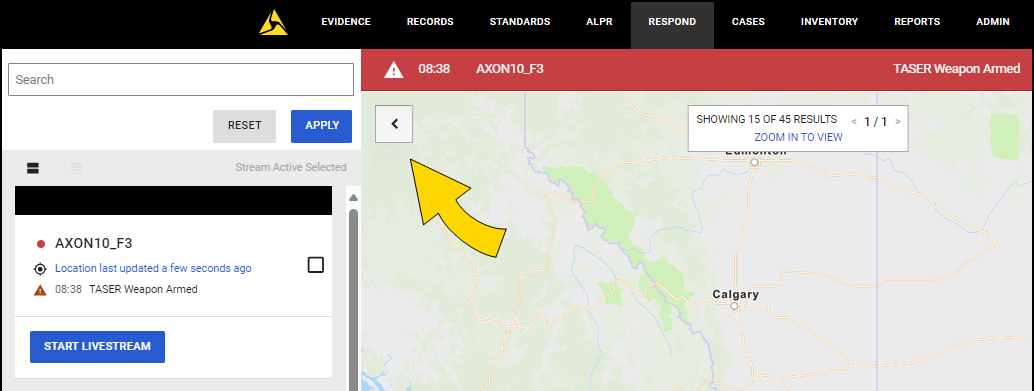
- Search for an officer or vehicle – From the recording list use the Search box to enter a name, device serial number, or badge ID, then select Apply. Locate the officer or vehicle to view and select Start Livestream.
- Locate a livestream directly from the map – Drag to move the map. Use the + or – buttons or your mouse wheel to zoom in and out. Cameras with a red dot indicate they are recording. Select one and then Start Livestream.
- Locate active alerts – Cameras with alerts are highlighted with a red circle. Select Alert
The livestream window
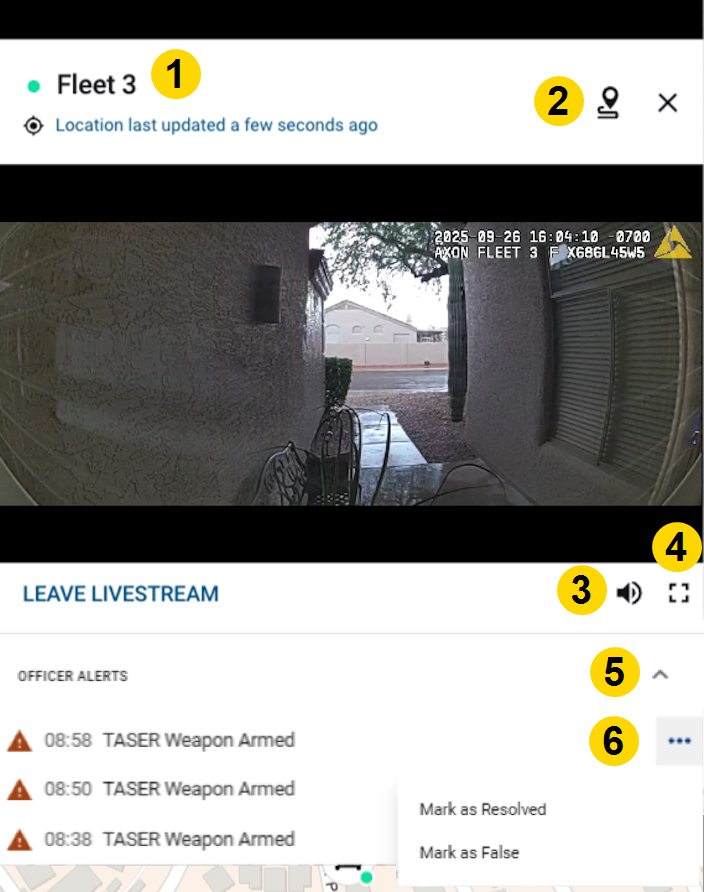
|
|
Livestreaming considerations
- Livestreams can be viewed from Axon Body 4, Axon Body 3, Axon Body Workforce, Axon Fleet 3, and Axon Air cameras.
- Up to 25 users can view the same stream from a single camera.
- Livestreaming affects body camera battery capacity, reducing charge by approximately an additional 10% for every 30 seconds of livestreaming. Other environmental factors also affect battery life.
- You can open up to 25 livestreams at one time.
- When a livestream is accessed, the information is logged in the user and device audit trails.


