Features
This
Location reporting and GPS accuracy
While recording, Axon Body, Fleet, and Air cameras send location updates based on their associated GPS sensors. Location updates depend on agency settings and the device type:
- For Axon Fleet 3, location updates send approximately every 10 seconds when the system is powered on.
- Axon Body cameras update approximately every 10 seconds when recording or 15 minutes when buffering.
- Axon Air updates approximately every 10 seconds, or every five seconds during online flights (or flights associated with a mission). It does not send updates when not recording.
The Respond map and Recording list are updated based on when a device last sent a location update.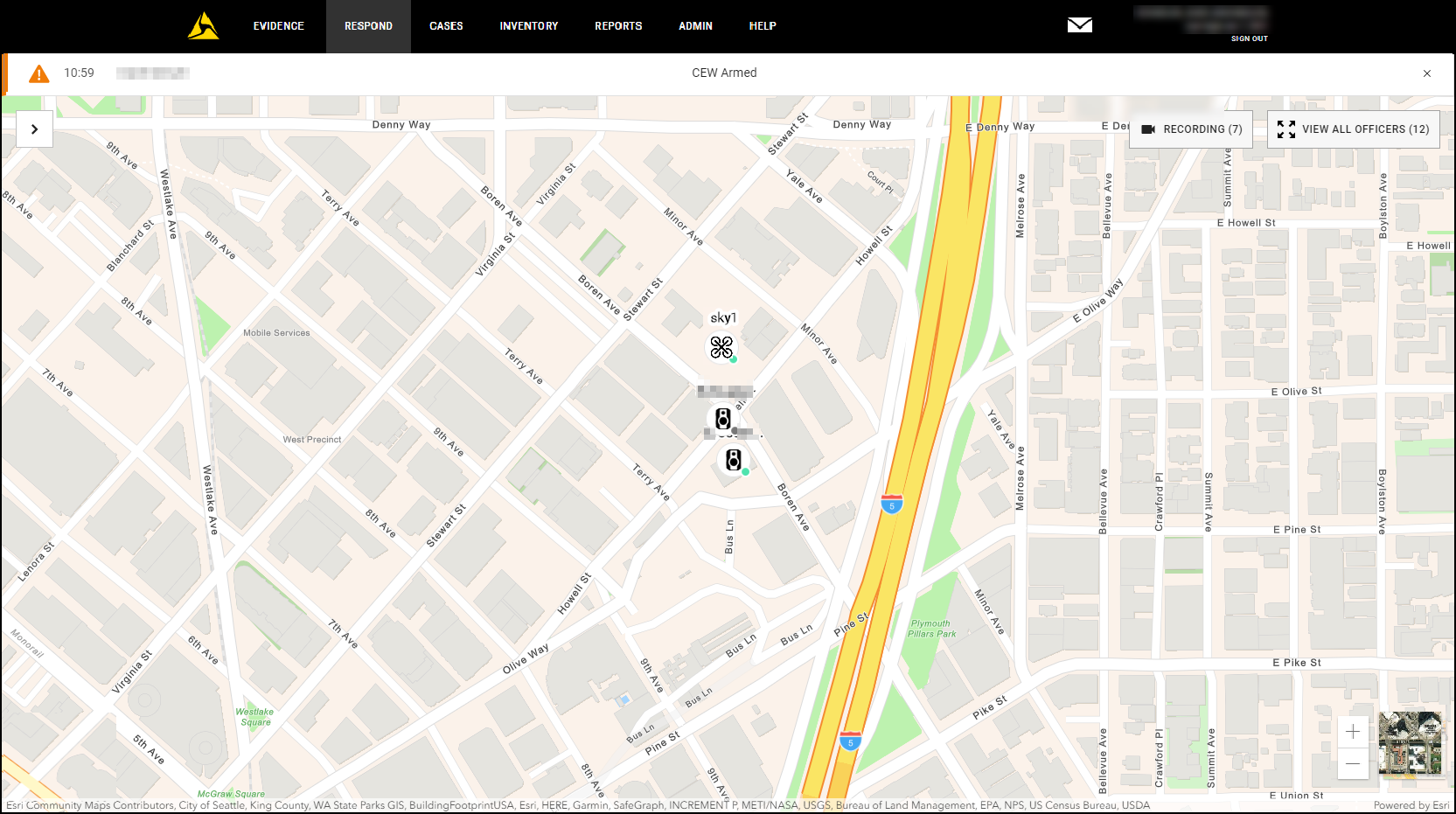
Map icons include:
| Icon | Description |
|---|---|
   |
The icon in the center shows the camera type and location. The icons at left show an Axon Body camera, Axon Fleet 3 camera, and Axon Air drone camera.
|

|
A number marker indicates a cluster of multiple devices, indicated by number. Select to zoom in or manually zoom in to see individual camera markers. If devices are in different states, the color dot is shown for the highest state in the following order: recording (red  ), buffering (green ), buffering (green  ), and off/docked (gray ), and off/docked (gray  ). ).Right-click a cluster to show a list of devices in the cluster. The order of device listing is: active devices with alerts, active devices with recently active alerts, recently active devices, and devices that are off. 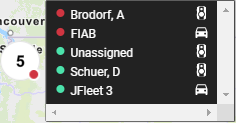 |
|
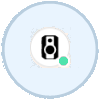
Because location of the marker is based on GPS, the accuracy of a camera’s location can vary. Select an item in the above list to jump to the map location. The marker includes a blue  circle indicating approximate GPS location; the camera is in the circle, but not necessarily in the center. circle indicating approximate GPS location; the camera is in the circle, but not necessarily in the center.For Axon Air, if the device does not have a GPS lock, it will appear in the Recording list, but not on the Respond map. |
Navigate the map
- Drag your mouse to move around the map.
- Select the map + or – icons or mouse wheel to zoom in or out.
- Select View All Officers to zoom out to all cameras currently on the map.
Real-time alerts
When a user takes an action that is configured for notification, including actions for Axon Fleet 3 vehicles, the information is passed to Axon Respond as an alert or general user activity notification.
Actions configured as High Priority Alerts send an alert to Axon Respond in real-time. Users see alerts as a banner at the top of the map:
Selecting the banner takes you to the map location of the alert. Select X to dismiss the banner.
 The alert also appears in the livestream view, Recording list, and map marker for the officer with a red ring:
The alerts are shown in the Recording list, marker, and map for four hours or until marked as false or resolved.
Actions configured for General Officer Activity send the information to the livestream view, Recording list, and marker in the Officer Activity section.
See Axon Respond Notification Configuration for information on configuring alerts and notifications.
Recording list and user search
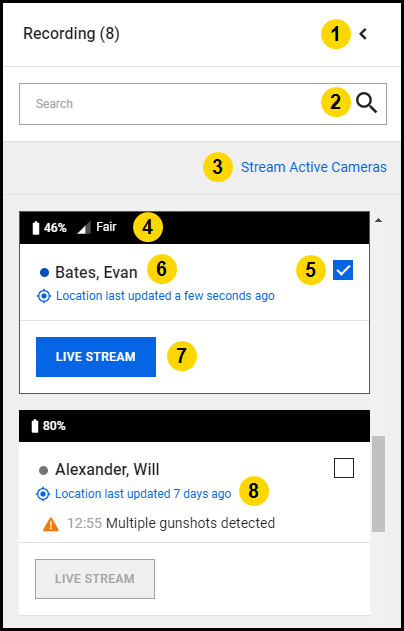
The Recording button on the map shows the number of cameras currently recording. Select to open the Recording list, which shows a list of names for active or recently active users, vehicles, or devices. Use the Recording list to show the most recent device location and start a livestream. The list is sorted alphabetically, with cameras currently recording listed first.
The length of time a marker remains on the map depends on the Respond device location filter setting for your agency. Livestreaming is only available for Fusus Plus or Fleet 3 livestreaming license users.
- Select a camera location to move the map to the marker location and show its information.
- Select Livestream to start a livestream for the selected camera. For Fleet 3, only the Dual View is available for livestreaming.
- Open multiple livestreams by selecting the check box for each camera and then selecting Stream Active Cameras.
To search by user name:
|
|
Device state and battery information
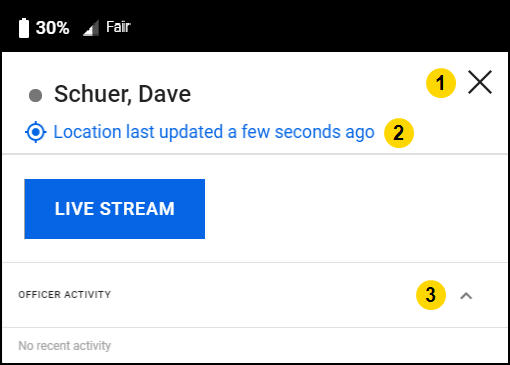
Select a marker on the map or a Recording list to display the device information. If the camera is recording, you can start a livestream.
|
|
Livestreaming
While recording, body camera, Fleet 3, and Axon Air camera livestreams can be viewed in Respond. Axon Air streams begin after an online flight (or a flight in a mission) is initiated in the mobile app. Up to 25 users can view the same livestream with a latency generally less than one second.
Livestreaming affects body camera battery capacity, consuming an additional ~10% for every 30 minutes of livestreaming (but also dependent on other environmental factors). Performance differs between different body camera models, such as Body 3 and Body 4.
Livestreaming with Axon Air does not affect the drone battery, but it does affect the battery capacity for the mobile device connected to the controller.
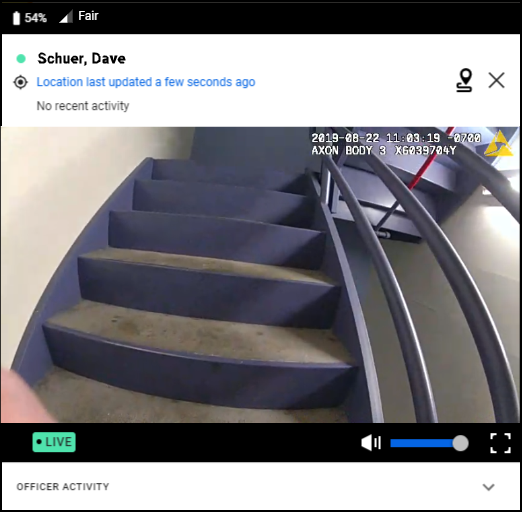
Select the marker on the map or open the Recording list and select Livestream to start a livestream. The button is gray if you are watching the livestream.
Adjust or mute the stream volume as needed or expand to full screen using Full Screen  .
.
Livestreaming default ratings as of Body 3 are:
- Bitrate – 1 Mbps for video and 128 Kbps for audio (bitrate measures the amount of data transmitted over a given time)
- Streaming quality (resolution) – 480p (848 x 480)
- Frames per second (fps) – 30 fps
To move the livestream view window, drag the window in the browser. Open multiple livestream view windows and move them to provide an optimal viewing experience. Each livestream view includes an icon noting if the window is still tethered to the marker or has been moved away from it.
Selecting the untethered icon tethers the window back to the camera marker.
|
|
When a livestream ends or fails due to signal strength or connection issues, a message displays on the livestream viewer.
Audit trail
When a livestream is accessed, the information is logged in the user and device audit trails.
- The user audit trail shows the date-time the livestream is accessed and closed along with the serial number of the device.
- The device audit trail (including for Axon Air) shows the date-time the livestream is accessed and closed and by what the user.
Known issues and exceptions
- If the computer goes to sleep during an active livestream, the stream is not automatically stopped; a viewer must either stop recording or the stream must be restarted and stopped.
- Due to a known issue in Firefox, livestreaming can fail when attempting to view two or more streams at the same time.


