Admin FAQ
Welcome to the Axon Academy FAQs (frequently asked questions)! This resource is for training administrators, providing answers to common questions about using the platform. If your question isn’t answered here, reach out to your Axon representative for help.
I’m not showing as an Admin in Axon Academy. What can I do?
Axon Academy automatically syncs roles from Axon Evidence. To appear as an Admin, confirm that your Axon Evidence account is assigned to the academy-admin group. If that group doesn’t exist, you may need to create it.
Is an Axon Evidence Pro license required to access Axon Academy?
No, an Axon Evidence Pro license is not required to access Axon Academy.
Users must be assigned to either a Lite or Pro user role to sign in to Axon Academy. To learn more about Axon Evidence account tiers, see License Tiers FAQ.
The Assignee Only role cannot be used to access Axon Academy.
Why am I not seeing all of my officers in Axon Academy?
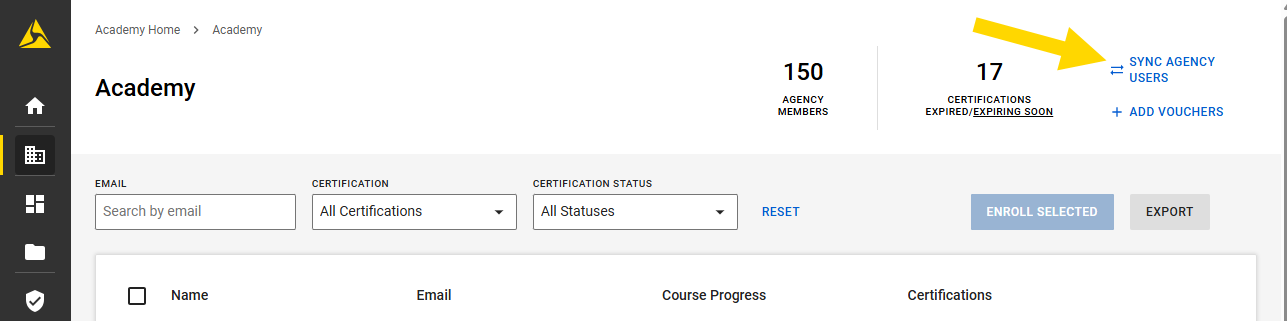
Axon Academy syncs users from Axon Evidence. If you've recently added users and don’t see them listed, go to the Agency Dashboard and select Sync Agency Users to refresh the list.
How can I enroll multiple officers from my agency in a course?
You can enroll multiple learners individually or by uploading a CSV file.
Agency Admins cannot unenroll learners from a course. Instead, direct learners to unenroll themselves. See the FAQ How do I unenroll from a course? in the Learner FAQ.
Option 1: Enroll selected learners
- Open the Admin Dashboard.
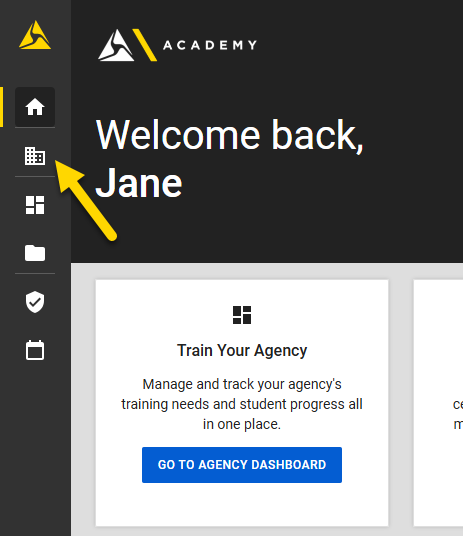
- Select the names of the learners you want to enroll.
- Select Enroll Selected.
- Choose the course and session you want to enroll them in.
- Select Enroll.
Option 2: Enroll learners using a CSV
Before you begin, create a CSV file that contains one email address or badge number per line.
- Open the Admin Dashboard.
- Select Enroll via CSV.
- Select the course you want to enroll users in.
- Select Select CSV File and choose the CSV file.
- Select Upload & Validate. If any records contain errors, such as a user account that does not exist or a learner who is already enrolled in the course, those records are identified in the validation results. Learners without errors will still be enrolled.
How do I view a user transcript in Axon Academy?
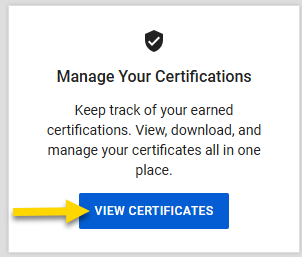
To view your own transcripts, select View Certificates on the Axon Academy homepage.
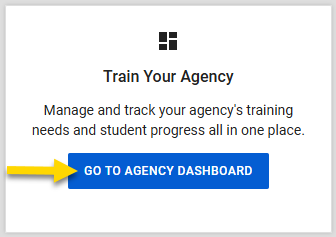
Training Administrators can view all user transcripts in Axon Academy in the Agency Dashboard. To access it, select the Go to Agency Dashboard from the Train Your Agency tile.
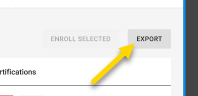
From here, you can export the training records for all users currently in view by selecting Export.
To export specific records, use filters to narrow results by Email, Certification, or Certification Status.
How do I get reports on what my agency learners have completed?
On the Agency Dashboard, select Export to generate a CSV file based on your current filters. Use this file to track learner progress or to import training data into other systems.
This report includes the following information:
- User Name
- Email Address
- Enrollment Date
- Session Start Date
- Session End Date
- Session Location
- Certification Issued Date
- Certification Expiration Date
- Certification Status
- Qualification Level
- Prework Percentage Complete
How do I view a list of users enrolled in an online course in Axon Academy?
Admins can view a list of users enrolled in a course on the Admin Dashboard by selecting Admin Dashboard in the Academy panel.
What do the colored certification icons mean in the Certifications column on the Admin Dashboard?
The colored icons next to a user's name in the Certifications column indicate user's certification status:
- Green: Certification is active
- Yellow: Certification is expiring soon (due in 90 days or sooner)
- Red: Certification has expired
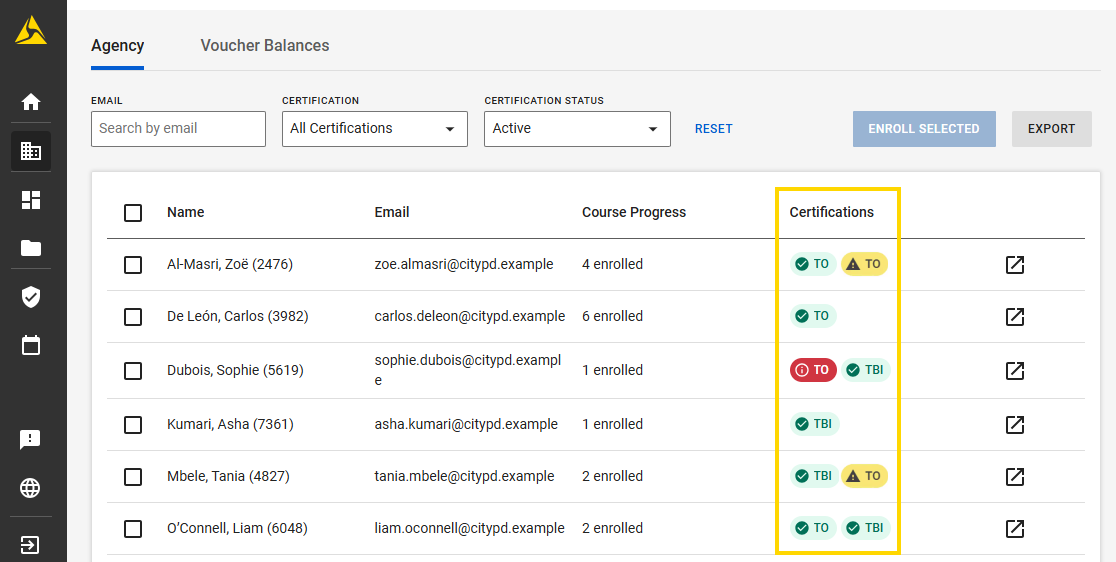
You can hover over an icon to view a tooltip with the full certification name. For example, TBI means TASER Basic Instructor.

I just completed certifying my officers as users. What documents does TASER Training need for their records?
Axon no longer requires any documentation from your user courses.
Please keep all documents on file at your agency for your own records and compliance purposes.
How do I view my agency's voucher balance?
Vouchers are shared across your organization. If your organization has multiple Axon Evidence domains, learners in those domains may be using vouchers from the same shared balance.
If you're unsure how your agency is set up or why your voucher balance has changed, contact your agency admin..
To view voucher balances:
- Sign in to Academy.
- Open the Admin Dashboard.
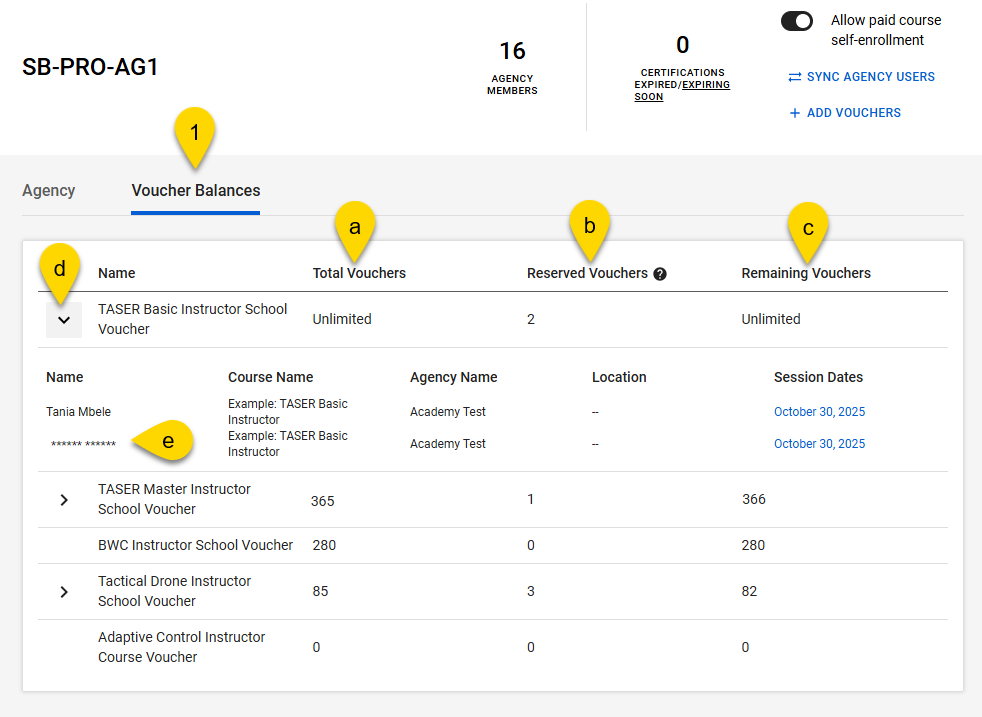
- Select Voucher Balances. Review the voucher information displayed across these columns:
- Total Vouchers: The total number of vouchers across your organization.
- Reserved Vouchers: The number of vouchers that learners across your organization have reserved for enrollment. Vouchers are only consumed after a learner has completed all required training and is signed off. If a learner unenrolls from a course, the reserved voucher is released and returned to the available balance.
- Remaining Vouchers: The number of vouchers still available for enrollment. This number is calculated as the total vouchers minus used vouchers.
You can expand each voucher section to view additional information: - Expand icon: Select the expand icon next to a voucher type to view enrolled learners.
- Masked learner name (****** ******): Indicates the learner belongs to a different agency but shares the same voucher pool as your organization.
For an alternative way to view vouchers on Axon Academy, watch this video.


