Work with device search results
Use the Axon Evidence search screen with its robust filtering options to find and manage devices. Some management tasks require advanced user (admin) permissions.
Read the following sections to learn about:
- View device profile
- Update device status
- Update device home
- View device assignee
- Export device search results
View device profile
- Search for the device you want to view (see Use standard search).
- In the search results, select the serial number of the device to view it's profile page.
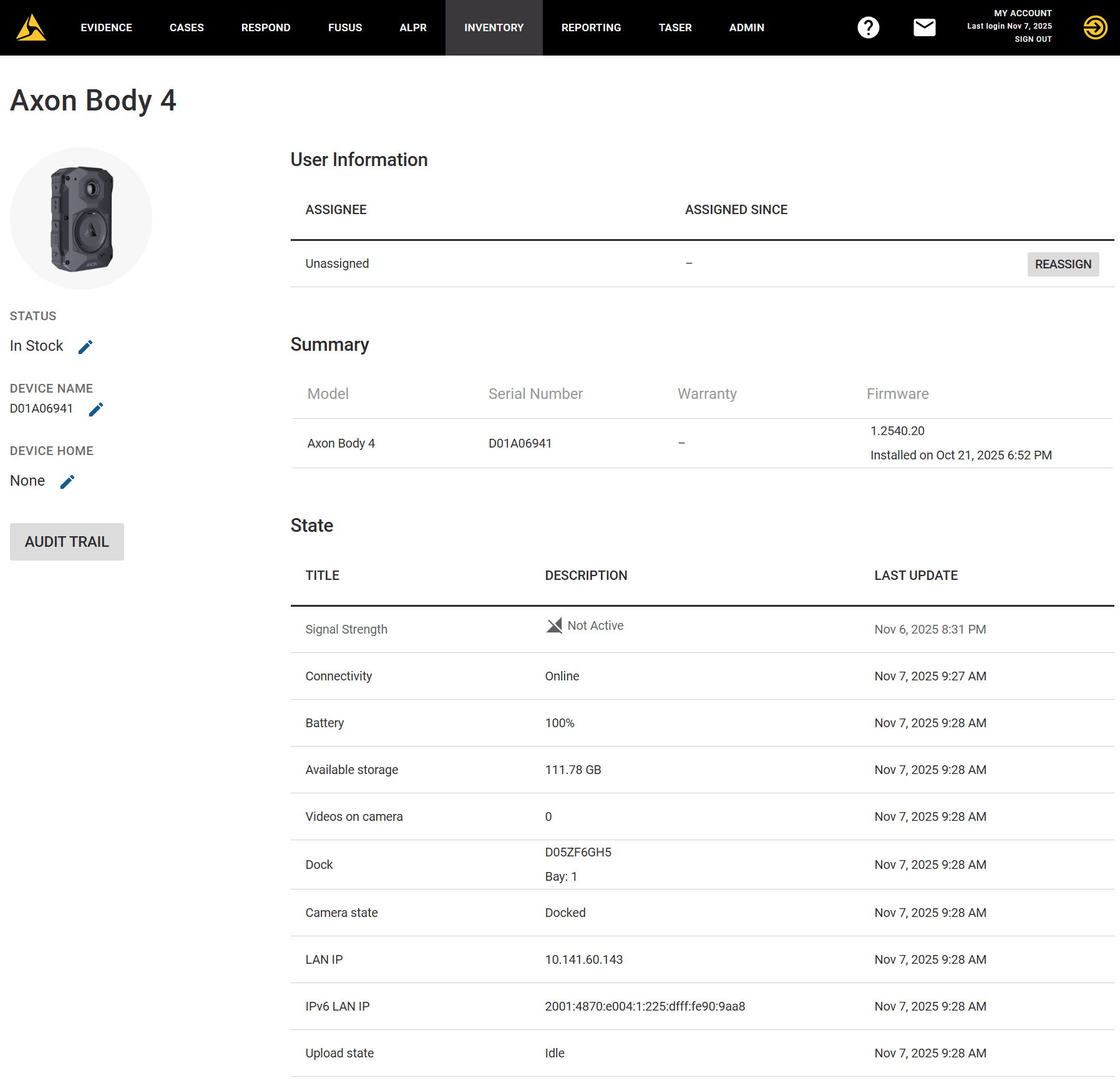
For information about the actions you can take from the Device Profile page, see Work with devices.
Update device status
Users with Device Administration permission can change the status of selected devices, including unassigning devices. Most Axon devices can also be assigned and unassigned using the Axon Device Manager app (download from your app store).
- Search for the device or devices (see Use standard search).
- Select the devices in the search results to view its profile page (see Device profile page overview).
- Select Update Status and select the new status from the list.
- Unassign devices by changing the device status to In Stock. Devices cannot be assigned using Update Status. Devices can be assigned using Axon Device Manager, on the Device Profile page, or by using Bulk assign.
- Select Update to save the changes, then Close.
Device status descriptions
| Status | Description of device |
|---|---|
| Assigned | Assigned to a user in your organization. |
| In Stock | Registered to your organization, but not assigned to a user. |
| In Evidence | Registered to your organization and is being held as physical evidence and has been withdrawn from deployment. |
| In Test | Registered to your organization and is undergoing standard test and maintenance procedures. |
| Lost | Registered to your organization and reported as lost. |
| Stolen | Registered to your organization and reported as stolen. |
| Review | Registered to your organization and is currently undergoing investigation/troubleshooting. |
| RMA | Registered to your organization but returned to Axon for RMA processing. |
| Relinquished | Returned to Axon and no longer registered with your organization. The device remains in your search list for historical and audit purposes. |
| Scrapped | Registered to your organization and reported as destroyed or no longer serviceable. |
Update device home
The Device Home attribute only appears on the inventory search page if your organization has at least one Device Home.
Users with Device Administration permission can change the Device Home for selected devices. Device Home information is included in the Device Summary report.
- Search for the device or devices (see Use standard search).
- Select the device in the search results.
- Select Update Home and select the Device Home from the list.
- Select Update.
- The system confirms the Device Home is assigned. Select Close to return to the search page.
View device assignee
You can only view assignee information if your role has the Device Administrator or CEW Administrator permission enabled.
- Search for the device whose assignee you want to view (see Use standard search).
- In the search results, select the user’s name for the device under Assignee. The User Summary page displays information about the assignee.
Export device search results
You can export the results of a device search in PDF, text, or Microsoft Excel/CSV format. When device search results are exported in Excel or CSV format, the Device Assignee first and last names appear in separate columns.
If the search results contain more than 500 devices, Axon Evidence exports the search results in 500-device segments and asks you to confirm the download of the next segment.
- Above your search results, select Export.
- In the Select Format list, select the desired file format.
- Select Export on the message box to download the search results.
- To export results for additional devices, select OK each time the dialog box appears. The device search results download in a separate file for each 500-device segment of the search results.


