Clear past incidents
When arresting an individual who was involved in prior incidents, NIBRS requirements entail that each prior incident report in which that individual was identified as an offender be updated with the latest arrest information.
In Axon Records, when you add an arrest and charges to an incident report, you can view past incidents associated with that individual and move charges from the current incident report to a past incident report.
When you move charges, supplements are automatically created and routed for Records Review as soon as the current incident report is finalized. Records clerks can then review and finalize these auto-created supplements to clear the past incidents.
When using this feature in Axon Records, it's helpful to understand the following language:
- Current incident report: The incident report with the most recent date that the arrest details and charges are originally added to
- Past incident report: The incident report with a date in the past that the arrest and one or more of the charges are added to once the current incident report is finalized
- Supplement: After an incident report has been finalized by the Records department, a supplement can be created that contains all information from the original report.
- This supplement can be edited to adjust, add, or remove information that appeared in the original report. The supplement is then submitted and finalized using the same review process as the original incident report. If more changes are needed after a supplement is finalized, additional supplements can be created. Each supplement contains all information contained in the previous supplement.
- For more information about supplements, see Create a supplement.
Report writing: Move charges to past incidents
To move charges from the current incident to a past incident, take these steps:
- While writing the report, add an arrest and one or more arrest charges to the Arrestee.
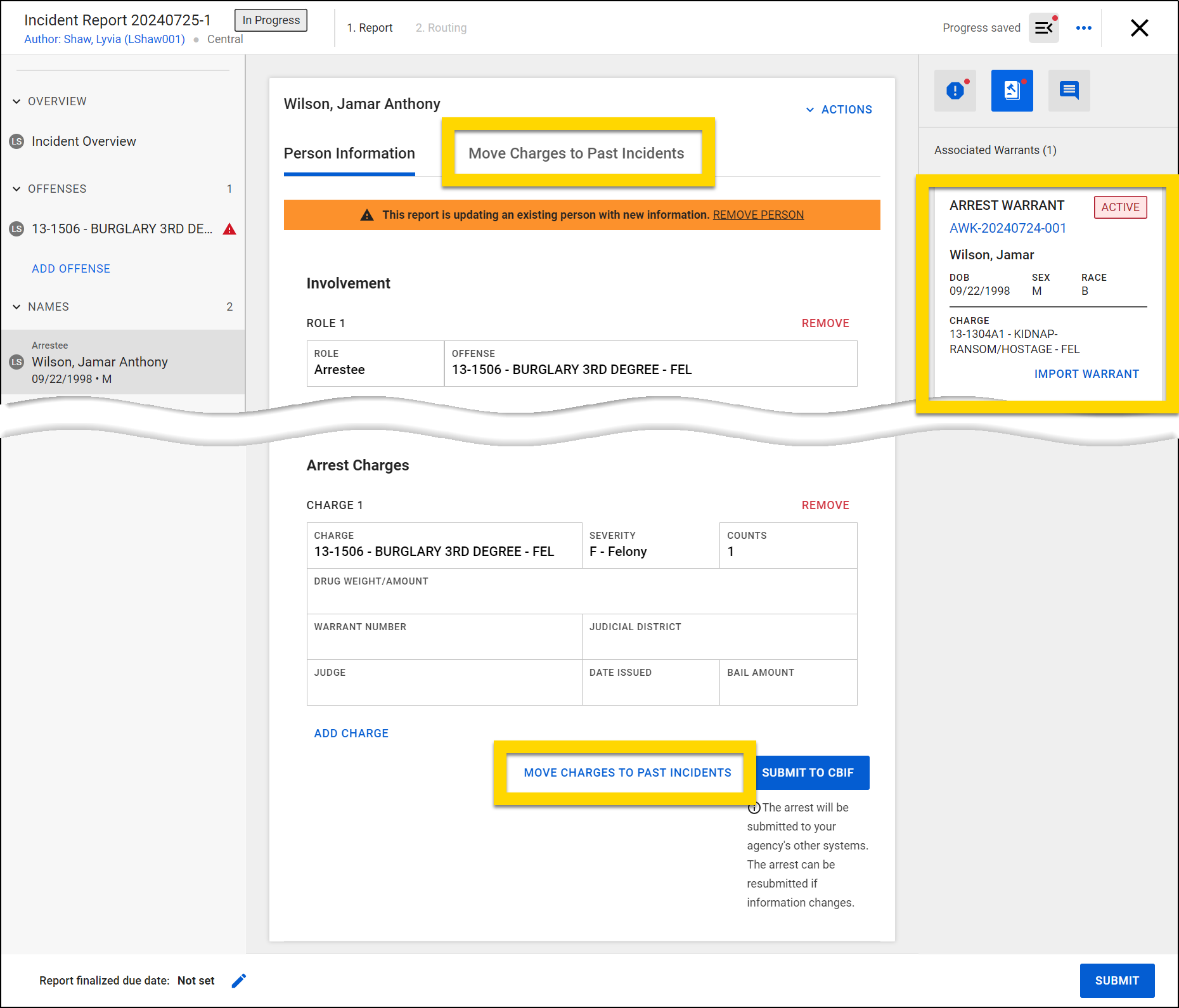
- Select the Move charges to past incidents button that appears below the charge list or scroll up to the top of the person's section and select the Move charges to past incidents tab.
- Charges will not appear on the Move charges to past incidents tab until they have been added to the charge list in the Arrest form.
- If you import a warrant into the Arrest form, any charges associated with the warrant will also appear on the Move charges to past incidents tab.
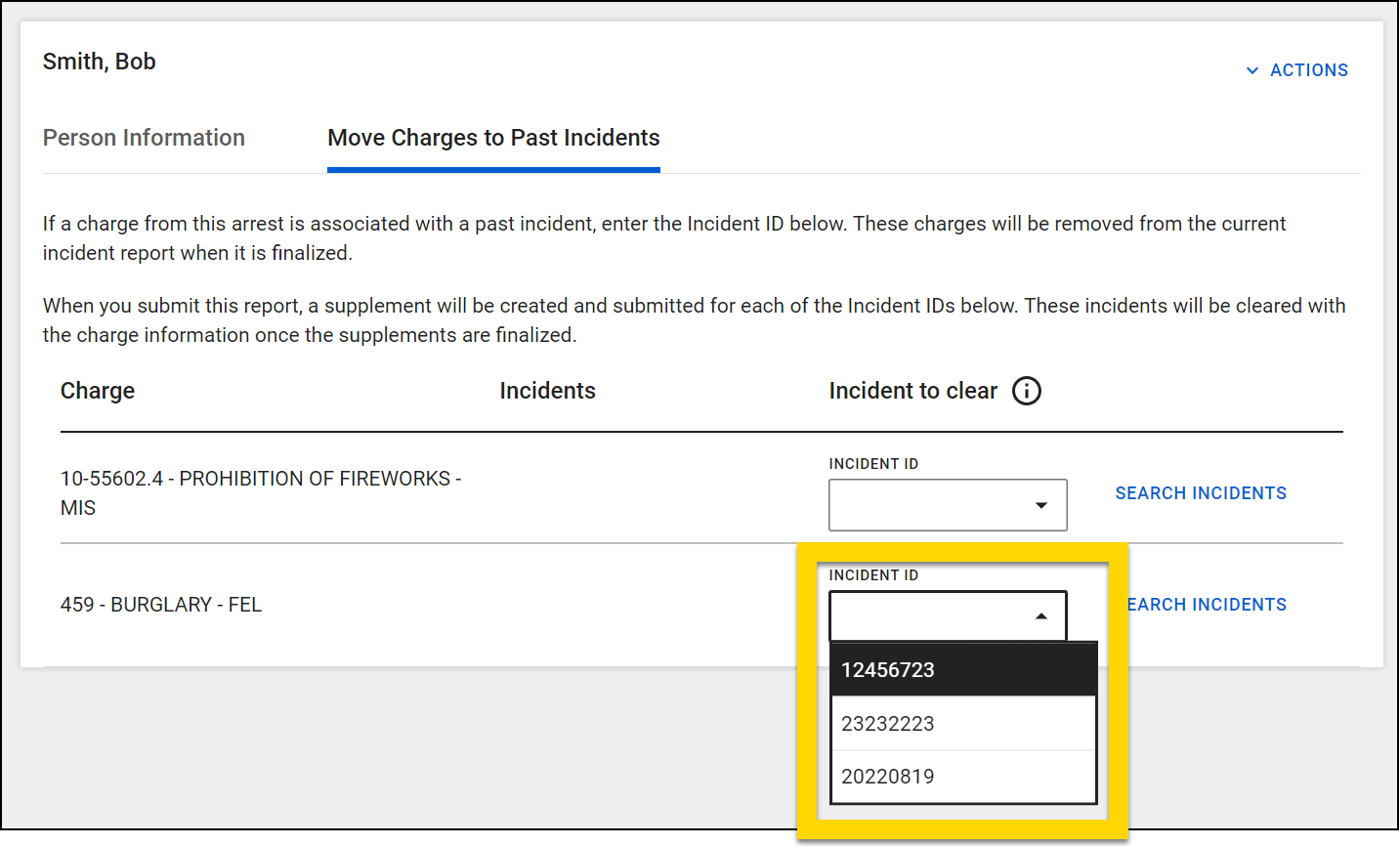
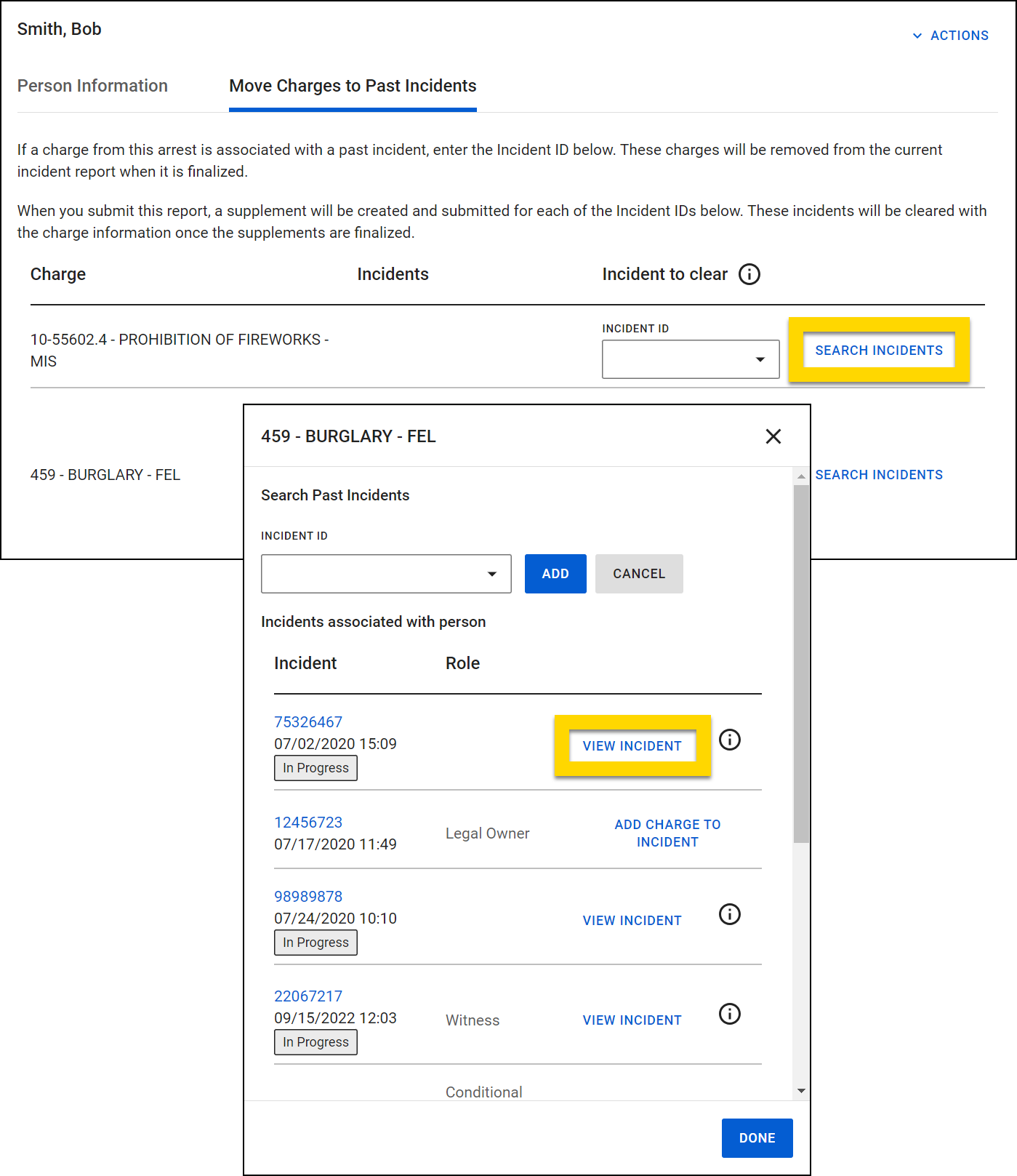
- This tab shows a table that includes all charges you have added to the current incident report. This table also includes any charges that have been added to the report if a warrant containing charges was imported into the report. Select an incident from the Incident ID field in the Incidents to Clear column to move that charge to that incident.
- The Incident ID field contains all finalized incident reports where that person’s role was recorded as Suspect.
- If you do not see the Incident ID you are looking for, select Search incidents to view all finalized and in progress reports that person is associated with. This list includes all incidents and not just those that are finalized and the person’s role is Suspect.
NoteIf a charge is associated with the offense in the current incident report, leave the Incident ID field empty. That charge must remain on the current incident report rather than being moved to a past incident.
- Complete the rest of the report and select Submit.
- Review the submission screen, which displays a summary of the supplements that will be created once the report is finalized by the Records department, including:
- One supplement for the current incident (to delete the charges that are being added to past incidents)
- One supplement for each past incident that will be updated with new charges and arrest information
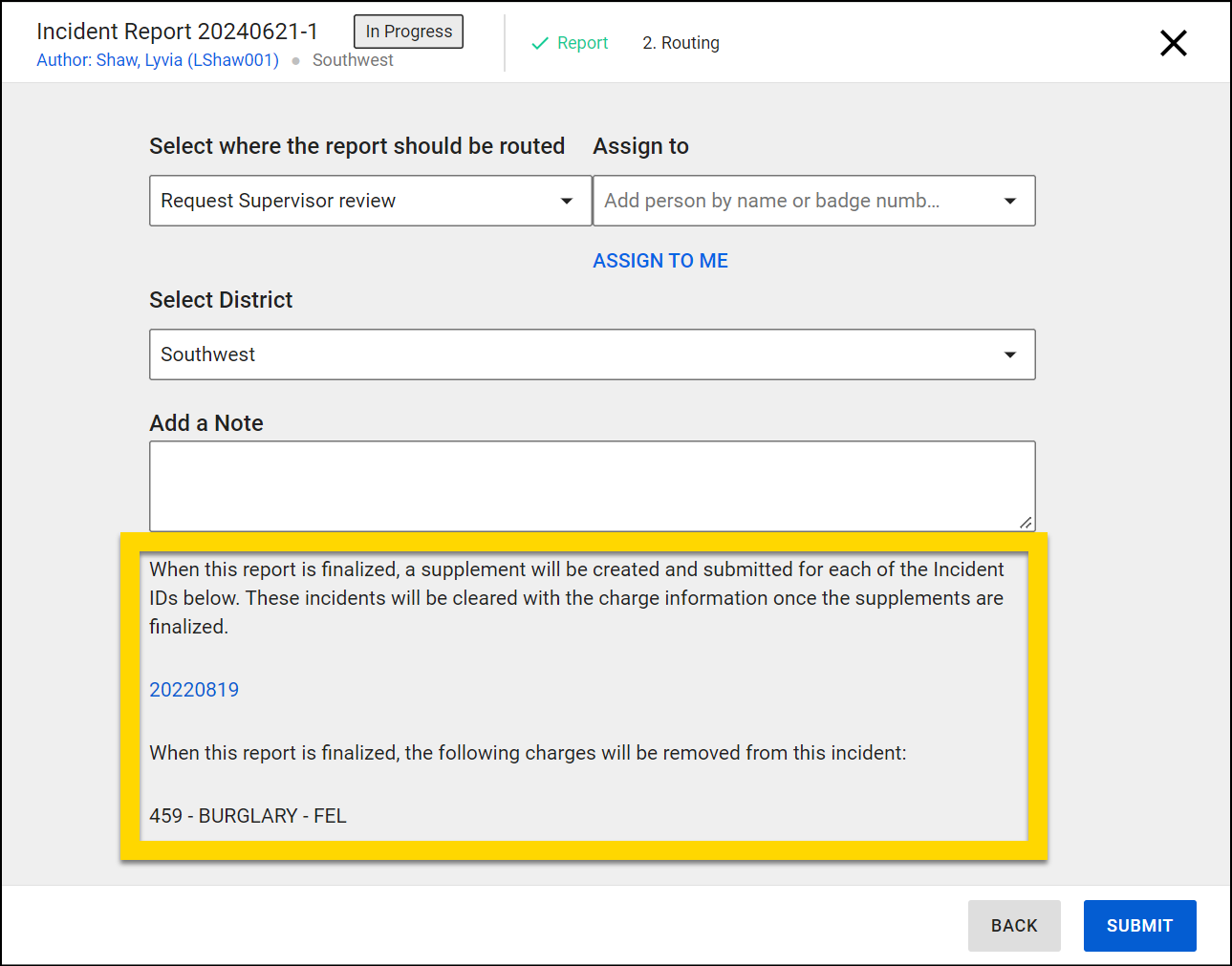
- If everything looks correct, select Submit. The report will follow the usual review process, and the supplements will be created once the report is finalized by Records.
- At times, the auto-creation of these supplements may fail. If this occurs, a warning message displays, indicating that you must open the incident report (either the past report or the current report), create the supplements manually, and update the charge and arrest information.
Search incidents
If you do not see the Incident ID you are looking for in the Incident ID field on the Move charges to past incidents tab, it means the incident report or one of it supplements is in progress.
To update the in progress report, take these steps:
- Select Search incidents to view all finalized and in progress reports that person is associated with.
- Unlike the incidents included in the Incident ID field on the Move charges to past incidents tab, this list includes all incidents and not just those that are finalized and the person’s role is Suspect.
- Find the incident you need to add the charge to and select View incident.
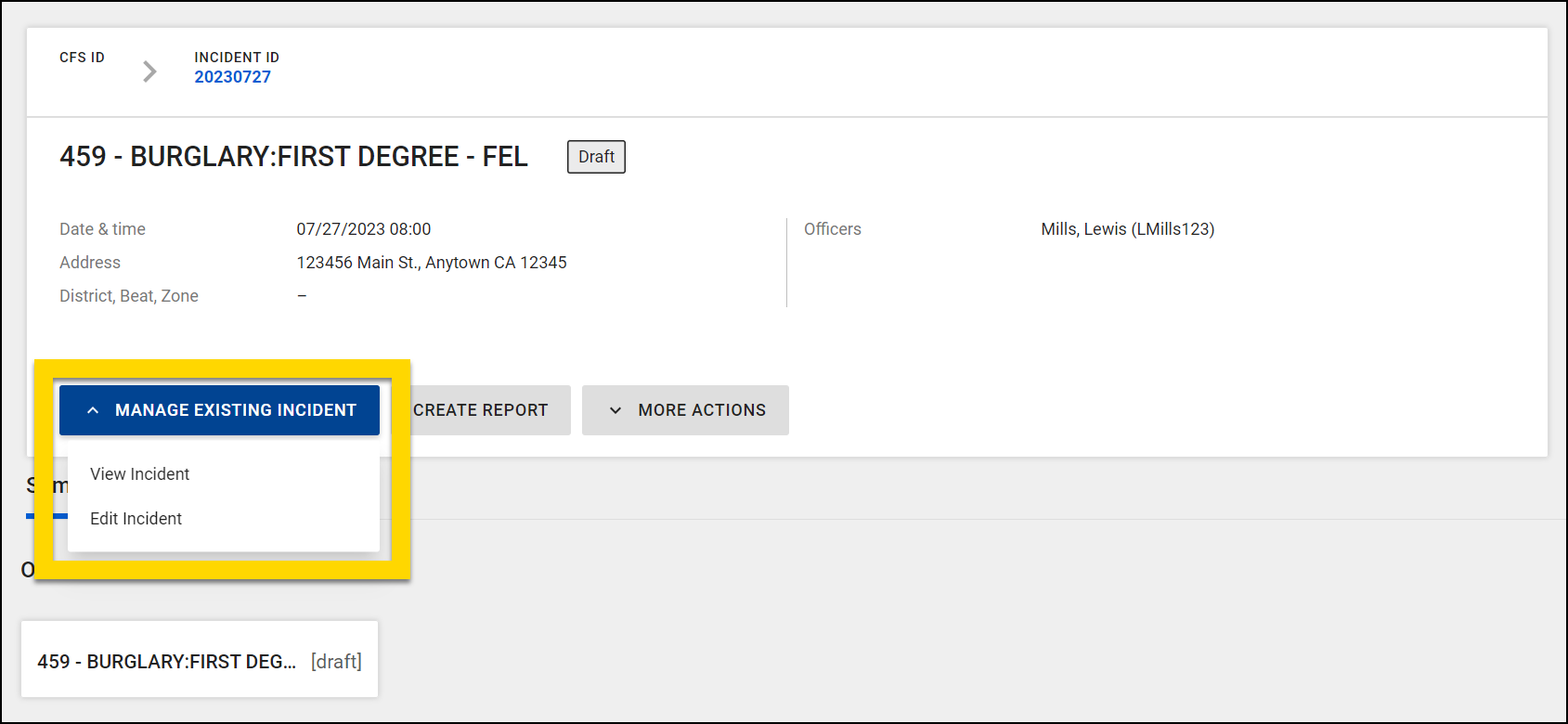
- The incident will open in a new tab. Select Manage existing incident > Edit Incident to join the incident report as a contributor and add the charge information.
Manually create supplements
At times, the auto-creation of supplements may fail. If this occurs, a warning message displays, indicating that you must create the supplements manually and update the charge and arrest information.
After manually creating a supplement for the current incident report, make the following changes:
- Remove the charge that is being added to a previous incident.
- Verify that the Multiple arrestee segments indicator field is set to C-Count Arrestee to comply with NIBRS requirements: The reporting agency should enter C = Count Arrestee for one incident and M = Multiple in this data element for all of the remaining incidents.
After manually creating a supplement for the past incident report, make the following changes:
- Add an arrest and copy over all information from the current incident report's Arrest Details section.
- Set the Multiple arrestee segments indicator field to M-Multiple to comply with NIBRS requirements: The reporting agency should enter C = Count Arrestee for one incident and M = Multiple in this data element for all of the remaining incidents.
- Add the charge that you are moving from the current incident to this past incident.
Once these supplements are created and updated, submit them for review as usual.
Supplements created in this way will NOT appear on the Clear past incidents tab in the Records Tasks inbox because they were not auto-created.
Records review: Clear past incidents
When a current incident report is finalized and charges in the report are moved to a past incident report using the Move charges to past incidents tab, two supplements are created:
- One supplement for the current incident (to delete the charges that are being added to past incidents)
- One supplement for each past incident that will be updated with new charges
Unassigned Review Supplement tasks for both of these types of supplements appear on the Clear past incidents tab of the Records Tasks inbox. You can tell which review tasks are for past incident reports because they indicate which incident triggered their creation.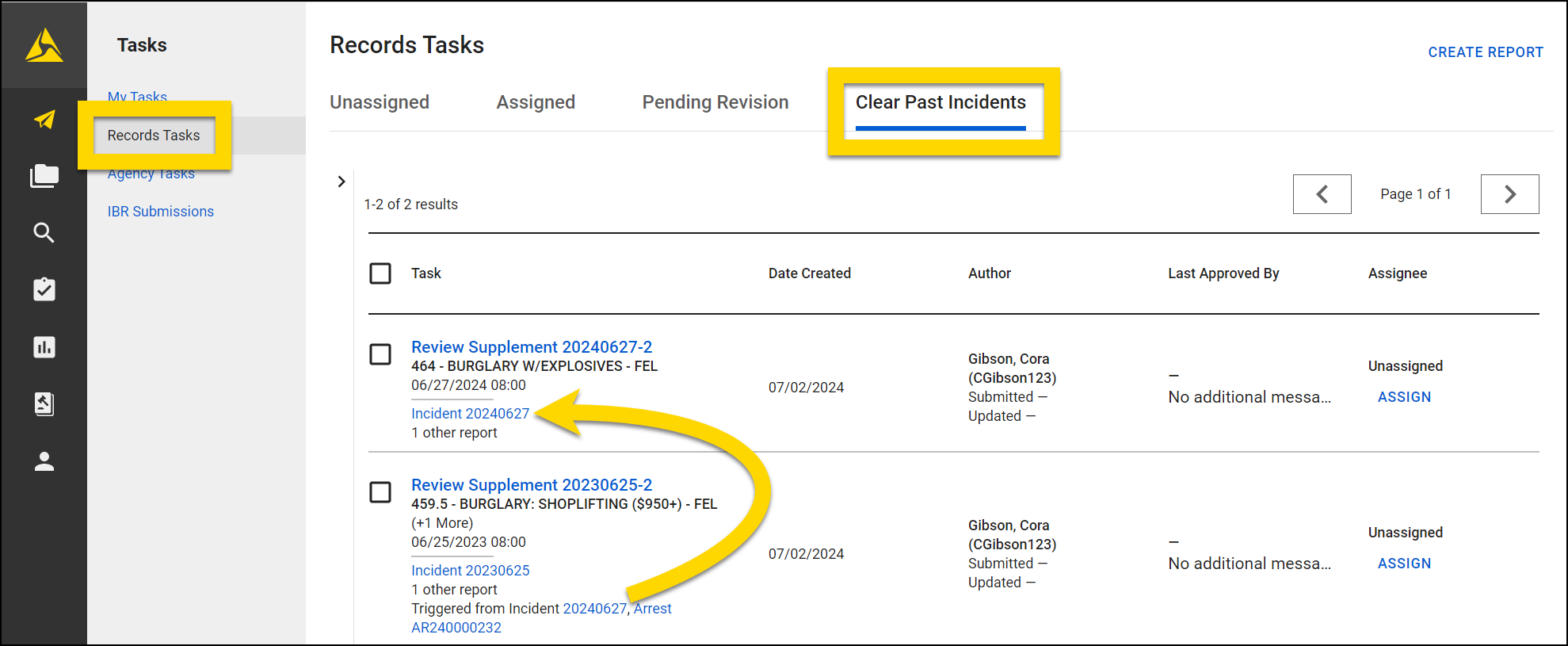
To review a supplement for the current incident or a past incident, take these steps:
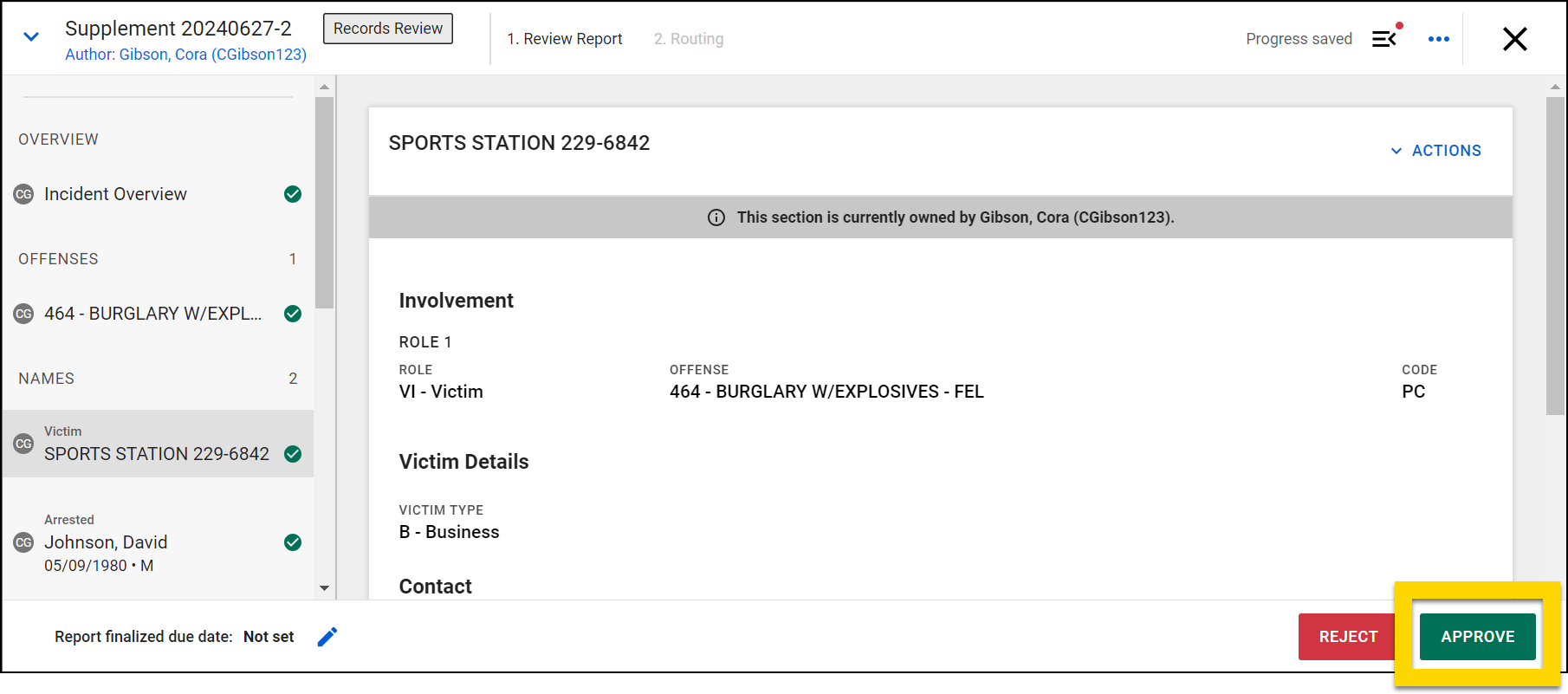
- Select a task name to open the supplement.
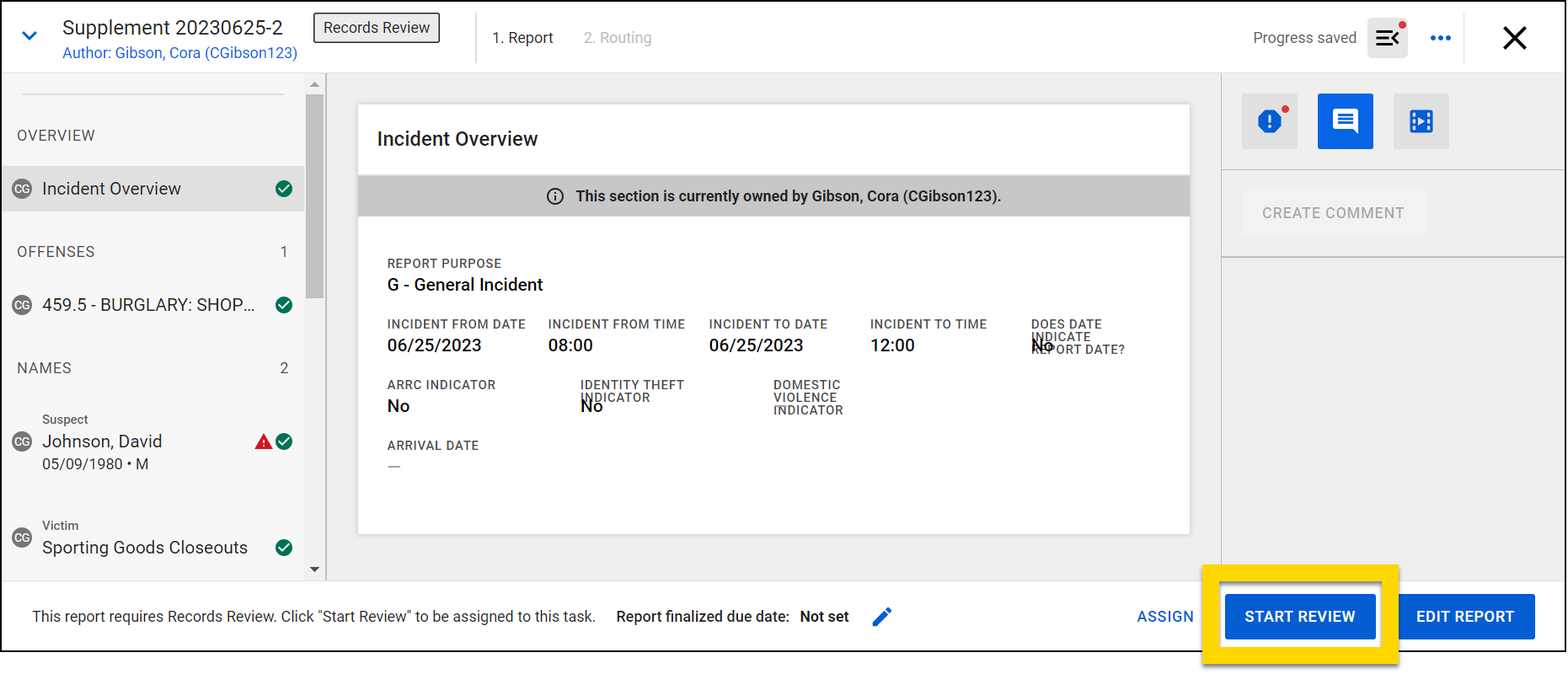
- Select Start review to assign the task to yourself and begin your review.
- You can also assign the review task to yourself from the inbox page by finding the Review Supplement task and selecting Assign in the Assignee column.
- See Step 4 for an explanation of what occurs if you select Edit report.
- Note that the following updates are auto-applied to the suspect/offender section of the report:
- If the supplement is for the CURRENT incident report:
- The Move charges to past incidents tab displays the charges that were originally added to the incident but then moved to a past incident.
- The Multiple arrestee segments indicator field is set to C-Count Arrestee to comply with NIBRS requirements: The reporting agency should enter C = Count Arrestee for one incident and M = Multiple in this data element for all of the remaining incidents.
- The Arrest charges section now no longer includes the charge(s) that were moved to a past incident.
- If the supplement is for the PAST incident report:
- The Move charges to past incidents tab now displays, which indicates that an arrest and a charge have been added to the incident.
- An Arrest section displays the arrest information that was added to the incident.
- The following fields in this new section are NOT copied over from the current incident report to the new supplement for the past incident report. These fields must be filled out manually, as they may differ between the current incident report and the past incident report.
- Primary offense for arrest
- Arrest type
- The Multiple arrestee segments indicator field is set to M-Multiple to comply with NIBRS requirements: The reporting agency should enter C = Count Arrestee for one incident and M = Multiple in this data element for all of the remaining incidents.
- An Arrest Charges section displays the charges that were originally added to the current incident report then moved to this past incident when the current incident report was finalized.
- The following fields in this new section are NOT copied over from the current incident report to the new supplement for the past incident report. These fields must be filled out manually, as they may differ between the current incident report and the past incident report.
- If any of the person’s details (description, contact info, etc.) have changed since the original incident report, these updated details appear in the supplement. This ensures that when the supplement is finalized, the person’s profile remains up to date.
- If the supplement is for the CURRENT incident report:
- The supplement for the past incident may contain NIBRS errors that can be fixed in one of two ways:
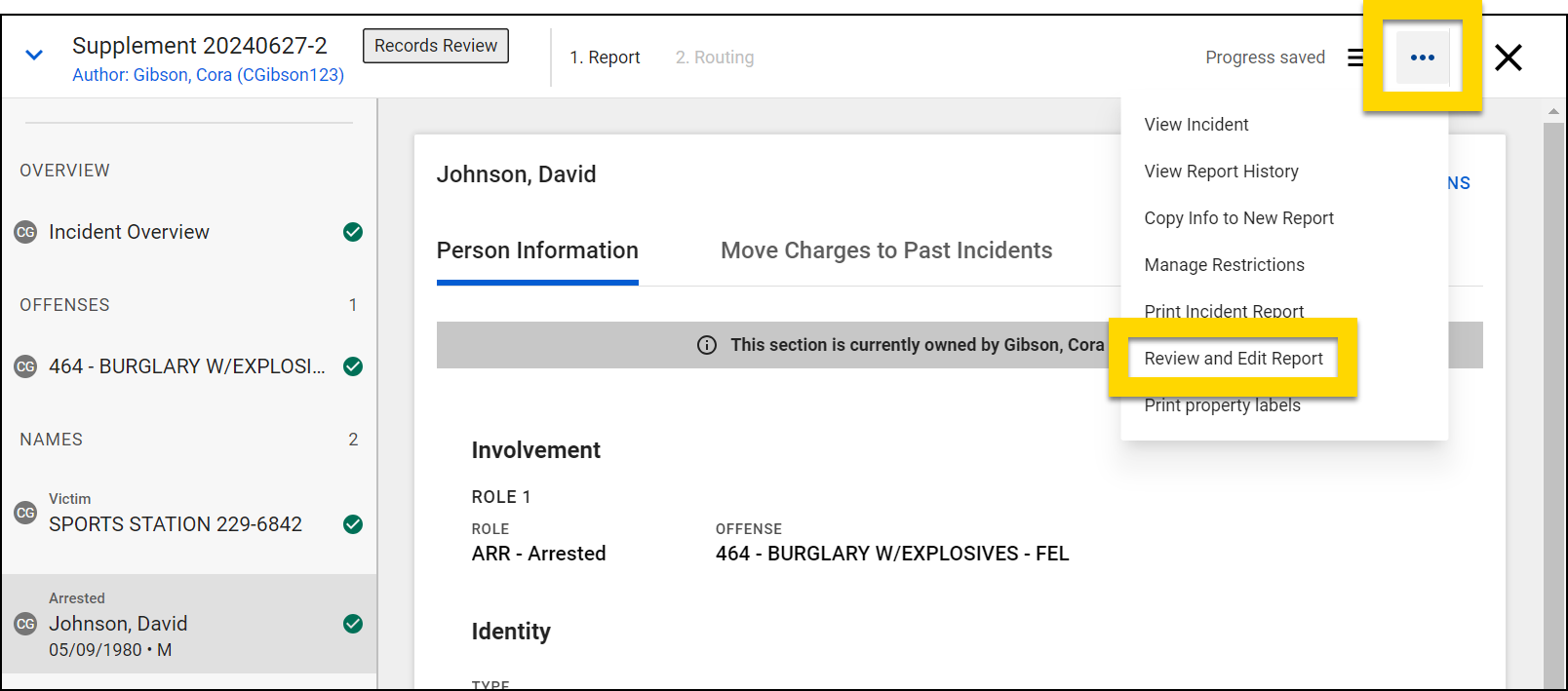
- To edit the report on behalf of the original author, select More actions [...] > Review and edit report. You can edit and approve the report without creating a narrative and submitting the supplement for Supervisor Review.
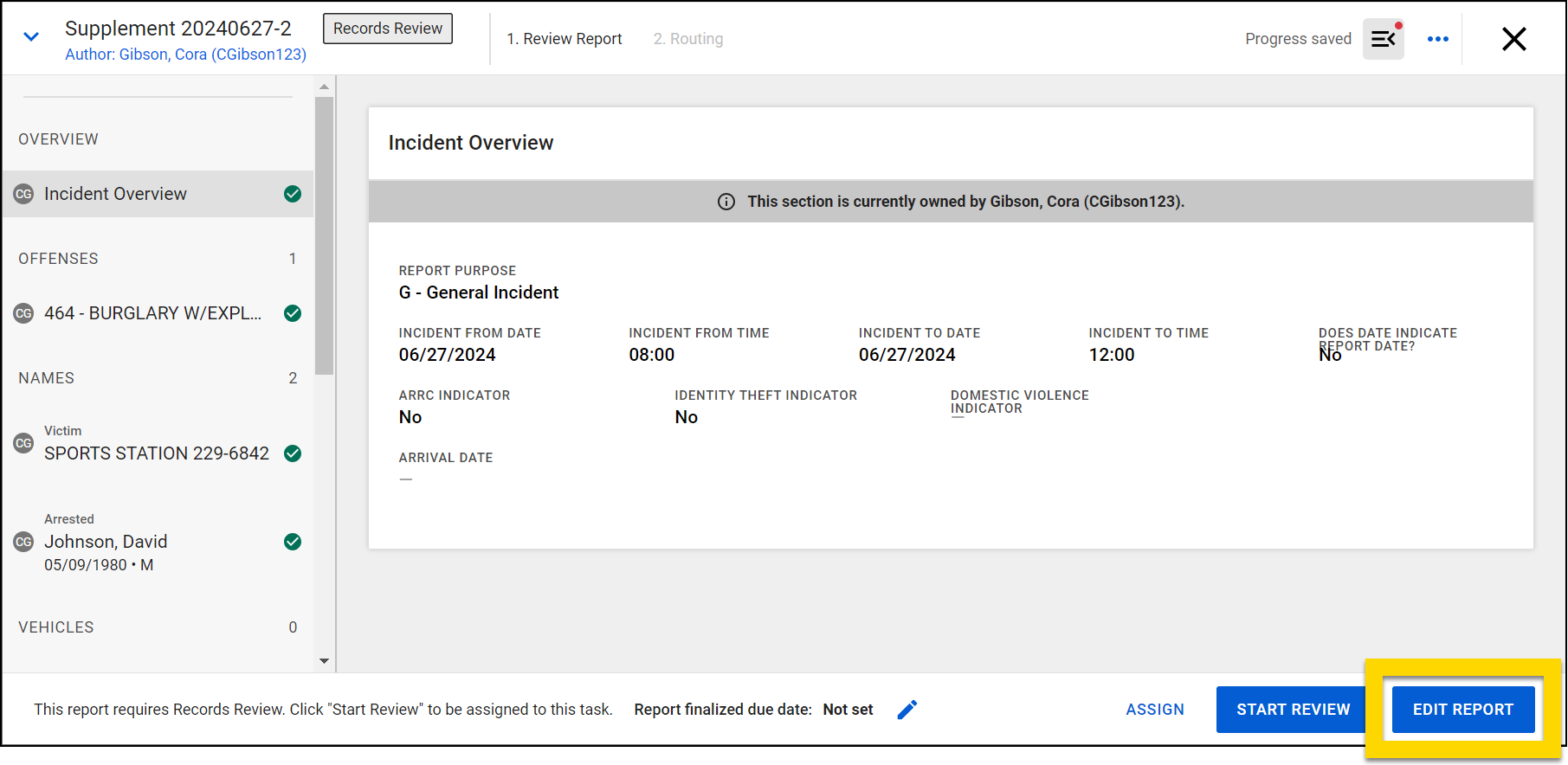
- To edit the report as a contributor, select Edit report instead of Start review.You will be added to the report as a contributor and in addition to editing the NIBRS errors, you must create a narrative and submit your contribution for Supervisor Review.
- Edit the report to remove the NIBRS errors, then select Approve to finalize it.