Simulator Training: Configurable Range
Watch this video to learn about creating custom configurations in Simulator Training: Configurable Range.
Simulator Training: Configurable Range enables trainers to build firearm and TASER energy weapon training exercises tailored to their agency’s needs. Trainers can configure drill sequences, target distances, target types, and other training parameters to replicate elements of agency qualification courses for practice, address individual performance gaps, or reinforce core skills through repeatable training.
Prerequisites
Before launching Simulator Training: Configurable Range on the tablet or headset, make sure:
- Your agency meets the minimum network requirements.
- Trainer tablets are connected to Wi-Fi to create custom configurations. (Trainee headsets do not need to be connected to Wi-Fi to run an Axon or custom configuration.)
- Trainers have a Trainer account on Axon Evidence. For more information, see Accessing VR systems through Axon Evidence
- The Training Space is free of any live weapons, objects, and other people that may interfere with the simulation.
Training and sign-in modes
Simulator Training: Configurable Range offers these training modes:
- Solo mode: Lets trainees run the training directly on their headset without the need of a trainer or an active internet connection.
- Facilitated mode: Requires an active internet connection for the trainer to facilitate a trainee's training from a tablet.
- Guest mode: Lets trainees run the training directly on their headset without signing in to the headset.
The following table describes the available training modes and how signing in affects After-Action Report (AAR) uploads:
| Training mode | Sign-in status | AAR upload |
|---|---|---|
| Solo | Signed in to the headset | Essential data (the training date/time, trainer name, trainee name, and exercise type) from the session is uploaded to VR web app. |
| Facilitated | Signed in to the headset | A detailed AAR is uploaded to VR web app. |
| Guest | Not signed in to the headset | No session data is uploaded to VR web app. |
For more information on how to sign in to the headset, see Axon VR sign-in options.
Using Axon configurations
Simulator Training: Configurable Range includes preconfigured Axon configurations for both TASER energy weapon and firearm training. These configurations are available on every device and can be used without creating a custom configuration.
The preconfigured Axon configurations are designed to align with common law enforcement qualification standards and can be used as provided or as a reference when creating custom configurations.
Axon configuration descriptions
Each Axon configuration is built with a predefined set of drills and configuration settings. The tables in the sections below describe the settings used for each configuration.
TASER energy weapon Axon configurations
Long Range Deployments
This Axon configuration emphasizes proper probe spread and accuracy over long distances.
| Drill | Target distance | Clothing | Alternate position | Movement |
|---|---|---|---|---|
| 1 | 30 feet | Off | Off | Off |
| 2 | 30 feet | Off | Off | Off |
| 3 | 35 feet | Off | Off | Off |
| 4 | 35 feet | Off | Off | Off |
| 5 | 40 feet | Off | Off | Off |
| 6 | 40 feet | Off | Off | Off |
Moving Targets with Clothing
Trainees must track moving targets while accounting for effects of clothing. This Axon configuration reinforces deployment timing, lead, and accurate placement.
| Drill | Target distance | Clothing | Alternate position | Movement |
|---|---|---|---|---|
| 1 | 5 feet | On | Off | On |
| 2 | 10 feet | On | Off | On |
| 3 | 15 feet | On | Off | On |
| 4 | 10 feet | On | Off | On |
| 5 | 20 feet | On | Off | On |
TASER Energy Weapon Fundamentals Progression
A foundational TASER energy weapon Axon configuration that introduces core deployment variables through a progressive sequence of situational challenges.
| Drill | Target distance | Clothing | Alternate position | Movement |
|---|---|---|---|---|
| 1 | 5 feet | Off | Off | Off |
| 2 | 10 feet | Off | On | Off |
| 3 | 15 fet | On | On | Off |
| 4 | 10 feet | Off | Off | On |
| 5 | 20 feet | On | Off | On |
Firearm Axon configuration
Handgun Qualification
A foundational handgun qualification Axon configuration modeled after widely adopted state and agency standards.
Target type: Silhouette / B-27
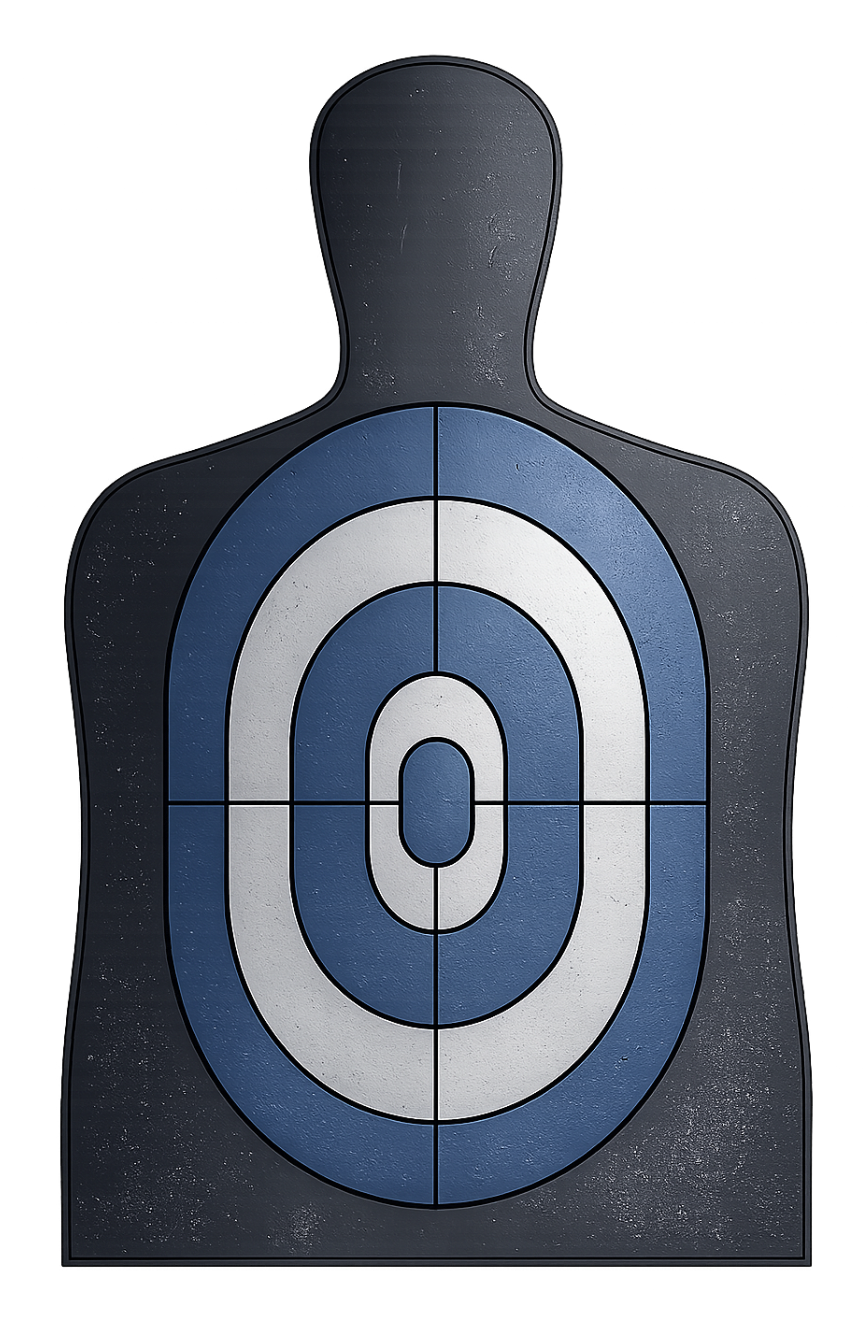
| Drill | # of targets | Target health (# hits to neutralize) | Distance |
|---|---|---|---|
| 1 | 1 | 2 hits | 3 yards |
| 2 | 1 | 2 hits | 5 yards |
| 3 | 1 | 2 hits | 7 yards |
| 4 | 1 | 3 hits | 10 yards |
| 5 | 1 | 3 hits | 15 yards |
Patrol Rifle Qualification
A rifle Axon configuration based on state-level patrol rifle standards.
Target type: Silhouette / q-type
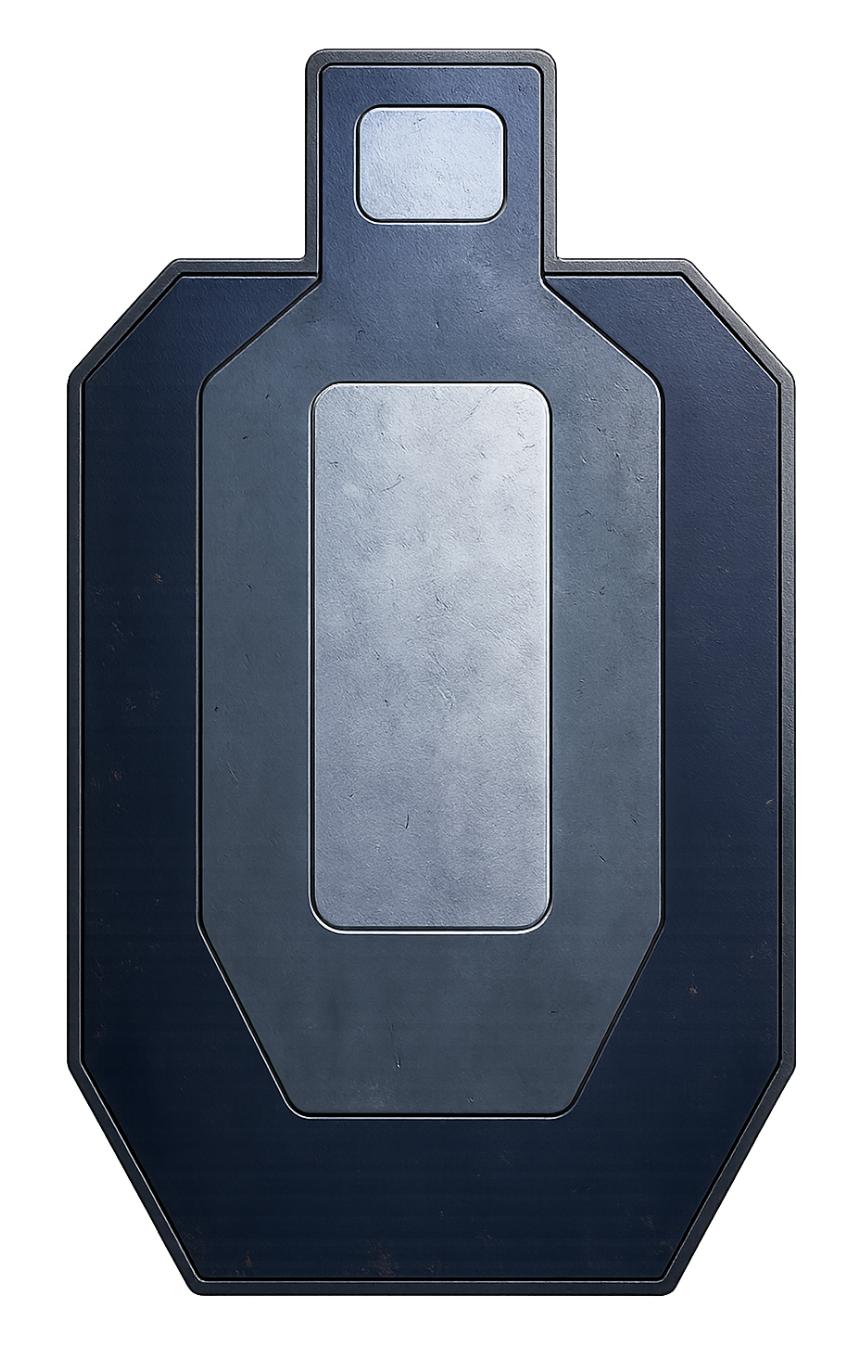
| Drill | # of targets | Target health | Distance |
|---|---|---|---|
| 1 | 1 | 3 hits | 25 yards |
| 2 | 1 | 3 hits | 50 yards |
| 3 | 1 | 3 hits | 25 yards |
| 4 | 1 | 3 hits | 15 yards |
Integrated Carbine & Pistol Training
A combined rifle and handgun Axon configuration inspired by modern law enforcement standards that incorporates both weapons: three targets using a rifle, then three targets using a handgun.
Target type: Bullseye target
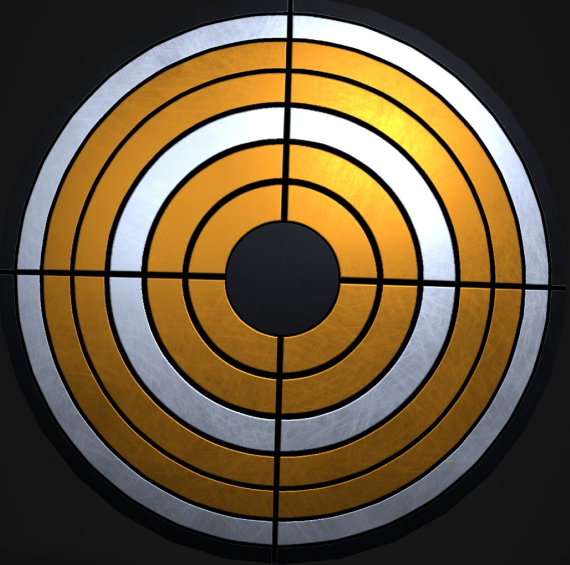
| Drill | # of targets | Target health | Distance |
|---|---|---|---|
| 1 | 1 | 3 hits | 50 yards |
| 2 | 1 | 3 hits | 25 yards |
| 3 | 2 | 3 hits | 15 yards |
| 4 | 1 | 3 hits | 10 yards |
| 5 | 1 | 3 hits | 7 yards |
| 6 | 2 | 3 hits | 5 yards |
Using custom configurations
Watch this video to learn about creating custom configurations in Simulator Training: Configurable Range.
Custom configurations let trainers create exercises tailored to their agency's requirements. Trainers can build exercises using custom configurations on the tablet and share them with trainees using QR codes.
Using exercises with custom configurations in Simulator Training: Configurable Range includes tasks completed by both the trainer and the trainee.
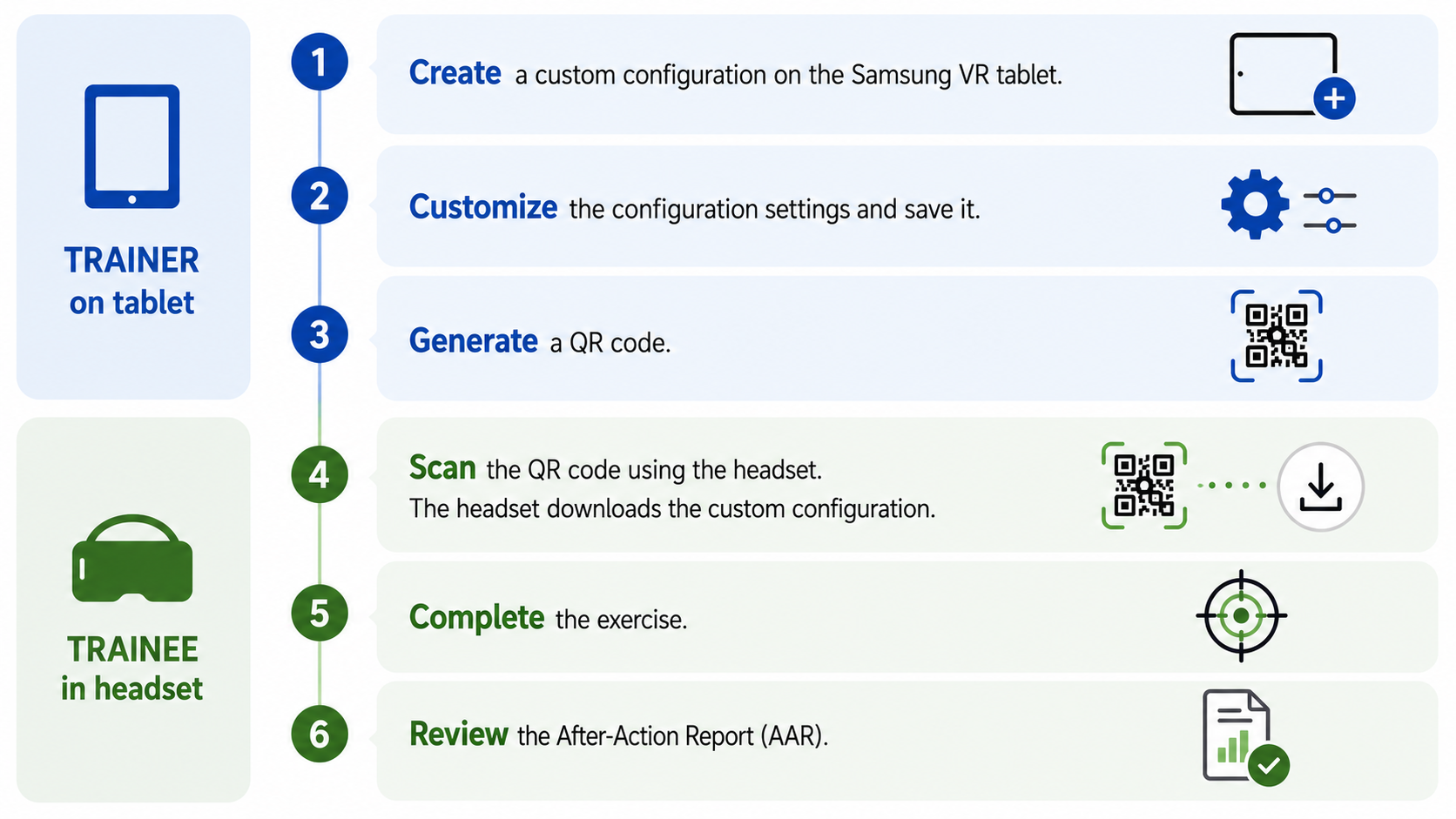
Create a custom configuration (trainer on tablet)
Create a custom configuration to tailor firearm or TASER energy weapon training to your agency's learning objectives. A custom configuration can contain up to 10 drills, and each tablet or headset can store up to 15 custom configurations at a time.
Before saving a custom configuration, verify that the configuration name and settings are complete. After a custom configuration is saved, you cannot edit the configuration name or settings. The configuration name is also the primary way trainees identify the configuration in the headset, so use clear, descriptive text that communicates the purpose of the exercise.
- Open the Simulator Training app.
- Select Configurable Range.
- Select New Configuration.
- Configure the settings. See Configuration settings.
- Save the custom configuration .
After the exercise is saved, it becomes available in your list of custom configurations.
Copy a configuration (trainer on tablet)
Copy an existing custom configuration to create a new one with the same settings. After copying the custom configuration, you can modify its settings before saving it.
- Open the Simulator Training app.
- Select Configurable Range.
- Select Copy Configuration below the custom configuration you want to duplicate.
- Configure the settings. See Configuration settings.
- Save the exercise.
Configuration settings
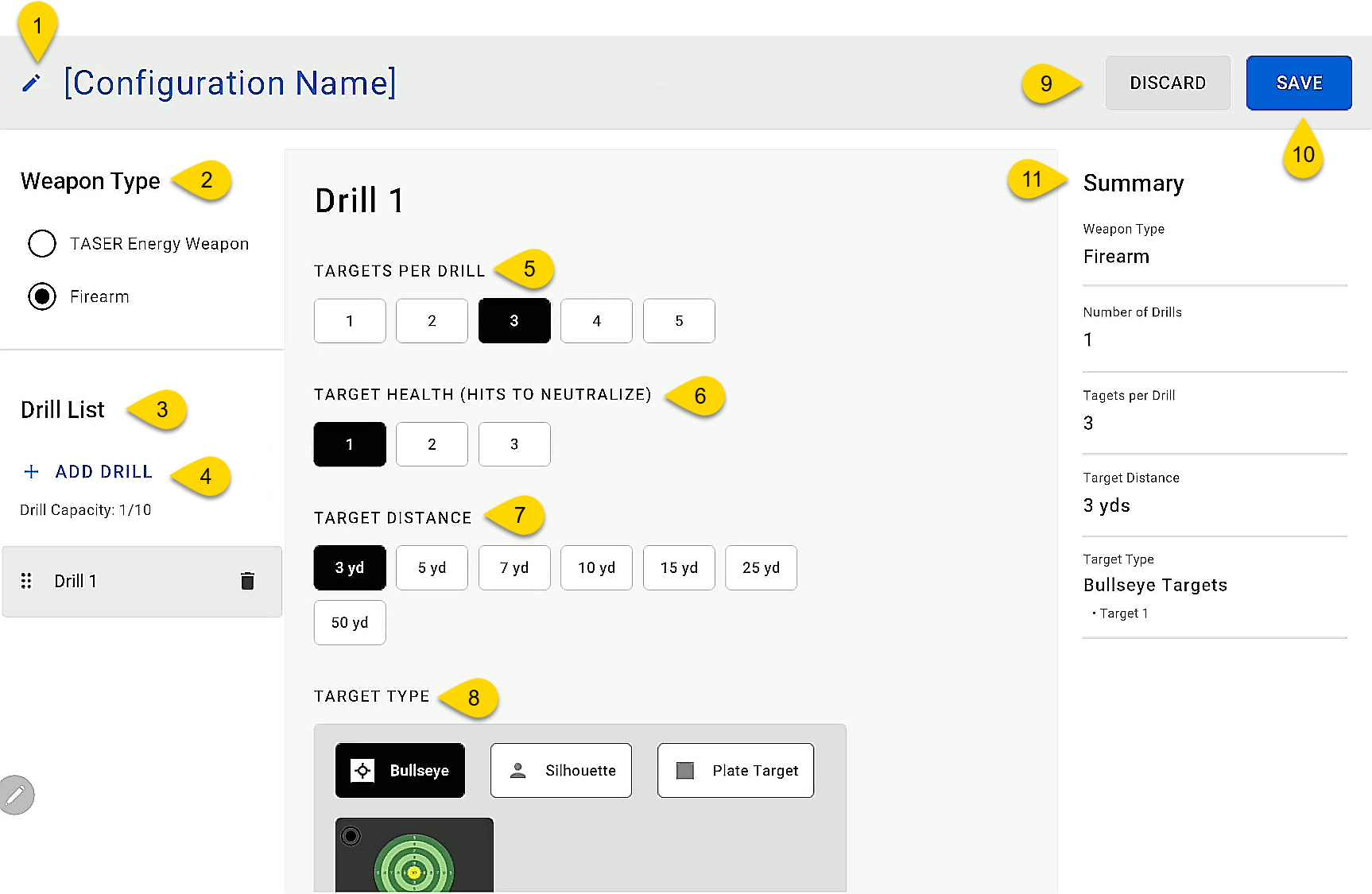
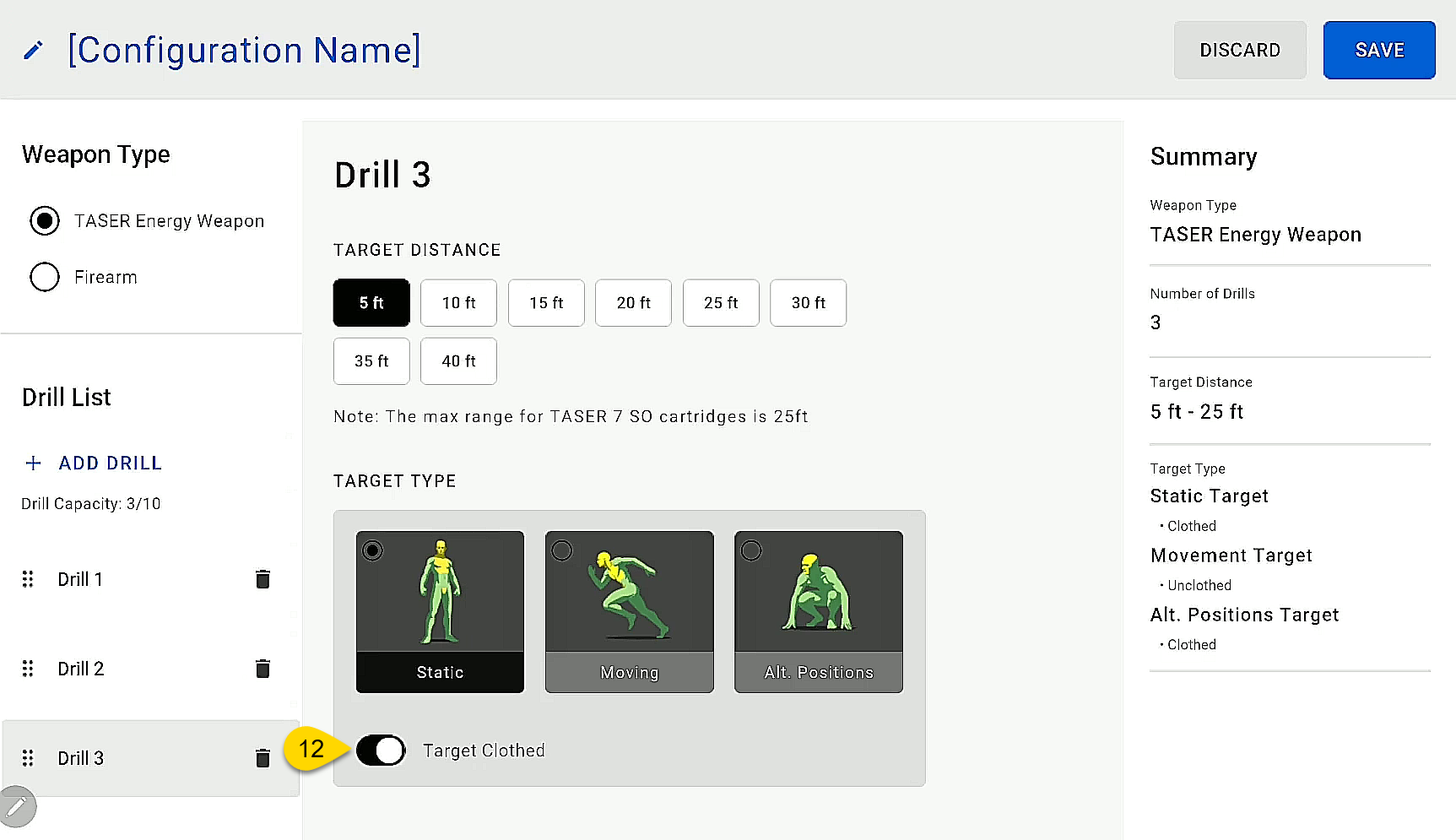
When creating a custom configuration, configure the settings for each drill in the exercise. The available settings vary depending on the selected weapon type.
Each custom configuration supports only one weapon type. To create training for both TASER energy weapon and firearm, create a separate custom configuration for each weapon type.
The image below shows the settings of a firearm custom configuration:
The image below shows the settings of a TASER energy weapon custom configuration:
| Callout | Setting | Description |
|---|---|---|
| 1 | Edit Name | Enter a descriptive name for the custom configuration. This name appears in the exercise library on both the tablet and headset. |
| 2 | Weapon Type | Determines whether the exercise uses a TASER energy weapon or firearm. The selected weapon type determines the available configuration settings. |
| 3 | Drill List | Use Drill List to view, add, reorder, and delete drills. |
| 4 | Add Drill | An exercise consists of one or more drills. Each drill has its own configurable settings, letting you create progressively different stages within an exercise. Add up to 10 drills to the exercise. |
| 5 | Targets per Drill - for firearm drills only | The number of targets displayed simultaneously in a single drill. |
| 6 | Target Health (Hits to Neutralize) - for firearm drills only | The number of successful hits required to neutralize each target. |
| 7 | Target Distance |
The distance between the trainee and target. Firearm drills are measured in yards, whereas TASER energy weapon drills are measured in feet. The maximum range when using a TASER 7 VR Controller is 25 feet. |
| 8 | Target Type | The visual appearance and type of target. Firearm drills include a target and a visual variation. |
| 9 | Discard | Closes the exercise without saving the custom configuration. |
| 10 | Save | Saves the custom configuration. After an exercise is saved, it cannot be edited. |
| 11 | Summary | Displays an overview of the current custom configuration. |
| 12 | Target Clothed - for TASER energy weapon drills only | Determines whether the targets are clothed or unclothed. |
Delete a custom configuration
Custom configurations are stored independently on each device. Deleting a custom configuration from one device does not remove it from other devices.
Trainer on tablet
Deleting a custom configuration on the tablet is an irreversible action.
To delete a custom configuration on the tablet:
- Open Simulator Training.
- Select Configurable Range.
- Select Delete Exercise next to the custom configuration you want to remove.
- Select Delete to confirm.
Trainee on headset
Deleting a custom configuration removes it from the headset library. Scan the QR code again to add it back.
To delete a custom configuration on the headset:
- Open Simulator Training.
- Select Configurable Range.
- Open the custom configuration you want to delete.
- Select Delete.
- Select Delete again to confirm.
Generate a QR code (trainer on tablet)
When printing a QR code, selecting Save to PDF results in an error and does not save the QR code to the tablet. Select an available printer from the print screen to print the QR code instead.
Generate a QR code so trainees can download a custom configuration to their headset.
- Open Simulator Training.
- Select Configurable Range.
- Select QR Code to Share below the custom configuration you want to generate a QR code for.
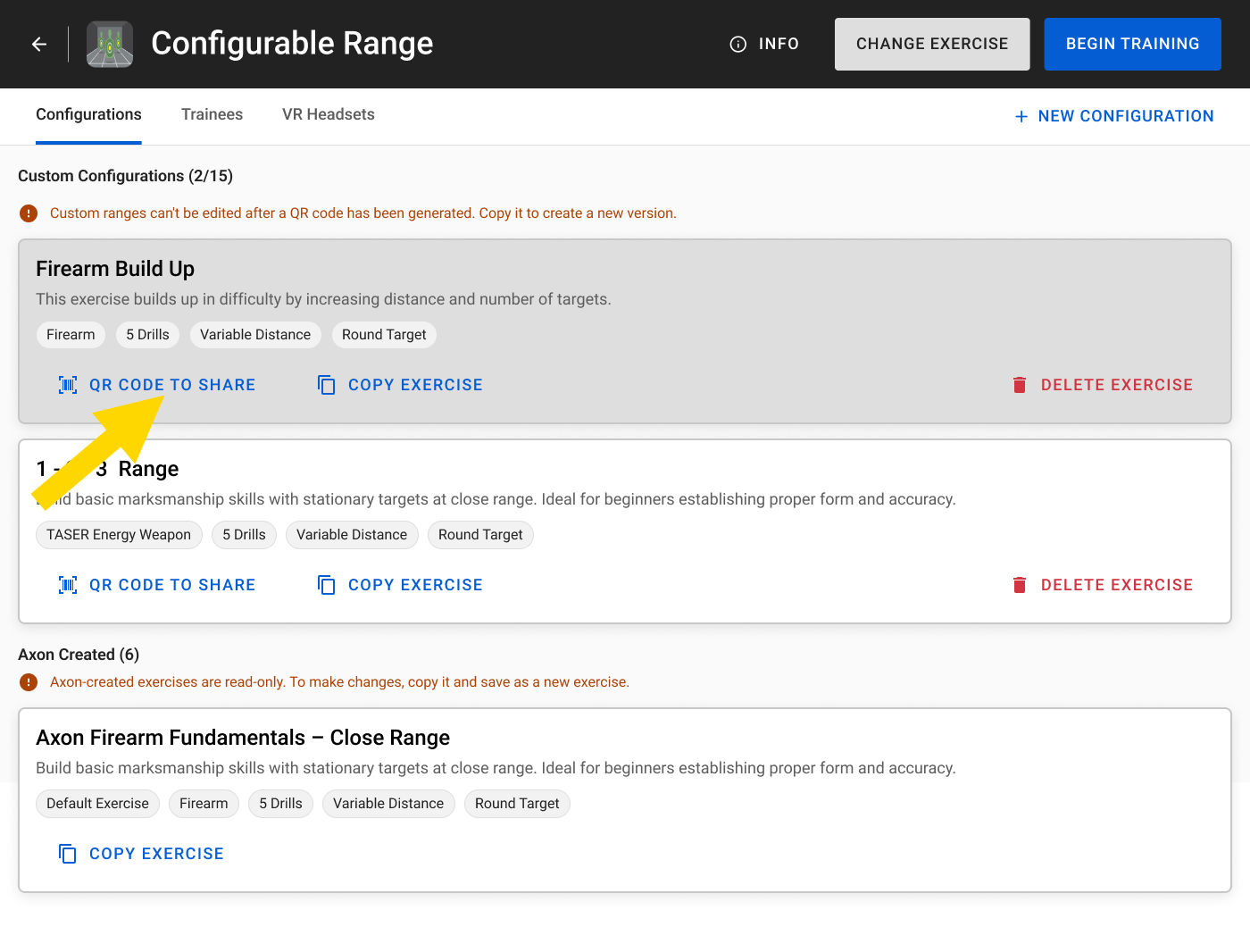
- Show the QR code to the trainee or save it for later use.
Download a custom configuration (trainee on headset)
You can download custom configurations by scanning a QR code generated from the trainer's tablet. The QR code can be scanned directly from the tablet or from another shared source like a printed paper.
- Open Simulator Training.
- Select Configurable Range.
- Select New Configuration.
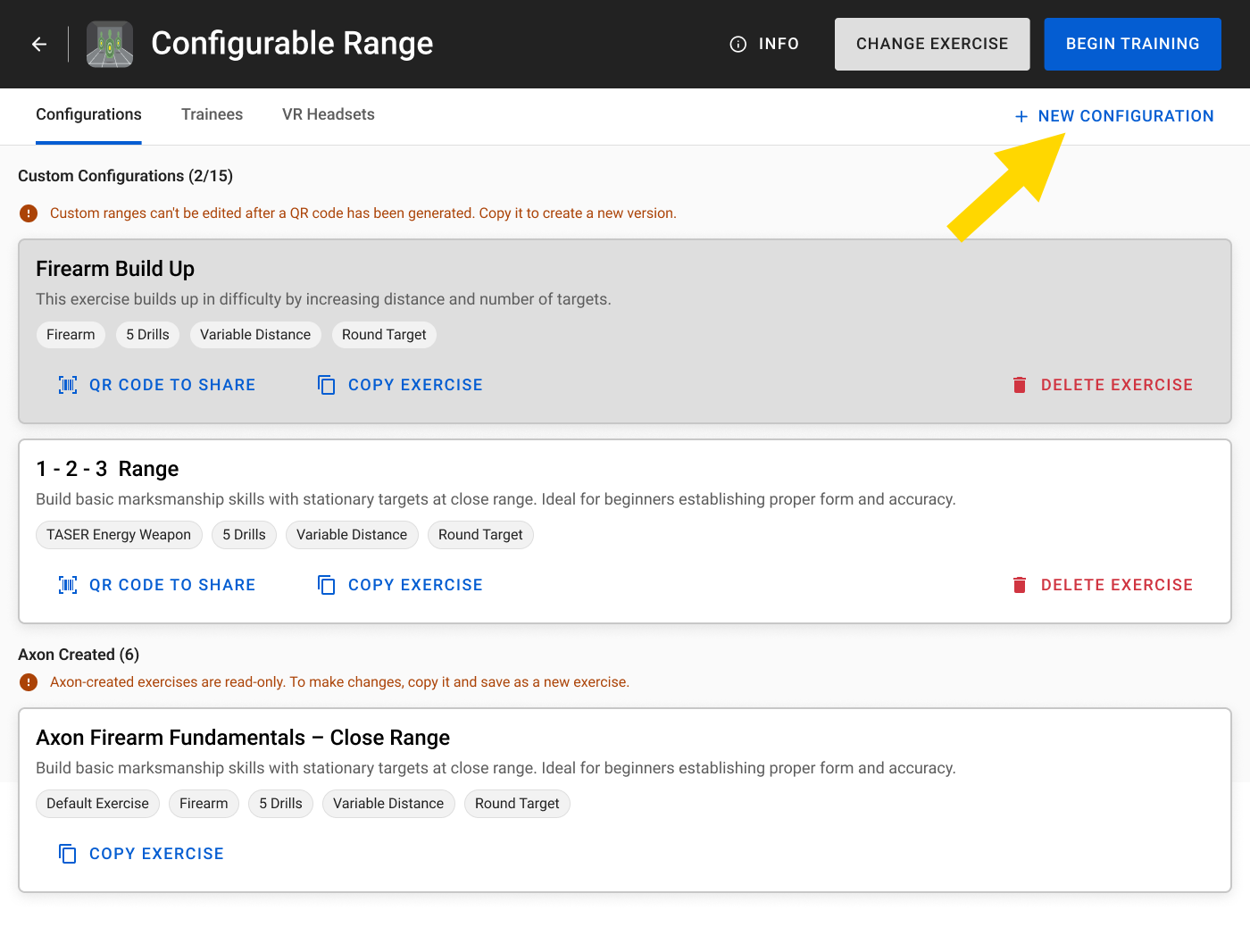
- Select Scan QR Code.
- With the headset on, look at the QR code until it is recognized. The custom configuration automatically downloads to the library.
Train (trainee on headset)
- Open Simulator Training.
- (Optional) Sign in to the headset to allow essential data upload automatically to VR web app when the headset is online. For more information, see Axon VR sign-in options.
- Select Configurable Range.
- Use gaze selection to choose which exercise you want to run.
- Complete the exercise.
- Review the AAR when the exercise completes.
FAQs
How will essential data upload to VR web app if the headset is offline?
If the headset is offline, essential data will upload automatically to VR web app when the headset returns to an online state.
Why can't I edit a saved custom configuration?
Saved configurations cannot be edited. Create a new configuration or copy an existing one with the desired settings.
Can I modify the Axon configurations?
Axon configurations cannot be modified or deleted. However, you can copy an Axon configuration and edit the settings.
How many custom configurations can I have on a device at one time?
A tablet and a headset can each store up to 15 custom configurations at a time. If you reach the maximum, delete an existing custom configuration before creating or downloading another one.
Troubleshooting
Error: QR code not recognized
Verify that:
- The QR code is fully visible.
- The headset camera has a clear view of the QR code.
- There is no glare on the QR code.
Error: Failed to save item as PDF file
When you select Save to PDF on the tablet, an error appears and the QR code is not saved to the tablet. Saving the QR code as a PDF is not supported.
Instead, select an available printer and print the QR code directly.
I can't save another custom configuration
A tablet and a headset can each have up to 15 custom configurations at a time. If you reach the maximum, delete an existing custom configuration before creating or downloading another one.
I deleted a custom configuration, but it still appears in the headset
Deleting a custom configuration from the tablet does not remove copies that have been already downloaded to the headset. To delete a custom configuration in the headset, see Trainee on headset under Delete a custom configuration.


