Creating a TASER Data Science Report in Axon Evidence
If your organization uses TREND in Standards, see Creating a TASER Data Science Report in Standards.
In TREND in Axon Evidence, you can create TASER Data Science Reports (TREND reports) for TASER 10 energy weapons using Deployment Tracker. Deployment Tracker uses energy weapon log signals to identify potential TASER 10 deployments. When you confirm that a deployment occurred, Deployment Tracker creates a TREND report, attaches the relevant energy weapon logs, and automatically populates portions of the report with information from those logs. Deployment Tracker identifies most TASER 10 deployments. If a deployment is not detected, you can also create a TASER 10 TREND report manually. For more information, see Associating a TREND Report with Energy Weapon Logs.
Deployment Tracker is available only for TASER 10 energy weapons. For TASER 7 energy weapons, create the report manually and attach the relevant energy weapon logs. You can also manually create a TREND report for any TASER 10 deployment that does not appear in Deployment Tracker. For more information, see Associating a TREND Report with Energy Weapon Logs.
Opening Deployment Tracker
Open Deployment Tracker in any of these ways:
-
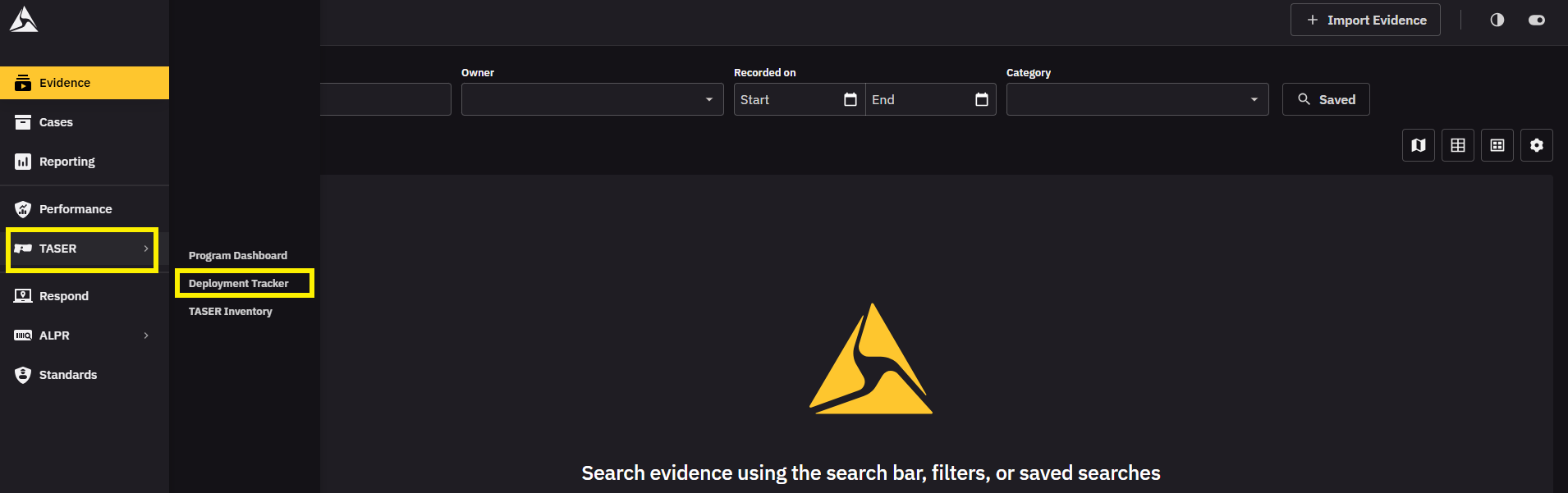
In the side navigation, select TASER, and then click Deployment Tracker.
-
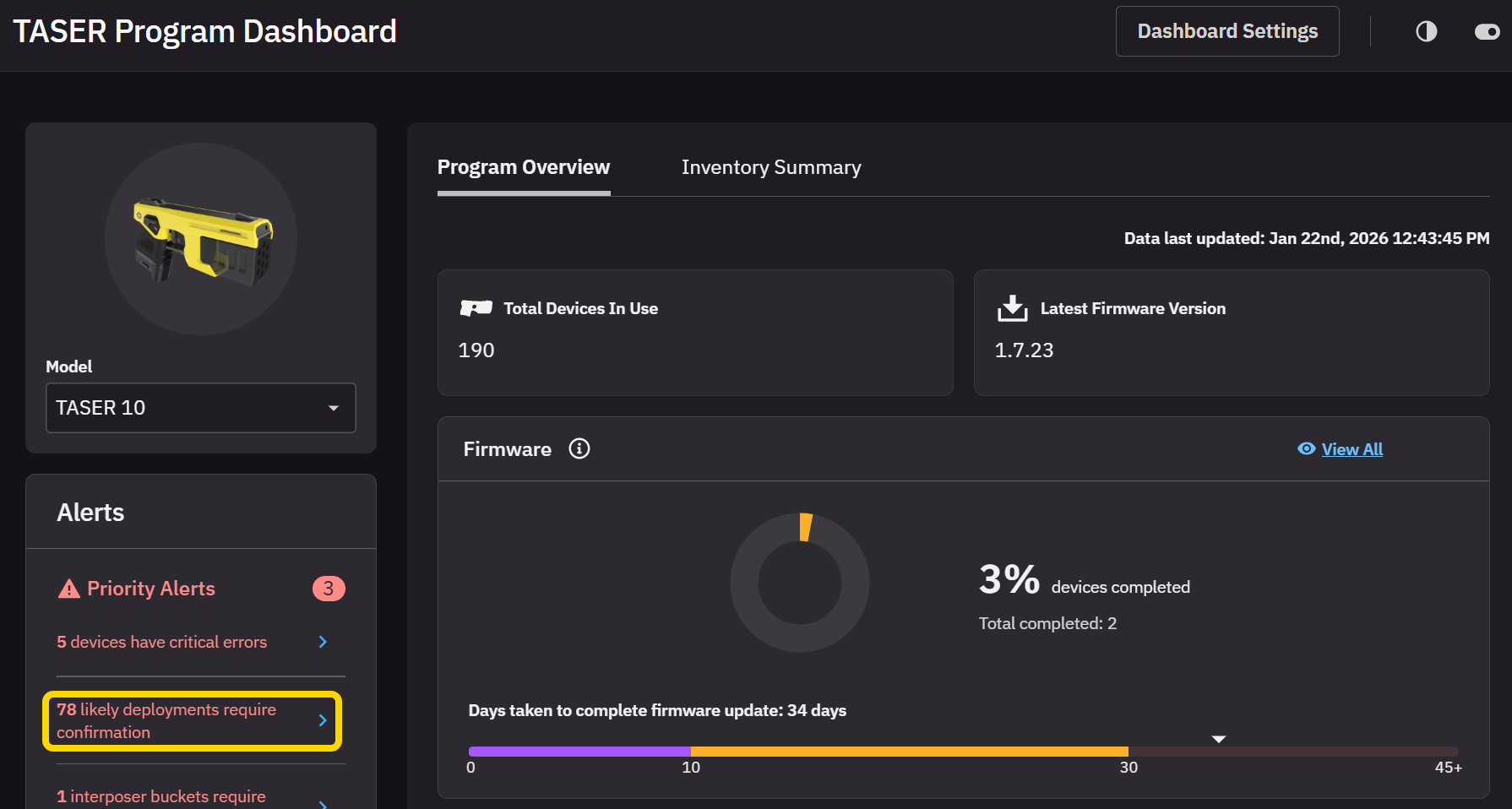
On the TASER Program Dashboard, in the Warnings section, click the warning for a possible deployment that is waiting for confirmation.
-
If the Your TREND insights are still developing message appears at the top of the TREND Dashboard, click Go to Deployment Tracker.
Creating a report from a deployment
-
Open Deployment Tracker.
-
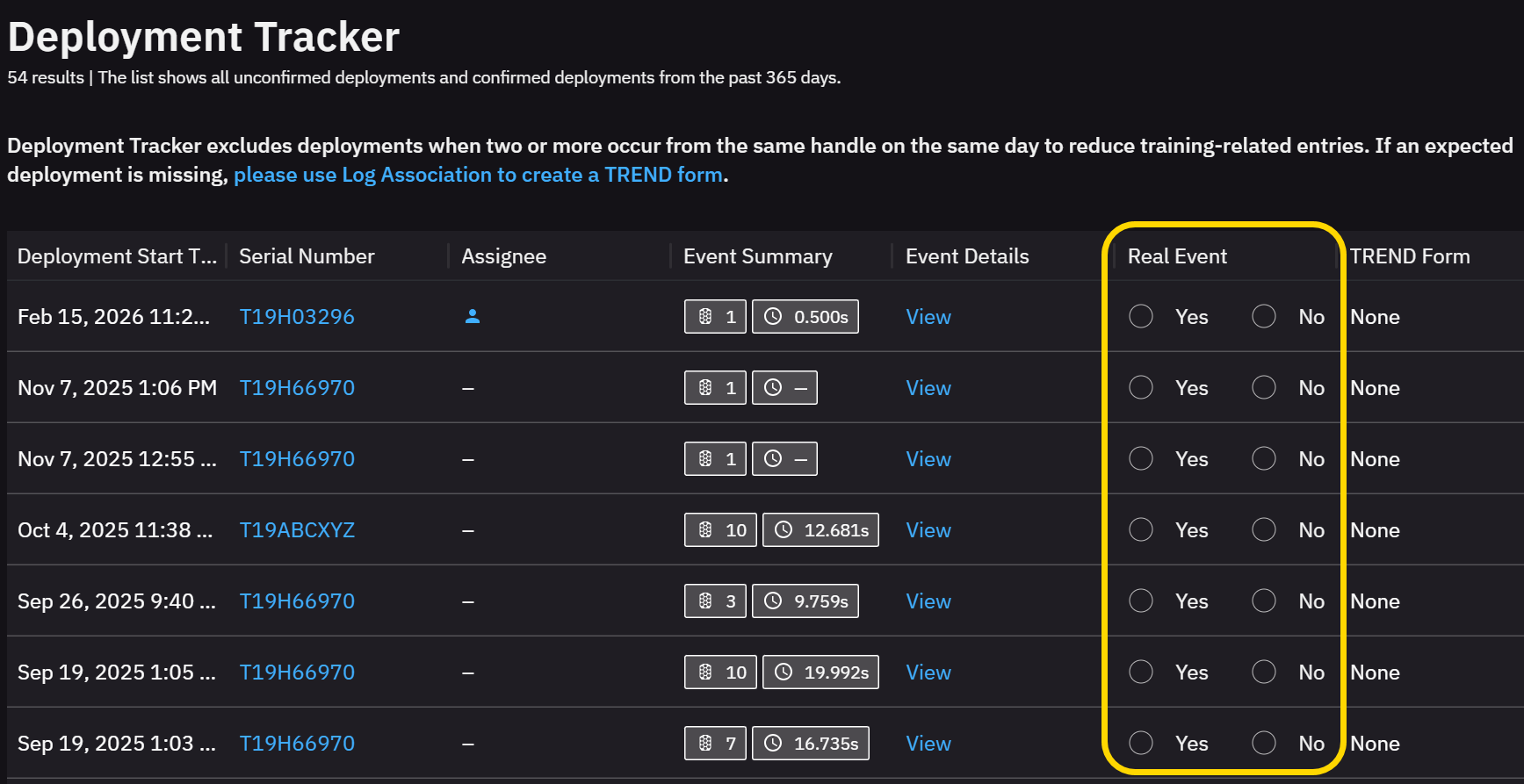
In the Real Event column, select Yes if the deployment happened, or No if it didn't.
 Note
To view the log for a deployment, or any body-worn camera evidence associated with it, click View in the Event Details column.
-
Click Confirm at the bottom of the page.
For each confirmed deployment, Deployment Tracker creates a TREND report and fills in parts of it from the energy weapon logs.
Completing a report
After you confirm a deployment, its TREND report stays in Deployment Tracker. You can return to it there to fill in the fields that weren't filled in from the energy weapon logs.
-
Open Deployment Tracker.
-
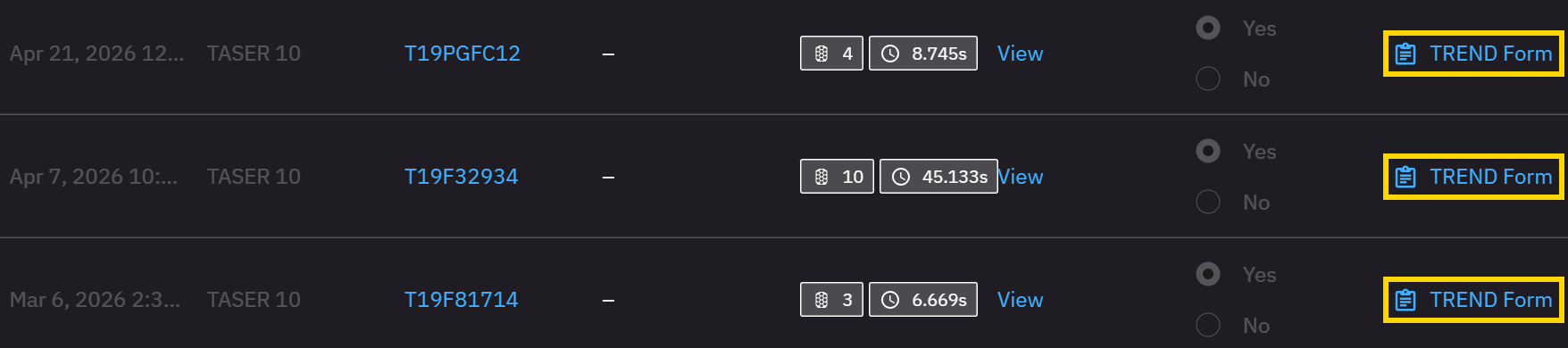
Next to the confirmed deployment, click TREND Form.
-
Review the fields that were filled in from the energy weapon logs, and fill in the remaining fields.
For details about each section and field of the report, see Associating a TREND Report with Energy Weapon Logs.
For more information, see Deployment tracker.


