Calibration
This topic is normally for the armorer or admin who sets up Signal Sensors. For user guidance, see Operation.
The topic describes how to calibrate the sensor, which is best accomplished using Axon Device Manager (ADM), available from your app store (Apple or Android).
Also at the end of this topic:
For quick access to recalibrate: in Mute mode (press button for about five seconds), press the button twice to enter Setup mode and connect to ADM.
Calibrate
If the sensor is not yet registered and ready to calibrate, or if you haven't assigned a holster and user yet, see Setup. If a required sensor retrofit bracket isn't installed on the holster yet, see Installation. After these items are complete, continue below.
Ensure the firearm is unloaded during this process.
With a user and holster type assigned and the sensor retrofit bracket (if needed) installed on a holster, it's now time to calibrate.
- Install the sensor on a holster, then tap Next.
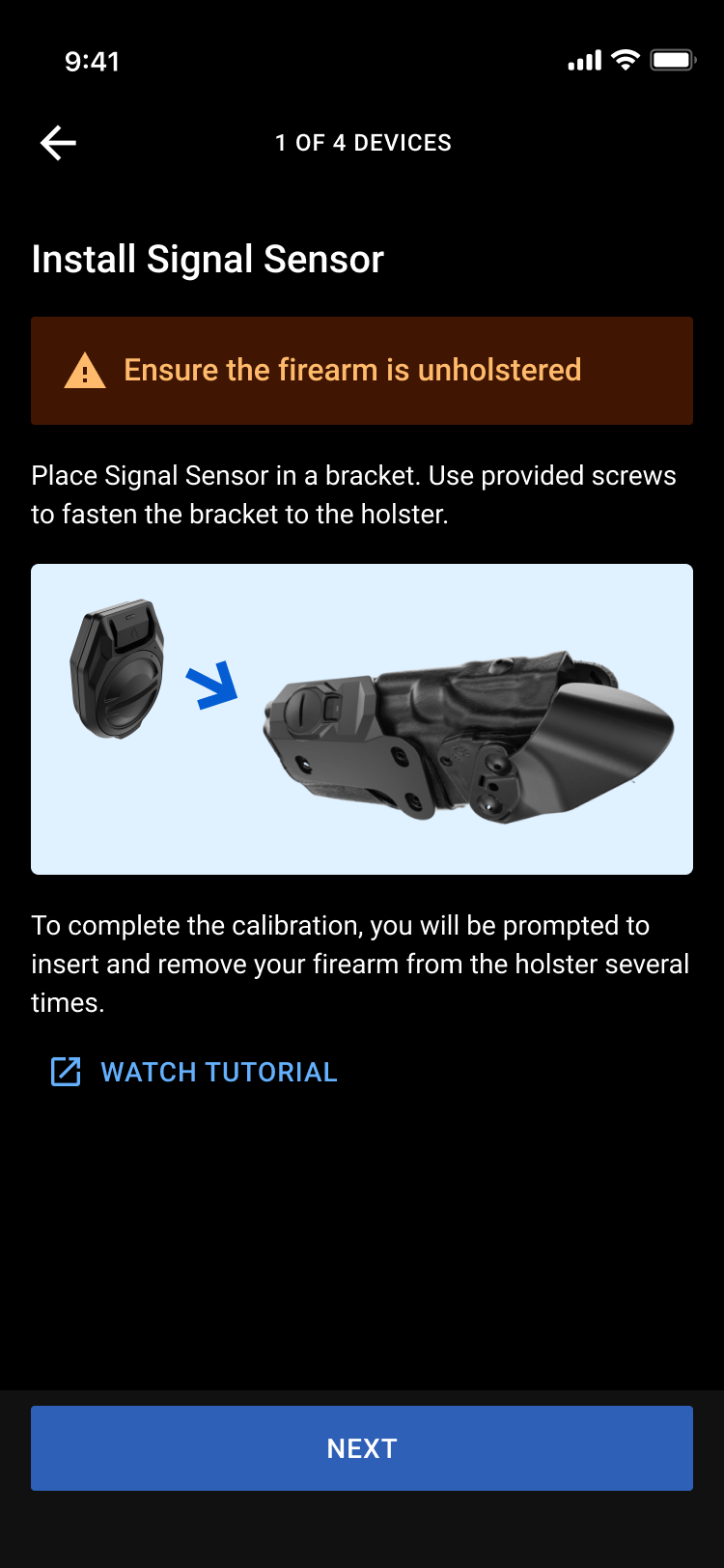
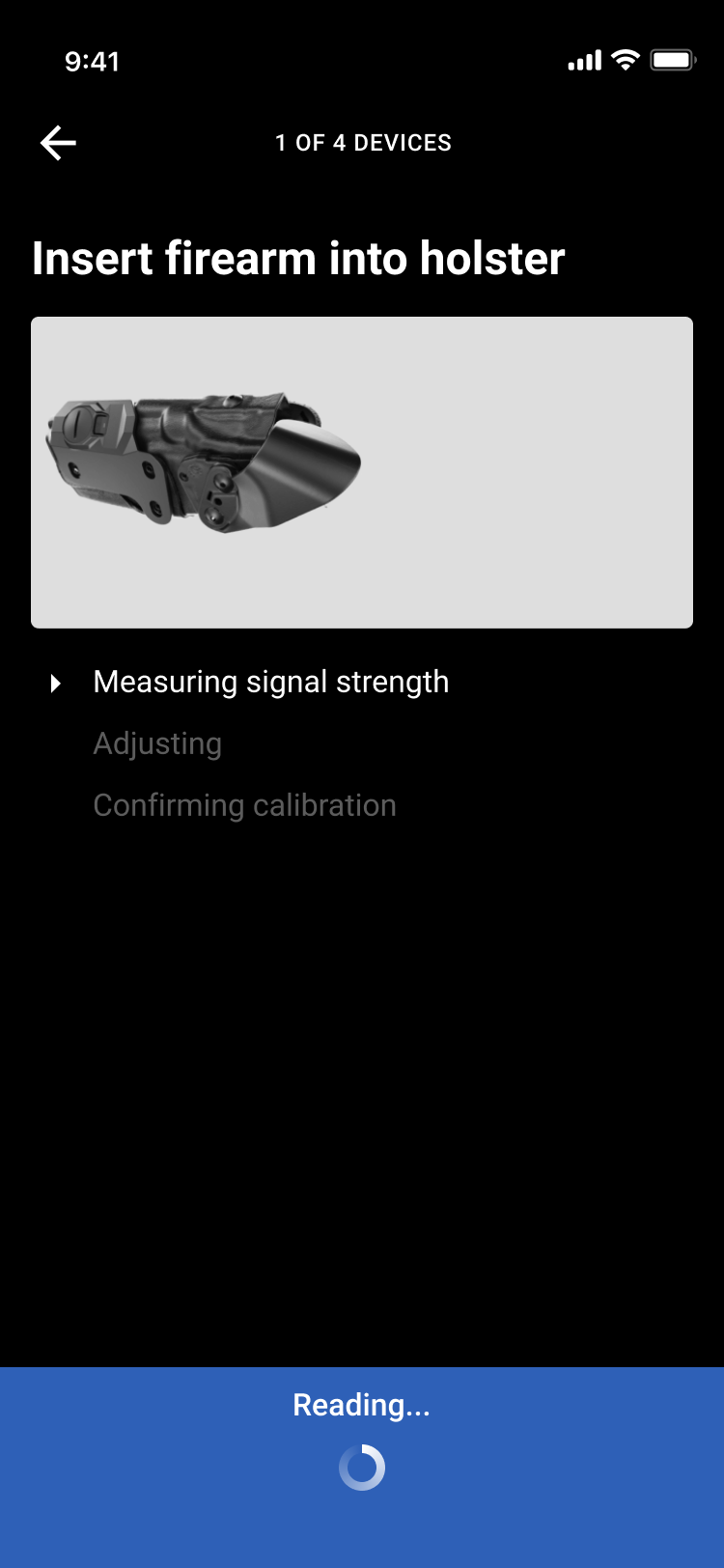
- ADM will instruct you to insert and remove the firearm from the holster several times so the sensor can calibrate itself to the two different states. When you remove the firearm, remove it entirely from the holster and keep it separate until instructed to re-holster it. When calibration is complete (second screen below), reholster the firearm and tap Back to Device List.
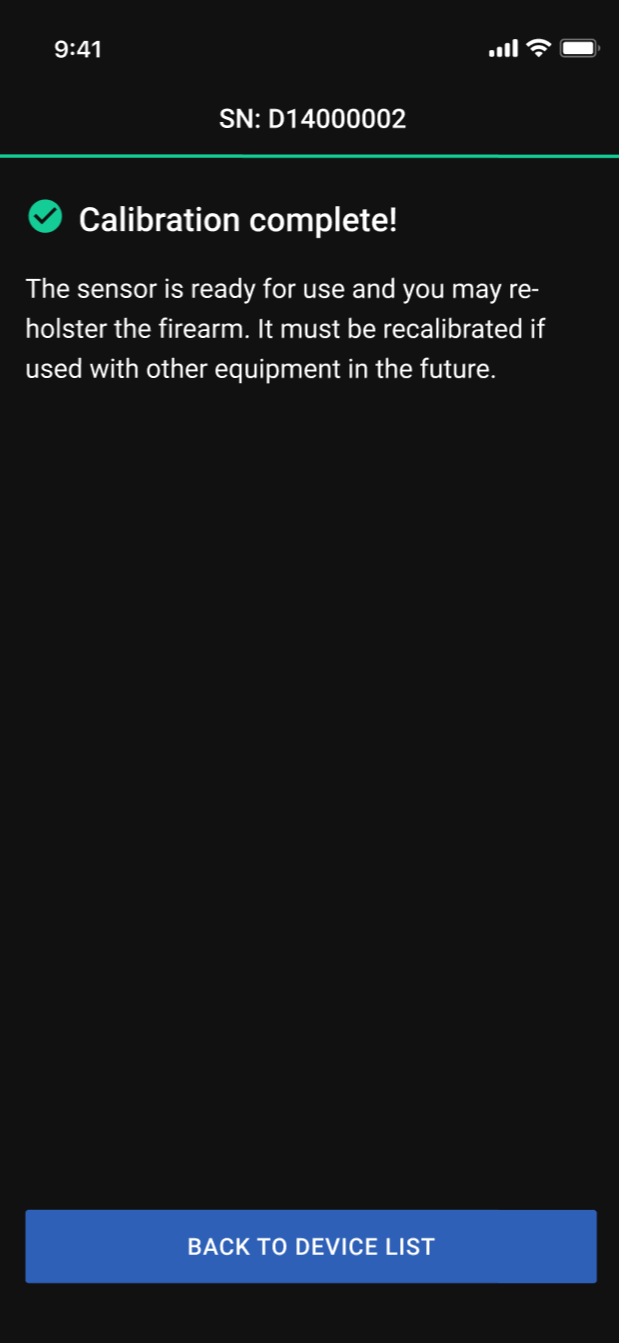
- Calibrated devices feature a green check mark. To calibrate another sensor, tap a tile showing Ready to calibrate and resume at step 1.
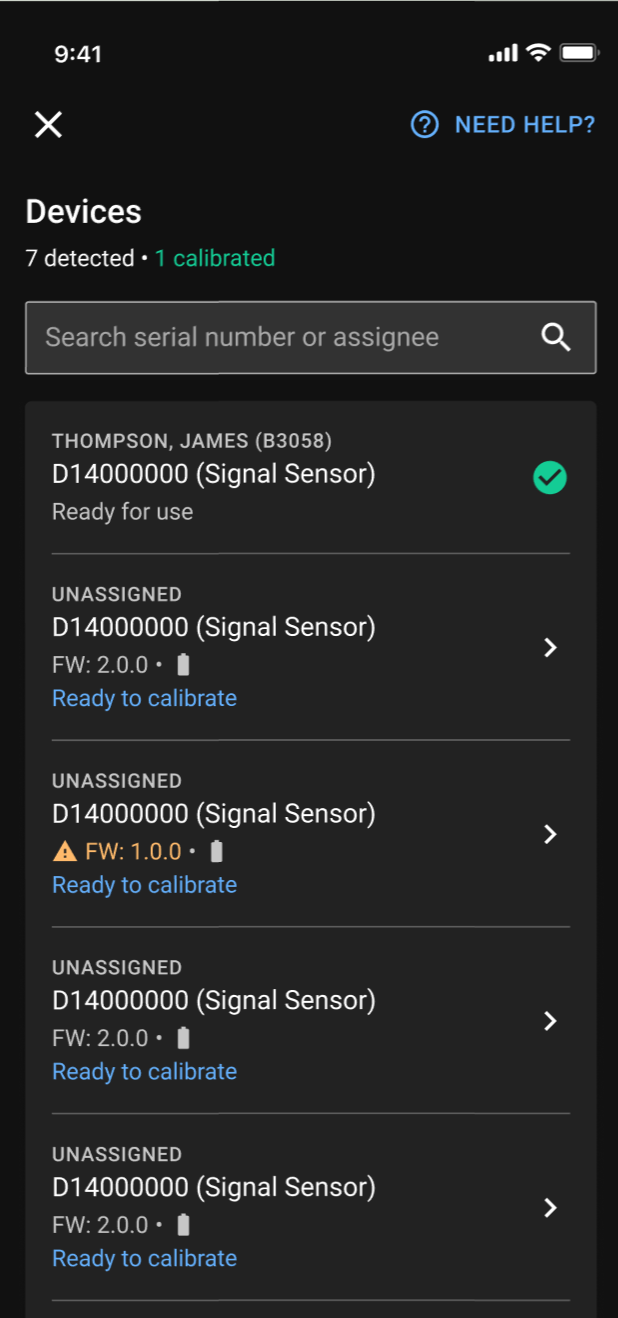
- Once all sensors are assigned and calibrated, setup is complete. Tap Exit.
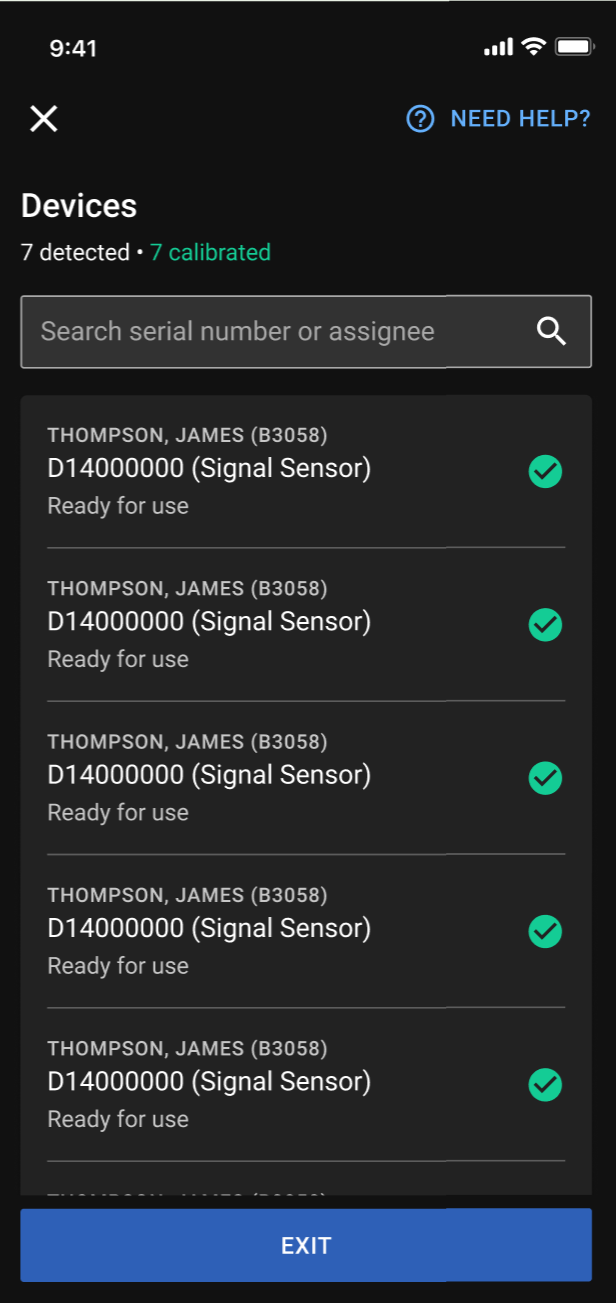
The sensors are now ready for use: registered, assigned, and calibrated.
Restart setup
To restart setup on a calibrated sensor:
- Press the button for about five seconds and release.
- Press the button twice. The LED blinks green
 to confirm entry into Setup mode.
 - Continue with Start setup.
A sensor must be recalibrated if moved to a different device. For an uncalibrated sensor, simply Start setup.
Axon Evidence settings
Adjust these organization-wide settings of your sensors in Axon Evidence at Admin > Signal Sidearm and Signal Sensor. Select Edit  to change an event, toggle a property on or off as required, and register sensors to users.
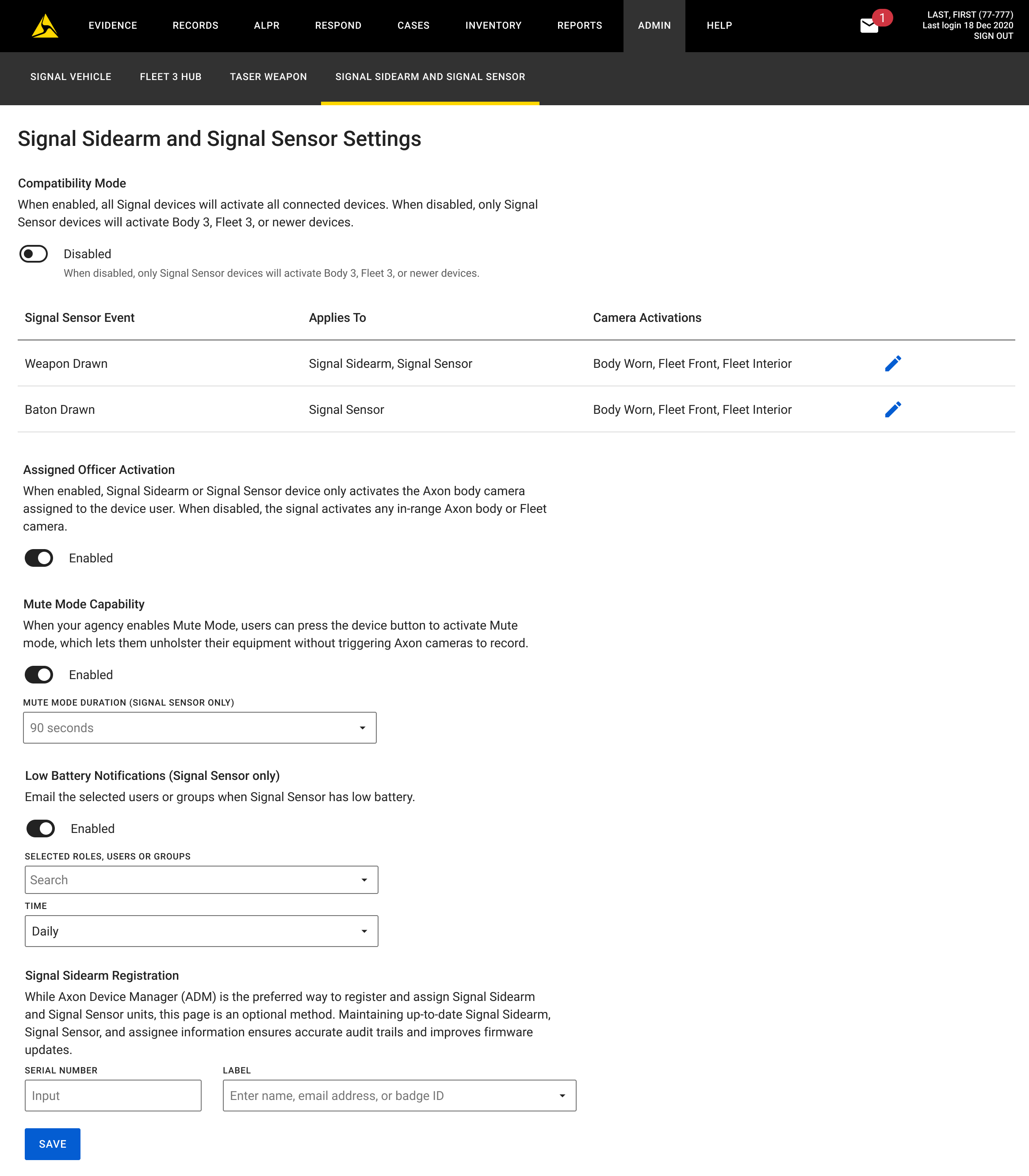
The Compatibility mode option at the top only appears if you use Body 2 or Fleet 2 cameras.


