FAQ
Never factory reset your headset. A factory-reset headset must be returned to Axon to be reprovisioned.
Why am I being asked to update my headset or controller firmware before training?
Starting April 14, 2026, Simulator Training and vRBT Live Action require all VR headsets and controllers to be on the latest firmware versions. These updates are required to support new platform features and ensure compatibility with supported hardware. Once the updates are complete, you can relaunch the application and continue training as normal. For more information how to update firmware, see Update firmware for VR Controllers and the FAQ How do I check or update the headset firmware?.
Will I lose any content or scenarios after updating?
No. All existing scenarios and training content remain available after completing the required firmware updates.
Ensure your headset has the Axon spaceship background
If your headset is encountering an issue, check the background image.
- If you see the Axon spaceship background, your headset is on the latest version. However, if you encountered an issue, you may need to reload the batch configuration package. Proceed to Step 2 below.
- If you see a desert patio background (as shown in the image below), you need to update your headset firmware. Start at Step 1 below.
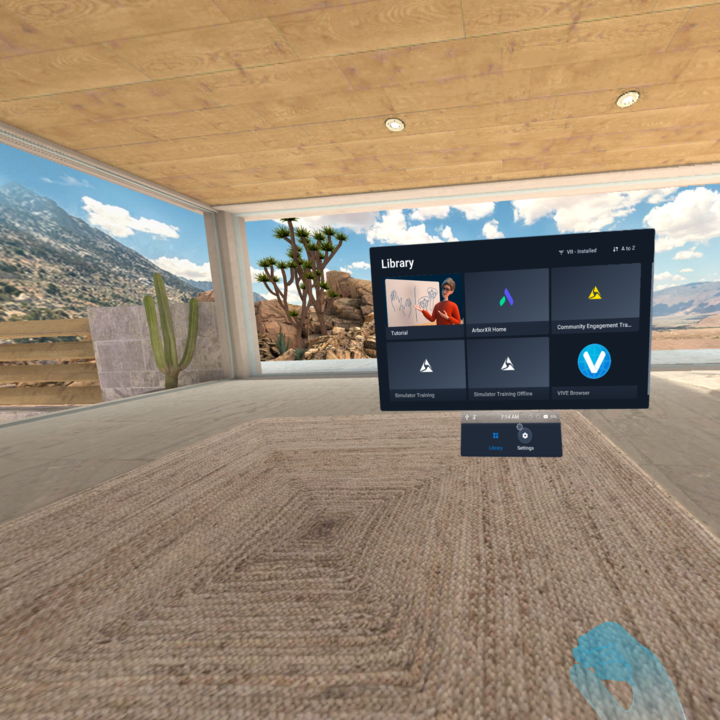
To ensure your headset is on the latest version, perform the following:
- Update the headset firmware.
- If you still see a desert patio background or encounter issues despite seeing the Axon spaceship background, go to Settings > General.
- Select About. You might need to scroll down.
- Select Enterprise. You might need to scroll down.
- Select Reload.
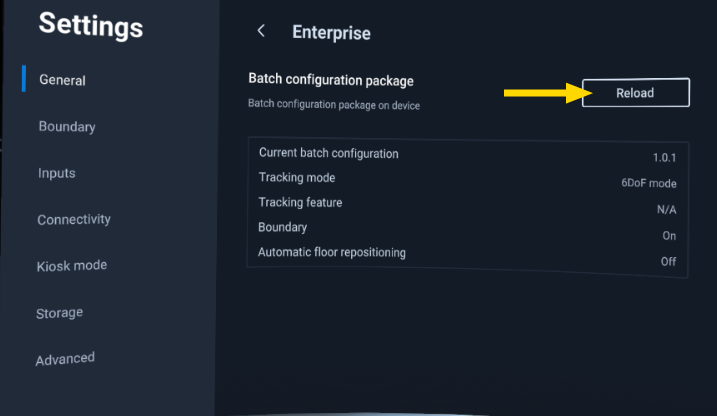
- Verify the following:
- Ensure the Axon spaceship background displays.
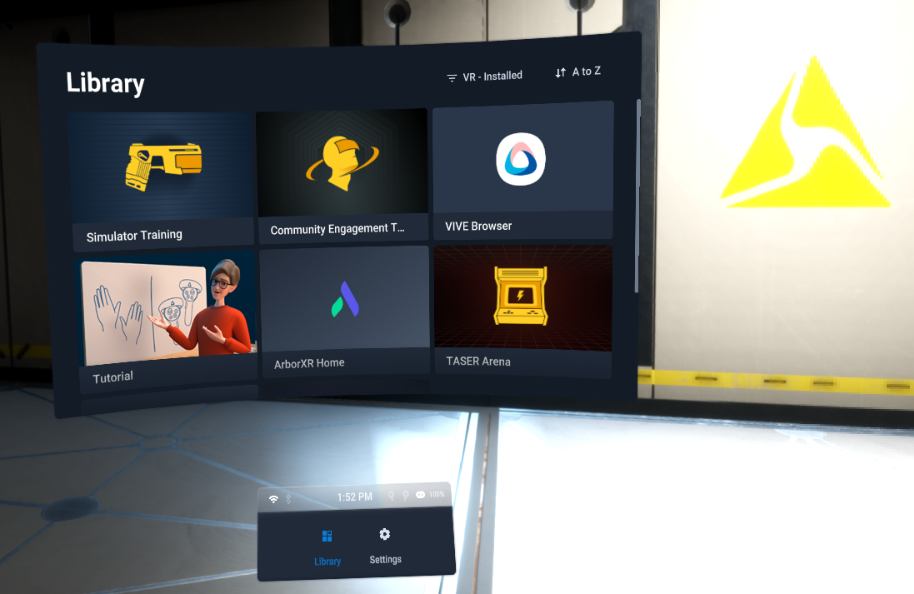
- Go to Settings > Input > Controller and ensure the TASER icon displays in the upper right.
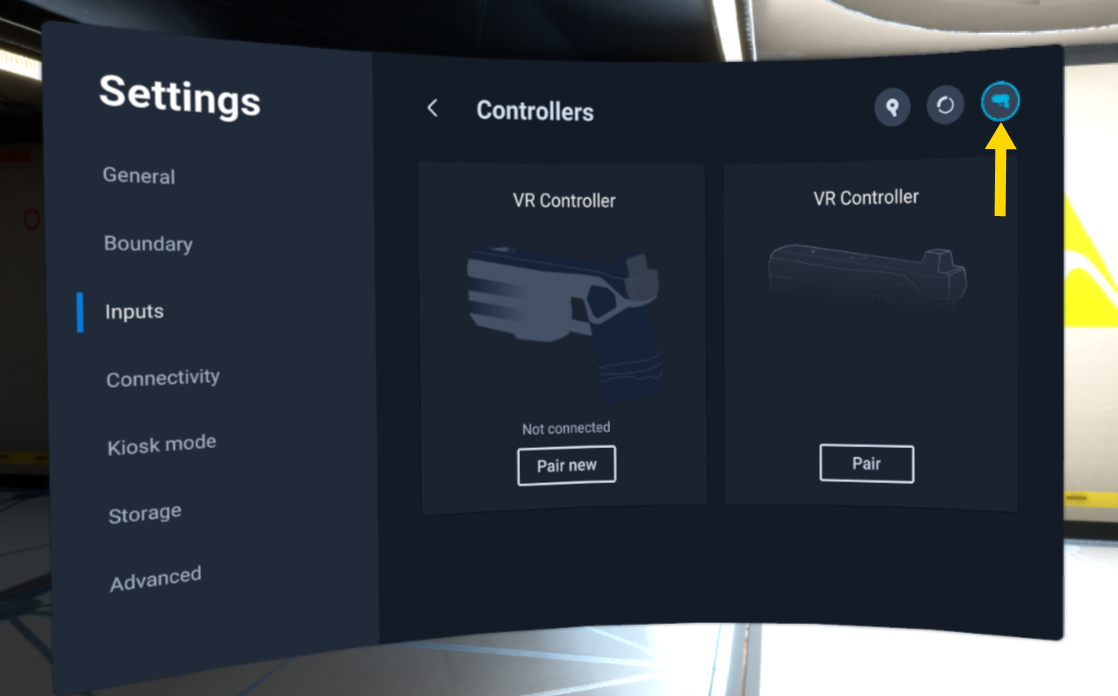
- Ensure the Axon spaceship background displays.
- If your headset doesn't display the above elements, contact Axon Support for further assistance.
How do I check or update the headset firmware?
Some updates may require restarting your headset.
Your VR headset will periodically check for the latest features or enhancements. If you'd like to check manually:
- Ensure the headset has at least 30% battery charge (two LEDs).
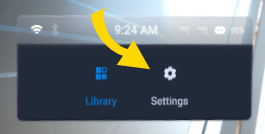
- From the Library, select Settings.
- Select General. Scroll the window to System update at the bottom. The current firmware version is listed there. If not, select About.
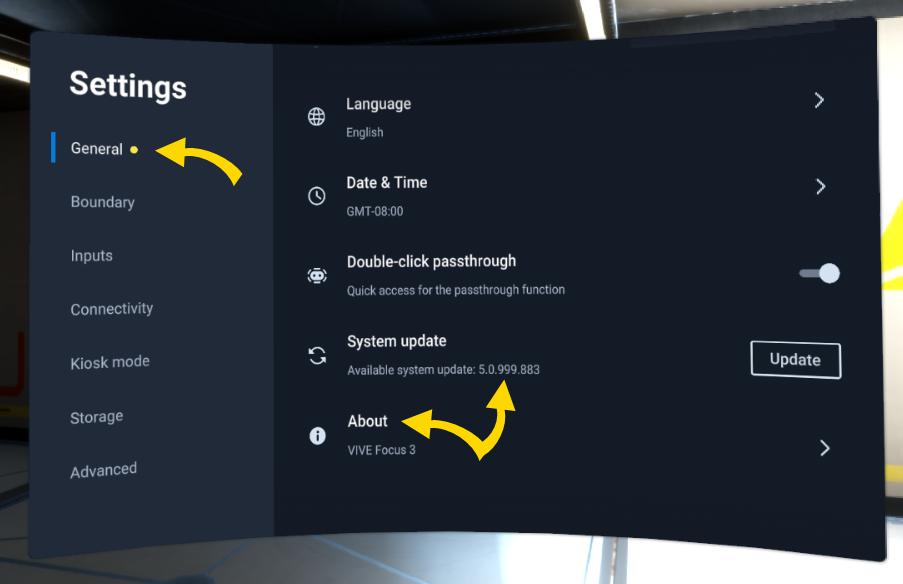
- Verify the firmware number beside System version.
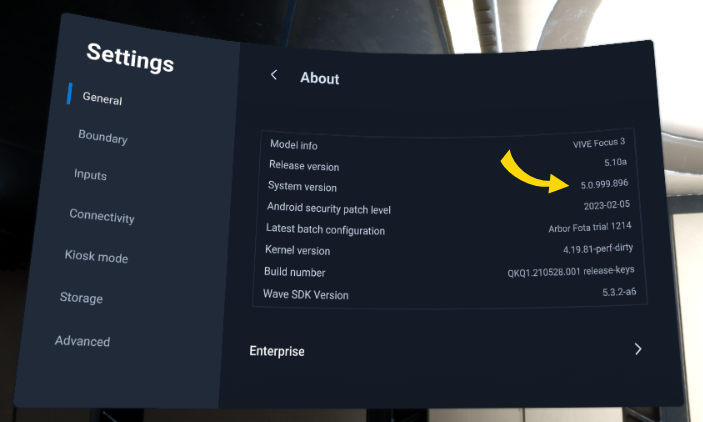
- If the firmware needs to be updated, return to the About screen and select Check now and then Update, or just Update.
Why won't my headset turn on even though my battery is charged?
If your headset shows a dead battery icon but the headset battery indicators show a full charge, the internal battery may be depleted.
The internal battery supports hot swapping and may need time to recharge before the headset can start.
To resolve this issue:
-
Connect the headset to a power source using a USB-C cable.
-
Wait a few moments, then try to power on the headset again.
Why can't I see the controller as an input in HTC settings?
- Turn the headset on.
- Check the headset settings to ensure the operating system version (ROM) is at least 5.0.999.883 (see the first FAQ for screens).
If you updated your headset ROM and still can't see the VR Controller input in HTC Settings:
- Ensure your headset has at least 30% battery (two LEDs).
- Go to Settings > General.
- Select About. You might need to scroll down.
- Select Enterprise. You might need to scroll down.
- Select Reload.
You have successfully reloaded the batch configuration if your background changes from a desert environment to the Axon Spaceship theme. The controller should now appear in HTC settings as an input. If it still doesn't appear, contact Axon technical support for assistance.
All I see is passthrough mode. Why can't I see the library?
If you see passthrough mode all the time, you are outside the boundaries already established on the headset. Look around to find the boundary outlined on the floor, or as a virtual wall, and move inside it.
To reset the boundary, in the headset go to Settings > Boundary.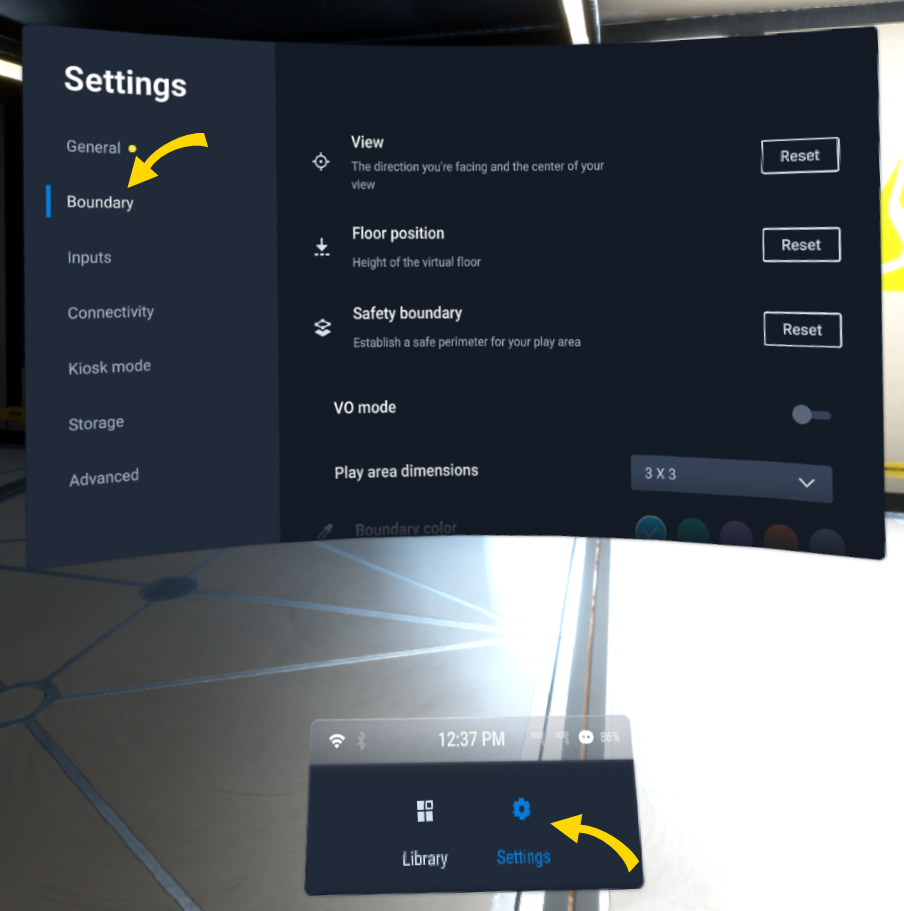
Why I can't use hand-tracking and pinch to select things in Axon apps?
Making selections in Axon apps is actually easier. Use gaze selection by looking at the item you'd like to select and a round countdown timer appears. When it gets to zero, it makes the selection without you having to lift a finger.
Why does my headset forget the play boundary?
A saved boundary may be lost if there is a significant change in the environment since the original boundary was set up. The following factors can influence the boundary:
Lighting
- Changes in light level from windows, such as day to night.
- Changes in light direction, such as light coming from a different side.
- Changes in light level from artificial sources, such as turning lights on and off.
Decor
- Changes to physical surroundings, such as furniture.
- Changes to appearance, such as decorations.
People
- Many people moving around the training space.
Why does the Wi-Fi network disconnect after displaying the "Connecting..." message?
When your headset attempts to connect to a Wi-Fi network and you see the "Connecting..." message but it eventually times out, double-check the password in your headset's Wi-Fi settings and try connecting again.
Why can't I connect to my secure Wi-Fi network?
Your Wi-Fi may require you to sign in first on a web page.
- In the headset, go to Settings > Network > Wi-Fi.
- If the message “Connected, not online” appears next to the network name, this indicates it reqires a sign-in via a web portal.
- From the Library, select Firefox to open a web page.
- If the network sign-in portal does not appear, open any other page, such as axon.com, google. com, or msn. com to trigger the sign-in portal.
- Sign in with your credentials.
- Try opening another web page. If the content loads, the headset is now online.
Why are the Axon VR apps not in my library?
- Ensure you've completed all steps in Get started with VR headset.
- Go to Settings > Network > Wi-Fi. If you see "Connected, not online", your Wi-Fi may require a web page sign-in; see the prior FAQ item on Wi-Fi.
- From the Library, select Firefox and open a web page like axon.com to verify the network connection is active.
- If still not connected, try temporarily connecting to a mobile hotspot Wi-Fi. If you can now browse the web, your agency Wi-Fi is not letting you connect. Contact your IT department for assistance.
- Go to Settings > General > System Update.
- If an update is available, select to install. Restart the headset if instructed. Return to System Update. Repeat this step until no further updates are available.
- Turn the headset off for 10 minutes, then turn it back on. Axon's apps should now be present in the library (see the first screen in the Pairing
Why is my headset stuck at the VIVE logo screen?
A black screen with a loading white VIVE logo typically occurs when using a headset in a space with poor lighting and/or too few indistinct objects or features. The headset is trying to create a map of the current space to create a boundary, but if there are too few points to reference, it may get stuck on this loading screen. Turn the headset off, move to a location with better lighting and turn the headset back on.
The headset may also appear stuck at the loading screen if it is looking for a previously saved boundary and orienting itself in the environment. The orientation process may take a couple minutes, depending on connection speeds.
How do I find my headset's serial number?
You'll find the headset serial number in two places:
- From the headset library, go to Settings > General > About > Headset status.
- Or, pull off the magnetic face shield and find the very-small serial number on the label next to the left lens.
How do I change the menu language?
- If needed, exit to the main lobby.
- Select Settings.
- On the General tab, select Language.
- Select your language.
- Select Library to exit.
This affects the language of the headset menus, not the apps themselves. The headset may provide more language options than are available for the onboard apps.


